<!DOCTYPE html>
    <html lang="vi" xmlns="http://www.w3.org/1999/xhtml" prefix="og: http://ogp.me/ns#">
    <head>
<title>Cách bật AirPlay trên máy Mac</title>
<meta name="description" content="Cách bật AirPlay trên máy Mac - Savefile - Tin Tức - https&#x3A;&#x002F;&#x002F;www.nguoicodonvn2008.info&#x002F;vi&#x002F;news&#x002F;savefile&#x002F;kien-thuc-may-tinh&#x002F;cach-bat-airplay-tren-may-mac-4320.html">
<meta name="author" content=".: Nguoicodonvn2008.info - Cõi lòng người cô đơn :.">
<meta name="copyright" content=".: Nguoicodonvn2008.info - Cõi lòng người cô đơn :. [admin@nguoicodonvn2008.info]">
<meta name="robots" content="index, archive, follow, noodp">
<meta name="googlebot" content="index,archive,follow,noodp">
<meta name="msnbot" content="all,index,follow">
<meta name="generator" content="NukeViet v4.5">
<meta http-equiv="Content-Type" content="text/html; charset=utf-8">
<meta property="og:title" content="Cách bật AirPlay trên máy Mac">
<meta property="og:type" content="website">
<meta property="og:description" content="Savefile - Tin Tức - https&#x3A;&#x002F;&#x002F;www.nguoicodonvn2008.info&#x002F;vi&#x002F;news&#x002F;savefile&#x002F;kien-thuc-may-tinh&#x002F;cach-bat-airplay-tren-may-mac-4320.html">
<meta property="og:site_name" content=".&#x3A; Nguoicodonvn2008.info - Cõi lòng người cô đơn &#x3A;.">
<meta property="og:url" content="https://www.nguoicodonvn2008.info/vi/news/savefile/kien-thuc-may-tinh/cach-bat-airplay-tren-may-mac-4320.html">
<link rel="shortcut icon" href="https://nguoicodonvn2008.info/favicon.ico">
<link rel="canonical" href="https://www.nguoicodonvn2008.info/vi/news/savefile/kien-thuc-may-tinh/cach-bat-airplay-tren-may-mac-4320.html">
<link rel="alternate" href="https://nguoicodonvn2008.info/vi/news/rss/" title="Tin Tức" type="application/rss+xml">
<link rel="alternate" href="https://nguoicodonvn2008.info/vi/news/rss/karaoke-dual/" title="Tin Tức - Karaoke Dual" type="application/rss+xml">
<link rel="alternate" href="https://nguoicodonvn2008.info/vi/news/rss/nhac-tre/" title="Tin Tức - Nhạc trẻ" type="application/rss+xml">
<link rel="alternate" href="https://nguoicodonvn2008.info/vi/news/rss/tru-tinh/" title="Tin Tức - Trữ tình" type="application/rss+xml">
<link rel="alternate" href="https://nguoicodonvn2008.info/vi/news/rss/nuoc-ngoai/" title="Tin Tức - Nước ngoài" type="application/rss+xml">
<link rel="alternate" href="https://nguoicodonvn2008.info/vi/news/rss/remix/" title="Tin Tức - Remix" type="application/rss+xml">
<link rel="alternate" href="https://nguoicodonvn2008.info/vi/news/rss/tam-su-tinh-yeu/" title="Tin Tức - Tâm sự tình yêu" type="application/rss+xml">
<link rel="alternate" href="https://nguoicodonvn2008.info/vi/news/rss/tho-suu-tam/" title="Tin Tức - Thơ sưu tầm" type="application/rss+xml">
<link rel="alternate" href="https://nguoicodonvn2008.info/vi/news/rss/cuoc-song/" title="Tin Tức - Cuộc sống" type="application/rss+xml">
<link rel="alternate" href="https://nguoicodonvn2008.info/vi/news/rss/phan-mem/" title="Tin Tức - Phần mềm" type="application/rss+xml">
<link rel="alternate" href="https://nguoicodonvn2008.info/vi/news/rss/kien-thuc-may-tinh/" title="Tin Tức - Kiến thức máy tính" type="application/rss+xml">
<link rel="alternate" href="https://nguoicodonvn2008.info/vi/news/rss/hoc-tap/" title="Tin Tức - Học tập" type="application/rss+xml">
<link rel="alternate" href="https://nguoicodonvn2008.info/vi/news/rss/tai-lieu/" title="Tin Tức - Tài liệu" type="application/rss+xml">
<link rel="alternate" href="https://nguoicodonvn2008.info/vi/news/rss/de-thi/" title="Tin Tức - Đề thi" type="application/rss+xml">
<link rel="preload" as="style" href="https://nguoicodonvn2008.info/assets/css/font-awesome.min.css" type="text/css">
<link rel="preload" as="style" href="https://nguoicodonvn2008.info/themes/default/css/bootstrap.non-responsive.css" type="text/css">
<link rel="preload" as="style" href="https://nguoicodonvn2008.info/themes/default/css/style.css" type="text/css">
<link rel="preload" as="style" href="https://nguoicodonvn2008.info/themes/default/css/style.non-responsive.css" type="text/css">
<link rel="preload" as="style" href="https://nguoicodonvn2008.info/themes/default/css/news.css" type="text/css">
<link rel="preload" as="style" href="https://nguoicodonvn2008.info/themes/default/css/custom.css" type="text/css">
<link rel="preload" as="script" href="https://nguoicodonvn2008.info/assets/js/jquery/jquery.min.js" type="text/javascript">
<link rel="preload" as="script" href="https://nguoicodonvn2008.info/assets/js/language/vi.js" type="text/javascript">
<link rel="preload" as="script" href="https://nguoicodonvn2008.info/assets/js/DOMPurify/purify3.js" type="text/javascript">
<link rel="preload" as="script" href="https://nguoicodonvn2008.info/assets/js/global.js" type="text/javascript">
<link rel="preload" as="script" href="https://nguoicodonvn2008.info/assets/js/site.js" type="text/javascript">
<link rel="preload" as="script" href="https://nguoicodonvn2008.info/themes/default/js/news.js" type="text/javascript">
<link rel="preload" as="script" href="https://nguoicodonvn2008.info/themes/default/js/main.js" type="text/javascript">
<link rel="preload" as="script" href="https://nguoicodonvn2008.info/themes/default/js/custom.js" type="text/javascript">
<link rel="preload" as="script" href="https://nguoicodonvn2008.info/themes/default/js/bootstrap.min.js" type="text/javascript">
<link rel="stylesheet" href="https://nguoicodonvn2008.info/assets/css/font-awesome.min.css">
<link rel="stylesheet" href="https://nguoicodonvn2008.info/themes/default/css/bootstrap.non-responsive.css">
<link rel="stylesheet" href="https://nguoicodonvn2008.info/themes/default/css/style.css">
<link rel="stylesheet" href="https://nguoicodonvn2008.info/themes/default/css/style.non-responsive.css">
<link rel="StyleSheet" href="https://nguoicodonvn2008.info/themes/default/css/news.css">
<link rel="stylesheet" href="https://nguoicodonvn2008.info/themes/default/css/custom.css">
<style type="text/css">
	body{background: #fff;}
</style>
    </head>
    <body>
<div id="print">
	<div id="hd_print">
		<h2 class="pull-left">.&#x3A; Nguoicodonvn2008.info - Cõi lòng người cô đơn &#x3A;.</h2>
		<p class="pull-right"><a title=".&#x3A; Nguoicodonvn2008.info - Cõi lòng người cô đơn &#x3A;." href="https://nguoicodonvn2008.info/">https://nguoicodonvn2008.info</a></p>
	</div>
	<div class="clear"></div>
	<hr />
	<div id="content">
		<h1>Cách bật AirPlay trên máy Mac</h1>
		<ul class="list-inline">
			<li>Thứ hai - 28/06/2021 00:04</li>
			<li class="hidden-print txtrequired"><em class="fa fa-print">&nbsp;</em><a title="In ra" href="javascript:;" onclick="window.print()">In ra</a></li>
			<li class="hidden-print txtrequired"><em class="fa fa-power-off">&nbsp;</em><a title="Đóng cửa sổ này" href="javascript:;" onclick="window.close()">Đóng cửa sổ này</a></li>
		</ul>
		<div class="clear"></div>
		<div id="hometext">
		</div>
				<div class="imghome">
			<img alt="Cách bật AirPlay trên máy Mac" src="https://st.quantrimang.com/photos/image/2021/06/18/bat-airplay-tren-may-mac1.jpg" width="460" class="img-thumbnail" />
		</div>
		<div class="clear"></div>
		<div id="bodytext" class="clearfix">
			<p style="text-align: justify;">AirPlay là một giao thức truyền phát trực tuyến đa phương tiện không dây độc quyền do Apple tự phát triển và trang bị trên các sản phẩm của mình. AirPlay cho phép các thiết bị của Apple như máy Mac, iPhone và iPad truyền tín hiệu âm thanh cũng như hình ảnh qua mạng internet cục bộ tới các thiết bị thu nhận tín hiệu cũng tương thích với AirPlay mà không cần dùng đến dây cáp kết nối.</p>

<p style="text-align: justify;">Vậy làm thế nào để kích hoạt và sử dụng AirPlay trên máy Mac? Hãy cùng tìm hiểu ngay sau đây.</p>

<h2 style="text-align: justify;">Kích hoạt AirPlay trên macOS</h2>

<p style="text-align: justify;">Bạn có thể bật AirPlay trên máy Mac của mình từ thanh menu, system preferences hoặc trong một số ứng dụng nhất định.</p>

<p style="text-align: justify;"><strong>Lưu ý:</strong>&nbsp;Để thực hiện được kết nối AirPlay điều kiện bắt buộc là thiết bị gửi dữ liệu (máy Mac) và thiết bị nhận phải kết nối với cùng một mạng cục bộ. Chẳng hạn, bạn muốn chiếu màn hình máy Mac của mình lên một smart TV, thì chiếc TV đó cũng phải hỗ trợ AirPlay và đang kết nối vào cùng một mạng internet với máy Mac.</p>

<h3 style="text-align: justify;">Bật AirPlay để chiếu màn hình</h3>

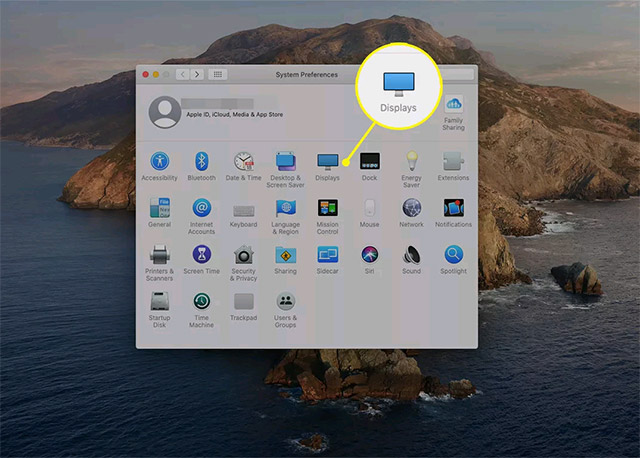
<p style="text-align: justify;">Để mở rộng hoặc chiếu màn hình máy Mac của mình sang một màn hình khác, bạn chỉ cần làm theo các bước sau để thiết lập AirPlay.</p>

<p style="text-align: justify;">Mở&nbsp;<strong>System Preferences &gt; Displays</strong>.</p>

<p style="text-align: justify;"><img alt="System Preferences &gt; Displays" data-i="0" data-src="https://st.quantrimang.com/photos/image/2021/06/18/bat-airplay-tren-may-mac1.jpg" data-was-processed="true" height="458" src="https://st.quantrimang.com/photos/image/2021/06/18/bat-airplay-tren-may-mac1.jpg" width="640" /></p>

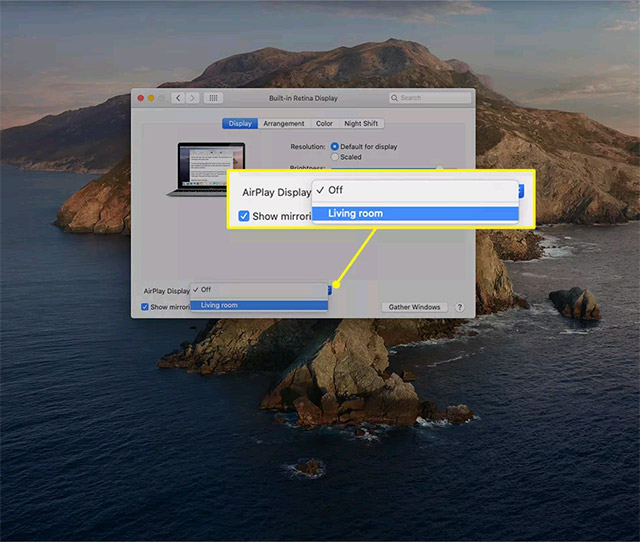
<p style="text-align: justify;">Từ menu thả xuống AirPlay, hãy chọn một màn hình khả dụng trong danh sách.</p>

<p style="text-align: justify;"><img alt="Chọn một màn hình khả dụng" data-i="1" data-src="https://st.quantrimang.com/photos/image/2021/06/18/bat-airplay-tren-may-mac2.jpg" data-was-processed="true" height="542" src="https://st.quantrimang.com/photos/image/2021/06/18/bat-airplay-tren-may-mac2.jpg" width="640" /></p>

<p style="text-align: justify;">Ngoài ra, bạn cũng có thể tìm biểu tượng AirPlay trên thanh menu Apple. Nhấp vào đó và chọn một TV thông minh tương thích với AirPlay để bắt đầu chiếu màn hình. (Bạn có thể được yêu cầu nhập mật khẩu nếu kết nối lần đầu tiên).</p>

<p style="text-align: justify;"><img alt="Chọn một TV thông minh tương thích" data-i="2" data-src="https://st.quantrimang.com/photos/image/2021/06/18/bat-airplay-tren-may-mac3.jpg" data-was-processed="true" height="539" src="https://st.quantrimang.com/photos/image/2021/06/18/bat-airplay-tren-may-mac3.jpg" width="640" /></p>

<p style="text-align: justify;">Kiểm soát các tùy chọn chiếu hoặc hiển thị từ biểu tượng AirPlay trên thanh menu.</p>

<p style="text-align: justify;"><img alt="Biểu tượng AirPlay trên thanh menu" data-i="3" data-src="https://st.quantrimang.com/photos/image/2021/06/18/bat-airplay-tren-may-mac4.jpg" data-was-processed="true" height="577" src="https://st.quantrimang.com/photos/image/2021/06/18/bat-airplay-tren-may-mac4.jpg" width="640" /></p>

<h3 style="text-align: justify;">Bật AirPlay để phát nhạc không dây từ máy Mac</h3>

<p style="text-align: justify;">Trong trường hợp bạn chỉ muốn phát trực tuyến âm thanh từ máy Mac của mình đến các thiết bị như loa, tai nghe hỗ trợ AirPlay, chỉ cần thực hiện các thao tác đơn giản dưới đây.</p>

<p style="text-align: justify;">Mở ứng dụng nghe nhạc hỗ trợ AirPlay như&nbsp;<strong>Apple Music</strong>&nbsp;hay&nbsp;<strong>Podcast</strong>.</p>

<div style="text-align: justify;">&nbsp;</div>

<p style="text-align: justify;">Điều hướng đến bản nhạc bạn muốn phát và tìm biểu tượng Apple AirPlay.</p>

<p style="text-align: justify;"><img alt="Biểu tượng AirPlay dùng để truyền âm thanh" data-i="4" data-src="https://st.quantrimang.com/photos/image/2021/06/18/bat-airplay-tren-may-mac5.jpg" data-was-processed="true" height="360" src="https://st.quantrimang.com/photos/image/2021/06/18/bat-airplay-tren-may-mac5.jpg" width="640" /></p>

<p style="text-align: justify;">(<strong>Lưu ý</strong>: Biểu tượng AirPlay dùng để truyền âm thanh khác với biểu tượng AirPlay sử dụng để chiếu màn hình).</p>

<p style="text-align: justify;">Chọn thiết bị để truyền âm thanh đến bằng cách tích vào ô vuông tương ứng với tên thiết bị đó. Bản nhạc sẽ tự động phát sau khi kết nối được thiết lập thành công.</p>

<p style="text-align: justify;"><img alt="Tích vào ô vuông tương ứng với tên thiết bị" data-i="5" data-src="https://st.quantrimang.com/photos/image/2021/06/18/bat-airplay-tren-may-mac6.jpg" data-was-processed="true" height="400" src="https://st.quantrimang.com/photos/image/2021/06/18/bat-airplay-tren-may-mac6.jpg" width="640" /></p>

<p style="text-align: justify;">(<strong>Mẹo:</strong>&nbsp;Trong Apple Music và với các thiết bị tương thích, bạn có thể chọn cùng lúc nhiều thiết bị để tạo thành một hệ thống phát âm thanh trực tuyến qua AirPlay. Để ngừng phát trên một thiết bị cụ thể, chỉ cần bỏ tích ô vuông tương ứng với tên thiết bị đó.</p>

<h2 style="text-align: justify;">Có phải tất cả máy Mac đều hỗ trợ AirPlay?</h2>

<p style="text-align: justify;">Tất cả các máy Mac phát hành năm 2011 trở lại đây đều có AirPlay tích hợp sẵn. Những thiết bị mà bạn có thể phát trực tuyến bằng AirPlay bao gồm:</p>

<ul>
	<li style="text-align: justify;">Apple TV (4K, HD và các model thế hệ thứ 2 và thứ 3)</li>
	<li style="text-align: justify;">Loa tương thích với AirPlay</li>
	<li style="text-align: justify;">HomePods</li>
	<li style="text-align: justify;">Loa AirPort Express</li>
</ul>

<p style="text-align: justify;">Máy Mac chạy macOS Catalina (10.15), macOS Mojave (10.14.5) hoặc iTunes 12.8 trở lên sở hữu AirPlay 2 cao cấp hơn, tương thích với:</p>

<ul>
	<li style="text-align: justify;">TV thông minh tương thích AirPlay 2</li>
	<li style="text-align: justify;">Apple TV với tvOS 11.4 trở lên</li>
	<li style="text-align: justify;">HomePods chạy iOS 11.4 trở lên</li>
	<li style="text-align: justify;">Loa kết nối với Airport Express (Thế hệ thứ 2)</li>
</ul>

<p style="text-align: justify;">Các thiết bị đáp ứng những yêu cầu hệ thống này có thể truyền âm thanh đến nhiều loa hoặc TV thông minh tương thích AirPlay 2 đồng thời.</p>
		</div>
				<div id="author">
						<p>
				<strong>Nguồn tin:</strong>
				Quantrimang.com
			</p>
		</div>
	</div>
	<div id="footer" class="clearfix">
		<div id="url">
			<strong>URL của bản tin này: </strong><a href="https://www.nguoicodonvn2008.info/vi/news/savefile/kien-thuc-may-tinh/cach-bat-airplay-tren-may-mac-4320.html" title="Cách bật AirPlay trên máy Mac">https://www.nguoicodonvn2008.info/vi/news/savefile/kien-thuc-may-tinh/cach-bat-airplay-tren-may-mac-4320.html</a>

		</div>
		<div class="clear"></div>
		<div class="copyright">
			&copy; .&#x3A; Nguoicodonvn2008.info - Cõi lòng người cô đơn &#x3A;.
		</div>
		<div id="contact">
			<a href="mailto:admin@nguoicodonvn2008.info">admin@nguoicodonvn2008.info</a>
		</div>
	</div>
</div>
        <div id="timeoutsess" class="chromeframe">
            Bạn đã không sử dụng Site, <a onclick="timeoutsesscancel();" href="https://nguoicodonvn2008.info/#">Bấm vào đây để duy trì trạng thái đăng nhập</a>. Thời gian chờ: <span id="secField"> 60 </span> giây
        </div>
        <div id="openidResult" class="nv-alert" style="display:none"></div>
        <div id="openidBt" data-result="" data-redirect=""></div>
		</script>
		<div class="car-top">
  <span><img src="https://nguoicodonvn2008.info/themes/default/images/car.png" alt=""></span>
</div>
<script src="https://nguoicodonvn2008.info/assets/js/jquery/jquery.min.js"></script>
<script>var nv_base_siteurl="/",nv_lang_data="vi",nv_lang_interface="vi",nv_name_variable="nv",nv_fc_variable="op",nv_lang_variable="language",nv_module_name="news",nv_func_name="savefile",nv_is_user=0, nv_my_ofs=-4,nv_my_abbr="EDT",nv_cookie_prefix="nv4c_e856T",nv_check_pass_mstime=1738000,nv_area_admin=0,nv_safemode=0,theme_responsive=0,nv_recaptcha_ver=2,nv_recaptcha_sitekey="",nv_recaptcha_type="image",XSSsanitize=1;</script>
<script src="https://nguoicodonvn2008.info/assets/js/language/vi.js"></script>
<script src="https://nguoicodonvn2008.info/assets/js/DOMPurify/purify3.js"></script>
<script src="https://nguoicodonvn2008.info/assets/js/global.js"></script>
<script src="https://nguoicodonvn2008.info/assets/js/site.js"></script>
<script src="https://nguoicodonvn2008.info/themes/default/js/news.js"></script>
<script src="https://nguoicodonvn2008.info/themes/default/js/main.js"></script>
<script src="https://nguoicodonvn2008.info/themes/default/js/custom.js"></script>
<script type="application/ld+json">
        {
            "@context": "https://schema.org",
            "@type": "Organization",
            "url": "https://nguoicodonvn2008.info",
            "logo": "https://nguoicodonvn2008.info/uploads/angel.gif"
        }
        </script>
<script src="https://nguoicodonvn2008.info/themes/default/js/bootstrap.min.js"></script>
<script type="text/javascript">
var $scrolltop = $('.car-top');
$scrolltop.on('click', function () {
    $('html,body').animate({
        scrollTop: 0
    }, 800);
    $(this).addClass("car-run");
    setTimeout(function(){ $scrolltop.removeClass('car-run');}, 1000);
    return false;
});
$(window).on('scroll', function ()
{ 
    if($(window).scrollTop() >= 200)
    {
        $scrolltop.addClass("show");
        $scrolltop.addClass("car-down");
    }
    else
    {
       $scrolltop.removeClass("show");
       setTimeout(function(){ $scrolltop.removeClass('car-down');}, 300);
    }
});
</script>
</body>
</html>