<!DOCTYPE html>
    <html lang="vi" xmlns="http://www.w3.org/1999/xhtml" prefix="og: http://ogp.me/ns#">
    <head>
<title>Cách bật AI Actions trong Windows 11 File Explorer</title>
<meta name="description" content="Cách bật AI Actions trong Windows 11 File Explorer - Savefile - Tin Tức -...">
<meta name="author" content=".: Nguoicodonvn2008.info - Cõi lòng người cô đơn :.">
<meta name="copyright" content=".: Nguoicodonvn2008.info - Cõi lòng người cô đơn :. [admin@nguoicodonvn2008.info]">
<meta name="robots" content="index, archive, follow, noodp">
<meta name="googlebot" content="index,archive,follow,noodp">
<meta name="msnbot" content="all,index,follow">
<meta name="generator" content="NukeViet v4.5">
<meta http-equiv="Content-Type" content="text/html; charset=utf-8">
<meta property="og:title" content="Cách bật AI Actions trong Windows 11 File Explorer">
<meta property="og:type" content="website">
<meta property="og:description" content="Savefile - Tin Tức - https&#x3A;&#x002F;&#x002F;www.nguoicodonvn2008.info&#x002F;vi&#x002F;news&#x002F;savefile&#x002F;kien-thuc-may-tinh&#x002F;cach-bat-ai-actions-trong-windows-11-file-explorer-10452.html">
<meta property="og:site_name" content=".&#x3A; Nguoicodonvn2008.info - Cõi lòng người cô đơn &#x3A;.">
<meta property="og:url" content="https://www.nguoicodonvn2008.info/vi/news/savefile/kien-thuc-may-tinh/cach-bat-ai-actions-trong-windows-11-file-explorer-10452.html">
<link rel="shortcut icon" href="https://nguoicodonvn2008.info/favicon.ico">
<link rel="canonical" href="https://www.nguoicodonvn2008.info/vi/news/savefile/kien-thuc-may-tinh/cach-bat-ai-actions-trong-windows-11-file-explorer-10452.html">
<link rel="alternate" href="https://nguoicodonvn2008.info/vi/news/rss/" title="Tin Tức" type="application/rss+xml">
<link rel="alternate" href="https://nguoicodonvn2008.info/vi/news/rss/karaoke-dual/" title="Tin Tức - Karaoke Dual" type="application/rss+xml">
<link rel="alternate" href="https://nguoicodonvn2008.info/vi/news/rss/nhac-tre/" title="Tin Tức - Nhạc trẻ" type="application/rss+xml">
<link rel="alternate" href="https://nguoicodonvn2008.info/vi/news/rss/tru-tinh/" title="Tin Tức - Trữ tình" type="application/rss+xml">
<link rel="alternate" href="https://nguoicodonvn2008.info/vi/news/rss/nuoc-ngoai/" title="Tin Tức - Nước ngoài" type="application/rss+xml">
<link rel="alternate" href="https://nguoicodonvn2008.info/vi/news/rss/remix/" title="Tin Tức - Remix" type="application/rss+xml">
<link rel="alternate" href="https://nguoicodonvn2008.info/vi/news/rss/tam-su-tinh-yeu/" title="Tin Tức - Tâm sự tình yêu" type="application/rss+xml">
<link rel="alternate" href="https://nguoicodonvn2008.info/vi/news/rss/tho-suu-tam/" title="Tin Tức - Thơ sưu tầm" type="application/rss+xml">
<link rel="alternate" href="https://nguoicodonvn2008.info/vi/news/rss/cuoc-song/" title="Tin Tức - Cuộc sống" type="application/rss+xml">
<link rel="alternate" href="https://nguoicodonvn2008.info/vi/news/rss/phan-mem/" title="Tin Tức - Phần mềm" type="application/rss+xml">
<link rel="alternate" href="https://nguoicodonvn2008.info/vi/news/rss/kien-thuc-may-tinh/" title="Tin Tức - Kiến thức máy tính" type="application/rss+xml">
<link rel="alternate" href="https://nguoicodonvn2008.info/vi/news/rss/hoc-tap/" title="Tin Tức - Học tập" type="application/rss+xml">
<link rel="alternate" href="https://nguoicodonvn2008.info/vi/news/rss/tai-lieu/" title="Tin Tức - Tài liệu" type="application/rss+xml">
<link rel="alternate" href="https://nguoicodonvn2008.info/vi/news/rss/de-thi/" title="Tin Tức - Đề thi" type="application/rss+xml">
<link rel="preload" as="style" href="https://nguoicodonvn2008.info/assets/css/font-awesome.min.css" type="text/css">
<link rel="preload" as="style" href="https://nguoicodonvn2008.info/themes/default/css/bootstrap.non-responsive.css" type="text/css">
<link rel="preload" as="style" href="https://nguoicodonvn2008.info/themes/default/css/style.css" type="text/css">
<link rel="preload" as="style" href="https://nguoicodonvn2008.info/themes/default/css/style.non-responsive.css" type="text/css">
<link rel="preload" as="style" href="https://nguoicodonvn2008.info/themes/default/css/news.css" type="text/css">
<link rel="preload" as="style" href="https://nguoicodonvn2008.info/themes/default/css/custom.css" type="text/css">
<link rel="preload" as="script" href="https://nguoicodonvn2008.info/assets/js/jquery/jquery.min.js" type="text/javascript">
<link rel="preload" as="script" href="https://nguoicodonvn2008.info/assets/js/language/vi.js" type="text/javascript">
<link rel="preload" as="script" href="https://nguoicodonvn2008.info/assets/js/DOMPurify/purify3.js" type="text/javascript">
<link rel="preload" as="script" href="https://nguoicodonvn2008.info/assets/js/global.js" type="text/javascript">
<link rel="preload" as="script" href="https://nguoicodonvn2008.info/assets/js/site.js" type="text/javascript">
<link rel="preload" as="script" href="https://nguoicodonvn2008.info/themes/default/js/news.js" type="text/javascript">
<link rel="preload" as="script" href="https://nguoicodonvn2008.info/themes/default/js/main.js" type="text/javascript">
<link rel="preload" as="script" href="https://nguoicodonvn2008.info/themes/default/js/custom.js" type="text/javascript">
<link rel="preload" as="script" href="https://nguoicodonvn2008.info/themes/default/js/bootstrap.min.js" type="text/javascript">
<link rel="stylesheet" href="https://nguoicodonvn2008.info/assets/css/font-awesome.min.css">
<link rel="stylesheet" href="https://nguoicodonvn2008.info/themes/default/css/bootstrap.non-responsive.css">
<link rel="stylesheet" href="https://nguoicodonvn2008.info/themes/default/css/style.css">
<link rel="stylesheet" href="https://nguoicodonvn2008.info/themes/default/css/style.non-responsive.css">
<link rel="StyleSheet" href="https://nguoicodonvn2008.info/themes/default/css/news.css">
<link rel="stylesheet" href="https://nguoicodonvn2008.info/themes/default/css/custom.css">
<style type="text/css">
	body{background: #fff;}
</style>
    </head>
    <body>
<div id="print">
	<div id="hd_print">
		<h2 class="pull-left">.&#x3A; Nguoicodonvn2008.info - Cõi lòng người cô đơn &#x3A;.</h2>
		<p class="pull-right"><a title=".&#x3A; Nguoicodonvn2008.info - Cõi lòng người cô đơn &#x3A;." href="https://nguoicodonvn2008.info/">https://nguoicodonvn2008.info</a></p>
	</div>
	<div class="clear"></div>
	<hr />
	<div id="content">
		<h1>Cách bật AI Actions trong Windows 11 File Explorer</h1>
		<ul class="list-inline">
			<li>Thứ năm - 29/05/2025 01:21</li>
			<li class="hidden-print txtrequired"><em class="fa fa-print">&nbsp;</em><a title="In ra" href="javascript:;" onclick="window.print()">In ra</a></li>
			<li class="hidden-print txtrequired"><em class="fa fa-power-off">&nbsp;</em><a title="Đóng cửa sổ này" href="javascript:;" onclick="window.close()">Đóng cửa sổ này</a></li>
		</ul>
		<div class="clear"></div>
		<div id="hometext">
		</div>
				<div class="imghome">
			<img alt="Cách bật AI Actions trong Windows 11 File Explorer" src="https://st.quantrimang.com/photos/image/2025/05/28/ai-actions-cho-file-explorer-tren-windows-11-1.jpg" width="460" class="img-thumbnail" />
		</div>
		<div class="clear"></div>
		<div id="bodytext" class="clearfix">
			<p style="text-align: justify;">Microsoft tiếp tục cập nhật menu ngữ cảnh của Windows 11 File Explorer với các tính năng mới và bổ sung mới nhất là AI Actions. Công cụ này cho phép bạn chỉnh sửa ảnh hoặc tóm tắt tài liệu chỉ bằng một cú nhấp chuột phải nhanh chóng và giúp File Explorer thông minh hơn. Nếu bạn đang sử dụng bản build Windows Insider, đây là cách bật AI Actions trong Windows 11 File Explorer.</p>

<div style="text-align: justify;">&nbsp;</div>

<h2 style="text-align: justify;">AI Actions trong File Explorer là gì?</h2>

<p style="text-align: justify;">Với AI Actions trong Windows 11 File Explorer, nó sẽ thêm các hành động cụ thể vào menu ngữ cảnh khi bạn nhấp chuột phải vào một số file nhất định, chẳng hạn như&nbsp;JPG,&nbsp;PNG&nbsp;hoặc tài liệu Office.</p>

<p style="text-align: justify;">Các shortcut này trong menu ngữ cảnh cho phép bạn làm mờ hoặc xóa nền ảnh và xóa hoàn toàn những đối tượng. Bạn cũng có thể sử dụng Bing Visual Search để tìm hình ảnh tương tự với hình ảnh bạn đang chỉnh sửa trực tuyến.</p>

<p style="text-align: justify;">Ngoài ra, bạn cũng có thể tóm tắt nội dung của các file Word và Excel, mặc dù sẽ cần đăng ký Microsoft 365 Copilot cho việc này.</p>

<p style="text-align: justify;"><strong>Lưu ý</strong>: Hiện tại, tính năng này không khả dụng cho tất cả mọi người vì đang được thử nghiệm trong kênh Dev và Beta của Windows Insider dành cho&nbsp;&nbsp;PC&nbsp;Copilot+.</p>

<h2 style="text-align: justify;">Những gì bạn cần để bật AI Actions</h2>

<p style="text-align: justify;">Trước khi bật AI Actions trong Windows 11 File Explorer, hãy đảm bảo bạn có những thông tin sau:</p>

<ul>
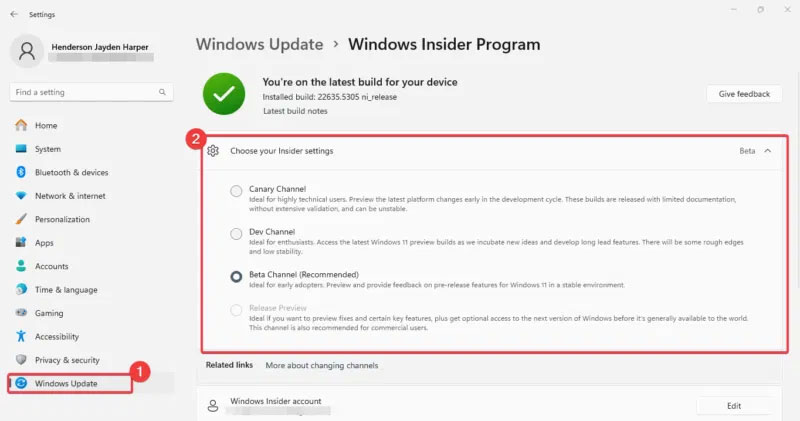
	<li style="text-align: justify;">Bạn cần tham gia chương trình Windows Insider. Đăng ký kênh Dev (Bản build 26200.5603) hoặc kênh Beta (Bản build 26120.4151).</li>
	<li style="text-align: justify;">Bạn cần&nbsp;&nbsp;PC&nbsp;Copilot+ có chip Snapdragon, mặc dù hỗ trợ AMD và Intel sẽ sớm ra mắt. Hãy xem hướng dẫn đề xuất&nbsp;PC AI&nbsp;để biết thêm thông tin.</li>
	<li style="text-align: justify;">Để tóm tắt tài liệu, bạn sẽ cần đăng ký&nbsp;Microsoft 365 Copilot.</li>
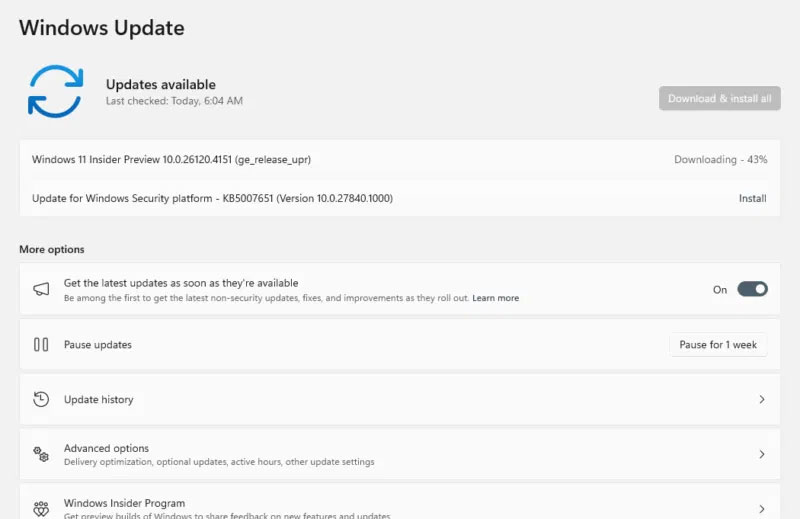
	<li style="text-align: justify;">Đảm bảo Windows 11 của bạn được cập nhật lên bản build Insider mới nhất.</li>
</ul>

<div style="text-align: justify;">&nbsp;</div>

<h2 style="text-align: justify;">Bật và sử dụng AI Actions</h2>

<p style="text-align: justify;">Để bật AI Actions trong Windows 11 File Explorer, hãy tham gia chương trình Windows Insider. Vào&nbsp;<strong>Settings -&gt; Windows Update -&gt; Windows Insider Program</strong>&nbsp;và đăng ký&nbsp;<strong>Dev or Beta Channel</strong>.</p>

<figure>
<div style="text-align: justify;"><img alt="Đăng ký chương trình Windows Insider" data-i="0" data-src="https://st.quantrimang.com/photos/image/2025/05/28/ai-actions-cho-file-explorer-tren-windows-11-1.jpg" data-was-processed="true" height="421" src="https://st.quantrimang.com/photos/image/2025/05/28/ai-actions-cho-file-explorer-tren-windows-11-1.jpg" width="800" /></div>

<figcaption>
<div style="text-align: justify;">Đăng ký chương trình Windows Insider</div>
</figcaption>
</figure>

<p style="text-align: justify;">Quay lại và nhấp vào&nbsp;<strong>Check for updates</strong>&nbsp;hoặc&nbsp;<strong>Download and Install</strong>&nbsp;để cài đặt bản build Insider mới nhất cho PC của bạn.</p>

<figure>
<div style="text-align: justify;"><img alt="Kiểm tra bản cập nhật Windows" data-i="1" data-src="https://st.quantrimang.com/photos/image/2025/05/28/ai-actions-cho-file-explorer-tren-windows-11-2.jpg" data-was-processed="true" height="519" src="https://st.quantrimang.com/photos/image/2025/05/28/ai-actions-cho-file-explorer-tren-windows-11-2.jpg" width="800" /></div>

<figcaption>
<div style="text-align: justify;">Kiểm tra bản cập nhật Windows</div>
</figcaption>
</figure>

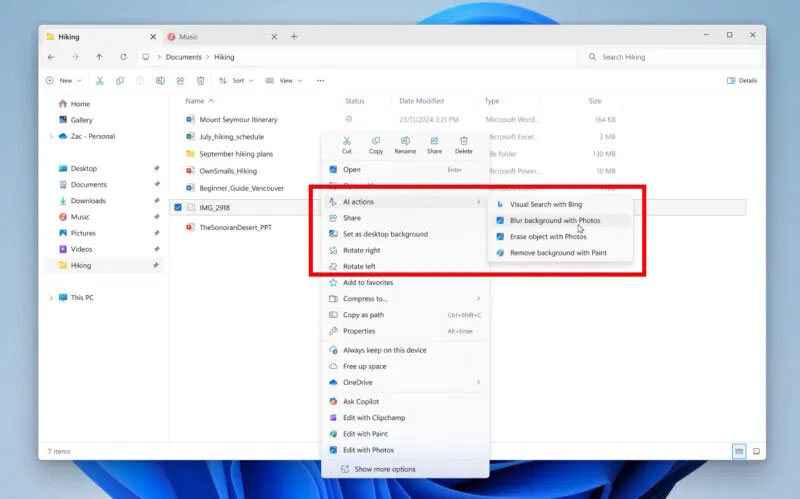
<p style="text-align: justify;">Mở File Explorer, điều hướng đến file JPG, PNG hoặc Office doc và nhấp chuột phải vào file để xem menu phụ&nbsp;<strong>AI Actions</strong>.</p>

<p style="text-align: justify;">Bây giờ, hãy chọn một hành động từ các tùy chọn như&nbsp;<strong>Blur Background</strong>,&nbsp;<strong>Erase Objects</strong>,&nbsp;<strong>Remove background with Paint</strong>&nbsp;hoặc&nbsp;<strong>Visual Search with Bing</strong>.</p>

<figure>
<div style="text-align: justify;"><img alt="AI Actions của Windows 11" data-i="2" data-src="https://st.quantrimang.com/photos/image/2025/05/28/ai-actions-cho-file-explorer-tren-windows-11-3.jpg" data-was-processed="true" height="499" src="https://st.quantrimang.com/photos/image/2025/05/28/ai-actions-cho-file-explorer-tren-windows-11-3.jpg" width="800" /></div>

<figcaption>
<div style="text-align: justify;">AI Actions của Windows 11</div>
</figcaption>
</figure>

<p style="text-align: justify;">Nếu vẫn chưa thấy menu, bạn có thể buộc bật menu bằng các bước sau:</p>

<ul>
	<li style="text-align: justify;">Tải xuống&nbsp;ViveTool từ GitHub&nbsp;và giải nén các file vào một thư mục mới trên desktop.</li>
</ul>

<div style="text-align: justify;"><span style="color:rgb(192, 57, 43);"><strong>https://github.com/thebookisclosed/ViVe/releases</strong></span></div>

<ul>
	<li style="text-align: justify;">Sao chép đường dẫn vị trí thư mục và&nbsp;khởi chạy Command Prompt với quyền admin.</li>
	<li style="text-align: justify;">Điều hướng đến vị trí thư mục bằng&nbsp;lệnh cd.</li>
	<li style="text-align: justify;">Nhập lệnh sau và nhấn Enter:&nbsp;<strong>vivetool /enable /id:54792954,55345819,48433719</strong></li>
	<li style="text-align: justify;">Khởi động lại PC&nbsp;và quay lại File Explorer. Nhấp chuột phải để xác nhận AI Actions trong menu.</li>
</ul>

<h2 style="text-align: justify;">Mẹo sử dụng AI Actions hiệu quả</h2>

<p style="text-align: justify;">Để tận dụng tối đa AI Actions trong Windows 11 File Explorer, hãy cố gắng chỉ sử dụng các loại file được hỗ trợ. Ngoài ra, hãy thường xuyên sử dụng Bing Visual Search và kết hợp với các tính năng mới của Windows Photos cho những dự án sáng tạo.</p>

<p style="text-align: justify;">Đảm bảo bạn có đăng ký Microsoft 365 Copilot đang hoạt động nếu dự định sử dụng tính năng tóm tắt tài liệu.</p>

<p style="text-align: justify;">Luôn kiểm tra các bản cập nhật Windows vì Microsoft vẫn đang mở rộng tính năng này. Bạn không quan tâm đến bất kỳ AI nào trên PC của mình? Vậy thì hãy xem những cách đơn giản sau để&nbsp;xóa Copilot và nhiều tính năng khác trong Windows.</p>

<p style="text-align: justify;">Việc bật AI Actions trong Windows 11 File Explorer khá dễ dàng và giúp PC trở nên thông minh hơn với các chỉnh sửa nhanh. Tham gia chương trình Windows Insisder, làm theo các bước trong bài và bắt đầu sử dụng tính năng này ngay bây giờ. Hãy dùng thử và cho mọi người biết tính năng này hoạt động như thế nào với bạn trong phần bình luận bên dưới!</p>

<div style="text-align: justify;">&nbsp;</div>
		</div>
				<div id="author">
						<p>
				<strong>Nguồn tin:</strong>
				Quantrimang.com:
			</p>
		</div>
	</div>
	<div id="footer" class="clearfix">
		<div id="url">
			<strong>URL của bản tin này: </strong><a href="https://www.nguoicodonvn2008.info/vi/news/savefile/kien-thuc-may-tinh/cach-bat-ai-actions-trong-windows-11-file-explorer-10452.html" title="Cách bật AI Actions trong Windows 11 File Explorer">https://www.nguoicodonvn2008.info/vi/news/savefile/kien-thuc-may-tinh/cach-bat-ai-actions-trong-windows-11-file-explorer-10452.html</a>

		</div>
		<div class="clear"></div>
		<div class="copyright">
			&copy; .&#x3A; Nguoicodonvn2008.info - Cõi lòng người cô đơn &#x3A;.
		</div>
		<div id="contact">
			<a href="mailto:admin@nguoicodonvn2008.info">admin@nguoicodonvn2008.info</a>
		</div>
	</div>
</div>
        <div id="timeoutsess" class="chromeframe">
            Bạn đã không sử dụng Site, <a onclick="timeoutsesscancel();" href="https://nguoicodonvn2008.info/#">Bấm vào đây để duy trì trạng thái đăng nhập</a>. Thời gian chờ: <span id="secField"> 60 </span> giây
        </div>
        <div id="openidResult" class="nv-alert" style="display:none"></div>
        <div id="openidBt" data-result="" data-redirect=""></div>
		</script>
		<div class="car-top">
  <span><img src="https://nguoicodonvn2008.info/themes/default/images/car.png" alt=""></span>
</div>
<script src="https://nguoicodonvn2008.info/assets/js/jquery/jquery.min.js"></script>
<script>var nv_base_siteurl="/",nv_lang_data="vi",nv_lang_interface="vi",nv_name_variable="nv",nv_fc_variable="op",nv_lang_variable="language",nv_module_name="news",nv_func_name="savefile",nv_is_user=0, nv_my_ofs=-4,nv_my_abbr="EDT",nv_cookie_prefix="nv4c_e856T",nv_check_pass_mstime=1738000,nv_area_admin=0,nv_safemode=0,theme_responsive=0,nv_recaptcha_ver=2,nv_recaptcha_sitekey="",nv_recaptcha_type="image",XSSsanitize=1;</script>
<script src="https://nguoicodonvn2008.info/assets/js/language/vi.js"></script>
<script src="https://nguoicodonvn2008.info/assets/js/DOMPurify/purify3.js"></script>
<script src="https://nguoicodonvn2008.info/assets/js/global.js"></script>
<script src="https://nguoicodonvn2008.info/assets/js/site.js"></script>
<script src="https://nguoicodonvn2008.info/themes/default/js/news.js"></script>
<script src="https://nguoicodonvn2008.info/themes/default/js/main.js"></script>
<script src="https://nguoicodonvn2008.info/themes/default/js/custom.js"></script>
<script type="application/ld+json">
        {
            "@context": "https://schema.org",
            "@type": "Organization",
            "url": "https://nguoicodonvn2008.info",
            "logo": "https://nguoicodonvn2008.info/uploads/angel.gif"
        }
        </script>
<script src="https://nguoicodonvn2008.info/themes/default/js/bootstrap.min.js"></script>
<script type="text/javascript">
var $scrolltop = $('.car-top');
$scrolltop.on('click', function () {
    $('html,body').animate({
        scrollTop: 0
    }, 800);
    $(this).addClass("car-run");
    setTimeout(function(){ $scrolltop.removeClass('car-run');}, 1000);
    return false;
});
$(window).on('scroll', function ()
{ 
    if($(window).scrollTop() >= 200)
    {
        $scrolltop.addClass("show");
        $scrolltop.addClass("car-down");
    }
    else
    {
       $scrolltop.removeClass("show");
       setTimeout(function(){ $scrolltop.removeClass('car-down');}, 300);
    }
});
</script>
</body>
</html>