<!DOCTYPE html>
    <html lang="vi" xmlns="http://www.w3.org/1999/xhtml" prefix="og: http://ogp.me/ns#">
    <head>
<title>Cách ẩn, hiện ghi chú trong bảng trên Excel</title>
<meta name="description" content="Cách ẩn, hiện ghi chú trong bảng trên Excel - Savefile - Tin Tức -...">
<meta name="author" content=".: Nguoicodonvn2008.info - Cõi lòng người cô đơn :.">
<meta name="copyright" content=".: Nguoicodonvn2008.info - Cõi lòng người cô đơn :. [admin@nguoicodonvn2008.info]">
<meta name="robots" content="index, archive, follow, noodp">
<meta name="googlebot" content="index,archive,follow,noodp">
<meta name="msnbot" content="all,index,follow">
<meta name="generator" content="NukeViet v4.5">
<meta http-equiv="Content-Type" content="text/html; charset=utf-8">
<meta property="og:title" content="Cách ẩn, hiện ghi chú trong bảng trên Excel">
<meta property="og:type" content="website">
<meta property="og:description" content="Savefile - Tin Tức - https&#x3A;&#x002F;&#x002F;www.nguoicodonvn2008.info&#x002F;vi&#x002F;news&#x002F;savefile&#x002F;kien-thuc-may-tinh&#x002F;cach-an-hien-ghi-chu-trong-bang-tren-excel-6887.html">
<meta property="og:site_name" content=".&#x3A; Nguoicodonvn2008.info - Cõi lòng người cô đơn &#x3A;.">
<meta property="og:url" content="https://www.nguoicodonvn2008.info/vi/news/savefile/kien-thuc-may-tinh/cach-an-hien-ghi-chu-trong-bang-tren-excel-6887.html">
<link rel="shortcut icon" href="https://nguoicodonvn2008.info/favicon.ico">
<link rel="canonical" href="https://www.nguoicodonvn2008.info/vi/news/savefile/kien-thuc-may-tinh/cach-an-hien-ghi-chu-trong-bang-tren-excel-6887.html">
<link rel="alternate" href="https://nguoicodonvn2008.info/vi/news/rss/" title="Tin Tức" type="application/rss+xml">
<link rel="alternate" href="https://nguoicodonvn2008.info/vi/news/rss/karaoke-dual/" title="Tin Tức - Karaoke Dual" type="application/rss+xml">
<link rel="alternate" href="https://nguoicodonvn2008.info/vi/news/rss/nhac-tre/" title="Tin Tức - Nhạc trẻ" type="application/rss+xml">
<link rel="alternate" href="https://nguoicodonvn2008.info/vi/news/rss/tru-tinh/" title="Tin Tức - Trữ tình" type="application/rss+xml">
<link rel="alternate" href="https://nguoicodonvn2008.info/vi/news/rss/nuoc-ngoai/" title="Tin Tức - Nước ngoài" type="application/rss+xml">
<link rel="alternate" href="https://nguoicodonvn2008.info/vi/news/rss/remix/" title="Tin Tức - Remix" type="application/rss+xml">
<link rel="alternate" href="https://nguoicodonvn2008.info/vi/news/rss/tam-su-tinh-yeu/" title="Tin Tức - Tâm sự tình yêu" type="application/rss+xml">
<link rel="alternate" href="https://nguoicodonvn2008.info/vi/news/rss/tho-suu-tam/" title="Tin Tức - Thơ sưu tầm" type="application/rss+xml">
<link rel="alternate" href="https://nguoicodonvn2008.info/vi/news/rss/cuoc-song/" title="Tin Tức - Cuộc sống" type="application/rss+xml">
<link rel="alternate" href="https://nguoicodonvn2008.info/vi/news/rss/phan-mem/" title="Tin Tức - Phần mềm" type="application/rss+xml">
<link rel="alternate" href="https://nguoicodonvn2008.info/vi/news/rss/kien-thuc-may-tinh/" title="Tin Tức - Kiến thức máy tính" type="application/rss+xml">
<link rel="alternate" href="https://nguoicodonvn2008.info/vi/news/rss/hoc-tap/" title="Tin Tức - Học tập" type="application/rss+xml">
<link rel="alternate" href="https://nguoicodonvn2008.info/vi/news/rss/tai-lieu/" title="Tin Tức - Tài liệu" type="application/rss+xml">
<link rel="alternate" href="https://nguoicodonvn2008.info/vi/news/rss/de-thi/" title="Tin Tức - Đề thi" type="application/rss+xml">
<link rel="preload" as="style" href="https://nguoicodonvn2008.info/assets/css/font-awesome.min.css" type="text/css">
<link rel="preload" as="style" href="https://nguoicodonvn2008.info/themes/default/css/bootstrap.non-responsive.css" type="text/css">
<link rel="preload" as="style" href="https://nguoicodonvn2008.info/themes/default/css/style.css" type="text/css">
<link rel="preload" as="style" href="https://nguoicodonvn2008.info/themes/default/css/style.non-responsive.css" type="text/css">
<link rel="preload" as="style" href="https://nguoicodonvn2008.info/themes/default/css/news.css" type="text/css">
<link rel="preload" as="style" href="https://nguoicodonvn2008.info/themes/default/css/custom.css" type="text/css">
<link rel="preload" as="script" href="https://nguoicodonvn2008.info/assets/js/jquery/jquery.min.js" type="text/javascript">
<link rel="preload" as="script" href="https://nguoicodonvn2008.info/assets/js/language/vi.js" type="text/javascript">
<link rel="preload" as="script" href="https://nguoicodonvn2008.info/assets/js/DOMPurify/purify3.js" type="text/javascript">
<link rel="preload" as="script" href="https://nguoicodonvn2008.info/assets/js/global.js" type="text/javascript">
<link rel="preload" as="script" href="https://nguoicodonvn2008.info/assets/js/site.js" type="text/javascript">
<link rel="preload" as="script" href="https://nguoicodonvn2008.info/themes/default/js/news.js" type="text/javascript">
<link rel="preload" as="script" href="https://nguoicodonvn2008.info/themes/default/js/main.js" type="text/javascript">
<link rel="preload" as="script" href="https://nguoicodonvn2008.info/themes/default/js/custom.js" type="text/javascript">
<link rel="preload" as="script" href="https://nguoicodonvn2008.info/themes/default/js/bootstrap.min.js" type="text/javascript">
<link rel="stylesheet" href="https://nguoicodonvn2008.info/assets/css/font-awesome.min.css">
<link rel="stylesheet" href="https://nguoicodonvn2008.info/themes/default/css/bootstrap.non-responsive.css">
<link rel="stylesheet" href="https://nguoicodonvn2008.info/themes/default/css/style.css">
<link rel="stylesheet" href="https://nguoicodonvn2008.info/themes/default/css/style.non-responsive.css">
<link rel="StyleSheet" href="https://nguoicodonvn2008.info/themes/default/css/news.css">
<link rel="stylesheet" href="https://nguoicodonvn2008.info/themes/default/css/custom.css">
<style type="text/css">
	body{background: #fff;}
</style>
    </head>
    <body>
<div id="print">
	<div id="hd_print">
		<h2 class="pull-left">.&#x3A; Nguoicodonvn2008.info - Cõi lòng người cô đơn &#x3A;.</h2>
		<p class="pull-right"><a title=".&#x3A; Nguoicodonvn2008.info - Cõi lòng người cô đơn &#x3A;." href="https://nguoicodonvn2008.info/">https://nguoicodonvn2008.info</a></p>
	</div>
	<div class="clear"></div>
	<hr />
	<div id="content">
		<h1>Cách ẩn, hiện ghi chú trong bảng trên Excel</h1>
		<ul class="list-inline">
			<li>Thứ tư - 15/03/2023 00:58</li>
			<li class="hidden-print txtrequired"><em class="fa fa-print">&nbsp;</em><a title="In ra" href="javascript:;" onclick="window.print()">In ra</a></li>
			<li class="hidden-print txtrequired"><em class="fa fa-power-off">&nbsp;</em><a title="Đóng cửa sổ này" href="javascript:;" onclick="window.close()">Đóng cửa sổ này</a></li>
		</ul>
		<div class="clear"></div>
		<div id="hometext">
		</div>
				<div class="imghome">
			<img alt="Cách ẩn, hiện ghi chú trong bảng trên Excel" src="https://st.quantrimang.com/photos/image/2022/03/15/cach-an-hien-ghi-chu-trong-bang-tren-excel-1.jpg" width="460" class="img-thumbnail" />
		</div>
		<div class="clear"></div>
		<div id="bodytext" class="clearfix">
			<p style="text-align: justify;">Để có thể làm rõ nội dung hơn, tính năng có sẵn tạo ghi chú hay commet trên Excel và Word sẽ giúp người dùng thực hiện công việc đó. Khi bạn muốn đánh dấu thông tin quan trọng, giải thích nội dung,… nhưng không muốn trình bày nhiều trong cột hoặc dòng có thể tạo ghi chú cho nội dung đó. Và người xem sẽ nhìn thấy ngay khung ghi chú khi mở bảng dữ liệu, thống kê trên Excel.</p>

<p style="text-align: justify;">Tuy nhiên trong trường hợp bảng dữ liệu nhiều ghi chú và toàn bộ các ghi chú đều hiện ra, sẽ gây khó chịu cho người xem. Vì thế, tốt nhất bạn nên ẩn đi những ghi chú đã tạo trên Excel. Bài viết dưới đây sẽ hướng dẫn chi tiết bạn đọc cách ẩn hoặc hiện lại những ghi chú trên Excel.</p>

<h2 style="text-align: justify;">&nbsp;</h2>

<h2 id="mcetoc_1fu6bntho36" style="text-align: justify;">Hướng dẫn ẩn, hiện ghi chú trên Excel 365</h2>

<p style="text-align: justify;">Microsoft Excel 365 đã thay đổi cách làm việc với các comment. Bây giờ bạn có hai tính năng khác nhau để bình luận: Nhận xét và ghi chú.</p>

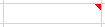
<p style="text-align: justify;">Loại mà người dùng các phiên bản Excel trước đây từng làm việc cùng bây giờ được gọi là ghi chú. Hoạt động của các ghi chú này vẫn giữ nguyên dưới tên gọi mới. Bạn có thể tạo ghi chú ô hoặc ghi chú dữ liệu.</p>

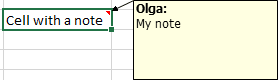
<p style="text-align: justify;">Hình tam giác nhỏ màu đỏ ở góc trên cùng bên phải của ô báo hiệu rằng ô có ghi chú đính kèm:</p>

<figure>
<div style="text-align: justify;"><img alt="Ghi chú trong một ô Excel 365" data-i="0" data-src="https://st.quantrimang.com/photos/image/2022/03/15/cach-an-hien-ghi-chu-trong-bang-tren-excel-31.jpg" data-was-processed="true" height="27" src="https://st.quantrimang.com/photos/image/2022/03/15/cach-an-hien-ghi-chu-trong-bang-tren-excel-31.jpg" width="105" /></div>

<figcaption>
<div style="text-align: justify;">Ghi chú trong một ô Excel 365</div>
</figcaption>
</figure>

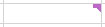
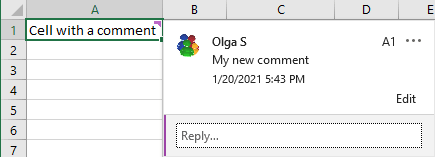
<p style="text-align: justify;">Tính năng nhận xét mới trong Microsoft Excel 365 đề cập đến chức năng cho phép bạn làm việc với các chuỗi nhận xét và thảo luận dữ liệu với những người khác. Khi bạn thêm nhận xét trong ô Excel, chỉ báo nhận xét nhỏ màu tím sẽ được hiển thị:</p>

<figure>
<div style="text-align: justify;"><img alt="Nhận xét trong một ô Excel 365" data-i="1" data-src="https://st.quantrimang.com/photos/image/2022/03/15/cach-an-hien-ghi-chu-trong-bang-tren-excel-32.jpg" data-was-processed="true" height="27" src="https://st.quantrimang.com/photos/image/2022/03/15/cach-an-hien-ghi-chu-trong-bang-tren-excel-32.jpg" width="105" /></div>

<figcaption>
<div style="text-align: justify;">Nhận xét trong một ô Excel 365</div>
</figcaption>
</figure>

<p style="text-align: justify;">Để ẩn/hiển thị ghi chú và nhận xét trong Excel 365, hãy làm như sau:</p>

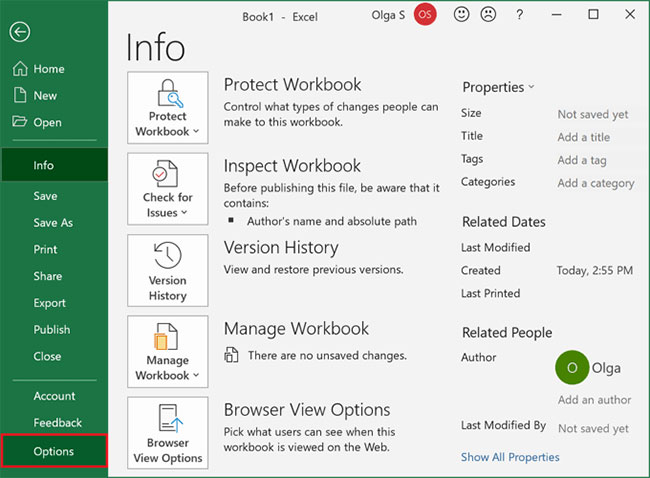
<p style="text-align: justify;">1. Trên tab&nbsp;<strong>File</strong>, nhấp vào nút&nbsp;<strong>Options:</strong></p>

<figure>
<div style="text-align: justify;"><img alt="Tùy chọn Options trong Excel 365" data-i="2" data-src="https://st.quantrimang.com/photos/image/2022/03/15/cach-an-hien-ghi-chu-trong-bang-tren-excel-22.jpg" data-was-processed="true" height="478" src="https://st.quantrimang.com/photos/image/2022/03/15/cach-an-hien-ghi-chu-trong-bang-tren-excel-22.jpg" width="650" /></div>

<figcaption>
<div style="text-align: justify;">Tùy chọn Options trong Excel 365</div>
</figcaption>
</figure>

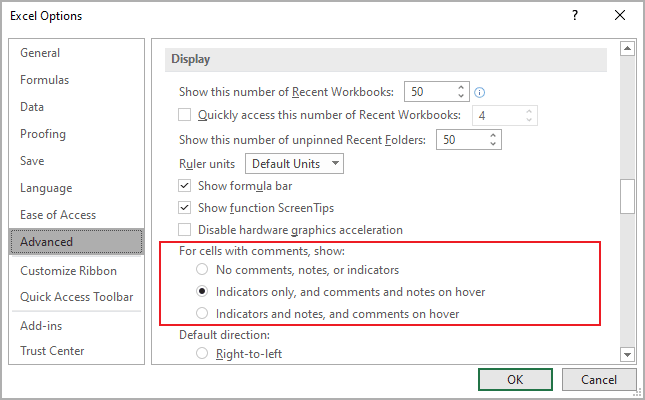
<p style="text-align: justify;">2. Trong hộp thoại&nbsp;<strong>Excel Options</strong>, trên tab&nbsp;<strong>Advanced</strong>, cuộn xuống phần&nbsp;<strong>Display</strong>&nbsp;và chọn tùy chọn:</p>

<figure>
<div style="text-align: justify;"><img alt="Tùy chọn chỉ báo trong Excel 365" data-i="3" data-src="https://st.quantrimang.com/photos/image/2022/03/15/cach-an-hien-ghi-chu-trong-bang-tren-excel-23.png" data-was-processed="true" height="400" src="https://st.quantrimang.com/photos/image/2022/03/15/cach-an-hien-ghi-chu-trong-bang-tren-excel-23.png" width="645" /></div>

<figcaption>
<div style="text-align: justify;">Tùy chọn chỉ báo trong Excel 365</div>
</figcaption>
</figure>

<p style="text-align: justify;"><strong>No comments, notes, or indicators</strong>&nbsp;để ẩn các chỉ báo:</p>

<p style="text-align: justify;">Ghi chú:</p>

<p style="text-align: justify;"><img alt="" data-i="4" data-src="https://st.quantrimang.com/photos/image/2022/03/15/cach-an-hien-ghi-chu-trong-bang-tren-excel-24.png" data-was-processed="true" height="94" src="https://st.quantrimang.com/photos/image/2022/03/15/cach-an-hien-ghi-chu-trong-bang-tren-excel-24.png" width="278" /></p>

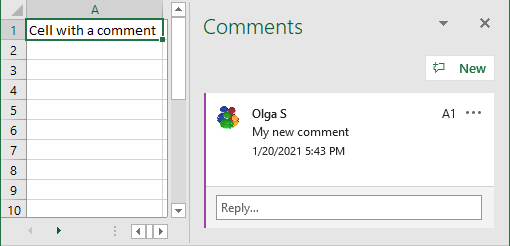
<p style="text-align: justify;">Nhận xét:</p>

<p style="text-align: justify;"><img alt="" data-i="5" data-src="https://st.quantrimang.com/photos/image/2022/03/15/cach-an-hien-ghi-chu-trong-bang-tren-excel-25.png" data-was-processed="true" height="246" src="https://st.quantrimang.com/photos/image/2022/03/15/cach-an-hien-ghi-chu-trong-bang-tren-excel-25.png" width="510" /></p>

<p style="text-align: justify;"><strong>Indicators only, and comments and notes on hover&nbsp;</strong>(được sử dụng theo mặc định) để hiển thị tất cả các chỉ báo như chỉ báo nhận xét nhỏ màu tím cho nhận xét và hình tam giác nhỏ màu đỏ cho ghi chú, đồng thời chỉ hiển thị ghi chú và nhận xét khi bạn mở nó</p>

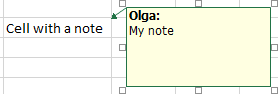
<p style="text-align: justify;"><strong>Indicators and notes, and comments on hover&nbsp;</strong>để làm cho các chỉ báo, ghi chú và nhận xét luôn hiển thị:</p>

<p style="text-align: justify;">Ghi chú:</p>

<p style="text-align: justify;"><img alt="" data-i="6" data-src="https://st.quantrimang.com/photos/image/2022/03/15/cach-an-hien-ghi-chu-trong-bang-tren-excel-26.png" data-was-processed="true" height="80" src="https://st.quantrimang.com/photos/image/2022/03/15/cach-an-hien-ghi-chu-trong-bang-tren-excel-26.png" width="278" /></p>

<p style="text-align: justify;">Nhận xét:</p>

<p style="text-align: justify;"><img alt="" data-i="7" data-src="https://st.quantrimang.com/photos/image/2022/03/15/cach-an-hien-ghi-chu-trong-bang-tren-excel-27.png" data-was-processed="true" height="157" src="https://st.quantrimang.com/photos/image/2022/03/15/cach-an-hien-ghi-chu-trong-bang-tren-excel-27.png" width="435" /></p>

<p style="text-align: justify;"><strong>Lưu ý</strong>: Để hiển thị hoặc ẩn:</p>

<ul>
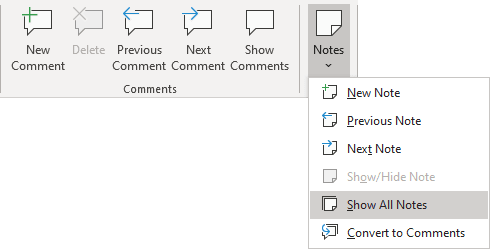
	<li style="text-align: justify;">Tất cả ghi chú, trên tab&nbsp;<strong>Review</strong>, trong nhóm&nbsp;<strong>Notes</strong>, bấm vào<strong>&nbsp;Show All Notes</strong>:</li>
</ul>

<figure>
<div style="text-align: justify;"><img alt="Hiển thị tất cả ghi chú trong Excel 365" data-i="8" data-src="https://st.quantrimang.com/photos/image/2022/03/15/cach-an-hien-ghi-chu-trong-bang-tren-excel-28.png" data-was-processed="true" height="249" src="https://st.quantrimang.com/photos/image/2022/03/15/cach-an-hien-ghi-chu-trong-bang-tren-excel-28.png" width="490" /></div>

<figcaption>
<div style="text-align: justify;">Hiển thị tất cả ghi chú trong Excel 365</div>
</figcaption>
</figure>

<ul>
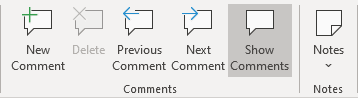
	<li style="text-align: justify;">Tất cả các nhận xét, trên tab&nbsp;<strong>Review</strong>, trong nhóm&nbsp;<strong>Comments</strong>, hãy bấm&nbsp;<strong>Show Comments</strong>:</li>
</ul>

<figure>
<div style="text-align: justify;"><img alt="Hiển thị nhận xét trong Excel 365" data-i="9" data-src="https://st.quantrimang.com/photos/image/2022/03/15/cach-an-hien-ghi-chu-trong-bang-tren-excel-29.png" data-was-processed="true" height="98" src="https://st.quantrimang.com/photos/image/2022/03/15/cach-an-hien-ghi-chu-trong-bang-tren-excel-29.png" width="358" /></div>

<figcaption>
<div style="text-align: justify;">Hiển thị nhận xét trong Excel 365</div>
</figcaption>
</figure>

<p style="text-align: justify;">Bằng cách nhấp vào nút&nbsp;<strong>Show Comments</strong>, bạn sẽ mở bảng&nbsp;<strong>Comments</strong>&nbsp;với tất cả các chuỗi nhận xét cho bảng tính này.</p>

<ul>
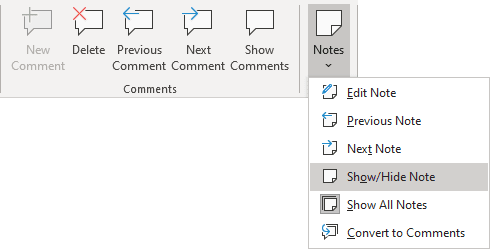
	<li style="text-align: justify;">Một ghi chú riêng lẻ: Bấm vào ô chứa ghi chú, sau đó trên tab&nbsp;<strong>Review</strong>, trong nhóm<strong>&nbsp;Notes</strong>, bấm vào&nbsp;<strong>Show/Hide Note</strong>:</li>
</ul>

<figure>
<div style="text-align: justify;"><img alt="Hiển thị/Ẩn Ghi chú trong Excel 365" data-i="10" data-src="https://st.quantrimang.com/photos/image/2022/03/15/cach-an-hien-ghi-chu-trong-bang-tren-excel-30.png" data-was-processed="true" height="249" src="https://st.quantrimang.com/photos/image/2022/03/15/cach-an-hien-ghi-chu-trong-bang-tren-excel-30.png" width="490" /></div>

<figcaption>
<div style="text-align: justify;">Hiển thị/Ẩn Ghi chú trong Excel 365</div>
</figcaption>
</figure>

<p style="text-align: justify;">Bạn cũng có thể bấm chuột phải vào ô rồi chọn&nbsp;<strong>Show/Hide Note</strong>&nbsp;trên menu pop-up.</p>

<h2 id="mcetoc_1fu6bntho37" style="text-align: justify;">Hướng dẫn ẩn, hiện ghi chú trên Excel 2016/2019</h2>

<p style="text-align: justify;">Để ẩn/hiển thị nhận xét trong Excel 2016, hãy làm như sau:</p>

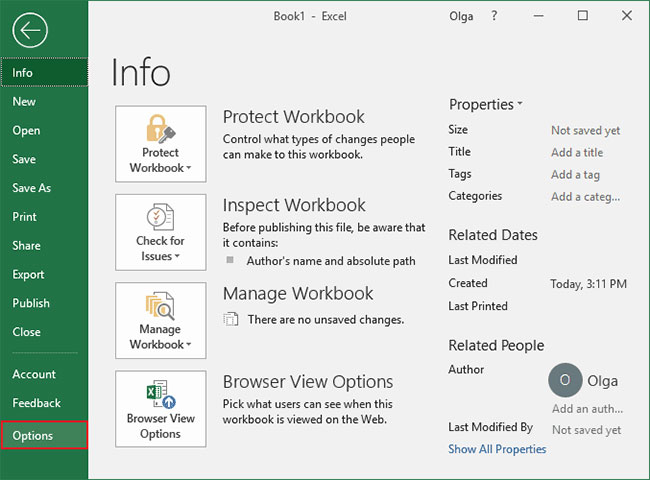
<p style="text-align: justify;">1. Trên tab&nbsp;<strong>File</strong>, nhấp vào nút&nbsp;<strong>Options</strong>:</p>

<figure>
<div style="text-align: justify;"><img alt="Tùy chọn Options trong Excel 2016" data-i="11" data-src="https://st.quantrimang.com/photos/image/2022/03/15/cach-an-hien-ghi-chu-trong-bang-tren-excel-16.jpg" data-was-processed="true" height="480" src="https://st.quantrimang.com/photos/image/2022/03/15/cach-an-hien-ghi-chu-trong-bang-tren-excel-16.jpg" width="650" /></div>

<figcaption>
<div style="text-align: justify;">Tùy chọn Options trong Excel 2016</div>
</figcaption>
</figure>

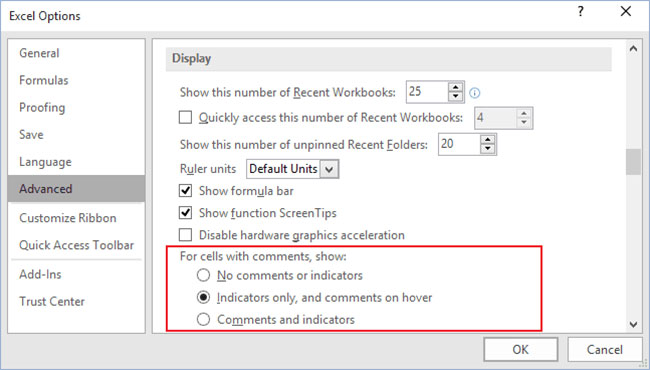
<p style="text-align: justify;">2. Trong hộp thoại&nbsp;<strong>Excel Options</strong>, trên tab&nbsp;<strong>Advanced</strong>, cuộn xuống phần&nbsp;<strong>Display</strong>&nbsp;và chọn tùy chọn:</p>

<figure>
<div style="text-align: justify;"><img alt="Tùy chọn chỉ báo trong Excel 2016" data-i="12" data-src="https://st.quantrimang.com/photos/image/2022/03/15/cach-an-hien-ghi-chu-trong-bang-tren-excel-17.jpg" data-was-processed="true" height="370" src="https://st.quantrimang.com/photos/image/2022/03/15/cach-an-hien-ghi-chu-trong-bang-tren-excel-17.jpg" width="650" /></div>

<figcaption>
<div style="text-align: justify;">Tùy chọn chỉ báo trong Excel 2016</div>
</figcaption>
</figure>

<p style="text-align: justify;"><strong>No comments or indicators</strong>&nbsp;để ẩn các chỉ báo:</p>

<figure>
<div style="text-align: justify;"><img alt="Ẩn các chỉ báo" data-i="13" data-src="https://st.quantrimang.com/photos/image/2022/03/15/cach-an-hien-ghi-chu-trong-bang-tren-excel-18.png" data-was-processed="true" height="52" src="https://st.quantrimang.com/photos/image/2022/03/15/cach-an-hien-ghi-chu-trong-bang-tren-excel-18.png" width="309" /></div>

<figcaption>
<div style="text-align: justify;">Ẩn các chỉ báo</div>
</figcaption>
</figure>

<p style="text-align: justify;"><strong>Indicators only, and comments on hover</strong>&nbsp;để hiển thị tất cả các chỉ báo dưới dạng một hình tam giác nhỏ màu đỏ và chỉ hiển thị nhận xét khi bạn mở nó</p>

<p style="text-align: justify;"><strong>Comments and indicators</strong>&nbsp;để hiển thị các chỉ báo và nhận xét luôn hiển thị:</p>

<figure>
<div style="text-align: justify;"><img alt="Luôn hiển thị chỉ báo và nhận xét" data-i="14" data-src="https://st.quantrimang.com/photos/image/2022/03/15/cach-an-hien-ghi-chu-trong-bang-tren-excel-19.png" data-was-processed="true" height="52" src="https://st.quantrimang.com/photos/image/2022/03/15/cach-an-hien-ghi-chu-trong-bang-tren-excel-19.png" width="309" /></div>

<figcaption>
<div style="text-align: justify;">Luôn hiển thị chỉ báo và nhận xét</div>
</figcaption>
</figure>

<p style="text-align: justify;"><strong>Ghi chú:</strong></p>

<ul>
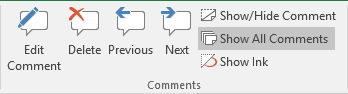
	<li style="text-align: justify;">Để hiển thị/ẩn tất cả các nhận xét, trên tab&nbsp;<strong>Review</strong>, trong nhóm&nbsp;<strong>Comments</strong>, hãy bấm vào&nbsp;<strong>Show All Comments</strong>:</li>
</ul>

<p style="text-align: justify;"><img alt="" data-i="15" data-src="https://st.quantrimang.com/photos/image/2022/03/15/cach-an-hien-ghi-chu-trong-bang-tren-excel-20.png" data-was-processed="true" height="94" src="https://st.quantrimang.com/photos/image/2022/03/15/cach-an-hien-ghi-chu-trong-bang-tren-excel-20.png" width="348" /></p>

<ul>
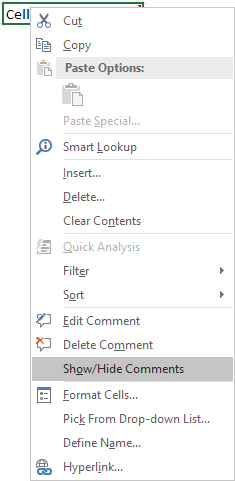
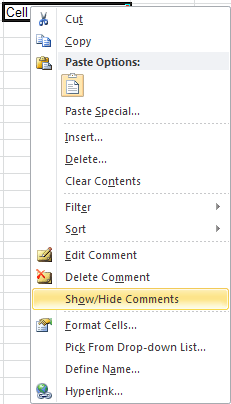
	<li style="text-align: justify;">Để hiển thị một nhận xét riêng lẻ, hãy bấm vào ô chứa nhận xét, sau đó trên tab&nbsp;<strong>Review</strong>, trong nhóm&nbsp;<strong>Comments</strong>, hãy bấm vào&nbsp;<strong>Show/Hide Comment.</strong></li>
	<li style="text-align: justify;">Bạn cũng có thể bấm chuột phải vào ô, sau đó bấm&nbsp;<strong>Show/Hide Comment</strong>&nbsp;trên menu shortcut.</li>
</ul>

<p style="text-align: justify;"><img alt="" data-i="16" data-src="https://st.quantrimang.com/photos/image/2022/03/15/cach-an-hien-ghi-chu-trong-bang-tren-excel-21.png" data-was-processed="true" height="481" src="https://st.quantrimang.com/photos/image/2022/03/15/cach-an-hien-ghi-chu-trong-bang-tren-excel-21.png" width="235" /></p>

<h2 id="mcetoc_1fu6bntho38" style="text-align: justify;">Hướng dẫn ẩn, hiện ghi chú trên Excel 2013</h2>

<p style="text-align: justify;">Để ẩn/hiển thị ghi chú trong Excel 2013, hãy làm như sau:</p>

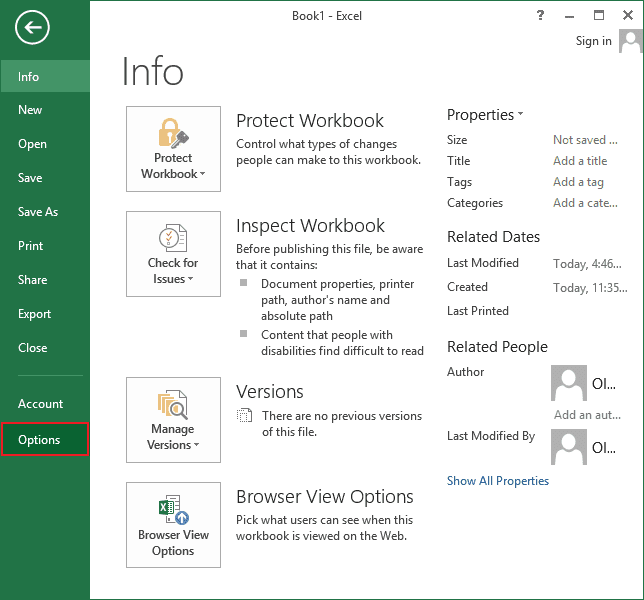
<p style="text-align: justify;">1. Trên tab&nbsp;<strong>File</strong>, nhấp vào nút&nbsp;<strong>Options</strong>:</p>

<figure>
<div style="text-align: justify;"><img alt="Tùy chọn Options trên Excel 2013" data-i="17" data-src="https://st.quantrimang.com/photos/image/2022/03/15/cach-an-hien-ghi-chu-trong-bang-tren-excel-10.png" data-was-processed="true" height="600" src="https://st.quantrimang.com/photos/image/2022/03/15/cach-an-hien-ghi-chu-trong-bang-tren-excel-10.png" width="644" /></div>

<figcaption>
<div style="text-align: justify;">Tùy chọn Options trên Excel 2013</div>
</figcaption>
</figure>

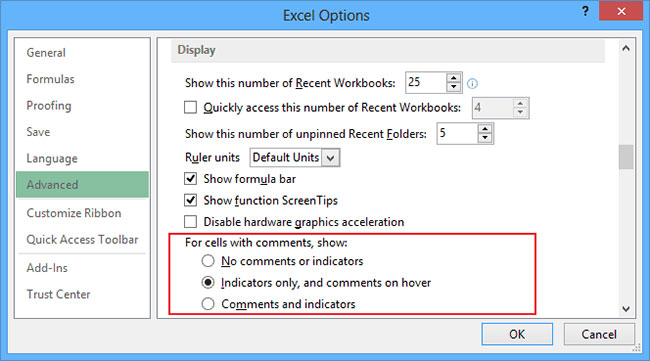
<p style="text-align: justify;">2. Trong hộp thoại&nbsp;<strong>Excel Options</strong>, trên tab&nbsp;<strong>Advanced</strong>, cuộn xuống phần&nbsp;<strong>Display</strong>&nbsp;và chọn tùy chọn:</p>

<figure>
<div style="text-align: justify;"><img alt="Tùy chọn chỉ báo trong Excel 2013" data-i="18" data-src="https://st.quantrimang.com/photos/image/2022/03/15/cach-an-hien-ghi-chu-trong-bang-tren-excel-11.jpg" data-was-processed="true" height="361" src="https://st.quantrimang.com/photos/image/2022/03/15/cach-an-hien-ghi-chu-trong-bang-tren-excel-11.jpg" width="650" /></div>

<figcaption>
<div style="text-align: justify;">Tùy chọn chỉ báo trong Excel 2013</div>
</figcaption>
</figure>

<p style="text-align: justify;"><strong>No comments or indicators</strong>&nbsp;để ẩn các chỉ báo:</p>

<figure>
<div style="text-align: justify;"><img alt="Không hiện chỉ báo trong Excel 2013" data-i="19" data-src="https://st.quantrimang.com/photos/image/2022/03/15/cach-an-hien-ghi-chu-trong-bang-tren-excel-12.png" data-was-processed="true" height="49" src="https://st.quantrimang.com/photos/image/2022/03/15/cach-an-hien-ghi-chu-trong-bang-tren-excel-12.png" width="260" /></div>

<figcaption>
<div style="text-align: justify;">Không hiện chỉ báo trong Excel 2013</div>
</figcaption>
</figure>

<p style="text-align: justify;"><strong>Indicators only, and comments on hover</strong>&nbsp;để hiển thị tất cả các chỉ báo dưới dạng một hình tam giác nhỏ màu đỏ và chỉ hiển thị nhận xét khi bạn mở nó</p>

<p style="text-align: justify;"><strong>Comments and indicators</strong>&nbsp;để hiển thị các chỉ báo và nhận xét luôn hiển thị:</p>

<figure>
<div style="text-align: justify;"><img alt="Luôn hiển thị chỉ báo và nhận xét trong Excel 2013" data-i="20" data-src="https://st.quantrimang.com/photos/image/2022/03/15/cach-an-hien-ghi-chu-trong-bang-tren-excel-13.png" data-was-processed="true" height="35" src="https://st.quantrimang.com/photos/image/2022/03/15/cach-an-hien-ghi-chu-trong-bang-tren-excel-13.png" width="253" /></div>

<figcaption>
<div style="text-align: justify;">Luôn hiển thị chỉ báo và nhận xét trong Excel 2013</div>
</figcaption>
</figure>

<p style="text-align: justify;"><strong>Ghi chú:</strong></p>

<ul>
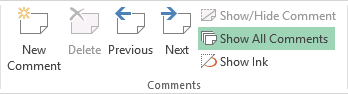
	<li style="text-align: justify;">Để hiển thị/ẩn tất cả các nhận xét, trên tab&nbsp;<strong>Review</strong>, trong nhóm&nbsp;<strong>Comments</strong>, hãy bấm vào&nbsp;<strong>Show All Comments</strong>:</li>
</ul>

<p style="text-align: justify;"><img alt="" data-i="21" data-src="https://st.quantrimang.com/photos/image/2022/03/15/cach-an-hien-ghi-chu-trong-bang-tren-excel-14.png" data-was-processed="true" height="94" src="https://st.quantrimang.com/photos/image/2022/03/15/cach-an-hien-ghi-chu-trong-bang-tren-excel-14.png" width="348" /></p>

<ul>
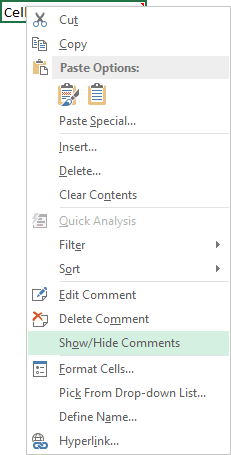
	<li style="text-align: justify;">Để hiển thị một nhận xét riêng lẻ, hãy bấm vào ô chứa nhận xét, sau đó trên tab&nbsp;<strong>Review</strong>, trong nhóm&nbsp;<strong>Comments</strong>, hãy bấm vào&nbsp;<strong>Show/Hide Comment.</strong></li>
	<li style="text-align: justify;">Bạn cũng có thể bấm chuột phải vào ô, sau đó bấm&nbsp;<strong>Show/Hide Comment</strong>&nbsp;trên menu shortcut.</li>
</ul>

<p style="text-align: justify;"><img alt="" data-i="22" data-src="https://st.quantrimang.com/photos/image/2022/03/15/cach-an-hien-ghi-chu-trong-bang-tren-excel-15.png" data-was-processed="true" height="455" src="https://st.quantrimang.com/photos/image/2022/03/15/cach-an-hien-ghi-chu-trong-bang-tren-excel-15.png" width="231" /></p>

<h2 id="mcetoc_1fu6bntho39" style="text-align: justify;">Hướng dẫn ẩn, hiện ghi chú trên Excel 2010</h2>

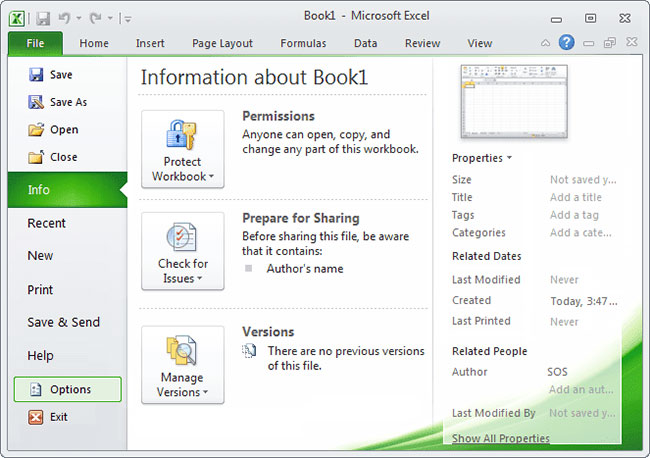
<p style="text-align: justify;">Để ẩn/hiển thị ghi chú trong Excel 2010, hãy làm như sau:</p>

<p style="text-align: justify;">1. Trên tab&nbsp;<strong>File</strong>, nhấp vào nút&nbsp;<strong>Options</strong>:</p>

<figure>
<div style="text-align: justify;"><img alt="Nhấp vào nút Options" data-i="23" data-src="https://st.quantrimang.com/photos/image/2022/03/15/cach-an-hien-ghi-chu-trong-bang-tren-excel-4.jpg" data-was-processed="true" height="458" src="https://st.quantrimang.com/photos/image/2022/03/15/cach-an-hien-ghi-chu-trong-bang-tren-excel-4.jpg" width="650" /></div>

<figcaption>
<div style="text-align: justify;">Nhấp vào nút Options</div>
</figcaption>
</figure>

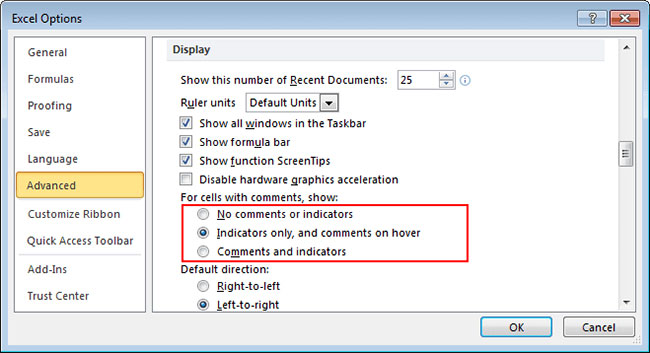
<p style="text-align: justify;">2. Trong hộp thoại Excel Options, trên tab&nbsp;<strong>Advanced</strong>, cuộn xuống phần&nbsp;<strong>Display</strong>&nbsp;và chọn tùy chọn:</p>

<figure>
<div style="text-align: justify;"><img alt="Các tùy chọn chỉ báo trong Excel 2010" data-i="24" data-src="https://st.quantrimang.com/photos/image/2022/03/15/cach-an-hien-ghi-chu-trong-bang-tren-excel-5.jpg" data-was-processed="true" height="353" src="https://st.quantrimang.com/photos/image/2022/03/15/cach-an-hien-ghi-chu-trong-bang-tren-excel-5.jpg" width="650" /></div>

<figcaption>
<div style="text-align: justify;">Các tùy chọn chỉ báo trong Excel 2010</div>
</figcaption>
</figure>

<p style="text-align: justify;"><strong>No comments or indicators</strong>&nbsp;để ẩn các chỉ báo:</p>

<figure>
<div style="text-align: justify;"><img alt="Tùy chọn ẩn chỉ báo trong Excel 2010" data-i="25" data-src="https://st.quantrimang.com/photos/image/2022/03/15/cach-an-hien-ghi-chu-trong-bang-tren-excel-6.png" data-was-processed="true" height="59" src="https://st.quantrimang.com/photos/image/2022/03/15/cach-an-hien-ghi-chu-trong-bang-tren-excel-6.png" width="287" /></div>

<figcaption>
<div style="text-align: justify;">Tùy chọn ẩn chỉ báo trong Excel 2010</div>
</figcaption>
</figure>

<p style="text-align: justify;"><strong>Indicators only, and comments on hover</strong>&nbsp;để hiển thị tất cả các chỉ báo dưới dạng một hình tam giác nhỏ màu đỏ và chỉ hiển thị nhận xét khi bạn mở nó</p>

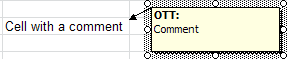
<p style="text-align: justify;"><strong>Comments and indicators</strong>&nbsp;để hiển thị các chỉ báo và nhận xét luôn hiển thị:</p>

<figure>
<div style="text-align: justify;"><img alt="Tùy chọn luôn hiển thị chỉ báo và nhận xét trong Excel 2010" data-i="26" data-src="https://st.quantrimang.com/photos/image/2022/03/15/cach-an-hien-ghi-chu-trong-bang-tren-excel-7.png" data-was-processed="true" height="48" src="https://st.quantrimang.com/photos/image/2022/03/15/cach-an-hien-ghi-chu-trong-bang-tren-excel-7.png" width="282" /></div>

<figcaption>
<div style="text-align: justify;">Tùy chọn luôn hiển thị chỉ báo và nhận xét trong Excel 2010</div>
</figcaption>
</figure>

<p style="text-align: justify;"><strong>Ghi chú</strong>:</p>

<ul>
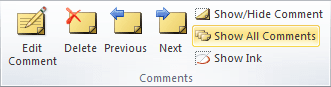
	<li style="text-align: justify;">Để hiển thị/ẩn tất cả các nhận xét, trên tab&nbsp;<strong>Review</strong>, trong nhóm&nbsp;<strong>Comments</strong>, hãy nhấp vào&nbsp;<strong>Show/Hide Comment</strong>:</li>
</ul>

<p style="text-align: justify;"><img alt="" data-i="27" data-src="https://st.quantrimang.com/photos/image/2022/03/15/cach-an-hien-ghi-chu-trong-bang-tren-excel-8.png" data-was-processed="true" height="87" src="https://st.quantrimang.com/photos/image/2022/03/15/cach-an-hien-ghi-chu-trong-bang-tren-excel-8.png" width="331" /></p>

<ul>
	<li style="text-align: justify;">Để hiển thị một nhận xét riêng lẻ, hãy bấm vào ô chứa nhận xét, sau đó trên tab&nbsp;<strong>Review</strong>, trong nhóm&nbsp;<strong>Comments</strong>, hãy nhấp vào&nbsp;<strong>Show/Hide Comment.</strong></li>
	<li style="text-align: justify;">Bạn cũng có thể bấm chuột phải vào ô, sau đó chọn&nbsp;<strong>Show/Hide Comment</strong>&nbsp;trên menu shortcut.</li>
</ul>

<p style="text-align: justify;"><img alt="" data-i="28" data-src="https://st.quantrimang.com/photos/image/2022/03/15/cach-an-hien-ghi-chu-trong-bang-tren-excel-9.png" data-was-processed="true" height="404" src="https://st.quantrimang.com/photos/image/2022/03/15/cach-an-hien-ghi-chu-trong-bang-tren-excel-9.png" width="231" /></p>

<h2 id="mcetoc_1fu6bntho3a" style="text-align: justify;">Hướng dẫn ẩn, hiện ghi chú trên Excel 2007</h2>

<p style="text-align: justify;"><strong>Bước 1:</strong></p>

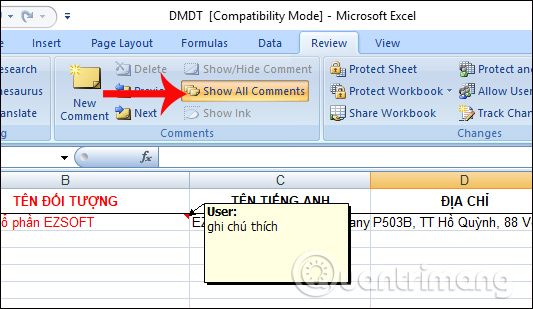
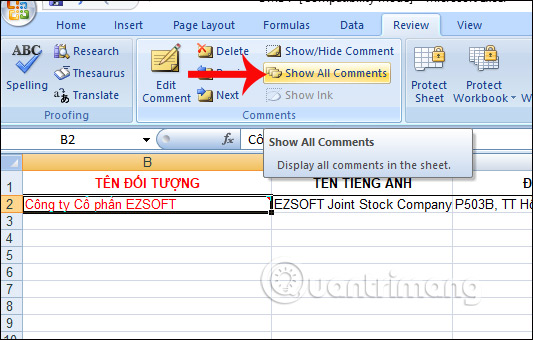
<p style="text-align: justify;">Tại giao diện bảng dữ liệu Excel muốn ẩn đi nội dung ghi chú đã tạo, chúng ta nhấp vào&nbsp;<strong>tab Review</strong>&nbsp;rồi&nbsp;<strong>bỏ chọn tại Show All comment</strong>.</p>

<p style="text-align: justify;"><img alt="Ẩn ghi chú trên Excel" data-i="29" data-src="https://st.quantrimang.com/photos/image/2017/08/16/Excel-an-ghi-chu-show.jpg" data-was-processed="true" height="309" src="https://st.quantrimang.com/photos/image/2017/08/16/Excel-an-ghi-chu-show.jpg" width="533" /></p>

<p style="text-align: justify;">Ngay sau đó, ghi chú đã được ẩn đi trên Excel. Với những dòng hay cột có ghi chú, bạn sẽ nhìn thấy<strong>&nbsp;biểu tượng dấu đỏ&nbsp;</strong>đánh dấu như hình. Để xem nội dung ghi chú, chi cần di chuột vào vào nội dung đó là được.</p>

<p style="text-align: justify;"><img alt="Dấu đỏ đánh dấu nội dung ghi chú " data-i="30" data-src="https://st.quantrimang.com/photos/image/2017/08/16/Excel-an-ghi-chu-xem.jpg" data-was-processed="true" height="368" src="https://st.quantrimang.com/photos/image/2017/08/16/Excel-an-ghi-chu-xem.jpg" width="500" /></p>

<p style="text-align: justify;"><strong>Bước 2:</strong></p>

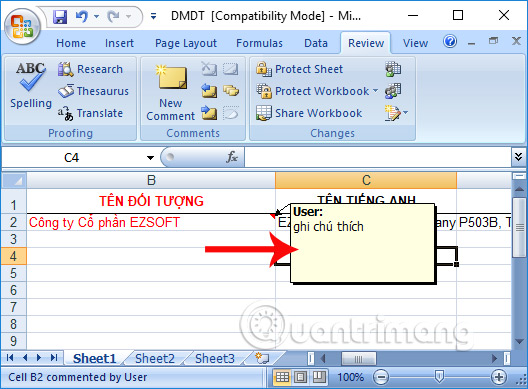
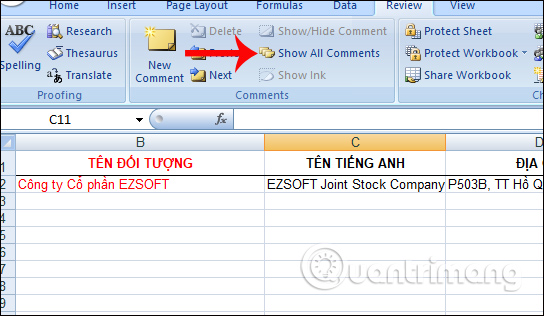
<p style="text-align: justify;">Để&nbsp;<strong>hiện lại khung ghi chú</strong>&nbsp;đó, chúng ta cũng click vào&nbsp;<strong>tab Review</strong>&nbsp;và cũng&nbsp;<strong>click lại vào Show All comment</strong>.</p>

<p style="text-align: justify;"><img alt="Hiện lại khung ghi chú Excel" data-i="31" data-src="https://st.quantrimang.com/photos/image/2017/08/16/Excel-an-ghi-chu-hien.jpg" data-was-processed="true" height="340" src="https://st.quantrimang.com/photos/image/2017/08/16/Excel-an-ghi-chu-hien.jpg" width="533" /></p>

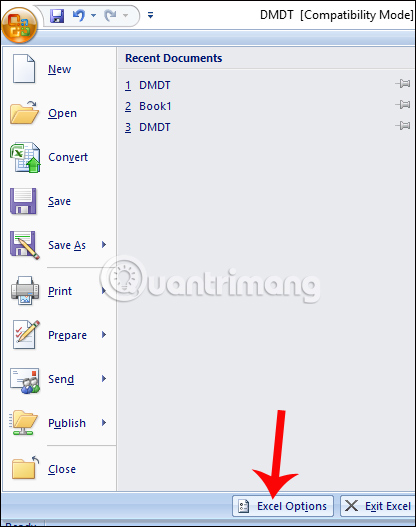
<p style="text-align: justify;">Ngoài ra có một cách khác để thiết lập tính năng ẩn hoặc hiện nội dung chú thích trong Excel, đó là thực hiện trong Excel Options. Cick vào&nbsp;<strong>biểu tượng Office</strong>&nbsp;ở góc trái trên cùng giao diện, sau đó chọn tiếp&nbsp;<strong>Excel Options</strong>.</p>

<p style="text-align: justify;"><img alt="Nhấn chọn Excel Options" data-i="32" data-src="https://st.quantrimang.com/photos/image/2017/08/16/Excel-an-ghi-chu-Options.jpg" data-was-processed="true" height="507" src="https://st.quantrimang.com/photos/image/2017/08/16/Excel-an-ghi-chu-Options.jpg" width="400" /></p>

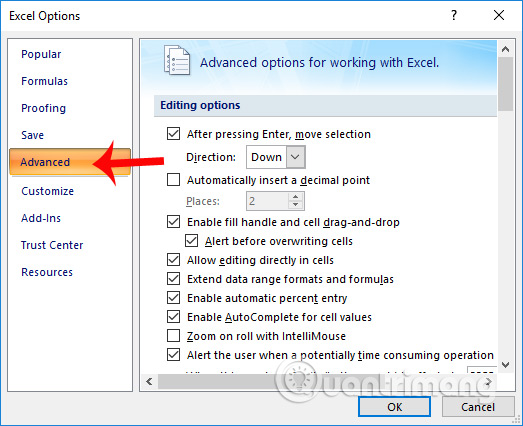
<p style="text-align: justify;">Chuyển sang danh sách tùy chọn. Ở đây người dùng nhấp vào&nbsp;<strong>mục Advanced</strong>&nbsp;ở danh sách bên trái giao diện.</p>

<p style="text-align: justify;"><img alt="Thiết lập nâng cao trên Excel" data-i="33" data-src="https://st.quantrimang.com/photos/image/2017/08/16/Excel-an-ghi-chu-Advanced.jpg" data-was-processed="true" height="423" src="https://st.quantrimang.com/photos/image/2017/08/16/Excel-an-ghi-chu-Advanced.jpg" width="520" /></p>

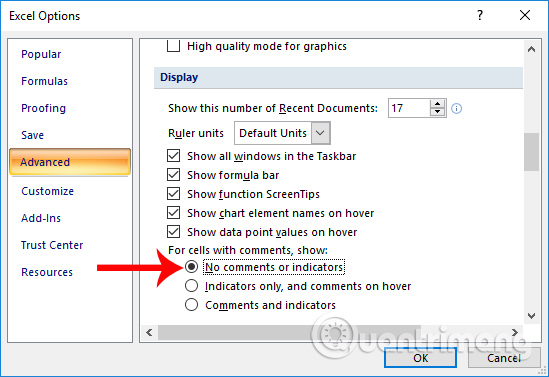
<p style="text-align: justify;">Nhìn sang nội dung bên phải, kéo xuống&nbsp;<strong>mục Display</strong>. Bạn&nbsp;<strong>tích chọn vào mục No comments or indicators</strong>&nbsp;rồi nhấn&nbsp;<strong>OK</strong>&nbsp;để lưu lại.</p>

<p style="text-align: justify;"><img alt="Ẩn toàn bộ ghi chú trên Excel" data-i="34" data-src="https://st.quantrimang.com/photos/image/2017/08/16/Excel-an-ghi-chu-Display.jpg" data-was-processed="true" height="364" src="https://st.quantrimang.com/photos/image/2017/08/16/Excel-an-ghi-chu-Display.jpg" width="530" /></p>

<p style="text-align: justify;">Cách làm này sẽ ẩn ghi chú trên bảng dữ liệu Excel, đồng thời không cho xuất hiện biểu tượng dấu đỏ ở những nội dung có kèm chú thích nữa. Để hiển thị lại chúng ta cũng chỉ cần tích chọn vào Show All comment là được.</p>

<p style="text-align: justify;"><img alt="Ẩn ghi chú qua Excel Options " data-i="35" data-src="https://st.quantrimang.com/photos/image/2017/08/16/Excel-an-ghi-chu.jpg" data-was-processed="true" height="316" src="https://st.quantrimang.com/photos/image/2017/08/16/Excel-an-ghi-chu.jpg" width="544" /></p>

<p style="text-align: justify;">Trên đây là cách để ẩn hoặc hiện ghi chú trên bảng dữ liệu Excel. Việc tùy chỉnh comment trên Excel rất đơn giản và chúng ta sẽ thực hiện ngay trên tab Review, tính năng sẵn có trên thanh Ribbon. Trong trường hợp người dùng muốn ẩn hoàn toàn ghi chú, bao gồm cả dấu đỏ đánh dấu thì cần thực hiện trực tiếp trong Excel Options theo bài viết bên trên.</p>

<p style="text-align: justify;"><strong>Video hướng dẫn ẩn, hiện ghi chú Excel</strong></p>

<p style="text-align: justify;"><iframe allowfullscreen="" data-src="https://nguoicodonvn2008.info//xem.video/embed/22131" data-was-processed="true" frameborder="0" height="360" width="640"></iframe></p>

<h2 id="mcetoc_1fu6bntho3c" style="text-align: justify;">Hướng dẫn ẩn, hiện ghi chú trên Excel 2003</h2>

<p style="text-align: justify;">Để ẩn/hiển thị chi chú trong Excel 2003, hãy làm như sau:</p>

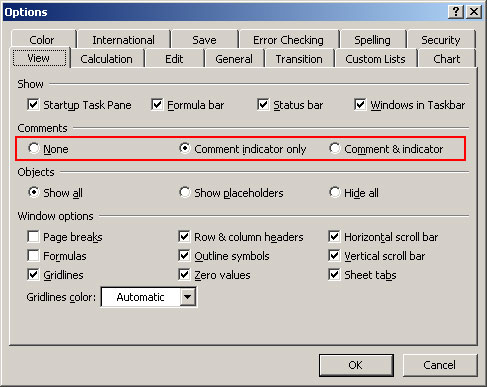
<p style="text-align: justify;">1. Chọn&nbsp;<strong>Tools &gt; Options</strong>&nbsp;để mở hộp thoại&nbsp;<strong>Options.</strong></p>

<p style="text-align: justify;">2. Trên tab&nbsp;<strong>View</strong>, trong phần&nbsp;<strong>Comments</strong>, hãy chọn 1 trong 3 tùy chọn:</p>

<figure>
<div style="text-align: justify;"><img alt="Các tùy chọn ẩn hiện ghi chú" data-i="36" data-src="https://st.quantrimang.com/photos/image/2022/03/15/cach-an-hien-ghi-chu-trong-bang-tren-excel-1.jpg" data-was-processed="true" height="387" src="https://st.quantrimang.com/photos/image/2022/03/15/cach-an-hien-ghi-chu-trong-bang-tren-excel-1.jpg" width="487" /></div>

<figcaption>
<div style="text-align: justify;">Các tùy chọn ẩn hiện ghi chú</div>
</figcaption>
</figure>

<p style="text-align: justify;"><strong>None</strong>&nbsp;để ẩn các chỉ báo:</p>

<p style="text-align: justify;"><img alt="" data-i="37" data-src="https://st.quantrimang.com/photos/image/2022/03/15/cach-an-hien-ghi-chu-trong-bang-tren-excel-2.jpg" data-was-processed="true" height="50" src="https://st.quantrimang.com/photos/image/2022/03/15/cach-an-hien-ghi-chu-trong-bang-tren-excel-2.jpg" width="285" /></p>

<p style="text-align: justify;"><strong>Comment indicator only</strong>&nbsp;để hiển thị tất cả các chỉ báo dưới dạng một hình tam giác nhỏ màu đỏ và chỉ hiển thị nhận xét khi bạn mở nó</p>

<p style="text-align: justify;"><strong>Comment &amp; indicator</strong>&nbsp;để luôn hiển thị các chỉ báo và nhận xét.</p>

<p style="text-align: justify;"><img alt="" data-i="38" data-src="https://st.quantrimang.com/photos/image/2022/03/15/cach-an-hien-ghi-chu-trong-bang-tren-excel-3.jpg" data-was-processed="true" height="38" src="https://st.quantrimang.com/photos/image/2022/03/15/cach-an-hien-ghi-chu-trong-bang-tren-excel-3.jpg" width="280" /></p>

<p style="text-align: justify;">Chúc các bạn thực hiện thành công!</p>

<div style="text-align: justify;">&nbsp;</div>
		</div>
				<div id="author">
						<p>
				<strong>Nguồn tin:</strong>
				Quantrimang.com
			</p>
		</div>
	</div>
	<div id="footer" class="clearfix">
		<div id="url">
			<strong>URL của bản tin này: </strong><a href="https://www.nguoicodonvn2008.info/vi/news/savefile/kien-thuc-may-tinh/cach-an-hien-ghi-chu-trong-bang-tren-excel-6887.html" title="Cách ẩn, hiện ghi chú trong bảng trên Excel">https://www.nguoicodonvn2008.info/vi/news/savefile/kien-thuc-may-tinh/cach-an-hien-ghi-chu-trong-bang-tren-excel-6887.html</a>

		</div>
		<div class="clear"></div>
		<div class="copyright">
			&copy; .&#x3A; Nguoicodonvn2008.info - Cõi lòng người cô đơn &#x3A;.
		</div>
		<div id="contact">
			<a href="mailto:admin@nguoicodonvn2008.info">admin@nguoicodonvn2008.info</a>
		</div>
	</div>
</div>
        <div id="timeoutsess" class="chromeframe">
            Bạn đã không sử dụng Site, <a onclick="timeoutsesscancel();" href="https://nguoicodonvn2008.info/#">Bấm vào đây để duy trì trạng thái đăng nhập</a>. Thời gian chờ: <span id="secField"> 60 </span> giây
        </div>
        <div id="openidResult" class="nv-alert" style="display:none"></div>
        <div id="openidBt" data-result="" data-redirect=""></div>
		</script>
		<div class="car-top">
  <span><img src="https://nguoicodonvn2008.info/themes/default/images/car.png" alt=""></span>
</div>
<div id="run_cronjobs" style="visibility:hidden;display:none;"><img alt="cron" src="/index.php?second=cronjobs&amp;p=h8i0765z" width="1" height="1" /></div>
<script src="https://nguoicodonvn2008.info/assets/js/jquery/jquery.min.js"></script>
<script>var nv_base_siteurl="/",nv_lang_data="vi",nv_lang_interface="vi",nv_name_variable="nv",nv_fc_variable="op",nv_lang_variable="language",nv_module_name="news",nv_func_name="savefile",nv_is_user=0, nv_my_ofs=-4,nv_my_abbr="EDT",nv_cookie_prefix="nv4c_e856T",nv_check_pass_mstime=1738000,nv_area_admin=0,nv_safemode=0,theme_responsive=0,nv_recaptcha_ver=2,nv_recaptcha_sitekey="",nv_recaptcha_type="image",XSSsanitize=1;</script>
<script src="https://nguoicodonvn2008.info/assets/js/language/vi.js"></script>
<script src="https://nguoicodonvn2008.info/assets/js/DOMPurify/purify3.js"></script>
<script src="https://nguoicodonvn2008.info/assets/js/global.js"></script>
<script src="https://nguoicodonvn2008.info/assets/js/site.js"></script>
<script src="https://nguoicodonvn2008.info/themes/default/js/news.js"></script>
<script src="https://nguoicodonvn2008.info/themes/default/js/main.js"></script>
<script src="https://nguoicodonvn2008.info/themes/default/js/custom.js"></script>
<script type="application/ld+json">
        {
            "@context": "https://schema.org",
            "@type": "Organization",
            "url": "https://nguoicodonvn2008.info",
            "logo": "https://nguoicodonvn2008.info/uploads/angel.gif"
        }
        </script>
<script src="https://nguoicodonvn2008.info/themes/default/js/bootstrap.min.js"></script>
<script type="text/javascript">
var $scrolltop = $('.car-top');
$scrolltop.on('click', function () {
    $('html,body').animate({
        scrollTop: 0
    }, 800);
    $(this).addClass("car-run");
    setTimeout(function(){ $scrolltop.removeClass('car-run');}, 1000);
    return false;
});
$(window).on('scroll', function ()
{ 
    if($(window).scrollTop() >= 200)
    {
        $scrolltop.addClass("show");
        $scrolltop.addClass("car-down");
    }
    else
    {
       $scrolltop.removeClass("show");
       setTimeout(function(){ $scrolltop.removeClass('car-down');}, 300);
    }
});
</script>
</body>
</html>