<!DOCTYPE html>
    <html lang="vi" xmlns="http://www.w3.org/1999/xhtml" prefix="og: http://ogp.me/ns#">
    <head>
<title>Apple. Cách sử dụng tùy chọn tương đương với lệnh &quot;ls&quot; trong Windows</title>
<meta name="description" content="Apple. Cách sử dụng tùy chọn tương đương với lệnh &quot;ls&quot; trong Windows - Savefile - Tin Tức -...">
<meta name="author" content=".: Nguoicodonvn2008.info - Cõi lòng người cô đơn :.">
<meta name="copyright" content=".: Nguoicodonvn2008.info - Cõi lòng người cô đơn :. [admin@nguoicodonvn2008.info]">
<meta name="robots" content="index, archive, follow, noodp">
<meta name="googlebot" content="index,archive,follow,noodp">
<meta name="msnbot" content="all,index,follow">
<meta name="generator" content="NukeViet v4.5">
<meta http-equiv="Content-Type" content="text/html; charset=utf-8">
<meta property="og:title" content="Apple. Cách sử dụng tùy chọn tương đương với lệnh &quot;ls&quot; trong Windows">
<meta property="og:type" content="website">
<meta property="og:description" content="Savefile - Tin Tức - https&#x3A;&#x002F;&#x002F;www.nguoicodonvn2008.info&#x002F;vi&#x002F;news&#x002F;savefile&#x002F;kien-thuc-may-tinh&#x002F;apple-cach-su-dung-tuy-chon-tuong-duong-voi-lenh-ls-trong-windows-6941.html">
<meta property="og:site_name" content=".&#x3A; Nguoicodonvn2008.info - Cõi lòng người cô đơn &#x3A;.">
<meta property="og:url" content="https://www.nguoicodonvn2008.info/vi/news/savefile/kien-thuc-may-tinh/apple-cach-su-dung-tuy-chon-tuong-duong-voi-lenh-ls-trong-windows-6941.html">
<link rel="shortcut icon" href="https://nguoicodonvn2008.info/favicon.ico">
<link rel="canonical" href="https://www.nguoicodonvn2008.info/vi/news/savefile/kien-thuc-may-tinh/apple-cach-su-dung-tuy-chon-tuong-duong-voi-lenh-ls-trong-windows-6941.html">
<link rel="alternate" href="https://nguoicodonvn2008.info/vi/news/rss/" title="Tin Tức" type="application/rss+xml">
<link rel="alternate" href="https://nguoicodonvn2008.info/vi/news/rss/karaoke-dual/" title="Tin Tức - Karaoke Dual" type="application/rss+xml">
<link rel="alternate" href="https://nguoicodonvn2008.info/vi/news/rss/nhac-tre/" title="Tin Tức - Nhạc trẻ" type="application/rss+xml">
<link rel="alternate" href="https://nguoicodonvn2008.info/vi/news/rss/tru-tinh/" title="Tin Tức - Trữ tình" type="application/rss+xml">
<link rel="alternate" href="https://nguoicodonvn2008.info/vi/news/rss/nuoc-ngoai/" title="Tin Tức - Nước ngoài" type="application/rss+xml">
<link rel="alternate" href="https://nguoicodonvn2008.info/vi/news/rss/remix/" title="Tin Tức - Remix" type="application/rss+xml">
<link rel="alternate" href="https://nguoicodonvn2008.info/vi/news/rss/tam-su-tinh-yeu/" title="Tin Tức - Tâm sự tình yêu" type="application/rss+xml">
<link rel="alternate" href="https://nguoicodonvn2008.info/vi/news/rss/tho-suu-tam/" title="Tin Tức - Thơ sưu tầm" type="application/rss+xml">
<link rel="alternate" href="https://nguoicodonvn2008.info/vi/news/rss/cuoc-song/" title="Tin Tức - Cuộc sống" type="application/rss+xml">
<link rel="alternate" href="https://nguoicodonvn2008.info/vi/news/rss/phan-mem/" title="Tin Tức - Phần mềm" type="application/rss+xml">
<link rel="alternate" href="https://nguoicodonvn2008.info/vi/news/rss/kien-thuc-may-tinh/" title="Tin Tức - Kiến thức máy tính" type="application/rss+xml">
<link rel="alternate" href="https://nguoicodonvn2008.info/vi/news/rss/hoc-tap/" title="Tin Tức - Học tập" type="application/rss+xml">
<link rel="alternate" href="https://nguoicodonvn2008.info/vi/news/rss/tai-lieu/" title="Tin Tức - Tài liệu" type="application/rss+xml">
<link rel="alternate" href="https://nguoicodonvn2008.info/vi/news/rss/de-thi/" title="Tin Tức - Đề thi" type="application/rss+xml">
<link rel="preload" as="style" href="https://nguoicodonvn2008.info/assets/css/font-awesome.min.css" type="text/css">
<link rel="preload" as="style" href="https://nguoicodonvn2008.info/themes/default/css/bootstrap.non-responsive.css" type="text/css">
<link rel="preload" as="style" href="https://nguoicodonvn2008.info/themes/default/css/style.css" type="text/css">
<link rel="preload" as="style" href="https://nguoicodonvn2008.info/themes/default/css/style.non-responsive.css" type="text/css">
<link rel="preload" as="style" href="https://nguoicodonvn2008.info/themes/default/css/news.css" type="text/css">
<link rel="preload" as="style" href="https://nguoicodonvn2008.info/themes/default/css/custom.css" type="text/css">
<link rel="preload" as="script" href="https://nguoicodonvn2008.info/assets/js/jquery/jquery.min.js" type="text/javascript">
<link rel="preload" as="script" href="https://nguoicodonvn2008.info/assets/js/language/vi.js" type="text/javascript">
<link rel="preload" as="script" href="https://nguoicodonvn2008.info/assets/js/DOMPurify/purify3.js" type="text/javascript">
<link rel="preload" as="script" href="https://nguoicodonvn2008.info/assets/js/global.js" type="text/javascript">
<link rel="preload" as="script" href="https://nguoicodonvn2008.info/assets/js/site.js" type="text/javascript">
<link rel="preload" as="script" href="https://nguoicodonvn2008.info/themes/default/js/news.js" type="text/javascript">
<link rel="preload" as="script" href="https://nguoicodonvn2008.info/themes/default/js/main.js" type="text/javascript">
<link rel="preload" as="script" href="https://nguoicodonvn2008.info/themes/default/js/custom.js" type="text/javascript">
<link rel="preload" as="script" href="https://nguoicodonvn2008.info/themes/default/js/bootstrap.min.js" type="text/javascript">
<link rel="stylesheet" href="https://nguoicodonvn2008.info/assets/css/font-awesome.min.css">
<link rel="stylesheet" href="https://nguoicodonvn2008.info/themes/default/css/bootstrap.non-responsive.css">
<link rel="stylesheet" href="https://nguoicodonvn2008.info/themes/default/css/style.css">
<link rel="stylesheet" href="https://nguoicodonvn2008.info/themes/default/css/style.non-responsive.css">
<link rel="StyleSheet" href="https://nguoicodonvn2008.info/themes/default/css/news.css">
<link rel="stylesheet" href="https://nguoicodonvn2008.info/themes/default/css/custom.css">
<style type="text/css">
	body{background: #fff;}
</style>
    </head>
    <body>
<div id="print">
	<div id="hd_print">
		<h2 class="pull-left">.&#x3A; Nguoicodonvn2008.info - Cõi lòng người cô đơn &#x3A;.</h2>
		<p class="pull-right"><a title=".&#x3A; Nguoicodonvn2008.info - Cõi lòng người cô đơn &#x3A;." href="https://nguoicodonvn2008.info/">https://nguoicodonvn2008.info</a></p>
	</div>
	<div class="clear"></div>
	<hr />
	<div id="content">
		<h1>Apple. Cách sử dụng tùy chọn tương đương với lệnh &quot;ls&quot; trong Windows</h1>
		<ul class="list-inline">
			<li>Thứ tư - 29/03/2023 00:52</li>
			<li class="hidden-print txtrequired"><em class="fa fa-print">&nbsp;</em><a title="In ra" href="javascript:;" onclick="window.print()">In ra</a></li>
			<li class="hidden-print txtrequired"><em class="fa fa-power-off">&nbsp;</em><a title="Đóng cửa sổ này" href="javascript:;" onclick="window.close()">Đóng cửa sổ này</a></li>
		</ul>
		<div class="clear"></div>
		<div id="hometext">
		</div>
				<div class="imghome">
			<img alt="Apple. Cách sử dụng tùy chọn tương đương với lệnh &quot;ls&quot; trong Windows" src="https://st.quantrimang.com/photos/image/2023/03/21/su-dung-lenh-ls-trong-windows-2.jpg" width="460" class="img-thumbnail" />
		</div>
		<div class="clear"></div>
		<div id="bodytext" class="clearfix">
			<p style="text-align: justify;">Linux có một terminal dòng lệnh rất mạnh mẽ và có giá trị được người dùng sử dụng và yêu thích. Vì vậy, nếu trước đây bạn đã sử dụng Command Line Interface (CLI) của Linux và chỉ mới bắt đầu sử dụng Command Prompt của Windows gần đây, bạn sẽ cảm thấy bị choáng ngợp bởi việc thiếu các tính năng quen thuộc.</p>

<p style="text-align: justify;">Có nhiều lệnh được hỗ trợ trên terminal Linux không tồn tại trên Windows 10 và 11. May mắn thay, lệnh “ls” là lệnh được hỗ trợ trên Windows Command Prompt. Đọc tiếp để khám phá cách sử dụng lệnh &quot;ls&quot; trong Windows 10 và 11 nhé!</p>

<h2 style="text-align: justify;">Lệnh “ls” là gì?</h2>

<p style="text-align: justify;">Lệnh “ls” (lưu ý là LS, không phải IS) là một trong những lệnh terminal đầu tiên mà các &quot;cựu chiến binh&quot; dạy cho những người mới bắt đầu sử dụng Linux. Nó cho phép người dùng liệt kê các file và thư mục từ CLI. Bạn có thể coi nó như một File Explorer, nhưng không có các biểu tượng và nút điều hướng thân thiện với người dùng. Bằng cách sử dụng lệnh “ls”, người dùng Linux có thể liệt kê nội dung của thư mục làm việc hiện tại.</p>

<h2 style="text-align: justify;">Cách sử dụng lệnh “ls” trong Windows Command Prompt</h2>

<p style="text-align: justify;">Windows là một hệ sinh thái hoàn toàn khác khi so sánh với Linux. Do đó, nhiều lệnh CLI của Linux không được công cụ Windows Command Prompt hỗ trợ. Nếu bạn thử sử dụng lệnh “ls” trong Command Prompt, bạn sẽ gặp lỗi sau&nbsp;<em>“ls is not recognized as an internal or external command, operable program or batch file&quot;</em>&nbsp;(Tạm dịch là: &#039;ls&#039; không được nhận dạng là lệnh nội bộ hoặc bên ngoài, chương trình có thể hoạt động hoặc file batch).</p>

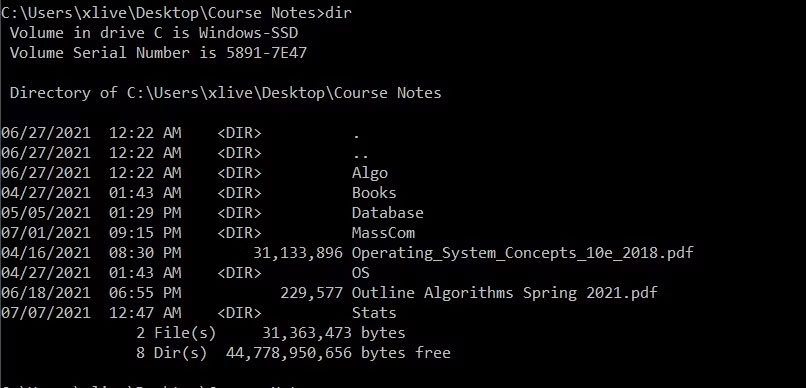
<p style="text-align: justify;">Tuy nhiên, bạn có thể sử dụng chức năng lệnh “ls” trong Windows bằng&nbsp;lệnh dir&nbsp;tương đương trong Command Prompt.</p>

<figure>
<div style="text-align: justify;"><img alt="Sử dụng lệnh dir để liệt kê các file trong Windows CMD" data-i="0" data-src="https://st.quantrimang.com/photos/image/2023/03/21/su-dung-lenh-ls-trong-windows-1.jpg" data-was-processed="true" height="388" src="https://st.quantrimang.com/photos/image/2023/03/21/su-dung-lenh-ls-trong-windows-1.jpg" width="806" /></div>

<figcaption>
<div style="text-align: justify;">Sử dụng lệnh dir để liệt kê các file trong Windows CMD</div>
</figcaption>
</figure>

<p style="text-align: justify;">Để liệt kê các file và thư mục bằng Command Prompt trong Windows 10 và 11:</p>

<p style="text-align: justify;">1. Nhấp vào biểu tượng menu Start, tìm kiếm Command Prompt, nhấp chuột phải vào&nbsp;<strong>Best Match</strong>&nbsp;và chọn&nbsp;<strong>Run as administrator</strong>.</p>

<p style="text-align: justify;">2. Khi cửa sổ Command Prompt được mở, hãy điều hướng đến thư mục bạn muốn xem và nhập dir.</p>

<p style="text-align: justify;">3. Giờ đây, Command Prompt sẽ liệt kê tất cả các file trong thư mục làm việc hiện tại, cùng với kích thước và ngày sửa đổi lần cuối của chúng.</p>

<h2 style="text-align: justify;">Cách sử dụng lệnh &quot;ls&quot; trong Windows PowerShell</h2>

<p style="text-align: justify;">Mặc dù lệnh &quot;ls&quot; không hoạt động trên Windows Command Prompt, nhưng nó hoạt động trong Windows PowerShell. Windows PowerShell là một tiện ích rất mạnh và thậm chí còn cho phép bạn thực hiện các tác vụ quản lý file phức tạp như tạo, xóa, sao chép file và thư mục thẳng qua terminal.</p>

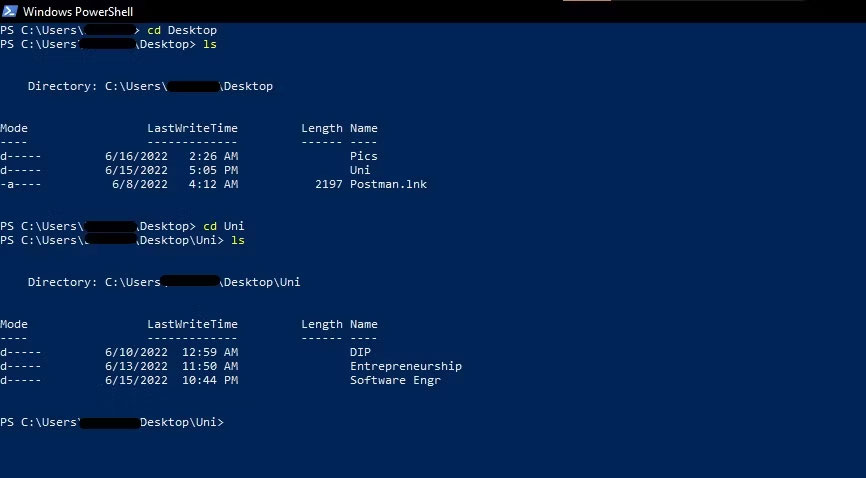
<p style="text-align: justify;">Cmdlet script&nbsp;<strong>Get-ChildItem</strong>&nbsp;của PowerShell cho phép người dùng dễ dàng liệt kê các thư mục file bằng cách sử dụng bất kỳ alias nào, chẳng hạn như ls, dir và thậm chí cả gci.</p>

<figure>
<div style="text-align: justify;"><img alt="Lệnh ls trong Powershell" data-i="1" data-src="https://st.quantrimang.com/photos/image/2023/03/21/su-dung-lenh-ls-trong-windows-2.jpg" data-was-processed="true" height="478" src="https://st.quantrimang.com/photos/image/2023/03/21/su-dung-lenh-ls-trong-windows-2.jpg" width="866" /></div>

<figcaption>
<div style="text-align: justify;">Lệnh ls trong Powershell</div>
</figcaption>
</figure>

<p style="text-align: justify;">Để xem thư mục file bằng lệnh &quot;ls&quot; trong Windows PowerShell:</p>

<p style="text-align: justify;">1. Khởi chạy Windows PowerShell bằng menu Start và chọn Best match.</p>

<p style="text-align: justify;">2. Điều hướng đến thư mục đích của bạn bằng&nbsp;lệnh cd.</p>

<p style="text-align: justify;">3. Nhập lệnh&nbsp;<strong>ls</strong>&nbsp;và nhấn&nbsp;<strong>Enter</strong>&nbsp;để xem tất cả các file và thư mục được liệt kê trong thư mục đích của bạn.</p>

<p style="text-align: justify;">4. Tương tự, bạn thậm chí có thể sử dụng lệnh dir hoặc gci để xem nội dung của một thư mục.</p>
		</div>
				<div id="author">
						<p>
				<strong>Nguồn tin:</strong>
				Quantrimang.com
			</p>
		</div>
	</div>
	<div id="footer" class="clearfix">
		<div id="url">
			<strong>URL của bản tin này: </strong><a href="https://www.nguoicodonvn2008.info/vi/news/savefile/kien-thuc-may-tinh/apple-cach-su-dung-tuy-chon-tuong-duong-voi-lenh-ls-trong-windows-6941.html" title="Apple. Cách sử dụng tùy chọn tương đương với lệnh &quot;ls&quot; trong Windows">https://www.nguoicodonvn2008.info/vi/news/savefile/kien-thuc-may-tinh/apple-cach-su-dung-tuy-chon-tuong-duong-voi-lenh-ls-trong-windows-6941.html</a>

		</div>
		<div class="clear"></div>
		<div class="copyright">
			&copy; .&#x3A; Nguoicodonvn2008.info - Cõi lòng người cô đơn &#x3A;.
		</div>
		<div id="contact">
			<a href="mailto:admin@nguoicodonvn2008.info">admin@nguoicodonvn2008.info</a>
		</div>
	</div>
</div>
        <div id="timeoutsess" class="chromeframe">
            Bạn đã không sử dụng Site, <a onclick="timeoutsesscancel();" href="https://nguoicodonvn2008.info/#">Bấm vào đây để duy trì trạng thái đăng nhập</a>. Thời gian chờ: <span id="secField"> 60 </span> giây
        </div>
        <div id="openidResult" class="nv-alert" style="display:none"></div>
        <div id="openidBt" data-result="" data-redirect=""></div>
		</script>
		<div class="car-top">
  <span><img src="https://nguoicodonvn2008.info/themes/default/images/car.png" alt=""></span>
</div>
<div id="run_cronjobs" style="visibility:hidden;display:none;"><img alt="cron" src="/index.php?second=cronjobs&amp;p=j0k0oQPp" width="1" height="1" /></div>
<script src="https://nguoicodonvn2008.info/assets/js/jquery/jquery.min.js"></script>
<script>var nv_base_siteurl="/",nv_lang_data="vi",nv_lang_interface="vi",nv_name_variable="nv",nv_fc_variable="op",nv_lang_variable="language",nv_module_name="news",nv_func_name="savefile",nv_is_user=0, nv_my_ofs=-4,nv_my_abbr="EDT",nv_cookie_prefix="nv4c_e856T",nv_check_pass_mstime=1738000,nv_area_admin=0,nv_safemode=0,theme_responsive=0,nv_recaptcha_ver=2,nv_recaptcha_sitekey="",nv_recaptcha_type="image",XSSsanitize=1;</script>
<script src="https://nguoicodonvn2008.info/assets/js/language/vi.js"></script>
<script src="https://nguoicodonvn2008.info/assets/js/DOMPurify/purify3.js"></script>
<script src="https://nguoicodonvn2008.info/assets/js/global.js"></script>
<script src="https://nguoicodonvn2008.info/assets/js/site.js"></script>
<script src="https://nguoicodonvn2008.info/themes/default/js/news.js"></script>
<script src="https://nguoicodonvn2008.info/themes/default/js/main.js"></script>
<script src="https://nguoicodonvn2008.info/themes/default/js/custom.js"></script>
<script type="application/ld+json">
        {
            "@context": "https://schema.org",
            "@type": "Organization",
            "url": "https://nguoicodonvn2008.info",
            "logo": "https://nguoicodonvn2008.info/uploads/angel.gif"
        }
        </script>
<script src="https://nguoicodonvn2008.info/themes/default/js/bootstrap.min.js"></script>
<script type="text/javascript">
var $scrolltop = $('.car-top');
$scrolltop.on('click', function () {
    $('html,body').animate({
        scrollTop: 0
    }, 800);
    $(this).addClass("car-run");
    setTimeout(function(){ $scrolltop.removeClass('car-run');}, 1000);
    return false;
});
$(window).on('scroll', function ()
{ 
    if($(window).scrollTop() >= 200)
    {
        $scrolltop.addClass("show");
        $scrolltop.addClass("car-down");
    }
    else
    {
       $scrolltop.removeClass("show");
       setTimeout(function(){ $scrolltop.removeClass('car-down');}, 300);
    }
});
</script>
</body>
</html>