<!DOCTYPE html>
    <html lang="vi" xmlns="http://www.w3.org/1999/xhtml" prefix="og: http://ogp.me/ns#">
    <head>
<title>9 cách xuống dòng trong Excel dễ nhất</title>
<meta name="description" content="9 cách xuống dòng trong Excel dễ nhất - Savefile - Tin Tức -...">
<meta name="author" content=".: Nguoicodonvn2008.info - Cõi lòng người cô đơn :.">
<meta name="copyright" content=".: Nguoicodonvn2008.info - Cõi lòng người cô đơn :. [admin@nguoicodonvn2008.info]">
<meta name="robots" content="index, archive, follow, noodp">
<meta name="googlebot" content="index,archive,follow,noodp">
<meta name="msnbot" content="all,index,follow">
<meta name="generator" content="NukeViet v4.5">
<meta http-equiv="Content-Type" content="text/html; charset=utf-8">
<meta property="og:title" content="9 cách xuống dòng trong Excel dễ nhất">
<meta property="og:type" content="website">
<meta property="og:description" content="Savefile - Tin Tức - https&#x3A;&#x002F;&#x002F;www.nguoicodonvn2008.info&#x002F;vi&#x002F;news&#x002F;savefile&#x002F;kien-thuc-may-tinh&#x002F;9-cach-xuong-dong-trong-excel-de-nhat-8763.html">
<meta property="og:site_name" content=".&#x3A; Nguoicodonvn2008.info - Cõi lòng người cô đơn &#x3A;.">
<meta property="og:url" content="https://www.nguoicodonvn2008.info/vi/news/savefile/kien-thuc-may-tinh/9-cach-xuong-dong-trong-excel-de-nhat-8763.html">
<link rel="shortcut icon" href="https://nguoicodonvn2008.info/favicon.ico">
<link rel="canonical" href="https://www.nguoicodonvn2008.info/vi/news/savefile/kien-thuc-may-tinh/9-cach-xuong-dong-trong-excel-de-nhat-8763.html">
<link rel="alternate" href="https://nguoicodonvn2008.info/vi/news/rss/" title="Tin Tức" type="application/rss+xml">
<link rel="alternate" href="https://nguoicodonvn2008.info/vi/news/rss/karaoke-dual/" title="Tin Tức - Karaoke Dual" type="application/rss+xml">
<link rel="alternate" href="https://nguoicodonvn2008.info/vi/news/rss/nhac-tre/" title="Tin Tức - Nhạc trẻ" type="application/rss+xml">
<link rel="alternate" href="https://nguoicodonvn2008.info/vi/news/rss/tru-tinh/" title="Tin Tức - Trữ tình" type="application/rss+xml">
<link rel="alternate" href="https://nguoicodonvn2008.info/vi/news/rss/nuoc-ngoai/" title="Tin Tức - Nước ngoài" type="application/rss+xml">
<link rel="alternate" href="https://nguoicodonvn2008.info/vi/news/rss/remix/" title="Tin Tức - Remix" type="application/rss+xml">
<link rel="alternate" href="https://nguoicodonvn2008.info/vi/news/rss/tam-su-tinh-yeu/" title="Tin Tức - Tâm sự tình yêu" type="application/rss+xml">
<link rel="alternate" href="https://nguoicodonvn2008.info/vi/news/rss/tho-suu-tam/" title="Tin Tức - Thơ sưu tầm" type="application/rss+xml">
<link rel="alternate" href="https://nguoicodonvn2008.info/vi/news/rss/cuoc-song/" title="Tin Tức - Cuộc sống" type="application/rss+xml">
<link rel="alternate" href="https://nguoicodonvn2008.info/vi/news/rss/phan-mem/" title="Tin Tức - Phần mềm" type="application/rss+xml">
<link rel="alternate" href="https://nguoicodonvn2008.info/vi/news/rss/kien-thuc-may-tinh/" title="Tin Tức - Kiến thức máy tính" type="application/rss+xml">
<link rel="alternate" href="https://nguoicodonvn2008.info/vi/news/rss/hoc-tap/" title="Tin Tức - Học tập" type="application/rss+xml">
<link rel="alternate" href="https://nguoicodonvn2008.info/vi/news/rss/tai-lieu/" title="Tin Tức - Tài liệu" type="application/rss+xml">
<link rel="alternate" href="https://nguoicodonvn2008.info/vi/news/rss/de-thi/" title="Tin Tức - Đề thi" type="application/rss+xml">
<link rel="preload" as="style" href="https://nguoicodonvn2008.info/assets/css/font-awesome.min.css" type="text/css">
<link rel="preload" as="style" href="https://nguoicodonvn2008.info/themes/default/css/bootstrap.non-responsive.css" type="text/css">
<link rel="preload" as="style" href="https://nguoicodonvn2008.info/themes/default/css/style.css" type="text/css">
<link rel="preload" as="style" href="https://nguoicodonvn2008.info/themes/default/css/style.non-responsive.css" type="text/css">
<link rel="preload" as="style" href="https://nguoicodonvn2008.info/themes/default/css/news.css" type="text/css">
<link rel="preload" as="style" href="https://nguoicodonvn2008.info/themes/default/css/custom.css" type="text/css">
<link rel="preload" as="script" href="https://nguoicodonvn2008.info/assets/js/jquery/jquery.min.js" type="text/javascript">
<link rel="preload" as="script" href="https://nguoicodonvn2008.info/assets/js/language/vi.js" type="text/javascript">
<link rel="preload" as="script" href="https://nguoicodonvn2008.info/assets/js/DOMPurify/purify3.js" type="text/javascript">
<link rel="preload" as="script" href="https://nguoicodonvn2008.info/assets/js/global.js" type="text/javascript">
<link rel="preload" as="script" href="https://nguoicodonvn2008.info/assets/js/site.js" type="text/javascript">
<link rel="preload" as="script" href="https://nguoicodonvn2008.info/themes/default/js/news.js" type="text/javascript">
<link rel="preload" as="script" href="https://nguoicodonvn2008.info/themes/default/js/main.js" type="text/javascript">
<link rel="preload" as="script" href="https://nguoicodonvn2008.info/themes/default/js/custom.js" type="text/javascript">
<link rel="preload" as="script" href="https://nguoicodonvn2008.info/themes/default/js/bootstrap.min.js" type="text/javascript">
<link rel="stylesheet" href="https://nguoicodonvn2008.info/assets/css/font-awesome.min.css">
<link rel="stylesheet" href="https://nguoicodonvn2008.info/themes/default/css/bootstrap.non-responsive.css">
<link rel="stylesheet" href="https://nguoicodonvn2008.info/themes/default/css/style.css">
<link rel="stylesheet" href="https://nguoicodonvn2008.info/themes/default/css/style.non-responsive.css">
<link rel="StyleSheet" href="https://nguoicodonvn2008.info/themes/default/css/news.css">
<link rel="stylesheet" href="https://nguoicodonvn2008.info/themes/default/css/custom.css">
<style type="text/css">
	body{background: #fff;}
</style>
    </head>
    <body>
<div id="print">
	<div id="hd_print">
		<h2 class="pull-left">.&#x3A; Nguoicodonvn2008.info - Cõi lòng người cô đơn &#x3A;.</h2>
		<p class="pull-right"><a title=".&#x3A; Nguoicodonvn2008.info - Cõi lòng người cô đơn &#x3A;." href="https://nguoicodonvn2008.info/">https://nguoicodonvn2008.info</a></p>
	</div>
	<div class="clear"></div>
	<hr />
	<div id="content">
		<h1>9 cách xuống dòng trong Excel dễ nhất</h1>
		<ul class="list-inline">
			<li>Thứ sáu - 26/07/2024 23:07</li>
			<li class="hidden-print txtrequired"><em class="fa fa-print">&nbsp;</em><a title="In ra" href="javascript:;" onclick="window.print()">In ra</a></li>
			<li class="hidden-print txtrequired"><em class="fa fa-power-off">&nbsp;</em><a title="Đóng cửa sổ này" href="javascript:;" onclick="window.close()">Đóng cửa sổ này</a></li>
		</ul>
		<div class="clear"></div>
		<div id="hometext">
		</div>
				<div class="imghome">
			<img alt="9 cách xuống dòng trong Excel dễ nhất" src="https://st.quantrimang.com/photos/image/2018/01/06/xuong-dong-trong-Excel-Alt-Enter-nhay.jpg" width="460" class="img-thumbnail" />
		</div>
		<div class="clear"></div>
		<div id="bodytext" class="clearfix">
			<p style="text-align: justify;">Để xuống dòng trong Excel bạn có rất nhiều cách thực hiện, tùy theo nội dung và yêu cầu xuống dòng trong Excel cần thực hiện là gì. Chúng ta có thể điều chỉnh để xuống dòng trong 1 ô Excel mà vẫn nhìn rõ nội dung. Hoặc thiết lập chế độ tự động xuống dòng trong Excel. Bài viết dưới đây sẽ hướng dẫn bạn xuống dòng trong Excel.</p>

<h2 id="mcetoc_1cuj94k3l0" style="text-align: justify;"><strong>Cách 1: Xuống dòng trong 1 ô Excel bằng Alt + Enter</strong></h2>

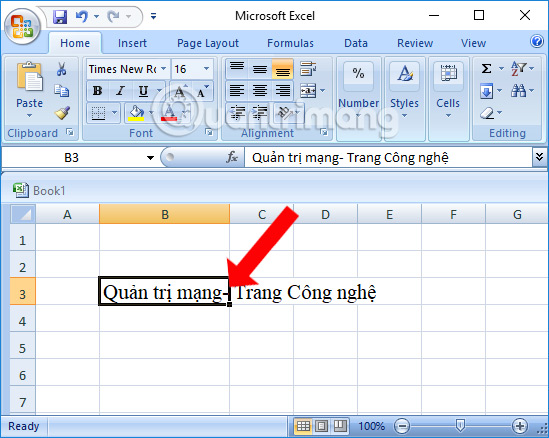
<p style="text-align: justify;">Nếu bạn cần viết nhiều dòng trong 1 ô Excel, để xuống dòng trong Excel, bạn hãy đặt chuột ở vị trí muốn xuống dòng và nhấn tổ hợp&nbsp;phím tắt Excel<strong>&nbsp;Alt + Enter&nbsp;</strong>trên Windows hoặc<strong>&nbsp;Command + Enter&nbsp;</strong>trên macOS.</p>

<p style="text-align: justify;"><img alt="Đặt chuột tại vị trí xuống dòng " data-i="0" data-src="https://st.quantrimang.com/photos/image/2018/01/06/xuong-dong-trong-Excel-Alt-Enter-nhay.jpg" data-was-processed="true" height="423" src="https://st.quantrimang.com/photos/image/2018/01/06/xuong-dong-trong-Excel-Alt-Enter-nhay.jpg" width="530" /></p>

<div style="text-align: justify;"><iframe allow="autoplay" allowtransparency="true" aria-label="Advertisement" data-google-container-id="a!2" data-google-query-id="CJCx_O2exocDFYvLTAId9PM72w" data-load-complete="true" frameborder="0" height="0" hspace="0" id="aswift_1" marginheight="0" marginwidth="0" name="aswift_1" sandbox="allow-scripts allow-same-origin allow-forms allow-presentation" scrolling="no" tabindex="0" title="Advertisement" vspace="0" width="694"></iframe></div>

<p style="text-align: justify;">Chẳng hạn khi nhập nội dung như hình với nội dung dài sẽ bị tràn sang bên phải. Để ngắt dòng cho xuống nội dung bên dưới, đặt dấu chuột vào vị trí mà bạn muốn xuống dòng, rồi nhấn tổ hợp phím&nbsp;<strong>Alt + Enter</strong>&nbsp;để xuống dòng.</p>

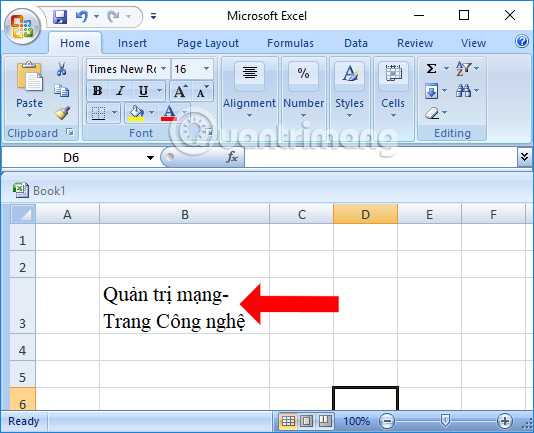
<p style="text-align: justify;">Kết quả sẽ được như hình dưới đây. Nội dung đã được dồn vào trong 1 ô. Sau đó chúng ta tiến hành chỉnh sửa, căn chỉnh lại nội dung sao cho phù hợp.</p>

<p style="text-align: justify;"><img alt="Xuống dòng Excel bằng Alt+Enter" data-adbro-processed="true" data-i="1" data-src="https://st.quantrimang.com/photos/image/2018/01/06/xuong-dong-trong-Excel-Alt-Enter.jpg" data-was-processed="true" height="422" src="https://st.quantrimang.com/photos/image/2018/01/06/xuong-dong-trong-Excel-Alt-Enter.jpg" width="520" /></p>

<h2 id="mcetoc_1cuj94k3m1" style="text-align: justify;">Cách 2: Xuống dòng trong Excel bằng Wrap Text</h2>

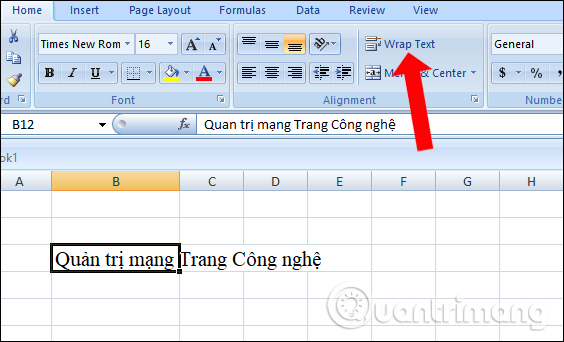
<p style="text-align: justify;">Chính xác hơn thì Wrap Text là cách để gói gọn nội dung trong 1 ô, khiến chữ không bị tràn sang ô khác. Bạn nhập nội dung vào 1 ô Excel, tiếp đó nhấn vào ô đã nhập nội dung, sau đó nhấn vào<strong>&nbsp;Wrap Text</strong>&nbsp;ở bên trên như hình.</p>

<p style="text-align: justify;"><img alt="Nhấn chọn Wrap Text " data-i="2" data-src="https://st.quantrimang.com/photos/image/2018/01/06/xuong-dong-trong-Excel-Wrap-Text.jpg" data-was-processed="true" height="334" src="https://st.quantrimang.com/photos/image/2018/01/06/xuong-dong-trong-Excel-Wrap-Text.jpg" width="550" /></p>

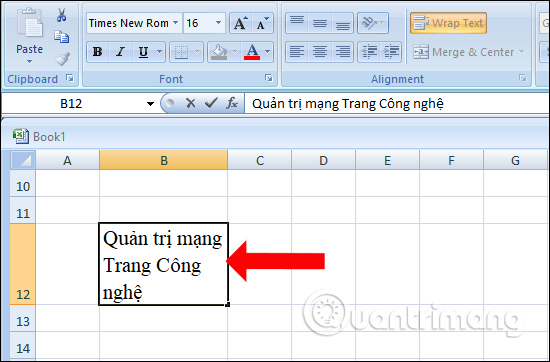
<p style="text-align: justify;">Kết quả nội dung cũng sẽ xuống dòng như hình. Bạn căn chỉnh lại nội dung để có bố cục đẹp mắt hơn.</p>

<p style="text-align: justify;"><img alt="Xuống dòng Excel bằng Wrap Text" data-i="3" data-src="https://st.quantrimang.com/photos/image/2018/01/06/xuong-dong-trong-Excel-Wrap-Text-xuong.jpg" data-was-processed="true" height="362" src="https://st.quantrimang.com/photos/image/2018/01/06/xuong-dong-trong-Excel-Wrap-Text-xuong.jpg" width="550" /></p>

<div style="text-align: justify;"><iframe allow="autoplay" allowtransparency="true" aria-label="Advertisement" data-google-container-id="a!3" data-google-query-id="CPym_O2exocDFb0mewcdrOYr6Q" data-load-complete="true" frameborder="0" height="0" hspace="0" id="aswift_2" marginheight="0" marginwidth="0" name="aswift_2" sandbox="allow-scripts allow-same-origin allow-forms allow-presentation" scrolling="no" tabindex="0" title="Advertisement" vspace="0" width="694"></iframe></div>

<h2 id="mcetoc_1cuj94k3m2" style="text-align: justify;">Cách 3: Điều chỉnh trong Format Cells để xuống dòng Excel</h2>

<p style="text-align: justify;"><strong>Bước 1:</strong></p>

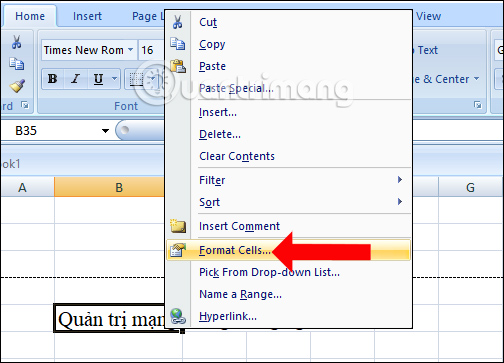
<p style="text-align: justify;">Bạn click chuột vào nội dung chữ đã nhập trong Excel rồi nhấn chuột phải chọn&nbsp;<strong>Format Cells...</strong>&nbsp;xuất hiện trong danh sách.</p>

<p style="text-align: justify;"><img alt="Nhấn chọn Format Cells " data-i="4" data-src="https://st.quantrimang.com/photos/image/2018/01/06/xuong-dong-trong-Excel-Format-Cells.jpg" data-was-processed="true" height="363" src="https://st.quantrimang.com/photos/image/2018/01/06/xuong-dong-trong-Excel-Format-Cells.jpg" width="504" /></p>

<p style="text-align: justify;"><strong>Bước 2:</strong></p>

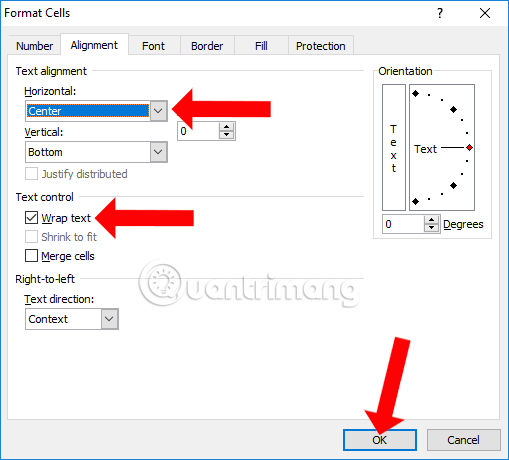
<p style="text-align: justify;">Xuất hiện giao diện hộp thoại mới. Tại đây, nhấn&nbsp;<strong>tab Alignment</strong>&nbsp;rồi tích vào&nbsp;<strong>Wrap text</strong>&nbsp;như hình bên dưới.</p>

<p style="text-align: justify;">Ngoài ra, tại đây bạn có thể tùy chỉnh nhiều hơn với ô tính ví dụ căn giữa nội dung, tạo góc, thay đổi Fonts chữ, tạo khung cho ô tính…. Nhấn&nbsp;<strong>OK</strong>&nbsp;để lưu lại.</p>

<p style="text-align: justify;"><img alt="Điều chỉnh trong Format Cells " data-i="5" data-src="https://st.quantrimang.com/photos/image/2018/01/06/xuong-dong-trong-Excel-Format-Cells-Alignment.jpg" data-was-processed="true" height="460" src="https://st.quantrimang.com/photos/image/2018/01/06/xuong-dong-trong-Excel-Format-Cells-Alignment.jpg" width="509" /></p>

<p style="text-align: justify;"><strong>Bước 3:</strong></p>

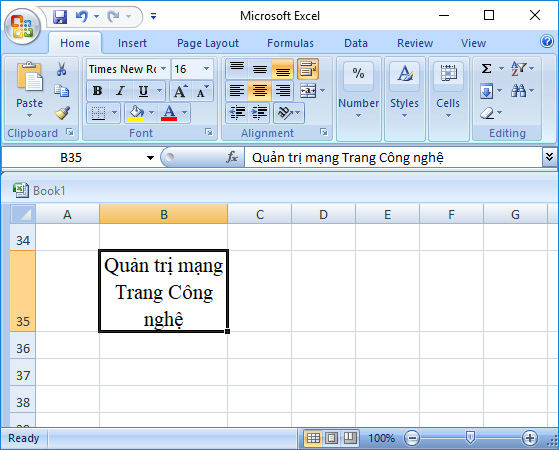
<p style="text-align: justify;">Nội dung chữ cũng sẽ được chuyển xuống dòng mà không sang cột khác. Đồng thời nội dung trong dòng cũng sẽ tự động được căn chỉnh mà chúng ta không cần phải chỉnh sửa thủ công.</p>

<p style="text-align: justify;"><img alt="Căn chỉnh nội dung chữ" data-i="6" data-src="https://st.quantrimang.com/photos/image/2018/01/06/xuong-dong-trong-Excel-Format-Cells-can.jpg" data-was-processed="true" height="419" src="https://st.quantrimang.com/photos/image/2018/01/06/xuong-dong-trong-Excel-Format-Cells-can.jpg" width="520" /></p>

<p style="text-align: justify;">Nếu bạn muốn nội dung trong ô Excel được tự động căn chỉnh thì điều chỉnh trong Format Cells, nội dung sẽ được điều chỉnh phù hợp với độ rộng của cột chứa nó.</p>

<h2 id="mcetoc_1fv7lg6591u" style="text-align: justify;">Cách 4: Ngắt dòng trong Microsoft Excel bằng Find &amp; Replace</h2>

<p style="text-align: justify;">Đôi khi, yêu cầu thực tế khiến bạn buộc phải xuống dòng liên tục sau các ký tự, chữ cái nhất định nào đó. Vậy phải làm thế nào?</p>

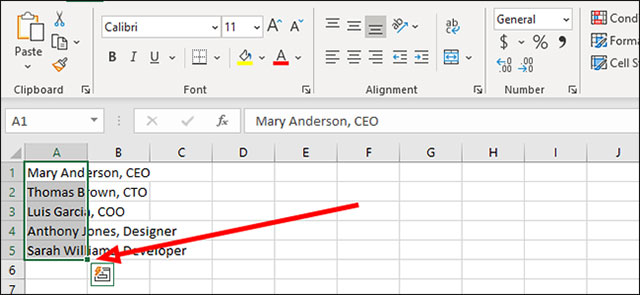
<p style="text-align: justify;">Đầu tiên, hãy bôi đen để chọn tất cả các ô mà bạn muốn chèn thêm dấu ngắt dòng.</p>

<p style="text-align: justify;"><img alt="Bôi đen các ô muốn chọn" data-i="7" data-src="https://st.quantrimang.com/photos/image/2021/01/30/xuong-dong-trong-excel1.jpg" data-was-processed="true" height="295" src="https://st.quantrimang.com/photos/image/2021/01/30/xuong-dong-trong-excel1.jpg" width="640" /></p>

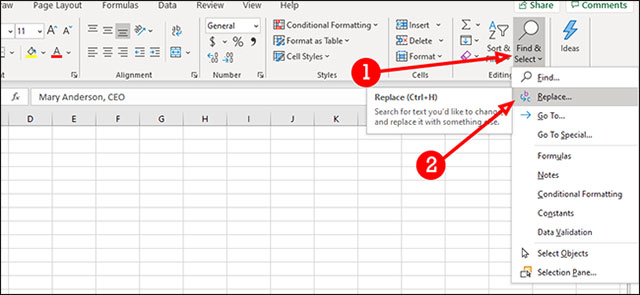
<p style="text-align: justify;">Nhìn lên thanh công cụ, tìm tab “<strong>Home</strong>” và bấm vào đó. Một menu tùy chọn tương ứng sẽ lập tức được mở ra. Tại đây, bạn điều hướng đến mục<strong>&nbsp;Find &amp; Select &gt; Replace</strong>. Nếu không muốn sử dụng chuột, bạn cũng có thể nhấn tổ hợp phím Ctrl+H để truy cập nhanh vào hộp thoại Find &amp; Select này.</p>

<p style="text-align: justify;"><img alt="Bấm vào Find &amp; Select &gt; Replace" data-i="8" data-src="https://st.quantrimang.com/photos/image/2021/01/30/xuong-dong-trong-excel2.jpg" data-was-processed="true" height="295" src="https://st.quantrimang.com/photos/image/2021/01/30/xuong-dong-trong-excel2.jpg" width="640" /></p>

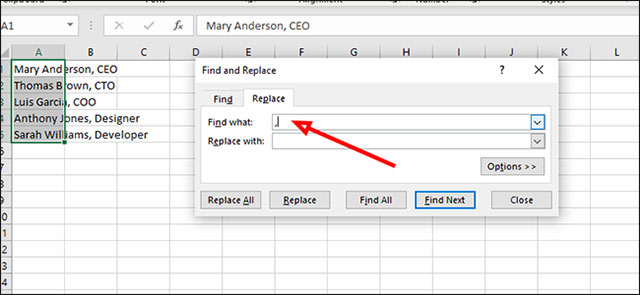
<p style="text-align: justify;">Trên hộp thoại xuất hiện chính giữa màn hình, trong trường văn bản “<strong>Find what</strong>”, bạn hãy nhập ký tự mà mình đang tìm kiếm. Trong ví dụ minh họa phía dưới, thứ chúng ta tìm kiếm là dấu phẩy đang được sử dụng để ngăn cách giữa tên người và chức danh.</p>

<p style="text-align: justify;"><img alt="Nhập ký tự bạn đang tìm kiếm" data-i="9" data-src="https://st.quantrimang.com/photos/image/2021/01/30/xuong-dong-trong-excel3.jpg" data-was-processed="true" height="295" src="https://st.quantrimang.com/photos/image/2021/01/30/xuong-dong-trong-excel3.jpg" width="640" /></p>

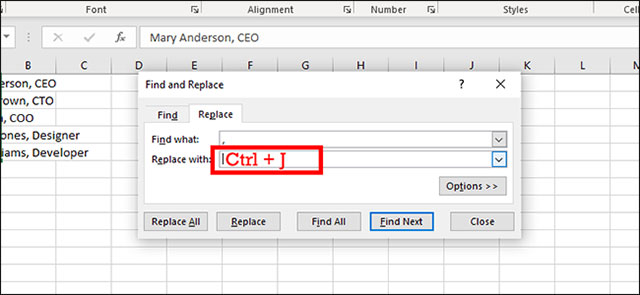
<p style="text-align: justify;">Trong trường “<strong>Replace with</strong>”, bạn nhấn tổ hợp phím&nbsp;<strong>Ctrl + J</strong>&nbsp;để thêm dấu xuống dòng. Thao tác này sẽ chèn dấu ngắt dòng thay cho mỗi dấu phẩy.</p>

<p style="text-align: justify;"><img alt="Nhấn hợp phím Ctrl + J để thêm dấu xuống dòng" data-i="10" data-src="https://st.quantrimang.com/photos/image/2021/01/30/xuong-dong-trong-excel4.jpg" data-was-processed="true" height="295" src="https://st.quantrimang.com/photos/image/2021/01/30/xuong-dong-trong-excel4.jpg" width="640" /></p>

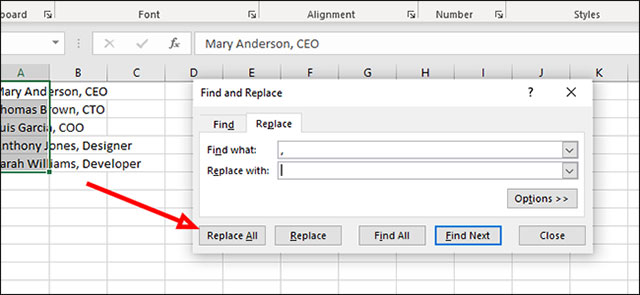
<p style="text-align: justify;">Bây giờ, nhấp vào nút “<strong>Replace All</strong>” ở dưới cùng để thay thế tất cả các dấu phẩy bằng dấu ngắt xuống dòng.</p>

<p style="text-align: justify;"><img alt="Nhấp vào nút “Replace All”" data-i="11" data-src="https://st.quantrimang.com/photos/image/2021/01/30/xuong-dong-trong-excel5.jpg" data-was-processed="true" height="295" src="https://st.quantrimang.com/photos/image/2021/01/30/xuong-dong-trong-excel5.jpg" width="640" /></p>

<h2 id="mcetoc_1i0o2t2r230" style="text-align: justify;">Cách 5: Hướng dẫn xuống dòng trong 1 ô Excel bằng hàm ChAR</h2>

<div style="text-align: justify;"><iframe allow="autoplay" allowtransparency="true" aria-label="Advertisement" data-google-container-id="a!5" data-google-query-id="CK3fkfaexocDFVaCuQUdsZcACw" data-load-complete="true" frameborder="0" height="0" hspace="0" id="aswift_4" marginheight="0" marginwidth="0" name="aswift_4" sandbox="allow-scripts allow-same-origin allow-forms allow-presentation" scrolling="no" tabindex="0" title="Advertisement" vspace="0" width="694"></iframe></div>

<p style="text-align: justify;">Bạn có thể sử dụng hàm này để xuống dòng trong 1 ô khi có văn bản dài.</p>

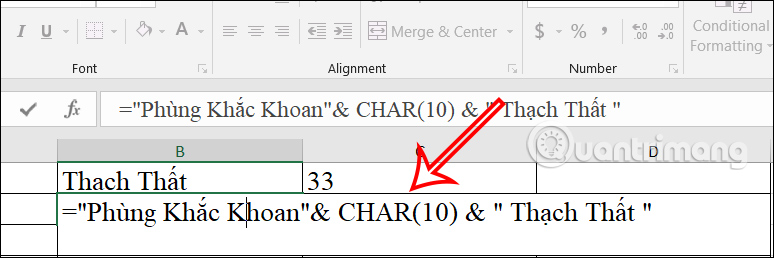
<p style="text-align: justify;">Tại ô có nội dung cần xuống dòng, bạn nhập nội dung hàm =&quot;Phùng Khắc Khoan&quot;&amp; CHAR(10) &amp; &quot; Thạch Thất&quot; như hình dưới đây rồi nhấn Enter. Sau đó nội dung được nhập vào trong ô Excel.</p>

<p style="text-align: justify;"><img alt="Hàm Char trong Excel " data-i="12" data-src="https://st.quantrimang.com/photos/image/2024/06/18/Excel-xuong-dong-1.jpg" data-was-processed="true" height="213" src="https://st.quantrimang.com/photos/image/2024/06/18/Excel-xuong-dong-1.jpg" width="640" /></p>

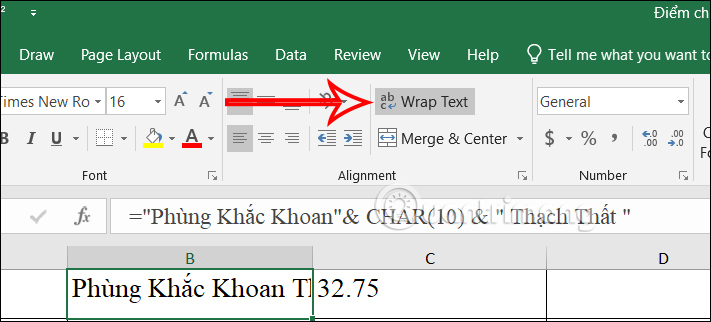
<p style="text-align: justify;">Tiếp đến bạn chỉ cần&nbsp;<strong>nhấn vào ô Wrap Text</strong>&nbsp;ở bên trên để các ký tự trong 1 ô Excel xuống dòng như hình dưới đây.</p>

<p style="text-align: justify;"><img alt="Xuống dòng trong Excel " data-i="13" data-src="https://st.quantrimang.com/photos/image/2024/06/18/Excel-xuong-dong-2.jpg" data-was-processed="true" height="290" src="https://st.quantrimang.com/photos/image/2024/06/18/Excel-xuong-dong-2.jpg" width="640" /></p>

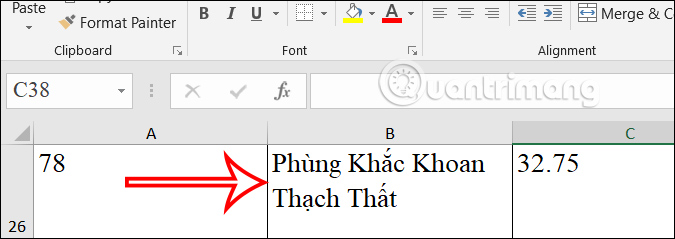
<p style="text-align: justify;">Kết quả nội dung trong 1 ô Exel đã xuống dòng như hình dưới đây.</p>

<p style="text-align: justify;"><img alt="Xuống dòng trong 1 ô Excel " data-i="14" data-src="https://st.quantrimang.com/photos/image/2024/06/18/Excel-xuong-dong-3.jpg" data-was-processed="true" height="227" src="https://st.quantrimang.com/photos/image/2024/06/18/Excel-xuong-dong-3.jpg" width="640" /></p>

<h2 id="mcetoc_1i0o2t2r231" style="text-align: justify;">Cách 6: Cách xuống dòng trong 1 ô Excel khi nối chuỗi</h2>

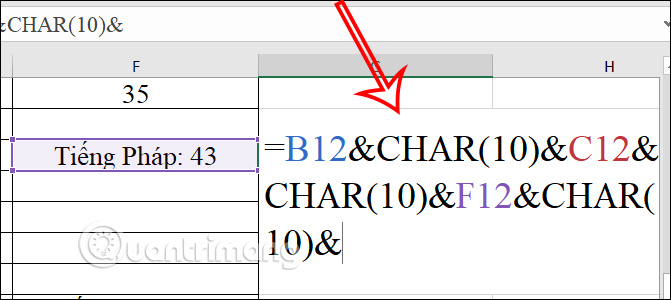
<p style="text-align: justify;">Chẳng hạn chúng ta sẽ nối chuỗi trong từng ô sau đó lại xuống dòng cho từng ký tự.</p>

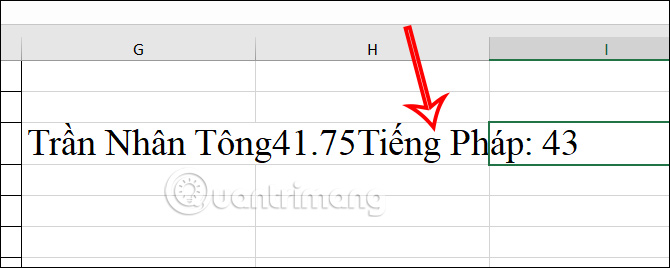
<p style="text-align: justify;">Chúng ta nhập công thức nối chuỗi =B12&amp;CHAR(10)&amp;C12&amp;CHAR(10)&amp;F12&amp;CHAR(10)&amp; rồi nhấn Enter.</p>

<p style="text-align: justify;"><img alt="Nối chuỗi ký tự Excel " data-i="15" data-src="https://st.quantrimang.com/photos/image/2024/06/18/Excel-xuong-dong-4.jpg" data-was-processed="true" height="268" src="https://st.quantrimang.com/photos/image/2024/06/18/Excel-xuong-dong-4.jpg" width="600" /></p>

<p style="text-align: justify;">Khi đó các chuỗi được nối lại với nhau như hình dưới đây.</p>

<p style="text-align: justify;"><img alt="Nối ký tự trong 1 ô Excel" data-i="16" data-src="https://st.quantrimang.com/photos/image/2024/06/18/Excel-xuong-dong-6.jpg" data-was-processed="true" height="256" src="https://st.quantrimang.com/photos/image/2024/06/18/Excel-xuong-dong-6.jpg" width="640" /></p>

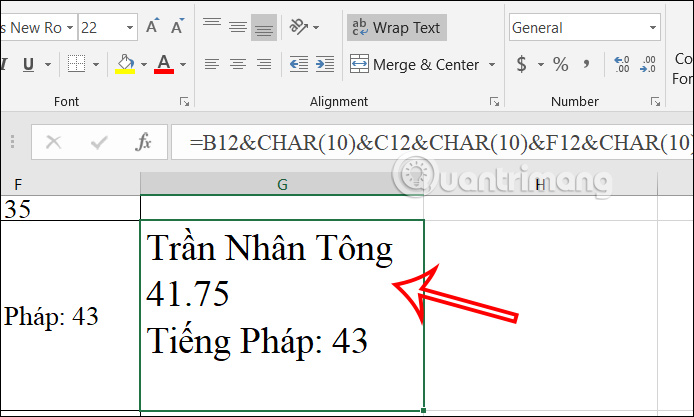
<p style="text-align: justify;">Tiếp đến chúng ta chỉ cần&nbsp;<strong>nhấn vào Wrap Text&nbsp;</strong>để xuống dòng cho trong 1 ô Excel là được.</p>

<p style="text-align: justify;"><img alt="Xuống dòng các ký tự nối trong Excel" data-i="17" data-src="https://st.quantrimang.com/photos/image/2024/06/18/Excel-xuong-dong-5.jpg" data-was-processed="true" height="349" src="https://st.quantrimang.com/photos/image/2024/06/18/Excel-xuong-dong-5.jpg" width="580" /></p>

<h2 id="mcetoc_1i3mvenjsu" style="text-align: justify;">7. Xuống dòng trong Excel bằng chức năng căn lề Justify</h2>

<p style="text-align: justify;">Thao tác xuống dòng trong Excel bằng chức năng căn lề Justify cũng không quá khó thực hiện.</p>

<p style="text-align: justify;"><strong>Bước 1:</strong></p>

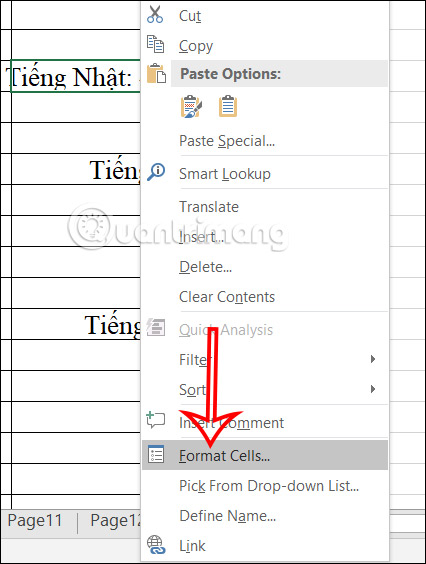
<p style="text-align: justify;">Bạn bôi đen nội dung mà mình muốn xuống dòng, sau đó&nbsp;<strong>nhấn chuột phải vào ô&nbsp;</strong>rồi chọn tiếp vào&nbsp;<strong>Format Cells</strong>&nbsp;trong danh sách hiển thị.</p>

<p style="text-align: justify;"><img alt="Format Cells" data-i="18" data-src="https://st.quantrimang.com/photos/image/2024/07/25/Excel-xuong-dong-1.jpg" data-was-processed="true" height="503" src="https://st.quantrimang.com/photos/image/2024/07/25/Excel-xuong-dong-1.jpg" width="380" /></p>

<p style="text-align: justify;"><strong>Bước 2:</strong></p>

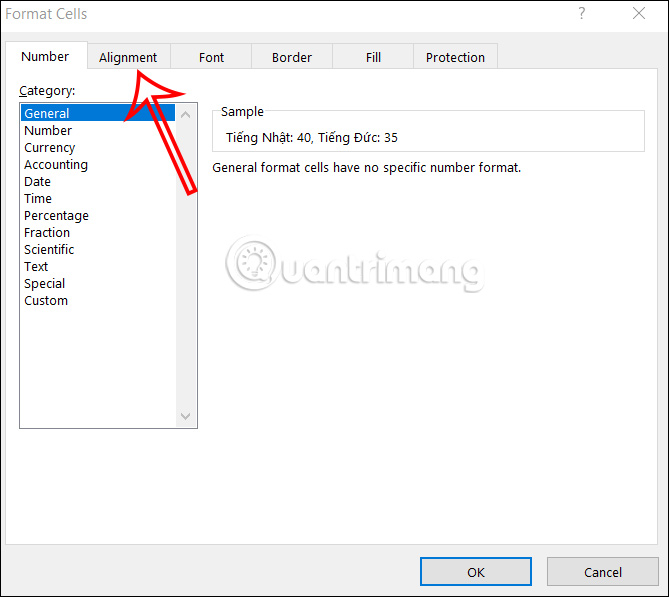
<p style="text-align: justify;">Hiển thị giao diện tùy chỉnh. Bạn nhấn vào&nbsp;<strong>tab Alignment&nbsp;</strong>để thực hiện.</p>

<div style="text-align: justify;"><iframe allow="autoplay" allowtransparency="true" aria-label="Advertisement" data-google-container-id="a!6" data-google-query-id="CMqth_eexocDFbI3ewcdEIE8sg" data-load-complete="true" frameborder="0" height="0" hspace="0" id="aswift_5" marginheight="0" marginwidth="0" name="aswift_5" sandbox="allow-scripts allow-same-origin allow-forms allow-presentation" scrolling="no" tabindex="0" title="Advertisement" vspace="0" width="694"></iframe></div>

<p style="text-align: justify;"><img alt="Tab Alignment" data-i="19" data-src="https://st.quantrimang.com/photos/image/2024/07/25/Excel-xuong-dong-2.jpg" data-was-processed="true" height="491" src="https://st.quantrimang.com/photos/image/2024/07/25/Excel-xuong-dong-2.jpg" width="550" /></p>

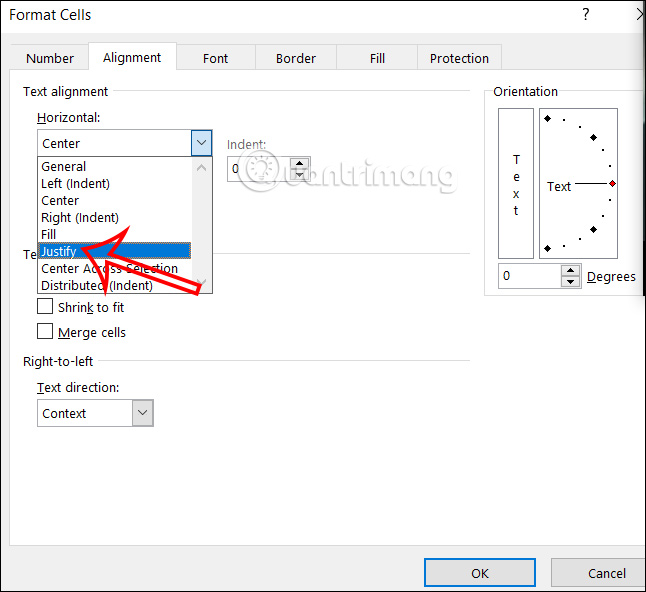
<p style="text-align: justify;">Tiếp đến nhìn xuống bên dưới&nbsp;<strong>mục Horizontal</strong>, chúng ta click vào mũi tên rồi&nbsp;<strong>nhấn vào Justify</strong>&nbsp;trong danh sách hiển thị. Cuối cùng nhấn OK để lưu lại.</p>

<p style="text-align: justify;"><img alt="Nhấn chọn Horizontal" data-i="20" data-src="https://st.quantrimang.com/photos/image/2024/07/25/Excel-xuong-dong-3.jpg" data-was-processed="true" height="504" src="https://st.quantrimang.com/photos/image/2024/07/25/Excel-xuong-dong-3.jpg" width="550" /></p>

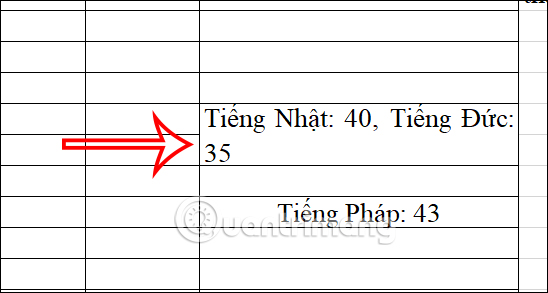
<p style="text-align: justify;">Kết quả chúng ta sẽ nhìn thấy nội dung được xuống dòng như hình dưới đây.</p>

<p style="text-align: justify;"><img alt="Xuống dòng trong 1 ô Excel" data-i="21" data-src="https://st.quantrimang.com/photos/image/2024/07/25/Excel-xuong-dong-4.jpg" data-was-processed="true" height="293" src="https://st.quantrimang.com/photos/image/2024/07/25/Excel-xuong-dong-4.jpg" width="548" /></p>

<h2 id="mcetoc_1i3mvenjsv" style="text-align: justify;">8. Xuống dòng trong Excel bằng hàm SUBSTITUTE để nối ký tự</h2>

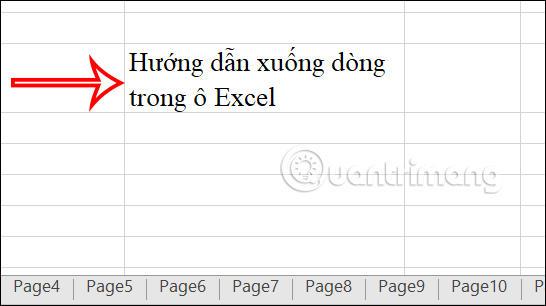
<p style="text-align: justify;">Chẳng hạn chúng ta có ví dụ như hình. Yêu cầu đó là xuống dòng chữ Hướng dẫn để ghép nội dung thành 1 và loại bỏ khoảng trắng.</p>

<p style="text-align: justify;"><img alt="Xuống dòng trong Excel để nối chuỗi" data-i="22" data-src="https://st.quantrimang.com/photos/image/2024/07/25/Excel-xuong-dong-5.jpg" data-was-processed="true" height="303" src="https://st.quantrimang.com/photos/image/2024/07/25/Excel-xuong-dong-5.jpg" width="540" /></p>

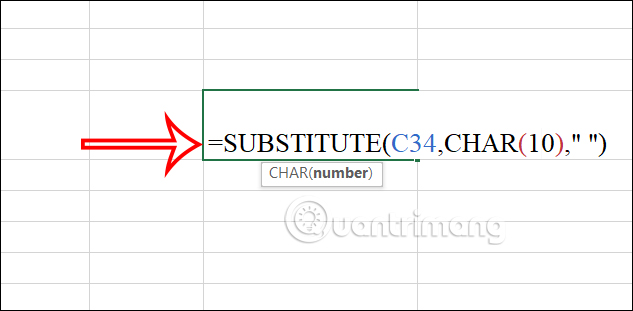
<p style="text-align: justify;">Chúng ta sẽ&nbsp;<strong>nhập công thức xuống dòng =SUBSTITUTE(C34,CHAR(10),&quot; &quot;)</strong>&nbsp;rồi nhấn Enter để thực hiện.</p>

<p style="text-align: justify;"><img alt="Công thức xuống dòng trong Excel để nối chuỗi" data-i="23" data-src="https://st.quantrimang.com/photos/image/2024/07/25/Excel-xuong-dong-6.jpg" data-was-processed="true" height="295" src="https://st.quantrimang.com/photos/image/2024/07/25/Excel-xuong-dong-6.jpg" width="600" /></p>

<p style="text-align: justify;">Kết quả chúng ta sẽ thấy nội dung xuống dòng và tạo thành 1 hàng như hình dưới đây.</p>

<p style="text-align: justify;"><img alt="Xuống dòng trong Excel để nối chuỗi" data-i="24" data-src="https://st.quantrimang.com/photos/image/2024/07/25/Excel-xuong-dong-7.jpg" data-was-processed="true" height="251" src="https://st.quantrimang.com/photos/image/2024/07/25/Excel-xuong-dong-7.jpg" width="627" /></p>

<h2 id="mcetoc_1i3mvenjs10" style="text-align: justify;">9. Cách xuống dòng trong 1 ô Excel trên iPhone, Android</h2>

<p style="text-align: justify;">Phiên bản Excel trên điện thoại cũng có tùy chọn xuống dòng để bạn sử dụng nhanh cho nội dung trong bảng tính.</p>

<p style="text-align: justify;"><strong>Bước 1:</strong></p>

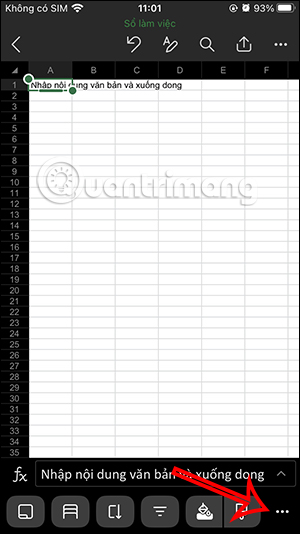
<p style="text-align: justify;">Chúng ta nhấn vào nội dung cần xuống dòng, sau đó nhấn vào&nbsp;<strong>biểu tượng 3 chấm&nbsp;</strong>ở thanh công cụ bên dưới như hình.</p>

<p style="text-align: justify;"><img alt="Công cụ trên Excel điện thoại" data-i="25" data-src="https://st.quantrimang.com/photos/image/2024/07/25/Excel-xuong-dong-8.jpg" data-was-processed="true" height="534" src="https://st.quantrimang.com/photos/image/2024/07/25/Excel-xuong-dong-8.jpg" width="300" /></p>

<p style="text-align: justify;"><strong>Bước 2:</strong></p>

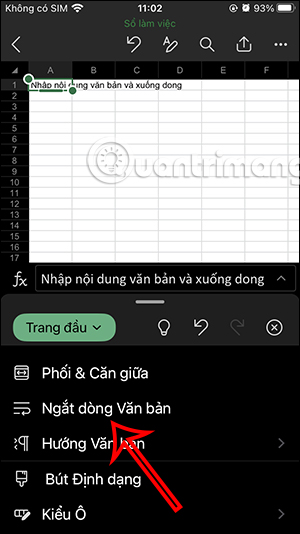
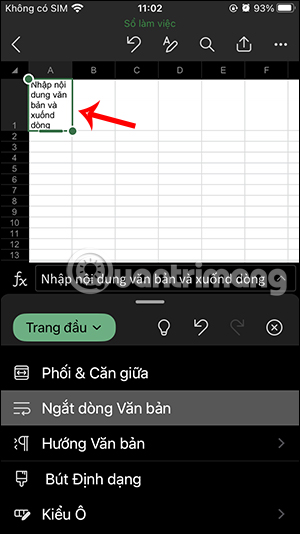
<p style="text-align: justify;">Hiển thị các tùy chọn cho nội dung tài liệu, bạn nhấn tiếp vào&nbsp;<strong>tùy chọn Ngắt dòng văn bản</strong>. Ngay lập tức chúng ta thấy nội dung xuống dòng trong ô Excel tùy vào kích thước của ô như hình dưới đây.</p>

<figure>
<div style="text-align: justify;"><img alt="Xuống dòng trong 1 ô Excel điện thoại" data-i="26" data-src="https://st.quantrimang.com/photos/image/2024/07/25/Excel-xuong-dong-9.jpg" data-was-processed="true" height="534" src="https://st.quantrimang.com/photos/image/2024/07/25/Excel-xuong-dong-9.jpg" width="300" /></div>
</figure>

<figure>
<div style="text-align: justify;"><img alt="Xuống dòng trong ô Excel " data-i="27" data-src="https://st.quantrimang.com/photos/image/2024/07/25/Excel-xuong-dong-10.jpg" data-was-processed="true" height="534" src="https://st.quantrimang.com/photos/image/2024/07/25/Excel-xuong-dong-10.jpg" width="300" /></div>
</figure>

<div style="text-align: justify;"><br />
<iframe allow="autoplay" allowtransparency="true" aria-label="Advertisement" data-google-container-id="a!7" data-google-query-id="CI2HwPiexocDFe_ETAId4roYVA" data-load-complete="true" frameborder="0" height="0" hspace="0" id="aswift_6" marginheight="0" marginwidth="0" name="aswift_6" sandbox="allow-scripts allow-same-origin allow-forms allow-presentation" scrolling="no" tabindex="0" title="Advertisement" vspace="0" width="694"></iframe></div>

<p style="text-align: justify;"><strong>Bước 3:</strong></p>

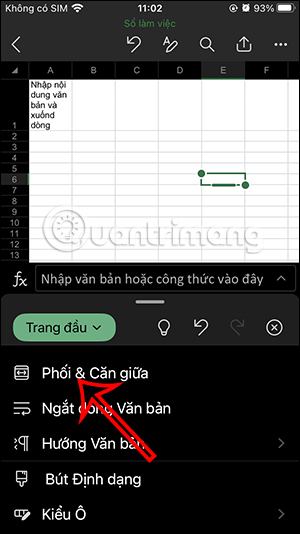
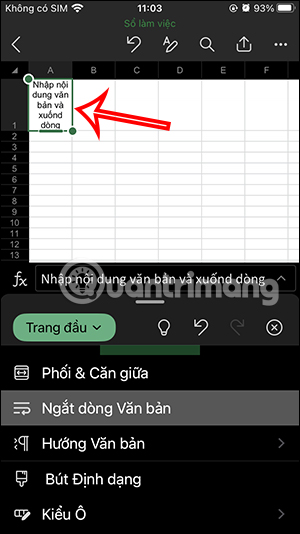
<p style="text-align: justify;">Tiếp tục<strong>&nbsp;nhấn vào Phối &amp; Căn giữa</strong>&nbsp;để căn giữa nội dung muốn xuống dòng.</p>

<p style="text-align: justify;"><img alt="Căn giữa nội dung trong ô Excel" data-i="28" data-src="https://st.quantrimang.com/photos/image/2024/07/25/Excel-xuong-dong-11.jpg" data-was-processed="true" height="534" src="https://st.quantrimang.com/photos/image/2024/07/25/Excel-xuong-dong-11.jpg" width="300" /></p>

<p style="text-align: justify;">Như vậy nội dung trong ô sẽ đẹp khi ở chính giữa dòng.</p>

<p style="text-align: justify;"><img alt="Chinh căn giữa nội dung trong ô Excel" data-i="29" data-src="https://st.quantrimang.com/photos/image/2024/07/25/Excel-xuong-dong-12.jpg" data-was-processed="true" height="534" src="https://st.quantrimang.com/photos/image/2024/07/25/Excel-xuong-dong-12.jpg" width="300" /></p>

<h2 id="mcetoc_1cuj94o1h3" style="text-align: justify;">Video hướng dẫn xuống dòng, ngắt dòng trong ô Excel</h2>

<p style="text-align: center;">
<video autoplay="autoplay" controls="controls" height="480" loop="loop" muted="muted" preload="metadata" src="https://e.xem.video/data/media/2018/12/13/Cach-xuong-dong-trong-Excel-480p.mp4" width="650">&nbsp;</video>
</p>

<p style="text-align: justify;">Trong quá trình sử dụng Excel, với những nội dung dài hoặc đơn giản chúng ta muốn căn giữa nội dung để hiển thị cân đối hơn thì cần phải xuống dòng. Tuy nhiên, việc xuống dòng trong Excel không hề giống với&nbsp;Word&nbsp;khi bạn chỉ cần nhấn Enter là xong.</p>

<p style="text-align: justify;">Hi vọng với hướng dẫn xuống dòng trong Excel phía trên bảng tính của bạn sẽ đẹp và chuyên nghiệp hơn.</p>
		</div>
				<div id="author">
						<p>
				<strong>Nguồn tin:</strong>
				Quantrimang.com:
			</p>
		</div>
	</div>
	<div id="footer" class="clearfix">
		<div id="url">
			<strong>URL của bản tin này: </strong><a href="https://www.nguoicodonvn2008.info/vi/news/savefile/kien-thuc-may-tinh/9-cach-xuong-dong-trong-excel-de-nhat-8763.html" title="9 cách xuống dòng trong Excel dễ nhất">https://www.nguoicodonvn2008.info/vi/news/savefile/kien-thuc-may-tinh/9-cach-xuong-dong-trong-excel-de-nhat-8763.html</a>

		</div>
		<div class="clear"></div>
		<div class="copyright">
			&copy; .&#x3A; Nguoicodonvn2008.info - Cõi lòng người cô đơn &#x3A;.
		</div>
		<div id="contact">
			<a href="mailto:admin@nguoicodonvn2008.info">admin@nguoicodonvn2008.info</a>
		</div>
	</div>
</div>
        <div id="timeoutsess" class="chromeframe">
            Bạn đã không sử dụng Site, <a onclick="timeoutsesscancel();" href="https://nguoicodonvn2008.info/#">Bấm vào đây để duy trì trạng thái đăng nhập</a>. Thời gian chờ: <span id="secField"> 60 </span> giây
        </div>
        <div id="openidResult" class="nv-alert" style="display:none"></div>
        <div id="openidBt" data-result="" data-redirect=""></div>
		</script>
		<div class="car-top">
  <span><img src="https://nguoicodonvn2008.info/themes/default/images/car.png" alt=""></span>
</div>
<script src="https://nguoicodonvn2008.info/assets/js/jquery/jquery.min.js"></script>
<script>var nv_base_siteurl="/",nv_lang_data="vi",nv_lang_interface="vi",nv_name_variable="nv",nv_fc_variable="op",nv_lang_variable="language",nv_module_name="news",nv_func_name="savefile",nv_is_user=0, nv_my_ofs=-4,nv_my_abbr="EDT",nv_cookie_prefix="nv4c_e856T",nv_check_pass_mstime=1738000,nv_area_admin=0,nv_safemode=0,theme_responsive=0,nv_recaptcha_ver=2,nv_recaptcha_sitekey="",nv_recaptcha_type="image",XSSsanitize=1;</script>
<script src="https://nguoicodonvn2008.info/assets/js/language/vi.js"></script>
<script src="https://nguoicodonvn2008.info/assets/js/DOMPurify/purify3.js"></script>
<script src="https://nguoicodonvn2008.info/assets/js/global.js"></script>
<script src="https://nguoicodonvn2008.info/assets/js/site.js"></script>
<script src="https://nguoicodonvn2008.info/themes/default/js/news.js"></script>
<script src="https://nguoicodonvn2008.info/themes/default/js/main.js"></script>
<script src="https://nguoicodonvn2008.info/themes/default/js/custom.js"></script>
<script type="application/ld+json">
        {
            "@context": "https://schema.org",
            "@type": "Organization",
            "url": "https://nguoicodonvn2008.info",
            "logo": "https://nguoicodonvn2008.info/uploads/angel.gif"
        }
        </script>
<script src="https://nguoicodonvn2008.info/themes/default/js/bootstrap.min.js"></script>
<script type="text/javascript">
var $scrolltop = $('.car-top');
$scrolltop.on('click', function () {
    $('html,body').animate({
        scrollTop: 0
    }, 800);
    $(this).addClass("car-run");
    setTimeout(function(){ $scrolltop.removeClass('car-run');}, 1000);
    return false;
});
$(window).on('scroll', function ()
{ 
    if($(window).scrollTop() >= 200)
    {
        $scrolltop.addClass("show");
        $scrolltop.addClass("car-down");
    }
    else
    {
       $scrolltop.removeClass("show");
       setTimeout(function(){ $scrolltop.removeClass('car-down');}, 300);
    }
});
</script>
</body>
</html>