<!DOCTYPE html>
    <html lang="vi" xmlns="http://www.w3.org/1999/xhtml" prefix="og: http://ogp.me/ns#">
    <head>
<title>9 cách sửa lỗi nút Bluetooth bị mất trong Windows 10 Action Center</title>
<meta name="description" content="9 cách sửa lỗi nút Bluetooth bị mất trong Windows 10 Action Center - Savefile - Tin Tức -...">
<meta name="author" content=".: Nguoicodonvn2008.info - Cõi lòng người cô đơn :.">
<meta name="copyright" content=".: Nguoicodonvn2008.info - Cõi lòng người cô đơn :. [admin@nguoicodonvn2008.info]">
<meta name="robots" content="index, archive, follow, noodp">
<meta name="googlebot" content="index,archive,follow,noodp">
<meta name="msnbot" content="all,index,follow">
<meta name="generator" content="NukeViet v4.5">
<meta http-equiv="Content-Type" content="text/html; charset=utf-8">
<meta property="og:title" content="9 cách sửa lỗi nút Bluetooth bị mất trong Windows 10 Action Center">
<meta property="og:type" content="website">
<meta property="og:description" content="Savefile - Tin Tức - https&#x3A;&#x002F;&#x002F;www.nguoicodonvn2008.info&#x002F;vi&#x002F;news&#x002F;savefile&#x002F;kien-thuc-may-tinh&#x002F;9-cach-sua-loi-nut-bluetooth-bi-mat-trong-windows-10-action-center-4140.html">
<meta property="og:site_name" content=".&#x3A; Nguoicodonvn2008.info - Cõi lòng người cô đơn &#x3A;.">
<meta property="og:url" content="https://www.nguoicodonvn2008.info/vi/news/savefile/kien-thuc-may-tinh/9-cach-sua-loi-nut-bluetooth-bi-mat-trong-windows-10-action-center-4140.html">
<link rel="shortcut icon" href="https://nguoicodonvn2008.info/favicon.ico">
<link rel="canonical" href="https://www.nguoicodonvn2008.info/vi/news/savefile/kien-thuc-may-tinh/9-cach-sua-loi-nut-bluetooth-bi-mat-trong-windows-10-action-center-4140.html">
<link rel="alternate" href="https://nguoicodonvn2008.info/vi/news/rss/" title="Tin Tức" type="application/rss+xml">
<link rel="alternate" href="https://nguoicodonvn2008.info/vi/news/rss/karaoke-dual/" title="Tin Tức - Karaoke Dual" type="application/rss+xml">
<link rel="alternate" href="https://nguoicodonvn2008.info/vi/news/rss/nhac-tre/" title="Tin Tức - Nhạc trẻ" type="application/rss+xml">
<link rel="alternate" href="https://nguoicodonvn2008.info/vi/news/rss/tru-tinh/" title="Tin Tức - Trữ tình" type="application/rss+xml">
<link rel="alternate" href="https://nguoicodonvn2008.info/vi/news/rss/nuoc-ngoai/" title="Tin Tức - Nước ngoài" type="application/rss+xml">
<link rel="alternate" href="https://nguoicodonvn2008.info/vi/news/rss/remix/" title="Tin Tức - Remix" type="application/rss+xml">
<link rel="alternate" href="https://nguoicodonvn2008.info/vi/news/rss/tam-su-tinh-yeu/" title="Tin Tức - Tâm sự tình yêu" type="application/rss+xml">
<link rel="alternate" href="https://nguoicodonvn2008.info/vi/news/rss/tho-suu-tam/" title="Tin Tức - Thơ sưu tầm" type="application/rss+xml">
<link rel="alternate" href="https://nguoicodonvn2008.info/vi/news/rss/cuoc-song/" title="Tin Tức - Cuộc sống" type="application/rss+xml">
<link rel="alternate" href="https://nguoicodonvn2008.info/vi/news/rss/phan-mem/" title="Tin Tức - Phần mềm" type="application/rss+xml">
<link rel="alternate" href="https://nguoicodonvn2008.info/vi/news/rss/kien-thuc-may-tinh/" title="Tin Tức - Kiến thức máy tính" type="application/rss+xml">
<link rel="alternate" href="https://nguoicodonvn2008.info/vi/news/rss/hoc-tap/" title="Tin Tức - Học tập" type="application/rss+xml">
<link rel="alternate" href="https://nguoicodonvn2008.info/vi/news/rss/tai-lieu/" title="Tin Tức - Tài liệu" type="application/rss+xml">
<link rel="alternate" href="https://nguoicodonvn2008.info/vi/news/rss/de-thi/" title="Tin Tức - Đề thi" type="application/rss+xml">
<link rel="preload" as="style" href="https://nguoicodonvn2008.info/assets/css/font-awesome.min.css" type="text/css">
<link rel="preload" as="style" href="https://nguoicodonvn2008.info/themes/default/css/bootstrap.non-responsive.css" type="text/css">
<link rel="preload" as="style" href="https://nguoicodonvn2008.info/themes/default/css/style.css" type="text/css">
<link rel="preload" as="style" href="https://nguoicodonvn2008.info/themes/default/css/style.non-responsive.css" type="text/css">
<link rel="preload" as="style" href="https://nguoicodonvn2008.info/themes/default/css/news.css" type="text/css">
<link rel="preload" as="style" href="https://nguoicodonvn2008.info/themes/default/css/custom.css" type="text/css">
<link rel="preload" as="script" href="https://nguoicodonvn2008.info/assets/js/jquery/jquery.min.js" type="text/javascript">
<link rel="preload" as="script" href="https://nguoicodonvn2008.info/assets/js/language/vi.js" type="text/javascript">
<link rel="preload" as="script" href="https://nguoicodonvn2008.info/assets/js/DOMPurify/purify3.js" type="text/javascript">
<link rel="preload" as="script" href="https://nguoicodonvn2008.info/assets/js/global.js" type="text/javascript">
<link rel="preload" as="script" href="https://nguoicodonvn2008.info/assets/js/site.js" type="text/javascript">
<link rel="preload" as="script" href="https://nguoicodonvn2008.info/themes/default/js/news.js" type="text/javascript">
<link rel="preload" as="script" href="https://nguoicodonvn2008.info/themes/default/js/main.js" type="text/javascript">
<link rel="preload" as="script" href="https://nguoicodonvn2008.info/themes/default/js/custom.js" type="text/javascript">
<link rel="preload" as="script" href="https://nguoicodonvn2008.info/themes/default/js/bootstrap.min.js" type="text/javascript">
<link rel="stylesheet" href="https://nguoicodonvn2008.info/assets/css/font-awesome.min.css">
<link rel="stylesheet" href="https://nguoicodonvn2008.info/themes/default/css/bootstrap.non-responsive.css">
<link rel="stylesheet" href="https://nguoicodonvn2008.info/themes/default/css/style.css">
<link rel="stylesheet" href="https://nguoicodonvn2008.info/themes/default/css/style.non-responsive.css">
<link rel="StyleSheet" href="https://nguoicodonvn2008.info/themes/default/css/news.css">
<link rel="stylesheet" href="https://nguoicodonvn2008.info/themes/default/css/custom.css">
<style type="text/css">
	body{background: #fff;}
</style>
    </head>
    <body>
<div id="print">
	<div id="hd_print">
		<h2 class="pull-left">.&#x3A; Nguoicodonvn2008.info - Cõi lòng người cô đơn &#x3A;.</h2>
		<p class="pull-right"><a title=".&#x3A; Nguoicodonvn2008.info - Cõi lòng người cô đơn &#x3A;." href="https://nguoicodonvn2008.info/">https://nguoicodonvn2008.info</a></p>
	</div>
	<div class="clear"></div>
	<hr />
	<div id="content">
		<h1>9 cách sửa lỗi nút Bluetooth bị mất trong Windows 10 Action Center</h1>
		<ul class="list-inline">
			<li>Thứ năm - 27/05/2021 00:46</li>
			<li class="hidden-print txtrequired"><em class="fa fa-print">&nbsp;</em><a title="In ra" href="javascript:;" onclick="window.print()">In ra</a></li>
			<li class="hidden-print txtrequired"><em class="fa fa-power-off">&nbsp;</em><a title="Đóng cửa sổ này" href="javascript:;" onclick="window.close()">Đóng cửa sổ này</a></li>
		</ul>
		<div class="clear"></div>
		<div id="hometext">
		</div>
				<div class="imghome">
			<img alt="9 cách sửa lỗi nút Bluetooth bị mất trong Windows 10 Action Center" src="https://st.quantrimang.com/photos/image/2021/05/27/nut-bluetooth-bi-mat-trong-action-center-2.jpg" width="460" class="img-thumbnail" />
		</div>
		<div class="clear"></div>
		<div id="bodytext" class="clearfix">
			<p style="text-align: justify;">Trong&nbsp;Windows 10, bạn có thể sử dụng&nbsp;Bluetooth&nbsp;để kết nối với tai nghe, webcam và loa hoặc gửi file và thư mục tới các thiết bị cục bộ khác. Vì vậy, thật bất tiện khi nút Bluetooth biến mất khỏi Action Center.</p>

<p style="text-align: justify;">Ngay cả khi Bluetooth đang hoạt động bình thường, nó vẫn có thể bị thiếu trong Action Center.do cài đặt không chính xác. Một lý do khác khiến Bluetooth không hiển thị trong Action Center là do hệ thống của bạn không nhận dạng được thiết bị Bluetooth.</p>

<div style="text-align: justify;">&nbsp;</div>

<p style="text-align: justify;">Rất may, có nhiều cách để khôi phục nút Bluetooth về Action Center Windows 10 khi nó bị mất hoặc bị hỏng.</p>

<h2 style="text-align: justify;">1. Chỉnh sửa menu Quick Actions</h2>

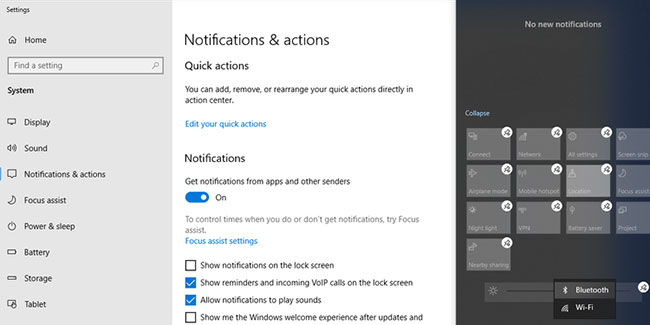
<p style="text-align: justify;">Menu Action Center được tạo thành bởi hai phần. Ở trên cùng, nó hiển thị thông báo từ các ứng dụng và hệ thống đã cài đặt của bạn.</p>

<p style="text-align: justify;">Ở dưới cùng là menu&nbsp;<strong>Quick Actions</strong>, chứa các shortcut cho những cài đặt chính. Khi có nhiều thông báo mà Windows 10 cần hiển thị, nó sẽ thu gọn menu&nbsp;<strong>Quick Actions</strong>&nbsp;để tiết kiệm không gian. Để kiểm tra tất cả các shortcut có trong menu Action Center, hãy nhấp vào&nbsp;<strong>Expand.</strong></p>

<p style="text-align: justify;">Bluetooth có thể biến mất trong Action Center vì không phải tất cả các shortcut đều được bật theo mặc định hoặc bạn có thể đã vô hiệu hóa shortcut Bluetooth do nhầm lẫn. Bất kể nguyên nhân là gì, đây là cách bạn khắc phục nó:</p>

<div style="text-align: justify;">&nbsp;</div>

<p style="text-align: justify;"><strong>B1:</strong>&nbsp;Nhấn&nbsp;<strong>Windows + A</strong>&nbsp;để mở Action Center và chọn&nbsp;<strong>Manage notifications</strong>&nbsp;từ góc trên bên phải.</p>

<p style="text-align: justify;"><strong>B2:</strong>&nbsp;Nhấp vào&nbsp;<strong>Edit your quick actions</strong>. Thao tác này sẽ mở menu&nbsp;<strong>Action Center.</strong></p>

<p style="text-align: justify;"><strong>B3:</strong>&nbsp;Chọn&nbsp;<strong>Add &gt; Bluetooth &gt; Done</strong>.</p>

<figure>
<div style="text-align: justify;"><img alt="Chỉnh sửa menu Quick Actions" data-i="0" data-src="https://st.quantrimang.com/photos/image/2021/05/27/nut-bluetooth-bi-mat-trong-action-center-1.jpg" data-was-processed="true" height="325" src="https://st.quantrimang.com/photos/image/2021/05/27/nut-bluetooth-bi-mat-trong-action-center-1.jpg" width="650" /></div>

<figcaption>
<div style="text-align: justify;">Chỉnh sửa menu Quick Actions</div>
</figcaption>
</figure>

<p style="text-align: justify;"><strong>Lưu ý</strong>: Khi chế độ chỉnh sửa được bật, bạn có thể di chuyển các tile xung quanh tùy thích. Nếu bạn muốn tile Bluetooth là một phần của menu thu gọn, hãy di chuyển nó lên hàng trên cùng.</p>

<h2 style="text-align: justify;">2. Kiểm tra xem thiết bị của bạn có hỗ trợ Bluetooth không</h2>

<div style="text-align: justify;">&nbsp;</div>

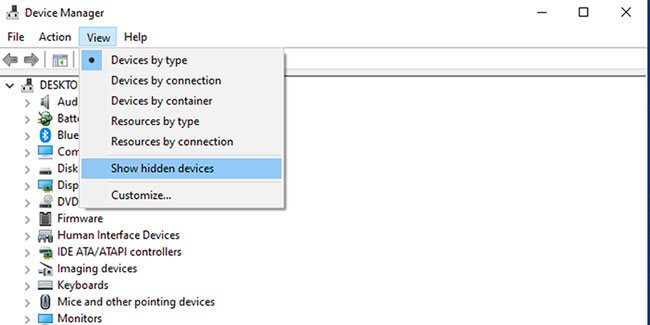
<p style="text-align: justify;">Nếu bạn không có tùy chọn thêm Bluetooth vào danh sách nhanh của Action Center, có khả năng driver Bluetooth của bạn bị thiếu hoặc thiết bị của bạn không hỗ trợ Bluetooth. Dưới đây là cách bạn có thể kiểm tra xem Bluetooth có được hỗ trợ và cấu hình đúng cách trên thiết bị của mình không:</p>

<p style="text-align: justify;"><strong>B1:</strong>&nbsp;Nhấn phím&nbsp;<strong>Windows + I</strong>&nbsp;để&nbsp;mở Settings, sau đó đi tới&nbsp;<strong>Devices.</strong></p>

<p style="text-align: justify;"><strong>B2:</strong>&nbsp;Nếu menu&nbsp;<strong>Bluetooth &amp; other apps</strong>&nbsp;hiển thị, thì thiết bị của bạn hỗ trợ công nghệ Bluetooth.</p>

<p style="text-align: justify;"><strong>B3:</strong>&nbsp;Nếu menu không hiển thị, hãy tìm kiếm trình quản lý thiết bị trong thanh tìm kiếm của menu Start và chọn kết quả phù hợp nhất.</p>

<p style="text-align: justify;"><strong>B4:</strong>&nbsp;Kiểm tra xem có menu Bluetooth bên trong danh sách thiết bị khả dụng hay không.</p>

<figure>
<div style="text-align: justify;"><img alt="Kiểm tra xem thiết bị của bạn có hỗ trợ Bluetooth không" data-i="1" data-src="https://st.quantrimang.com/photos/image/2021/05/27/nut-bluetooth-bi-mat-trong-action-center-2.jpg" data-was-processed="true" height="325" src="https://st.quantrimang.com/photos/image/2021/05/27/nut-bluetooth-bi-mat-trong-action-center-2.jpg" width="650" /></div>

<figcaption>
<div style="text-align: justify;">Kiểm tra xem thiết bị của bạn có hỗ trợ Bluetooth không</div>
</figcaption>
</figure>

<p style="text-align: justify;">Bluetooth có thể nằm trong danh sách&nbsp;<strong>Hidden devices</strong>, vì vậy hãy nhấp vào&nbsp;<strong>View &gt; Show hidden devices</strong>&nbsp;và kiểm tra xem Bluetooth có được liệt kê hay không.</p>

<p style="text-align: justify;">Nếu không có Bluetooth trong danh sách, bạn sẽ phải mua Bluetooth adapter. Khi quyết định được nên mua adapter nào, hãy kiểm tra các thuộc tính tương thích của nó.</p>

<h2 style="text-align: justify;">3. Kiểm tra cài đặt Bluetooth</h2>

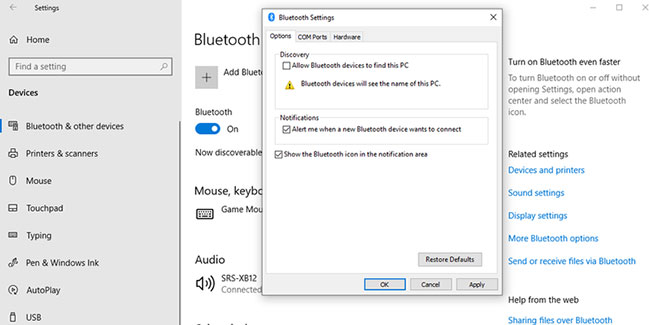
<p style="text-align: justify;">Ngay cả khi cài đặt&nbsp;<strong>Notifications &amp; actions</strong>&nbsp;được đặt đúng cách, bạn vẫn cần kiểm tra&nbsp;<strong>Bluetooth Settings.</strong></p>

<p style="text-align: justify;"><strong>B1:</strong>&nbsp;Nhấp vào&nbsp;<strong>Start &gt; Settings &gt; Devices &gt; Bluetooth &amp; other devices</strong>.</p>

<div style="text-align: justify;">&nbsp;</div>

<p style="text-align: justify;"><strong>B2:</strong>&nbsp;Trong&nbsp;<strong>Related settings</strong>, hãy nhấp vào&nbsp;<strong>More Bluetooth Options</strong>.</p>

<div style="text-align: justify;">&nbsp;</div>

<p style="text-align: justify;"><strong>B3:</strong>&nbsp;Chọn tab&nbsp;<strong>Options</strong>&nbsp;và tích vào&nbsp;<strong>Show the Bluetooth icon in the notification area</strong>.</p>

<p style="text-align: justify;"><strong>B4:</strong>&nbsp;Nhấp vào<strong>&nbsp;Apply &gt; OK</strong>.</p>

<figure>
<div style="text-align: justify;"><img alt="Kiểm tra cài đặt Bluetooth" data-i="2" data-src="https://st.quantrimang.com/photos/image/2021/05/27/nut-bluetooth-bi-mat-trong-action-center-3.jpg" data-was-processed="true" height="325" src="https://st.quantrimang.com/photos/image/2021/05/27/nut-bluetooth-bi-mat-trong-action-center-3.jpg" width="650" /></div>

<figcaption>
<div style="text-align: justify;">Kiểm tra cài đặt Bluetooth</div>
</figcaption>
</figure>

<h2 style="text-align: justify;">4.&nbsp;<a href="https://quantrimang.com/vo-hieu-tuy-chon-fast-startup-tren-windows-8-91957" title="Cách tắt Fast Startup trên Windows 10 và Windows 8.1/8">Tắt Fast Startup</a></h2>

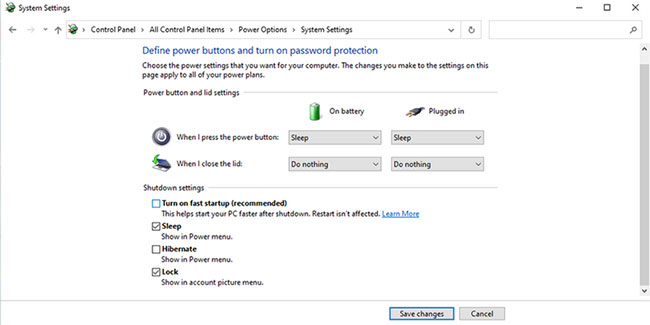
<p style="text-align: justify;">Fast Startup sẽ tăng tốc quá trình khởi động, vì vậy Windows 10 mất ít thời gian hơn để khởi chạy. Tuy nhiên, nó có thể ảnh hưởng đến các chương trình được thiết lập để chạy khi khởi động, vì vậy tốt hơn là bạn nên tắt nó đi.</p>

<p style="text-align: justify;"><strong>B1:</strong>&nbsp;Nhấp vào<strong>&nbsp;Start &gt; Settings &gt; System</strong>.</p>

<p style="text-align: justify;"><strong>B2:</strong>&nbsp;Từ menu bên trái, chọn&nbsp;<strong>Power &amp; sleep</strong>.</p>

<p style="text-align: justify;"><strong>B3:</strong>&nbsp;Nhấp vào&nbsp;<strong>Additional power settings &gt; Choose what the power button does</strong>.</p>

<p style="text-align: justify;"><strong>B4:</strong>&nbsp;Chọn&nbsp;<strong>Change settings that are currently unavailable</strong>.</p>

<p style="text-align: justify;"><strong>B5:</strong>&nbsp;Bỏ chọn&nbsp;<strong>Turn on fast startup (recommended)</strong>.</p>

<p style="text-align: justify;"><strong>B6:</strong>&nbsp;Nhấn nút&nbsp;<strong>Save changes.</strong></p>

<figure>
<div style="text-align: justify;"><img alt="Tắt Fast Startup" data-i="3" data-src="https://st.quantrimang.com/photos/image/2021/05/27/nut-bluetooth-bi-mat-trong-action-center-4.jpg" data-was-processed="true" height="325" src="https://st.quantrimang.com/photos/image/2021/05/27/nut-bluetooth-bi-mat-trong-action-center-4.jpg" width="650" /></div>

<figcaption>
<div style="text-align: justify;">Tắt Fast Startup</div>
</figcaption>
</figure>

<ul>
	<li style="text-align: justify;"><a href="https://quantrimang.com/thay-doi-so-luong-quick-action-trong-action-center-177155" title="Cách thay đổi số lượng Quick Action hiển thị trong Action Center Windows 10">Cách thay đổi số lượng Quick Action hiển thị trong Action Center Windows 10</a></li>
</ul>

<h2 style="text-align: justify;">5. Chạy Bluetooth Troubleshooter</h2>

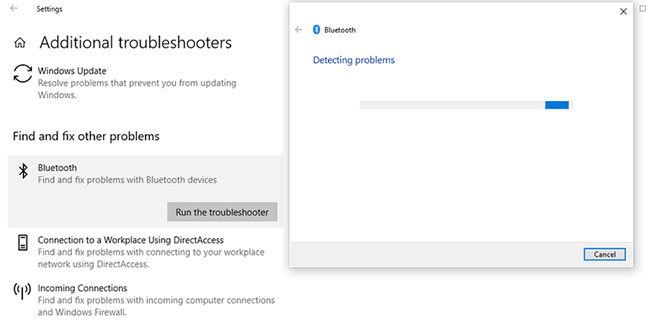
<p style="text-align: justify;">Chạy trình khắc phục sự cố có thể đủ để xử lý hầu hết các vấn đề ảnh hưởng đến chức năng Bluetooth.</p>

<p style="text-align: justify;"><strong>B1:</strong>&nbsp;Đi tới&nbsp;<strong>Start &gt; Settings &gt; Update &amp; Security</strong>.</p>

<p style="text-align: justify;"><strong>B2:</strong>&nbsp;Nhấp vào&nbsp;<strong>Troubleshoot &gt; Additional troubleshooters.</strong></p>

<p style="text-align: justify;"><strong>B3:</strong>&nbsp;Từ menu&nbsp;<strong>Find and fix other problems</strong>, nhấn&nbsp;<strong>Bluetooth &gt; Run the troubleshooter</strong>.</p>

<figure>
<div style="text-align: justify;"><img alt="Chạy Bluetooth Troubleshooter" data-i="4" data-src="https://st.quantrimang.com/photos/image/2021/05/27/nut-bluetooth-bi-mat-trong-action-center-5.jpg" data-was-processed="true" height="325" src="https://st.quantrimang.com/photos/image/2021/05/27/nut-bluetooth-bi-mat-trong-action-center-5.jpg" width="650" /></div>

<figcaption>
<div style="text-align: justify;">Chạy Bluetooth Troubleshooter</div>
</figcaption>
</figure>

<p style="text-align: justify;">Bluetooth troubleshooter sẽ tự động khắc phục mọi sự cố được phát hiện. Sau khi quá trình hoàn tất, hãy&nbsp;khởi động lại PC&nbsp;hoặc laptop của bạn và kiểm tra xem Bluetooth hiện đã khả dụng trong menu Action Center hay chưa.</p>

<h2 style="text-align: justify;">6. Sử dụng Hardware and Device troubleshooter</h2>

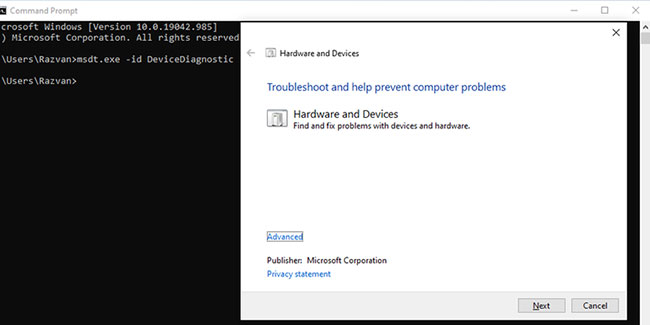
<p style="text-align: justify;"><strong>Hardware and Device troubleshooter</strong>&nbsp;hiện &quot;ẩn&quot; trong Windows 10. Tuy nhiên, bạn vẫn có thể truy cập nó bằng&nbsp;Command Prompt. Đây là cách bạn có thể làm điều đó:</p>

<p style="text-align: justify;"><strong>B1:</strong>&nbsp;Trong thanh tìm kiếm của menu Start, hãy tìm kiếm&nbsp;<strong>command prompt</strong>&nbsp;và chọn&nbsp;<strong>Run as administrator</strong>.</p>

<div style="text-align: justify;">&nbsp;</div>

<p style="text-align: justify;"><strong>B2:</strong>&nbsp;Nhập&nbsp;<strong>msdt.exe -id DeviceDiagnostic.</strong>&nbsp;Thao tác này sẽ mở trình khắc phục sự cố.</p>

<p style="text-align: justify;"><strong>B3:</strong>&nbsp;Nhấp vào&nbsp;<strong>Next</strong>&nbsp;để bắt đầu quét.</p>

<figure>
<div style="text-align: justify;"><img alt="Sử dụng Hardware and Device troubleshooter" data-i="5" data-src="https://st.quantrimang.com/photos/image/2021/05/27/nut-bluetooth-bi-mat-trong-action-center-6.jpg" data-was-processed="true" height="325" src="https://st.quantrimang.com/photos/image/2021/05/27/nut-bluetooth-bi-mat-trong-action-center-6.jpg" width="650" /></div>

<figcaption>
<div style="text-align: justify;">Sử dụng Hardware and Device troubleshooter</div>
</figcaption>
</figure>

<p style="text-align: justify;">Trình khắc phục sự cố sẽ tìm và khắc phục sự cố với thiết bị Bluetooth của bạn. Nếu nó hiển thị thông báo&nbsp;<strong>Troubleshooting couldn’t identify the problem</strong>, bạn phải thử một giải pháp khác.</p>

<h2 style="text-align: justify;">7. Kiểm tra service Bluetooth Support</h2>

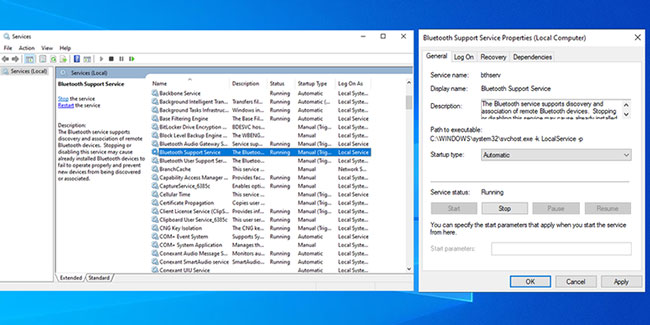
<p style="text-align: justify;">Ứng dụng của bên thứ ba hoặc thao tác thủ công của người dùng có thể đã vô hiệu hóa service Bluetooth Support, xóa biểu tượng Bluetooth khỏi Action Center. Đây là cách bạn có thể kiểm tra cài đặt service Action Center:</p>

<p style="text-align: justify;"><strong>B1:</strong>&nbsp;Trong thanh tìm kiếm của menu kết quả phù hợp nhất.</p>

<p style="text-align: justify;"><strong>B2:</strong>&nbsp;Nhấp đúp vào&nbsp;<strong>Bluetooth Support Service</strong>&nbsp;để mở cửa sổ&nbsp;<strong>Properties.</strong></p>

<p style="text-align: justify;"><strong>B3:</strong>&nbsp;Kiểm tra&nbsp;<strong>Service status</strong>&nbsp;ở cuối cửa sổ. Nó sẽ được hiển thị là&nbsp;<strong>Running.</strong></p>

<p style="text-align: justify;"><strong>B4:</strong>&nbsp;Nếu trạng thái là&nbsp;<strong>Running</strong>, hãy nhấp vào&nbsp;<strong>Stop</strong>&nbsp;và&nbsp;<strong>Start</strong>&nbsp;để khởi động lại nhanh chóng.</p>

<p style="text-align: justify;"><strong>B5:</strong>&nbsp;Nếu trạng thái không phải là&nbsp;<strong>Running</strong>, hãy sử dụng menu drop-down bên cạnh&nbsp;<strong>Startup Type</strong>&nbsp;và chọn&nbsp;<strong>Automatic.</strong></p>

<p style="text-align: justify;"><strong>B6:</strong>&nbsp;Nhấp vào nút&nbsp;<strong>Apply</strong>&nbsp;để lưu cài đặt mới.</p>

<figure>
<div style="text-align: justify;"><img alt="Kiểm tra service Bluetooth Support" data-i="6" data-src="https://st.quantrimang.com/photos/image/2021/05/27/nut-bluetooth-bi-mat-trong-action-center-7.jpg" data-was-processed="true" height="325" src="https://st.quantrimang.com/photos/image/2021/05/27/nut-bluetooth-bi-mat-trong-action-center-7.jpg" width="650" /></div>

<figcaption>
<div style="text-align: justify;">Kiểm tra service Bluetooth Support</div>
</figcaption>
</figure>

<h2 style="text-align: justify;">8.&nbsp;Sử dụng Startup Repair</h2>

<p style="text-align: justify;">Startup Repair là một trong những công cụ mà bạn có thể tìm thấy trong menu&nbsp;<strong>Advanced options.</strong>&nbsp;Nếu bạn đang gặp sự cố cho biết hệ thống bị hỏng, bạn có thể khắc phục bằng cách sử dụng Windows Startup Repair.</p>

<p style="text-align: justify;"><strong>B1:</strong>&nbsp;Nhấn và giữ&nbsp;<strong>Shift</strong>&nbsp;trên màn hình đăng nhập Windows.</p>

<p style="text-align: justify;"><strong>B2:</strong>&nbsp;Nhấp vào&nbsp;<strong>Power &gt; Restart</strong>. Bây giờ, bạn sẽ thấy màn hình boot.</p>

<p style="text-align: justify;"><strong>B3:</strong>&nbsp;Nhấp vào&nbsp;<strong>Troubleshoot &gt; Advanced options &gt; Startup Repair</strong>.</p>

<p style="text-align: justify;"><strong>B4:</strong>&nbsp;Chọn một tài khoản admin và nhập mật khẩu, nếu được yêu cầu.</p>

<p style="text-align: justify;"><strong>B5:</strong>&nbsp;Nhấp vào&nbsp;<strong>Continue.</strong></p>

<p style="text-align: justify;"><strong>B6:</strong>&nbsp;Khởi động lại PC sau khi công cụ Startup Repair đã chạy.</p>

<figure>
<div style="text-align: justify;"><img alt="Sử dụng Startup Repair" data-i="7" data-src="https://st.quantrimang.com/photos/image/2021/05/27/nut-bluetooth-bi-mat-trong-action-center-8.jpg" data-was-processed="true" height="325" src="https://st.quantrimang.com/photos/image/2021/05/27/nut-bluetooth-bi-mat-trong-action-center-8.jpg" width="650" /></div>

<figcaption>
<div style="text-align: justify;">Sử dụng Startup Repair</div>
</figcaption>
</figure>

<h2 style="text-align: justify;">9. Tìm kiếm các thay đổi phần cứng</h2>

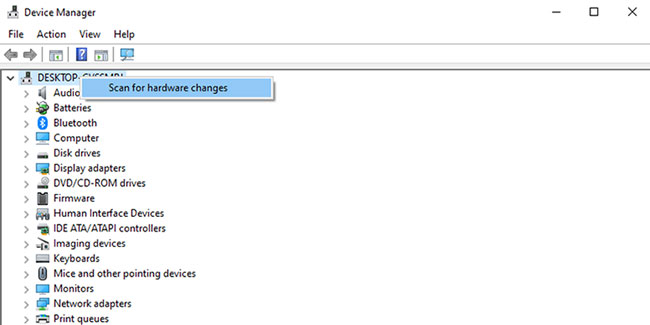
<p style="text-align: justify;">Bên cạnh việc cung cấp chế độ xem được tổ chức của tất cả phần cứng đã cài đặt,&nbsp;Device Manager&nbsp;cũng có thể được sử dụng như một công cụ khắc phục sự cố.</p>

<p style="text-align: justify;"><strong>B1:</strong>&nbsp;Trong thanh tìm kiếm của menu Start, hãy tìm kiếm&nbsp;<strong>device manager</strong>&nbsp;và chọn kết quả phù hợp nhất.</p>

<p style="text-align: justify;"><strong>B2:</strong>&nbsp;Thiết bị của bạn phải là thiết bị đầu tiên trong danh sách. Nhấp chuột phải vào nó và chọn&nbsp;<strong>Scan for hardware changes</strong>.</p>

<figure>
<div style="text-align: justify;"><img alt="Tìm kiếm các thay đổi phần cứng" data-i="8" data-src="https://st.quantrimang.com/photos/image/2021/05/27/nut-bluetooth-bi-mat-trong-action-center-9.jpg" data-was-processed="true" height="325" src="https://st.quantrimang.com/photos/image/2021/05/27/nut-bluetooth-bi-mat-trong-action-center-9.jpg" width="650" /></div>

<figcaption>
<div style="text-align: justify;">Tìm kiếm các thay đổi phần cứng</div>
</figcaption>
</figure>

<p style="text-align: justify;">Chúc bạn khắc phục sự cố thành công!</p>
		</div>
				<div id="author">
						<p>
				<strong>Nguồn tin:</strong>
				Quantrimang.com
			</p>
		</div>
	</div>
	<div id="footer" class="clearfix">
		<div id="url">
			<strong>URL của bản tin này: </strong><a href="https://www.nguoicodonvn2008.info/vi/news/savefile/kien-thuc-may-tinh/9-cach-sua-loi-nut-bluetooth-bi-mat-trong-windows-10-action-center-4140.html" title="9 cách sửa lỗi nút Bluetooth bị mất trong Windows 10 Action Center">https://www.nguoicodonvn2008.info/vi/news/savefile/kien-thuc-may-tinh/9-cach-sua-loi-nut-bluetooth-bi-mat-trong-windows-10-action-center-4140.html</a>

		</div>
		<div class="clear"></div>
		<div class="copyright">
			&copy; .&#x3A; Nguoicodonvn2008.info - Cõi lòng người cô đơn &#x3A;.
		</div>
		<div id="contact">
			<a href="mailto:admin@nguoicodonvn2008.info">admin@nguoicodonvn2008.info</a>
		</div>
	</div>
</div>
        <div id="timeoutsess" class="chromeframe">
            Bạn đã không sử dụng Site, <a onclick="timeoutsesscancel();" href="https://nguoicodonvn2008.info/#">Bấm vào đây để duy trì trạng thái đăng nhập</a>. Thời gian chờ: <span id="secField"> 60 </span> giây
        </div>
        <div id="openidResult" class="nv-alert" style="display:none"></div>
        <div id="openidBt" data-result="" data-redirect=""></div>
		</script>
		<div class="car-top">
  <span><img src="https://nguoicodonvn2008.info/themes/default/images/car.png" alt=""></span>
</div>
<script src="https://nguoicodonvn2008.info/assets/js/jquery/jquery.min.js"></script>
<script>var nv_base_siteurl="/",nv_lang_data="vi",nv_lang_interface="vi",nv_name_variable="nv",nv_fc_variable="op",nv_lang_variable="language",nv_module_name="news",nv_func_name="savefile",nv_is_user=0, nv_my_ofs=-4,nv_my_abbr="EDT",nv_cookie_prefix="nv4c_e856T",nv_check_pass_mstime=1738000,nv_area_admin=0,nv_safemode=0,theme_responsive=0,nv_recaptcha_ver=2,nv_recaptcha_sitekey="",nv_recaptcha_type="image",XSSsanitize=1;</script>
<script src="https://nguoicodonvn2008.info/assets/js/language/vi.js"></script>
<script src="https://nguoicodonvn2008.info/assets/js/DOMPurify/purify3.js"></script>
<script src="https://nguoicodonvn2008.info/assets/js/global.js"></script>
<script src="https://nguoicodonvn2008.info/assets/js/site.js"></script>
<script src="https://nguoicodonvn2008.info/themes/default/js/news.js"></script>
<script src="https://nguoicodonvn2008.info/themes/default/js/main.js"></script>
<script src="https://nguoicodonvn2008.info/themes/default/js/custom.js"></script>
<script type="application/ld+json">
        {
            "@context": "https://schema.org",
            "@type": "Organization",
            "url": "https://nguoicodonvn2008.info",
            "logo": "https://nguoicodonvn2008.info/uploads/angel.gif"
        }
        </script>
<script src="https://nguoicodonvn2008.info/themes/default/js/bootstrap.min.js"></script>
<script type="text/javascript">
var $scrolltop = $('.car-top');
$scrolltop.on('click', function () {
    $('html,body').animate({
        scrollTop: 0
    }, 800);
    $(this).addClass("car-run");
    setTimeout(function(){ $scrolltop.removeClass('car-run');}, 1000);
    return false;
});
$(window).on('scroll', function ()
{ 
    if($(window).scrollTop() >= 200)
    {
        $scrolltop.addClass("show");
        $scrolltop.addClass("car-down");
    }
    else
    {
       $scrolltop.removeClass("show");
       setTimeout(function(){ $scrolltop.removeClass('car-down');}, 300);
    }
});
</script>
</body>
</html>