<!DOCTYPE html>
    <html lang="vi" xmlns="http://www.w3.org/1999/xhtml" prefix="og: http://ogp.me/ns#">
    <head>
<title>7 cách tạo slideshow ảnh trong Windows 11 không cần cài đặt thêm phần mềm</title>
<meta name="description" content="7 cách tạo slideshow ảnh trong Windows 11 không cần cài đặt thêm phần mềm - Savefile - Tin Tức -...">
<meta name="author" content=".: Nguoicodonvn2008.info - Cõi lòng người cô đơn :.">
<meta name="copyright" content=".: Nguoicodonvn2008.info - Cõi lòng người cô đơn :. [admin@nguoicodonvn2008.info]">
<meta name="robots" content="index, archive, follow, noodp">
<meta name="googlebot" content="index,archive,follow,noodp">
<meta name="msnbot" content="all,index,follow">
<meta name="generator" content="NukeViet v4.5">
<meta http-equiv="Content-Type" content="text/html; charset=utf-8">
<meta property="og:title" content="7 cách tạo slideshow ảnh trong Windows 11 không cần cài đặt thêm phần mềm">
<meta property="og:type" content="website">
<meta property="og:description" content="Savefile - Tin Tức -...">
<meta property="og:site_name" content=".&#x3A; Nguoicodonvn2008.info - Cõi lòng người cô đơn &#x3A;.">
<meta property="og:url" content="https://www.nguoicodonvn2008.info/vi/news/savefile/kien-thuc-may-tinh/7-cach-tao-slideshow-anh-trong-windows-11-khong-can-cai-dat-them-phan-mem-6937.html">
<link rel="shortcut icon" href="https://nguoicodonvn2008.info/favicon.ico">
<link rel="canonical" href="https://www.nguoicodonvn2008.info/vi/news/savefile/kien-thuc-may-tinh/7-cach-tao-slideshow-anh-trong-windows-11-khong-can-cai-dat-them-phan-mem-6937.html">
<link rel="alternate" href="https://nguoicodonvn2008.info/vi/news/rss/" title="Tin Tức" type="application/rss+xml">
<link rel="alternate" href="https://nguoicodonvn2008.info/vi/news/rss/karaoke-dual/" title="Tin Tức - Karaoke Dual" type="application/rss+xml">
<link rel="alternate" href="https://nguoicodonvn2008.info/vi/news/rss/nhac-tre/" title="Tin Tức - Nhạc trẻ" type="application/rss+xml">
<link rel="alternate" href="https://nguoicodonvn2008.info/vi/news/rss/tru-tinh/" title="Tin Tức - Trữ tình" type="application/rss+xml">
<link rel="alternate" href="https://nguoicodonvn2008.info/vi/news/rss/nuoc-ngoai/" title="Tin Tức - Nước ngoài" type="application/rss+xml">
<link rel="alternate" href="https://nguoicodonvn2008.info/vi/news/rss/remix/" title="Tin Tức - Remix" type="application/rss+xml">
<link rel="alternate" href="https://nguoicodonvn2008.info/vi/news/rss/tam-su-tinh-yeu/" title="Tin Tức - Tâm sự tình yêu" type="application/rss+xml">
<link rel="alternate" href="https://nguoicodonvn2008.info/vi/news/rss/tho-suu-tam/" title="Tin Tức - Thơ sưu tầm" type="application/rss+xml">
<link rel="alternate" href="https://nguoicodonvn2008.info/vi/news/rss/cuoc-song/" title="Tin Tức - Cuộc sống" type="application/rss+xml">
<link rel="alternate" href="https://nguoicodonvn2008.info/vi/news/rss/phan-mem/" title="Tin Tức - Phần mềm" type="application/rss+xml">
<link rel="alternate" href="https://nguoicodonvn2008.info/vi/news/rss/kien-thuc-may-tinh/" title="Tin Tức - Kiến thức máy tính" type="application/rss+xml">
<link rel="alternate" href="https://nguoicodonvn2008.info/vi/news/rss/hoc-tap/" title="Tin Tức - Học tập" type="application/rss+xml">
<link rel="alternate" href="https://nguoicodonvn2008.info/vi/news/rss/tai-lieu/" title="Tin Tức - Tài liệu" type="application/rss+xml">
<link rel="alternate" href="https://nguoicodonvn2008.info/vi/news/rss/de-thi/" title="Tin Tức - Đề thi" type="application/rss+xml">
<link rel="preload" as="style" href="https://nguoicodonvn2008.info/assets/css/font-awesome.min.css" type="text/css">
<link rel="preload" as="style" href="https://nguoicodonvn2008.info/themes/default/css/bootstrap.non-responsive.css" type="text/css">
<link rel="preload" as="style" href="https://nguoicodonvn2008.info/themes/default/css/style.css" type="text/css">
<link rel="preload" as="style" href="https://nguoicodonvn2008.info/themes/default/css/style.non-responsive.css" type="text/css">
<link rel="preload" as="style" href="https://nguoicodonvn2008.info/themes/default/css/news.css" type="text/css">
<link rel="preload" as="style" href="https://nguoicodonvn2008.info/themes/default/css/custom.css" type="text/css">
<link rel="preload" as="script" href="https://nguoicodonvn2008.info/assets/js/jquery/jquery.min.js" type="text/javascript">
<link rel="preload" as="script" href="https://nguoicodonvn2008.info/assets/js/language/vi.js" type="text/javascript">
<link rel="preload" as="script" href="https://nguoicodonvn2008.info/assets/js/DOMPurify/purify3.js" type="text/javascript">
<link rel="preload" as="script" href="https://nguoicodonvn2008.info/assets/js/global.js" type="text/javascript">
<link rel="preload" as="script" href="https://nguoicodonvn2008.info/assets/js/site.js" type="text/javascript">
<link rel="preload" as="script" href="https://nguoicodonvn2008.info/themes/default/js/news.js" type="text/javascript">
<link rel="preload" as="script" href="https://nguoicodonvn2008.info/themes/default/js/main.js" type="text/javascript">
<link rel="preload" as="script" href="https://nguoicodonvn2008.info/themes/default/js/custom.js" type="text/javascript">
<link rel="preload" as="script" href="https://nguoicodonvn2008.info/themes/default/js/bootstrap.min.js" type="text/javascript">
<link rel="stylesheet" href="https://nguoicodonvn2008.info/assets/css/font-awesome.min.css">
<link rel="stylesheet" href="https://nguoicodonvn2008.info/themes/default/css/bootstrap.non-responsive.css">
<link rel="stylesheet" href="https://nguoicodonvn2008.info/themes/default/css/style.css">
<link rel="stylesheet" href="https://nguoicodonvn2008.info/themes/default/css/style.non-responsive.css">
<link rel="StyleSheet" href="https://nguoicodonvn2008.info/themes/default/css/news.css">
<link rel="stylesheet" href="https://nguoicodonvn2008.info/themes/default/css/custom.css">
<style type="text/css">
	body{background: #fff;}
</style>
    </head>
    <body>
<div id="print">
	<div id="hd_print">
		<h2 class="pull-left">.&#x3A; Nguoicodonvn2008.info - Cõi lòng người cô đơn &#x3A;.</h2>
		<p class="pull-right"><a title=".&#x3A; Nguoicodonvn2008.info - Cõi lòng người cô đơn &#x3A;." href="https://nguoicodonvn2008.info/">https://nguoicodonvn2008.info</a></p>
	</div>
	<div class="clear"></div>
	<hr />
	<div id="content">
		<h1>7 cách tạo slideshow ảnh trong Windows 11 không cần cài đặt thêm phần mềm</h1>
		<ul class="list-inline">
			<li>Thứ ba - 28/03/2023 01:00</li>
			<li class="hidden-print txtrequired"><em class="fa fa-print">&nbsp;</em><a title="In ra" href="javascript:;" onclick="window.print()">In ra</a></li>
			<li class="hidden-print txtrequired"><em class="fa fa-power-off">&nbsp;</em><a title="Đóng cửa sổ này" href="javascript:;" onclick="window.close()">Đóng cửa sổ này</a></li>
		</ul>
		<div class="clear"></div>
		<div id="hometext">
		</div>
				<div class="imghome">
			<img alt="7 cách tạo slideshow ảnh trong Windows 11 không cần cài đặt thêm phần mềm" src="https://st.quantrimang.com/photos/image/2023/03/28/tao-slideshow-anh-windows-11-22.jpg" width="460" class="img-thumbnail" />
		</div>
		<div class="clear"></div>
		<div id="bodytext" class="clearfix">
			<p style="text-align: justify;">Tạo slideshow là một cách tuyệt vời để thể hiện bộ sưu tập ảnh yêu thích của bạn. Có rất nhiều gói phần mềm của bên thứ ba mà bạn có thể thiết lập các bài thuyết trình bằng hình ảnh.</p>

<p style="text-align: justify;">Tuy nhiên, bạn không cần cài đặt bất kỳ ứng dụng bổ sung nào vì&nbsp;Windows 11&nbsp;đã bao gồm các tính năng và ứng dụng tích hợp sẵn để thiết lập slideshow cơ bản. Dưới đây là sáu cách bạn có thể thiết lập slideshow ảnh trong Windows 11 mà không cần phần mềm bổ sung.</p>

<h2 style="text-align: justify;">1. Cách thiết lập desktop slideshow</h2>

<p style="text-align: justify;">Windows 11 bao gồm một tính năng cho phép bạn thiết lập slideshow trên desktop. Khi được bật, desktop sẽ hiển thị hình ảnh ở một thư mục đã chọn trong một thời gian xác định. Đây là một tính năng slideshow tương đối cơ bản, nhưng bạn vẫn có thể hiển thị tất cả các bức ảnh yêu thích của mình trên màn hình PC với nó. Đây là cách thiết lập slideshow hình ảnh trên desktop trong Windows 11:</p>

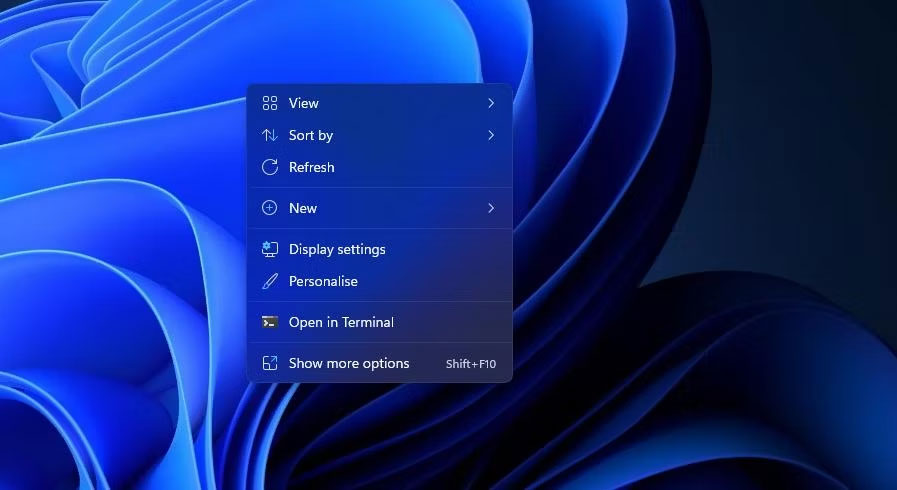
<p style="text-align: justify;">1. Nhấp vào bất kỳ đâu trên desktop bằng nút chuột phải để chọn&nbsp;<strong>Personalize</strong>.</p>

<figure>
<div style="text-align: justify;"><img alt="Tùy chọn Personalize" data-i="0" data-src="https://st.quantrimang.com/photos/image/2023/03/28/tao-slideshow-anh-windows-11-1.jpg" data-was-processed="true" height="490" src="https://st.quantrimang.com/photos/image/2023/03/28/tao-slideshow-anh-windows-11-1.jpg" width="897" /></div>

<figcaption>
<div style="text-align: justify;">Tùy chọn Personalize</div>
</figcaption>
</figure>

<p style="text-align: justify;">2. Chọn&nbsp;<strong>Background&nbsp;</strong>trong Settings.</p>

<p style="text-align: justify;">3. Nhấp đúp vào&nbsp;<strong>Personalize your background</strong>&nbsp;để mở rộng cài đặt của nó.</p>

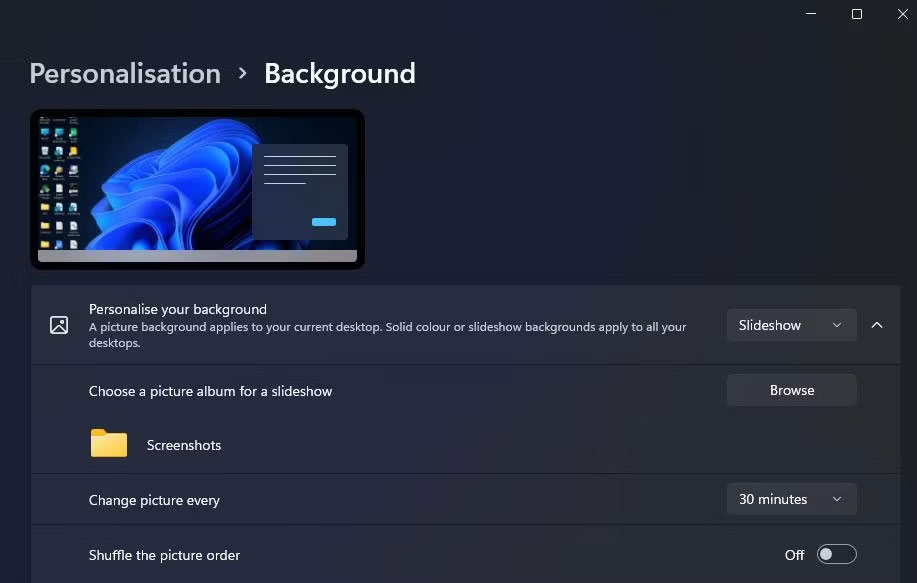
<p style="text-align: justify;">4. Chọn tùy chọn&nbsp;<strong>Slideshow</strong>&nbsp;trong menu drop-down&nbsp;<strong>Personalize your background</strong>.</p>

<figure>
<div style="text-align: justify;"><img alt="Cài đặt desktop slideshow trong Windows 11" data-i="1" data-src="https://st.quantrimang.com/photos/image/2023/03/28/tao-slideshow-anh-windows-11-2.jpg" data-was-processed="true" height="583" src="https://st.quantrimang.com/photos/image/2023/03/28/tao-slideshow-anh-windows-11-2.jpg" width="917" /></div>

<figcaption>
<div style="text-align: justify;">Cài đặt desktop slideshow trong Windows 11</div>
</figcaption>
</figure>

<p style="text-align: justify;">5. Nhấp vào&nbsp;<strong>Browse</strong>&nbsp;để chọn thư mục chứa ảnh cho slideshow.</p>

<p style="text-align: justify;">6. Chọn tùy chọn&nbsp;<strong>Choose this folder</strong>.</p>

<p style="text-align: justify;">7. Sau đó, chọn khoảng thời gian hiển thị hình ảnh trên menu drop-down&nbsp;<strong>Change picture every</strong>.</p>

<h2 style="text-align: justify;">2. Cách thiết lập slideshow screensaver</h2>

<p style="text-align: justify;">Nếu bạn muốn xem những hình ảnh yêu thích của mình mà không có các biểu tượng desktop chồng lên, thay vào đó, hãy thiết lập slideshow screensaver. Windows 11 vẫn bao gồm screensaver, ngay cả khi một số người cho rằng screensaver không còn phù hợp nữa.</p>

<p style="text-align: justify;">Đây là cách bạn có thể thiết lập slideshow screensaver trong Windows 11:</p>

<p style="text-align: justify;">1. Nhập&nbsp;<strong>screensaver</strong>&nbsp;vào hộp văn bản tìm kiếm của menu Start.</p>

<p style="text-align: justify;">2. Nhấp vào&nbsp;<strong>Change screensaver</strong>&nbsp;trong kết quả tìm kiếm.</p>

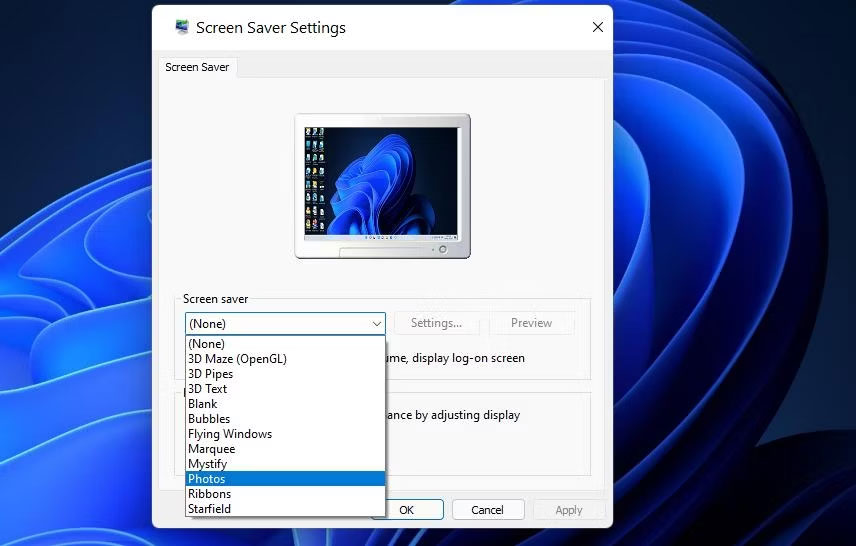
<p style="text-align: justify;">3. Chọn tùy chọn&nbsp;<strong>Photos</strong>&nbsp;trong menu drop-down được hiển thị ngay bên dưới.</p>

<figure>
<div style="text-align: justify;"><img alt="Tùy chọn Photos" data-i="2" data-src="https://st.quantrimang.com/photos/image/2023/03/28/tao-slideshow-anh-windows-11-3.jpg" data-was-processed="true" height="546" src="https://st.quantrimang.com/photos/image/2023/03/28/tao-slideshow-anh-windows-11-3.jpg" width="856" /></div>

<figcaption>
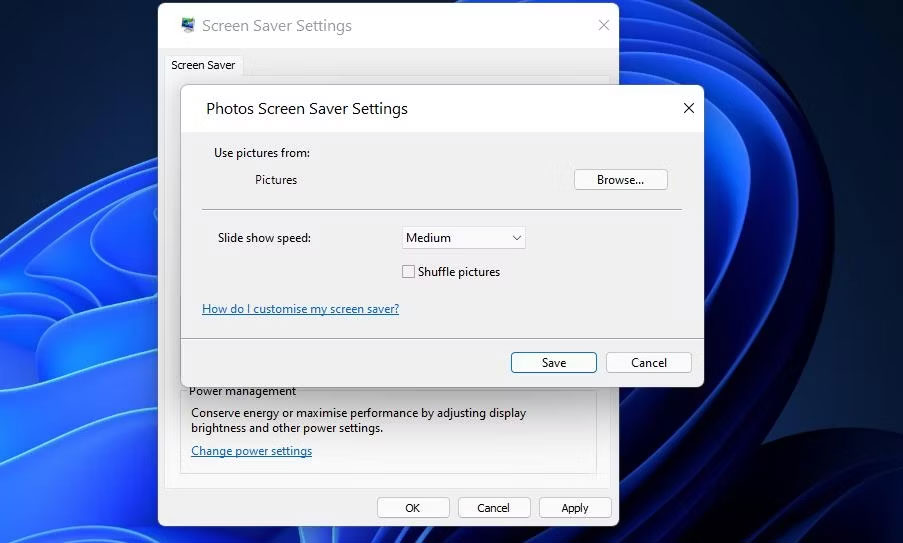
<div style="text-align: justify;">Tùy chọn Photos</div>
</figcaption>
</figure>

<p style="text-align: justify;">4. Điều chỉnh tùy chọn&nbsp;<strong>Wait&nbsp;</strong>để cấu hình thời gian screensaver xuất hiện.</p>

<p style="text-align: justify;">5. Nhấn nút&nbsp;<strong>Settings</strong>&nbsp;để hiển thị các tùy chọn khác.</p>

<figure>
<div style="text-align: justify;"><img alt="Cửa sổ Photos Screen Saver Settings" data-i="3" data-src="https://st.quantrimang.com/photos/image/2023/03/28/tao-slideshow-anh-windows-11-4.jpg" data-was-processed="true" height="543" src="https://st.quantrimang.com/photos/image/2023/03/28/tao-slideshow-anh-windows-11-4.jpg" width="903" /></div>

<figcaption>
<div style="text-align: justify;">Cửa sổ Photos Screen Saver Settings</div>
</figcaption>
</figure>

<p style="text-align: justify;">6. Nhấn nút&nbsp;<strong>Browse</strong>&nbsp;để chọn ảnh.</p>

<p style="text-align: justify;">7. Chọn một thư mục bao gồm các ảnh bạn muốn hiển thị trong bản slideshow và nhấp vào&nbsp;<strong>OK</strong>&nbsp;để xác nhận.</p>

<p style="text-align: justify;">8. Chọn một tùy chọn trên menu drop-down&nbsp;<strong>Slide show</strong>&nbsp;<strong>speed</strong>.</p>

<p style="text-align: justify;">9. Nhấp vào tùy chọn&nbsp;<strong>Save&nbsp;</strong>&gt;&nbsp;<strong>Apply</strong>.</p>

<h2 style="text-align: justify;">3. Cách thiết lập slideshow với ứng dụng&nbsp;Photos</h2>

<p style="text-align: justify;">Photos là ứng dụng chỉnh sửa ảnh và xem ảnh mặc định của Windows 11. Ứng dụng đó bao gồm tùy chọn&nbsp;<strong>Slideshow</strong>&nbsp;mà bạn có thể chọn để xem tổng hợp các hình ảnh. Bạn có thể xem slideshow trong Photos với tùy chọn đó như sau:</p>

<p style="text-align: justify;">1. Nhấp vào ứng dụng Photos được ghim trên menu Start của Windows 11.</p>

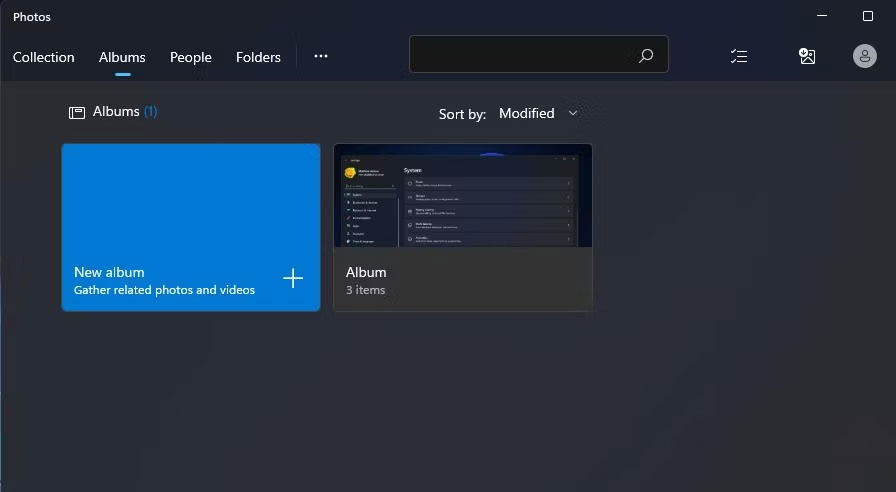
<p style="text-align: justify;">2. Chọn tab&nbsp;<strong>Albums.</strong></p>

<figure>
<div style="text-align: justify;"><img alt="Tab Albums" data-i="4" data-src="https://st.quantrimang.com/photos/image/2023/03/28/tao-slideshow-anh-windows-11-5.jpg" data-was-processed="true" height="492" src="https://st.quantrimang.com/photos/image/2023/03/28/tao-slideshow-anh-windows-11-5.jpg" width="896" /></div>

<figcaption>
<div style="text-align: justify;">Tab Albums</div>
</figcaption>
</figure>

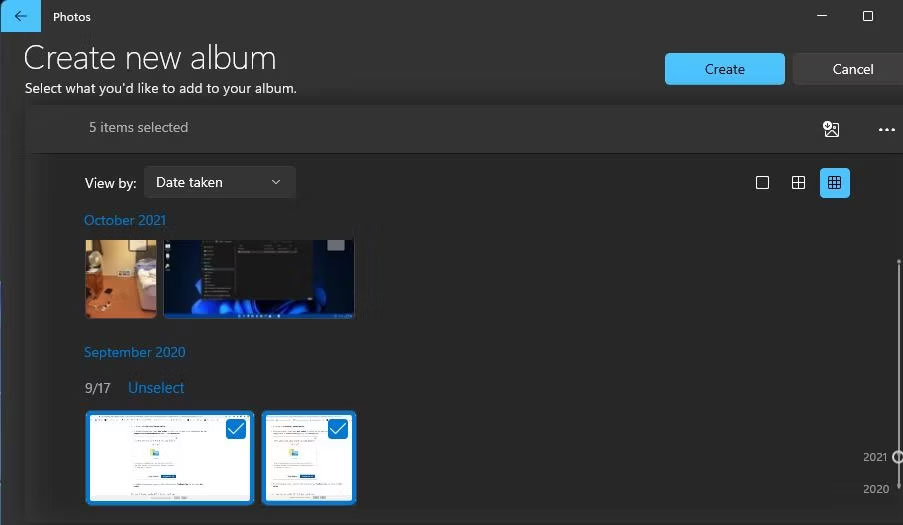
<p style="text-align: justify;">3. Nhấp vào&nbsp;<strong>New album</strong>&nbsp;để chọn hình ảnh trong Photos để đưa vào bản slideshow. Bạn có thể nhấp vào tùy chọn&nbsp;<strong>Import</strong>&nbsp;&gt;&nbsp;<strong>From folder</strong>&nbsp;để chọn những hình ảnh mà bạn không thể tìm thấy trong ứng dụng Photos.</p>

<p style="text-align: justify;">4. Nhấn nút&nbsp;<strong>Create</strong>&nbsp;để thiết lập album.</p>

<figure>
<div style="text-align: justify;"><img alt="Nút Create" data-i="5" data-src="https://st.quantrimang.com/photos/image/2023/03/28/tao-slideshow-anh-windows-11-6.jpg" data-was-processed="true" height="525" src="https://st.quantrimang.com/photos/image/2023/03/28/tao-slideshow-anh-windows-11-6.jpg" width="903" /></div>

<figcaption>
<div style="text-align: justify;">Nút Create</div>
</figcaption>
</figure>

<p style="text-align: justify;">5. Chọn album bạn vừa thiết lập trong Photos.</p>

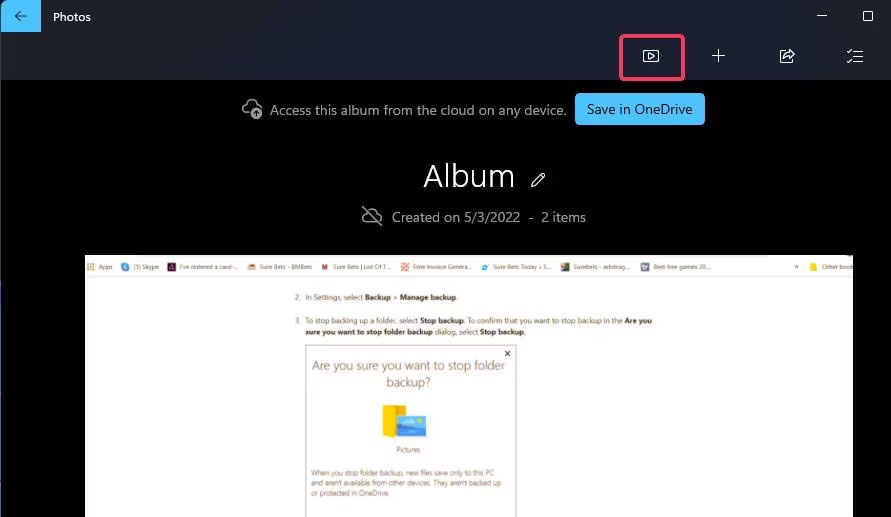
<p style="text-align: justify;">6. Nhấp vào nút&nbsp;<strong>Slideshow</strong>&nbsp;để xem bản trình bày ảnh của bạn.</p>

<figure>
<div style="text-align: justify;"><img alt="Tùy chọn Slideshow trong Photos" data-i="6" data-src="https://st.quantrimang.com/photos/image/2023/03/28/tao-slideshow-anh-windows-11-7.jpg" data-was-processed="true" height="517" src="https://st.quantrimang.com/photos/image/2023/03/28/tao-slideshow-anh-windows-11-7.jpg" width="891" /></div>

<figcaption>
<div style="text-align: justify;">Tùy chọn Slideshow trong Photos</div>
</figcaption>
</figure>

<h2 style="text-align: justify;">4. Cách thiết lập slideshow bằng Video Editor</h2>

<p style="text-align: justify;">Video Editor là một ứng dụng mở rộng cho Photos. Ứng dụng đó cho phép người dùng thiết lập slideshow video ảnh với nhiều theme và nhạc nền khác nhau. Dưới đây là các bước để tạo clip slideshow cho ảnh chụp nhanh yêu thích của bạn trong Video Editor:</p>

<p style="text-align: justify;">1. Nhấp vào trong hộp tìm kiếm trên menu Start của Windows 11.</p>

<p style="text-align: justify;">2. Nhập Video Editor trong tiện ích tìm kiếm.</p>

<p style="text-align: justify;">3. Chọn&nbsp;<strong>Video Editor</strong>&nbsp;để mở tab đó trong Photos.</p>

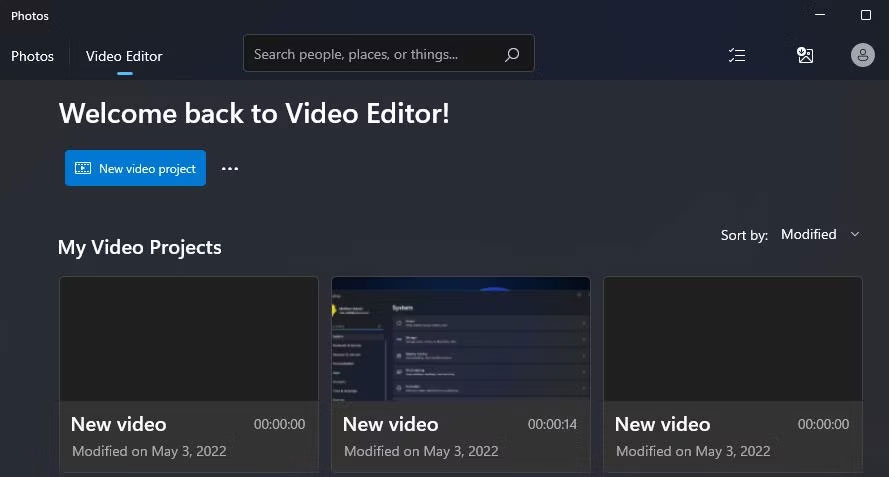
<p style="text-align: justify;">4. Nhấn nút&nbsp;<strong>New video project</strong>.</p>

<figure>
<div style="text-align: justify;"><img alt="Nút New video project" data-i="7" data-src="https://st.quantrimang.com/photos/image/2023/03/28/tao-slideshow-anh-windows-11-8.jpg" data-was-processed="true" height="477" src="https://st.quantrimang.com/photos/image/2023/03/28/tao-slideshow-anh-windows-11-8.jpg" width="889" /></div>

<figcaption>
<div style="text-align: justify;">Nút New video project</div>
</figcaption>
</figure>

<p style="text-align: justify;">5. Nhập tiêu đề cho clip và nhấp vào tùy chọn&nbsp;<strong>OK.</strong></p>

<p style="text-align: justify;">6. Bấm&nbsp;<strong>+ Add</strong>&nbsp;&gt;&nbsp;<strong>From this PC</strong>&nbsp;để chọn một số hình ảnh cho bản slideshow. Sau đó chọn&nbsp;<strong>Open</strong>&nbsp;để thêm chúng.</p>

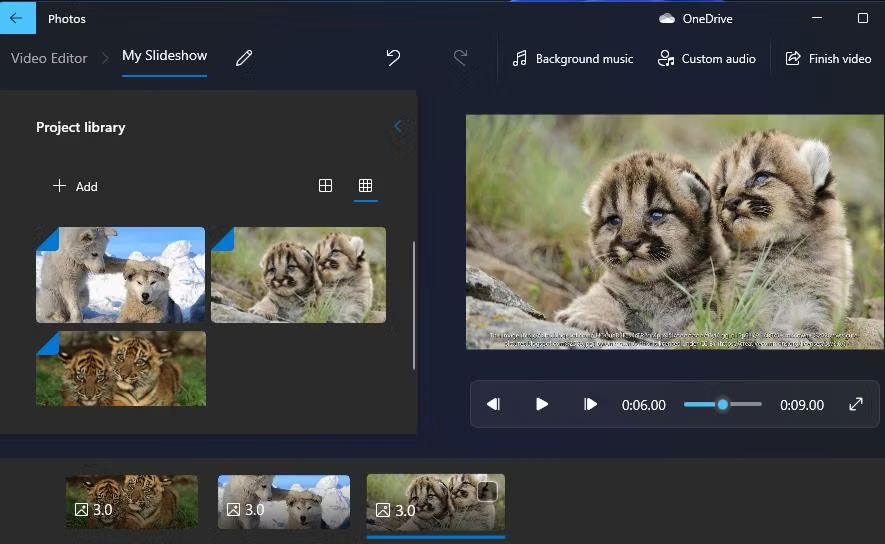
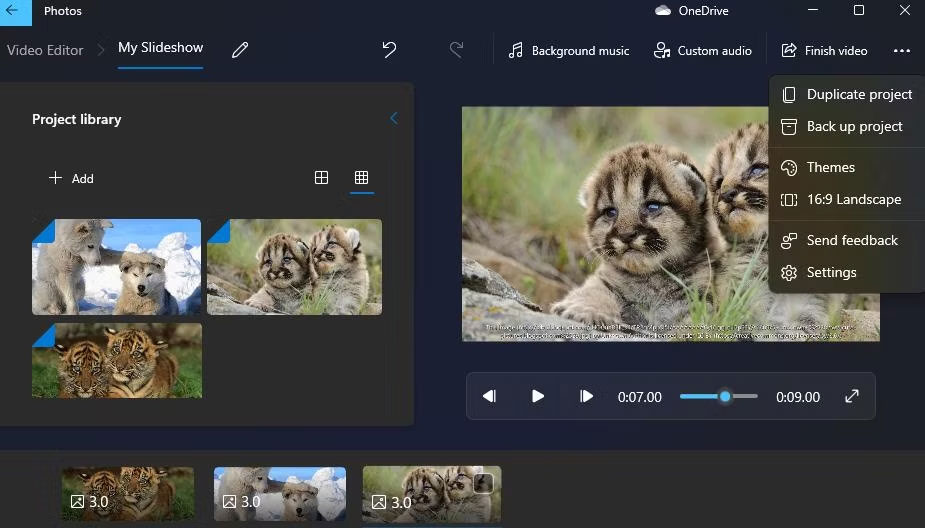
<p style="text-align: justify;">7. Kéo hình thu nhỏ của hình ảnh từ thư viện dự án vào các slide ở cuối tab&nbsp;<strong>My Slideshow</strong>.</p>

<figure>
<div style="text-align: justify;"><img alt="Tab My Slideshow" data-i="8" data-src="https://st.quantrimang.com/photos/image/2023/03/28/tao-slideshow-anh-windows-11-9.jpg" data-was-processed="true" height="544" src="https://st.quantrimang.com/photos/image/2023/03/28/tao-slideshow-anh-windows-11-9.jpg" width="885" /></div>

<figcaption>
<div style="text-align: justify;">Tab My Slideshow</div>
</figcaption>
</figure>

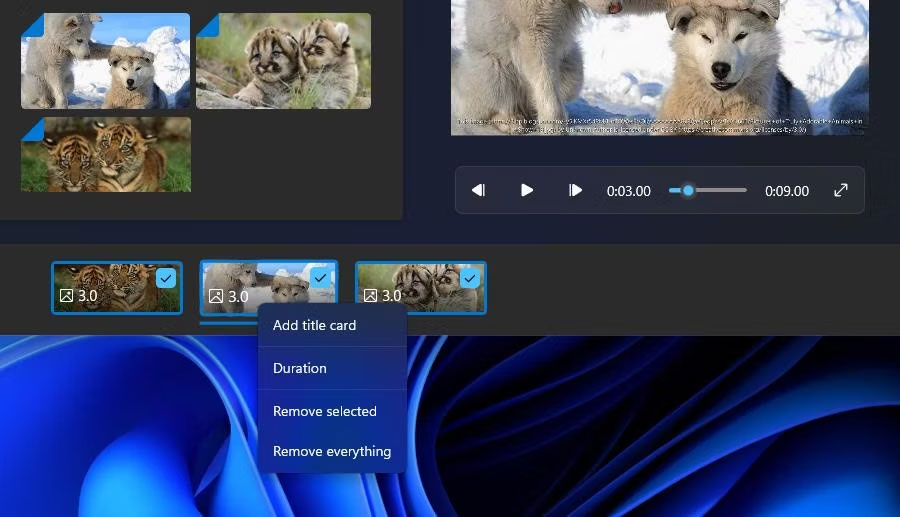
<p style="text-align: justify;">8. Đánh dấu vào tất cả các hộp kiểm của slide và nhấp chuột phải vào một slide để chọn&nbsp;<strong>Duration</strong>. Sau đó, nhập một giá trị để đặt thời lượng bản slideshow hiển thị tất cả các hình ảnh trước khi thay đổi.</p>

<figure>
<div style="text-align: justify;"><img alt="Tùy chọn Duration" data-i="9" data-src="https://st.quantrimang.com/photos/image/2023/03/28/tao-slideshow-anh-windows-11-10.jpg" data-was-processed="true" height="517" src="https://st.quantrimang.com/photos/image/2023/03/28/tao-slideshow-anh-windows-11-10.jpg" width="900" /></div>

<figcaption>
<div style="text-align: justify;">Tùy chọn Duration</div>
</figcaption>
</figure>

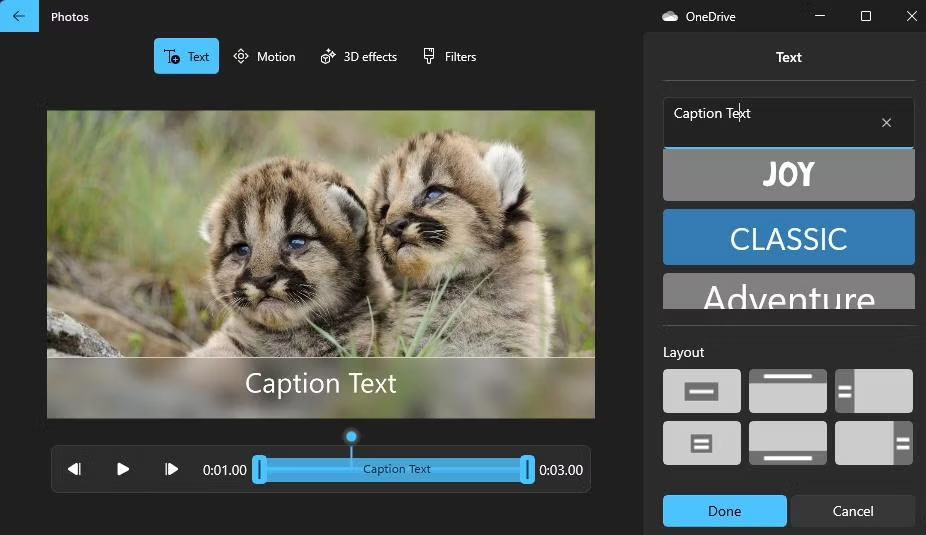
<p style="text-align: justify;">9. Bạn có thể thêm chú thích cho các hình ảnh cụ thể bằng cách nhấp chuột phải vào chúng và chọn tùy chọn&nbsp;<strong>Edit&nbsp;</strong>&gt;&nbsp;<strong>Text</strong>. Nhập chú thích vào hộp văn bản, chọn phông chữ và nhấp vào&nbsp;<strong>Done</strong>.</p>

<figure>
<div style="text-align: justify;"><img alt="Tùy chọn chú thích văn bản" data-i="10" data-src="https://st.quantrimang.com/photos/image/2023/03/28/tao-slideshow-anh-windows-11-11.jpg" data-was-processed="true" height="535" src="https://st.quantrimang.com/photos/image/2023/03/28/tao-slideshow-anh-windows-11-11.jpg" width="926" /></div>

<figcaption>
<div style="text-align: justify;">Tùy chọn chú thích văn bản</div>
</figcaption>
</figure>

<p style="text-align: justify;">10. Để thêm một số âm thanh, hãy nhấp vào tùy chọn&nbsp;<strong>Background music</strong>. Sau đó, chọn một audio scheme và nhấn nút&nbsp;<strong>Done</strong>.</p>

<p style="text-align: justify;">11. Nhấp vào nút ba chấm ở trên cùng bên phải của Video Editor để chọn Themes. Chọn một theme để đặt cho bản slideshow và nhấp vào&nbsp;<strong>Done</strong>.</p>

<figure>
<div style="text-align: justify;"><img alt="Tùy chọn Themes" data-i="11" data-src="https://st.quantrimang.com/photos/image/2023/03/28/tao-slideshow-anh-windows-11-12.jpg" data-was-processed="true" height="528" src="https://st.quantrimang.com/photos/image/2023/03/28/tao-slideshow-anh-windows-11-12.jpg" width="925" /></div>

<figcaption>
<div style="text-align: justify;">Tùy chọn Themes</div>
</figcaption>
</figure>

<p style="text-align: justify;">12. Nhấn nút&nbsp;<strong>Finish video</strong>.</p>

<p style="text-align: justify;">13. Chọn một tùy chọn trên menu drop-down&nbsp;<strong>Video quality&nbsp;</strong>và nhấp vào tùy chọn&nbsp;<strong>Export</strong>.</p>

<h2 style="text-align: justify;">5. Cách thiết lập slideshow với Google Photos</h2>

<p style="text-align: justify;"><a href="https://quantrimang.com/cong-nghe/google-photos" title="Chuyên mục Google Photos">Google Photos</a>&nbsp;là một ứng dụng web lưu trữ đám mây để lưu trữ hình ảnh mà bạn có thể sử dụng trong trình duyệt Edge của Windows 11. Bất kỳ ai có tài khoản Google đều có thể lưu ảnh chụp nhanh ở đó. Sau đó làm theo các bước sau để thiết lập slideshow trong Google Photos:</p>

<p style="text-align: justify;">1. Mở Google Photos trong Edge hoặc một trình duyệt khác.</p>

<p style="text-align: justify;">2. Nếu bạn chưa lưu hình ảnh ở đó, hãy nhấp vào&nbsp;<strong>Upload</strong>&nbsp;&gt;&nbsp;<strong>Computer</strong>&nbsp;trong Google Photos. Nhấn phím&nbsp;<strong>Ctrl</strong>&nbsp;để chọn một số ảnh và nhấp vào tùy chọn&nbsp;<strong>Open</strong>.</p>

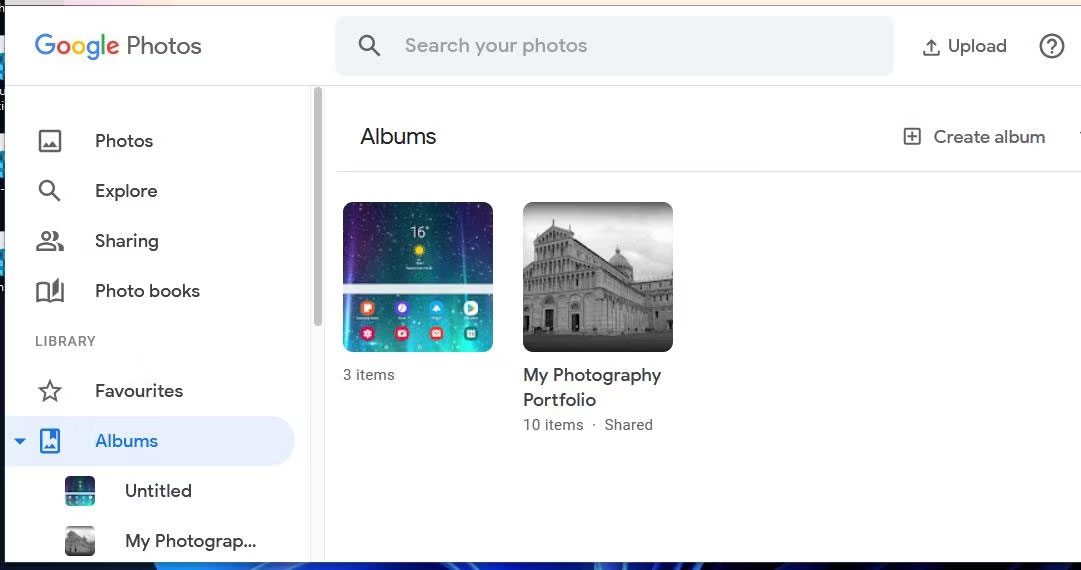
<p style="text-align: justify;">3. Chọn&nbsp;<strong>Albums</strong>&nbsp;ở bên trái của Google Photos.</p>

<p style="text-align: justify;">4. Nhấp vào tùy chọn&nbsp;<strong>Create album</strong>.</p>

<figure>
<div style="text-align: justify;"><img alt="Tùy chọn Create album" data-i="12" data-src="https://st.quantrimang.com/photos/image/2023/03/28/tao-slideshow-anh-windows-11-13.jpg" data-was-processed="true" height="570" src="https://st.quantrimang.com/photos/image/2023/03/28/tao-slideshow-anh-windows-11-13.jpg" width="1081" /></div>

<figcaption>
<div style="text-align: justify;">Tùy chọn Create album</div>
</figcaption>
</figure>

<p style="text-align: justify;">5. Nhập tiêu đề album và nhấn nút&nbsp;<strong>Add photos</strong>.</p>

<p style="text-align: justify;">6. Chọn một số ảnh và nhấp vào nút&nbsp;<strong>Done</strong>.</p>

<p style="text-align: justify;">7. Chọn album mới của bạn trong Google Photos.</p>

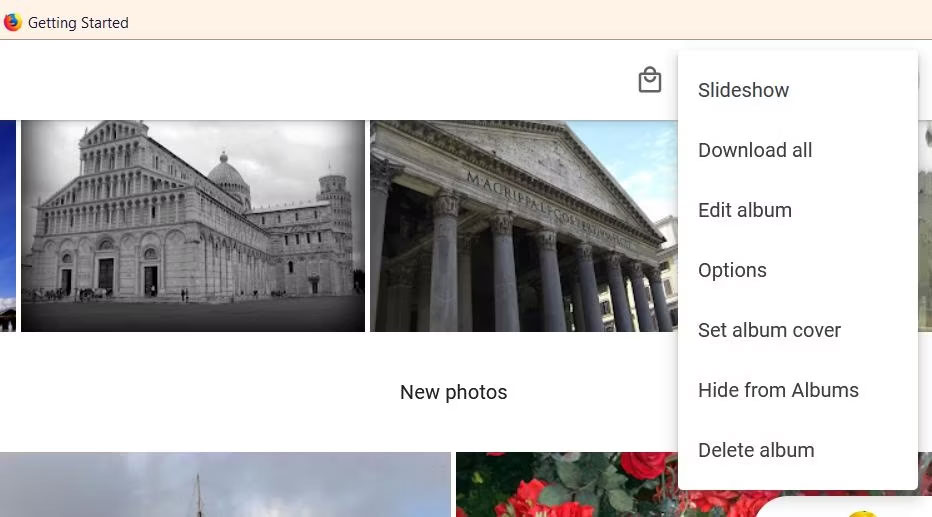
<p style="text-align: justify;">8. Nhấp vào nút&nbsp;<strong>More options</strong>&nbsp;(ba dấu chấm) để chọn&nbsp;<strong>Slideshow.</strong></p>

<figure>
<div style="text-align: justify;"><img alt="Tùy chọn Slideshow trong Google Photos" data-i="13" data-src="https://st.quantrimang.com/photos/image/2023/03/28/tao-slideshow-anh-windows-11-14.jpg" data-was-processed="true" height="517" src="https://st.quantrimang.com/photos/image/2023/03/28/tao-slideshow-anh-windows-11-14.jpg" width="932" /></div>

<figcaption>
<div style="text-align: justify;">Tùy chọn Slideshow trong Google Photos</div>
</figcaption>
</figure>

<p style="text-align: justify;">9. Slideshow album của bạn bây giờ sẽ phát ở chế độ toàn màn hình. Nhấp vào mũi tên trái và phải để lướt qua hình ảnh.</p>

<h2 style="text-align: justify;">6. Cách thiết lập slideshow với Google Slides</h2>

<p style="text-align: justify;">Slide là một ứng dụng web thuyết trình của G Suite mà bạn cũng có thể sử dụng bằng tài khoản Google. Ứng dụng đó bao gồm nhiều tùy chọn mở rộng hơn để thiết lập slideshow ảnh với bố cục, hiệu ứng chuyển tiếp, hoạt ảnh và chú thích khác với Google Photos. Đây là các bước thiết lập slideshow hình ảnh cơ bản với Slides:</p>

<p style="text-align: justify;">1. Mở trang chủ Google Slides.</p>

<p style="text-align: justify;">2. Nhấp vào nút&nbsp;<strong>Go to Slides</strong>.</p>

<p style="text-align: justify;">3. Sau đó chọn tùy chọn&nbsp;<strong>Blank presentation</strong>.</p>

<p style="text-align: justify;">4. Nhập tiêu đề vào hộp&nbsp;<strong>Untitled presentation.</strong></p>

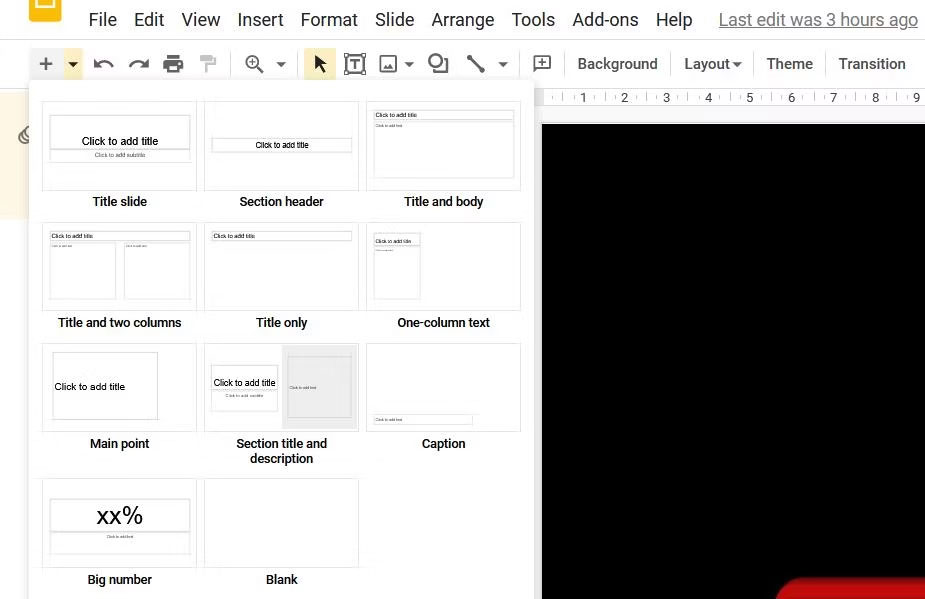
<p style="text-align: justify;">5. Nhấp vào mũi tên xuống nhỏ trên nút&nbsp;<strong>New Slide</strong>.</p>

<figure>
<div style="text-align: justify;"><img alt="Tùy chọn Blank presentation" data-i="14" data-src="https://st.quantrimang.com/photos/image/2023/03/28/tao-slideshow-anh-windows-11-15.jpg" data-was-processed="true" height="599" src="https://st.quantrimang.com/photos/image/2023/03/28/tao-slideshow-anh-windows-11-15.jpg" width="925" /></div>

<figcaption>
<div style="text-align: justify;">Tùy chọn Blank presentation</div>
</figcaption>
</figure>

<p style="text-align: justify;">6. Chọn&nbsp;<strong>Blank</strong>&nbsp;để thêm một slide trống.</p>

<p style="text-align: justify;">7. Lặp lại các bước 5 và 6 để thêm số lượng slide mà bạn cần cho slideshow ảnh của mình.</p>

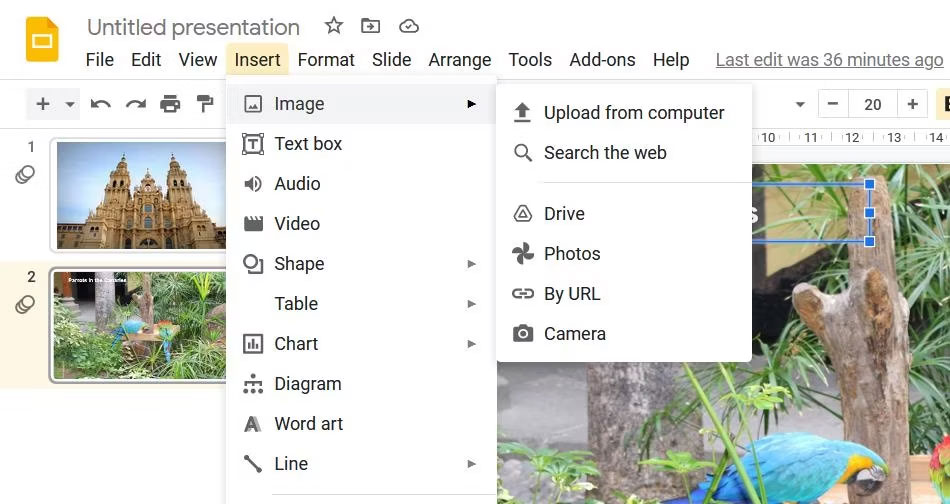
<p style="text-align: justify;">8. Sau đó, chọn một slide trống để thêm hình ảnh vào và nhấp vào&nbsp;<strong>Insert</strong>.</p>

<p style="text-align: justify;">9. Chọn&nbsp;<strong>Image</strong>&nbsp;&gt;&nbsp;<strong>Upload</strong>&nbsp;<strong>from computer</strong>&nbsp;trên menu.</p>

<figure>
<div style="text-align: justify;"><img alt="Tùy chọn Upload from computer" data-i="15" data-src="https://st.quantrimang.com/photos/image/2023/03/28/tao-slideshow-anh-windows-11-16.jpg" data-was-processed="true" height="504" src="https://st.quantrimang.com/photos/image/2023/03/28/tao-slideshow-anh-windows-11-16.jpg" width="950" /></div>

<figcaption>
<div style="text-align: justify;">Tùy chọn Upload from computer</div>
</figcaption>
</figure>

<p style="text-align: justify;">10. Chọn ảnh bạn muốn thêm vào slide và chọn tùy chọn&nbsp;<strong>Open</strong>.</p>

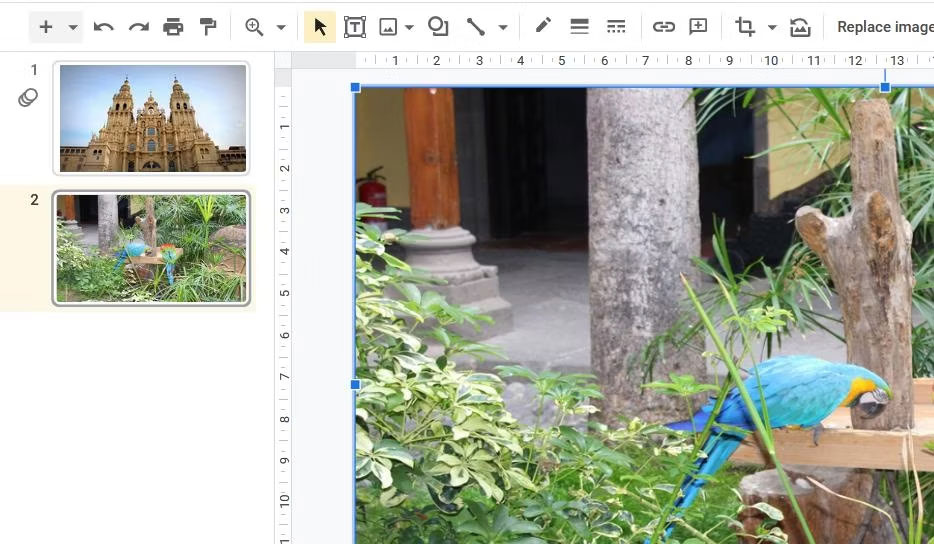
<p style="text-align: justify;">11. Kéo các đường viền của hình ảnh bằng con trỏ để thay đổi kích thước sao cho ảnh lấp đầy toàn bộ slide.</p>

<figure>
<div style="text-align: justify;"><img alt="Thay đổi kích thước viền ảnh" data-i="16" data-src="https://st.quantrimang.com/photos/image/2023/03/28/tao-slideshow-anh-windows-11-17.jpg" data-was-processed="true" height="544" src="https://st.quantrimang.com/photos/image/2023/03/28/tao-slideshow-anh-windows-11-17.jpg" width="934" /></div>

<figcaption>
<div style="text-align: justify;">Thay đổi kích thước viền ảnh</div>
</figcaption>
</figure>

<p style="text-align: justify;">12. Lặp lại các bước từ 6 đến 9 để thêm ảnh vào tất cả các slide trống trong bản slideshow của bạn.</p>

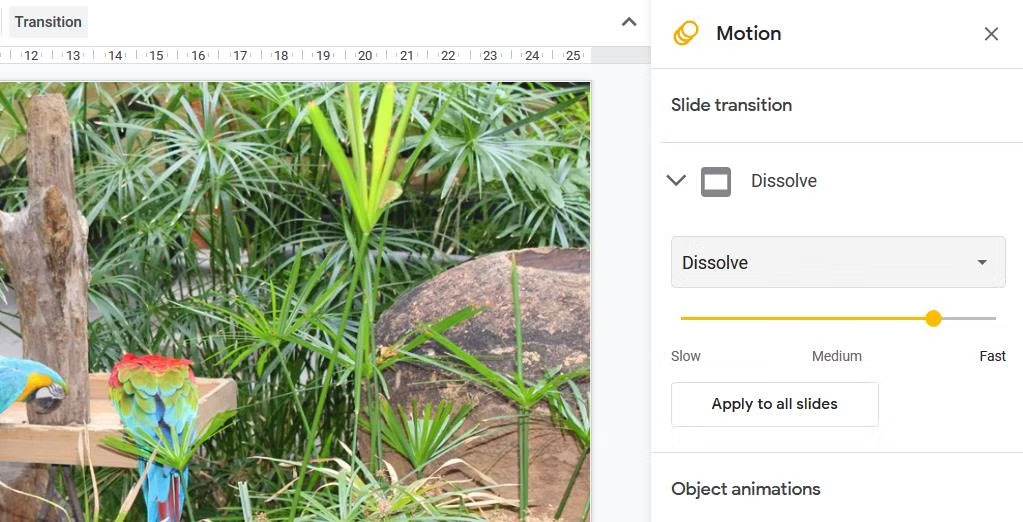
<p style="text-align: justify;">13. Để thêm hiệu ứng chuyển slideshow, nhấn vào nút&nbsp;<strong>Transition.</strong>&nbsp;Sau đó, chọn một chuyển đổi trên menu drop-down và chọn tùy chọn&nbsp;<strong>Apply to all slides</strong>.</p>

<figure>
<div style="text-align: justify;"><img alt="Các tùy chọn hiệu ứng chuyển tiếp" data-i="17" data-src="https://st.quantrimang.com/photos/image/2023/03/28/tao-slideshow-anh-windows-11-18.jpg" data-was-processed="true" height="522" src="https://st.quantrimang.com/photos/image/2023/03/28/tao-slideshow-anh-windows-11-18.jpg" width="1023" /></div>

<figcaption>
<div style="text-align: justify;">Các tùy chọn hiệu ứng chuyển tiếp</div>
</figcaption>
</figure>

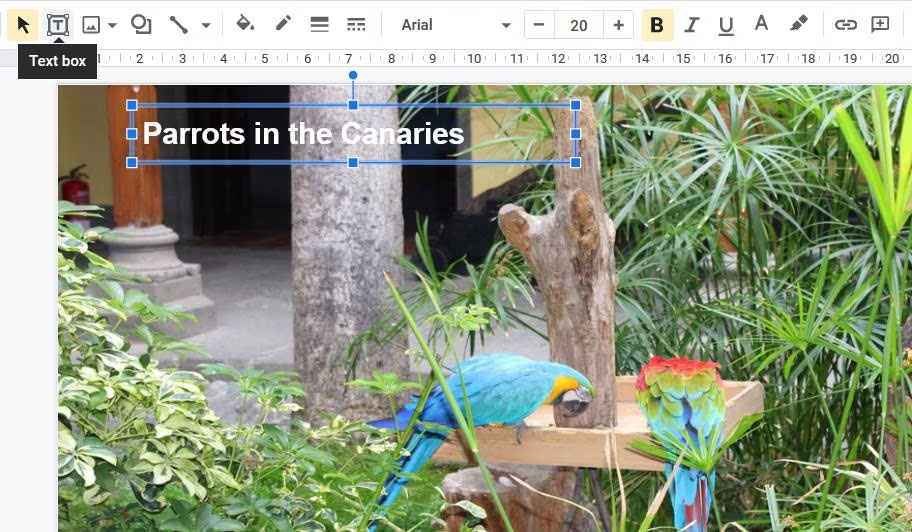
<p style="text-align: justify;">14. Bạn cũng có thể thêm chú thích vào slide bằng cách nhấp vào tùy chọn&nbsp;<strong>Text box</strong>. Đặt hộp ở dưới cùng hoặc trên cùng của slide và nhập mô tả ảnh vào đó.</p>

<figure>
<div style="text-align: justify;"><img alt="Hộp văn bản" data-i="18" data-src="https://st.quantrimang.com/photos/image/2023/03/28/tao-slideshow-anh-windows-11-19.jpg" data-was-processed="true" height="532" src="https://st.quantrimang.com/photos/image/2023/03/28/tao-slideshow-anh-windows-11-19.jpg" width="912" /></div>

<figcaption>
<div style="text-align: justify;">Hộp văn bản</div>
</figcaption>
</figure>

<p style="text-align: justify;">15. Nhấp vào nút&nbsp;<strong>Slideshow</strong>&nbsp;để xem bản trình bày.</p>

<p style="text-align: justify;">16. Bản trình bày của bạn được lưu tự động trong Slides. Tuy nhiên, bạn có thể lưu nó vào ổ cứng bằng cách nhấp vào&nbsp;<strong>File</strong>&nbsp;&gt;&nbsp;<strong>Download</strong>&nbsp;và chọn định dạng file Microsoft PowerPoint (hoặc tùy chọn thay thế).</p>

<p style="text-align: justify;">Slides có sẵn nhiều tùy chọn âm thanh, định dạng, văn bản, hình dạng và theme hơn. Bạn cũng có thể bao gồm nhiều hình ảnh trong một slide bằng cách chọn các tùy chọn bố cục khác nhau.</p>

<h2 style="text-align: justify;">7. Cách thiết lập slideshow với Windows Media Player</h2>

<p style="text-align: justify;"><a href="https://quantrimang.com/cong-nghe/windows-media-player" title="Chuyên mục Windows Media Player">Windows Media Player</a>&nbsp;là phần mềm cũ mà bạn có thể phát nhạc, video và xem hình ảnh. Phần mềm đó vẫn đi kèm với Windows 11 và bạn có thể thiết lập slideshow hình ảnh cơ bản với WMP khi nó lập danh mục ảnh trong thư mục người dùng của mình. Đây là cách bạn có thể tạo slideshow hình ảnh với Windows Media Player:</p>

<p style="text-align: justify;">1. Trước tiên, hãy đảm bảo rằng thư mục&nbsp;<strong>Pictures</strong>&nbsp;người dùng bao gồm các ảnh bạn muốn trong slideshow. Bạn có thể di chuyển ảnh vào thư mục&nbsp;<strong>Pictures</strong>&nbsp;bằng cách kéo và thả chúng từ thư mục này sang thư mục khác trong File Explorer.</p>

<p style="text-align: justify;">2. Nhập&nbsp;<strong>Windows Media Player</strong>&nbsp;bên trong hộp tìm kiếm của menu Start.</p>

<p style="text-align: justify;">3. Chọn&nbsp;<strong>Windows Media Player</strong>&nbsp;để cửa sổ của phần mềm đó xuất hiện.</p>

<p style="text-align: justify;">4. Nhấp vào nút&nbsp;<strong>Create playlist</strong>.</p>

<p style="text-align: justify;">5. Nhập&nbsp;<strong>Image Slideshow</strong>&nbsp;vào hộp văn bản danh sách phát.</p>

<p style="text-align: justify;">6. Sau đó nhấp vào mũi tên nhỏ bên cạnh&nbsp;<strong>Playlist</strong>&nbsp;để mở rộng danh mục đó.</p>

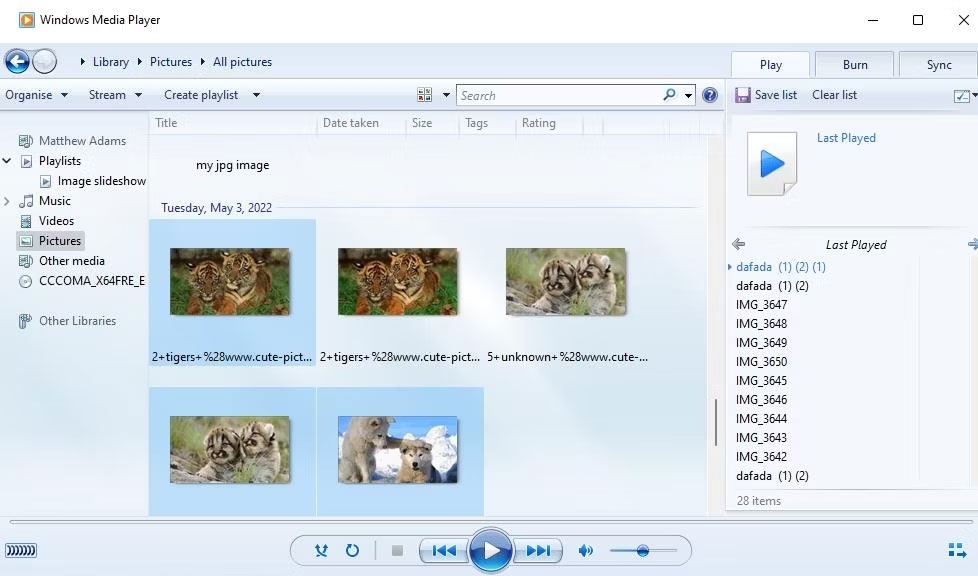
<p style="text-align: justify;">7. Nhấp vào&nbsp;<strong>Pictures</strong>&nbsp;ở bên trái cửa sổ Windows Media Player.</p>

<figure>
<div style="text-align: justify;"><img alt="Hình ảnh slideshow được chọn trong Windows Media Player" data-i="19" data-src="https://st.quantrimang.com/photos/image/2023/03/28/tao-slideshow-anh-windows-11-20.jpg" data-was-processed="true" height="576" src="https://st.quantrimang.com/photos/image/2023/03/28/tao-slideshow-anh-windows-11-20.jpg" width="978" /></div>

<figcaption>
<div style="text-align: justify;">Hình ảnh slideshow được chọn trong Windows Media Player</div>
</figcaption>
</figure>

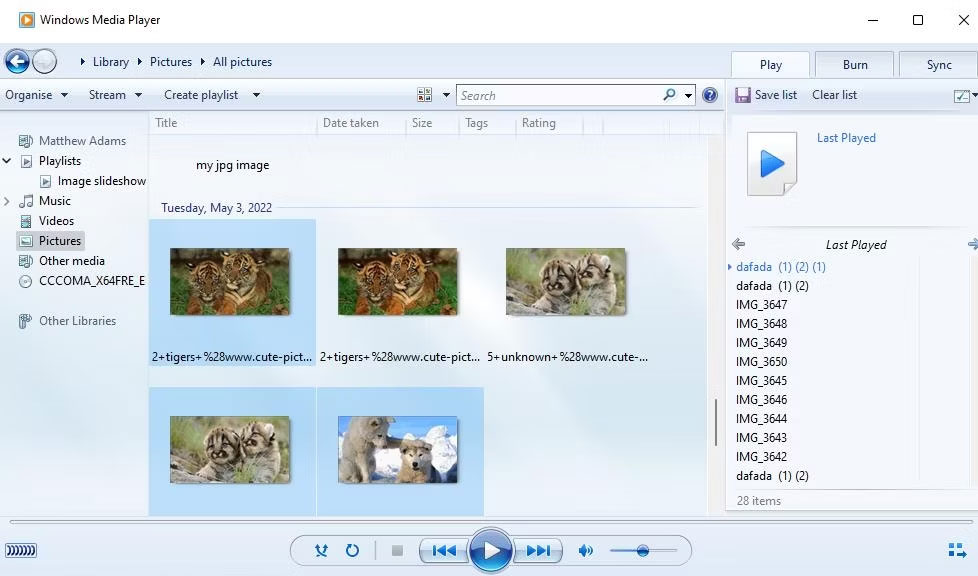
<p style="text-align: justify;">8. Giữ phím&nbsp;<strong>Ctrl</strong>&nbsp;và chọn ảnh để đưa vào slideshow.</p>

<p style="text-align: justify;">9. Sau đó, giữ nút chuột trái để kéo lựa chọn hình ảnh vào tiêu đề của danh sách phát trong thanh bên của Windows Media Player.</p>

<p style="text-align: justify;">10. Nhả nút chuột trái khi bạn thấy chú giải công cụ&nbsp;<strong>Add to</strong>&nbsp;+.</p>

<figure>
<div style="text-align: justify;"><img alt="Hình ảnh slideshow được chọn trong Windows Media Player" data-i="20" data-src="https://st.quantrimang.com/photos/image/2023/03/28/tao-slideshow-anh-windows-11-21.jpg" data-was-processed="true" height="576" src="https://st.quantrimang.com/photos/image/2023/03/28/tao-slideshow-anh-windows-11-21.jpg" width="978" /></div>

<figcaption>
<div style="text-align: justify;">Hình ảnh slideshow được chọn trong Windows Media Player</div>
</figcaption>
</figure>

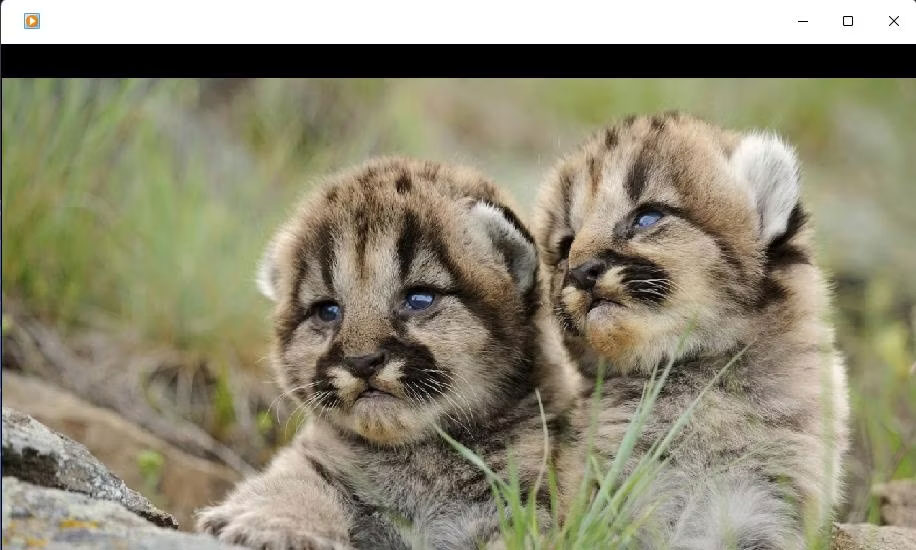
<p style="text-align: justify;">Bây giờ, hãy chọn danh sách phát&nbsp;<strong>Image Slideshow</strong>&nbsp;trong Windows Media Player, danh sách này sẽ bao gồm các file ảnh bạn đã thêm vào. Nhấn vào nút&nbsp;<strong>Play</strong>&nbsp;để bắt đầu slideshow. Sau đó, Windows Media Player sẽ hiển thị quá trình phát slideshow cơ bản lướt qua các hình ảnh trong đó với khoảng thời gian khoảng 5 giây. Nếu WMP không tự động hiển thị slideshow, hãy nhấp vào tùy chọn&nbsp;<strong>Switch to Now Playing</strong>.</p>

<figure>
<div style="text-align: justify;"><img alt="Hình ảnh slideshow trong Windows Media Player" data-i="21" data-src="https://st.quantrimang.com/photos/image/2023/03/28/tao-slideshow-anh-windows-11-22.jpg" data-was-processed="true" height="550" src="https://st.quantrimang.com/photos/image/2023/03/28/tao-slideshow-anh-windows-11-22.jpg" width="916" /></div>

<figcaption>
<div style="text-align: justify;">Hình ảnh slideshow trong Windows Media Player</div>
</figcaption>
</figure>

<p style="text-align: justify;">Hầu như không cần thiết phải cài đặt phần mềm slideshow của bên thứ ba trong Windows 11, vì bạn có thể khoe những bức ảnh yêu thích của mình bằng những phương pháp trên. Các tính năng slideshow screensaver và desktop tích hợp sẵn của Windows 11 cũng như Google Photos đều phù hợp để hiển thị các bộ sưu tập hình ảnh cơ bản. Bạn có thể thiết lập slideshow ảnh nâng cao hơn kết hợp nhiều hiệu ứng chuyển tiếp khác nhau, nhạc nền, tường thuật âm thanh và chú thích văn bản bằng Video Editor và Google Sheets.</p>
		</div>
				<div id="author">
						<p>
				<strong>Nguồn tin:</strong>
				Quantrimang.com
			</p>
		</div>
	</div>
	<div id="footer" class="clearfix">
		<div id="url">
			<strong>URL của bản tin này: </strong><a href="https://www.nguoicodonvn2008.info/vi/news/savefile/kien-thuc-may-tinh/7-cach-tao-slideshow-anh-trong-windows-11-khong-can-cai-dat-them-phan-mem-6937.html" title="7 cách tạo slideshow ảnh trong Windows 11 không cần cài đặt thêm phần mềm">https://www.nguoicodonvn2008.info/vi/news/savefile/kien-thuc-may-tinh/7-cach-tao-slideshow-anh-trong-windows-11-khong-can-cai-dat-them-phan-mem-6937.html</a>

		</div>
		<div class="clear"></div>
		<div class="copyright">
			&copy; .&#x3A; Nguoicodonvn2008.info - Cõi lòng người cô đơn &#x3A;.
		</div>
		<div id="contact">
			<a href="mailto:admin@nguoicodonvn2008.info">admin@nguoicodonvn2008.info</a>
		</div>
	</div>
</div>
        <div id="timeoutsess" class="chromeframe">
            Bạn đã không sử dụng Site, <a onclick="timeoutsesscancel();" href="https://nguoicodonvn2008.info/#">Bấm vào đây để duy trì trạng thái đăng nhập</a>. Thời gian chờ: <span id="secField"> 60 </span> giây
        </div>
        <div id="openidResult" class="nv-alert" style="display:none"></div>
        <div id="openidBt" data-result="" data-redirect=""></div>
		</script>
		<div class="car-top">
  <span><img src="https://nguoicodonvn2008.info/themes/default/images/car.png" alt=""></span>
</div>
<script src="https://nguoicodonvn2008.info/assets/js/jquery/jquery.min.js"></script>
<script>var nv_base_siteurl="/",nv_lang_data="vi",nv_lang_interface="vi",nv_name_variable="nv",nv_fc_variable="op",nv_lang_variable="language",nv_module_name="news",nv_func_name="savefile",nv_is_user=0, nv_my_ofs=-4,nv_my_abbr="EDT",nv_cookie_prefix="nv4c_e856T",nv_check_pass_mstime=1738000,nv_area_admin=0,nv_safemode=0,theme_responsive=0,nv_recaptcha_ver=2,nv_recaptcha_sitekey="",nv_recaptcha_type="image",XSSsanitize=1;</script>
<script src="https://nguoicodonvn2008.info/assets/js/language/vi.js"></script>
<script src="https://nguoicodonvn2008.info/assets/js/DOMPurify/purify3.js"></script>
<script src="https://nguoicodonvn2008.info/assets/js/global.js"></script>
<script src="https://nguoicodonvn2008.info/assets/js/site.js"></script>
<script src="https://nguoicodonvn2008.info/themes/default/js/news.js"></script>
<script src="https://nguoicodonvn2008.info/themes/default/js/main.js"></script>
<script src="https://nguoicodonvn2008.info/themes/default/js/custom.js"></script>
<script type="application/ld+json">
        {
            "@context": "https://schema.org",
            "@type": "Organization",
            "url": "https://nguoicodonvn2008.info",
            "logo": "https://nguoicodonvn2008.info/uploads/angel.gif"
        }
        </script>
<script src="https://nguoicodonvn2008.info/themes/default/js/bootstrap.min.js"></script>
<script type="text/javascript">
var $scrolltop = $('.car-top');
$scrolltop.on('click', function () {
    $('html,body').animate({
        scrollTop: 0
    }, 800);
    $(this).addClass("car-run");
    setTimeout(function(){ $scrolltop.removeClass('car-run');}, 1000);
    return false;
});
$(window).on('scroll', function ()
{ 
    if($(window).scrollTop() >= 200)
    {
        $scrolltop.addClass("show");
        $scrolltop.addClass("car-down");
    }
    else
    {
       $scrolltop.removeClass("show");
       setTimeout(function(){ $scrolltop.removeClass('car-down');}, 300);
    }
});
</script>
</body>
</html>