<!DOCTYPE html>
    <html lang="vi" xmlns="http://www.w3.org/1999/xhtml" prefix="og: http://ogp.me/ns#">
    <head>
<title>7 cách khắc phục lỗi ứng dụng Films &amp; TV không hoạt động trên Windows 11</title>
<meta name="description" content="7 cách khắc phục lỗi ứng dụng Films &amp; TV không hoạt động trên Windows 11 - Savefile - Tin Tức -...">
<meta name="author" content=".: Nguoicodonvn2008.info - Cõi lòng người cô đơn :.">
<meta name="copyright" content=".: Nguoicodonvn2008.info - Cõi lòng người cô đơn :. [admin@nguoicodonvn2008.info]">
<meta name="robots" content="index, archive, follow, noodp">
<meta name="googlebot" content="index,archive,follow,noodp">
<meta name="msnbot" content="all,index,follow">
<meta name="generator" content="NukeViet v4.5">
<meta http-equiv="Content-Type" content="text/html; charset=utf-8">
<meta property="og:title" content="7 cách khắc phục lỗi ứng dụng Films &amp; TV không hoạt động trên Windows 11">
<meta property="og:type" content="website">
<meta property="og:description" content="Savefile - Tin Tức -...">
<meta property="og:site_name" content=".&#x3A; Nguoicodonvn2008.info - Cõi lòng người cô đơn &#x3A;.">
<meta property="og:url" content="https://www.nguoicodonvn2008.info/vi/news/savefile/kien-thuc-may-tinh/7-cach-khac-phuc-loi-ung-dung-films-tv-khong-hoat-dong-tren-windows-11-6349.html">
<link rel="shortcut icon" href="https://nguoicodonvn2008.info/favicon.ico">
<link rel="canonical" href="https://www.nguoicodonvn2008.info/vi/news/savefile/kien-thuc-may-tinh/7-cach-khac-phuc-loi-ung-dung-films-tv-khong-hoat-dong-tren-windows-11-6349.html">
<link rel="alternate" href="https://nguoicodonvn2008.info/vi/news/rss/" title="Tin Tức" type="application/rss+xml">
<link rel="alternate" href="https://nguoicodonvn2008.info/vi/news/rss/karaoke-dual/" title="Tin Tức - Karaoke Dual" type="application/rss+xml">
<link rel="alternate" href="https://nguoicodonvn2008.info/vi/news/rss/nhac-tre/" title="Tin Tức - Nhạc trẻ" type="application/rss+xml">
<link rel="alternate" href="https://nguoicodonvn2008.info/vi/news/rss/tru-tinh/" title="Tin Tức - Trữ tình" type="application/rss+xml">
<link rel="alternate" href="https://nguoicodonvn2008.info/vi/news/rss/nuoc-ngoai/" title="Tin Tức - Nước ngoài" type="application/rss+xml">
<link rel="alternate" href="https://nguoicodonvn2008.info/vi/news/rss/remix/" title="Tin Tức - Remix" type="application/rss+xml">
<link rel="alternate" href="https://nguoicodonvn2008.info/vi/news/rss/tam-su-tinh-yeu/" title="Tin Tức - Tâm sự tình yêu" type="application/rss+xml">
<link rel="alternate" href="https://nguoicodonvn2008.info/vi/news/rss/tho-suu-tam/" title="Tin Tức - Thơ sưu tầm" type="application/rss+xml">
<link rel="alternate" href="https://nguoicodonvn2008.info/vi/news/rss/cuoc-song/" title="Tin Tức - Cuộc sống" type="application/rss+xml">
<link rel="alternate" href="https://nguoicodonvn2008.info/vi/news/rss/phan-mem/" title="Tin Tức - Phần mềm" type="application/rss+xml">
<link rel="alternate" href="https://nguoicodonvn2008.info/vi/news/rss/kien-thuc-may-tinh/" title="Tin Tức - Kiến thức máy tính" type="application/rss+xml">
<link rel="alternate" href="https://nguoicodonvn2008.info/vi/news/rss/hoc-tap/" title="Tin Tức - Học tập" type="application/rss+xml">
<link rel="alternate" href="https://nguoicodonvn2008.info/vi/news/rss/tai-lieu/" title="Tin Tức - Tài liệu" type="application/rss+xml">
<link rel="alternate" href="https://nguoicodonvn2008.info/vi/news/rss/de-thi/" title="Tin Tức - Đề thi" type="application/rss+xml">
<link rel="preload" as="style" href="https://nguoicodonvn2008.info/assets/css/font-awesome.min.css" type="text/css">
<link rel="preload" as="style" href="https://nguoicodonvn2008.info/themes/default/css/bootstrap.non-responsive.css" type="text/css">
<link rel="preload" as="style" href="https://nguoicodonvn2008.info/themes/default/css/style.css" type="text/css">
<link rel="preload" as="style" href="https://nguoicodonvn2008.info/themes/default/css/style.non-responsive.css" type="text/css">
<link rel="preload" as="style" href="https://nguoicodonvn2008.info/themes/default/css/news.css" type="text/css">
<link rel="preload" as="style" href="https://nguoicodonvn2008.info/themes/default/css/custom.css" type="text/css">
<link rel="preload" as="script" href="https://nguoicodonvn2008.info/assets/js/jquery/jquery.min.js" type="text/javascript">
<link rel="preload" as="script" href="https://nguoicodonvn2008.info/assets/js/language/vi.js" type="text/javascript">
<link rel="preload" as="script" href="https://nguoicodonvn2008.info/assets/js/DOMPurify/purify3.js" type="text/javascript">
<link rel="preload" as="script" href="https://nguoicodonvn2008.info/assets/js/global.js" type="text/javascript">
<link rel="preload" as="script" href="https://nguoicodonvn2008.info/assets/js/site.js" type="text/javascript">
<link rel="preload" as="script" href="https://nguoicodonvn2008.info/themes/default/js/news.js" type="text/javascript">
<link rel="preload" as="script" href="https://nguoicodonvn2008.info/themes/default/js/main.js" type="text/javascript">
<link rel="preload" as="script" href="https://nguoicodonvn2008.info/themes/default/js/custom.js" type="text/javascript">
<link rel="preload" as="script" href="https://nguoicodonvn2008.info/themes/default/js/bootstrap.min.js" type="text/javascript">
<link rel="stylesheet" href="https://nguoicodonvn2008.info/assets/css/font-awesome.min.css">
<link rel="stylesheet" href="https://nguoicodonvn2008.info/themes/default/css/bootstrap.non-responsive.css">
<link rel="stylesheet" href="https://nguoicodonvn2008.info/themes/default/css/style.css">
<link rel="stylesheet" href="https://nguoicodonvn2008.info/themes/default/css/style.non-responsive.css">
<link rel="StyleSheet" href="https://nguoicodonvn2008.info/themes/default/css/news.css">
<link rel="stylesheet" href="https://nguoicodonvn2008.info/themes/default/css/custom.css">
<style type="text/css">
	body{background: #fff;}
</style>
    </head>
    <body>
<div id="print">
	<div id="hd_print">
		<h2 class="pull-left">.&#x3A; Nguoicodonvn2008.info - Cõi lòng người cô đơn &#x3A;.</h2>
		<p class="pull-right"><a title=".&#x3A; Nguoicodonvn2008.info - Cõi lòng người cô đơn &#x3A;." href="https://nguoicodonvn2008.info/">https://nguoicodonvn2008.info</a></p>
	</div>
	<div class="clear"></div>
	<hr />
	<div id="content">
		<h1>7 cách khắc phục lỗi ứng dụng Films &amp; TV không hoạt động trên Windows 11</h1>
		<ul class="list-inline">
			<li>Thứ sáu - 18/11/2022 23:55</li>
			<li class="hidden-print txtrequired"><em class="fa fa-print">&nbsp;</em><a title="In ra" href="javascript:;" onclick="window.print()">In ra</a></li>
			<li class="hidden-print txtrequired"><em class="fa fa-power-off">&nbsp;</em><a title="Đóng cửa sổ này" href="javascript:;" onclick="window.close()">Đóng cửa sổ này</a></li>
		</ul>
		<div class="clear"></div>
		<div id="hometext">
		</div>
				<div class="imghome">
			<img alt="7 cách khắc phục lỗi ứng dụng Films &amp; TV không hoạt động trên Windows 11" src="https://st.quantrimang.com/photos/image/2022/11/19/sua-loi-ung-dung-films-tv-khong-hoat-dong-1.jpg" width="460" class="img-thumbnail" />
		</div>
		<div class="clear"></div>
		<div id="bodytext" class="clearfix">
			<p style="text-align: justify;">Ứng dụng Film &amp; TV là ứng dụng video mặc định của bạn trong&nbsp;<a href="https://quantrimang.com/cong-nghe/windows-11-tips" title="Chuyên mục Windows 11">Windows 11</a>. So với phiên bản tiền nhiệm, Windows Media Player, ứng dụng này có nhiều tính năng và khả năng sử dụng tốt hơn. Thật không may, nhiều người dùng gặp tình trạng ứng dụng Film &amp; TV không hoạt động trên PC chạy Windows 11.</p>

<p style="text-align: justify;">Nếu Film &amp; TV trên hệ thống của bạn hoạt động chậm hoặc hoàn toàn không hoạt động, đây là một số cách giúp bạn làm cho công cụ này chạy trơn tru trở lại.</p>

<h2 style="text-align: justify;">1. Chạy Microsoft Store Apps troubleshooter</h2>

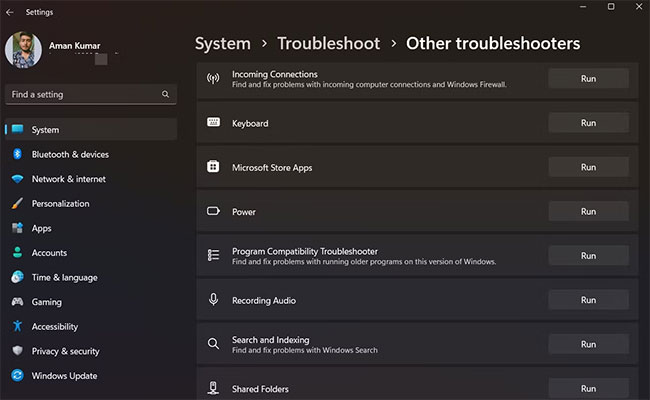
<p style="text-align: justify;">Công cụ đầu tiên để sửa chữa ứng dụng Film &amp; TV là trình khắc phục sự cố Windows tích hợp sẵn cho các ứng dụng UWP. Trình khắc phục sự cố quét các file ứng dụng để tìm những sự cố phổ biến và đề xuất các giải pháp phù hợp.</p>

<p style="text-align: justify;">Để chạy Microsoft Store Apps troubleshooter, hãy làm theo các bước bên dưới:</p>

<p style="text-align: justify;"><strong>B1:</strong>&nbsp;Mở System Settings&nbsp;bằng cách nhấn hotkey&nbsp;<strong>Win + I</strong>.</p>

<p style="text-align: justify;"><strong>B2:</strong>&nbsp;Trong tab&nbsp;<strong>System</strong>, cuộn xuống và chọn tùy chọn&nbsp;<strong>Troubleshoot.</strong></p>

<p style="text-align: justify;"><strong>B3:</strong>&nbsp;Chọn&nbsp;<strong>Other troubleshooters</strong>&nbsp;trong cửa sổ sau.</p>

<p style="text-align: justify;"><strong>B4:</strong>&nbsp;Cuộn xuống Microsoft Store Apps và nhấp vào nút&nbsp;<strong>Run</strong>&nbsp;bên cạnh.</p>

<figure>
<div style="text-align: justify;"><img alt="Nút Run bên cạnh Microsoft Store Apps" data-i="0" data-src="https://st.quantrimang.com/photos/image/2022/11/19/sua-loi-ung-dung-films-tv-khong-hoat-dong-1.jpg" data-was-processed="true" height="400" src="https://st.quantrimang.com/photos/image/2022/11/19/sua-loi-ung-dung-films-tv-khong-hoat-dong-1.jpg" width="650" /></div>

<figcaption>
<div style="text-align: justify;">Nút Run bên cạnh Microsoft Store Apps</div>
</figcaption>
</figure>

<p style="text-align: justify;">Trình khắc phục sự cố sẽ quét hệ thống của bạn để tìm mọi sự cố hiện có và đề xuất các bản sửa lỗi. Thực hiện theo các hướng dẫn trên màn hình để thực hiện những bản sửa lỗi thành công.</p>

<h2 style="text-align: justify;">2. Kiểm tra mọi bản cập nhật ứng dụng có sẵn</h2>

<p style="text-align: justify;">Windows thường xuyên nhận được những bản cập nhật cho tất cả các ứng dụng UMP. Các bản cập nhật mới nâng cao hiệu suất của ứng dụng và loại bỏ lỗi.</p>

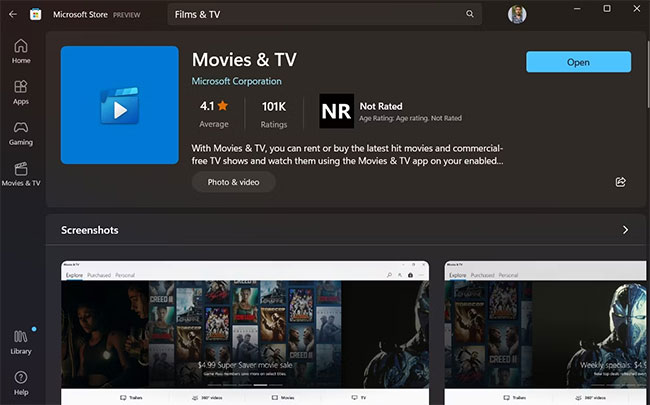
<p style="text-align: justify;">Bạn có thể cập nhật ứng dụng Film &amp; TV bằng cách làm theo hướng dẫn bên dưới:</p>

<p style="text-align: justify;"><strong>B1:</strong>&nbsp;Mở Microsoft Store.</p>

<p style="text-align: justify;"><strong>B2:</strong>&nbsp;Nhập&nbsp;<strong>Film &amp; TV</strong>&nbsp;vào thanh tìm kiếm và nhấn&nbsp;<strong>Enter.</strong></p>

<p style="text-align: justify;"><strong>B3:</strong>&nbsp;Nếu có bất kỳ bản cập nhật nào, bạn sẽ thấy nút&nbsp;<strong>Update</strong>&nbsp;bên dưới tên ứng dụng. Nhấn vào nó để tải về bản cập nhật.</p>

<figure>
<div style="text-align: justify;"><img alt="Cập nhật ứng dụng Film &amp; TV trong Microsoft Store" data-i="1" data-src="https://st.quantrimang.com/photos/image/2022/11/19/sua-loi-ung-dung-films-tv-khong-hoat-dong-2.jpg" data-was-processed="true" height="405" src="https://st.quantrimang.com/photos/image/2022/11/19/sua-loi-ung-dung-films-tv-khong-hoat-dong-2.jpg" width="650" /></div>

<figcaption>
<div style="text-align: justify;">Cập nhật ứng dụng Film &amp; TV trong Microsoft Store</div>
</figcaption>
</figure>

<p style="text-align: justify;">Sau khi tải xuống và cài đặt bản cập nhật, hãy&nbsp;khởi động lại máy tính, rồi kiểm tra xem sự cố còn diễn ra không.</p>

<h2 style="text-align: justify;">3. Kiểm tra cài đặt hệ thống</h2>

<figure>
<div style="text-align: justify;"><img alt="Time &amp; language trong cài đặt hệ thống" data-i="2" data-src="https://st.quantrimang.com/photos/image/2022/11/19/sua-loi-ung-dung-films-tv-khong-hoat-dong-3.jpg" data-was-processed="true" height="361" src="https://st.quantrimang.com/photos/image/2022/11/19/sua-loi-ung-dung-films-tv-khong-hoat-dong-3.jpg" width="650" /></div>

<figcaption>
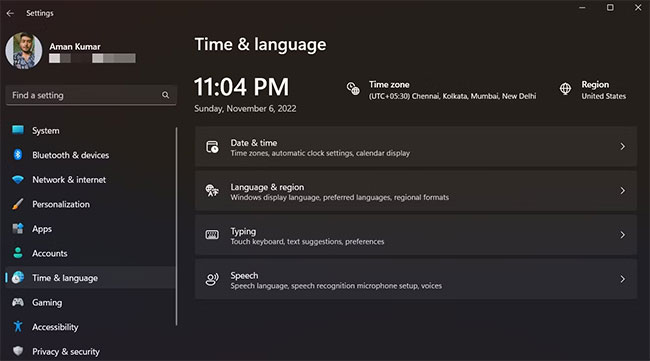
<div style="text-align: justify;">Time &amp; language trong cài đặt hệ thống</div>
</figcaption>
</figure>

<p style="text-align: justify;">Hầu hết các ứng dụng UWP, bao gồm ứng dụng Film &amp; TV, sẽ không hoạt động nếu cài đặt thời gian, ngôn ngữ ngày tháng và khu vực trên máy tính không chính xác. Bạn sẽ phải cấu hình chính xác các cài đặt này để ứng dụng hoạt động trở lại. Đây là cách thực hiện:</p>

<p style="text-align: justify;"><strong>B1:</strong>&nbsp;Mở&nbsp;<strong>System Settings</strong>&nbsp;và chọn&nbsp;<strong>Time &amp; language</strong>&nbsp;từ bảng điều khiển bên trái.</p>

<p style="text-align: justify;"><strong>B2:</strong>&nbsp;Chọn&nbsp;<strong>Date &amp; time</strong>, sau đó thay đổi ngày giờ theo cách thủ công (xem&nbsp;cách thay đổi ngày giờ trên Windows 11).</p>

<p style="text-align: justify;"><strong>B3:</strong>&nbsp;Tiếp theo, chọn&nbsp;<strong>Language &amp; region</strong>, rồi chọn quốc gia và ngôn ngữ của bạn.</p>

<p style="text-align: justify;">Mọi thao tác đã hoàn tất. Kiểm tra xem sự cố đã được khắc phục hay chưa.</p>

<h2 style="text-align: justify;">4. Xóa các file tạm thời trên máy tính</h2>

<figure>
<div style="text-align: justify;"><img alt="Xóa nội dung của thư mục Temp" data-i="3" data-src="https://st.quantrimang.com/photos/image/2022/11/19/sua-loi-ung-dung-films-tv-khong-hoat-dong-4.jpg" data-was-processed="true" height="355" src="https://st.quantrimang.com/photos/image/2022/11/19/sua-loi-ung-dung-films-tv-khong-hoat-dong-4.jpg" width="650" /></div>

<figcaption>
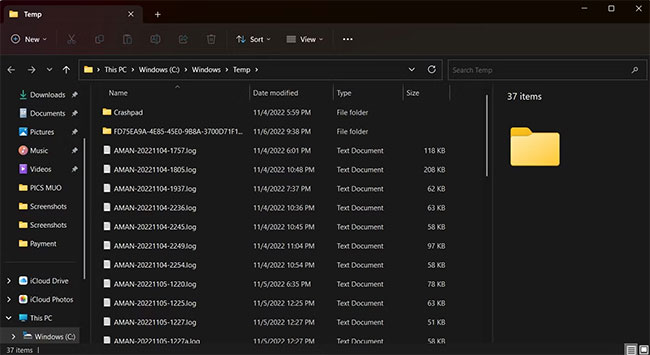
<div style="text-align: justify;">Xóa nội dung của thư mục Temp</div>
</figcaption>
</figure>

<p style="text-align: justify;">Các chương trình và ứng dụng lưu trữ những file tạm thời của chúng trong thư mục&nbsp;<strong>Temp.</strong>&nbsp;Nhưng đôi khi, thư mục này có thể bị hỏng và gây ra nhiều sự cố khác nhau, bao gồm cả lỗi đang diễn ra.</p>

<p style="text-align: justify;">Giải pháp trong trường hợp này là xóa nội dung của thư mục Temp. Đây là cách:</p>

<p style="text-align: justify;"><strong>B1:</strong>&nbsp;Mở hộp thoại Run, nhập&nbsp;<strong>Temp</strong>&nbsp;vào thanh tìm kiếm và nhấp vào&nbsp;<strong>OK.</strong></p>

<p style="text-align: justify;"><strong>B2:</strong>&nbsp;Nhấn<strong>&nbsp;Ctrl + A</strong>&nbsp;để chọn tất cả các file và thư mục, sau đó nhấn&nbsp;<strong>Shift + Delete&nbsp;</strong>để xóa chúng vĩnh viễn.</p>

<h2 style="text-align: justify;">5. Khôi phục các thư viện mặc định</h2>

<p style="text-align: justify;">Film &amp; TV sẽ bị lỗi hoặc hoàn toàn không mở nếu bạn đã xóa một trong các thư viện mặc định. Bạn sẽ phải khôi phục các thư viện mặc định để khắc phục sự cố. Để làm điều này, hãy làm theo các hướng dẫn dưới đây:</p>

<p style="text-align: justify;"><strong>B1:</strong>&nbsp;Nhấn&nbsp;<strong>Win + E</strong>&nbsp;để&nbsp;<a href="https://quantrimang.com/cong-nghe/cach-mo-file-explorer-tren-windows-11-184094" title="Tổng hợp các cách mở File Explorer trên Windows 11">mở Windows Explorer</a>.</p>

<p style="text-align: justify;"><strong>B2:</strong>&nbsp;Nhấp vào ba dấu chấm ở trên cùng và chọn&nbsp;<strong>Options.</strong></p>

<p style="text-align: justify;"><strong>B3:</strong>&nbsp;Chuyển sang tab&nbsp;<strong>View.</strong></p>

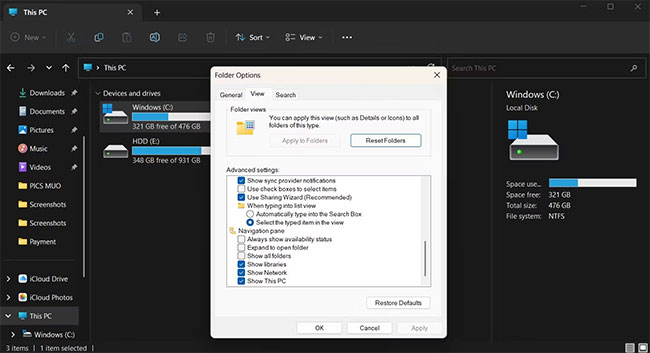
<p style="text-align: justify;"><strong>B4:</strong>&nbsp;Trong phần&nbsp;<strong>Advanced settings</strong>, cuộn xuống và chọn tùy chọn&nbsp;<strong>Show libraries.</strong></p>

<figure>
<div style="text-align: justify;"><img alt="Tùy chọn Show libraries trong File Explorer" data-i="4" data-src="https://st.quantrimang.com/photos/image/2022/11/19/sua-loi-ung-dung-films-tv-khong-hoat-dong-5.jpg" data-was-processed="true" height="353" src="https://st.quantrimang.com/photos/image/2022/11/19/sua-loi-ung-dung-films-tv-khong-hoat-dong-5.jpg" width="650" /></div>

<figcaption>
<div style="text-align: justify;">Tùy chọn Show libraries trong File Explorer</div>
</figcaption>
</figure>

<p style="text-align: justify;"><strong>B5:</strong>&nbsp;Nhấp vào&nbsp;<strong>Apply &gt; OK</strong>.</p>

<p style="text-align: justify;"><strong>B6:</strong>&nbsp;Nhấp vào&nbsp;<strong>Libraries</strong>&nbsp;trong bảng điều khiển bên trái.</p>

<p style="text-align: justify;"><strong>B7:</strong>&nbsp;Nhấp chuột phải vào từng thư viện và chọn&nbsp;<strong>Delete</strong>&nbsp;từ menu ngữ cảnh.</p>

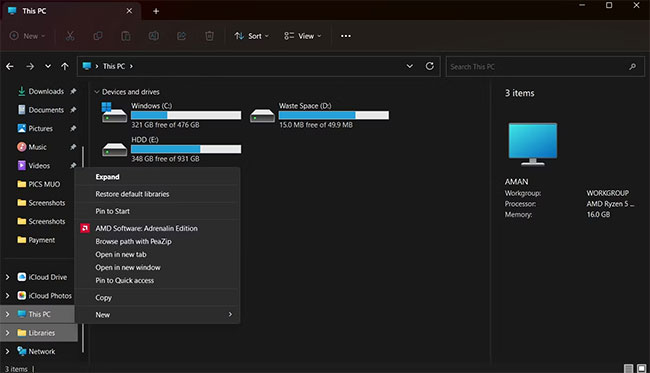
<p style="text-align: justify;"><strong>B8:</strong>&nbsp;Nhấp chuột phải vào&nbsp;<strong>Libraries</strong>&nbsp;một lần nữa trong bảng điều khiển bên trái, chọn&nbsp;<strong>Show more options &gt; Restore default libraries</strong>.</p>

<figure>
<div style="text-align: justify;"><img alt="Khôi phục tùy chọn thư viện mặc định trong Windows Explorer" data-i="5" data-src="https://st.quantrimang.com/photos/image/2022/11/19/sua-loi-ung-dung-films-tv-khong-hoat-dong-6.jpg" data-was-processed="true" height="373" src="https://st.quantrimang.com/photos/image/2022/11/19/sua-loi-ung-dung-films-tv-khong-hoat-dong-6.jpg" width="650" /></div>

<figcaption>
<div style="text-align: justify;">Khôi phục tùy chọn thư viện mặc định trong Windows Explorer</div>
</figcaption>
</figure>

<p style="text-align: justify;">Tất cả dữ liệu thư viện hiện đã được khôi phục. Bây giờ, hãy kiểm tra xem sự cố có còn tiếp diễn không.</p>

<h2 style="text-align: justify;">6. Reset ứng dụng Film &amp; TV</h2>

<p style="text-align: justify;">Windows 11 đi kèm với tùy chọn reset mà bạn có thể sử dụng để loại bỏ hầu hết các sự cố ứng dụng UWP. Khi bạn reset ứng dụng UWP, ứng dụng đó sẽ tự động được khôi phục về cài đặt mặc định.</p>

<p style="text-align: justify;">Bạn có thể reset ứng dụng Film &amp; TV bằng cách làm theo các bước dưới đây:</p>

<p style="text-align: justify;"><strong>B1:</strong>&nbsp;Mở&nbsp;<strong>System Settings</strong>&nbsp;và chọn&nbsp;<strong>Apps</strong>&nbsp;từ bảng điều khiển bên trái.</p>

<p style="text-align: justify;"><strong>B2:</strong>&nbsp;Chọn tùy chọn&nbsp;<strong>Installed apps</strong>&nbsp;trong cửa sổ sau.</p>

<p style="text-align: justify;"><strong>B3:</strong>&nbsp;Xác định vị trí và nhấp vào ba dấu chấm bên cạnh ứng dụng Film &amp; TV.</p>

<p style="text-align: justify;"><strong>B4:</strong>&nbsp;Chọn&nbsp;<strong>Advanced options</strong>&nbsp;từ menu ngữ cảnh.</p>

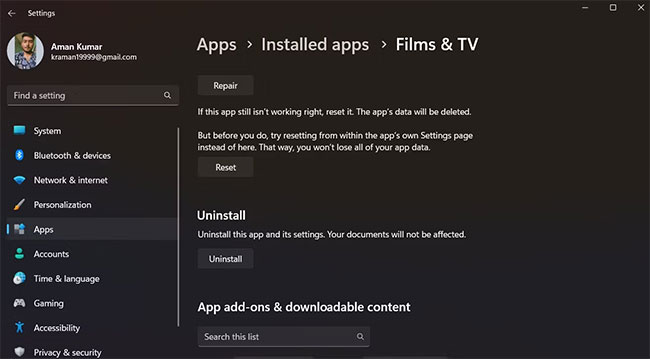
<p style="text-align: justify;"><strong>B5:</strong>&nbsp;Cuộn xuống và nhấp vào nút&nbsp;<strong>Reset.</strong>&nbsp;Sau đó, nhấp vào nút Reset một lần nữa để xác nhận lựa chọn của bạn.</p>

<figure>
<div style="text-align: justify;"><img alt="Nút để reset ứng dụng Film &amp; TV" data-i="6" data-src="https://st.quantrimang.com/photos/image/2022/11/19/sua-loi-ung-dung-films-tv-khong-hoat-dong-7.jpg" data-was-processed="true" height="359" src="https://st.quantrimang.com/photos/image/2022/11/19/sua-loi-ung-dung-films-tv-khong-hoat-dong-7.jpg" width="650" /></div>

<figcaption>
<div style="text-align: justify;">Nút để reset ứng dụng Film &amp; TV</div>
</figcaption>
</figure>

<p style="text-align: justify;">Mọi thao tác hoàn tất. Khởi chạy ứng dụng Film &amp; TV và kiểm tra xem sự cố đã được khắc phục chưa. Nếu bạn vẫn gặp sự cố, hãy sử dụng tùy chọn&nbsp;<strong>Repair.</strong>&nbsp;Tùy chọn sửa chữa cho phép bạn sửa chữa cài đặt chương trình mà không gặp rắc rối khi cài đặt lại.</p>

<p style="text-align: justify;">Để sửa chữa ứng dụng Film &amp; TV, hãy đi tới&nbsp;<strong>Start &gt; System Settings &gt; Apps &gt; Apps and features</strong>. Tại đây, xác định vị trí và nhấp vào ba dấu chấm bên cạnh ứng dụng Film &amp; TV. Chọn&nbsp;<strong>Advanced options</strong>&nbsp;từ menu pop-up.</p>

<p style="text-align: justify;">Tiếp theo, cuộn xuống và nhấp vào nút&nbsp;<strong>Repair</strong>&nbsp;để bắt đầu quá trình. Sau khi ứng dụng được sửa chữa, bạn sẽ thấy một dấu kiểm bên cạnh nút Repair.</p>

<h2 style="text-align: justify;">7. Cài đặt lại ứng dụng Films &amp; TV</h2>

<figure>
<div style="text-align: justify;"><img alt="Cài đặt lại ứng dụng Films &amp; TV" data-i="7" data-src="https://st.quantrimang.com/photos/image/2022/11/19/sua-loi-ung-dung-films-tv-khong-hoat-dong-8.jpg" data-was-processed="true" height="115" src="https://st.quantrimang.com/photos/image/2022/11/19/sua-loi-ung-dung-films-tv-khong-hoat-dong-8.jpg" width="650" /></div>

<figcaption>
<div style="text-align: justify;">Cài đặt lại ứng dụng Films &amp; TV</div>
</figcaption>
</figure>

<p style="text-align: justify;">Khả năng cao là ứng dụng Films &amp; TV không phản hồi do các file của nó bị hỏng. Giải pháp tốt nhất trong trường hợp này là cài đặt lại ứng dụng.</p>

<p style="text-align: justify;">Thật không may, các ứng dụng UWP không có nút Uninstall cổ điển. Vì vậy, bạn sẽ phải sử dụng công cụ dòng lệnh như Windows PowerShell để gỡ cài đặt ứng dụng Films &amp; TV. Đây là cách thực hiện:</p>

<p style="text-align: justify;"><strong>B1:</strong>&nbsp;Khởi chạy menu Start bằng cách nhấn phím&nbsp;<strong>Win.</strong></p>

<p style="text-align: justify;"><strong>B2:</strong>&nbsp;Trong thanh tìm kiếm, nhập&nbsp;<strong>Windows PowerShell</strong>&nbsp;và chọn&nbsp;<strong>Run as administrator</strong>&nbsp;từ ngăn bên phải để&nbsp;mở PowerShell với quyền admin.</p>

<p style="text-align: justify;"><strong>B3:</strong>&nbsp;Trong cửa sổ PowerShell với quyền admin, nhập lệnh sau và nhấn&nbsp;<strong>Enter.</strong>&nbsp;Lệnh này sẽ gỡ cài đặt ứng dụng Films &amp; TV khỏi máy tính của bạn.</p>

<pre id="pre0">
<code>get-appxpackage *Microsoft.ZuneVideo* | remove-appxpackage</code></pre>

<p style="text-align: justify;"><strong>B4:</strong>&nbsp;Tiếp theo, hãy mở Microsoft Store và tìm kiếm ứng dụng Films &amp; TV.</p>

<p style="text-align: justify;"><strong>B5:</strong>&nbsp;Nhấp vào nút&nbsp;<strong>Get</strong>&nbsp;bên cạnh ứng dụng Films &amp; TV để bắt đầu quá trình tải xuống.</p>

<p style="text-align: justify;">Sau khi ứng dụng được cài đặt trên máy tính của bạn, hãy khởi chạy nó và kiểm tra xem sự cố còn diễn ra không.</p>

<p style="text-align: justify;">Bạn có thể làm được rất nhiều điều trên ứng dụng Films &amp; TV đã được tân trang lại. Nó có giao diện người dùng hoàn toàn mới và cho phép bạn phát video trực tuyến cũng như ngoại tuyến. Tuy nhiên, đôi khi ứng dụng có thể không load được video hoặc ngừng hoạt động hoàn toàn.</p>

<p style="text-align: justify;">Rất may, bạn có thể nhanh chóng reset hoặc cài đặt lại ứng dụng Films &amp; TV để đưa ứng dụng này trở lại trạng thái hoạt động. Ngoài ra, bạn có thể thử các trình phát đa phương tiện khác cho Windows 11.</p>
		</div>
				<div id="author">
						<p>
				<strong>Nguồn tin:</strong>
				Quantrimang.com
			</p>
		</div>
	</div>
	<div id="footer" class="clearfix">
		<div id="url">
			<strong>URL của bản tin này: </strong><a href="https://www.nguoicodonvn2008.info/vi/news/savefile/kien-thuc-may-tinh/7-cach-khac-phuc-loi-ung-dung-films-tv-khong-hoat-dong-tren-windows-11-6349.html" title="7 cách khắc phục lỗi ứng dụng Films &amp; TV không hoạt động trên Windows 11">https://www.nguoicodonvn2008.info/vi/news/savefile/kien-thuc-may-tinh/7-cach-khac-phuc-loi-ung-dung-films-tv-khong-hoat-dong-tren-windows-11-6349.html</a>

		</div>
		<div class="clear"></div>
		<div class="copyright">
			&copy; .&#x3A; Nguoicodonvn2008.info - Cõi lòng người cô đơn &#x3A;.
		</div>
		<div id="contact">
			<a href="mailto:admin@nguoicodonvn2008.info">admin@nguoicodonvn2008.info</a>
		</div>
	</div>
</div>
        <div id="timeoutsess" class="chromeframe">
            Bạn đã không sử dụng Site, <a onclick="timeoutsesscancel();" href="https://nguoicodonvn2008.info/#">Bấm vào đây để duy trì trạng thái đăng nhập</a>. Thời gian chờ: <span id="secField"> 60 </span> giây
        </div>
        <div id="openidResult" class="nv-alert" style="display:none"></div>
        <div id="openidBt" data-result="" data-redirect=""></div>
		</script>
		<div class="car-top">
  <span><img src="https://nguoicodonvn2008.info/themes/default/images/car.png" alt=""></span>
</div>
<script src="https://nguoicodonvn2008.info/assets/js/jquery/jquery.min.js"></script>
<script>var nv_base_siteurl="/",nv_lang_data="vi",nv_lang_interface="vi",nv_name_variable="nv",nv_fc_variable="op",nv_lang_variable="language",nv_module_name="news",nv_func_name="savefile",nv_is_user=0, nv_my_ofs=-4,nv_my_abbr="EDT",nv_cookie_prefix="nv4c_e856T",nv_check_pass_mstime=1738000,nv_area_admin=0,nv_safemode=0,theme_responsive=0,nv_recaptcha_ver=2,nv_recaptcha_sitekey="",nv_recaptcha_type="image",XSSsanitize=1;</script>
<script src="https://nguoicodonvn2008.info/assets/js/language/vi.js"></script>
<script src="https://nguoicodonvn2008.info/assets/js/DOMPurify/purify3.js"></script>
<script src="https://nguoicodonvn2008.info/assets/js/global.js"></script>
<script src="https://nguoicodonvn2008.info/assets/js/site.js"></script>
<script src="https://nguoicodonvn2008.info/themes/default/js/news.js"></script>
<script src="https://nguoicodonvn2008.info/themes/default/js/main.js"></script>
<script src="https://nguoicodonvn2008.info/themes/default/js/custom.js"></script>
<script type="application/ld+json">
        {
            "@context": "https://schema.org",
            "@type": "Organization",
            "url": "https://nguoicodonvn2008.info",
            "logo": "https://nguoicodonvn2008.info/uploads/angel.gif"
        }
        </script>
<script src="https://nguoicodonvn2008.info/themes/default/js/bootstrap.min.js"></script>
<script type="text/javascript">
var $scrolltop = $('.car-top');
$scrolltop.on('click', function () {
    $('html,body').animate({
        scrollTop: 0
    }, 800);
    $(this).addClass("car-run");
    setTimeout(function(){ $scrolltop.removeClass('car-run');}, 1000);
    return false;
});
$(window).on('scroll', function ()
{ 
    if($(window).scrollTop() >= 200)
    {
        $scrolltop.addClass("show");
        $scrolltop.addClass("car-down");
    }
    else
    {
       $scrolltop.removeClass("show");
       setTimeout(function(){ $scrolltop.removeClass('car-down');}, 300);
    }
});
</script>
</body>
</html>