<!DOCTYPE html>
    <html lang="vi" xmlns="http://www.w3.org/1999/xhtml" prefix="og: http://ogp.me/ns#">
    <head>
<title>6 thủ thuật thú vị bạn có thể làm trong Windows Command Prompt</title>
<meta name="description" content="6 thủ thuật thú vị bạn có thể làm trong Windows Command Prompt - Savefile - Tin Tức -...">
<meta name="author" content=".: Nguoicodonvn2008.info - Cõi lòng người cô đơn :.">
<meta name="copyright" content=".: Nguoicodonvn2008.info - Cõi lòng người cô đơn :. [admin@nguoicodonvn2008.info]">
<meta name="robots" content="index, archive, follow, noodp">
<meta name="googlebot" content="index,archive,follow,noodp">
<meta name="msnbot" content="all,index,follow">
<meta name="generator" content="NukeViet v4.5">
<meta http-equiv="Content-Type" content="text/html; charset=utf-8">
<meta property="og:title" content="6 thủ thuật thú vị bạn có thể làm trong Windows Command Prompt">
<meta property="og:type" content="website">
<meta property="og:description" content="Savefile - Tin Tức - https&#x3A;&#x002F;&#x002F;www.nguoicodonvn2008.info&#x002F;vi&#x002F;news&#x002F;savefile&#x002F;kien-thuc-may-tinh&#x002F;6-thu-thuat-thu-vi-ban-co-the-lam-trong-windows-command-prompt-9768.html">
<meta property="og:site_name" content=".&#x3A; Nguoicodonvn2008.info - Cõi lòng người cô đơn &#x3A;.">
<meta property="og:url" content="https://www.nguoicodonvn2008.info/vi/news/savefile/kien-thuc-may-tinh/6-thu-thuat-thu-vi-ban-co-the-lam-trong-windows-command-prompt-9768.html">
<link rel="shortcut icon" href="https://nguoicodonvn2008.info/favicon.ico">
<link rel="canonical" href="https://www.nguoicodonvn2008.info/vi/news/savefile/kien-thuc-may-tinh/6-thu-thuat-thu-vi-ban-co-the-lam-trong-windows-command-prompt-9768.html">
<link rel="alternate" href="https://nguoicodonvn2008.info/vi/news/rss/" title="Tin Tức" type="application/rss+xml">
<link rel="alternate" href="https://nguoicodonvn2008.info/vi/news/rss/karaoke-dual/" title="Tin Tức - Karaoke Dual" type="application/rss+xml">
<link rel="alternate" href="https://nguoicodonvn2008.info/vi/news/rss/nhac-tre/" title="Tin Tức - Nhạc trẻ" type="application/rss+xml">
<link rel="alternate" href="https://nguoicodonvn2008.info/vi/news/rss/tru-tinh/" title="Tin Tức - Trữ tình" type="application/rss+xml">
<link rel="alternate" href="https://nguoicodonvn2008.info/vi/news/rss/nuoc-ngoai/" title="Tin Tức - Nước ngoài" type="application/rss+xml">
<link rel="alternate" href="https://nguoicodonvn2008.info/vi/news/rss/remix/" title="Tin Tức - Remix" type="application/rss+xml">
<link rel="alternate" href="https://nguoicodonvn2008.info/vi/news/rss/tam-su-tinh-yeu/" title="Tin Tức - Tâm sự tình yêu" type="application/rss+xml">
<link rel="alternate" href="https://nguoicodonvn2008.info/vi/news/rss/tho-suu-tam/" title="Tin Tức - Thơ sưu tầm" type="application/rss+xml">
<link rel="alternate" href="https://nguoicodonvn2008.info/vi/news/rss/cuoc-song/" title="Tin Tức - Cuộc sống" type="application/rss+xml">
<link rel="alternate" href="https://nguoicodonvn2008.info/vi/news/rss/phan-mem/" title="Tin Tức - Phần mềm" type="application/rss+xml">
<link rel="alternate" href="https://nguoicodonvn2008.info/vi/news/rss/kien-thuc-may-tinh/" title="Tin Tức - Kiến thức máy tính" type="application/rss+xml">
<link rel="alternate" href="https://nguoicodonvn2008.info/vi/news/rss/hoc-tap/" title="Tin Tức - Học tập" type="application/rss+xml">
<link rel="alternate" href="https://nguoicodonvn2008.info/vi/news/rss/tai-lieu/" title="Tin Tức - Tài liệu" type="application/rss+xml">
<link rel="alternate" href="https://nguoicodonvn2008.info/vi/news/rss/de-thi/" title="Tin Tức - Đề thi" type="application/rss+xml">
<link rel="preload" as="style" href="https://nguoicodonvn2008.info/assets/css/font-awesome.min.css" type="text/css">
<link rel="preload" as="style" href="https://nguoicodonvn2008.info/themes/default/css/bootstrap.non-responsive.css" type="text/css">
<link rel="preload" as="style" href="https://nguoicodonvn2008.info/themes/default/css/style.css" type="text/css">
<link rel="preload" as="style" href="https://nguoicodonvn2008.info/themes/default/css/style.non-responsive.css" type="text/css">
<link rel="preload" as="style" href="https://nguoicodonvn2008.info/themes/default/css/news.css" type="text/css">
<link rel="preload" as="style" href="https://nguoicodonvn2008.info/themes/default/css/custom.css" type="text/css">
<link rel="preload" as="script" href="https://nguoicodonvn2008.info/assets/js/jquery/jquery.min.js" type="text/javascript">
<link rel="preload" as="script" href="https://nguoicodonvn2008.info/assets/js/language/vi.js" type="text/javascript">
<link rel="preload" as="script" href="https://nguoicodonvn2008.info/assets/js/DOMPurify/purify3.js" type="text/javascript">
<link rel="preload" as="script" href="https://nguoicodonvn2008.info/assets/js/global.js" type="text/javascript">
<link rel="preload" as="script" href="https://nguoicodonvn2008.info/assets/js/site.js" type="text/javascript">
<link rel="preload" as="script" href="https://nguoicodonvn2008.info/themes/default/js/news.js" type="text/javascript">
<link rel="preload" as="script" href="https://nguoicodonvn2008.info/themes/default/js/main.js" type="text/javascript">
<link rel="preload" as="script" href="https://nguoicodonvn2008.info/themes/default/js/custom.js" type="text/javascript">
<link rel="preload" as="script" href="https://nguoicodonvn2008.info/themes/default/js/bootstrap.min.js" type="text/javascript">
<link rel="stylesheet" href="https://nguoicodonvn2008.info/assets/css/font-awesome.min.css">
<link rel="stylesheet" href="https://nguoicodonvn2008.info/themes/default/css/bootstrap.non-responsive.css">
<link rel="stylesheet" href="https://nguoicodonvn2008.info/themes/default/css/style.css">
<link rel="stylesheet" href="https://nguoicodonvn2008.info/themes/default/css/style.non-responsive.css">
<link rel="StyleSheet" href="https://nguoicodonvn2008.info/themes/default/css/news.css">
<link rel="stylesheet" href="https://nguoicodonvn2008.info/themes/default/css/custom.css">
<style type="text/css">
	body{background: #fff;}
</style>
    </head>
    <body>
<div id="print">
	<div id="hd_print">
		<h2 class="pull-left">.&#x3A; Nguoicodonvn2008.info - Cõi lòng người cô đơn &#x3A;.</h2>
		<p class="pull-right"><a title=".&#x3A; Nguoicodonvn2008.info - Cõi lòng người cô đơn &#x3A;." href="https://nguoicodonvn2008.info/">https://nguoicodonvn2008.info</a></p>
	</div>
	<div class="clear"></div>
	<hr />
	<div id="content">
		<h1>6 thủ thuật thú vị bạn có thể làm trong Windows Command Prompt</h1>
		<ul class="list-inline">
			<li>Thứ năm - 06/02/2025 23:07</li>
			<li class="hidden-print txtrequired"><em class="fa fa-print">&nbsp;</em><a title="In ra" href="javascript:;" onclick="window.print()">In ra</a></li>
			<li class="hidden-print txtrequired"><em class="fa fa-power-off">&nbsp;</em><a title="Đóng cửa sổ này" href="javascript:;" onclick="window.close()">Đóng cửa sổ này</a></li>
		</ul>
		<div class="clear"></div>
		<div id="hometext">
		</div>
				<div class="imghome">
			<img alt="6 thủ thuật thú vị bạn có thể làm trong Windows Command Prompt" src="https://st.quantrimang.com/photos/image/2025/02/06/thu-thuat-command-prompt-4.jpg" width="460" class="img-thumbnail" />
		</div>
		<div class="clear"></div>
		<div id="bodytext" class="clearfix">
			<p style="text-align: justify;">Command Prompt&nbsp;có vô số khả năng, và nhiều người nghi ngờ rằng họ không biết hết được những gì mà một vài dòng code có thể làm được. Lần tới khi bạn chán PC, hãy tự mình thử những mẹo Command Prompt thú vị này.</p>

<h2 style="text-align: justify;">&nbsp;</h2>

<h2 id="mcetoc_1ijdbrmajum" style="text-align: justify;">1. Tùy chỉnh giao diện của Command Prompt</h2>

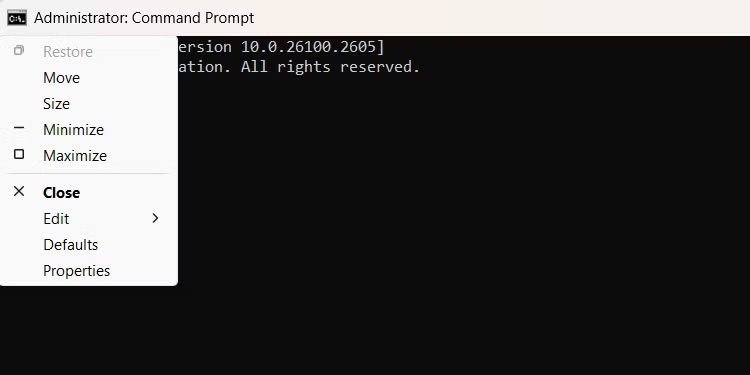
<p style="text-align: justify;">Bạn có thể đã biết điều này vì Command Prompt có thể là một công cụ tuyệt vời cho mục đích trợ năng. Nhưng Command Prompt có thể được tùy chỉnh hoàn toàn, từ màu nền và màu chữ đến phông chữ, độ mờ đục, v.v...</p>

<p style="text-align: justify;">Để thực hiện, hãy nhấp chuột phải vào biểu tượng Command Prompt ở góc trên cùng bên trái của cửa sổ và chọn&nbsp;<strong>Properties</strong>&nbsp;từ menu.</p>

<figure>
<div style="text-align: justify;"><img alt="Các tùy chọn xuất hiện khi bạn nhấp vào biểu tượng CMD ở góc trên cùng bên trái của cửa sổ CMD." data-i="0" data-src="https://st.quantrimang.com/photos/image/2025/02/06/thu-thuat-command-prompt-1.jpg" data-was-processed="true" height="375" src="https://st.quantrimang.com/photos/image/2025/02/06/thu-thuat-command-prompt-1.jpg" width="750" /></div>

<figcaption>
<div style="text-align: justify;">Các tùy chọn xuất hiện khi bạn nhấp vào biểu tượng CMD ở góc trên cùng bên trái của cửa sổ CMD.</div>
</figcaption>
</figure>

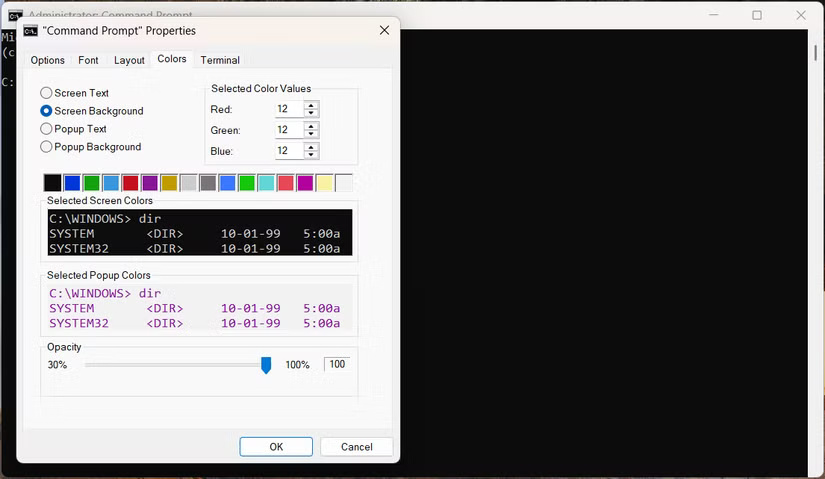
<p style="text-align: justify;">Các tab&nbsp;<strong>Font, Layout</strong>&nbsp;và&nbsp;<strong>Colors</strong>&nbsp;có nhiều tùy chọn tức thời hơn, chẳng hạn như thay đổi kích thước và màu chữ. Chọn tab&nbsp;<strong>Terminal</strong>&nbsp;nếu bạn muốn thay đổi một số thành phần của con trỏ văn bản.</p>

<figure>
<div style="text-align: justify;"><img alt="Cửa sổ thuộc tính của CMD trên Windows." data-adbro-processed="true" data-i="1" data-src="https://st.quantrimang.com/photos/image/2025/02/06/thu-thuat-command-prompt-2.jpg" data-was-processed="true" height="479" src="https://st.quantrimang.com/photos/image/2025/02/06/thu-thuat-command-prompt-2.jpg" width="825" /></div>

<figcaption>
<div style="text-align: justify;">Cửa sổ thuộc tính của CMD trên Windows.</div>
</figcaption>
</figure>

<p style="text-align: justify;">Bạn có thể tạo một số dấu nhắc lệnh khá kỳ quặc theo cách này hoặc tinh chỉnh cửa sổ để đáp ứng nhu cầu của mình. Các tính năng tùy chỉnh rất rộng rãi nên bạn nên tùy chỉnh Command Prompt nếu muốn làm nhiều hơn.</p>

<h2 id="mcetoc_1ijdbrmajun" style="text-align: justify;">2. Xem Star Wars trên Command Prompt</h2>

<p style="text-align: justify;">Xem Star Wars trong Command Prompt có thể khiến một số người tò mò nhìn bạn, những người có thể không biết Command Prompt hoạt động như thế nào. Để xem Star Wars trong Command Prompt (và một mục khác trong danh sách này), bạn sẽ cần bật một dịch vụ có tên là Telnet.</p>

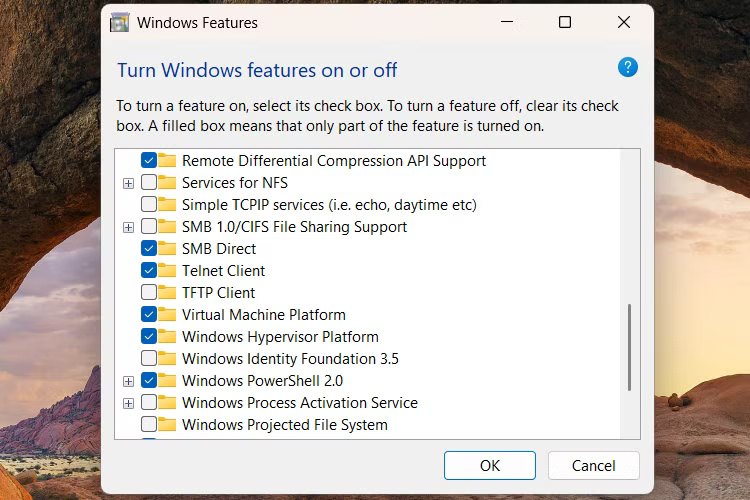
<p style="text-align: justify;">Để làm như vậy, hãy nhấn&nbsp;<strong>Win + Q</strong>, nhập&nbsp;<strong>telnet</strong>&nbsp;vào hộp tìm kiếm và chọn&nbsp;<strong>Turn Windows features on or off</strong>&nbsp;trong kết quả tìm kiếm. Trong cửa sổ&nbsp;<strong>Windows Features</strong>, cuộn xuống, đánh dấu vào ô bên cạnh&nbsp;<strong>Telnet Client&nbsp;</strong>và nhấp vào&nbsp;<strong>OK</strong>.</p>

<figure>
<div style="text-align: justify;"><img alt="Bật hoặc tắt tính năng Windows." data-i="2" data-src="https://st.quantrimang.com/photos/image/2025/02/06/thu-thuat-command-prompt-3.jpg" data-was-processed="true" height="500" src="https://st.quantrimang.com/photos/image/2025/02/06/thu-thuat-command-prompt-3.jpg" width="750" /></div>

<figcaption>
<div style="text-align: justify;">Bật hoặc tắt tính năng Windows.</div>
</figcaption>
</figure>

<p style="text-align: justify;">Bây giờ, hãy nhập lệnh bên dưới vào Command Prompt và nhấn phím&nbsp;<strong>Enter</strong>&nbsp;để kết nối với trang web Telehack:</p>

<pre id="pre0">
<code>telnet telehack.com</code></pre>

<p style="text-align: justify;">Sau khi kết nối, hãy nhập lệnh sau:</p>

<pre id="pre1">
<code>starwars</code></pre>

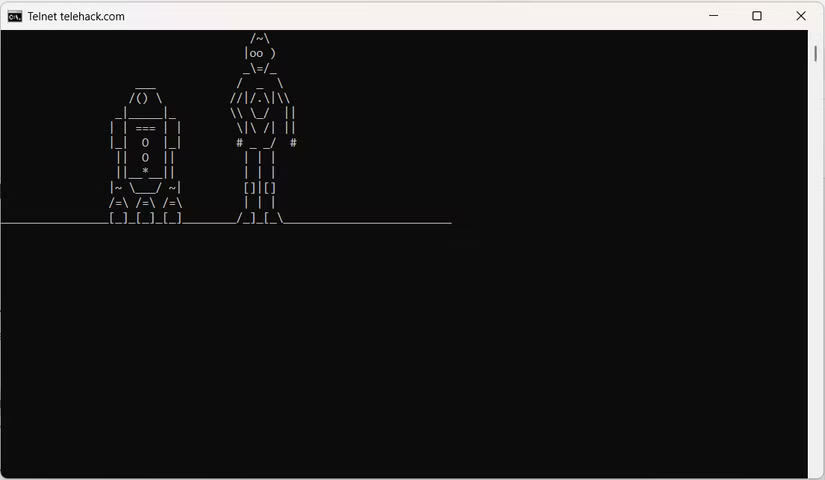
<p style="text-align: justify;">Ngả lưng và tận hưởng bản tái tạo kỳ lạ của Star Wars ngay trong cửa sổ Command Prompt của bạn.</p>

<figure>
<div style="text-align: justify;"><img alt="Star Wars trong Command Prompt." data-i="3" data-src="https://st.quantrimang.com/photos/image/2025/02/06/thu-thuat-command-prompt-4.jpg" data-was-processed="true" height="480" src="https://st.quantrimang.com/photos/image/2025/02/06/thu-thuat-command-prompt-4.jpg" width="825" /></div>

<figcaption>
<div style="text-align: justify;">Star Wars trong Command Prompt.</div>
</figcaption>
</figure>

<h2 id="mcetoc_1ijdbrmajuo" style="text-align: justify;">3. Thêm niềm vui với Telnet: Bể cá trong Command Prompt</h2>

<p style="text-align: justify;">Bạn có thể nhận thấy một số lệnh khác khi Command Prompt kết nối với trang web Telehack. Những lệnh này đáng thử nghiệm để xem mọi điều thú vị khác có thể xảy ra.</p>

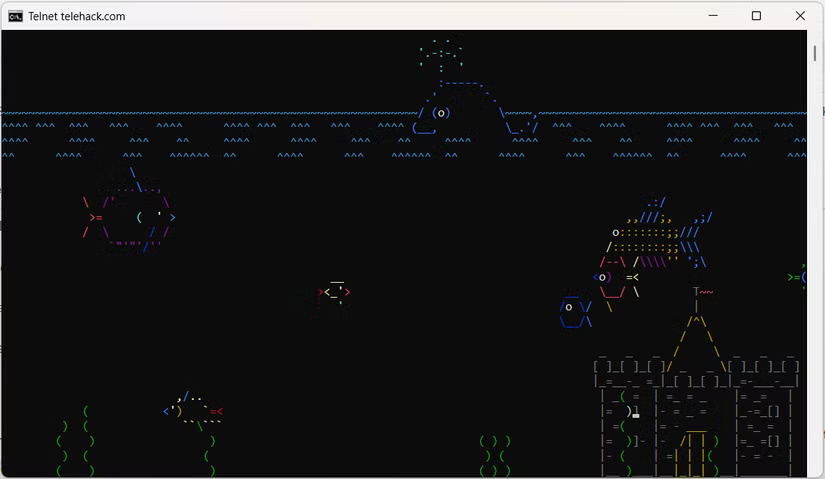
<p style="text-align: justify;">Đáng chú ý nhất, bên cạnh bản tái tạo ASCII của Star Wars, là lệnh&nbsp;<strong>aquarium</strong>. Nhập lệnh này để được xem chương trình trình diễn bể cá ASCII. Nó đẹp đến mức bạn sẽ muốn biến nó thành screensaver của mình.</p>

<figure>
<div style="text-align: justify;"><img alt="Hoạt ảnh bể cá trong Command Prompt trên Windows." data-i="4" data-src="https://st.quantrimang.com/photos/image/2025/02/06/thu-thuat-command-prompt-5.jpg" data-was-processed="true" height="479" src="https://st.quantrimang.com/photos/image/2025/02/06/thu-thuat-command-prompt-5.jpg" width="825" /></div>

<figcaption>
<div style="text-align: justify;">Hoạt ảnh bể cá trong Command Prompt trên Windows.</div>
</figcaption>
</figure>

<h2 id="mcetoc_1ijdbrmajup" style="text-align: justify;">4. Thay đổi tiêu đề cửa sổ</h2>

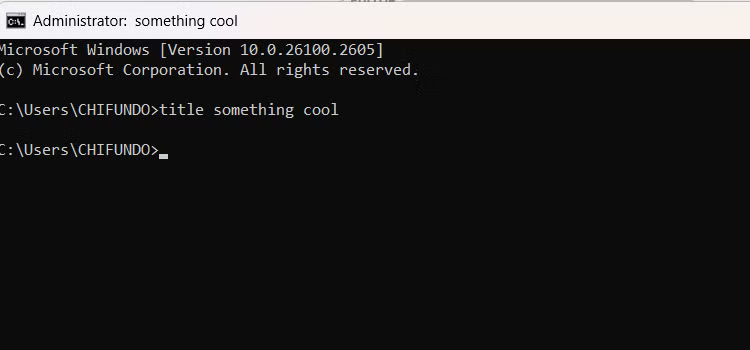
<p style="text-align: justify;">Hãy tránh xa sự kỳ lạ của việc tái tạo ASCII và xem cách thay đổi tiêu đề của cửa sổ Command Prompt. Để thực hiện, bạn chỉ cần nhập lệnh tiêu đề, theo sau là từ hoặc cụm từ sẽ đóng vai trò là tiêu đề.</p>

<p style="text-align: justify;">Sau đây là ví dụ về cách thay đổi tiêu đề của cửa sổ Command Prompt:</p>

<pre id="pre2">
<code>title something cool</code></pre>

<p style="text-align: justify;">Như bạn có thể thấy, tiêu đề của cửa sổ Command Prompt đã thay đổi dựa trên lệnh ở trên.</p>

<figure>
<div style="text-align: justify;"><img alt="Thay đổi tiêu đề cửa sổ của CMD trên Windows." data-i="5" data-src="https://st.quantrimang.com/photos/image/2025/02/06/thu-thuat-command-prompt-6.jpg" data-was-processed="true" height="350" src="https://st.quantrimang.com/photos/image/2025/02/06/thu-thuat-command-prompt-6.jpg" width="750" /></div>

<figcaption>
<div style="text-align: justify;">Thay đổi tiêu đề cửa sổ của CMD trên Windows.</div>
</figcaption>
</figure>

<p style="text-align: justify;">Điều này rất tiện lợi để theo dõi các cửa sổ Command Prompt khi bạn mở nhiều cửa sổ. Nhưng chỉ vì nó hữu ích không có nghĩa là bạn không thể vui vẻ một chút khi đặt tên cho các cửa sổ.</p>

<h2 id="mcetoc_1ijdbrmajuq" style="text-align: justify;">5. Tạo ra những câu chuyện cười ngẫu nhiên</h2>

<p style="text-align: justify;">Ai mà không thích một câu chuyện cười chứ? Command Prompt sẽ đảm bảo bạn luôn có một câu chuyện cười thú vị để làm dịu bầu không khí.</p>

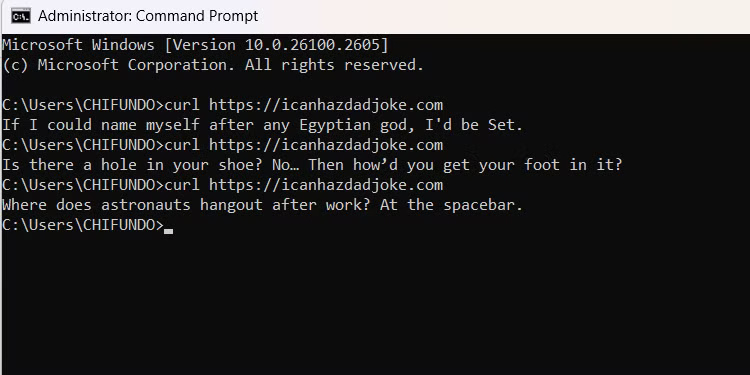
<p style="text-align: justify;">Chỉ cần nhập lệnh bên dưới vào Command Prompt và nhấn phím&nbsp;<strong>Enter</strong>:</p>

<pre id="pre3">
<code>curl https://icanhazdadjoke.com</code></pre>

<p style="text-align: justify;">Điều này sẽ tạo ra một câu chuyện cười ngẫu nhiên cho bạn và biến bạn thành người hài hước khi kể cho người khác nghe.</p>

<figure>
<div style="text-align: justify;"><img alt="Chuyện cười trong CMD trên Windows." data-i="6" data-src="https://st.quantrimang.com/photos/image/2025/02/06/thu-thuat-command-prompt-7.jpg" data-was-processed="true" height="375" src="https://st.quantrimang.com/photos/image/2025/02/06/thu-thuat-command-prompt-7.jpg" width="750" /></div>

<figcaption>
<div style="text-align: justify;">Chuyện cười trong CMD trên Windows.</div>
</figcaption>
</figure>

<h2 id="mcetoc_1ijdbrmajur" style="text-align: justify;">6. Theo dõi nơi dữ liệu của bạn đi đến</h2>

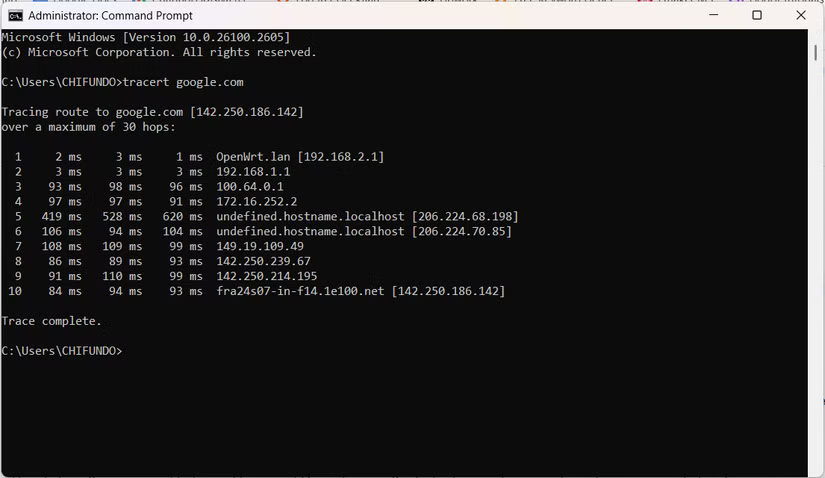
<p style="text-align: justify;">Mẹo này vừa thú vị vừa vui nhộn và có những ứng dụng hợp pháp trong mạng và khắc phục sự cố. Lệnh tracert, theo sau là&nbsp;<a data-type="internal" href="https://quantrimang.com/cong-nghe/dia-chi-ip-la-gi-143625" title="Địa chỉ IP là gì?">địa chỉ IP</a>&nbsp;hoặc&nbsp;<a data-type="internal" href="https://quantrimang.com/cong-nghe/url-la-gi-158090" title="URL là gì? Cấu trúc của URL">URL</a>&nbsp;trang web, sẽ hiển thị danh sách cho thấy kết nối của bạn đang chuyển đến đâu trên đường đến địa chỉ mong muốn. Thật vô cùng bổ ích, nếu không muốn nói là hấp dẫn, khi thấy tất cả các điểm dừng của kết nối trên đường đến đích.</p>

<p style="text-align: justify;">Hầu hết các thiết lập Internet tại nhà sẽ định tuyến bạn qua một số địa chỉ liên quan đến ISP và ngoài ra, ai mà biết được? Mỗi trang web sẽ đưa dữ liệu vào một hành trình khác nhau tùy thuộc vào trang web của bạn và nơi bạn kết nối từ đó.</p>

<p style="text-align: justify;">Chỉ để giải trí, hãy nhập lệnh sau vào Command Prompt và nhấn phím&nbsp;<strong>Enter</strong>:</p>

<pre id="pre4">
<code>tracert google.com</code></pre>

<figure>
<div style="text-align: justify;"><img alt="Kết quả của lệnh tracert sau khi chạy trên Google." data-i="7" data-src="https://st.quantrimang.com/photos/image/2025/02/06/thu-thuat-command-prompt-8.jpg" data-was-processed="true" height="478" src="https://st.quantrimang.com/photos/image/2025/02/06/thu-thuat-command-prompt-8.jpg" width="825" /></div>

<figcaption>
<div style="text-align: justify;">Kết quả của lệnh tracert sau khi chạy trên Google.</div>
</figcaption>
</figure>

<p style="text-align: justify;">Bạn chắc chắn nên đọc thêm về cách sử dụng&nbsp;Traceroute, vì nó cũng có thể hữu ích trong việc khắc phục sự cố mạng.</p>

<p style="text-align: justify;">Mặc dù là một trong những giao diện đơn giản nhất mà bạn có thể tưởng tượng, bạn vẫn có thể dễ dàng vui vẻ với Command Prompt. Các mục được liệt kê ở đây thậm chí còn chưa đề cập đến những mẹo và thủ thuật mà bạn có thể thực hiện với Command Prompt.</p>

<p style="text-align: justify;">Dù sao đi nữa, vui vẻ là điều quan trọng và nếu bạn có thể tìm thấy nó ở những nơi không ngờ tới nhất, tại sao không tận dụng tối đa nhỉ?</p>

<div style="text-align: justify;">&nbsp;</div>
		</div>
				<div id="author">
						<p>
				<strong>Nguồn tin:</strong>
				Quantrimang.com:
			</p>
		</div>
	</div>
	<div id="footer" class="clearfix">
		<div id="url">
			<strong>URL của bản tin này: </strong><a href="https://www.nguoicodonvn2008.info/vi/news/savefile/kien-thuc-may-tinh/6-thu-thuat-thu-vi-ban-co-the-lam-trong-windows-command-prompt-9768.html" title="6 thủ thuật thú vị bạn có thể làm trong Windows Command Prompt">https://www.nguoicodonvn2008.info/vi/news/savefile/kien-thuc-may-tinh/6-thu-thuat-thu-vi-ban-co-the-lam-trong-windows-command-prompt-9768.html</a>

		</div>
		<div class="clear"></div>
		<div class="copyright">
			&copy; .&#x3A; Nguoicodonvn2008.info - Cõi lòng người cô đơn &#x3A;.
		</div>
		<div id="contact">
			<a href="mailto:admin@nguoicodonvn2008.info">admin@nguoicodonvn2008.info</a>
		</div>
	</div>
</div>
        <div id="timeoutsess" class="chromeframe">
            Bạn đã không sử dụng Site, <a onclick="timeoutsesscancel();" href="https://nguoicodonvn2008.info/#">Bấm vào đây để duy trì trạng thái đăng nhập</a>. Thời gian chờ: <span id="secField"> 60 </span> giây
        </div>
        <div id="openidResult" class="nv-alert" style="display:none"></div>
        <div id="openidBt" data-result="" data-redirect=""></div>
		</script>
		<div class="car-top">
  <span><img src="https://nguoicodonvn2008.info/themes/default/images/car.png" alt=""></span>
</div>
<div id="run_cronjobs" style="visibility:hidden;display:none;"><img alt="cron" src="/index.php?second=cronjobs&amp;p=d2vr7hCM" width="1" height="1" /></div>
<script src="https://nguoicodonvn2008.info/assets/js/jquery/jquery.min.js"></script>
<script>var nv_base_siteurl="/",nv_lang_data="vi",nv_lang_interface="vi",nv_name_variable="nv",nv_fc_variable="op",nv_lang_variable="language",nv_module_name="news",nv_func_name="savefile",nv_is_user=0, nv_my_ofs=-4,nv_my_abbr="EDT",nv_cookie_prefix="nv4c_e856T",nv_check_pass_mstime=1738000,nv_area_admin=0,nv_safemode=0,theme_responsive=0,nv_recaptcha_ver=2,nv_recaptcha_sitekey="",nv_recaptcha_type="image",XSSsanitize=1;</script>
<script src="https://nguoicodonvn2008.info/assets/js/language/vi.js"></script>
<script src="https://nguoicodonvn2008.info/assets/js/DOMPurify/purify3.js"></script>
<script src="https://nguoicodonvn2008.info/assets/js/global.js"></script>
<script src="https://nguoicodonvn2008.info/assets/js/site.js"></script>
<script src="https://nguoicodonvn2008.info/themes/default/js/news.js"></script>
<script src="https://nguoicodonvn2008.info/themes/default/js/main.js"></script>
<script src="https://nguoicodonvn2008.info/themes/default/js/custom.js"></script>
<script type="application/ld+json">
        {
            "@context": "https://schema.org",
            "@type": "Organization",
            "url": "https://nguoicodonvn2008.info",
            "logo": "https://nguoicodonvn2008.info/uploads/angel.gif"
        }
        </script>
<script src="https://nguoicodonvn2008.info/themes/default/js/bootstrap.min.js"></script>
<script type="text/javascript">
var $scrolltop = $('.car-top');
$scrolltop.on('click', function () {
    $('html,body').animate({
        scrollTop: 0
    }, 800);
    $(this).addClass("car-run");
    setTimeout(function(){ $scrolltop.removeClass('car-run');}, 1000);
    return false;
});
$(window).on('scroll', function ()
{ 
    if($(window).scrollTop() >= 200)
    {
        $scrolltop.addClass("show");
        $scrolltop.addClass("car-down");
    }
    else
    {
       $scrolltop.removeClass("show");
       setTimeout(function(){ $scrolltop.removeClass('car-down');}, 300);
    }
});
</script>
</body>
</html>