<!DOCTYPE html>
    <html lang="vi" xmlns="http://www.w3.org/1999/xhtml" prefix="og: http://ogp.me/ns#">
    <head>
<title>6 điều có thể làm với ứng dụng Weather trên Windows 10</title>
<meta name="description" content="6 điều có thể làm với ứng dụng Weather trên Windows 10 - Savefile - Tin Tức -...">
<meta name="author" content=".: Nguoicodonvn2008.info - Cõi lòng người cô đơn :.">
<meta name="copyright" content=".: Nguoicodonvn2008.info - Cõi lòng người cô đơn :. [admin@nguoicodonvn2008.info]">
<meta name="robots" content="index, archive, follow, noodp">
<meta name="googlebot" content="index,archive,follow,noodp">
<meta name="msnbot" content="all,index,follow">
<meta name="generator" content="NukeViet v4.5">
<meta http-equiv="Content-Type" content="text/html; charset=utf-8">
<meta property="og:title" content="6 điều có thể làm với ứng dụng Weather trên Windows 10">
<meta property="og:type" content="website">
<meta property="og:description" content="Savefile - Tin Tức - https&#x3A;&#x002F;&#x002F;www.nguoicodonvn2008.info&#x002F;vi&#x002F;news&#x002F;savefile&#x002F;kien-thuc-may-tinh&#x002F;6-dieu-co-the-lam-voi-ung-dung-weather-tren-windows-10-4359.html">
<meta property="og:site_name" content=".&#x3A; Nguoicodonvn2008.info - Cõi lòng người cô đơn &#x3A;.">
<meta property="og:url" content="https://www.nguoicodonvn2008.info/vi/news/savefile/kien-thuc-may-tinh/6-dieu-co-the-lam-voi-ung-dung-weather-tren-windows-10-4359.html">
<link rel="shortcut icon" href="https://nguoicodonvn2008.info/favicon.ico">
<link rel="canonical" href="https://www.nguoicodonvn2008.info/vi/news/savefile/kien-thuc-may-tinh/6-dieu-co-the-lam-voi-ung-dung-weather-tren-windows-10-4359.html">
<link rel="alternate" href="https://nguoicodonvn2008.info/vi/news/rss/" title="Tin Tức" type="application/rss+xml">
<link rel="alternate" href="https://nguoicodonvn2008.info/vi/news/rss/karaoke-dual/" title="Tin Tức - Karaoke Dual" type="application/rss+xml">
<link rel="alternate" href="https://nguoicodonvn2008.info/vi/news/rss/nhac-tre/" title="Tin Tức - Nhạc trẻ" type="application/rss+xml">
<link rel="alternate" href="https://nguoicodonvn2008.info/vi/news/rss/tru-tinh/" title="Tin Tức - Trữ tình" type="application/rss+xml">
<link rel="alternate" href="https://nguoicodonvn2008.info/vi/news/rss/nuoc-ngoai/" title="Tin Tức - Nước ngoài" type="application/rss+xml">
<link rel="alternate" href="https://nguoicodonvn2008.info/vi/news/rss/remix/" title="Tin Tức - Remix" type="application/rss+xml">
<link rel="alternate" href="https://nguoicodonvn2008.info/vi/news/rss/tam-su-tinh-yeu/" title="Tin Tức - Tâm sự tình yêu" type="application/rss+xml">
<link rel="alternate" href="https://nguoicodonvn2008.info/vi/news/rss/tho-suu-tam/" title="Tin Tức - Thơ sưu tầm" type="application/rss+xml">
<link rel="alternate" href="https://nguoicodonvn2008.info/vi/news/rss/cuoc-song/" title="Tin Tức - Cuộc sống" type="application/rss+xml">
<link rel="alternate" href="https://nguoicodonvn2008.info/vi/news/rss/phan-mem/" title="Tin Tức - Phần mềm" type="application/rss+xml">
<link rel="alternate" href="https://nguoicodonvn2008.info/vi/news/rss/kien-thuc-may-tinh/" title="Tin Tức - Kiến thức máy tính" type="application/rss+xml">
<link rel="alternate" href="https://nguoicodonvn2008.info/vi/news/rss/hoc-tap/" title="Tin Tức - Học tập" type="application/rss+xml">
<link rel="alternate" href="https://nguoicodonvn2008.info/vi/news/rss/tai-lieu/" title="Tin Tức - Tài liệu" type="application/rss+xml">
<link rel="alternate" href="https://nguoicodonvn2008.info/vi/news/rss/de-thi/" title="Tin Tức - Đề thi" type="application/rss+xml">
<link rel="preload" as="style" href="https://nguoicodonvn2008.info/assets/css/font-awesome.min.css" type="text/css">
<link rel="preload" as="style" href="https://nguoicodonvn2008.info/themes/default/css/bootstrap.non-responsive.css" type="text/css">
<link rel="preload" as="style" href="https://nguoicodonvn2008.info/themes/default/css/style.css" type="text/css">
<link rel="preload" as="style" href="https://nguoicodonvn2008.info/themes/default/css/style.non-responsive.css" type="text/css">
<link rel="preload" as="style" href="https://nguoicodonvn2008.info/themes/default/css/news.css" type="text/css">
<link rel="preload" as="style" href="https://nguoicodonvn2008.info/themes/default/css/custom.css" type="text/css">
<link rel="preload" as="script" href="https://nguoicodonvn2008.info/assets/js/jquery/jquery.min.js" type="text/javascript">
<link rel="preload" as="script" href="https://nguoicodonvn2008.info/assets/js/language/vi.js" type="text/javascript">
<link rel="preload" as="script" href="https://nguoicodonvn2008.info/assets/js/DOMPurify/purify3.js" type="text/javascript">
<link rel="preload" as="script" href="https://nguoicodonvn2008.info/assets/js/global.js" type="text/javascript">
<link rel="preload" as="script" href="https://nguoicodonvn2008.info/assets/js/site.js" type="text/javascript">
<link rel="preload" as="script" href="https://nguoicodonvn2008.info/themes/default/js/news.js" type="text/javascript">
<link rel="preload" as="script" href="https://nguoicodonvn2008.info/themes/default/js/main.js" type="text/javascript">
<link rel="preload" as="script" href="https://nguoicodonvn2008.info/themes/default/js/custom.js" type="text/javascript">
<link rel="preload" as="script" href="https://nguoicodonvn2008.info/themes/default/js/bootstrap.min.js" type="text/javascript">
<link rel="stylesheet" href="https://nguoicodonvn2008.info/assets/css/font-awesome.min.css">
<link rel="stylesheet" href="https://nguoicodonvn2008.info/themes/default/css/bootstrap.non-responsive.css">
<link rel="stylesheet" href="https://nguoicodonvn2008.info/themes/default/css/style.css">
<link rel="stylesheet" href="https://nguoicodonvn2008.info/themes/default/css/style.non-responsive.css">
<link rel="StyleSheet" href="https://nguoicodonvn2008.info/themes/default/css/news.css">
<link rel="stylesheet" href="https://nguoicodonvn2008.info/themes/default/css/custom.css">
<style type="text/css">
	body{background: #fff;}
</style>
    </head>
    <body>
<div id="print">
	<div id="hd_print">
		<h2 class="pull-left">.&#x3A; Nguoicodonvn2008.info - Cõi lòng người cô đơn &#x3A;.</h2>
		<p class="pull-right"><a title=".&#x3A; Nguoicodonvn2008.info - Cõi lòng người cô đơn &#x3A;." href="https://nguoicodonvn2008.info/">https://nguoicodonvn2008.info</a></p>
	</div>
	<div class="clear"></div>
	<hr />
	<div id="content">
		<h1>6 điều có thể làm với ứng dụng Weather trên Windows 10</h1>
		<ul class="list-inline">
			<li>Thứ bảy - 03/07/2021 06:51</li>
			<li class="hidden-print txtrequired"><em class="fa fa-print">&nbsp;</em><a title="In ra" href="javascript:;" onclick="window.print()">In ra</a></li>
			<li class="hidden-print txtrequired"><em class="fa fa-power-off">&nbsp;</em><a title="Đóng cửa sổ này" href="javascript:;" onclick="window.close()">Đóng cửa sổ này</a></li>
		</ul>
		<div class="clear"></div>
		<div id="hometext">
		</div>
				<div class="imghome">
			<img alt="6 điều có thể làm với ứng dụng Weather trên Windows 10" src="https://st.quantrimang.com/photos/image/2021/07/03/ung-dung-weather-1.jpg" width="460" class="img-thumbnail" />
		</div>
		<div class="clear"></div>
		<div id="bodytext" class="clearfix">
			<p style="text-align: justify;">Ứng dụng Weather trên&nbsp;Windows 10&nbsp;được tích hợp sẵn trong hệ điều hành và cung cấp thông tin chi tiết liên quan đến thời tiết cho dù bạn ở đâu. Giao diện đơn giản của ứng dụng cung cấp dữ liệu về dự báo và thời tiết trong quá khứ, hiện tại và tương lai cũng như tin tức về thời tiết quốc tế.</p>

<p style="text-align: justify;">Hơn nữa, nếu đi du lịch nhiều, bạn có thể cấu hình ứng dụng Weather trên Windows 10 để hiển thị nhiệt độ ở các địa điểm yêu thích. Đọc hướng dẫn này để tìm hiểu cách khai thác tối đa ứng dụng Weather trong Windows 10 nhé!</p>

<h2 style="text-align: justify;">Mở ứng dụng Weather trên Windows 10</h2>

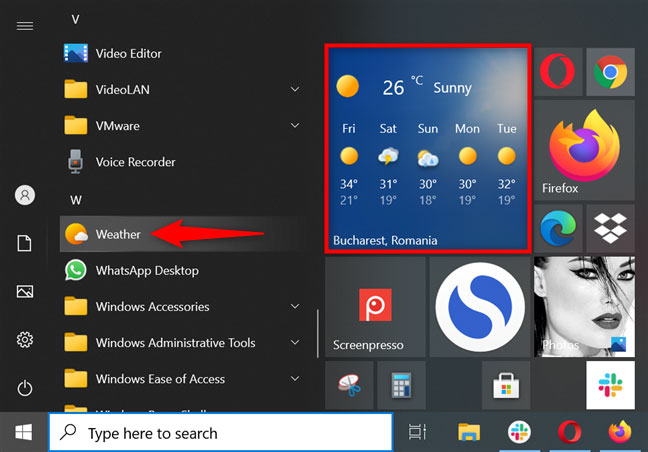
<p style="text-align: justify;">Ứng dụng Weather đi kèm với Windows 10 và nó được ghim vào Start theo mặc định. Vì vậy, cách dễ nhất để mở ứng dụng là nhấp hoặc nhấn vào tile ứng dụng trong menu Start. Bạn cũng có thể khởi chạy nó từ shortcut Start Menu.</p>

<figure>
<div style="text-align: justify;"><img alt="Khởi chạy ứng dụng Weather trên Windows 10 từ menu Start" data-i="0" data-src="https://st.quantrimang.com/photos/image/2021/07/03/ung-dung-weather-1.jpg" data-was-processed="true" height="452" src="https://st.quantrimang.com/photos/image/2021/07/03/ung-dung-weather-1.jpg" width="648" /></div>

<figcaption>
<div style="text-align: justify;">Khởi chạy ứng dụng Weather trên Windows 10 từ menu Start</div>
</figcaption>
</figure>

<p style="text-align: justify;"><strong>MẸO</strong>: Bạn có thể thay đổi kích thước tile của ứng dụng Weather để bao gồm nhiều hơn hoặc ít hơn dữ liệu trong menu Start, tùy thuộc vào những gì bạn muốn.</p>

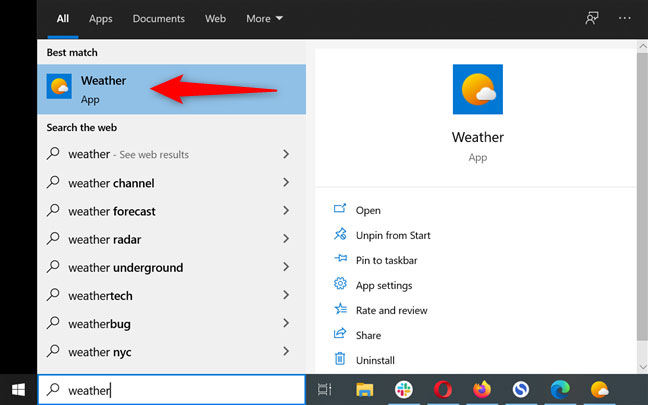
<p style="text-align: justify;">Ngoài ra, bạn có thể tìm ứng dụng Weather trong trường tìm kiếm của thanh tác vụ, sau đó nhấp vào kết quả có liên quan.</p>

<figure>
<div style="text-align: justify;"><img alt="Khởi chạy ứng dụng Weather trên Windows 10 bằng cách tìm kiếm nó" data-i="1" data-src="https://st.quantrimang.com/photos/image/2021/07/03/ung-dung-weather-2.jpg" data-was-processed="true" height="405" src="https://st.quantrimang.com/photos/image/2021/07/03/ung-dung-weather-2.jpg" width="648" /></div>

<figcaption>
<div style="text-align: justify;">Khởi chạy ứng dụng Weather trên Windows 10 bằng cách tìm kiếm nó</div>
</figcaption>
</figure>

<h2 style="text-align: justify;">1. Đặt vị trí hiện tại của bạn</h2>

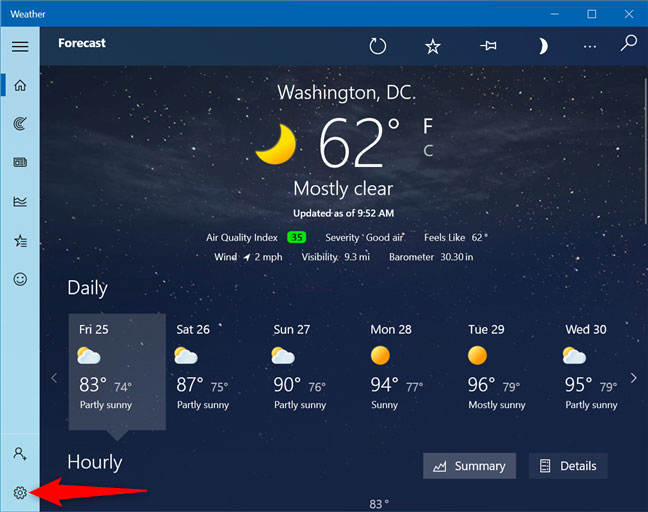
<p style="text-align: justify;">Khi bạn khởi chạy ứng dụng Weather trên Windows 10 lần đầu tiên, vị trí mặc định của ứng dụng này được đặt thành Washington, DC, như hình dưới đây. Để thay đổi vị trí thành vị trí hiện tại của bạn, trước tiên, hãy nhấp vào&nbsp;<strong>Settings</strong>&nbsp;ở góc dưới cùng bên trái.</p>

<figure>
<div style="text-align: justify;"><img alt="Truy cập Settings của ứng dụng" data-i="2" data-src="https://st.quantrimang.com/photos/image/2021/07/03/ung-dung-weather-3.jpg" data-was-processed="true" height="512" src="https://st.quantrimang.com/photos/image/2021/07/03/ung-dung-weather-3.jpg" width="648" /></div>

<figcaption>
<div style="text-align: justify;">Truy cập Settings của ứng dụng</div>
</figcaption>
</figure>

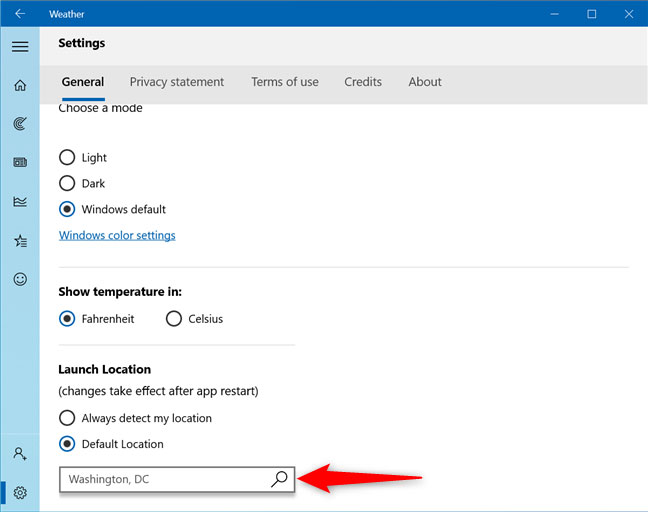
<p style="text-align: justify;">Trong phần&nbsp;<strong>Launch Location</strong>&nbsp;ở dưới cùng, bạn có thể sử dụng trường&nbsp;<strong>Default Location</strong>&nbsp;để chèn vị trí của mình.</p>

<figure>
<div style="text-align: justify;"><img alt="Nhấp hoặc nhập bên trong trường Default Location" data-i="3" data-src="https://st.quantrimang.com/photos/image/2021/07/03/ung-dung-weather-4.jpg" data-was-processed="true" height="512" src="https://st.quantrimang.com/photos/image/2021/07/03/ung-dung-weather-4.jpg" width="648" /></div>

<figcaption>
<div style="text-align: justify;">Nhấp hoặc nhập bên trong trường Default Location</div>
</figcaption>
</figure>

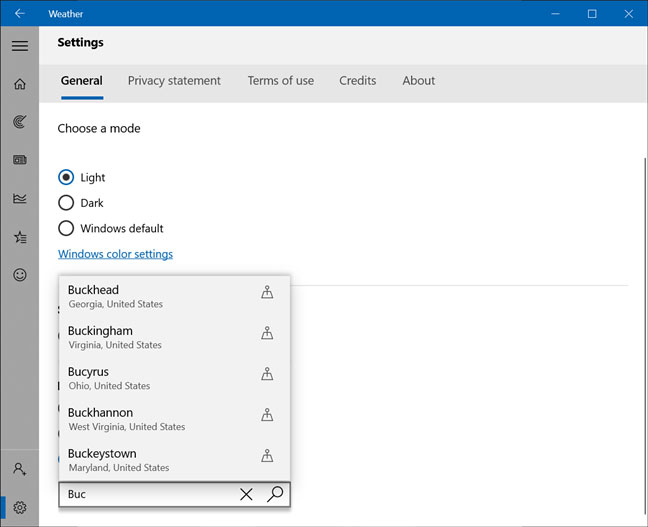
<p style="text-align: justify;">Ngay sau khi bạn bắt đầu nhập, ứng dụng sẽ bắt đầu hiển thị các đề xuất cho vị trí của bạn. Nhấp hoặc nhấn vào một trong những vị trí bạn đang tìm kiếm.</p>

<figure>
<div style="text-align: justify;"><img alt="Chọn vị trí của bạn từ các gợi ý có sẵn" data-i="4" data-src="https://st.quantrimang.com/photos/image/2021/07/03/ung-dung-weather-5.jpg" data-was-processed="true" height="527" src="https://st.quantrimang.com/photos/image/2021/07/03/ung-dung-weather-5.jpg" width="648" /></div>

<figcaption>
<div style="text-align: justify;">Chọn vị trí của bạn từ các gợi ý có sẵn</div>
</figcaption>
</figure>

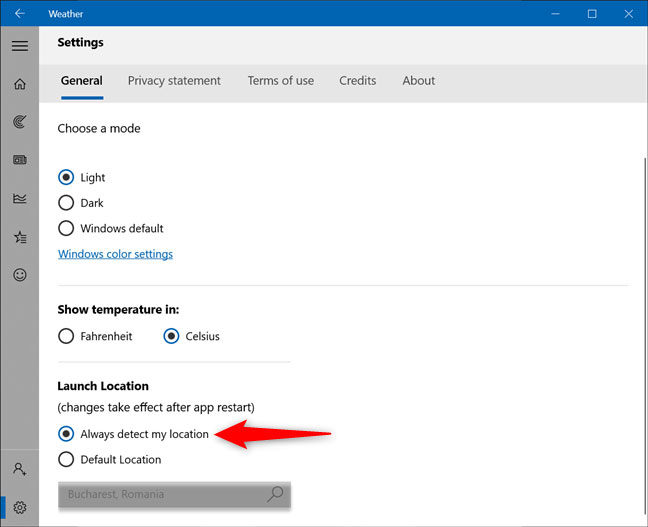
<p style="text-align: justify;">Ngoài ra, nếu bạn đi du lịch nhiều và muốn có sẵn thông tin dự báo thời tiết cho dù bạn ở đâu, hãy nhấp vào&nbsp;<strong>“Always detect my location”</strong>.</p>

<figure>
<div style="text-align: justify;"><img alt="Thiết lập ứng dụng Weather trên Windows 10 để tự động phát hiện vị trí của bạn" data-i="5" data-src="https://st.quantrimang.com/photos/image/2021/07/03/ung-dung-weather-6.jpg" data-was-processed="true" height="527" src="https://st.quantrimang.com/photos/image/2021/07/03/ung-dung-weather-6.jpg" width="648" /></div>

<figcaption>
<div style="text-align: justify;">Thiết lập ứng dụng Weather trên Windows 10 để tự động phát hiện vị trí của bạn</div>
</figcaption>
</figure>

<h2 style="text-align: justify;">2. Chuyển đổi giữa độ F (°F) hoặc độ C (°C)</h2>

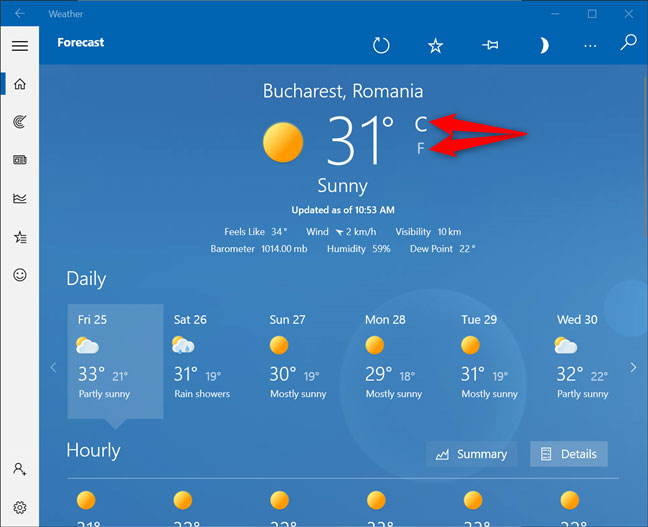
<p style="text-align: justify;">Ứng dụng Weather trên Windows 10 có thể hiển thị nhiệt độ theo độ F (°F) hoặc độ C (°C). Chỉ cần một cú nhấp chuột để chuyển đổi giữa hai loại nhiệt độ. Khởi chạy ứng dụng và nhấp vào C hoặc F trên màn hình chính của ứng dụng, bên cạnh nhiệt độ hiện tại.</p>

<figure>
<div style="text-align: justify;"><img alt="Quyết định cách bạn muốn hiển thị nhiệt độ" data-i="6" data-src="https://st.quantrimang.com/photos/image/2021/07/03/ung-dung-weather-7.jpg" data-was-processed="true" height="527" src="https://st.quantrimang.com/photos/image/2021/07/03/ung-dung-weather-7.jpg" width="648" /></div>

<figcaption>
<div style="text-align: justify;">Quyết định cách bạn muốn hiển thị nhiệt độ</div>
</figcaption>
</figure>

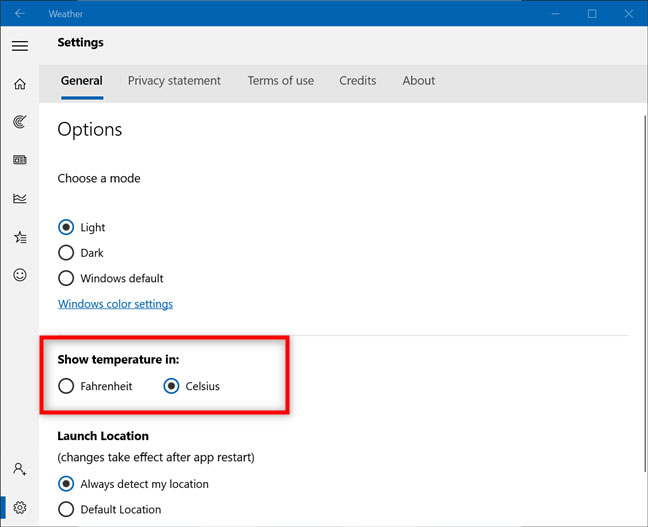
<p style="text-align: justify;">Ngoài ra, hãy mở phần&nbsp;<strong>Settings</strong>&nbsp;của ứng dụng, như đã thấy trong phần trước. Sau đó, trong phần&nbsp;<strong>“Show temperature</strong>&nbsp;<strong>in:”</strong>, chọn độ F hoặc độ C.</p>

<figure>
<div style="text-align: justify;"><img alt="Chọn cách hiển thị nhiệt độ từ Settings" data-i="7" data-src="https://st.quantrimang.com/photos/image/2021/07/03/ung-dung-weather-8.jpg" data-was-processed="true" height="527" src="https://st.quantrimang.com/photos/image/2021/07/03/ung-dung-weather-8.jpg" width="648" /></div>

<figcaption>
<div style="text-align: justify;">Chọn cách hiển thị nhiệt độ từ Settings</div>
</figcaption>
</figure>

<p style="text-align: justify;">Thời tiết được hiển thị ngay lập tức theo sở thích của bạn.</p>

<h2 style="text-align: justify;">3. Thêm các vị trí yêu thích vào ứng dụng Weather trên Windows 10</h2>

<div style="text-align: justify;">&nbsp;</div>

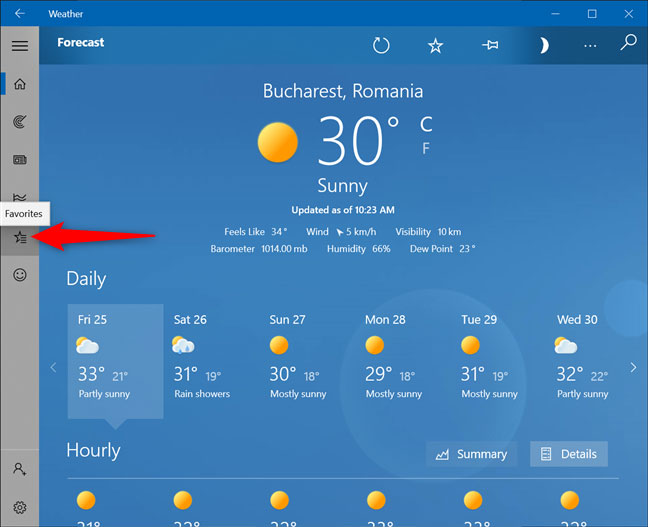
<p style="text-align: justify;">Nếu bạn muốn theo dõi nhiều vị trí, hãy truy cập tab&nbsp;<strong>Favorites</strong>&nbsp;từ thanh bên trái.</p>

<figure>
<div style="text-align: justify;"><img alt="Truy cập Favorites trong ứng dụng Weather" data-i="8" data-src="https://st.quantrimang.com/photos/image/2021/07/03/ung-dung-weather-9.jpg" data-was-processed="true" height="527" src="https://st.quantrimang.com/photos/image/2021/07/03/ung-dung-weather-9.jpg" width="648" /></div>

<figcaption>
<div style="text-align: justify;">Truy cập Favorites trong ứng dụng Weather</div>
</figcaption>
</figure>

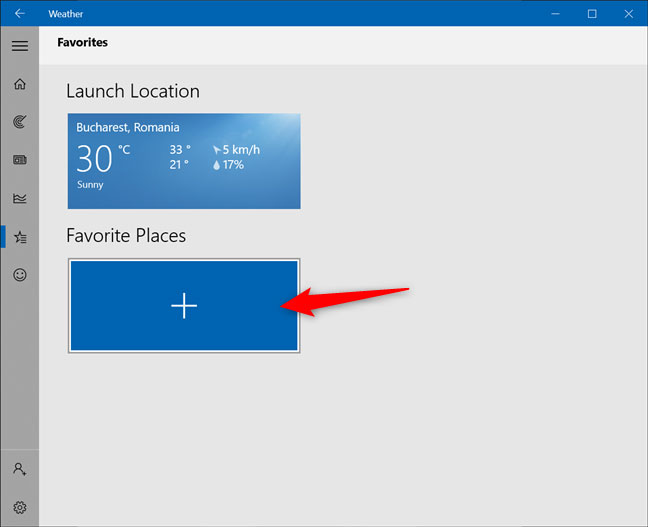
<p style="text-align: justify;">Ở trên cùng, bạn có thể thấy&nbsp;<strong>Launch Location</strong>&nbsp;được thảo luận trong phần đầu tiên. Nhấp vào biểu tượng<strong>&nbsp;+</strong>&nbsp;(dấu cộng) trong&nbsp;<strong>Favorite Places.</strong></p>

<figure>
<div style="text-align: justify;"><img alt="Nhấn để thêm các vị trí khác" data-i="9" data-src="https://st.quantrimang.com/photos/image/2021/07/03/ung-dung-weather-10.jpg" data-was-processed="true" height="527" src="https://st.quantrimang.com/photos/image/2021/07/03/ung-dung-weather-10.jpg" width="648" /></div>

<figcaption>
<div style="text-align: justify;">Nhấn để thêm các vị trí khác</div>
</figcaption>
</figure>

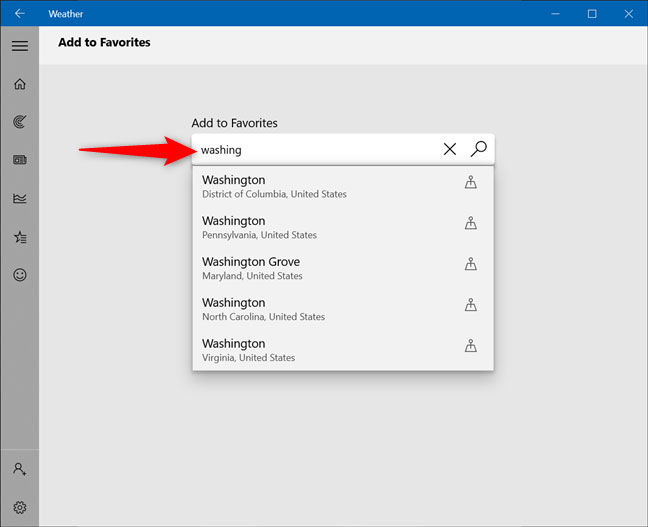
<p style="text-align: justify;">Trên màn hình tiếp theo, sử dụng trường tìm kiếm để bắt đầu nhập vị trí bạn muốn thêm. Sau đó, nhấp hoặc nhấn vào nó từ các đề xuất có sẵn.</p>

<figure>
<div style="text-align: justify;"><img alt="Sử dụng trường tìm kiếm để tìm các vị trí bổ sung" data-i="10" data-src="https://st.quantrimang.com/photos/image/2021/07/03/ung-dung-weather-11.jpg" data-was-processed="true" height="527" src="https://st.quantrimang.com/photos/image/2021/07/03/ung-dung-weather-11.jpg" width="648" /></div>

<figcaption>
<div style="text-align: justify;">Sử dụng trường tìm kiếm để tìm các vị trí bổ sung</div>
</figcaption>
</figure>

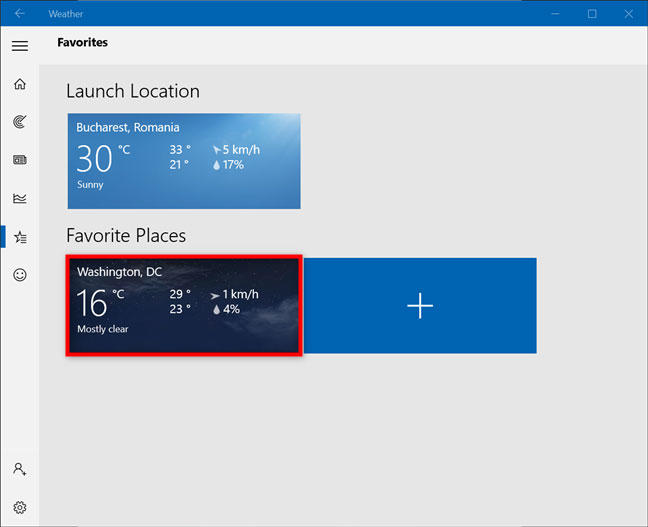
<p style="text-align: justify;">Ngay sau khi chọn một vị trí, bạn sẽ được quay lại phần&nbsp;<strong>Favorites</strong>, nơi bạn có thể thấy vị trí đó được thêm vào trong&nbsp;<strong>Favorite Places.</strong></p>

<figure>
<div style="text-align: justify;"><img alt="Vị trí mới được thêm vào phần Favorites" data-i="11" data-src="https://st.quantrimang.com/photos/image/2021/07/03/ung-dung-weather-12.jpg" data-was-processed="true" height="527" src="https://st.quantrimang.com/photos/image/2021/07/03/ung-dung-weather-12.jpg" width="648" /></div>

<figcaption>
<div style="text-align: justify;">Vị trí mới được thêm vào phần Favorites</div>
</figcaption>
</figure>

<p style="text-align: justify;">Lặp lại quy trình để có cái nhìn tổng quan về thời tiết cho các địa điểm bạn cần.</p>

<ul>
	<li style="text-align: justify;"><a href="https://quantrimang.com/widget-thoi-tiet-tot-nhat-cho-windows-169298" title="7 widget thời tiết tốt nhất cho Windows">7 widget thời tiết tốt nhất cho Windows</a></li>
</ul>

<h2 style="text-align: justify;">4. Xem bản đồ thời tiết</h2>

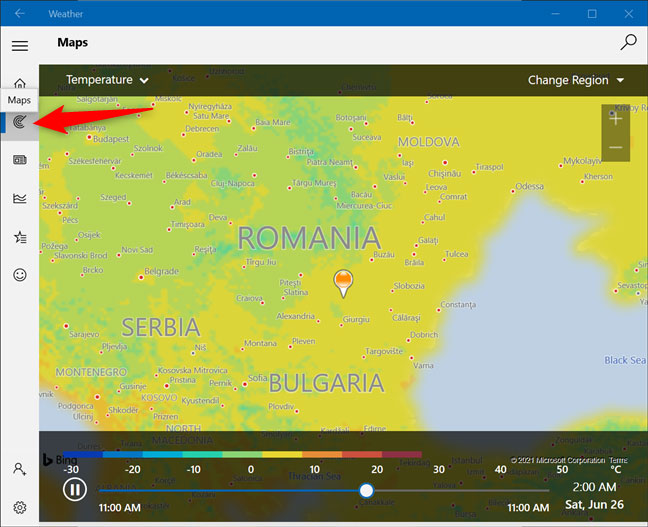
<p style="text-align: justify;">Nếu bạn dự định thực hiện một chuyến đi đường bộ trong khu vực của mình hoặc muốn biết tình hình thời tiết ở quốc gia của bạn trong 24 giờ tới, bạn có thể hưởng lợi từ tab&nbsp;<strong>Maps</strong>&nbsp;động. Chỉ cần nhấp hoặc nhấn vào&nbsp;<strong>Maps</strong>&nbsp;từ thanh bên trái để mở và xem dự báo thời tiết.</p>

<figure>
<div style="text-align: justify;"><img alt="Truy cập Maps" data-i="12" data-src="https://st.quantrimang.com/photos/image/2021/07/03/ung-dung-weather-13.jpg" data-was-processed="true" height="527" src="https://st.quantrimang.com/photos/image/2021/07/03/ung-dung-weather-13.jpg" width="648" /></div>

<figcaption>
<div style="text-align: justify;">Truy cập Maps</div>
</figcaption>
</figure>

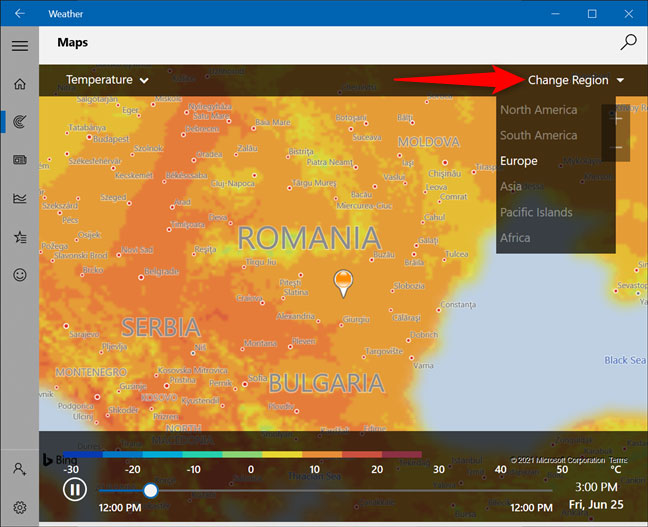
<p style="text-align: justify;">Mặc dù thao tác này chỉ hiển thị thời tiết cho vị trí hiện tại của bạn, nhưng bạn luôn có thể thay đổi khu vực từ góc trên bên phải, như hình dưới đây.</p>

<figure>
<div style="text-align: justify;"><img alt="Kiểm tra bản đồ thời tiết cho khu vực khác" data-i="13" data-src="https://st.quantrimang.com/photos/image/2021/07/03/ung-dung-weather-14.jpg" data-was-processed="true" height="527" src="https://st.quantrimang.com/photos/image/2021/07/03/ung-dung-weather-14.jpg" width="648" /></div>

<figcaption>
<div style="text-align: justify;">Kiểm tra bản đồ thời tiết cho khu vực khác</div>
</figcaption>
</figure>

<p style="text-align: justify;">Ở góc trên bên trái, nhấp vào&nbsp;<strong>Temperature</strong>&nbsp;để mở danh sách drop-down và chọn các loại bản đồ khác cho&nbsp;<strong>Precipitation, Satellite</strong>&nbsp;và<strong>&nbsp;Cloud</strong>&nbsp;(Lượng mưa, Vệ tinh và Đám mây).</p>

<h2 style="text-align: justify;">5. Nhận dữ liệu lịch sử về thời tiết</h2>

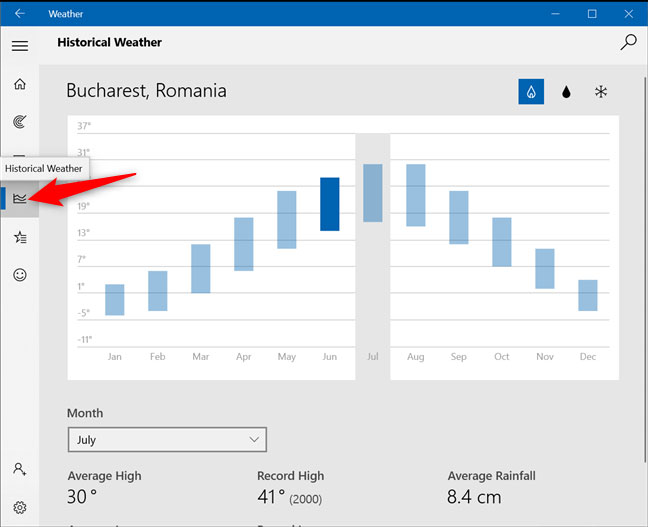
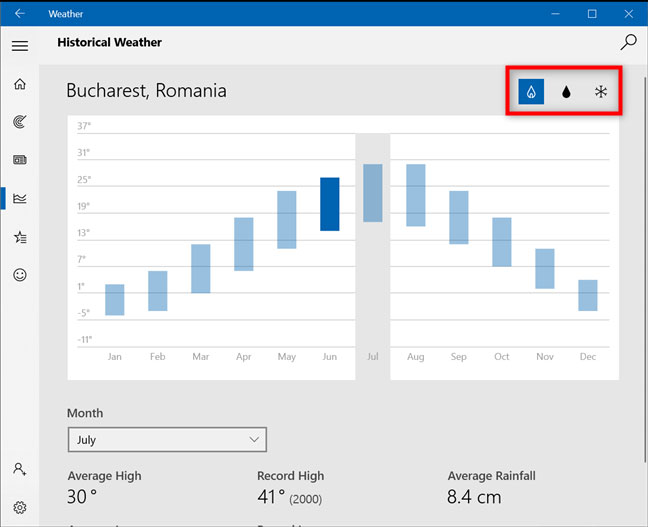
<p style="text-align: justify;">Nếu bạn tò mò về các kiểu nhiệt độ ở vị trí của mình, ứng dụng Weather trên Windows 10 bao gồm dữ liệu lịch sử. Truy cập tab&nbsp;<strong>Historical Weather</strong>&nbsp;để xem thêm dữ liệu cho tháng hiện tại, chẳng hạn như nhiệt độ trung bình và kỷ lục.</p>

<figure>
<div style="text-align: justify;"><img alt="Truy cập tab Historical Weather" data-i="14" data-src="https://st.quantrimang.com/photos/image/2021/07/03/ung-dung-weather-15.jpg" data-was-processed="true" height="527" src="https://st.quantrimang.com/photos/image/2021/07/03/ung-dung-weather-15.jpg" width="648" /></div>

<figcaption>
<div style="text-align: justify;">Truy cập tab Historical Weather</div>
</figcaption>
</figure>

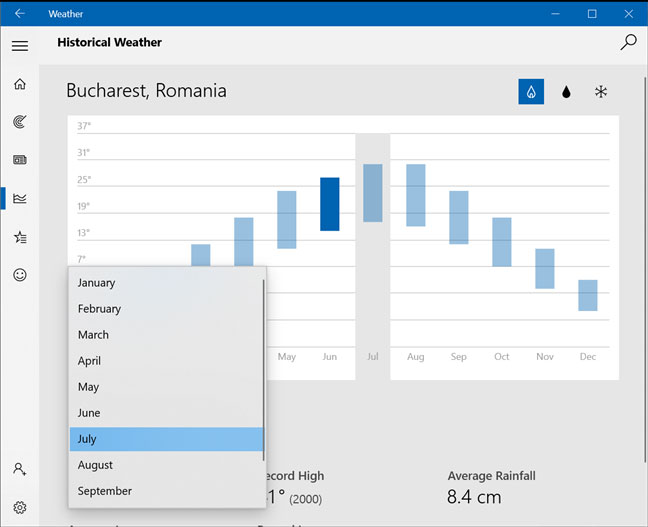
<p style="text-align: justify;">Bạn có thể sử dụng trường&nbsp;<strong>Month</strong>&nbsp;để nhận các giá trị giống nhau cho thời điểm khác trong năm hoặc chỉ cần nhấp vào tháng phù hợp từ biểu đồ.</p>

<figure>
<div style="text-align: justify;"><img alt="Xem dữ liệu lịch sử cho một tháng khác" data-i="15" data-src="https://st.quantrimang.com/photos/image/2021/07/03/ung-dung-weather-16.jpg" data-was-processed="true" height="527" src="https://st.quantrimang.com/photos/image/2021/07/03/ung-dung-weather-16.jpg" width="648" /></div>

<figcaption>
<div style="text-align: justify;">Xem dữ liệu lịch sử cho một tháng khác</div>
</figcaption>
</figure>

<p style="text-align: justify;">Ngoài ra, bạn có thể chọn xem biểu đồ cho nhiệt độ trung bình, lượng mưa hoặc tuyết từ góc trên bên phải.</p>

<figure>
<div style="text-align: justify;"><img alt="Chọn các biểu đồ bạn muốn xem" data-i="16" data-src="https://st.quantrimang.com/photos/image/2021/07/03/ung-dung-weather-17.jpg" data-was-processed="true" height="527" src="https://st.quantrimang.com/photos/image/2021/07/03/ung-dung-weather-17.jpg" width="648" /></div>

<figcaption>
<div style="text-align: justify;">Chọn các biểu đồ bạn muốn xem</div>
</figcaption>
</figure>

<h2 style="text-align: justify;">6. Nhận tin tức thời tiết mới nhất bên trong ứng dụng</h2>

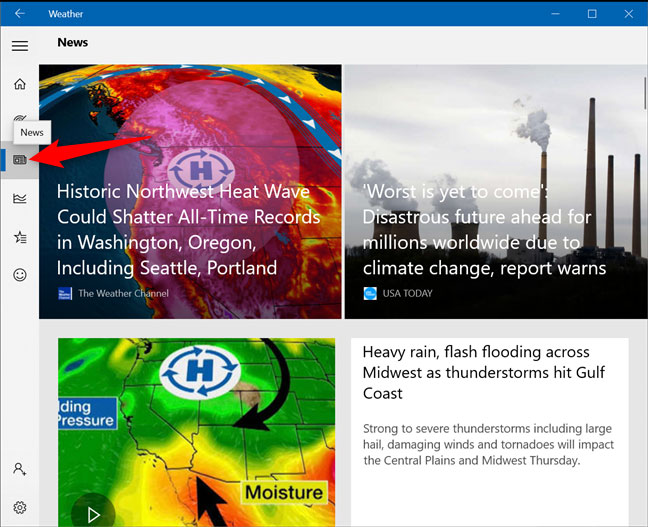
<p style="text-align: justify;">Nếu bạn lo lắng về sự nóng lên toàn cầu hoặc chỉ muốn biết điều gì đang xảy ra với thời tiết trên toàn thế giới, hãy chuyển đến tab&nbsp;<strong>News.</strong>&nbsp;Bạn có thể đọc các bài báo thời tiết quốc tế từ các trang web phổ biến về tình trạng thời tiết hiện tại ngay bên trong ứng dụng. Chỉ cần nhấp hoặc nhấn vào bất kỳ câu chuyện nào bạn quan tâm để xem thêm.</p>

<figure>
<div style="text-align: justify;"><img alt="Nhận tin tức thời tiết mới nhất bên trong ứng dụng" data-i="17" data-src="https://st.quantrimang.com/photos/image/2021/07/03/ung-dung-weather-18.jpg" data-was-processed="true" height="527" src="https://st.quantrimang.com/photos/image/2021/07/03/ung-dung-weather-18.jpg" width="648" /></div>

<figcaption>
<div style="text-align: justify;">Nhận tin tức thời tiết mới nhất bên trong ứng dụng</div>
</figcaption>
</figure>
		</div>
				<div id="author">
						<p>
				<strong>Nguồn tin:</strong>
				Quantrimang.com
			</p>
		</div>
	</div>
	<div id="footer" class="clearfix">
		<div id="url">
			<strong>URL của bản tin này: </strong><a href="https://www.nguoicodonvn2008.info/vi/news/savefile/kien-thuc-may-tinh/6-dieu-co-the-lam-voi-ung-dung-weather-tren-windows-10-4359.html" title="6 điều có thể làm với ứng dụng Weather trên Windows 10">https://www.nguoicodonvn2008.info/vi/news/savefile/kien-thuc-may-tinh/6-dieu-co-the-lam-voi-ung-dung-weather-tren-windows-10-4359.html</a>

		</div>
		<div class="clear"></div>
		<div class="copyright">
			&copy; .&#x3A; Nguoicodonvn2008.info - Cõi lòng người cô đơn &#x3A;.
		</div>
		<div id="contact">
			<a href="mailto:admin@nguoicodonvn2008.info">admin@nguoicodonvn2008.info</a>
		</div>
	</div>
</div>
        <div id="timeoutsess" class="chromeframe">
            Bạn đã không sử dụng Site, <a onclick="timeoutsesscancel();" href="https://nguoicodonvn2008.info/#">Bấm vào đây để duy trì trạng thái đăng nhập</a>. Thời gian chờ: <span id="secField"> 60 </span> giây
        </div>
        <div id="openidResult" class="nv-alert" style="display:none"></div>
        <div id="openidBt" data-result="" data-redirect=""></div>
		</script>
		<div class="car-top">
  <span><img src="https://nguoicodonvn2008.info/themes/default/images/car.png" alt=""></span>
</div>
<script src="https://nguoicodonvn2008.info/assets/js/jquery/jquery.min.js"></script>
<script>var nv_base_siteurl="/",nv_lang_data="vi",nv_lang_interface="vi",nv_name_variable="nv",nv_fc_variable="op",nv_lang_variable="language",nv_module_name="news",nv_func_name="savefile",nv_is_user=0, nv_my_ofs=-4,nv_my_abbr="EDT",nv_cookie_prefix="nv4c_e856T",nv_check_pass_mstime=1738000,nv_area_admin=0,nv_safemode=0,theme_responsive=0,nv_recaptcha_ver=2,nv_recaptcha_sitekey="",nv_recaptcha_type="image",XSSsanitize=1;</script>
<script src="https://nguoicodonvn2008.info/assets/js/language/vi.js"></script>
<script src="https://nguoicodonvn2008.info/assets/js/DOMPurify/purify3.js"></script>
<script src="https://nguoicodonvn2008.info/assets/js/global.js"></script>
<script src="https://nguoicodonvn2008.info/assets/js/site.js"></script>
<script src="https://nguoicodonvn2008.info/themes/default/js/news.js"></script>
<script src="https://nguoicodonvn2008.info/themes/default/js/main.js"></script>
<script src="https://nguoicodonvn2008.info/themes/default/js/custom.js"></script>
<script type="application/ld+json">
        {
            "@context": "https://schema.org",
            "@type": "Organization",
            "url": "https://nguoicodonvn2008.info",
            "logo": "https://nguoicodonvn2008.info/uploads/angel.gif"
        }
        </script>
<script src="https://nguoicodonvn2008.info/themes/default/js/bootstrap.min.js"></script>
<script type="text/javascript">
var $scrolltop = $('.car-top');
$scrolltop.on('click', function () {
    $('html,body').animate({
        scrollTop: 0
    }, 800);
    $(this).addClass("car-run");
    setTimeout(function(){ $scrolltop.removeClass('car-run');}, 1000);
    return false;
});
$(window).on('scroll', function ()
{ 
    if($(window).scrollTop() >= 200)
    {
        $scrolltop.addClass("show");
        $scrolltop.addClass("car-down");
    }
    else
    {
       $scrolltop.removeClass("show");
       setTimeout(function(){ $scrolltop.removeClass('car-down');}, 300);
    }
});
</script>
</body>
</html>