<!DOCTYPE html>
    <html lang="vi" xmlns="http://www.w3.org/1999/xhtml" prefix="og: http://ogp.me/ns#">
    <head>
<title>6 cách thay đổi Administrator trong Windows</title>
<meta name="description" content="6 cách thay đổi Administrator trong Windows - Savefile - Tin Tức -...">
<meta name="author" content=".: Nguoicodonvn2008.info - Cõi lòng người cô đơn :.">
<meta name="copyright" content=".: Nguoicodonvn2008.info - Cõi lòng người cô đơn :. [admin@nguoicodonvn2008.info]">
<meta name="robots" content="index, archive, follow, noodp">
<meta name="googlebot" content="index,archive,follow,noodp">
<meta name="msnbot" content="all,index,follow">
<meta name="generator" content="NukeViet v4.5">
<meta http-equiv="Content-Type" content="text/html; charset=utf-8">
<meta property="og:title" content="6 cách thay đổi Administrator trong Windows">
<meta property="og:type" content="website">
<meta property="og:description" content="Savefile - Tin Tức - https&#x3A;&#x002F;&#x002F;www.nguoicodonvn2008.info&#x002F;vi&#x002F;news&#x002F;savefile&#x002F;kien-thuc-may-tinh&#x002F;6-cach-thay-doi-administrator-trong-windows-8593.html">
<meta property="og:site_name" content=".&#x3A; Nguoicodonvn2008.info - Cõi lòng người cô đơn &#x3A;.">
<meta property="og:url" content="https://www.nguoicodonvn2008.info/vi/news/savefile/kien-thuc-may-tinh/6-cach-thay-doi-administrator-trong-windows-8593.html">
<link rel="shortcut icon" href="https://nguoicodonvn2008.info/favicon.ico">
<link rel="canonical" href="https://www.nguoicodonvn2008.info/vi/news/savefile/kien-thuc-may-tinh/6-cach-thay-doi-administrator-trong-windows-8593.html">
<link rel="alternate" href="https://nguoicodonvn2008.info/vi/news/rss/" title="Tin Tức" type="application/rss+xml">
<link rel="alternate" href="https://nguoicodonvn2008.info/vi/news/rss/karaoke-dual/" title="Tin Tức - Karaoke Dual" type="application/rss+xml">
<link rel="alternate" href="https://nguoicodonvn2008.info/vi/news/rss/nhac-tre/" title="Tin Tức - Nhạc trẻ" type="application/rss+xml">
<link rel="alternate" href="https://nguoicodonvn2008.info/vi/news/rss/tru-tinh/" title="Tin Tức - Trữ tình" type="application/rss+xml">
<link rel="alternate" href="https://nguoicodonvn2008.info/vi/news/rss/nuoc-ngoai/" title="Tin Tức - Nước ngoài" type="application/rss+xml">
<link rel="alternate" href="https://nguoicodonvn2008.info/vi/news/rss/remix/" title="Tin Tức - Remix" type="application/rss+xml">
<link rel="alternate" href="https://nguoicodonvn2008.info/vi/news/rss/tam-su-tinh-yeu/" title="Tin Tức - Tâm sự tình yêu" type="application/rss+xml">
<link rel="alternate" href="https://nguoicodonvn2008.info/vi/news/rss/tho-suu-tam/" title="Tin Tức - Thơ sưu tầm" type="application/rss+xml">
<link rel="alternate" href="https://nguoicodonvn2008.info/vi/news/rss/cuoc-song/" title="Tin Tức - Cuộc sống" type="application/rss+xml">
<link rel="alternate" href="https://nguoicodonvn2008.info/vi/news/rss/phan-mem/" title="Tin Tức - Phần mềm" type="application/rss+xml">
<link rel="alternate" href="https://nguoicodonvn2008.info/vi/news/rss/kien-thuc-may-tinh/" title="Tin Tức - Kiến thức máy tính" type="application/rss+xml">
<link rel="alternate" href="https://nguoicodonvn2008.info/vi/news/rss/hoc-tap/" title="Tin Tức - Học tập" type="application/rss+xml">
<link rel="alternate" href="https://nguoicodonvn2008.info/vi/news/rss/tai-lieu/" title="Tin Tức - Tài liệu" type="application/rss+xml">
<link rel="alternate" href="https://nguoicodonvn2008.info/vi/news/rss/de-thi/" title="Tin Tức - Đề thi" type="application/rss+xml">
<link rel="preload" as="style" href="https://nguoicodonvn2008.info/assets/css/font-awesome.min.css" type="text/css">
<link rel="preload" as="style" href="https://nguoicodonvn2008.info/themes/default/css/bootstrap.non-responsive.css" type="text/css">
<link rel="preload" as="style" href="https://nguoicodonvn2008.info/themes/default/css/style.css" type="text/css">
<link rel="preload" as="style" href="https://nguoicodonvn2008.info/themes/default/css/style.non-responsive.css" type="text/css">
<link rel="preload" as="style" href="https://nguoicodonvn2008.info/themes/default/css/news.css" type="text/css">
<link rel="preload" as="style" href="https://nguoicodonvn2008.info/themes/default/css/custom.css" type="text/css">
<link rel="preload" as="script" href="https://nguoicodonvn2008.info/assets/js/jquery/jquery.min.js" type="text/javascript">
<link rel="preload" as="script" href="https://nguoicodonvn2008.info/assets/js/language/vi.js" type="text/javascript">
<link rel="preload" as="script" href="https://nguoicodonvn2008.info/assets/js/DOMPurify/purify3.js" type="text/javascript">
<link rel="preload" as="script" href="https://nguoicodonvn2008.info/assets/js/global.js" type="text/javascript">
<link rel="preload" as="script" href="https://nguoicodonvn2008.info/assets/js/site.js" type="text/javascript">
<link rel="preload" as="script" href="https://nguoicodonvn2008.info/themes/default/js/news.js" type="text/javascript">
<link rel="preload" as="script" href="https://nguoicodonvn2008.info/themes/default/js/main.js" type="text/javascript">
<link rel="preload" as="script" href="https://nguoicodonvn2008.info/themes/default/js/custom.js" type="text/javascript">
<link rel="preload" as="script" href="https://nguoicodonvn2008.info/themes/default/js/bootstrap.min.js" type="text/javascript">
<link rel="stylesheet" href="https://nguoicodonvn2008.info/assets/css/font-awesome.min.css">
<link rel="stylesheet" href="https://nguoicodonvn2008.info/themes/default/css/bootstrap.non-responsive.css">
<link rel="stylesheet" href="https://nguoicodonvn2008.info/themes/default/css/style.css">
<link rel="stylesheet" href="https://nguoicodonvn2008.info/themes/default/css/style.non-responsive.css">
<link rel="StyleSheet" href="https://nguoicodonvn2008.info/themes/default/css/news.css">
<link rel="stylesheet" href="https://nguoicodonvn2008.info/themes/default/css/custom.css">
<style type="text/css">
	body{background: #fff;}
</style>
    </head>
    <body>
<div id="print">
	<div id="hd_print">
		<h2 class="pull-left">.&#x3A; Nguoicodonvn2008.info - Cõi lòng người cô đơn &#x3A;.</h2>
		<p class="pull-right"><a title=".&#x3A; Nguoicodonvn2008.info - Cõi lòng người cô đơn &#x3A;." href="https://nguoicodonvn2008.info/">https://nguoicodonvn2008.info</a></p>
	</div>
	<div class="clear"></div>
	<hr />
	<div id="content">
		<h1>6 cách thay đổi Administrator trong Windows</h1>
		<ul class="list-inline">
			<li>Thứ hai - 01/07/2024 02:01</li>
			<li class="hidden-print txtrequired"><em class="fa fa-print">&nbsp;</em><a title="In ra" href="javascript:;" onclick="window.print()">In ra</a></li>
			<li class="hidden-print txtrequired"><em class="fa fa-power-off">&nbsp;</em><a title="Đóng cửa sổ này" href="javascript:;" onclick="window.close()">Đóng cửa sổ này</a></li>
		</ul>
		<div class="clear"></div>
		<div id="hometext">
		</div>
				<div class="imghome">
			<img alt="6 cách thay đổi Administrator trong Windows" src="https://st.quantrimang.com/photos/image/2023/03/31/thay-doi-administrator-trong-windows-23.jpg" width="460" class="img-thumbnail" />
		</div>
		<div class="clear"></div>
		<div id="bodytext" class="clearfix">
			<p style="text-align: justify;">Mặc dù Windows thường đặt người dùng đầu tiên trên PC làm quản trị viên (administrator), nhưng có nhiều lý do và cách để thay đổi quản trị viên trong Windows. Cho dù bạn đang thêm người dùng cấp quản trị viên mới, muốn thăng cấp người dùng tiêu chuẩn hay chuyển hoàn toàn sang quản trị viên mới, hướng dẫn này cung cấp 6 cách để thay đổi quản trị viên trong Windows. Chỉ cần chọn phương pháp yêu thích của bạn và bắt đầu.</p>

<p style="text-align: justify;"><strong>Lưu ý</strong>: Để ngăn những người không phải là quản trị viên có được quyền truy cập trái phép, Windows yêu cầu bạn thực hiện các thay đổi từ tài khoản Administrator hiện có.</p>

<h2 style="text-align: justify;">1. Sử dụng Windows Settings</h2>

<p style="text-align: justify;">Khi muốn thay đổi quản trị viên trong Windows, cách đơn giản nhất là sử dụng Windows Settings.</p>

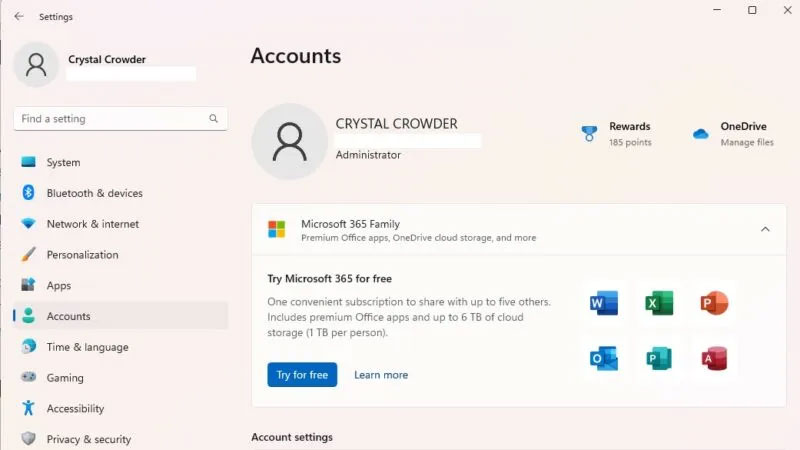
<p style="text-align: justify;">1.&nbsp;Mở Settings.</p>

<p style="text-align: justify;">2. Chọn&nbsp;<strong>Accounts</strong>&nbsp;trong ngăn bên trái.</p>

<figure>
<div style="text-align: justify;"><img alt="Chọn Accounts trong ngăn bên trái" data-i="0" data-src="https://st.quantrimang.com/photos/image/2023/03/31/thay-doi-administrator-trong-windows-1.jpg" data-was-processed="true" src="https://st.quantrimang.com/photos/image/2023/03/31/thay-doi-administrator-trong-windows-1.jpg" /></div>

<figcaption>
<div style="text-align: justify;">Chọn Accounts trong ngăn bên trái</div>
</figcaption>
</figure>

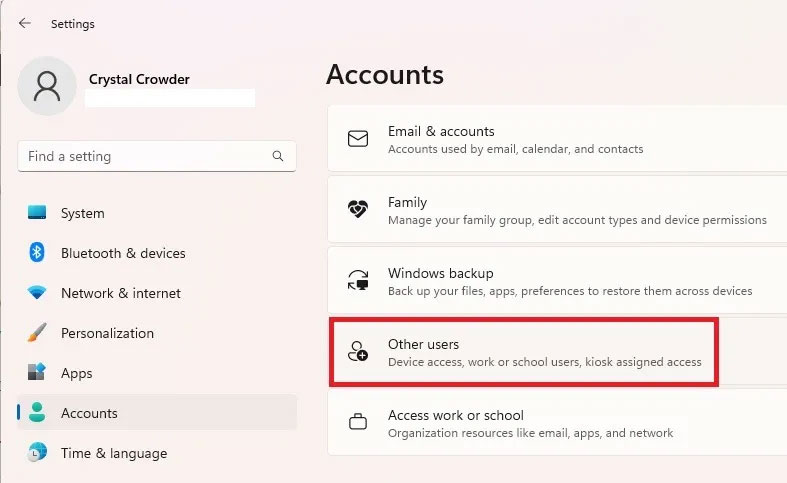
<p style="text-align: justify;">3. Chọn&nbsp;<strong>Other users</strong>&nbsp;ở bên phải. Tùy chọn này được gọi là&nbsp;<strong>Family &amp; other users</strong>&nbsp;trong Windows 10.</p>

<figure>
<div style="text-align: justify;"><img alt="Chọn Other users" data-i="1" data-src="https://st.quantrimang.com/photos/image/2023/03/31/thay-doi-administrator-trong-windows-2.jpg" data-was-processed="true" height="483" src="https://st.quantrimang.com/photos/image/2023/03/31/thay-doi-administrator-trong-windows-2.jpg" width="787" /></div>

<figcaption>
<div style="text-align: justify;">Chọn Other users</div>
</figcaption>
</figure>

<div style="text-align: justify;"><iframe allow="autoplay" allowtransparency="true" aria-label="Advertisement" data-google-container-id="a!2" data-google-query-id="CN_tsfiThYcDFZpgDwIdD8ILhQ" data-load-complete="true" frameborder="0" height="0" hspace="0" id="aswift_1" marginheight="0" marginwidth="0" name="aswift_1" sandbox="allow-scripts allow-same-origin allow-forms allow-presentation" scrolling="no" tabindex="0" title="Advertisement" vspace="0" width="694"></iframe></div>

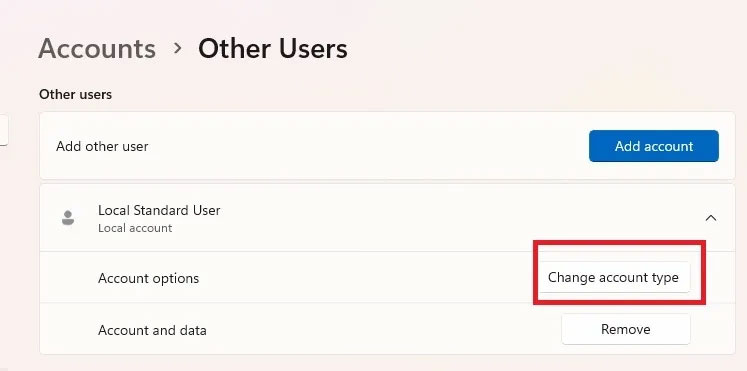
<p style="text-align: justify;">4. Chọn người dùng mong muốn từ danh sách.</p>

<p style="text-align: justify;">5. Nhấn&nbsp;<strong>Change account type</strong>.</p>

<figure>
<div style="text-align: justify;"><br />
<img alt="Chọn Change account type." data-adbro-processed="true" data-i="2" data-src="https://st.quantrimang.com/photos/image/2023/03/31/thay-doi-administrator-trong-windows-3.jpg" data-was-processed="true" height="371" src="https://st.quantrimang.com/photos/image/2023/03/31/thay-doi-administrator-trong-windows-3.jpg" width="747" /></div>

<figcaption>
<div style="text-align: justify;">Chọn Change account type.</div>
</figcaption>
</figure>

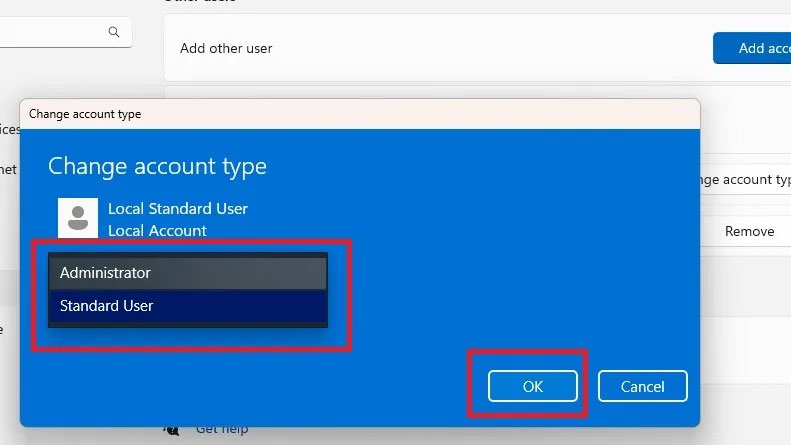
<p style="text-align: justify;">6. Chọn&nbsp;<strong>Administrator</strong>&nbsp;từ danh sách loại tài khoản và nhấn&nbsp;<strong>OK</strong>&nbsp;để xác nhận.</p>

<figure>
<div style="text-align: justify;"><img alt="Chọn Administrator từ danh sách" data-i="3" data-src="https://st.quantrimang.com/photos/image/2023/03/31/thay-doi-administrator-trong-windows-4.jpg" data-was-processed="true" height="445" src="https://st.quantrimang.com/photos/image/2023/03/31/thay-doi-administrator-trong-windows-4.jpg" width="791" /></div>

<figcaption>
<div style="text-align: justify;">Chọn Administrator từ danh sách</div>
</figcaption>
</figure>

<p style="text-align: justify;">Bạn có thể dễ dàng hạ cấp tài khoản quản trị viên bằng phương pháp tương tự.</p>

<h2 style="text-align: justify;">2. Thay đổi Administrator trong Windows qua Control Panel</h2>

<p style="text-align: justify;">Nếu bạn thích thay đổi cài đặt từ&nbsp;Control Panel&nbsp;hơn là Settings, hãy làm theo các bước sau:</p>

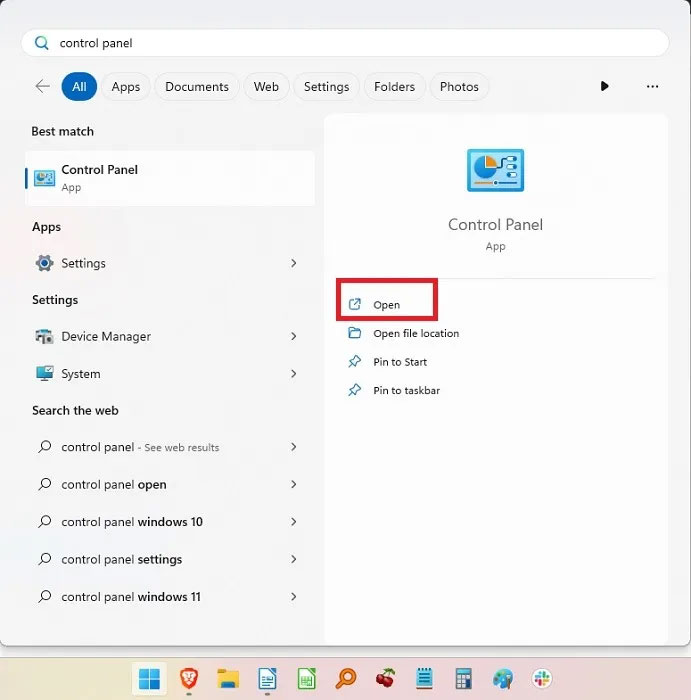
<p style="text-align: justify;">1. Đi tới Start và tìm kiếm&nbsp;<strong>Control Panel</strong>, sau đó nhấp vào&nbsp;<strong>Open.</strong></p>

<figure>
<div style="text-align: justify;"><img alt="Mở Windows Control Panel" data-i="4" data-src="https://st.quantrimang.com/photos/image/2023/03/31/thay-doi-administrator-trong-windows-5.jpg" data-was-processed="true" height="700" src="https://st.quantrimang.com/photos/image/2023/03/31/thay-doi-administrator-trong-windows-5.jpg" width="691" /></div>

<figcaption>
<div style="text-align: justify;">Mở Windows Control Panel</div>
</figcaption>
</figure>

<div style="text-align: justify;"><iframe allow="autoplay" allowtransparency="true" aria-label="Advertisement" data-google-container-id="a!3" data-google-query-id="CMHXy6qUhYcDFSdeDwIdYQ4P8Q" data-load-complete="true" frameborder="0" height="0" hspace="0" id="aswift_2" marginheight="0" marginwidth="0" name="aswift_2" sandbox="allow-scripts allow-same-origin allow-forms allow-presentation" scrolling="no" tabindex="0" title="Advertisement" vspace="0" width="694"></iframe></div>

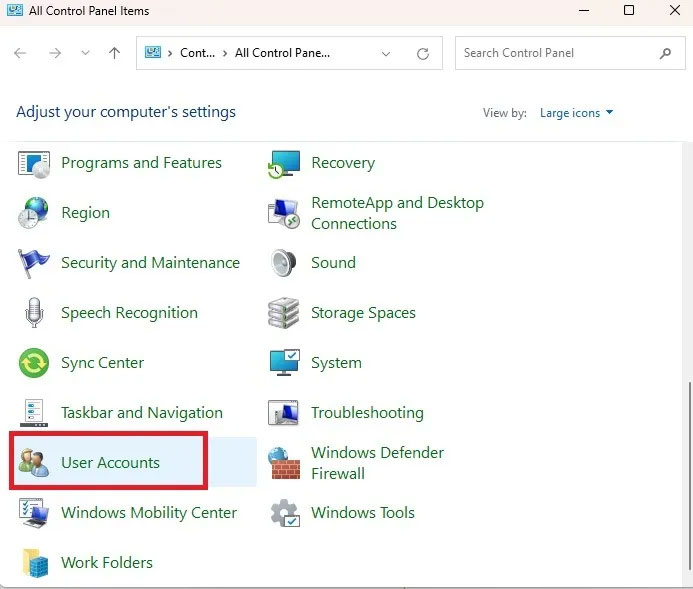
<p style="text-align: justify;">2. Chọn&nbsp;<strong>User Accounts.</strong></p>

<figure>
<div style="text-align: justify;"><img alt="Chọn User Accounts" data-i="5" data-src="https://st.quantrimang.com/photos/image/2023/03/31/thay-doi-administrator-trong-windows-6.jpg" data-was-processed="true" height="589" src="https://st.quantrimang.com/photos/image/2023/03/31/thay-doi-administrator-trong-windows-6.jpg" width="693" /></div>

<figcaption>
<div style="text-align: justify;">Chọn User Accounts</div>
</figcaption>
</figure>

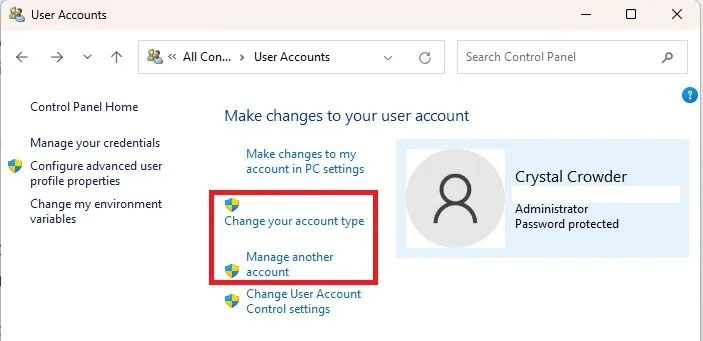
<p style="text-align: justify;">3. Nếu bạn muốn thay đổi loại tài khoản của riêng mình, hãy chọn&nbsp;<strong>Change your account type</strong>. Đối với các tài khoản khác, hãy chọn&nbsp;<strong>Manage another account</strong>.</p>

<figure>
<div style="text-align: justify;"><img alt="Thay đổi loại tài khoản" data-i="6" data-src="https://st.quantrimang.com/photos/image/2023/03/31/thay-doi-administrator-trong-windows-7.jpg" data-was-processed="true" height="341" src="https://st.quantrimang.com/photos/image/2023/03/31/thay-doi-administrator-trong-windows-7.jpg" width="703" /></div>

<figcaption>
<div style="text-align: justify;">Thay đổi loại tài khoản</div>
</figcaption>
</figure>

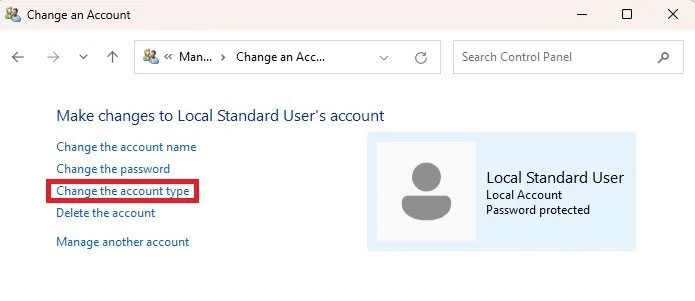
<p style="text-align: justify;">4. Chọn tài khoản bạn muốn thay đổi, sau đó chọn&nbsp;<strong>Change the account type</strong>.</p>

<figure>
<div style="text-align: justify;"><img alt="Chọn Change the account type" data-i="7" data-src="https://st.quantrimang.com/photos/image/2023/03/31/thay-doi-administrator-trong-windows-8.jpg" data-was-processed="true" height="301" src="https://st.quantrimang.com/photos/image/2023/03/31/thay-doi-administrator-trong-windows-8.jpg" width="695" /></div>

<figcaption>
<div style="text-align: justify;">Chọn Change the account type</div>
</figcaption>
</figure>

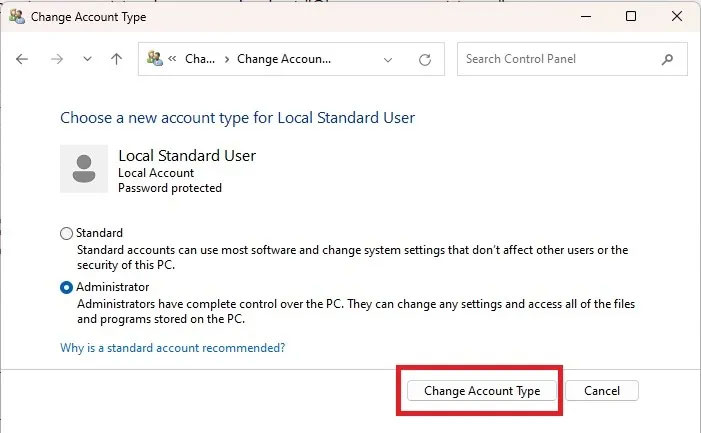
<p style="text-align: justify;">5. Chọn&nbsp;<strong>Administrator</strong>&nbsp;(hoặc&nbsp;<strong>Standard</strong>&nbsp;nếu bạn đang hạ cấp) và nhấn&nbsp;<strong>Change Account Type</strong>.</p>

<figure>
<div style="text-align: justify;"><img alt="Thay đổi loại tài khoản" data-i="8" data-src="https://st.quantrimang.com/photos/image/2023/03/31/thay-doi-administrator-trong-windows-9.jpg" data-was-processed="true" height="433" src="https://st.quantrimang.com/photos/image/2023/03/31/thay-doi-administrator-trong-windows-9.jpg" width="701" /></div>

<figcaption>
<div style="text-align: justify;">Thay đổi loại tài khoản</div>
</figcaption>
</figure>

<div style="text-align: justify;"><iframe allow="autoplay" allowtransparency="true" aria-label="Advertisement" data-google-container-id="a!4" data-google-query-id="CKX5wKuUhYcDFbJeDwIdCx0CEw" data-load-complete="true" frameborder="0" height="0" hspace="0" id="aswift_3" marginheight="0" marginwidth="0" name="aswift_3" sandbox="allow-scripts allow-same-origin allow-forms allow-presentation" scrolling="no" tabindex="0" title="Advertisement" vspace="0" width="694"></iframe></div>

<h2 style="text-align: justify;">3. Thay đổi Administrator trong Windows bằng Command Prompt</h2>

<p style="text-align: justify;">Nếu bạn không ngại gõ một vài lệnh, thật dễ dàng để thay đổi tài khoản người dùng Windows giữa Standard và Administrator. Hãy bắt đầu bằng cách thay đổi người dùng Standard thành Administrator.</p>

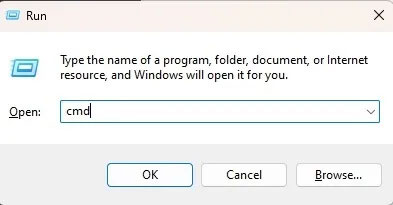
<p style="text-align: justify;">1. Nhấn&nbsp;<strong>Win + R</strong>, gõ&nbsp;<strong>cmd</strong>, sau đó nhấn&nbsp;<strong>Ctrl + Shift + Enter</strong>&nbsp;để&nbsp;mở Command Prompt với quyền admin.</p>

<figure>
<div style="text-align: justify;"><img alt="Mở CMD với quyền admin" data-i="9" data-src="https://st.quantrimang.com/photos/image/2023/03/31/thay-doi-administrator-trong-windows-10.jpg" data-was-processed="true" height="205" src="https://st.quantrimang.com/photos/image/2023/03/31/thay-doi-administrator-trong-windows-10.jpg" width="393" /></div>

<figcaption>
<div style="text-align: justify;">Mở CMD với quyền admin</div>
</figcaption>
</figure>

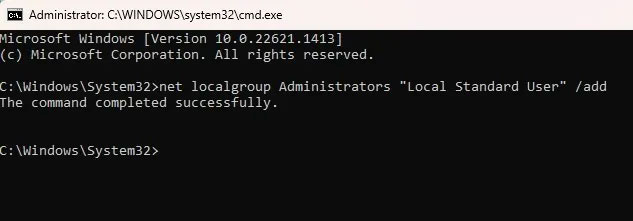
<p style="text-align: justify;">2. Nhập nội dung sau để thay đổi loại tài khoản người dùng thành quản trị viên:</p>

<pre id="pre0">
<code>net localgroup Administrators &quot;User Account&quot; /add</code></pre>

<p style="text-align: justify;">Thay thế<em>&nbsp;User Account&nbsp;</em>bằng tên tài khoản người dùng. Đối với tài khoản Microsoft, hãy sử dụng 5 chữ cái đầu tiên trong địa chỉ email của tài khoản. Ví dụ, đối với windowsuser@microsoft.com, tên tài khoản người dùng sẽ là “windo”. Hãy nhớ rằng, bạn có thể sử dụng Windows 11 mà không cần tài khoản Microsoft.</p>

<figure>
<div style="text-align: justify;"><img alt="Chọn tên tài khoản người dùng" data-i="10" data-src="https://st.quantrimang.com/photos/image/2023/03/31/thay-doi-administrator-trong-windows-11.jpg" data-was-processed="true" height="221" src="https://st.quantrimang.com/photos/image/2023/03/31/thay-doi-administrator-trong-windows-11.jpg" width="633" /></div>

<figcaption>
<div style="text-align: justify;">Chọn tên tài khoản người dùng</div>
</figcaption>
</figure>

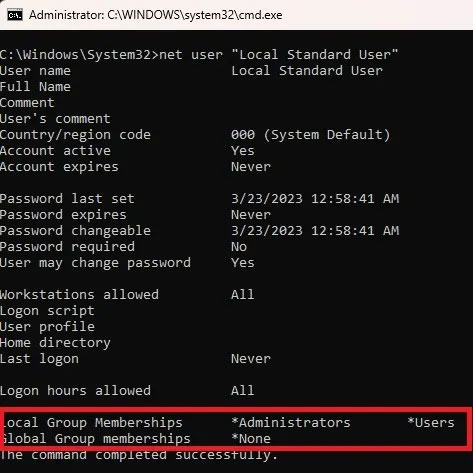
<p style="text-align: justify;">3. Xác minh thay đổi bằng cách gõ:</p>

<pre id="pre1">
<code>net user &quot;user name&quot;</code></pre>

<figure>
<div style="text-align: justify;"><img alt="Lệnh thay đổi quản trị viên trên Windows " data-i="11" data-src="https://st.quantrimang.com/photos/image/2023/03/31/thay-doi-administrator-trong-windows-12.jpg" data-was-processed="true" height="473" src="https://st.quantrimang.com/photos/image/2023/03/31/thay-doi-administrator-trong-windows-12.jpg" width="473" /></div>

<figcaption>
<div style="text-align: justify;">Lệnh thay đổi quản trị viên trên Windows</div>
</figcaption>
</figure>

<p style="text-align: justify;">Nếu bạn cần hạ cấp tài khoản quản trị viên, quy trình này cũng tương tự:</p>

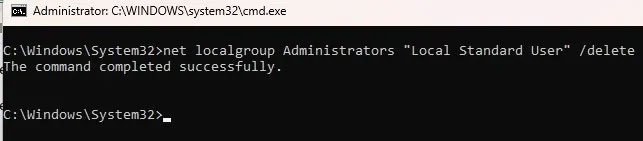
<p style="text-align: justify;">1. Nhập lệnh sau, thay thế&nbsp;<em>User Account</em>&nbsp;bằng tên tài khoản:</p>

<pre id="pre2">
<code>net localgroup Administrators &quot;User Account&quot; /delete</code></pre>

<figure>
<div style="text-align: justify;"><img alt="Lệnh hạ cấp tài khoản quản trị viên" data-i="12" data-src="https://st.quantrimang.com/photos/image/2023/03/31/thay-doi-administrator-trong-windows-13.jpg" data-was-processed="true" height="141" src="https://st.quantrimang.com/photos/image/2023/03/31/thay-doi-administrator-trong-windows-13.jpg" width="643" /></div>

<figcaption>
<div style="text-align: justify;">Lệnh hạ cấp tài khoản quản trị viên</div>
</figcaption>
</figure>

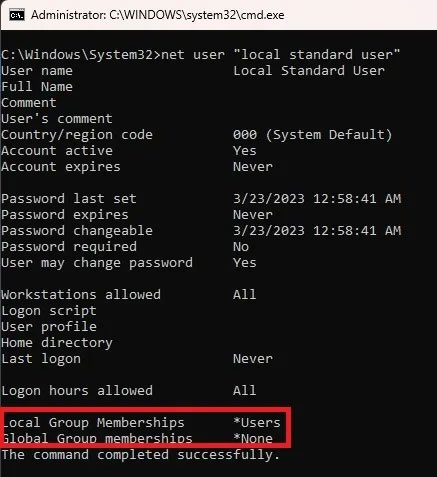
<p style="text-align: justify;">2. Xác minh thay đổi với:</p>

<pre id="pre3">
<code>net user &quot;user name&quot;</code></pre>

<figure>
<div style="text-align: justify;"><img alt="Xác minh thay đổi" data-i="13" data-src="https://st.quantrimang.com/photos/image/2023/03/31/thay-doi-administrator-trong-windows-14.jpg" data-was-processed="true" height="477" src="https://st.quantrimang.com/photos/image/2023/03/31/thay-doi-administrator-trong-windows-14.jpg" width="437" /></div>

<figcaption>
<div style="text-align: justify;">Xác minh thay đổi</div>
</figcaption>
</figure>

<div style="text-align: justify;"><iframe allow="autoplay" allowtransparency="true" aria-label="Advertisement" data-google-container-id="a!5" data-google-query-id="CJbcjKyUhYcDFTNuDwIddFYHEQ" data-load-complete="true" frameborder="0" height="0" hspace="0" id="aswift_4" marginheight="0" marginwidth="0" name="aswift_4" sandbox="allow-scripts allow-same-origin allow-forms allow-presentation" scrolling="no" tabindex="0" title="Advertisement" vspace="0" width="694"></iframe></div>

<h2 style="text-align: justify;">4. Sử dụng PowerShell</h2>

<p style="text-align: justify;">Nếu bạn thích&nbsp;<a href="https://quantrimang.com/gioi-thieu-ve-powershell-37928" title="PowerShell và mọi điều bạn cần biết về tiện ích này">PowerShell</a>&nbsp;hơn, đây là cách thay đổi quản trị viên trong Windows 10 và 11:</p>

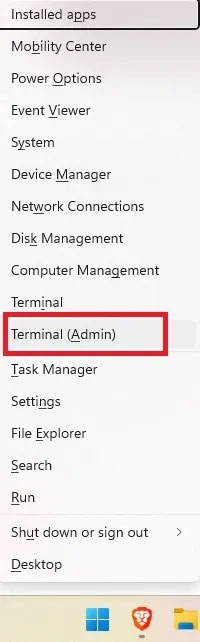
<p style="text-align: justify;">1. Nhấn&nbsp;<strong>Win + X</strong>&nbsp;và chọn&nbsp;<strong>Terminal (Admin)</strong>. Đối với Windows 10, hãy chọn&nbsp;<strong>PowerShell.</strong></p>

<figure>
<div style="text-align: justify;"><img alt="Mở Powershell" data-i="14" data-src="https://st.quantrimang.com/photos/image/2023/03/31/thay-doi-administrator-trong-windows-15.jpg" data-was-processed="true" height="642" src="https://st.quantrimang.com/photos/image/2023/03/31/thay-doi-administrator-trong-windows-15.jpg" width="200" /></div>

<figcaption>
<div style="text-align: justify;">Mở Powershell</div>
</figcaption>
</figure>

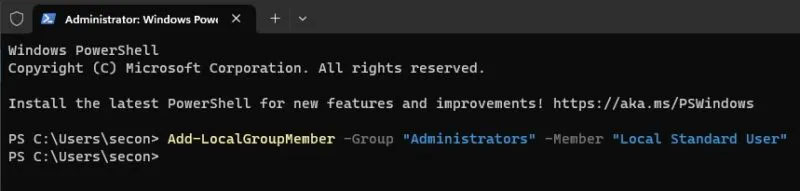
<p style="text-align: justify;">2. Nhập lệnh sau tại dấu nhắc lệnh, thay thế&nbsp;<em>user account</em>&nbsp;bằng tên tài khoản:</p>

<pre id="pre4">
<code>Add-LocalGroupMember -Group &quot;Administrators&quot; -Member &quot;User Account&quot;</code></pre>

<p style="text-align: justify;">Cũng giống như Command Prompt, tên người dùng cho tài khoản Microsoft là 5 chữ cái đầu tiên trong địa chỉ email của tài khoản. Bạn cũng có thể sử dụng:</p>

<pre id="pre5">
<code>-Member &quot;MicrosoftAccount\emailaddress&quot;</code></pre>

<figure>
<div style="text-align: justify;"><img alt="Chọn tên cho tài khoản" data-i="15" data-src="https://st.quantrimang.com/photos/image/2023/03/31/thay-doi-administrator-trong-windows-16.jpg" data-was-processed="true" height="191" src="https://st.quantrimang.com/photos/image/2023/03/31/thay-doi-administrator-trong-windows-16.jpg" width="800" /></div>

<figcaption>
<div style="text-align: justify;">Chọn tên cho tài khoản</div>
</figcaption>
</figure>

<p style="text-align: justify;">Điều này đưa người dùng Standard lên thành Administrator. Nếu bạn cần hạ cấp một tài khoản:</p>

<p style="text-align: justify;">1. Mở PowerShell và nhập thông tin sau, thay thế&nbsp;<em>User Account</em>&nbsp;bằng tên tài khoản:</p>

<pre id="pre6">
<code>Remove-LocalGroupMember -Group &quot;Administrators&quot; -Member &quot;User Account&quot;</code></pre>

<figure>
<div style="text-align: justify;"><img alt="Lệnh hạ cấp tài khoản" data-i="16" data-src="https://st.quantrimang.com/photos/image/2023/03/31/thay-doi-administrator-trong-windows-17.jpg" data-was-processed="true" height="102" src="https://st.quantrimang.com/photos/image/2023/03/31/thay-doi-administrator-trong-windows-17.jpg" width="800" /></div>

<figcaption>
<div style="text-align: justify;">Lệnh hạ cấp tài khoản</div>
</figcaption>
</figure>

<p style="text-align: justify;">Thao tác này sẽ chuyển tài khoản sang người dùng Standard.</p>

<h2 style="text-align: justify;">5. Sử dụng netplwiz</h2>

<p style="text-align: justify;">Một phương pháp nhanh chóng và dễ dàng khác để thay đổi quản trị viên trong Windows là sử dụng netplwiz. Với phương pháp này, mọi người dùng đều được liệt kê và bạn có thể thay đổi qua lại giữa các loại người dùng nếu cần.</p>

<p style="text-align: justify;">1. Nhấn&nbsp;<strong>Win + R</strong>&nbsp;để&nbsp;<a href="https://quantrimang.com/cong-nghe/cach-mo-hop-thoai-run-trong-windows-187019" title="7 cách mở hộp thoại Run trong Windows">mở Run</a>.</p>

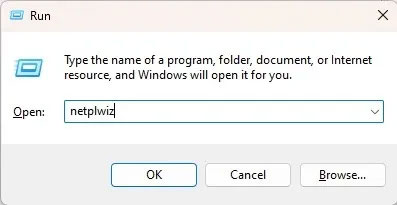
<p style="text-align: justify;">2. Nhập&nbsp;<strong>netplwiz&nbsp;</strong>và nhấp vào&nbsp;<strong>OK.</strong></p>

<figure>
<div style="text-align: justify;"><img alt="Nhập netplwiz" data-i="17" data-src="https://st.quantrimang.com/photos/image/2023/03/31/thay-doi-administrator-trong-windows-18.jpg" data-was-processed="true" height="205" src="https://st.quantrimang.com/photos/image/2023/03/31/thay-doi-administrator-trong-windows-18.jpg" width="397" /></div>

<figcaption>
<div style="text-align: justify;">Nhập netplwiz</div>
</figcaption>
</figure>

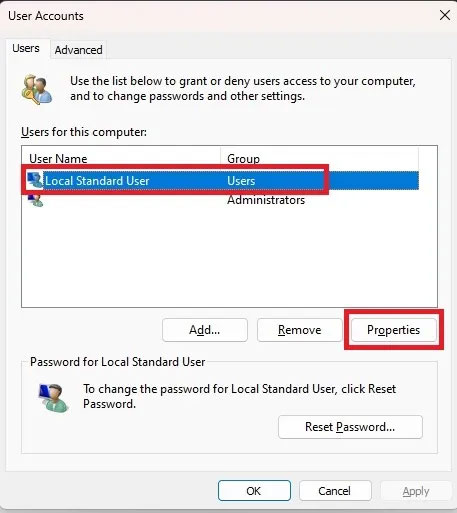
<p style="text-align: justify;">3. Chọn người dùng mong muốn và nhấp vào&nbsp;<strong>Properties.</strong></p>

<figure>
<div style="text-align: justify;"><img alt="Chọn người dùng mong muốn" data-i="18" data-src="https://st.quantrimang.com/photos/image/2023/03/31/thay-doi-administrator-trong-windows-19.jpg" data-was-processed="true" height="513" src="https://st.quantrimang.com/photos/image/2023/03/31/thay-doi-administrator-trong-windows-19.jpg" width="457" /></div>

<figcaption>
<div style="text-align: justify;">Chọn người dùng mong muốn</div>
</figcaption>
</figure>

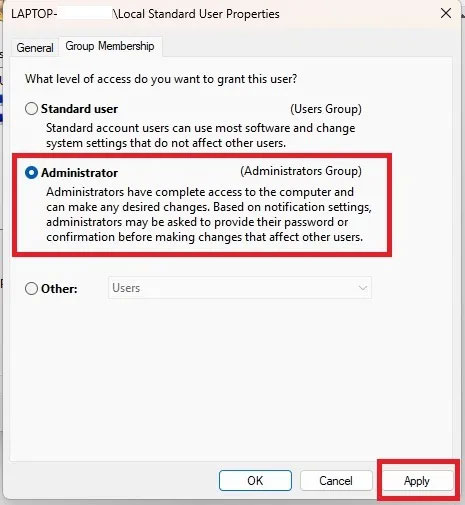
<p style="text-align: justify;">4. Chọn tab&nbsp;<strong>Group Membership</strong>&nbsp;và thay đổi loại tài khoản. Nhấp vào&nbsp;<strong>Apply.</strong></p>

<figure>
<div style="text-align: justify;"><img alt="Thay đổi loại tài khoản" data-i="19" data-src="https://st.quantrimang.com/photos/image/2023/03/31/thay-doi-administrator-trong-windows-20.jpg" data-was-processed="true" height="505" src="https://st.quantrimang.com/photos/image/2023/03/31/thay-doi-administrator-trong-windows-20.jpg" width="465" /></div>

<figcaption>
<div style="text-align: justify;">Thay đổi loại tài khoản</div>
</figcaption>
</figure>

<div style="text-align: justify;"><iframe allow="autoplay" allowtransparency="true" aria-label="Advertisement" data-google-container-id="a!6" data-google-query-id="CM6R3ayUhYcDFQheDwIdaOgBHQ" data-load-complete="true" frameborder="0" height="0" hspace="0" id="aswift_5" marginheight="0" marginwidth="0" name="aswift_5" sandbox="allow-scripts allow-same-origin allow-forms allow-presentation" scrolling="no" tabindex="0" title="Advertisement" vspace="0" width="694"></iframe></div>

<h2 style="text-align: justify;">6. Thay đổi Administrator trong Windows thông qua Computer Management</h2>

<p style="text-align: justify;">Phương pháp này chỉ hoạt động trên các phiên bản Pro của Windows 10 và 11. Nếu bạn có phiên bản Home, thì tùy chọn này sẽ không khả dụng. Làm theo các bước sau để thay đổi tài khoản trong Windows 10 và 11.</p>

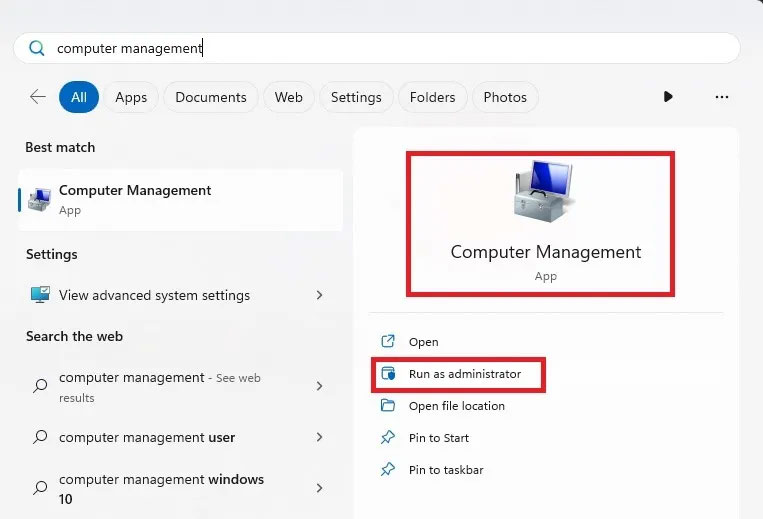
<p style="text-align: justify;">Bạn có thể sử dụng công cụ của bên thứ ba lusrmgmr để nhận được kết quả tương tự. Hướng dẫn này bao gồm các bước cho cả phiên bản Pro của Windows và lusrmgmr. Các ảnh chụp màn hình là từ lusrmgmr.</p>

<p style="text-align: justify;">1. Mở menu Start và tìm kiếm&nbsp;<strong>Computer Management</strong>. Chọn&nbsp;<strong>Run as administrator</strong>.</p>

<figure>
<div style="text-align: justify;"><img alt="Mở Computer Management với quyền admin" data-i="20" data-src="https://st.quantrimang.com/photos/image/2023/03/31/thay-doi-administrator-trong-windows-21.jpg" data-was-processed="true" height="519" src="https://st.quantrimang.com/photos/image/2023/03/31/thay-doi-administrator-trong-windows-21.jpg" width="763" /></div>

<figcaption>
<div style="text-align: justify;">Mở Computer Management với quyền admin</div>
</figcaption>
</figure>

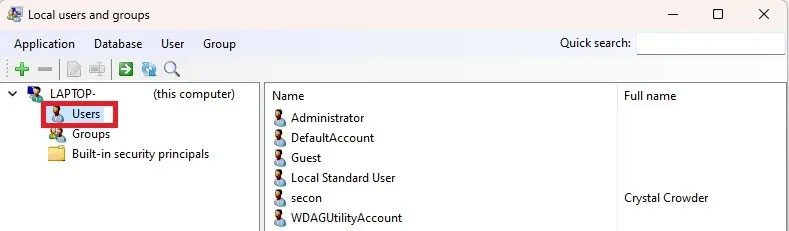
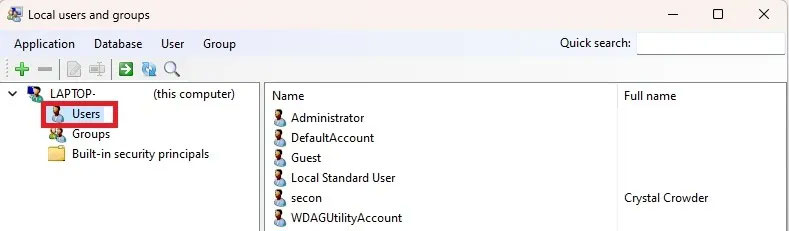
<p style="text-align: justify;">2. Mở rộng&nbsp;<strong>System Tools &gt; Local Users and Groups</strong>.</p>

<figure>
<div style="text-align: justify;"><img alt="Mở rộng System Tools &gt; Local Users and Groups" data-i="21" data-src="https://st.quantrimang.com/photos/image/2023/03/31/thay-doi-administrator-trong-windows-22.jpg" data-was-processed="true" height="231" src="https://st.quantrimang.com/photos/image/2023/03/31/thay-doi-administrator-trong-windows-22.jpg" width="789" /></div>

<figcaption>
<div style="text-align: justify;">Mở rộng System Tools &gt; Local Users and Groups</div>
</figcaption>
</figure>

<p style="text-align: justify;">3. Chọn&nbsp;<strong>Users</strong>&nbsp;để mở danh sách người dùng trong ngăn trung tâm.</p>

<p style="text-align: justify;">4. Nhấp chuột phải vào người dùng và chọn&nbsp;<strong>Properties.</strong>&nbsp;Nhấp vào&nbsp;<strong>Edit</strong>&nbsp;cho lusrmgmr.</p>

<figure>
<div style="text-align: justify;"><img alt="Nhấp vào Edit cho lusrmgmr" data-i="22" data-src="https://st.quantrimang.com/photos/image/2023/03/31/thay-doi-administrator-trong-windows-23.jpg" data-was-processed="true" height="231" src="https://st.quantrimang.com/photos/image/2023/03/31/thay-doi-administrator-trong-windows-23.jpg" width="789" /></div>

<figcaption>
<div style="text-align: justify;">Nhấp vào Edit cho lusrmgmr</div>
</figcaption>
</figure>

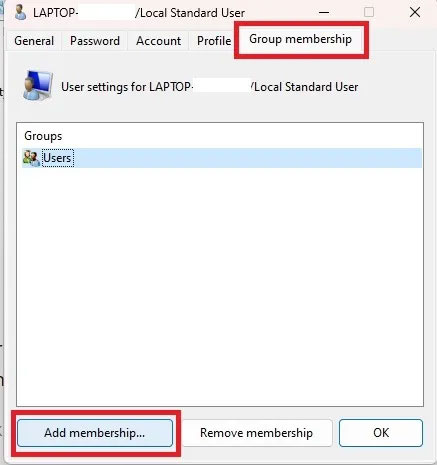
<p style="text-align: justify;">5. Chọn tab&nbsp;<strong>Member Of</strong>&nbsp;và nhấp vào&nbsp;<strong>Add.</strong>&nbsp;Nếu sử dụng lusrmgmr, hãy nhấp vào tab&nbsp;<strong>Group membership</strong>&nbsp;và chọn&nbsp;<strong>Add membership.</strong></p>

<figure>
<div style="text-align: justify;"><img alt="Nhấp vào tab Group membership và chọn Add membership" data-i="23" data-src="https://st.quantrimang.com/photos/image/2023/03/31/thay-doi-administrator-trong-windows-24.jpg" data-was-processed="true" height="465" src="https://st.quantrimang.com/photos/image/2023/03/31/thay-doi-administrator-trong-windows-24.jpg" width="437" /></div>

<figcaption>
<div style="text-align: justify;">Nhấp vào tab Group membership và chọn Add membership</div>
</figcaption>
</figure>

<p style="text-align: justify;">6. Chọn&nbsp;<strong>Advanced.</strong></p>

<p style="text-align: justify;">7. Chọn&nbsp;<strong>Find Now</strong>.</p>

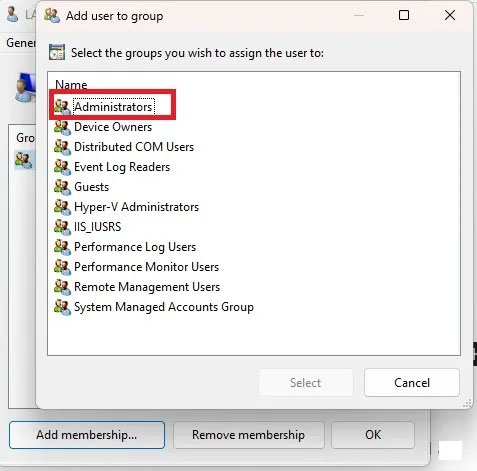
<p style="text-align: justify;">8. Chọn nhóm&nbsp;<strong>Administrators</strong>&nbsp;từ danh sách. Trong lusrmgmr, danh sách nhóm xuất hiện ngay lập tức. Chọn&nbsp;<strong>Administrators.</strong></p>

<figure>
<div style="text-align: justify;"><img alt="Chọn Administrators" data-i="24" data-src="https://st.quantrimang.com/photos/image/2023/03/31/thay-doi-administrator-trong-windows-25.jpg" data-was-processed="true" height="471" src="https://st.quantrimang.com/photos/image/2023/03/31/thay-doi-administrator-trong-windows-25.jpg" width="477" /></div>

<figcaption>
<div style="text-align: justify;">Chọn Administrators</div>
</figcaption>
</figure>

<p style="text-align: justify;">9. Nhấp vào&nbsp;<strong>OK</strong>&nbsp;để xác nhận lựa chọn của bạn. Trong lusrmgmr, chọn&nbsp;<strong>Select.</strong></p>

<p style="text-align: justify;">10. Nhấp vào&nbsp;<strong>OK</strong>&nbsp;một lần nữa để thoát khỏi cửa sổ. Sau đó, bạn sẽ thấy cả người dùng tiêu chuẩn và quản trị viên đều được liệt kê.</p>

<p style="text-align: justify;">Bạn cũng có thể hạ cấp người dùng bằng quy trình tương tự. Tuy nhiên, bạn sẽ thu hồi quyền thay vì thêm nó.</p>

<div style="text-align: justify;">&nbsp;</div>
		</div>
				<div id="author">
						<p>
				<strong>Nguồn tin:</strong>
				Quantrimang.com:
			</p>
		</div>
	</div>
	<div id="footer" class="clearfix">
		<div id="url">
			<strong>URL của bản tin này: </strong><a href="https://www.nguoicodonvn2008.info/vi/news/savefile/kien-thuc-may-tinh/6-cach-thay-doi-administrator-trong-windows-8593.html" title="6 cách thay đổi Administrator trong Windows">https://www.nguoicodonvn2008.info/vi/news/savefile/kien-thuc-may-tinh/6-cach-thay-doi-administrator-trong-windows-8593.html</a>

		</div>
		<div class="clear"></div>
		<div class="copyright">
			&copy; .&#x3A; Nguoicodonvn2008.info - Cõi lòng người cô đơn &#x3A;.
		</div>
		<div id="contact">
			<a href="mailto:admin@nguoicodonvn2008.info">admin@nguoicodonvn2008.info</a>
		</div>
	</div>
</div>
        <div id="timeoutsess" class="chromeframe">
            Bạn đã không sử dụng Site, <a onclick="timeoutsesscancel();" href="https://nguoicodonvn2008.info/#">Bấm vào đây để duy trì trạng thái đăng nhập</a>. Thời gian chờ: <span id="secField"> 60 </span> giây
        </div>
        <div id="openidResult" class="nv-alert" style="display:none"></div>
        <div id="openidBt" data-result="" data-redirect=""></div>
		</script>
		<div class="car-top">
  <span><img src="https://nguoicodonvn2008.info/themes/default/images/car.png" alt=""></span>
</div>
<script src="https://nguoicodonvn2008.info/assets/js/jquery/jquery.min.js"></script>
<script>var nv_base_siteurl="/",nv_lang_data="vi",nv_lang_interface="vi",nv_name_variable="nv",nv_fc_variable="op",nv_lang_variable="language",nv_module_name="news",nv_func_name="savefile",nv_is_user=0, nv_my_ofs=-4,nv_my_abbr="EDT",nv_cookie_prefix="nv4c_e856T",nv_check_pass_mstime=1738000,nv_area_admin=0,nv_safemode=0,theme_responsive=0,nv_recaptcha_ver=2,nv_recaptcha_sitekey="",nv_recaptcha_type="image",XSSsanitize=1;</script>
<script src="https://nguoicodonvn2008.info/assets/js/language/vi.js"></script>
<script src="https://nguoicodonvn2008.info/assets/js/DOMPurify/purify3.js"></script>
<script src="https://nguoicodonvn2008.info/assets/js/global.js"></script>
<script src="https://nguoicodonvn2008.info/assets/js/site.js"></script>
<script src="https://nguoicodonvn2008.info/themes/default/js/news.js"></script>
<script src="https://nguoicodonvn2008.info/themes/default/js/main.js"></script>
<script src="https://nguoicodonvn2008.info/themes/default/js/custom.js"></script>
<script type="application/ld+json">
        {
            "@context": "https://schema.org",
            "@type": "Organization",
            "url": "https://nguoicodonvn2008.info",
            "logo": "https://nguoicodonvn2008.info/uploads/angel.gif"
        }
        </script>
<script src="https://nguoicodonvn2008.info/themes/default/js/bootstrap.min.js"></script>
<script type="text/javascript">
var $scrolltop = $('.car-top');
$scrolltop.on('click', function () {
    $('html,body').animate({
        scrollTop: 0
    }, 800);
    $(this).addClass("car-run");
    setTimeout(function(){ $scrolltop.removeClass('car-run');}, 1000);
    return false;
});
$(window).on('scroll', function ()
{ 
    if($(window).scrollTop() >= 200)
    {
        $scrolltop.addClass("show");
        $scrolltop.addClass("car-down");
    }
    else
    {
       $scrolltop.removeClass("show");
       setTimeout(function(){ $scrolltop.removeClass('car-down');}, 300);
    }
});
</script>
</body>
</html>