<!DOCTYPE html>
    <html lang="vi" xmlns="http://www.w3.org/1999/xhtml" prefix="og: http://ogp.me/ns#">
    <head>
<title>6 cách sửa lỗi &quot;Windows Can&#039;t Communicate With the Device or Resource&quot;</title>
<meta name="description" content="6 cách sửa lỗi &quot;Windows Can&#039;t Communicate With the Device or Resource&quot; - Savefile - Tin Tức -...">
<meta name="author" content=".: Nguoicodonvn2008.info - Cõi lòng người cô đơn :.">
<meta name="copyright" content=".: Nguoicodonvn2008.info - Cõi lòng người cô đơn :. [admin@nguoicodonvn2008.info]">
<meta name="robots" content="index, archive, follow, noodp">
<meta name="googlebot" content="index,archive,follow,noodp">
<meta name="msnbot" content="all,index,follow">
<meta name="generator" content="NukeViet v4.5">
<meta http-equiv="Content-Type" content="text/html; charset=utf-8">
<meta property="og:title" content="6 cách sửa lỗi &quot;Windows Can&#039;t Communicate With the Device or Resource&quot;">
<meta property="og:type" content="website">
<meta property="og:description" content="Savefile - Tin Tức - https&#x3A;&#x002F;&#x002F;www.nguoicodonvn2008.info&#x002F;vi&#x002F;news&#x002F;savefile&#x002F;kien-thuc-may-tinh&#x002F;6-cach-sua-loi-windows-can-t-communicate-with-the-device-or-resource-2842.html">
<meta property="og:site_name" content=".&#x3A; Nguoicodonvn2008.info - Cõi lòng người cô đơn &#x3A;.">
<meta property="og:url" content="https://www.nguoicodonvn2008.info/vi/news/savefile/kien-thuc-may-tinh/6-cach-sua-loi-windows-can-t-communicate-with-the-device-or-resource-2842.html">
<link rel="shortcut icon" href="https://nguoicodonvn2008.info/favicon.ico">
<link rel="canonical" href="https://www.nguoicodonvn2008.info/vi/news/savefile/kien-thuc-may-tinh/6-cach-sua-loi-windows-can-t-communicate-with-the-device-or-resource-2842.html">
<link rel="alternate" href="https://nguoicodonvn2008.info/vi/news/rss/" title="Tin Tức" type="application/rss+xml">
<link rel="alternate" href="https://nguoicodonvn2008.info/vi/news/rss/karaoke-dual/" title="Tin Tức - Karaoke Dual" type="application/rss+xml">
<link rel="alternate" href="https://nguoicodonvn2008.info/vi/news/rss/nhac-tre/" title="Tin Tức - Nhạc trẻ" type="application/rss+xml">
<link rel="alternate" href="https://nguoicodonvn2008.info/vi/news/rss/tru-tinh/" title="Tin Tức - Trữ tình" type="application/rss+xml">
<link rel="alternate" href="https://nguoicodonvn2008.info/vi/news/rss/nuoc-ngoai/" title="Tin Tức - Nước ngoài" type="application/rss+xml">
<link rel="alternate" href="https://nguoicodonvn2008.info/vi/news/rss/remix/" title="Tin Tức - Remix" type="application/rss+xml">
<link rel="alternate" href="https://nguoicodonvn2008.info/vi/news/rss/tam-su-tinh-yeu/" title="Tin Tức - Tâm sự tình yêu" type="application/rss+xml">
<link rel="alternate" href="https://nguoicodonvn2008.info/vi/news/rss/tho-suu-tam/" title="Tin Tức - Thơ sưu tầm" type="application/rss+xml">
<link rel="alternate" href="https://nguoicodonvn2008.info/vi/news/rss/cuoc-song/" title="Tin Tức - Cuộc sống" type="application/rss+xml">
<link rel="alternate" href="https://nguoicodonvn2008.info/vi/news/rss/phan-mem/" title="Tin Tức - Phần mềm" type="application/rss+xml">
<link rel="alternate" href="https://nguoicodonvn2008.info/vi/news/rss/kien-thuc-may-tinh/" title="Tin Tức - Kiến thức máy tính" type="application/rss+xml">
<link rel="alternate" href="https://nguoicodonvn2008.info/vi/news/rss/hoc-tap/" title="Tin Tức - Học tập" type="application/rss+xml">
<link rel="alternate" href="https://nguoicodonvn2008.info/vi/news/rss/tai-lieu/" title="Tin Tức - Tài liệu" type="application/rss+xml">
<link rel="alternate" href="https://nguoicodonvn2008.info/vi/news/rss/de-thi/" title="Tin Tức - Đề thi" type="application/rss+xml">
<link rel="preload" as="style" href="https://nguoicodonvn2008.info/assets/css/font-awesome.min.css" type="text/css">
<link rel="preload" as="style" href="https://nguoicodonvn2008.info/themes/default/css/bootstrap.non-responsive.css" type="text/css">
<link rel="preload" as="style" href="https://nguoicodonvn2008.info/themes/default/css/style.css" type="text/css">
<link rel="preload" as="style" href="https://nguoicodonvn2008.info/themes/default/css/style.non-responsive.css" type="text/css">
<link rel="preload" as="style" href="https://nguoicodonvn2008.info/themes/default/css/news.css" type="text/css">
<link rel="preload" as="style" href="https://nguoicodonvn2008.info/themes/default/css/custom.css" type="text/css">
<link rel="preload" as="script" href="https://nguoicodonvn2008.info/assets/js/jquery/jquery.min.js" type="text/javascript">
<link rel="preload" as="script" href="https://nguoicodonvn2008.info/assets/js/language/vi.js" type="text/javascript">
<link rel="preload" as="script" href="https://nguoicodonvn2008.info/assets/js/DOMPurify/purify3.js" type="text/javascript">
<link rel="preload" as="script" href="https://nguoicodonvn2008.info/assets/js/global.js" type="text/javascript">
<link rel="preload" as="script" href="https://nguoicodonvn2008.info/assets/js/site.js" type="text/javascript">
<link rel="preload" as="script" href="https://nguoicodonvn2008.info/themes/default/js/news.js" type="text/javascript">
<link rel="preload" as="script" href="https://nguoicodonvn2008.info/themes/default/js/main.js" type="text/javascript">
<link rel="preload" as="script" href="https://nguoicodonvn2008.info/themes/default/js/custom.js" type="text/javascript">
<link rel="preload" as="script" href="https://nguoicodonvn2008.info/themes/default/js/bootstrap.min.js" type="text/javascript">
<link rel="stylesheet" href="https://nguoicodonvn2008.info/assets/css/font-awesome.min.css">
<link rel="stylesheet" href="https://nguoicodonvn2008.info/themes/default/css/bootstrap.non-responsive.css">
<link rel="stylesheet" href="https://nguoicodonvn2008.info/themes/default/css/style.css">
<link rel="stylesheet" href="https://nguoicodonvn2008.info/themes/default/css/style.non-responsive.css">
<link rel="StyleSheet" href="https://nguoicodonvn2008.info/themes/default/css/news.css">
<link rel="stylesheet" href="https://nguoicodonvn2008.info/themes/default/css/custom.css">
<style type="text/css">
	body{background: #fff;}
</style>
    </head>
    <body>
<div id="print">
	<div id="hd_print">
		<h2 class="pull-left">.&#x3A; Nguoicodonvn2008.info - Cõi lòng người cô đơn &#x3A;.</h2>
		<p class="pull-right"><a title=".&#x3A; Nguoicodonvn2008.info - Cõi lòng người cô đơn &#x3A;." href="https://nguoicodonvn2008.info/">https://nguoicodonvn2008.info</a></p>
	</div>
	<div class="clear"></div>
	<hr />
	<div id="content">
		<h1>6 cách sửa lỗi &quot;Windows Can&#039;t Communicate With the Device or Resource&quot;</h1>
		<ul class="list-inline">
			<li>Thứ hai - 05/10/2020 00:57</li>
			<li class="hidden-print txtrequired"><em class="fa fa-print">&nbsp;</em><a title="In ra" href="javascript:;" onclick="window.print()">In ra</a></li>
			<li class="hidden-print txtrequired"><em class="fa fa-power-off">&nbsp;</em><a title="Đóng cửa sổ này" href="javascript:;" onclick="window.close()">Đóng cửa sổ này</a></li>
		</ul>
		<div class="clear"></div>
		<div id="hometext">
		</div>
				<div class="imghome">
			<img alt="6 cách sửa lỗi &quot;Windows Can&#039;t Communicate With the Device or Resource&quot;" src="https://st.quantrimang.com/photos/image/2020/10/05/loi-windows-can-t-communicate-with-the-device-or-resource-4.jpg" width="460" class="img-thumbnail" />
		</div>
		<div class="clear"></div>
		<div id="bodytext" class="clearfix">
			<p style="text-align: justify;">Không có gì tệ hơn việc nhận được lỗi Windows ngăn bạn truy cập Internet. Việc gặp thông báo lỗi có nội dung &quot;<em>Windows can&#039;t communicate with device or resource</em>&quot; không phải là hiếm và có thể nhanh chóng khiến bạn gặp khó khăn trong một ngày nào đó.</p>

<p style="text-align: justify;">Nếu bạn nhận được thông báo lỗi này, không cần phải hoảng sợ. Bài viết sau đây sẽ giải thích chính xác lỗi này có nghĩa là gì và cách bạn có thể khắc phục nó.</p>

<h2 style="text-align: justify;">Lỗi &quot;Windows can&#039;t communicate with device or resource&quot; là gì?</h2>

<p style="text-align: justify;">Bạn sẽ thường thấy lỗi &quot;<em>Windows can&#039;t communicate with device or resource</em>&quot; khi bạn không thể kết nối với Internet và chạy&nbsp;<strong>Network Diagnostics.</strong></p>

<p style="text-align: justify;">Khi bạn gặp phải lỗi này, điều này có nghĩa là máy tính của bạn không thể kết nối với danh bạ Internet, hay còn gọi là&nbsp;Domain Name System (DNS). Hệ thống này tự động dịch tên trang web thành địa chỉ IP, cho phép bạn duyệt web một cách dễ dàng.</p>

<p style="text-align: justify;">DNS server&nbsp;chính của máy tính thường do nhà cung cấp dịch vụ Internet cung cấp. Một DNS server phụ cũng được thiết lập trong trường hợp máy chủ chính gặp sự cố. Mặc dù vậy, cài đặt máy tính đôi khi có thể bị lỗi, khiến bạn gặp&nbsp;sự cố khi kết nối với Internet.</p>

<p style="text-align: justify;">Nếu bạn không thể loại bỏ lỗi &quot;<em>Windows 10 can&#039;t communicate with device or resource</em>&quot;, thì đây là một số phương án sửa lỗi có thể hữu ích.</p>

<div style="text-align: justify;">&nbsp;</div>

<h2 style="text-align: justify;">6 cách sửa lỗi &quot;Windows Can&#039;t Communicate With the Device or Resource&quot;</h2>

<h3 style="text-align: justify;">1. Đảm bảo DNS và DHCP client đang chạy</h3>

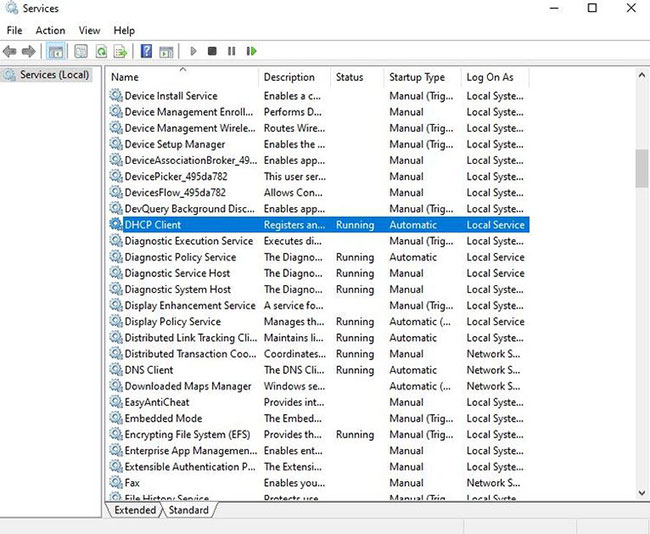
<p style="text-align: justify;">Trước khi thử bất kỳ bản sửa lỗi nào sau đây, bạn sẽ luôn cần đảm bảo rằng DNS và DHCP client của mình đang chạy. Để thực hiện việc này, hãy chuyển đến thanh tìm kiếm của menu Start và nhập&nbsp;<strong>&quot;Services&quot;.</strong></p>

<figure>
<div style="text-align: justify;"><img alt="Mở ứng dụng Services" data-i="0" data-src="https://st.quantrimang.com/photos/image/2020/10/05/loi-windows-can-t-communicate-with-the-device-or-resource-1.jpg" data-was-processed="true" height="534" src="https://st.quantrimang.com/photos/image/2020/10/05/loi-windows-can-t-communicate-with-the-device-or-resource-1.jpg" width="650" /></div>

<figcaption>
<div style="text-align: justify;">Mở ứng dụng Services</div>
</figcaption>
</figure>

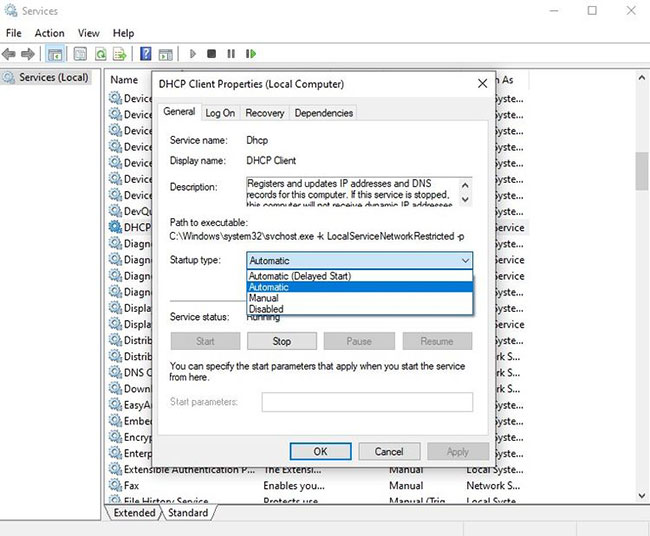
<p style="text-align: justify;">Chọn ứng dụng&nbsp;<strong>Services</strong>&nbsp;và bạn sẽ thấy danh sách tất cả các service đang chạy trên thiết bị của mình. Kiểm tra các service có nhãn&nbsp;<strong>DNS</strong>&nbsp;và&nbsp;<strong>DHCP.</strong>&nbsp;Nếu&nbsp;<strong>&quot;Running&quot;</strong>&nbsp;không được liệt kê trong cột&nbsp;<strong>&quot;Status&quot;</strong>&nbsp;cho một trong hai service này, bạn cần phải khắc phục điều đó.</p>

<figure>
<div style="text-align: justify;"><img alt="Chọn Automatic từ menu drop-down &#039;Startup type&#039;" data-i="1" data-src="https://st.quantrimang.com/photos/image/2020/10/05/loi-windows-can-t-communicate-with-the-device-or-resource-2.jpg" data-was-processed="true" height="536" src="https://st.quantrimang.com/photos/image/2020/10/05/loi-windows-can-t-communicate-with-the-device-or-resource-2.jpg" width="650" /></div>

<figcaption>
<div style="text-align: justify;">Chọn Automatic từ menu drop-down &quot;Startup type&quot;</div>
</figcaption>
</figure>

<p style="text-align: justify;">Bật DNS và DHCP bằng cách nhấp đúp vào từng service. Nếu service đã bị dừng, chỉ cần chọn Start. Bạn cũng nên đảm bảo rằng bạn chọn&nbsp;<strong>Automatic</strong>&nbsp;từ menu drop-down&nbsp;<strong>&quot;Startup type&quot;.</strong></p>

<p style="text-align: justify;">Khi hoàn tất, hãy nhấp vào&nbsp;<strong>Apply &gt; OK</strong>.</p>

<div style="text-align: justify;">&nbsp;</div>

<h3 style="text-align: justify;">2. Gỡ cài đặt và cài đặt lại thiết bị mạng</h3>

<p style="text-align: justify;">Driver lỗi thời hoặc không chính xác đôi khi có thể gây ra lỗi &quot;<em>Windows can&#039;t communicate with the device or resource</em>&quot;. Trong trường hợp này, tốt nhất là xóa sạch mọi thứ và gỡ cài đặt thiết bị mạng.</p>

<p style="text-align: justify;">Để truy cập các thiết bị mạng, hãy nhấn&nbsp;<strong>Windows + X</strong>&nbsp;để mở menu&nbsp;<strong>Quick Link.</strong>&nbsp;Chọn&nbsp;<strong>Device Manager</strong>&nbsp;từ danh sách và nhấp vào&nbsp;<strong>Network adapters.</strong></p>

<p style="text-align: justify;">Chọn thiết bị mạng và nhấp vào&nbsp;<strong>Uninstall device.</strong>&nbsp;Khi đã xong, hãy nhấp chuột phải vào&nbsp;<strong>Network adapters</strong>&nbsp;rồi nhấn&nbsp;<strong>Scan for hardware changes</strong>.</p>

<p style="text-align: justify;">Windows sẽ tự động phát hiện thiết bị mạng &quot;mới&quot;. Sau đó nó sẽ tiến hành cài đặt các driver mặc định đi kèm với thiết bị. Bây giờ, bạn có thể khởi động lại máy tính và kiểm tra kết nối của mình.</p>

<h3 style="text-align: justify;">3. Cập nhật driver mạng theo cách thủ công</h3>

<p style="text-align: justify;">Mặc dù driver mạng thường được cập nhật tự động trên Windows 10, nhưng cũng chẳng mất mát gì khi thử cập nhật driver mạng của mình theo cách thủ công. Để thực hiện việc này, hãy nhấn&nbsp;<strong>Windows + X &gt; Device Manager &gt; Network adapters</strong>.</p>

<p style="text-align: justify;">Tìm thiết bị mạng trong menu drop-down, nhấp chuột phải vào thiết bị đó và chọn&nbsp;<strong>Update driver.</strong></p>

<p style="text-align: justify;">Bây giờ, Windows sẽ cung cấp cho bạn hai cách để tìm driver mới. Chọn tùy chọn có nội dung&nbsp;<strong>Search automatically for updated driver software</strong>.</p>

<p style="text-align: justify;">Từ đây, Windows sẽ tìm kiếm bất kỳ bản cập nhật nào trên máy tính và Internet. Nếu có driver mới, hãy cài đặt chúng.</p>

<h3 style="text-align: justify;">4. Xóa bộ nhớ DNS cache</h3>

<p style="text-align: justify;">DNS cache bị hỏng cũng có thể gây ra thông báo lỗi. Để khắc phục điều này, bạn sẽ phải xóa DNS cache của mình.</p>

<p style="text-align: justify;">Để bắt đầu, hãy&nbsp;mở Command Prompt với quyền admin.</p>

<p style="text-align: justify;">Khi chương trình xuất hiện, hãy gõ lần lượt các dòng code sau:</p>

<pre id="pre0">
<code>ipconfig /flushdns
 ipconfig /registerdns
 ipconfig /release
 ipconfig /renew</code></pre>

<p style="text-align: justify;">Điều này không chỉ xóa DNS cache mà còn khiến máy tính reset bất kỳ cấu hình bị hỏng nào có thể gây ra thông báo lỗi. Sau đó, nhấn&nbsp;<strong>Enter</strong>&nbsp;và bạn có thể đóng&nbsp;<strong>Command Prompt.</strong></p>

<div style="text-align: justify;">&nbsp;</div>

<h3 style="text-align: justify;">5. Cấu hình cài đặt adapter</h3>

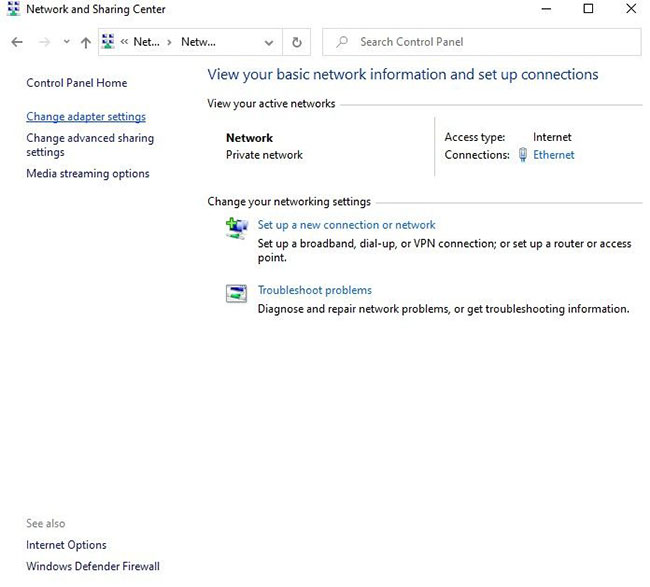
<p style="text-align: justify;">Nếu các bản sửa lỗi ở trên vẫn không hoạt động, cài đặt của network adapter có thể đang ảnh hưởng đến kết nối của bạn. Để bắt đầu cấu hình cài đặt, hãy đi tới&nbsp;Control Panel&nbsp;và chọn&nbsp;<strong>View network status and tasks&nbsp;</strong>bên dưới tiêu đề<strong>&nbsp;Network and Internet</strong>.</p>

<p style="text-align: justify;">Sau đó, chọn&nbsp;<strong>Change adapter settings</strong>&nbsp;từ menu ở bên trái màn hình.</p>

<figure>
<div style="text-align: justify;"><img alt="Chọn Change adapter settings từ menu ở bên trái màn hình" data-i="2" data-src="https://st.quantrimang.com/photos/image/2020/10/05/loi-windows-can-t-communicate-with-the-device-or-resource-3.jpg" data-was-processed="true" height="587" src="https://st.quantrimang.com/photos/image/2020/10/05/loi-windows-can-t-communicate-with-the-device-or-resource-3.jpg" width="650" /></div>

<figcaption>
<div style="text-align: justify;">Chọn Change adapter settings từ menu ở bên trái màn hình</div>
</figcaption>
</figure>

<p style="text-align: justify;">Nhấp chuột phải vào kết nối và chọn&nbsp;<strong>Properties.</strong></p>

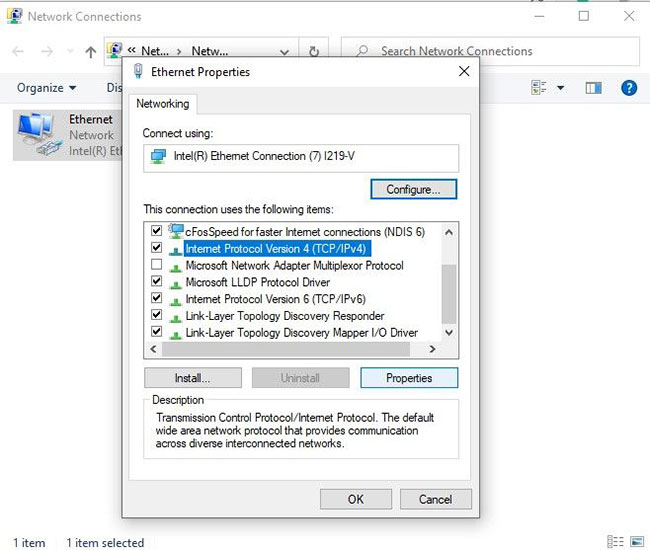
<p style="text-align: justify;">Đảm bảo rằng hộp bên cạnh&nbsp;<strong>Internet Protocol Version 4 (TCP/IPv4)</strong>&nbsp;được chọn. Từ đây, nhấp đúp vào tùy chọn IPv4.</p>

<figure>
<div style="text-align: justify;"><img alt="Chọn Internet Protocol Version 4 (TCP/IPv4)" data-i="3" data-src="https://st.quantrimang.com/photos/image/2020/10/05/loi-windows-can-t-communicate-with-the-device-or-resource-4.jpg" data-was-processed="true" height="550" src="https://st.quantrimang.com/photos/image/2020/10/05/loi-windows-can-t-communicate-with-the-device-or-resource-4.jpg" width="650" /></div>

<figcaption>
<div style="text-align: justify;">Chọn Internet Protocol Version 4 (TCP/IPv4)</div>
</figcaption>
</figure>

<p style="text-align: justify;">Tích vào&nbsp;<strong>Obtain an IP address automatically</strong>&nbsp;và<strong>&nbsp;Obtain DNS Server address automatically</strong>. Khi bạn hoàn tất, nhấn&nbsp;<strong>OK.</strong></p>

<p style="text-align: justify;">Để khắc phục sự cố này hiệu quả hơn, bạn cũng có thể lặp lại các bước tương tự với mục&nbsp;<strong>Internet Protocol Version 6 (TCP/IPv6)</strong>.</p>

<h3 style="text-align: justify;">6. Chuyển sang public DNS</h3>

<p style="text-align: justify;">Nếu vẫn không thể kết nối Internet, bạn có thể đã gặp sự cố với DNS. Chuyển sang public DNS, chẳng hạn như DNS của Google, có thể giúp giải quyết vấn đề này. Trên thực tế, bạn thậm chí có thể thấy rằng việc chuyển sang một DNS khác có thể giúp bạn tăng tốc độ Internet.</p>

<p style="text-align: justify;">Để bắt đầu, bạn sẽ phải truy cập cài đặt mạng bằng cùng một phương pháp được nêu ở bước trước. Chỉ cần&nbsp;mở Control Panel, điều hướng đến&nbsp;<strong>View networks status and tasks &gt; Change adapter settings</strong>. Nhấp chuột phải vào kết nối và chọn&nbsp;<strong>Properties.</strong></p>

<figure>
<div style="text-align: justify;"><img alt="Chuyển sang public DNS" data-i="4" data-src="https://st.quantrimang.com/photos/image/2020/10/05/loi-windows-can-t-communicate-with-the-device-or-resource-5.jpg" data-was-processed="true" height="599" src="https://st.quantrimang.com/photos/image/2020/10/05/loi-windows-can-t-communicate-with-the-device-or-resource-5.jpg" width="650" /></div>

<figcaption>
<div style="text-align: justify;">Chuyển sang public DNS</div>
</figcaption>
</figure>

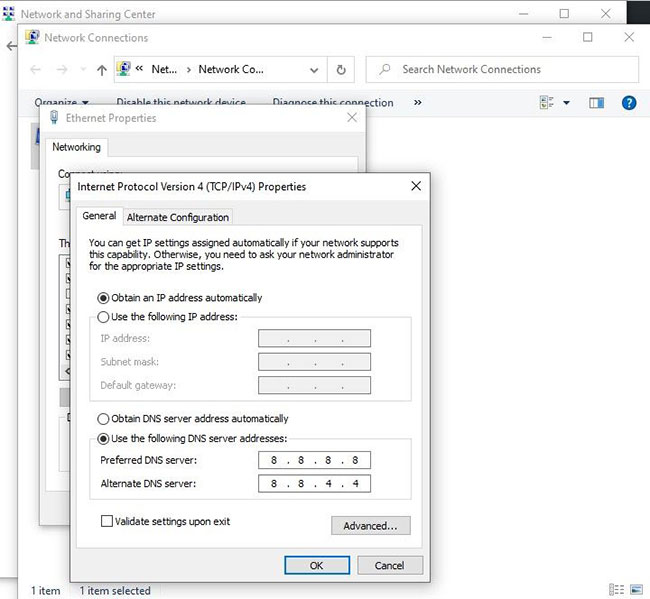
<p style="text-align: justify;">Nhấp đúp vào&nbsp;<strong>Internet Protocol Version 4 (TCP/IPv4)</strong>&nbsp;một lần nữa. Lần này, hãy chọn&nbsp;<strong>Use the following DNS server addresses</strong>.</p>

<p style="text-align: justify;">Bây giờ, hãy nhập địa chỉ cho DNS của Google. Trong các trường bên dưới, hãy nhập các số sau:</p>

<ul>
	<li style="text-align: justify;">Preferred DNS server: 8.8.8.8</li>
	<li style="text-align: justify;">Alternative DNS server: 8.8.4.4</li>
</ul>

<p style="text-align: justify;">Sau khi nhấn&nbsp;<strong>OK</strong>,&nbsp;khởi động lại máy tính&nbsp;để xem kết nối Internet của bạn có hoạt động trở lại hay không.</p>
		</div>
				<div id="author">
						<p>
				<strong>Nguồn tin:</strong>
				Quantrimang.com
			</p>
		</div>
	</div>
	<div id="footer" class="clearfix">
		<div id="url">
			<strong>URL của bản tin này: </strong><a href="https://www.nguoicodonvn2008.info/vi/news/savefile/kien-thuc-may-tinh/6-cach-sua-loi-windows-can-t-communicate-with-the-device-or-resource-2842.html" title="6 cách sửa lỗi &quot;Windows Can&#039;t Communicate With the Device or Resource&quot;">https://www.nguoicodonvn2008.info/vi/news/savefile/kien-thuc-may-tinh/6-cach-sua-loi-windows-can-t-communicate-with-the-device-or-resource-2842.html</a>

		</div>
		<div class="clear"></div>
		<div class="copyright">
			&copy; .&#x3A; Nguoicodonvn2008.info - Cõi lòng người cô đơn &#x3A;.
		</div>
		<div id="contact">
			<a href="mailto:admin@nguoicodonvn2008.info">admin@nguoicodonvn2008.info</a>
		</div>
	</div>
</div>
        <div id="timeoutsess" class="chromeframe">
            Bạn đã không sử dụng Site, <a onclick="timeoutsesscancel();" href="https://nguoicodonvn2008.info/#">Bấm vào đây để duy trì trạng thái đăng nhập</a>. Thời gian chờ: <span id="secField"> 60 </span> giây
        </div>
        <div id="openidResult" class="nv-alert" style="display:none"></div>
        <div id="openidBt" data-result="" data-redirect=""></div>
		</script>
		<div class="car-top">
  <span><img src="https://nguoicodonvn2008.info/themes/default/images/car.png" alt=""></span>
</div>
<script src="https://nguoicodonvn2008.info/assets/js/jquery/jquery.min.js"></script>
<script>var nv_base_siteurl="/",nv_lang_data="vi",nv_lang_interface="vi",nv_name_variable="nv",nv_fc_variable="op",nv_lang_variable="language",nv_module_name="news",nv_func_name="savefile",nv_is_user=0, nv_my_ofs=-4,nv_my_abbr="EDT",nv_cookie_prefix="nv4c_e856T",nv_check_pass_mstime=1738000,nv_area_admin=0,nv_safemode=0,theme_responsive=0,nv_recaptcha_ver=2,nv_recaptcha_sitekey="",nv_recaptcha_type="image",XSSsanitize=1;</script>
<script src="https://nguoicodonvn2008.info/assets/js/language/vi.js"></script>
<script src="https://nguoicodonvn2008.info/assets/js/DOMPurify/purify3.js"></script>
<script src="https://nguoicodonvn2008.info/assets/js/global.js"></script>
<script src="https://nguoicodonvn2008.info/assets/js/site.js"></script>
<script src="https://nguoicodonvn2008.info/themes/default/js/news.js"></script>
<script src="https://nguoicodonvn2008.info/themes/default/js/main.js"></script>
<script src="https://nguoicodonvn2008.info/themes/default/js/custom.js"></script>
<script type="application/ld+json">
        {
            "@context": "https://schema.org",
            "@type": "Organization",
            "url": "https://nguoicodonvn2008.info",
            "logo": "https://nguoicodonvn2008.info/uploads/angel.gif"
        }
        </script>
<script src="https://nguoicodonvn2008.info/themes/default/js/bootstrap.min.js"></script>
<script type="text/javascript">
var $scrolltop = $('.car-top');
$scrolltop.on('click', function () {
    $('html,body').animate({
        scrollTop: 0
    }, 800);
    $(this).addClass("car-run");
    setTimeout(function(){ $scrolltop.removeClass('car-run');}, 1000);
    return false;
});
$(window).on('scroll', function ()
{ 
    if($(window).scrollTop() >= 200)
    {
        $scrolltop.addClass("show");
        $scrolltop.addClass("car-down");
    }
    else
    {
       $scrolltop.removeClass("show");
       setTimeout(function(){ $scrolltop.removeClass('car-down');}, 300);
    }
});
</script>
</body>
</html>