<!DOCTYPE html>
    <html lang="vi" xmlns="http://www.w3.org/1999/xhtml" prefix="og: http://ogp.me/ns#">
    <head>
<title>6 bước quan trọng cần thực hiện sau khi cài đặt &quot;sạch&quot; Windows 11</title>
<meta name="description" content="6 bước quan trọng cần thực hiện sau khi cài đặt &quot;sạch&quot; Windows 11 - Savefile - Tin Tức -...">
<meta name="author" content=".: Nguoicodonvn2008.info - Cõi lòng người cô đơn :.">
<meta name="copyright" content=".: Nguoicodonvn2008.info - Cõi lòng người cô đơn :. [admin@nguoicodonvn2008.info]">
<meta name="robots" content="index, archive, follow, noodp">
<meta name="googlebot" content="index,archive,follow,noodp">
<meta name="msnbot" content="all,index,follow">
<meta name="generator" content="NukeViet v4.5">
<meta http-equiv="Content-Type" content="text/html; charset=utf-8">
<meta property="og:title" content="6 bước quan trọng cần thực hiện sau khi cài đặt &quot;sạch&quot; Windows 11">
<meta property="og:type" content="website">
<meta property="og:description" content="Savefile - Tin Tức - https&#x3A;&#x002F;&#x002F;www.nguoicodonvn2008.info&#x002F;vi&#x002F;news&#x002F;savefile&#x002F;kien-thuc-may-tinh&#x002F;6-buoc-quan-trong-can-thuc-hien-sau-khi-cai-dat-sach-windows-11-10770.html">
<meta property="og:site_name" content=".&#x3A; Nguoicodonvn2008.info - Cõi lòng người cô đơn &#x3A;.">
<meta property="og:url" content="https://www.nguoicodonvn2008.info/vi/news/savefile/kien-thuc-may-tinh/6-buoc-quan-trong-can-thuc-hien-sau-khi-cai-dat-sach-windows-11-10770.html">
<link rel="shortcut icon" href="https://nguoicodonvn2008.info/favicon.ico">
<link rel="canonical" href="https://www.nguoicodonvn2008.info/vi/news/savefile/kien-thuc-may-tinh/6-buoc-quan-trong-can-thuc-hien-sau-khi-cai-dat-sach-windows-11-10770.html">
<link rel="alternate" href="https://nguoicodonvn2008.info/vi/news/rss/" title="Tin Tức" type="application/rss+xml">
<link rel="alternate" href="https://nguoicodonvn2008.info/vi/news/rss/karaoke-dual/" title="Tin Tức - Karaoke Dual" type="application/rss+xml">
<link rel="alternate" href="https://nguoicodonvn2008.info/vi/news/rss/nhac-tre/" title="Tin Tức - Nhạc trẻ" type="application/rss+xml">
<link rel="alternate" href="https://nguoicodonvn2008.info/vi/news/rss/tru-tinh/" title="Tin Tức - Trữ tình" type="application/rss+xml">
<link rel="alternate" href="https://nguoicodonvn2008.info/vi/news/rss/nuoc-ngoai/" title="Tin Tức - Nước ngoài" type="application/rss+xml">
<link rel="alternate" href="https://nguoicodonvn2008.info/vi/news/rss/remix/" title="Tin Tức - Remix" type="application/rss+xml">
<link rel="alternate" href="https://nguoicodonvn2008.info/vi/news/rss/tam-su-tinh-yeu/" title="Tin Tức - Tâm sự tình yêu" type="application/rss+xml">
<link rel="alternate" href="https://nguoicodonvn2008.info/vi/news/rss/tho-suu-tam/" title="Tin Tức - Thơ sưu tầm" type="application/rss+xml">
<link rel="alternate" href="https://nguoicodonvn2008.info/vi/news/rss/cuoc-song/" title="Tin Tức - Cuộc sống" type="application/rss+xml">
<link rel="alternate" href="https://nguoicodonvn2008.info/vi/news/rss/phan-mem/" title="Tin Tức - Phần mềm" type="application/rss+xml">
<link rel="alternate" href="https://nguoicodonvn2008.info/vi/news/rss/kien-thuc-may-tinh/" title="Tin Tức - Kiến thức máy tính" type="application/rss+xml">
<link rel="alternate" href="https://nguoicodonvn2008.info/vi/news/rss/hoc-tap/" title="Tin Tức - Học tập" type="application/rss+xml">
<link rel="alternate" href="https://nguoicodonvn2008.info/vi/news/rss/tai-lieu/" title="Tin Tức - Tài liệu" type="application/rss+xml">
<link rel="alternate" href="https://nguoicodonvn2008.info/vi/news/rss/de-thi/" title="Tin Tức - Đề thi" type="application/rss+xml">
<link rel="preload" as="style" href="https://nguoicodonvn2008.info/assets/css/font-awesome.min.css" type="text/css">
<link rel="preload" as="style" href="https://nguoicodonvn2008.info/themes/default/css/bootstrap.non-responsive.css" type="text/css">
<link rel="preload" as="style" href="https://nguoicodonvn2008.info/themes/default/css/style.css" type="text/css">
<link rel="preload" as="style" href="https://nguoicodonvn2008.info/themes/default/css/style.non-responsive.css" type="text/css">
<link rel="preload" as="style" href="https://nguoicodonvn2008.info/themes/default/css/news.css" type="text/css">
<link rel="preload" as="style" href="https://nguoicodonvn2008.info/themes/default/css/custom.css" type="text/css">
<link rel="preload" as="script" href="https://nguoicodonvn2008.info/assets/js/jquery/jquery.min.js" type="text/javascript">
<link rel="preload" as="script" href="https://nguoicodonvn2008.info/assets/js/language/vi.js" type="text/javascript">
<link rel="preload" as="script" href="https://nguoicodonvn2008.info/assets/js/DOMPurify/purify3.js" type="text/javascript">
<link rel="preload" as="script" href="https://nguoicodonvn2008.info/assets/js/global.js" type="text/javascript">
<link rel="preload" as="script" href="https://nguoicodonvn2008.info/assets/js/site.js" type="text/javascript">
<link rel="preload" as="script" href="https://nguoicodonvn2008.info/themes/default/js/news.js" type="text/javascript">
<link rel="preload" as="script" href="https://nguoicodonvn2008.info/themes/default/js/main.js" type="text/javascript">
<link rel="preload" as="script" href="https://nguoicodonvn2008.info/themes/default/js/custom.js" type="text/javascript">
<link rel="preload" as="script" href="https://nguoicodonvn2008.info/themes/default/js/bootstrap.min.js" type="text/javascript">
<link rel="stylesheet" href="https://nguoicodonvn2008.info/assets/css/font-awesome.min.css">
<link rel="stylesheet" href="https://nguoicodonvn2008.info/themes/default/css/bootstrap.non-responsive.css">
<link rel="stylesheet" href="https://nguoicodonvn2008.info/themes/default/css/style.css">
<link rel="stylesheet" href="https://nguoicodonvn2008.info/themes/default/css/style.non-responsive.css">
<link rel="StyleSheet" href="https://nguoicodonvn2008.info/themes/default/css/news.css">
<link rel="stylesheet" href="https://nguoicodonvn2008.info/themes/default/css/custom.css">
<style type="text/css">
	body{background: #fff;}
</style>
    </head>
    <body>
<div id="print">
	<div id="hd_print">
		<h2 class="pull-left">.&#x3A; Nguoicodonvn2008.info - Cõi lòng người cô đơn &#x3A;.</h2>
		<p class="pull-right"><a title=".&#x3A; Nguoicodonvn2008.info - Cõi lòng người cô đơn &#x3A;." href="https://nguoicodonvn2008.info/">https://nguoicodonvn2008.info</a></p>
	</div>
	<div class="clear"></div>
	<hr />
	<div id="content">
		<h1>6 bước quan trọng cần thực hiện sau khi cài đặt &quot;sạch&quot; Windows 11</h1>
		<ul class="list-inline">
			<li>Thứ ba - 15/07/2025 04:54</li>
			<li class="hidden-print txtrequired"><em class="fa fa-print">&nbsp;</em><a title="In ra" href="javascript:;" onclick="window.print()">In ra</a></li>
			<li class="hidden-print txtrequired"><em class="fa fa-power-off">&nbsp;</em><a title="Đóng cửa sổ này" href="javascript:;" onclick="window.close()">Đóng cửa sổ này</a></li>
		</ul>
		<div class="clear"></div>
		<div id="hometext">
		</div>
				<div class="imghome">
			<img alt="6 bước quan trọng cần thực hiện sau khi cài đặt &quot;sạch&quot; Windows 11" src="https://st.quantrimang.com/photos/image/2025/07/15/nhung-buoc-thuc-hien-sau-khi-cai-dat-sach-windows-11-1.jpg" width="460" class="img-thumbnail" />
		</div>
		<div class="clear"></div>
		<div id="bodytext" class="clearfix">
			<h1>&nbsp;</h1>

<p>Cài đặt &quot;sạch&quot; Windows&nbsp;là một cách tuyệt vời để giữ cho máy tính luôn hoạt động nhanh. Tuy nhiên, mỗi khi bạn làm điều này, một số tính năng quan trọng sẽ được reset về mặc định của Microsoft - bao gồm một số tính năng có thể khóa bạn vĩnh viễn.</p>
&nbsp;

<h2>6. Sao lưu khóa khôi phục BitLocker</h2>

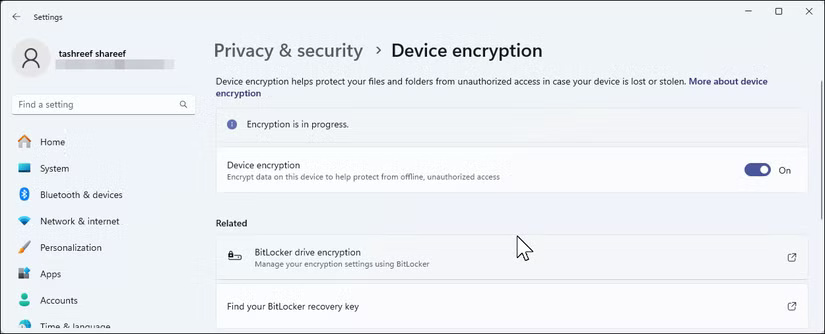
<p>Kể từ&nbsp;&nbsp;Windows&nbsp;11 24H2,&nbsp;<strong>Device Encryption</strong>&nbsp;sẽ tự động bật khi bạn cài đặt sạch và đăng nhập bằng tài khoản Microsoft. Tính năng này chỉ áp dụng cho các bản cài đặt mới hoặc máy tính mới được cài đặt sẵn 24H2 - không áp dụng cho những bản nâng cấp. Bạn có thể kiểm tra tính năng này bằng cách vào&nbsp;<strong>Settings &gt; Privacy &amp; security &gt; Device encryption</strong>.</p>

<figure><img alt="Cài đặt Device Encryption được bật trên Windows 11" data-i="0" data-src="https://st.quantrimang.com/photos/image/2025/07/15/nhung-buoc-thuc-hien-sau-khi-cai-dat-sach-windows-11-1.jpg" data-was-processed="true" height="334" src="https://st.quantrimang.com/photos/image/2025/07/15/nhung-buoc-thuc-hien-sau-khi-cai-dat-sach-windows-11-1.jpg" width="825" />
<figcaption>Cài đặt Device Encryption được bật trên Windows 11</figcaption>
</figure>

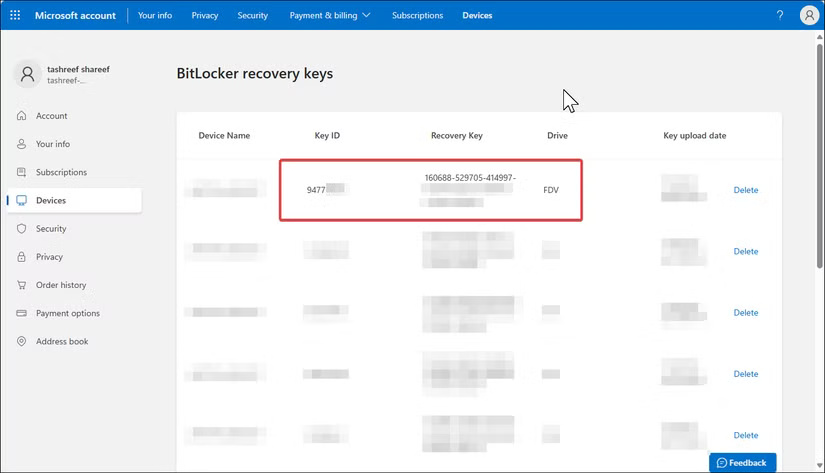
<p>Để tìm và sao lưu khóa khôi phục BitLocker, hãy đăng nhập vào tài khoản Microsoft trực tuyến của bạn và điều hướng đến&nbsp;<strong>Devices &gt; Manage BitLocker keys</strong>. Bạn sẽ thấy danh sách các khóa khôi phục được liên kết với thiết bị của mình. Mỗi khóa có một ID khớp với ID hiển thị trên máy tính khi cần khóa. Bạn nên in khóa này ra và lưu trữ ở nơi an toàn, hoặc lưu vào USB tách biệt với máy tính. Bạn cũng có thể chụp ảnh bằng điện thoại - chỉ cần đảm bảo rằng ảnh đã được sao lưu ở đâu đó.</p>
<br />
Phần mềm mạng máy tính

<figure><img alt="Giao diện web của tài khoản Microsoft hiển thị các khóa khôi phục BitLocker đã lưu" data-i="1" data-src="https://st.quantrimang.com/photos/image/2025/07/15/nhung-buoc-thuc-hien-sau-khi-cai-dat-sach-windows-11-2.jpg" data-was-processed="true" height="473" src="https://st.quantrimang.com/photos/image/2025/07/15/nhung-buoc-thuc-hien-sau-khi-cai-dat-sach-windows-11-2.jpg" width="825" />
<figcaption>Giao diện web của tài khoản Microsoft hiển thị các khóa khôi phục BitLocker đã lưu</figcaption>
</figure>

<p>Nếu không muốn sử dụng mã hóa thiết bị, bạn có thể tắt tính năng này thông qua nút chuyển đổi trong&nbsp;<strong>Settings &gt; Privacy &amp; Security &gt; Device encryption</strong>. Hãy nhớ rằng làm như vậy là đánh đổi bảo mật để lấy sự tiện lợi, và trên các hệ thống hiện đại, sự khác biệt về hiệu suất của mã hóa thường không đáng kể.</p>

<h2>5. Bật System Protection để tạo điểm khôi phục</h2>

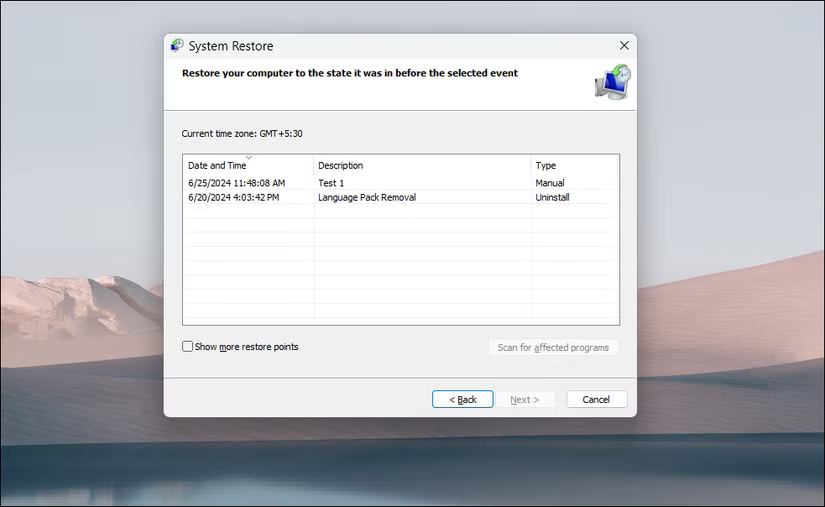
<p>System Protection&nbsp;là cỗ máy thời gian tích hợp sẵn của Windows dành cho các file và cài đặt hệ thống của bạn. Khi có sự cố xảy ra - có thể bản cập nhật driver làm hỏng âm thanh hoặc cài đặt chương trình làm hỏng các file hệ thống - bạn có thể sử dụng điểm khôi phục để hoàn tác những thay đổi và khôi phục&nbsp;&nbsp;PC&nbsp;về thời điểm trước đó khi mọi thứ hoạt động bình thường.</p>

<figure><img alt="Hộp thoại System Restore hiển thị tất cả các điểm khôi phục khả dụng trong Windows 11" data-adbro-processed="true" data-i="2" data-src="https://st.quantrimang.com/photos/image/2025/07/15/nhung-buoc-thuc-hien-sau-khi-cai-dat-sach-windows-11-3.jpg" data-was-processed="true" height="507" src="https://st.quantrimang.com/photos/image/2025/07/15/nhung-buoc-thuc-hien-sau-khi-cai-dat-sach-windows-11-3.jpg" width="825" />
<figcaption>Hộp thoại System Restore hiển thị tất cả các điểm khôi phục khả dụng trong Windows 11</figcaption>
</figure>

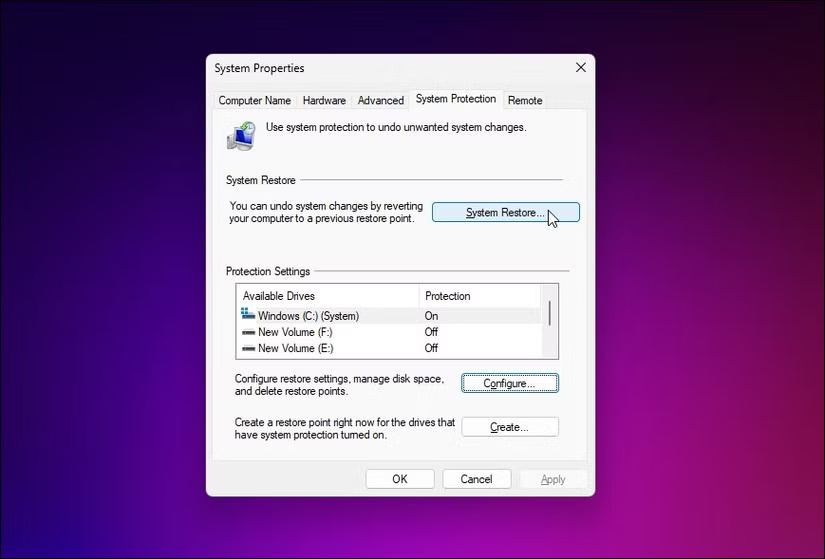
<p>Trước khi có thể tạo điểm khôi phục hệ thống, bạn cần bật System Protection. Để thực hiện việc này, hãy nhấp vào&nbsp;<strong>Start</strong>, nhập&nbsp;<strong>View advanced system settings</strong>&nbsp;và mở nó từ kết quả tìm kiếm. Trong hộp thoại&nbsp;<strong>System Properties</strong>, hãy mở tab&nbsp;<strong>System Protection</strong>.</p>

<figure><img alt="Khôi phục hệ thống bằng System Protection" data-i="3" data-src="https://st.quantrimang.com/photos/image/2025/07/15/nhung-buoc-thuc-hien-sau-khi-cai-dat-sach-windows-11-4.jpg" data-was-processed="true" height="559" src="https://st.quantrimang.com/photos/image/2025/07/15/nhung-buoc-thuc-hien-sau-khi-cai-dat-sach-windows-11-4.jpg" width="825" />
<figcaption>Khôi phục hệ thống bằng System Protection</figcaption>
</figure>

<p>Chọn ổ hệ thống của bạn (thường là&nbsp;<strong>C:</strong>), nhấp vào&nbsp;<strong>Configure</strong>&nbsp;và chọn&nbsp;<strong>Turn on system protection</strong>. Mọi người thường thiết lập nó sử dụng khoảng 5 - 10% dung lượng ổ của mình - đủ cho một vài điểm khôi phục mà không chiếm quá nhiều dung lượng. Nhấp vào&nbsp;<strong>Apply</strong>&nbsp;để lưu các thay đổi.</p>

<h2>4. Cập nhật Windows và cài đặt driver mới nhất</h2>

<p>Windows Update bắt đầu nhắc nhở bạn gần như ngay lập tức sau khi cài đặt mới, nhưng hóa ra những bản cập nhật đầu tiên đó rất quan trọng. Chúng thường bao gồm các bản vá bảo mật, cập nhật driver và sửa lỗi cho những sự cố phát sinh kể từ khi bạn tạo phương tiện cài đặt.</p>

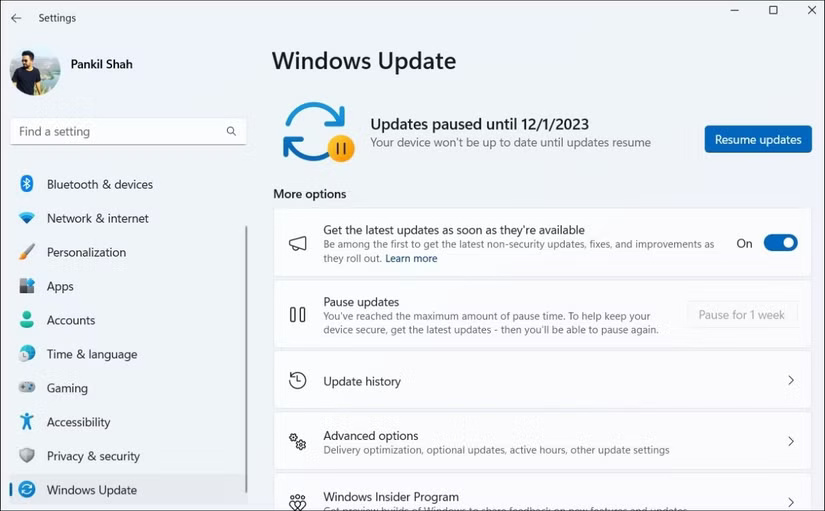
<p>Truy cập&nbsp;<strong>Settings &gt; Windows Update</strong>&nbsp;và cài đặt tất cả các bản cập nhật đang chờ xử lý. Tiếp tục chạy Windows Update cho đến khi không còn bản cập nhật nào nữa. Quá trình này thường mất ít nhất hai vòng cập nhật với các lần khởi động lại giữa những lần cập nhật. Đừng bỏ qua bước này và nghĩ rằng bạn sẽ làm sau - đã có quá nhiều người gặp phải những sự cố kỳ lạ mà một bản cập nhật đơn giản có thể ngăn chặn được.</p>

<figure><img alt="Tạm dừng và tiếp tục cập nhật trên Windows" data-i="4" data-src="https://st.quantrimang.com/photos/image/2025/07/15/nhung-buoc-thuc-hien-sau-khi-cai-dat-sach-windows-11-5.jpg" data-was-processed="true" height="511" src="https://st.quantrimang.com/photos/image/2025/07/15/nhung-buoc-thuc-hien-sau-khi-cai-dat-sach-windows-11-5.jpg" width="825" />
<figcaption>Tạm dừng và tiếp tục cập nhật trên&nbsp;&nbsp;Windows</figcaption>
</figure>
<br />
<p>Sau khi hoàn tất cập nhật Windows, đã đến lúc xem xét các driver mà Windows Update đã bỏ sót. driver đồ họa của bạn đặc biệt cần được chú ý. Windows cài đặt các driver hiển thị cơ bản hoạt động tốt, nhưng chúng lại rất kém hiệu suất.</p>

<h2>3. Thay đổi cài đặt nguồn</h2>

<p>Cài đặt nguồn mặc định của Windows quá bảo thủ nếu bạn muốn hệ thống hoạt động tốt nhất. Khi cài đặt mới, Windows thường mặc định ở&nbsp;<strong>Balanced mode</strong>, nghe có vẻ hợp lý nhưng lại làm giảm hiệu suất&nbsp;<a data-type="internal" href="https://quantrimang.com/cong-nghe/cpu-la-gi-142876" title="CPU là gì?">CPU</a>&nbsp;và các thành phần khác để tiết kiệm điện.</p>

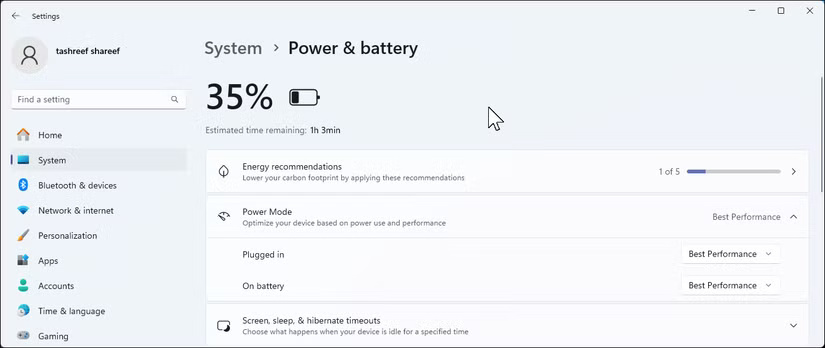
<p>Truy cập&nbsp;<strong>Settings &gt; System &gt; Power &amp; battery</strong>&nbsp;và mở rộng phần&nbsp;<strong>Power mode</strong>. Đối với desktop và laptop khi cắm điện, hãy chuyển sang&nbsp;<strong>Best performance</strong>. Đúng là nó sử dụng nhiều điện năng hơn, nhưng hệ thống sẽ hoạt động nhanh hơn đáng kể. Đối với laptop dùng pin, bạn có thể muốn giữ nguyên&nbsp;<strong>Balanced mode</strong>&nbsp;hoặc thậm chí là&nbsp;<strong>Best power efficiency</strong>, tùy thuộc vào nhu cầu.</p>

<figure><img alt="Nguồn điện và pin của Windows 11" data-i="5" data-src="https://st.quantrimang.com/photos/image/2025/07/15/nhung-buoc-thuc-hien-sau-khi-cai-dat-sach-windows-11-6.jpg" data-was-processed="true" height="348" src="https://st.quantrimang.com/photos/image/2025/07/15/nhung-buoc-thuc-hien-sau-khi-cai-dat-sach-windows-11-6.jpg" width="825" />
<figcaption>Nguồn điện và pin của Windows 11</figcaption>
</figure>

<h2>2. Tắt thông báo không cần thiết</h2>

<p>Các bản cài đặt Windows 11 mới thường có tới 11 thông báo. Mọi ứng dụng đều muốn thông báo cho bạn điều gì đó, từ cập nhật tin tức đến mẹo về các tính năng mà bạn sẽ không bao giờ sử dụng. Sau vài ngày, tiếng ping liên tục sẽ trở nên khó chịu.</p>

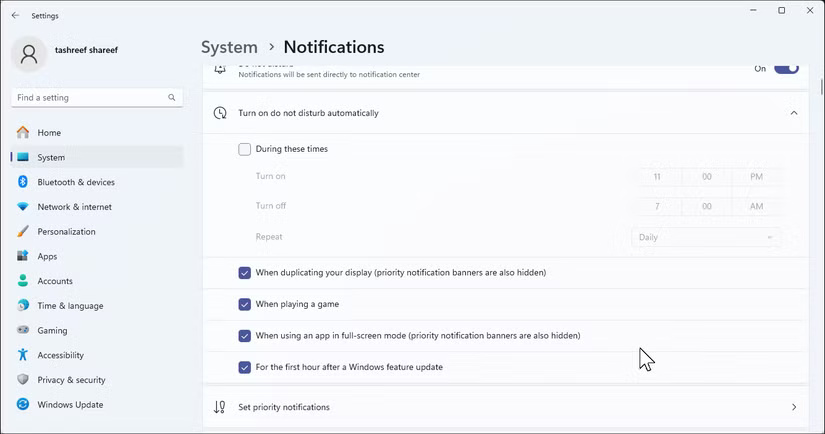
<p>Vào&nbsp;<strong>Settings &gt; System &gt; Notifications</strong>&nbsp;và bắt đầu cắt giảm. Tắt&nbsp;<strong>Show me the Windows welcome experience</strong>&nbsp;và&nbsp;<strong>Get tips and suggestions</strong>&nbsp;ngay lập tức - đây chỉ là những quảng cáo được ngụy trang dưới dạng &quot;mẹo hữu ích&quot;. Sau đó, hãy xem qua danh sách ứng dụng bên dưới và tắt thông báo cho bất kỳ mục nào không cần thiết. Hãy giữ lại thông báo cho các ứng dụng liên lạc, lịch và công cụ bảo mật, đồng thời tắt tiếng mọi thứ khác.</p>

<figure><img alt="Cài đặt thông báo Windows 11" data-i="6" data-src="https://st.quantrimang.com/photos/image/2025/07/15/nhung-buoc-thuc-hien-sau-khi-cai-dat-sach-windows-11-7.jpg" data-was-processed="true" height="434" src="https://st.quantrimang.com/photos/image/2025/07/15/nhung-buoc-thuc-hien-sau-khi-cai-dat-sach-windows-11-7.jpg" width="825" />
<figcaption>Cài đặt thông báo Windows 11</figcaption>
</figure>

<h2>1. Xem lại cài đặt quyền riêng tư</h2>

<p>Cài đặt quyền riêng tư mặc định của Microsoft khá hào phóng trong việc thu thập dữ liệu. Việc cài đặt mới sẽ cho phép bạn tham gia vào hầu hết mọi thứ: Dữ liệu chẩn đoán, trải nghiệm được cá nhân hóa, theo dõi ID quảng cáo, v.v... Mặc dù một số dữ liệu này giúp cải thiện Windows, nhưng bạn có thể muốn giảm bớt chúng.</p>

<p>Vào&nbsp;<strong>Settings &gt; Privacy &amp; security</strong>&nbsp;và thực hiện theo từng mục. Trong mục&nbsp;<strong>General</strong>, hãy tắt tất cả mọi thứ, ngoại trừ&nbsp;<strong>Let websites show me locally relevant content</strong>. Trong&nbsp;<strong>Diagnostics &amp; feedback</strong>, hãy chuyển từ&nbsp;<strong>Optional diagnostic data</strong>&nbsp;thành&nbsp;<strong>Required diagnostic data only</strong>.</p>

<p>Đừng quên các quyền của ứng dụng - camera, micro, vị trí, v.v... - bạn nên xem xét ứng dụng nào có quyền truy cập vào những gì. Bạn sẽ ngạc nhiên khi biết có bao nhiêu ứng dụng yêu cầu quyền mà chúng thực sự không cần.</p>
		</div>
				<div id="author">
						<p>
				<strong>Nguồn tin:</strong>
				Quantrimang.com:
			</p>
		</div>
	</div>
	<div id="footer" class="clearfix">
		<div id="url">
			<strong>URL của bản tin này: </strong><a href="https://www.nguoicodonvn2008.info/vi/news/savefile/kien-thuc-may-tinh/6-buoc-quan-trong-can-thuc-hien-sau-khi-cai-dat-sach-windows-11-10770.html" title="6 bước quan trọng cần thực hiện sau khi cài đặt &quot;sạch&quot; Windows 11">https://www.nguoicodonvn2008.info/vi/news/savefile/kien-thuc-may-tinh/6-buoc-quan-trong-can-thuc-hien-sau-khi-cai-dat-sach-windows-11-10770.html</a>

		</div>
		<div class="clear"></div>
		<div class="copyright">
			&copy; .&#x3A; Nguoicodonvn2008.info - Cõi lòng người cô đơn &#x3A;.
		</div>
		<div id="contact">
			<a href="mailto:admin@nguoicodonvn2008.info">admin@nguoicodonvn2008.info</a>
		</div>
	</div>
</div>
        <div id="timeoutsess" class="chromeframe">
            Bạn đã không sử dụng Site, <a onclick="timeoutsesscancel();" href="https://nguoicodonvn2008.info/#">Bấm vào đây để duy trì trạng thái đăng nhập</a>. Thời gian chờ: <span id="secField"> 60 </span> giây
        </div>
        <div id="openidResult" class="nv-alert" style="display:none"></div>
        <div id="openidBt" data-result="" data-redirect=""></div>
		</script>
		<div class="car-top">
  <span><img src="https://nguoicodonvn2008.info/themes/default/images/car.png" alt=""></span>
</div>
<script src="https://nguoicodonvn2008.info/assets/js/jquery/jquery.min.js"></script>
<script>var nv_base_siteurl="/",nv_lang_data="vi",nv_lang_interface="vi",nv_name_variable="nv",nv_fc_variable="op",nv_lang_variable="language",nv_module_name="news",nv_func_name="savefile",nv_is_user=0, nv_my_ofs=-4,nv_my_abbr="EDT",nv_cookie_prefix="nv4c_e856T",nv_check_pass_mstime=1738000,nv_area_admin=0,nv_safemode=0,theme_responsive=0,nv_recaptcha_ver=2,nv_recaptcha_sitekey="",nv_recaptcha_type="image",XSSsanitize=1;</script>
<script src="https://nguoicodonvn2008.info/assets/js/language/vi.js"></script>
<script src="https://nguoicodonvn2008.info/assets/js/DOMPurify/purify3.js"></script>
<script src="https://nguoicodonvn2008.info/assets/js/global.js"></script>
<script src="https://nguoicodonvn2008.info/assets/js/site.js"></script>
<script src="https://nguoicodonvn2008.info/themes/default/js/news.js"></script>
<script src="https://nguoicodonvn2008.info/themes/default/js/main.js"></script>
<script src="https://nguoicodonvn2008.info/themes/default/js/custom.js"></script>
<script type="application/ld+json">
        {
            "@context": "https://schema.org",
            "@type": "Organization",
            "url": "https://nguoicodonvn2008.info",
            "logo": "https://nguoicodonvn2008.info/uploads/angel.gif"
        }
        </script>
<script src="https://nguoicodonvn2008.info/themes/default/js/bootstrap.min.js"></script>
<script type="text/javascript">
var $scrolltop = $('.car-top');
$scrolltop.on('click', function () {
    $('html,body').animate({
        scrollTop: 0
    }, 800);
    $(this).addClass("car-run");
    setTimeout(function(){ $scrolltop.removeClass('car-run');}, 1000);
    return false;
});
$(window).on('scroll', function ()
{ 
    if($(window).scrollTop() >= 200)
    {
        $scrolltop.addClass("show");
        $scrolltop.addClass("car-down");
    }
    else
    {
       $scrolltop.removeClass("show");
       setTimeout(function(){ $scrolltop.removeClass('car-down');}, 300);
    }
});
</script>
</body>
</html>