<!DOCTYPE html>
    <html lang="vi" xmlns="http://www.w3.org/1999/xhtml" prefix="og: http://ogp.me/ns#">
    <head>
<title>5 cách hữu ích để sử dụng tính năng Checkbox của Excel</title>
<meta name="description" content="5 cách hữu ích để sử dụng tính năng Checkbox của Excel - Savefile - Tin Tức -...">
<meta name="author" content=".: Nguoicodonvn2008.info - Cõi lòng người cô đơn :.">
<meta name="copyright" content=".: Nguoicodonvn2008.info - Cõi lòng người cô đơn :. [admin@nguoicodonvn2008.info]">
<meta name="robots" content="index, archive, follow, noodp">
<meta name="googlebot" content="index,archive,follow,noodp">
<meta name="msnbot" content="all,index,follow">
<meta name="generator" content="NukeViet v4.5">
<meta http-equiv="Content-Type" content="text/html; charset=utf-8">
<meta property="og:title" content="5 cách hữu ích để sử dụng tính năng Checkbox của Excel">
<meta property="og:type" content="website">
<meta property="og:description" content="Savefile - Tin Tức - https&#x3A;&#x002F;&#x002F;www.nguoicodonvn2008.info&#x002F;vi&#x002F;news&#x002F;savefile&#x002F;kien-thuc-may-tinh&#x002F;5-cach-huu-ich-de-su-dung-tinh-nang-checkbox-cua-excel-9091.html">
<meta property="og:site_name" content=".&#x3A; Nguoicodonvn2008.info - Cõi lòng người cô đơn &#x3A;.">
<meta property="og:url" content="https://www.nguoicodonvn2008.info/vi/news/savefile/kien-thuc-may-tinh/5-cach-huu-ich-de-su-dung-tinh-nang-checkbox-cua-excel-9091.html">
<link rel="shortcut icon" href="https://nguoicodonvn2008.info/favicon.ico">
<link rel="canonical" href="https://www.nguoicodonvn2008.info/vi/news/savefile/kien-thuc-may-tinh/5-cach-huu-ich-de-su-dung-tinh-nang-checkbox-cua-excel-9091.html">
<link rel="alternate" href="https://nguoicodonvn2008.info/vi/news/rss/" title="Tin Tức" type="application/rss+xml">
<link rel="alternate" href="https://nguoicodonvn2008.info/vi/news/rss/karaoke-dual/" title="Tin Tức - Karaoke Dual" type="application/rss+xml">
<link rel="alternate" href="https://nguoicodonvn2008.info/vi/news/rss/nhac-tre/" title="Tin Tức - Nhạc trẻ" type="application/rss+xml">
<link rel="alternate" href="https://nguoicodonvn2008.info/vi/news/rss/tru-tinh/" title="Tin Tức - Trữ tình" type="application/rss+xml">
<link rel="alternate" href="https://nguoicodonvn2008.info/vi/news/rss/nuoc-ngoai/" title="Tin Tức - Nước ngoài" type="application/rss+xml">
<link rel="alternate" href="https://nguoicodonvn2008.info/vi/news/rss/remix/" title="Tin Tức - Remix" type="application/rss+xml">
<link rel="alternate" href="https://nguoicodonvn2008.info/vi/news/rss/tam-su-tinh-yeu/" title="Tin Tức - Tâm sự tình yêu" type="application/rss+xml">
<link rel="alternate" href="https://nguoicodonvn2008.info/vi/news/rss/tho-suu-tam/" title="Tin Tức - Thơ sưu tầm" type="application/rss+xml">
<link rel="alternate" href="https://nguoicodonvn2008.info/vi/news/rss/cuoc-song/" title="Tin Tức - Cuộc sống" type="application/rss+xml">
<link rel="alternate" href="https://nguoicodonvn2008.info/vi/news/rss/phan-mem/" title="Tin Tức - Phần mềm" type="application/rss+xml">
<link rel="alternate" href="https://nguoicodonvn2008.info/vi/news/rss/kien-thuc-may-tinh/" title="Tin Tức - Kiến thức máy tính" type="application/rss+xml">
<link rel="alternate" href="https://nguoicodonvn2008.info/vi/news/rss/hoc-tap/" title="Tin Tức - Học tập" type="application/rss+xml">
<link rel="alternate" href="https://nguoicodonvn2008.info/vi/news/rss/tai-lieu/" title="Tin Tức - Tài liệu" type="application/rss+xml">
<link rel="alternate" href="https://nguoicodonvn2008.info/vi/news/rss/de-thi/" title="Tin Tức - Đề thi" type="application/rss+xml">
<link rel="preload" as="style" href="https://nguoicodonvn2008.info/assets/css/font-awesome.min.css" type="text/css">
<link rel="preload" as="style" href="https://nguoicodonvn2008.info/themes/default/css/bootstrap.non-responsive.css" type="text/css">
<link rel="preload" as="style" href="https://nguoicodonvn2008.info/themes/default/css/style.css" type="text/css">
<link rel="preload" as="style" href="https://nguoicodonvn2008.info/themes/default/css/style.non-responsive.css" type="text/css">
<link rel="preload" as="style" href="https://nguoicodonvn2008.info/themes/default/css/news.css" type="text/css">
<link rel="preload" as="style" href="https://nguoicodonvn2008.info/themes/default/css/custom.css" type="text/css">
<link rel="preload" as="script" href="https://nguoicodonvn2008.info/assets/js/jquery/jquery.min.js" type="text/javascript">
<link rel="preload" as="script" href="https://nguoicodonvn2008.info/assets/js/language/vi.js" type="text/javascript">
<link rel="preload" as="script" href="https://nguoicodonvn2008.info/assets/js/DOMPurify/purify3.js" type="text/javascript">
<link rel="preload" as="script" href="https://nguoicodonvn2008.info/assets/js/global.js" type="text/javascript">
<link rel="preload" as="script" href="https://nguoicodonvn2008.info/assets/js/site.js" type="text/javascript">
<link rel="preload" as="script" href="https://nguoicodonvn2008.info/themes/default/js/news.js" type="text/javascript">
<link rel="preload" as="script" href="https://nguoicodonvn2008.info/themes/default/js/main.js" type="text/javascript">
<link rel="preload" as="script" href="https://nguoicodonvn2008.info/themes/default/js/custom.js" type="text/javascript">
<link rel="preload" as="script" href="https://nguoicodonvn2008.info/themes/default/js/bootstrap.min.js" type="text/javascript">
<link rel="stylesheet" href="https://nguoicodonvn2008.info/assets/css/font-awesome.min.css">
<link rel="stylesheet" href="https://nguoicodonvn2008.info/themes/default/css/bootstrap.non-responsive.css">
<link rel="stylesheet" href="https://nguoicodonvn2008.info/themes/default/css/style.css">
<link rel="stylesheet" href="https://nguoicodonvn2008.info/themes/default/css/style.non-responsive.css">
<link rel="StyleSheet" href="https://nguoicodonvn2008.info/themes/default/css/news.css">
<link rel="stylesheet" href="https://nguoicodonvn2008.info/themes/default/css/custom.css">
<style type="text/css">
	body{background: #fff;}
</style>
    </head>
    <body>
<div id="print">
	<div id="hd_print">
		<h2 class="pull-left">.&#x3A; Nguoicodonvn2008.info - Cõi lòng người cô đơn &#x3A;.</h2>
		<p class="pull-right"><a title=".&#x3A; Nguoicodonvn2008.info - Cõi lòng người cô đơn &#x3A;." href="https://nguoicodonvn2008.info/">https://nguoicodonvn2008.info</a></p>
	</div>
	<div class="clear"></div>
	<hr />
	<div id="content">
		<h1>5 cách hữu ích để sử dụng tính năng Checkbox của Excel</h1>
		<ul class="list-inline">
			<li>Thứ hai - 30/09/2024 03:06</li>
			<li class="hidden-print txtrequired"><em class="fa fa-print">&nbsp;</em><a title="In ra" href="javascript:;" onclick="window.print()">In ra</a></li>
			<li class="hidden-print txtrequired"><em class="fa fa-power-off">&nbsp;</em><a title="Đóng cửa sổ này" href="javascript:;" onclick="window.close()">Đóng cửa sổ này</a></li>
		</ul>
		<div class="clear"></div>
		<div id="hometext">
		</div>
				<div class="imghome">
			<img alt="5 cách hữu ích để sử dụng tính năng Checkbox của Excel" src="https://st.quantrimang.com/photos/image/2024/09/30/su-dung-tinh-nang-checkbox-excel-1.jpg" width="460" class="img-thumbnail" />
		</div>
		<div class="clear"></div>
		<div id="bodytext" class="clearfix">
			<p style="text-align: justify;">Checkbox trong&nbsp;Microsoft Excel&nbsp;là một viên ngọc quý chưa được khai thác hết tiềm năng. Chúng có vẻ đơn giản, nhưng tính linh hoạt của chúng cho phép bạn dễ dàng sắp xếp và theo dõi nhiều khía cạnh khác nhau trong cuộc sống. Sau đây là 5 cách hữu ích để sử dụng tính năng Checkbox của Excel.</p>

<h2 style="text-align: justify;">1. Theo dõi nhiệm vụ</h2>

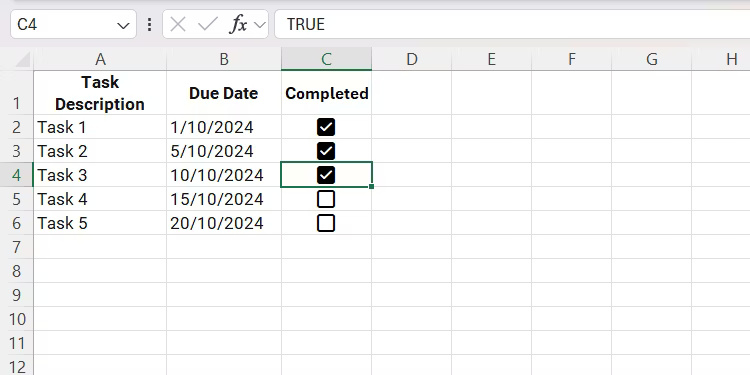
<p style="text-align: justify;">Là một nhà văn phải xoay xở nhiều bài viết mỗi tháng, việc&nbsp;tạo checklist trong Excel&nbsp;giúp bạn theo dõi mọi thứ. Với checkbox, bạn có thể dễ dàng đánh dấu các nhiệm vụ đã hoàn thành, đảm bảo không có gì bị bỏ sót.</p>

<figure>
<div style="text-align: justify;"><img alt="Danh sách nhiệm vụ chung có checkbox trong Excel." data-i="0" data-src="https://st.quantrimang.com/photos/image/2024/09/30/su-dung-tinh-nang-checkbox-excel-1.jpg" data-was-processed="true" height="375" src="https://st.quantrimang.com/photos/image/2024/09/30/su-dung-tinh-nang-checkbox-excel-1.jpg" width="750" /></div>

<figcaption>
<div style="text-align: justify;">Danh sách nhiệm vụ chung có checkbox trong Excel.</div>
</figcaption>
</figure>

<p style="text-align: justify;">Ngoài ra, bạn có thể gạch ngang bằng cách sử dụng định dạng có điều kiện để làm cho những nhiệm vụ đã hoàn thành rõ ràng hơn. Điều này có thể áp dụng cho tất cả các danh sách việc cần làm, bao gồm checklist mua sắm tạp hóa, kiểm kê, lập kế hoạch sự kiện, bảo trì hoặc mốc thời gian của dự án.</p>

<h2 style="text-align: justify;">2. Lên kế hoạch cho sự kiện</h2>

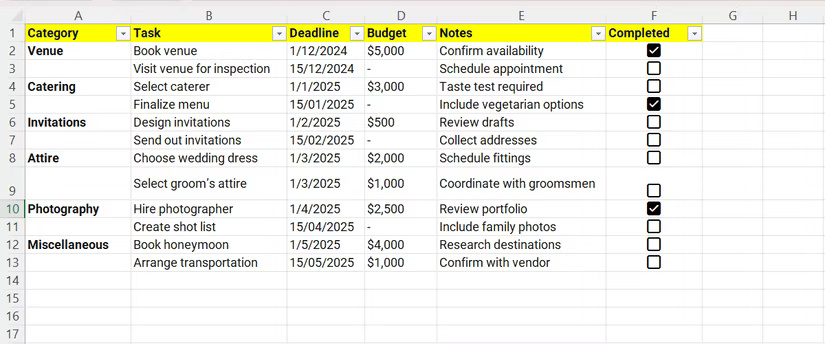
<p style="text-align: justify;">Lên kế hoạch cho sự kiện có thể là một cơn ác mộng về mặt hậu cần, nhưng Excel biến nó thành một thứ gì đó dễ quản lý. Bạn có thể sử dụng nó vô số lần để theo dõi tiến độ nhiệm vụ cho đám cưới và tiệc tùng. Cùng với checkbox, bạn có thể dễ dàng sử dụng bộ lọc trong Excel để xem thông tin này trong nháy mắt.</p>

<figure>
<div style="text-align: justify;"><img alt="Danh sách nhiệm vụ cho một sự kiện trong Excel với một số checkbox được đánh dấu." data-i="1" data-src="https://st.quantrimang.com/photos/image/2024/09/30/su-dung-tinh-nang-checkbox-excel-2.jpg" data-was-processed="true" height="344" src="https://st.quantrimang.com/photos/image/2024/09/30/su-dung-tinh-nang-checkbox-excel-2.jpg" width="825" /></div>

<figcaption>
<div style="text-align: justify;">Danh sách nhiệm vụ cho một sự kiện trong Excel với một số checkbox được đánh dấu.</div>
</figcaption>
</figure>

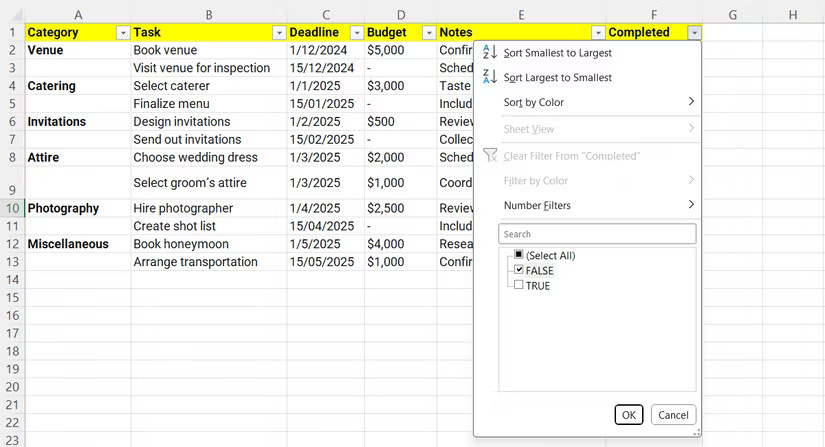
<p style="text-align: justify;">Sau khi tạo hàng tiêu đề ở trên cùng, bạn có thể dễ dàng lọc ra những nhiệm vụ nào đã hoàn thành hoặc chưa hoàn thành dựa trên việc checkbox đã được đánh dấu (True) hay chưa (False).</p>

<figure>
<div style="text-align: justify;"><br />
<img alt="Lọc danh sách nhiệm vụ trong Excel dựa trên việc checkbox đã được đánh dấu hay chưa." data-adbro-processed="true" data-i="2" data-src="https://st.quantrimang.com/photos/image/2024/09/30/su-dung-tinh-nang-checkbox-excel-3.jpg" data-was-processed="true" height="447" src="https://st.quantrimang.com/photos/image/2024/09/30/su-dung-tinh-nang-checkbox-excel-3.jpg" width="825" /></div>

<figcaption>
<div style="text-align: justify;">Lọc danh sách nhiệm vụ trong Excel dựa trên việc checkbox đã được đánh dấu hay chưa.</div>
</figcaption>
</figure>

<h2 style="text-align: justify;">3. Theo dõi ngân sách gia đình</h2>

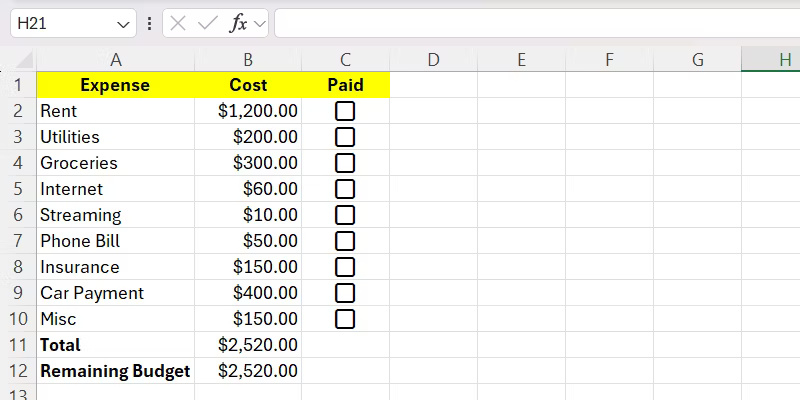
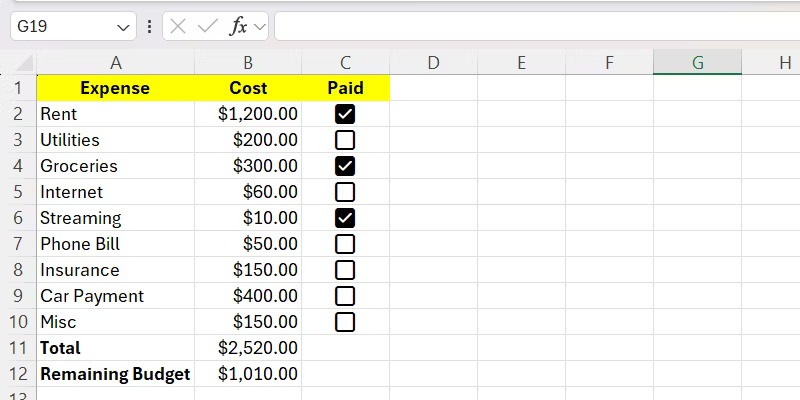
<p style="text-align: justify;">Excel là một công cụ tuyệt vời để tạo ngân sách hộ gia đình, cho phép bạn theo dõi chi phí của mình một cách dễ dàng. Hãy sử dụng Checkbox cùng với&nbsp;<a data-type="internal" href="https://quantrimang.com/hoc/cach-su-dung-ham-sumif-trong-excel-131609" title="Hàm SUMIF trong Excel: Cách sử dụng và ví dụ cụ thể">hàm SUMIF</a>&nbsp;để xem số tiền còn lại trong tổng ngân sách phải trả và sau đó lập kế hoạch phù hợp. Cách thiết lập là bất cứ khi nào bạn check vào một mục ngân sách, chi phí của mục đó sẽ tự động được trừ khỏi tổng ngân sách.</p>

<p style="text-align: justify;">Hãy xem ảnh chụp màn hình bên dưới về một mẫu ngân sách được tạo cho ví dụ này:</p>

<figure>
<div style="text-align: justify;"><img alt="Mẫu ngân sách sử dụng checkbox trong Excel." data-i="3" data-src="https://st.quantrimang.com/photos/image/2024/09/30/su-dung-tinh-nang-checkbox-excel-4.jpg" data-was-processed="true" height="400" src="https://st.quantrimang.com/photos/image/2024/09/30/su-dung-tinh-nang-checkbox-excel-4.jpg" width="800" /></div>

<figcaption>
<div style="text-align: justify;">Mẫu ngân sách sử dụng checkbox trong Excel.</div>
</figcaption>
</figure>

<p style="text-align: justify;">Sau đó, nhập công thức bên dưới vào ô&nbsp;<strong>B12</strong>&nbsp;để khi đánh dấu vào ô kiểm, ngân sách còn lại sẽ giảm:</p>

<pre id="pre0">
<code>=B11-SUMIF(C2:C10,TRUE,B2:B10)</code></pre>

<p style="text-align: justify;">Công thức sẽ tính tổng các giá trị từ&nbsp;<strong>B2</strong>&nbsp;đến&nbsp;<strong>B10</strong>&nbsp;nếu giá trị của các ô tương ứng trong cột tiếp theo (từ&nbsp;<strong>C2</strong>&nbsp;đến&nbsp;<strong>C10</strong>) là TRUE. Ví dụ, nếu&nbsp;<strong>C2</strong>&nbsp;là&nbsp;<strong>TRUE</strong>,&nbsp;<strong>B2</strong>&nbsp;sẽ được đưa vào phép tính, v.v... Sau đó, kết quả của công thức sẽ được trừ khỏi tổng ngân sách (<strong>B11</strong>), cho chúng ta ngân sách còn lại.</p>

<figure>
<div style="text-align: justify;"><img alt="Mẫu ngân sách trong Excel với một số ô kiểm đã được đánh dấu." data-i="4" data-src="https://st.quantrimang.com/photos/image/2024/09/30/su-dung-tinh-nang-checkbox-excel-5.jpg" data-was-processed="true" height="400" src="https://st.quantrimang.com/photos/image/2024/09/30/su-dung-tinh-nang-checkbox-excel-5.jpg" width="800" /></div>

<figcaption>
<div style="text-align: justify;">Mẫu ngân sách trong Excel với một số ô kiểm đã được đánh dấu.</div>
</figcaption>
</figure>

<h2 style="text-align: justify;">4. Tạo trình theo dõi mục tiêu</h2>

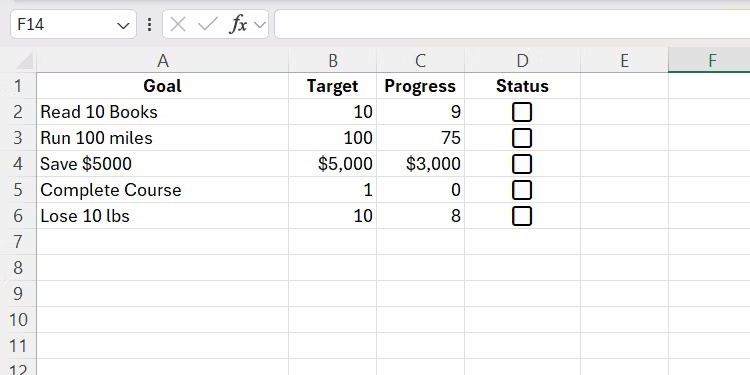
<p style="text-align: justify;">Mục tiêu dễ theo dõi hơn khi chúng trực quan. Bạn có thể sử dụng Excel không chỉ để theo dõi mục tiêu của mình mà còn để tự động hoàn thành ô kiểm khi đạt được mục tiêu.</p>

<p style="text-align: justify;">Trong ảnh chụp màn hình bên dưới, tác giả bài viết đã thiết lập một trình theo dõi mục tiêu đơn giản với một cột mục tiêu (B) và một cột tiến độ (C). Checkbox tương ứng sẽ được đánh dấu bất cứ khi nào tiến độ đạt hoặc vượt mục tiêu.</p>

<figure>
<div style="text-align: justify;"><img alt="Một trình theo dõi mục tiêu đơn giản trong Excel sử dụng checkbox." data-i="5" data-src="https://st.quantrimang.com/photos/image/2024/09/30/su-dung-tinh-nang-checkbox-excel-6.jpg" data-was-processed="true" height="375" src="https://st.quantrimang.com/photos/image/2024/09/30/su-dung-tinh-nang-checkbox-excel-6.jpg" width="750" /></div>

<figcaption>
<div style="text-align: justify;">Một trình theo dõi mục tiêu đơn giản trong Excel sử dụng checkbox.</div>
</figcaption>
</figure>

<div style="text-align: justify;">&nbsp;</div>

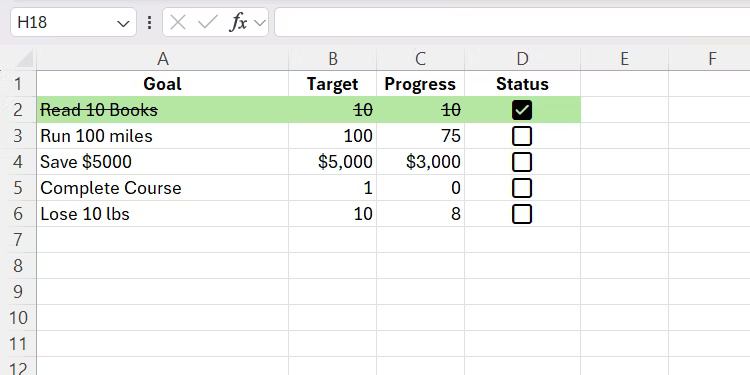
<p style="text-align: justify;">Ví dụ, nếu hoàn thành mục tiêu Đọc 10 cuốn sách (hàng 2) và cập nhật giá trị của C2 thành 10, checkbox tương ứng sẽ được đánh dấu. Đây là công thức đã nhập vào&nbsp;<strong>D2</strong>&nbsp;(ô có checkbox):</p>

<pre id="pre1">
<code>=IF(C2&gt;=B2,TRUE,FALSE)</code></pre>

<p style="text-align: justify;">Sau đó, áp dụng công thức cho các ô khác để checkbox của chúng cũng được đánh dấu khi đạt mục tiêu. Bạn cũng có thể làm cho nó hấp dẫn hơn bằng định dạng có điều kiện để làm nổi bật trực quan rằng mục tiêu đã được đánh dấu.</p>

<figure>
<div style="text-align: justify;"><img alt="" data-i="6" data-src="https://st.quantrimang.com/photos/image/2024/09/30/su-dung-tinh-nang-checkbox-excel-7.jpg" data-was-processed="true" height="375" src="https://st.quantrimang.com/photos/image/2024/09/30/su-dung-tinh-nang-checkbox-excel-7.jpg" width="750" /></div>
</figure>

<h2 style="text-align: justify;">5. Tạo thử thách luyện tập</h2>

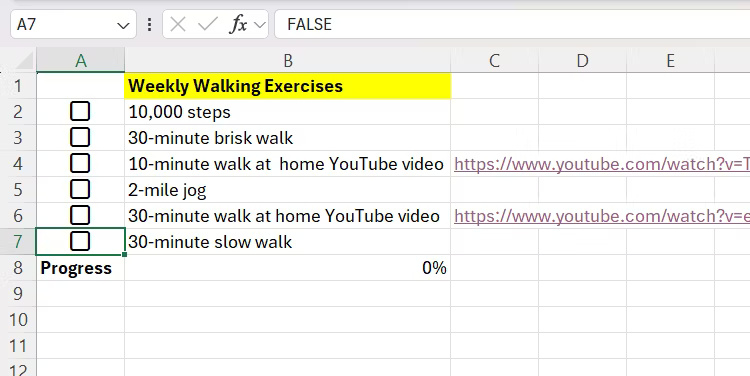
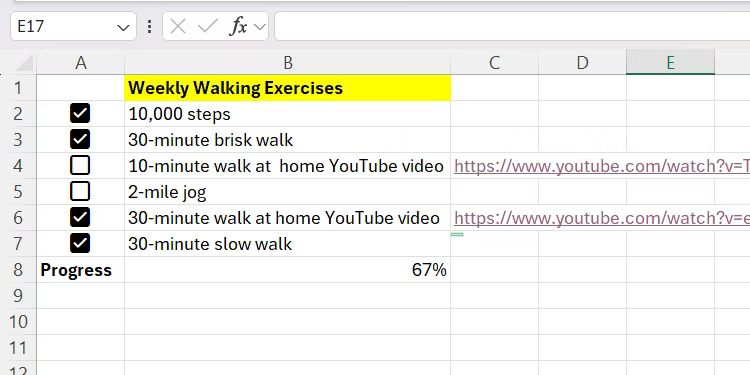
<p style="text-align: justify;">Để khắc phục lối sống ít vận động của mình, bạn có thể tạo một thử thách luyện tập và sử dụng checkbox trong Excel để theo dõi tiến trình của mình dưới dạng phần trăm hoàn thành. Theo cách này, bạn có thể biết mình đang gần hay xa mục tiêu của mình đến mức nào. Điều này giúp bạn có động lực hơn nhiều so với việc chỉ nhìn vào các checkbox đã đánh dấu.</p>

<p style="text-align: justify;">Đối với công năng này, hãy xem một số ví dụ về các bài tập đi bộ được thực hiện hàng tuần.</p>

<figure>
<div style="text-align: justify;"><img alt="Trình theo dõi thử thách luyện tập đơn giản trong Excel sử dụng checkbox để theo dõi tiến trình." data-i="7" data-src="https://st.quantrimang.com/photos/image/2024/09/30/su-dung-tinh-nang-checkbox-excel-8.jpg" data-was-processed="true" height="376" src="https://st.quantrimang.com/photos/image/2024/09/30/su-dung-tinh-nang-checkbox-excel-8.jpg" width="750" /></div>

<figcaption>
<div style="text-align: justify;">Trình theo dõi thử thách luyện tập đơn giản trong Excel sử dụng checkbox để theo dõi tiến trình.</div>
</figcaption>
</figure>

<p style="text-align: justify;">Sử dụng công thức sau để hiển thị tiến trình (<strong>B8</strong>) khi một checkbox được đánh dấu:</p>

<pre id="pre2">
<code>=COUNTIF(A2:A7,TRUE)/COUNTA(A2:A7)</code></pre>

<p style="text-align: justify;">Phần đầu tiên của công thức, COUNTIF, đếm phạm vi checkbox nếu chúng có giá trị là TRUE (đã đánh dấu). Sau đó, công thức này chia kết quả cho tổng số checkbox từ COUNTA.</p>

<figure>
<div style="text-align: justify;"><img alt="Phần trăm tiến trình được cập nhật." data-i="8" data-src="https://st.quantrimang.com/photos/image/2024/09/30/su-dung-tinh-nang-checkbox-excel-9.jpg" data-was-processed="true" height="375" src="https://st.quantrimang.com/photos/image/2024/09/30/su-dung-tinh-nang-checkbox-excel-9.jpg" width="750" /></div>

<figcaption>
<div style="text-align: justify;">Phần trăm tiến trình được cập nhật.</div>
</figcaption>
</figure>

<p style="text-align: justify;">Ghép chúng với các công thức và định dạng có điều kiện, bạn có thể theo dõi bất kỳ thứ gì - mục tiêu, ngân sách, thử thách luyện tạp, v.v... Nếu muốn tiến xa hơn nữa, bạn có thể tạo thanh tiến trình hoặc các công cụ hỗ trợ trực quan khác để theo dõi năng động hơn nữa. Chỉ cần một chút kiến ​​thức về Excel, bảng tính có thể trở thành một công cụ mạnh mẽ để sắp xếp cuộc sống của bạn.</p>
		</div>
				<div id="author">
						<p>
				<strong>Nguồn tin:</strong>
				Quantrimang.com:
			</p>
		</div>
	</div>
	<div id="footer" class="clearfix">
		<div id="url">
			<strong>URL của bản tin này: </strong><a href="https://www.nguoicodonvn2008.info/vi/news/savefile/kien-thuc-may-tinh/5-cach-huu-ich-de-su-dung-tinh-nang-checkbox-cua-excel-9091.html" title="5 cách hữu ích để sử dụng tính năng Checkbox của Excel">https://www.nguoicodonvn2008.info/vi/news/savefile/kien-thuc-may-tinh/5-cach-huu-ich-de-su-dung-tinh-nang-checkbox-cua-excel-9091.html</a>

		</div>
		<div class="clear"></div>
		<div class="copyright">
			&copy; .&#x3A; Nguoicodonvn2008.info - Cõi lòng người cô đơn &#x3A;.
		</div>
		<div id="contact">
			<a href="mailto:admin@nguoicodonvn2008.info">admin@nguoicodonvn2008.info</a>
		</div>
	</div>
</div>
        <div id="timeoutsess" class="chromeframe">
            Bạn đã không sử dụng Site, <a onclick="timeoutsesscancel();" href="https://nguoicodonvn2008.info/#">Bấm vào đây để duy trì trạng thái đăng nhập</a>. Thời gian chờ: <span id="secField"> 60 </span> giây
        </div>
        <div id="openidResult" class="nv-alert" style="display:none"></div>
        <div id="openidBt" data-result="" data-redirect=""></div>
		</script>
		<div class="car-top">
  <span><img src="https://nguoicodonvn2008.info/themes/default/images/car.png" alt=""></span>
</div>
<div id="run_cronjobs" style="visibility:hidden;display:none;"><img alt="cron" src="/index.php?second=cronjobs&amp;p=c4axIGbA" width="1" height="1" /></div>
<script src="https://nguoicodonvn2008.info/assets/js/jquery/jquery.min.js"></script>
<script>var nv_base_siteurl="/",nv_lang_data="vi",nv_lang_interface="vi",nv_name_variable="nv",nv_fc_variable="op",nv_lang_variable="language",nv_module_name="news",nv_func_name="savefile",nv_is_user=0, nv_my_ofs=-4,nv_my_abbr="EDT",nv_cookie_prefix="nv4c_e856T",nv_check_pass_mstime=1738000,nv_area_admin=0,nv_safemode=0,theme_responsive=0,nv_recaptcha_ver=2,nv_recaptcha_sitekey="",nv_recaptcha_type="image",XSSsanitize=1;</script>
<script src="https://nguoicodonvn2008.info/assets/js/language/vi.js"></script>
<script src="https://nguoicodonvn2008.info/assets/js/DOMPurify/purify3.js"></script>
<script src="https://nguoicodonvn2008.info/assets/js/global.js"></script>
<script src="https://nguoicodonvn2008.info/assets/js/site.js"></script>
<script src="https://nguoicodonvn2008.info/themes/default/js/news.js"></script>
<script src="https://nguoicodonvn2008.info/themes/default/js/main.js"></script>
<script src="https://nguoicodonvn2008.info/themes/default/js/custom.js"></script>
<script type="application/ld+json">
        {
            "@context": "https://schema.org",
            "@type": "Organization",
            "url": "https://nguoicodonvn2008.info",
            "logo": "https://nguoicodonvn2008.info/uploads/angel.gif"
        }
        </script>
<script src="https://nguoicodonvn2008.info/themes/default/js/bootstrap.min.js"></script>
<script type="text/javascript">
var $scrolltop = $('.car-top');
$scrolltop.on('click', function () {
    $('html,body').animate({
        scrollTop: 0
    }, 800);
    $(this).addClass("car-run");
    setTimeout(function(){ $scrolltop.removeClass('car-run');}, 1000);
    return false;
});
$(window).on('scroll', function ()
{ 
    if($(window).scrollTop() >= 200)
    {
        $scrolltop.addClass("show");
        $scrolltop.addClass("car-down");
    }
    else
    {
       $scrolltop.removeClass("show");
       setTimeout(function(){ $scrolltop.removeClass('car-down');}, 300);
    }
});
</script>
</body>
</html>