<!DOCTYPE html>
    <html lang="vi" xmlns="http://www.w3.org/1999/xhtml" prefix="og: http://ogp.me/ns#">
    <head>
<title>4 phương pháp phóng to và thu nhỏ trên máy Mac</title>
<meta name="description" content="4 phương pháp phóng to và thu nhỏ trên máy Mac - Savefile - Tin Tức -...">
<meta name="author" content=".: Nguoicodonvn2008.info - Cõi lòng người cô đơn :.">
<meta name="copyright" content=".: Nguoicodonvn2008.info - Cõi lòng người cô đơn :. [admin@nguoicodonvn2008.info]">
<meta name="robots" content="index, archive, follow, noodp">
<meta name="googlebot" content="index,archive,follow,noodp">
<meta name="msnbot" content="all,index,follow">
<meta name="generator" content="NukeViet v4.5">
<meta http-equiv="Content-Type" content="text/html; charset=utf-8">
<meta property="og:title" content="4 phương pháp phóng to và thu nhỏ trên máy Mac">
<meta property="og:type" content="website">
<meta property="og:description" content="Savefile - Tin Tức - https&#x3A;&#x002F;&#x002F;www.nguoicodonvn2008.info&#x002F;vi&#x002F;news&#x002F;savefile&#x002F;kien-thuc-may-tinh&#x002F;4-phuong-phap-phong-to-va-thu-nho-tren-may-mac-8152.html">
<meta property="og:site_name" content=".&#x3A; Nguoicodonvn2008.info - Cõi lòng người cô đơn &#x3A;.">
<meta property="og:url" content="https://www.nguoicodonvn2008.info/vi/news/savefile/kien-thuc-may-tinh/4-phuong-phap-phong-to-va-thu-nho-tren-may-mac-8152.html">
<link rel="shortcut icon" href="https://nguoicodonvn2008.info/favicon.ico">
<link rel="canonical" href="https://www.nguoicodonvn2008.info/vi/news/savefile/kien-thuc-may-tinh/4-phuong-phap-phong-to-va-thu-nho-tren-may-mac-8152.html">
<link rel="alternate" href="https://nguoicodonvn2008.info/vi/news/rss/" title="Tin Tức" type="application/rss+xml">
<link rel="alternate" href="https://nguoicodonvn2008.info/vi/news/rss/karaoke-dual/" title="Tin Tức - Karaoke Dual" type="application/rss+xml">
<link rel="alternate" href="https://nguoicodonvn2008.info/vi/news/rss/nhac-tre/" title="Tin Tức - Nhạc trẻ" type="application/rss+xml">
<link rel="alternate" href="https://nguoicodonvn2008.info/vi/news/rss/tru-tinh/" title="Tin Tức - Trữ tình" type="application/rss+xml">
<link rel="alternate" href="https://nguoicodonvn2008.info/vi/news/rss/nuoc-ngoai/" title="Tin Tức - Nước ngoài" type="application/rss+xml">
<link rel="alternate" href="https://nguoicodonvn2008.info/vi/news/rss/remix/" title="Tin Tức - Remix" type="application/rss+xml">
<link rel="alternate" href="https://nguoicodonvn2008.info/vi/news/rss/tam-su-tinh-yeu/" title="Tin Tức - Tâm sự tình yêu" type="application/rss+xml">
<link rel="alternate" href="https://nguoicodonvn2008.info/vi/news/rss/tho-suu-tam/" title="Tin Tức - Thơ sưu tầm" type="application/rss+xml">
<link rel="alternate" href="https://nguoicodonvn2008.info/vi/news/rss/cuoc-song/" title="Tin Tức - Cuộc sống" type="application/rss+xml">
<link rel="alternate" href="https://nguoicodonvn2008.info/vi/news/rss/phan-mem/" title="Tin Tức - Phần mềm" type="application/rss+xml">
<link rel="alternate" href="https://nguoicodonvn2008.info/vi/news/rss/kien-thuc-may-tinh/" title="Tin Tức - Kiến thức máy tính" type="application/rss+xml">
<link rel="alternate" href="https://nguoicodonvn2008.info/vi/news/rss/hoc-tap/" title="Tin Tức - Học tập" type="application/rss+xml">
<link rel="alternate" href="https://nguoicodonvn2008.info/vi/news/rss/tai-lieu/" title="Tin Tức - Tài liệu" type="application/rss+xml">
<link rel="alternate" href="https://nguoicodonvn2008.info/vi/news/rss/de-thi/" title="Tin Tức - Đề thi" type="application/rss+xml">
<link rel="preload" as="style" href="https://nguoicodonvn2008.info/assets/css/font-awesome.min.css" type="text/css">
<link rel="preload" as="style" href="https://nguoicodonvn2008.info/themes/default/css/bootstrap.non-responsive.css" type="text/css">
<link rel="preload" as="style" href="https://nguoicodonvn2008.info/themes/default/css/style.css" type="text/css">
<link rel="preload" as="style" href="https://nguoicodonvn2008.info/themes/default/css/style.non-responsive.css" type="text/css">
<link rel="preload" as="style" href="https://nguoicodonvn2008.info/themes/default/css/news.css" type="text/css">
<link rel="preload" as="style" href="https://nguoicodonvn2008.info/themes/default/css/custom.css" type="text/css">
<link rel="preload" as="script" href="https://nguoicodonvn2008.info/assets/js/jquery/jquery.min.js" type="text/javascript">
<link rel="preload" as="script" href="https://nguoicodonvn2008.info/assets/js/language/vi.js" type="text/javascript">
<link rel="preload" as="script" href="https://nguoicodonvn2008.info/assets/js/DOMPurify/purify3.js" type="text/javascript">
<link rel="preload" as="script" href="https://nguoicodonvn2008.info/assets/js/global.js" type="text/javascript">
<link rel="preload" as="script" href="https://nguoicodonvn2008.info/assets/js/site.js" type="text/javascript">
<link rel="preload" as="script" href="https://nguoicodonvn2008.info/themes/default/js/news.js" type="text/javascript">
<link rel="preload" as="script" href="https://nguoicodonvn2008.info/themes/default/js/main.js" type="text/javascript">
<link rel="preload" as="script" href="https://nguoicodonvn2008.info/themes/default/js/custom.js" type="text/javascript">
<link rel="preload" as="script" href="https://nguoicodonvn2008.info/themes/default/js/bootstrap.min.js" type="text/javascript">
<link rel="stylesheet" href="https://nguoicodonvn2008.info/assets/css/font-awesome.min.css">
<link rel="stylesheet" href="https://nguoicodonvn2008.info/themes/default/css/bootstrap.non-responsive.css">
<link rel="stylesheet" href="https://nguoicodonvn2008.info/themes/default/css/style.css">
<link rel="stylesheet" href="https://nguoicodonvn2008.info/themes/default/css/style.non-responsive.css">
<link rel="StyleSheet" href="https://nguoicodonvn2008.info/themes/default/css/news.css">
<link rel="stylesheet" href="https://nguoicodonvn2008.info/themes/default/css/custom.css">
<style type="text/css">
	body{background: #fff;}
</style>
    </head>
    <body>
<div id="print">
	<div id="hd_print">
		<h2 class="pull-left">.&#x3A; Nguoicodonvn2008.info - Cõi lòng người cô đơn &#x3A;.</h2>
		<p class="pull-right"><a title=".&#x3A; Nguoicodonvn2008.info - Cõi lòng người cô đơn &#x3A;." href="https://nguoicodonvn2008.info/">https://nguoicodonvn2008.info</a></p>
	</div>
	<div class="clear"></div>
	<hr />
	<div id="content">
		<h1>4 phương pháp phóng to và thu nhỏ trên máy Mac</h1>
		<ul class="list-inline">
			<li>Thứ ba - 05/03/2024 23:25</li>
			<li class="hidden-print txtrequired"><em class="fa fa-print">&nbsp;</em><a title="In ra" href="javascript:;" onclick="window.print()">In ra</a></li>
			<li class="hidden-print txtrequired"><em class="fa fa-power-off">&nbsp;</em><a title="Đóng cửa sổ này" href="javascript:;" onclick="window.close()">Đóng cửa sổ này</a></li>
		</ul>
		<div class="clear"></div>
		<div id="hometext">
		</div>
				<div class="imghome">
			<img alt="4 phương pháp phóng to và thu nhỏ trên máy Mac" src="https://st.quantrimang.com/photos/image/2024/03/06/phong-to-va-thu-nho-tren-mac-7.jpg" width="460" class="img-thumbnail" />
		</div>
		<div class="clear"></div>
		<div id="bodytext" class="clearfix">
			<p style="text-align: justify;">Bạn gặp khó khăn khi xem nội dung trên máy Mac của mình? Phóng to sẽ giúp bạn nhìn thấy mọi thứ dễ dàng hơn một chút. macOS có một số phương pháp tích hợp sẵn để giúp bạn phóng to và thu nhỏ nội dung của mình. Cùng tìm hiểu chi tiết qua bài viết sau đây!</p>

<h2 style="text-align: justify;">1. Phóng to hoặc thu nhỏ trên máy Mac bằng phím tắt</h2>

<p style="text-align: justify;">Cách dễ nhất để phóng to và thu nhỏ là sử dụng phím tắt trên máy Mac. Có 3 phím tắt chính sẽ kích hoạt tính năng zoom trong phần lớn ứng dụng Mac:</p>

<ul>
	<li style="text-align: justify;">Cmd + Dấu cộng (+): Phóng to trên máy Mac.</li>
	<li style="text-align: justify;">Cmd + Dấu trừ (-): Thu nhỏ trên máy Mac.</li>
	<li style="text-align: justify;">Cmd + Số 0 (0): Trở về mức zoom mặc định.</li>
</ul>

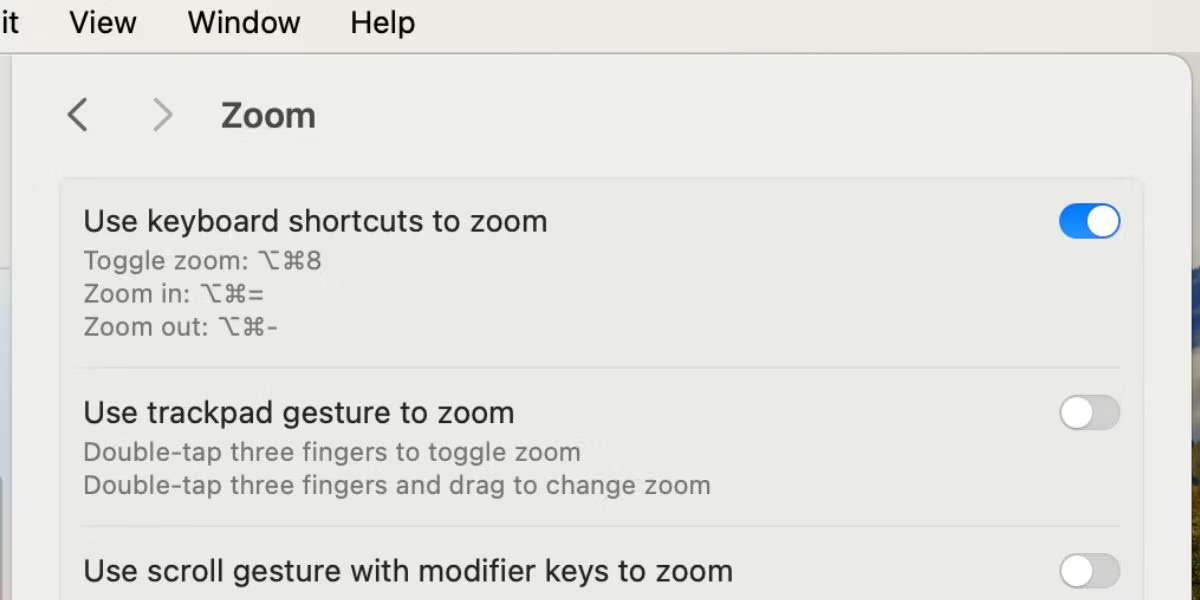
<p style="text-align: justify;">Nếu không thích sử dụng phím tắt, bạn vẫn có thể truy cập các tùy chọn zoom phổ biến này từ thanh menu. Sau khi bạn mở ứng dụng liên quan, hãy nhấp vào tab&nbsp;<strong>View</strong>&nbsp;và chọn&nbsp;<strong>Zoom In</strong>&nbsp;,&nbsp;<strong>Zoom Out</strong>&nbsp;hoặc&nbsp;<strong>Actual Size</strong>, tùy thuộc vào nhu cầu của bạn.</p>

<figure>
<div style="text-align: justify;"><img alt="Các tùy chọn zoom trong thanh menu Mac" data-i="0" data-src="https://st.quantrimang.com/photos/image/2024/03/06/phong-to-va-thu-nho-tren-mac-1.jpg" data-was-processed="true" height="600" src="https://st.quantrimang.com/photos/image/2024/03/06/phong-to-va-thu-nho-tren-mac-1.jpg" width="1200" /></div>

<figcaption>
<div style="text-align: justify;">Các tùy chọn zoom trong thanh menu Mac</div>
</figcaption>
</figure>

<div style="text-align: justify;"><iframe allowtransparency="true" data-google-container-id="a!2" data-google-query-id="CO6Ek77l3oQDFaU8ewcd_tIAhQ" data-load-complete="true" frameborder="0" height="0" hspace="0" id="aswift_1" marginheight="0" marginwidth="0" name="aswift_1" sandbox="" scrolling="no" vspace="0" width="694"></iframe></div>

<h2 style="text-align: justify;">2. Phóng to và thu nhỏ các ứng dụng khác nhau trên macOS</h2>

<p style="text-align: justify;">Nhiều ứng dụng tích hợp và bên thứ ba dành cho macOS cũng có tính năng zoom riêng. Bạn có thể sử dụng các tùy chọn này thay vì các phím tắt chung được đề cập trước đó. Dưới đây là một số ví dụ về cách sử dụng tính năng zoom trong nhiều ứng dụng phổ biến khác nhau dành cho Mac:</p>

<ul>
	<li style="text-align: justify;"><strong>Safari</strong>: Truy cập&nbsp;<strong>Safari &gt; Settings &gt; Websites</strong>&nbsp;<strong>&gt; Page Zoom</strong>&nbsp;từ thanh menu. Từ menu drop-down&nbsp;<strong>When visiting other websites</strong>, hãy chọn tỷ lệ phần trăm zoom ưa thích của bạn.</li>
	<li style="text-align: justify;"><strong>Google Chrome</strong>: Nhấp vào menu ba chấm ở góc trên bên phải và chọn biểu tượng Dấu cộng (+) hoặc Dấu trừ (-) từ tùy chọn zoom.</li>
	<li style="text-align: justify;"><strong>Preview</strong>: Nhấp vào biểu tượng kính lúp dấu cộng (+) hoặc dấu trừ (-) để phóng to và thu nhỏ hình ảnh bạn đã mở.</li>
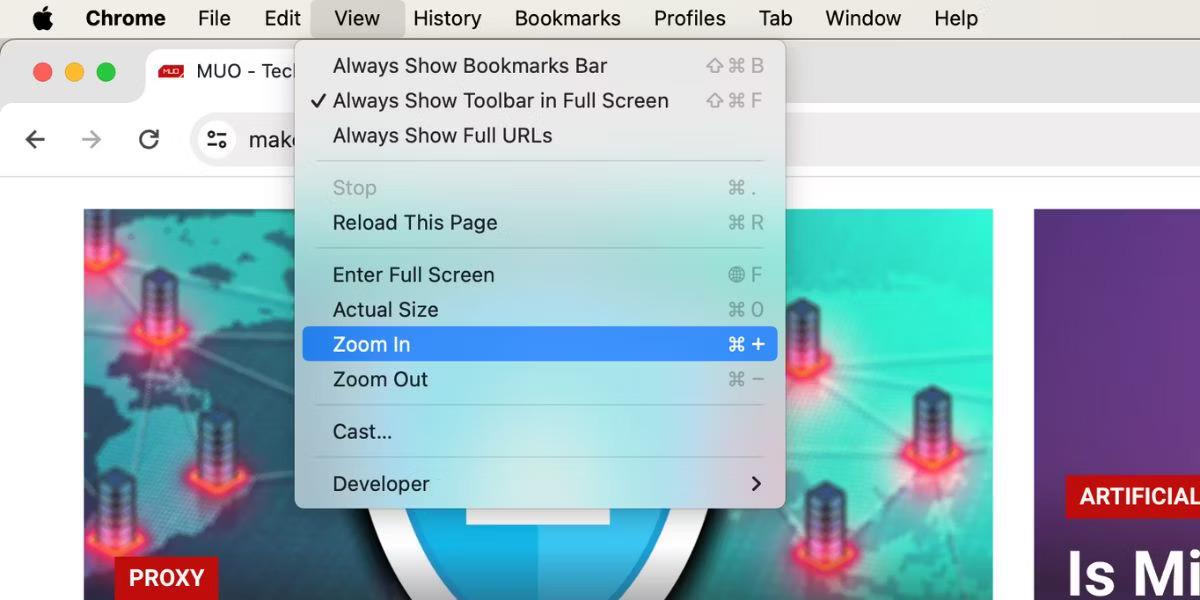
	<li style="text-align: justify;"><strong>Photos</strong>: Nhấn<strong>&nbsp;Z</strong>&nbsp;trên bàn phím để phóng to hoặc thu nhỏ ảnh của bạn 100% hoặc sử dụng thanh trượt zoom ở trên cùng để phóng to tối đa 400%.</li>
</ul>

<figure>
<ul>
	<li data-block-reason="4" data-trans-vn="Che nội dung" style="text-align: justify;">&nbsp;</li>
	<li data-block-reason="2" data-trans-vn="Không quan tâm" style="text-align: justify;">&nbsp;</li>
	<li data-block-reason="3" data-trans-vn="Không phù hợp" style="text-align: justify;">&nbsp;</li>
	<li data-block-reason="1" data-trans-vn="Thấy quá nhiều" style="text-align: justify;">&nbsp;</li>
</ul>

<div style="text-align: justify;"><br />
<img alt="Thanh trượt zoom trong ứng dụng Mac Photos" data-adbro-processed="true" data-i="1" data-src="https://st.quantrimang.com/photos/image/2024/03/06/phong-to-va-thu-nho-tren-mac-2.jpg" data-was-processed="true" height="600" src="https://st.quantrimang.com/photos/image/2024/03/06/phong-to-va-thu-nho-tren-mac-2.jpg" width="1200" /></div>

<figcaption>
<div style="text-align: justify;">Thanh trượt zoom trong ứng dụng Mac Photos</div>
</figcaption>
</figure>

<h2 style="text-align: justify;">3. Phóng to và thu nhỏ bằng cử chỉ trên bàn di chuột trên máy Mac</h2>

<p style="text-align: justify;">Ngoài ra còn có cách phóng to và thu nhỏ bằng cử chỉ trên bàn di chuột của máy Mac. Bạn sẽ thích phương pháp này nếu đã quen sử dụng bàn di chuột cho mọi tác vụ của mình.</p>

<div style="text-align: justify;"><iframe allowtransparency="true" data-google-container-id="a!3" data-google-query-id="CJOnlL7l3oQDFdoYewcdQMIERA" data-load-complete="true" frameborder="0" height="0" hspace="0" id="aswift_2" marginheight="0" marginwidth="0" name="aswift_2" sandbox="" scrolling="no" vspace="0" width="694"></iframe></div>

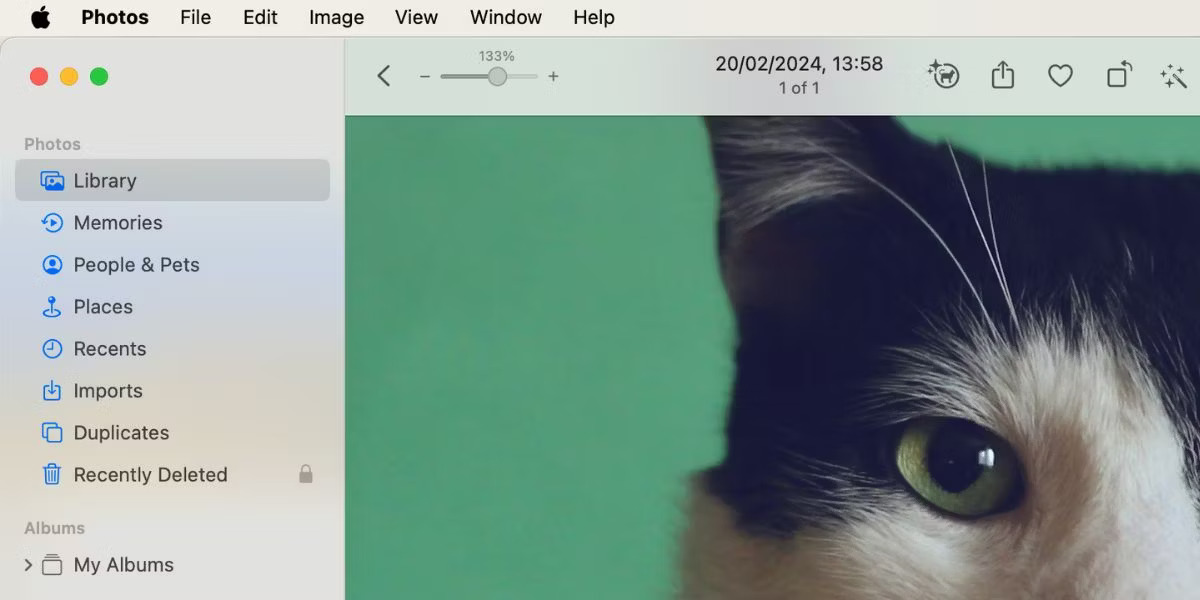
<p style="text-align: justify;">Nhấp vào biểu tượng&nbsp;<strong>Apple</strong>&nbsp;trên thanh menu và đi tới&nbsp;<strong>System Settings &gt; Trackpad</strong>. Chọn tab&nbsp;<strong>Scroll &amp; Zoom</strong>&nbsp;và đảm bảo rằng&nbsp;<strong>Zoom in or out</strong>&nbsp;và&nbsp;<strong>Smart zoom</strong>&nbsp;được bật. Bằng cách này, bạn có thể chụm hoặc nhấn đúp bằng hai ngón tay trên bàn di chuột để phóng to và thu nhỏ trên máy Mac.</p>

<figure>
<div style="text-align: justify;"><img alt="Cài đặt bàn di chuột trong cài đặt hệ thống máy Mac" data-i="2" data-src="https://st.quantrimang.com/photos/image/2024/03/06/phong-to-va-thu-nho-tren-mac-3.jpg" data-was-processed="true" height="600" src="https://st.quantrimang.com/photos/image/2024/03/06/phong-to-va-thu-nho-tren-mac-3.jpg" width="1200" /></div>

<figcaption>
<div style="text-align: justify;">Cài đặt bàn di chuột trong cài đặt hệ thống máy Mac</div>
</figcaption>
</figure>

<h2 style="text-align: justify;">4. Sử dụng kính lúp tích hợp của máy Mac để phóng to</h2>

<p style="text-align: justify;">Trong hầu hết các trường hợp, các phím tắt chung và cử chỉ trên bàn di chuột được đề cập ở trên là đủ. Tuy nhiên, bạn không thể sử dụng chúng để phóng to thanh menu macOS hoặc tab Google Chrome của mình. Nếu cần phóng to những phần này của giao diện người dùng macOS, bạn có thể kích hoạt kính lúp tích hợp trên máy Mac.</p>

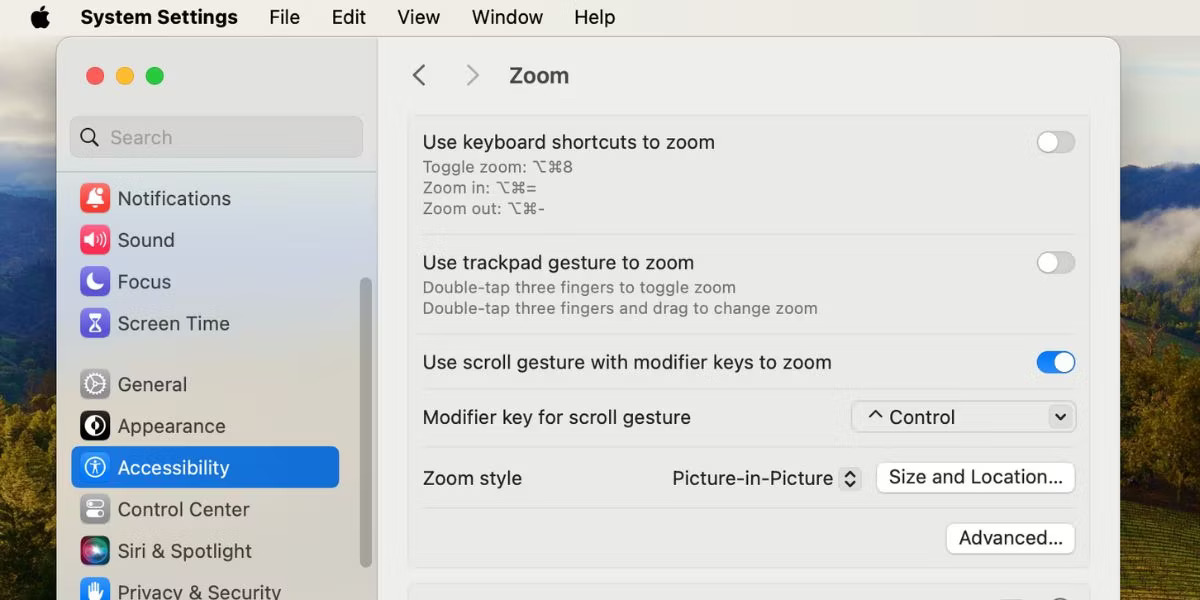
<p style="text-align: justify;">Đi tới&nbsp;<strong>System Settings &gt; Accessibility &gt; Zoom</strong>&nbsp;và bật&nbsp;<strong>Use scroll gesture with modifier keys to zoom</strong>. Đối với tùy chọn&nbsp;<strong>Modifier key for scroll gesture</strong>, hãy chọn&nbsp;<strong>Control</strong>&nbsp;từ menu drop-down. Đối với&nbsp;<strong>Zoom style</strong>, hãy chọn&nbsp;<strong>Picture-in-Picture</strong>.</p>

<figure>
<div style="text-align: justify;"><img alt="Cài đặt zoom trong cài đặt trợ năng của máy Mac" data-i="3" data-src="https://st.quantrimang.com/photos/image/2024/03/06/phong-to-va-thu-nho-tren-mac-4.jpg" data-was-processed="true" height="600" src="https://st.quantrimang.com/photos/image/2024/03/06/phong-to-va-thu-nho-tren-mac-4.jpg" width="1200" /></div>

<figcaption>
<div style="text-align: justify;">Cài đặt zoom trong cài đặt trợ năng của máy Mac</div>
</figcaption>
</figure>

<div style="text-align: justify;">&nbsp;</div>

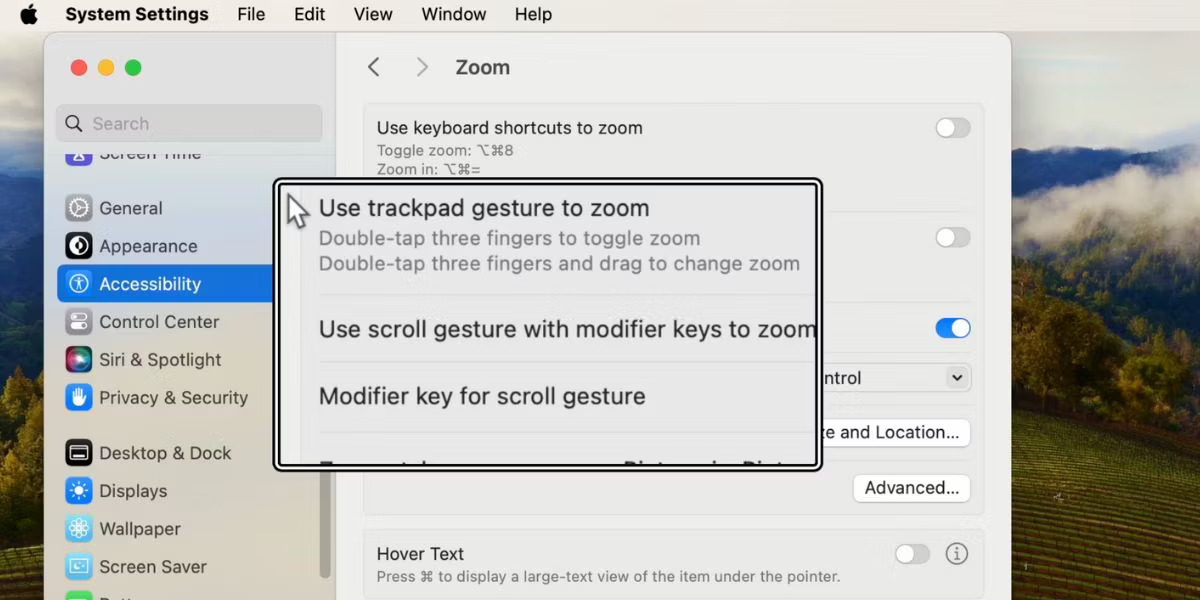
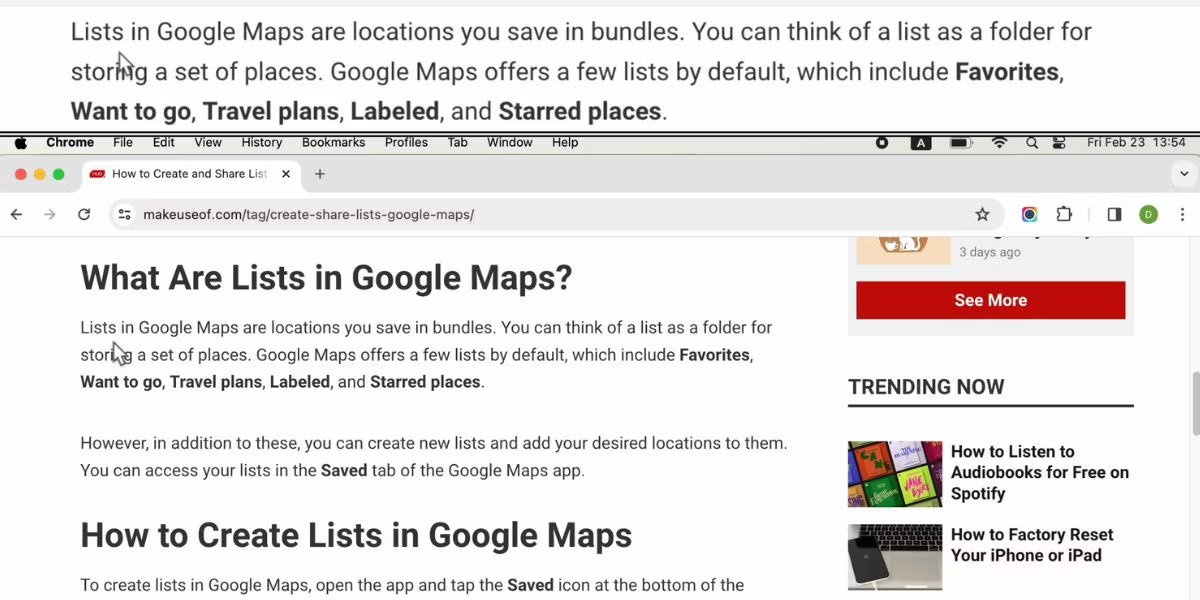
<p style="text-align: justify;">Bây giờ, để phóng to, nhấn và giữ nút Control trên bàn phím. Đồng thời, dùng hai ngón tay vuốt lên trên trackpad để cửa sổ kính lúp xuất hiện. Vuốt lên trên nhiều lần sẽ tăng mức zoom.</p>

<figure>
<div style="text-align: justify;"><img alt="Zoom hình ảnh trên máy Mac" data-i="4" data-src="https://st.quantrimang.com/photos/image/2024/03/06/phong-to-va-thu-nho-tren-mac-5.jpg" data-was-processed="true" height="600" src="https://st.quantrimang.com/photos/image/2024/03/06/phong-to-va-thu-nho-tren-mac-5.jpg" width="1200" /></div>

<figcaption>
<div style="text-align: justify;">Zoom hình ảnh trên máy Mac</div>
</figcaption>
</figure>

<p style="text-align: justify;">Để thu nhỏ và thoát khỏi kính lúp, hãy vuốt xuống bằng hai ngón tay cho đến khi mức zoom trở về mặc định. Cửa sổ kính lúp sau đó sẽ tự biến mất.</p>

<p style="text-align: justify;">Bạn có thể tùy chỉnh cài đặt zoom này theo nhiều cách. Ví dụ, bạn có thể chọn&nbsp;<strong>Full Screen</strong>&nbsp;hoặc&nbsp;<strong>Split Screen</strong>&nbsp;để thay đổi cách hiển thị các phần được phóng to của màn hình máy Mac. Thay vì cửa sổ kính lúp nhỏ, Split Screen sẽ sử dụng một phần tư màn hình máy Mac của bạn để hiển thị phần được phóng to.</p>

<figure>
<div style="text-align: justify;"><img alt="Zoom chia đôi màn hình trên Mac" data-i="5" data-src="https://st.quantrimang.com/photos/image/2024/03/06/phong-to-va-thu-nho-tren-mac-6.jpg" data-was-processed="true" height="600" src="https://st.quantrimang.com/photos/image/2024/03/06/phong-to-va-thu-nho-tren-mac-6.jpg" width="1200" /></div>

<figcaption>
<div style="text-align: justify;">Zoom chia đôi màn hình trên Mac</div>
</figcaption>
</figure>

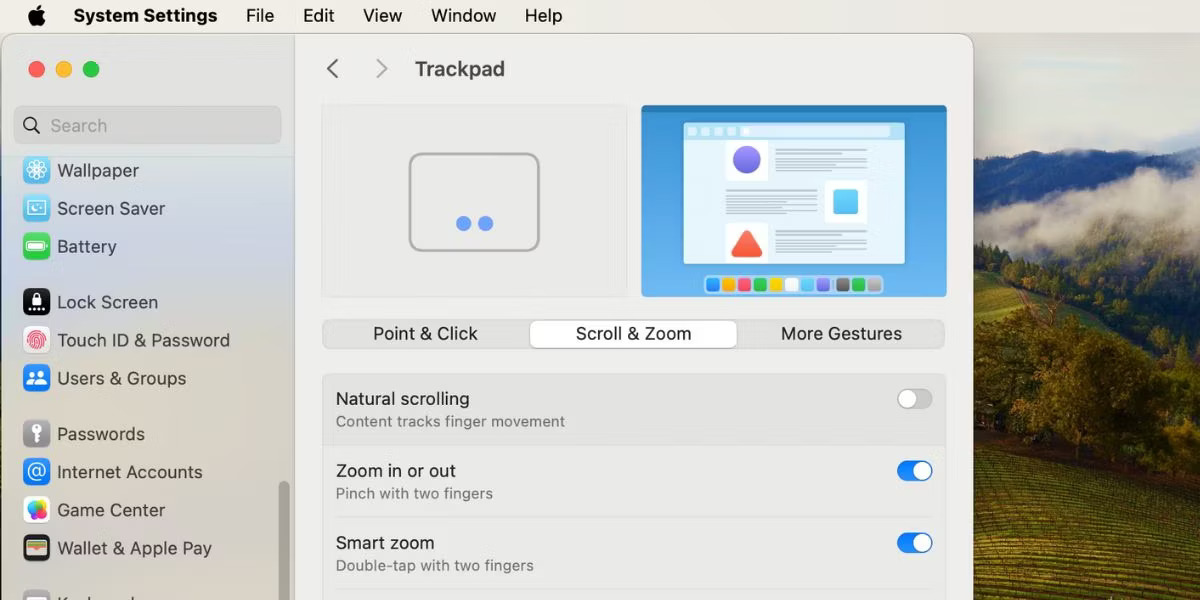
<p style="text-align: justify;">Một ví dụ khác, nếu bạn không thích vuốt trên bàn di chuột và sử dụng phím bổ trợ để zoom, bạn có thể chọn bật&nbsp;<strong>Use Keyboard shortcuts to zoom</strong>. Khi cài đặt này được bật, bạn sẽ có ba phím tắt bổ sung mà bạn có thể sử dụng để phóng to và thu nhỏ trên máy Mac của mình:</p>

<ul>
	<li style="text-align: justify;"><strong>Option + Cmd + 8</strong>: Nhấn nút này một lần để kích hoạt zoom. Nhấn lại lần nữa để tắt.</li>
	<li style="text-align: justify;"><strong>Option + Cmd + Dấu bằng (=)</strong>: Nhấn các phím này để phóng to màn hình.</li>
	<li style="text-align: justify;"><strong>Option + Cmd + Dấu trừ (-)</strong>: Nhấn các nút này để thu nhỏ màn hình.</li>
</ul>

<figure>
<div style="text-align: justify;"><img alt="Phím tắt zoom trong cài đặt trợ năng của máy Mac" data-i="6" data-src="https://st.quantrimang.com/photos/image/2024/03/06/phong-to-va-thu-nho-tren-mac-7.jpg" data-was-processed="true" height="600" src="https://st.quantrimang.com/photos/image/2024/03/06/phong-to-va-thu-nho-tren-mac-7.jpg" width="1200" /></div>

<figcaption>
<div style="text-align: justify;">Phím tắt zoom trong cài đặt trợ năng của máy Mac</div>
</figcaption>
</figure>

<div style="text-align: justify;"><iframe allowtransparency="true" data-google-container-id="a!5" data-google-query-id="CIi7zb7l3oQDFdMDewcdkUcFXw" data-load-complete="true" frameborder="0" height="0" hspace="0" id="aswift_4" marginheight="0" marginwidth="0" name="aswift_4" sandbox="" scrolling="no" vspace="0" width="694"></iframe></div>

<p style="text-align: justify;">Nhìn chung, nếu bạn muốn phóng to hoặc thu nhỏ trên máy Mac, cách dễ nhất là sử dụng 3 phím tắt chính hoặc tùy chọn zoom trong tab&nbsp;<strong>View</strong>. Các ứng dụng phổ biến như Photos và Google Chrome cũng có những nút zoom riêng mà bạn có thể sử dụng.</p>

<p style="text-align: justify;">Nếu các tùy chọn chung không phải là thứ bạn đang tìm kiếm thì vẫn có sẵn kính lúp tích hợp. Đây là một trong những tính năng Accessibility của máy Mac dành cho người khiếm thị. Chức năng này sẽ cho phép bạn phóng to bất cứ nơi nào trên giao diện người dùng.</p>
		</div>
				<div id="author">
						<p>
				<strong>Nguồn tin:</strong>
				Quantrimang.com
			</p>
		</div>
	</div>
	<div id="footer" class="clearfix">
		<div id="url">
			<strong>URL của bản tin này: </strong><a href="https://www.nguoicodonvn2008.info/vi/news/savefile/kien-thuc-may-tinh/4-phuong-phap-phong-to-va-thu-nho-tren-may-mac-8152.html" title="4 phương pháp phóng to và thu nhỏ trên máy Mac">https://www.nguoicodonvn2008.info/vi/news/savefile/kien-thuc-may-tinh/4-phuong-phap-phong-to-va-thu-nho-tren-may-mac-8152.html</a>

		</div>
		<div class="clear"></div>
		<div class="copyright">
			&copy; .&#x3A; Nguoicodonvn2008.info - Cõi lòng người cô đơn &#x3A;.
		</div>
		<div id="contact">
			<a href="mailto:admin@nguoicodonvn2008.info">admin@nguoicodonvn2008.info</a>
		</div>
	</div>
</div>
        <div id="timeoutsess" class="chromeframe">
            Bạn đã không sử dụng Site, <a onclick="timeoutsesscancel();" href="https://nguoicodonvn2008.info/#">Bấm vào đây để duy trì trạng thái đăng nhập</a>. Thời gian chờ: <span id="secField"> 60 </span> giây
        </div>
        <div id="openidResult" class="nv-alert" style="display:none"></div>
        <div id="openidBt" data-result="" data-redirect=""></div>
		</script>
		<div class="car-top">
  <span><img src="https://nguoicodonvn2008.info/themes/default/images/car.png" alt=""></span>
</div>
<script src="https://nguoicodonvn2008.info/assets/js/jquery/jquery.min.js"></script>
<script>var nv_base_siteurl="/",nv_lang_data="vi",nv_lang_interface="vi",nv_name_variable="nv",nv_fc_variable="op",nv_lang_variable="language",nv_module_name="news",nv_func_name="savefile",nv_is_user=0, nv_my_ofs=-4,nv_my_abbr="EDT",nv_cookie_prefix="nv4c_e856T",nv_check_pass_mstime=1738000,nv_area_admin=0,nv_safemode=0,theme_responsive=0,nv_recaptcha_ver=2,nv_recaptcha_sitekey="",nv_recaptcha_type="image",XSSsanitize=1;</script>
<script src="https://nguoicodonvn2008.info/assets/js/language/vi.js"></script>
<script src="https://nguoicodonvn2008.info/assets/js/DOMPurify/purify3.js"></script>
<script src="https://nguoicodonvn2008.info/assets/js/global.js"></script>
<script src="https://nguoicodonvn2008.info/assets/js/site.js"></script>
<script src="https://nguoicodonvn2008.info/themes/default/js/news.js"></script>
<script src="https://nguoicodonvn2008.info/themes/default/js/main.js"></script>
<script src="https://nguoicodonvn2008.info/themes/default/js/custom.js"></script>
<script type="application/ld+json">
        {
            "@context": "https://schema.org",
            "@type": "Organization",
            "url": "https://nguoicodonvn2008.info",
            "logo": "https://nguoicodonvn2008.info/uploads/angel.gif"
        }
        </script>
<script src="https://nguoicodonvn2008.info/themes/default/js/bootstrap.min.js"></script>
<script type="text/javascript">
var $scrolltop = $('.car-top');
$scrolltop.on('click', function () {
    $('html,body').animate({
        scrollTop: 0
    }, 800);
    $(this).addClass("car-run");
    setTimeout(function(){ $scrolltop.removeClass('car-run');}, 1000);
    return false;
});
$(window).on('scroll', function ()
{ 
    if($(window).scrollTop() >= 200)
    {
        $scrolltop.addClass("show");
        $scrolltop.addClass("car-down");
    }
    else
    {
       $scrolltop.removeClass("show");
       setTimeout(function(){ $scrolltop.removeClass('car-down');}, 300);
    }
});
</script>
</body>
</html>