<!DOCTYPE html>
    <html lang="vi" xmlns="http://www.w3.org/1999/xhtml" prefix="og: http://ogp.me/ns#">
    <head>
<title>4 cách xóa TPM trên Windows 11</title>
<meta name="description" content="4 cách xóa TPM trên Windows 11 - Savefile - Tin Tức - https&#x3A;&#x002F;&#x002F;www.nguoicodonvn2008.info&#x002F;vi&#x002F;news&#x002F;savefile&#x002F;kien-thuc-may-tinh&#x002F;4-cach-xoa-tpm-tren-windows-11-7487.html">
<meta name="author" content=".: Nguoicodonvn2008.info - Cõi lòng người cô đơn :.">
<meta name="copyright" content=".: Nguoicodonvn2008.info - Cõi lòng người cô đơn :. [admin@nguoicodonvn2008.info]">
<meta name="robots" content="index, archive, follow, noodp">
<meta name="googlebot" content="index,archive,follow,noodp">
<meta name="msnbot" content="all,index,follow">
<meta name="generator" content="NukeViet v4.5">
<meta http-equiv="Content-Type" content="text/html; charset=utf-8">
<meta property="og:title" content="4 cách xóa TPM trên Windows 11">
<meta property="og:type" content="website">
<meta property="og:description" content="Savefile - Tin Tức - https&#x3A;&#x002F;&#x002F;www.nguoicodonvn2008.info&#x002F;vi&#x002F;news&#x002F;savefile&#x002F;kien-thuc-may-tinh&#x002F;4-cach-xoa-tpm-tren-windows-11-7487.html">
<meta property="og:site_name" content=".&#x3A; Nguoicodonvn2008.info - Cõi lòng người cô đơn &#x3A;.">
<meta property="og:url" content="https://www.nguoicodonvn2008.info/vi/news/savefile/kien-thuc-may-tinh/4-cach-xoa-tpm-tren-windows-11-7487.html">
<link rel="shortcut icon" href="https://nguoicodonvn2008.info/favicon.ico">
<link rel="canonical" href="https://www.nguoicodonvn2008.info/vi/news/savefile/kien-thuc-may-tinh/4-cach-xoa-tpm-tren-windows-11-7487.html">
<link rel="alternate" href="https://nguoicodonvn2008.info/vi/news/rss/" title="Tin Tức" type="application/rss+xml">
<link rel="alternate" href="https://nguoicodonvn2008.info/vi/news/rss/karaoke-dual/" title="Tin Tức - Karaoke Dual" type="application/rss+xml">
<link rel="alternate" href="https://nguoicodonvn2008.info/vi/news/rss/nhac-tre/" title="Tin Tức - Nhạc trẻ" type="application/rss+xml">
<link rel="alternate" href="https://nguoicodonvn2008.info/vi/news/rss/tru-tinh/" title="Tin Tức - Trữ tình" type="application/rss+xml">
<link rel="alternate" href="https://nguoicodonvn2008.info/vi/news/rss/nuoc-ngoai/" title="Tin Tức - Nước ngoài" type="application/rss+xml">
<link rel="alternate" href="https://nguoicodonvn2008.info/vi/news/rss/remix/" title="Tin Tức - Remix" type="application/rss+xml">
<link rel="alternate" href="https://nguoicodonvn2008.info/vi/news/rss/tam-su-tinh-yeu/" title="Tin Tức - Tâm sự tình yêu" type="application/rss+xml">
<link rel="alternate" href="https://nguoicodonvn2008.info/vi/news/rss/tho-suu-tam/" title="Tin Tức - Thơ sưu tầm" type="application/rss+xml">
<link rel="alternate" href="https://nguoicodonvn2008.info/vi/news/rss/cuoc-song/" title="Tin Tức - Cuộc sống" type="application/rss+xml">
<link rel="alternate" href="https://nguoicodonvn2008.info/vi/news/rss/phan-mem/" title="Tin Tức - Phần mềm" type="application/rss+xml">
<link rel="alternate" href="https://nguoicodonvn2008.info/vi/news/rss/kien-thuc-may-tinh/" title="Tin Tức - Kiến thức máy tính" type="application/rss+xml">
<link rel="alternate" href="https://nguoicodonvn2008.info/vi/news/rss/hoc-tap/" title="Tin Tức - Học tập" type="application/rss+xml">
<link rel="alternate" href="https://nguoicodonvn2008.info/vi/news/rss/tai-lieu/" title="Tin Tức - Tài liệu" type="application/rss+xml">
<link rel="alternate" href="https://nguoicodonvn2008.info/vi/news/rss/de-thi/" title="Tin Tức - Đề thi" type="application/rss+xml">
<link rel="preload" as="style" href="https://nguoicodonvn2008.info/assets/css/font-awesome.min.css" type="text/css">
<link rel="preload" as="style" href="https://nguoicodonvn2008.info/themes/default/css/bootstrap.non-responsive.css" type="text/css">
<link rel="preload" as="style" href="https://nguoicodonvn2008.info/themes/default/css/style.css" type="text/css">
<link rel="preload" as="style" href="https://nguoicodonvn2008.info/themes/default/css/style.non-responsive.css" type="text/css">
<link rel="preload" as="style" href="https://nguoicodonvn2008.info/themes/default/css/news.css" type="text/css">
<link rel="preload" as="style" href="https://nguoicodonvn2008.info/themes/default/css/custom.css" type="text/css">
<link rel="preload" as="script" href="https://nguoicodonvn2008.info/assets/js/jquery/jquery.min.js" type="text/javascript">
<link rel="preload" as="script" href="https://nguoicodonvn2008.info/assets/js/language/vi.js" type="text/javascript">
<link rel="preload" as="script" href="https://nguoicodonvn2008.info/assets/js/DOMPurify/purify3.js" type="text/javascript">
<link rel="preload" as="script" href="https://nguoicodonvn2008.info/assets/js/global.js" type="text/javascript">
<link rel="preload" as="script" href="https://nguoicodonvn2008.info/assets/js/site.js" type="text/javascript">
<link rel="preload" as="script" href="https://nguoicodonvn2008.info/themes/default/js/news.js" type="text/javascript">
<link rel="preload" as="script" href="https://nguoicodonvn2008.info/themes/default/js/main.js" type="text/javascript">
<link rel="preload" as="script" href="https://nguoicodonvn2008.info/themes/default/js/custom.js" type="text/javascript">
<link rel="preload" as="script" href="https://nguoicodonvn2008.info/themes/default/js/bootstrap.min.js" type="text/javascript">
<link rel="stylesheet" href="https://nguoicodonvn2008.info/assets/css/font-awesome.min.css">
<link rel="stylesheet" href="https://nguoicodonvn2008.info/themes/default/css/bootstrap.non-responsive.css">
<link rel="stylesheet" href="https://nguoicodonvn2008.info/themes/default/css/style.css">
<link rel="stylesheet" href="https://nguoicodonvn2008.info/themes/default/css/style.non-responsive.css">
<link rel="StyleSheet" href="https://nguoicodonvn2008.info/themes/default/css/news.css">
<link rel="stylesheet" href="https://nguoicodonvn2008.info/themes/default/css/custom.css">
<style type="text/css">
	body{background: #fff;}
</style>
    </head>
    <body>
<div id="print">
	<div id="hd_print">
		<h2 class="pull-left">.&#x3A; Nguoicodonvn2008.info - Cõi lòng người cô đơn &#x3A;.</h2>
		<p class="pull-right"><a title=".&#x3A; Nguoicodonvn2008.info - Cõi lòng người cô đơn &#x3A;." href="https://nguoicodonvn2008.info/">https://nguoicodonvn2008.info</a></p>
	</div>
	<div class="clear"></div>
	<hr />
	<div id="content">
		<h1>4 cách xóa TPM trên Windows 11</h1>
		<ul class="list-inline">
			<li>Thứ ba - 29/08/2023 10:07</li>
			<li class="hidden-print txtrequired"><em class="fa fa-print">&nbsp;</em><a title="In ra" href="javascript:;" onclick="window.print()">In ra</a></li>
			<li class="hidden-print txtrequired"><em class="fa fa-power-off">&nbsp;</em><a title="Đóng cửa sổ này" href="javascript:;" onclick="window.close()">Đóng cửa sổ này</a></li>
		</ul>
		<div class="clear"></div>
		<div id="hometext">
		</div>
				<div class="imghome">
			<img alt="4 cách xóa TPM trên Windows 11" src="https://st.quantrimang.com/photos/image/2023/08/26/xoa-tpm-tren-windows-11-9.jpg" width="460" class="img-thumbnail" />
		</div>
		<div class="clear"></div>
		<div id="bodytext" class="clearfix">
			<p style="text-align: justify;">Trusted Platform Module (TPM) là một chip bảo mật giúp bảo vệ máy tính của bạn khỏi&nbsp;phần mềm độc hại&nbsp;và các cuộc tấn công khác. Nó đóng một vai trò quan trọng trong quá trình cài đặt&nbsp;Windows 11&nbsp;và cũng là một phần không thể thiếu của một số tính năng bảo mật như&nbsp;Windows Hello&nbsp;và BitLocker.</p>

<p style="text-align: justify;">Nếu cần xóa TPM vì bất kỳ lý do gì, bạn đã đến đúng nơi. Hướng dẫn này sẽ chỉ cho bạn 4 cách để xóa TPM trên Windows 11.</p>

<h2 style="text-align: justify;">Khi nào nên xóa TPM và làm như vậy có an toàn không?</h2>

<p style="text-align: justify;">Mặc dù TPM bảo vệ dữ liệu nhạy cảm và ngăn chặn các nỗ lực hack được tạo ra thông qua phần cứng máy tính, nhưng dưới đây là một số trường hợp bạn nên xóa TPM trên máy tính của mình.</p>

<ul>
	<li style="text-align: justify;">Nếu bạn đã kiểm tra máy tính của mình để tìm phần mềm độc hại và nghi ngờ máy tính đã bị nhiễm, việc reset TPM sẽ xóa mọi phần mềm độc hại xâm nhập vào máy tính.</li>
	<li style="text-align: justify;">TPM lưu trữ thông tin quan trọng về driver và ứng dụng được cài đặt trên máy tính của bạn. Do đó, bạn phải reset TPM trước khi bán máy tính để bảo vệ quyền riêng tư của mình.</li>
	<li style="text-align: justify;">Xóa TPM cũng có thể giúp bạn khắc phục sự cố liên quan đến bảo mật, mã hóa và xác thực.</li>
	<li style="text-align: justify;">Bạn nên xóa TPM trước khi cài đặt sạch hệ điều hành mới. Bằng cách này, HĐH có thể triển khai đầy đủ các chức năng dựa trên TPM như chứng thực.</li>
</ul>

<p style="text-align: justify;">Việc xóa TPM trên máy tính của bạn là hoàn toàn an toàn. Tuy nhiên, hãy nhớ rằng hành động này sẽ xóa tất cả các key mã hóa do TPM tạo ra và dữ liệu được bảo vệ liên quan. Dữ liệu này chứa thông tin liên quan đến smart card ảo hoặc mã PIN đăng nhập.</p>

<p style="text-align: justify;">Do đó, điều quan trọng là phải sao lưu dữ liệu Windows được TPM bảo vệ để ngăn chặn mọi mất mát dữ liệu.</p>

<h2 style="text-align: justify;">4 cách xóa TPM trên Windows 11</h2>

<h3 style="text-align: justify;">1. Cách xóa TPM bằng TPM Management Console</h3>

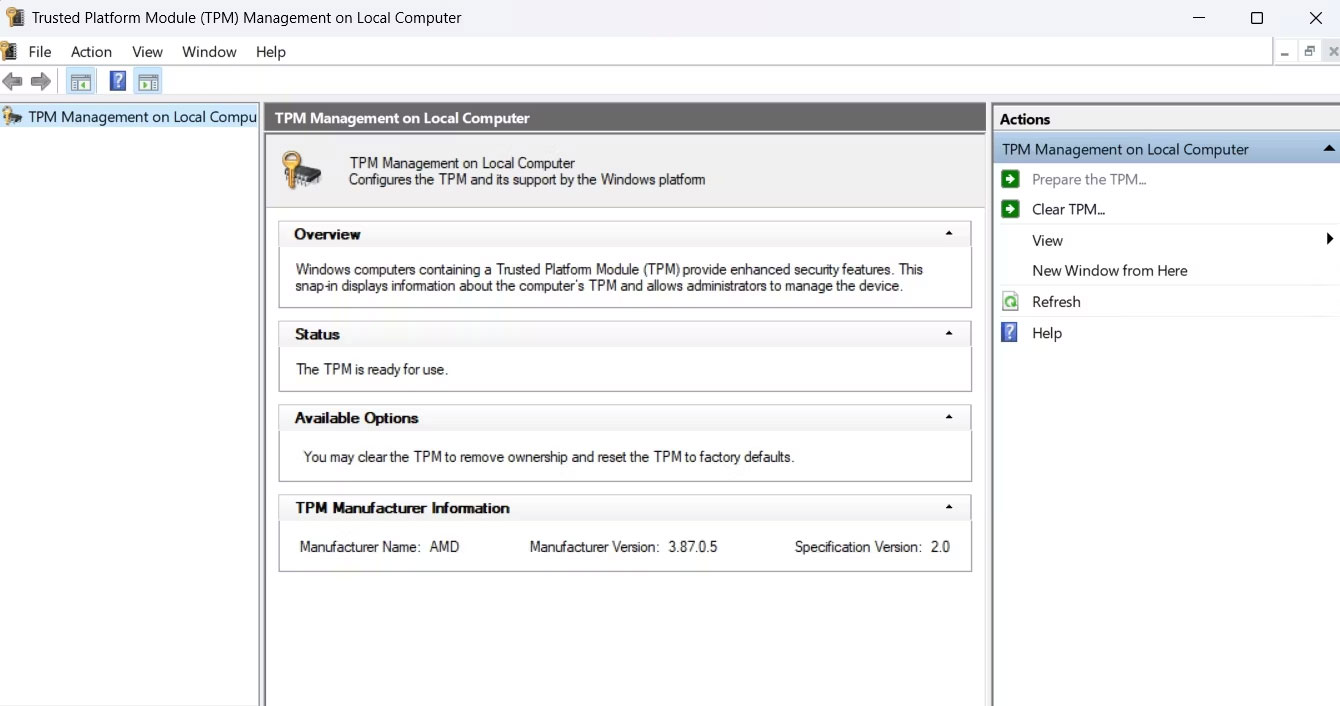
<p style="text-align: justify;">TPM Management Console cho phép bạn quản lý TPM được cài đặt trên máy tính của mình. Bạn có thể sử dụng nó để bật hoặc tắt TPM, xóa TPM và quản lý key TPM.</p>

<p style="text-align: justify;">Để sử dụng nó để xóa hoặc reset TPM, hãy làm theo các bước sau:</p>

<p style="text-align: justify;">1. Nhấn các phím&nbsp;<strong>Win + R&nbsp;</strong>cùng nhau để&nbsp;<a data-type="internal" href="https://quantrimang.com/cong-nghe/cach-mo-hop-thoai-run-trong-windows-187019" title="7 cách mở hộp thoại Run trong Windows">mở hộp thoại Run</a>.</p>

<p style="text-align: justify;">2. Nhập&nbsp;<strong>tpm.msc</strong>&nbsp;vào thanh tìm kiếm và nhấn&nbsp;<strong>Enter.</strong></p>

<p style="text-align: justify;">3. Nhấp vào tùy chọn&nbsp;<strong>Clear TPM</strong>&nbsp;trong phần&nbsp;<strong>Actions.</strong></p>

<figure>
<div style="text-align: justify;"><img alt="Xóa tùy chọn TPM trong bảng điều khiển TPM" data-i="0" data-src="https://st.quantrimang.com/photos/image/2023/08/26/xoa-tpm-tren-windows-11-1.jpg" data-was-processed="true" height="706" src="https://st.quantrimang.com/photos/image/2023/08/26/xoa-tpm-tren-windows-11-1.jpg" width="1340" /></div>

<figcaption>
<div style="text-align: justify;">Xóa tùy chọn TPM trong bảng điều khiển TPM</div>
</figcaption>
</figure>

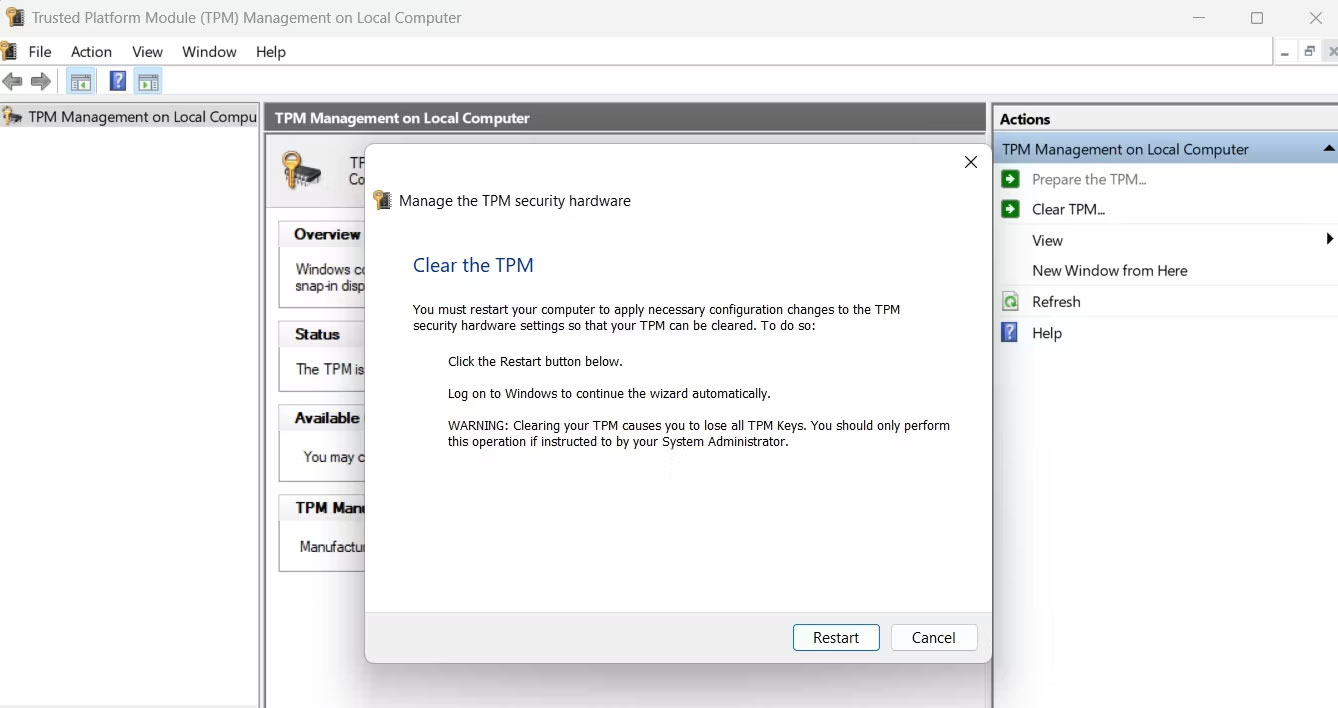
<p style="text-align: justify;">4. Nhấp vào&nbsp;<strong>Restart.</strong></p>

<figure>
<div style="text-align: justify;"><img alt="Nút Restart trong bảng điều khiển TPM" data-i="1" data-src="https://st.quantrimang.com/photos/image/2023/08/26/xoa-tpm-tren-windows-11-2.jpg" data-was-processed="true" height="708" src="https://st.quantrimang.com/photos/image/2023/08/26/xoa-tpm-tren-windows-11-2.jpg" width="1338" /></div>

<figcaption>
<div style="text-align: justify;">Nút Restart trong bảng điều khiển TPM</div>
</figcaption>
</figure>

<p style="text-align: justify;">Máy tính của bạn bây giờ sẽ khởi động lại để hoàn tất quá trình thiết reset TPM.</p>

<h3 style="text-align: justify;">2. Cách xóa TPM bằng ứng dụng Windows Security</h3>

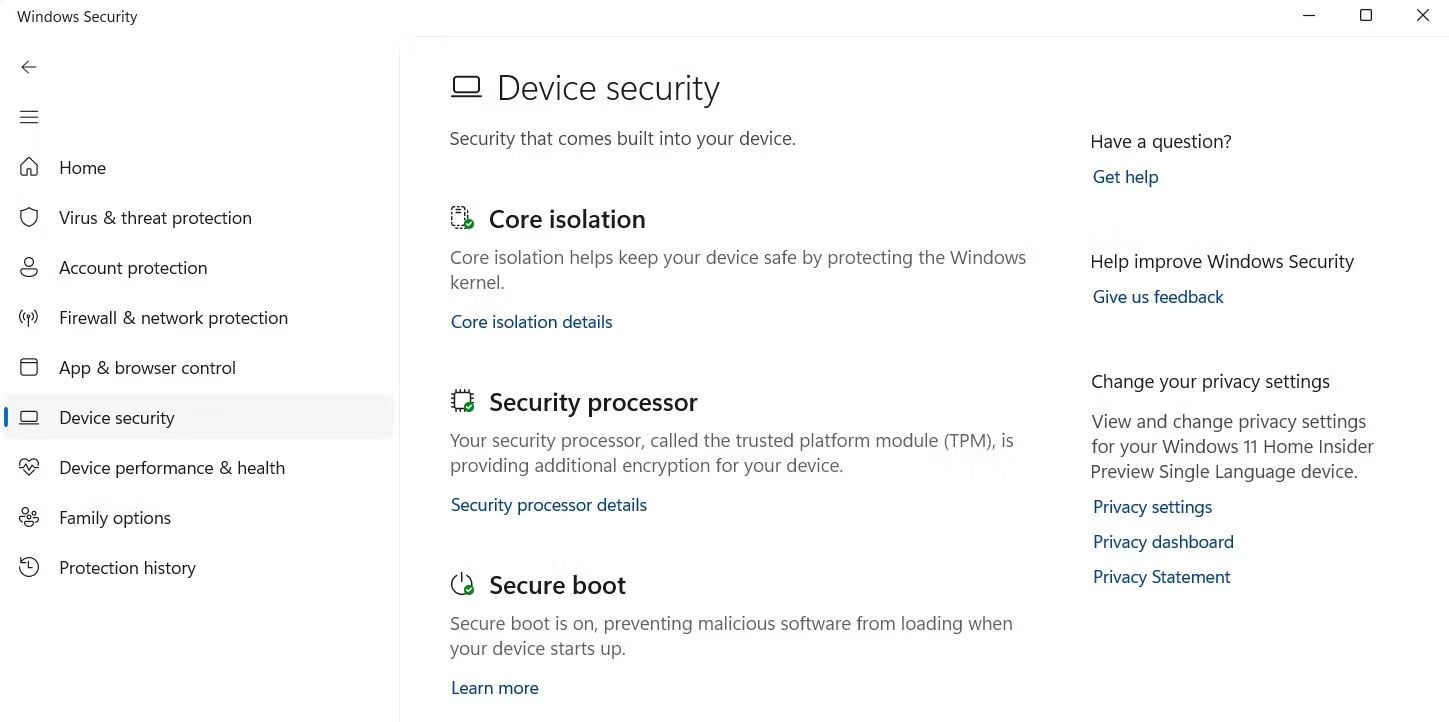
<p style="text-align: justify;">Để xóa TPM bằng ứng dụng Windows Security, hãy làm theo các bước sau:</p>

<p style="text-align: justify;">1. Mở menu Start, nhập&nbsp;<strong>Windows Security</strong>&nbsp;vào thanh tìm kiếm và nhấn&nbsp;<strong>Enter.</strong></p>

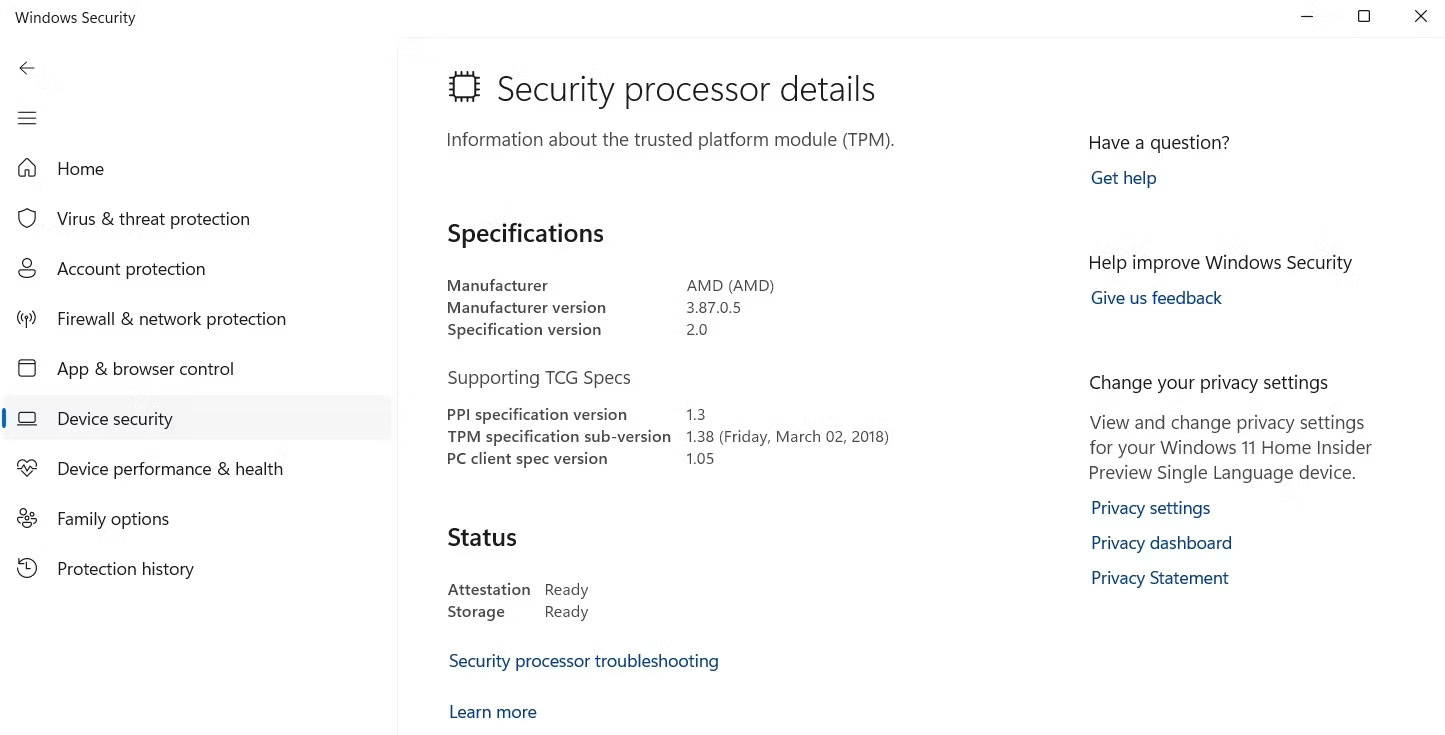
<p style="text-align: justify;">2. Chọn&nbsp;<strong>Device security</strong>&nbsp;từ thanh bên trái và nhấp vào&nbsp;<strong>Security processor details</strong></p>

<figure>
<div style="text-align: justify;"><img alt="Tùy chọn Security processor details trong Windows Security" data-i="2" data-src="https://st.quantrimang.com/photos/image/2023/08/26/xoa-tpm-tren-windows-11-3.jpg" data-was-processed="true" height="722" src="https://st.quantrimang.com/photos/image/2023/08/26/xoa-tpm-tren-windows-11-3.jpg" width="1449" /></div>

<figcaption>
<div style="text-align: justify;">Tùy chọn Security processor details trong Windows Security</div>
</figcaption>
</figure>

<p style="text-align: justify;">3. Nhấp vào&nbsp;<strong>Security processor troubleshooting</strong>.</p>

<figure>
<div style="text-align: justify;"><img alt="Tùy chọn khắc phục sự cố bộ xử lý bảo mật trong ứng dụng Windows Security" data-i="3" data-src="https://st.quantrimang.com/photos/image/2023/08/26/xoa-tpm-tren-windows-11-4.jpg" data-was-processed="true" height="735" src="https://st.quantrimang.com/photos/image/2023/08/26/xoa-tpm-tren-windows-11-4.jpg" width="1445" /></div>

<figcaption>
<div style="text-align: justify;">Tùy chọn khắc phục sự cố bộ xử lý bảo mật trong ứng dụng Windows Security</div>
</figcaption>
</figure>

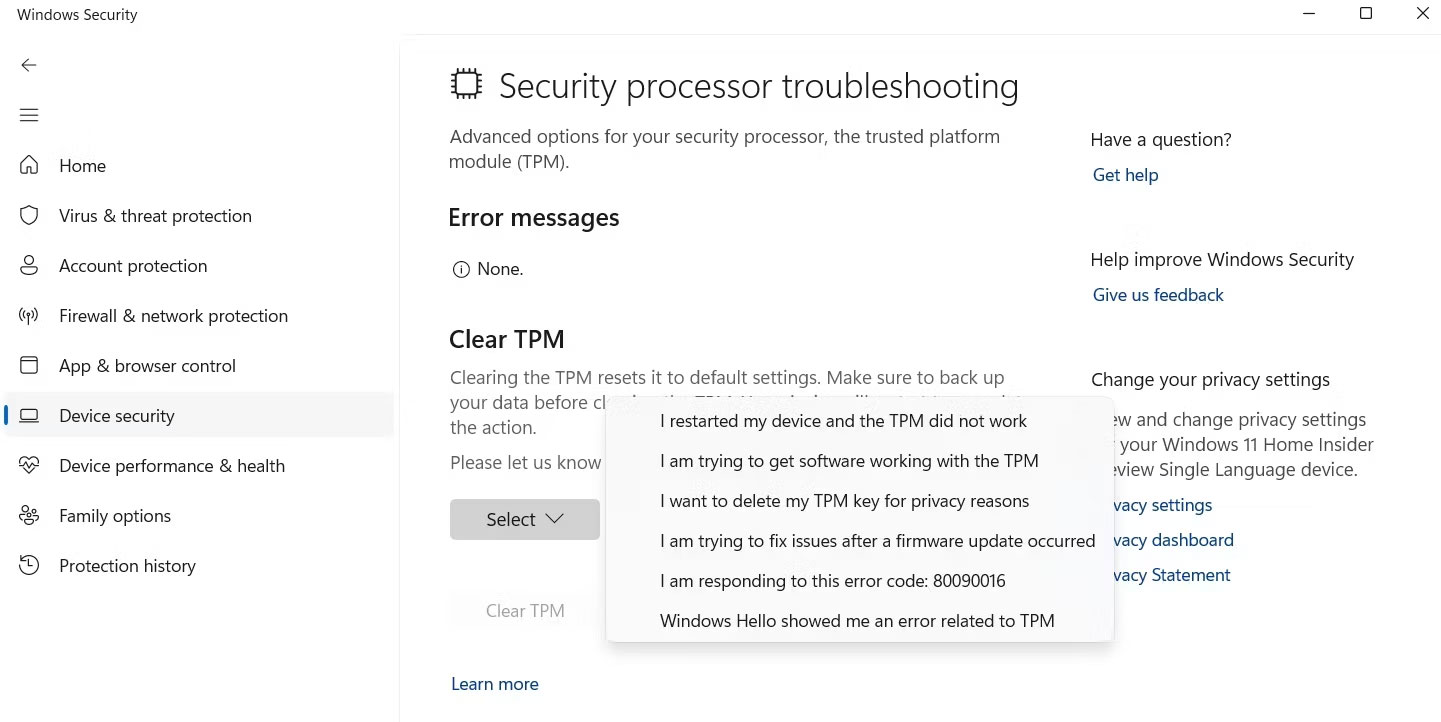
<p style="text-align: justify;">4. Chọn lý do xóa TPM từ menu drop-down&nbsp;<strong>Select.</strong></p>

<figure>
<div style="text-align: justify;"><img alt="Chọn lý do để xóa TPM" data-i="4" data-src="https://st.quantrimang.com/photos/image/2023/08/26/xoa-tpm-tren-windows-11-5.jpg" data-was-processed="true" height="722" src="https://st.quantrimang.com/photos/image/2023/08/26/xoa-tpm-tren-windows-11-5.jpg" width="1441" /></div>

<figcaption>
<div style="text-align: justify;">Chọn lý do để xóa TPM</div>
</figcaption>
</figure>

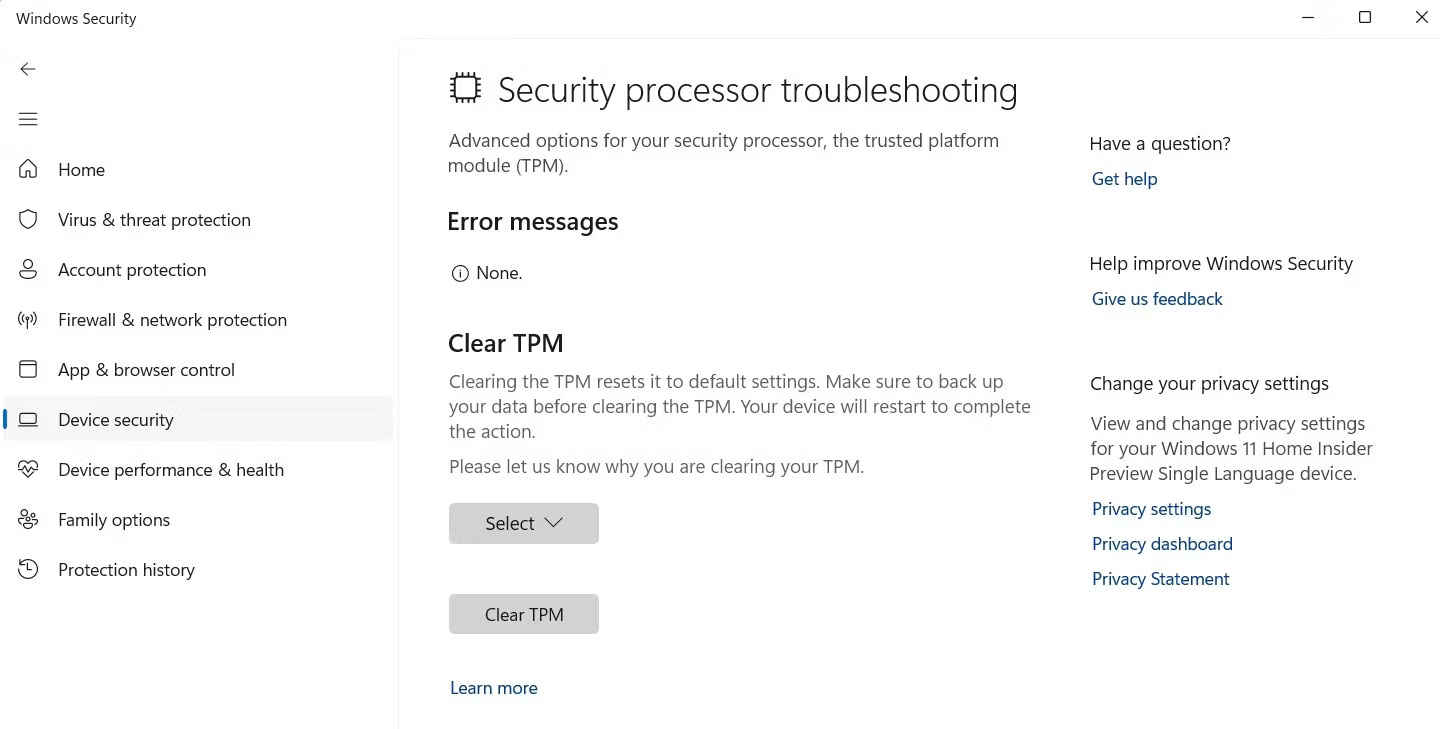
<p style="text-align: justify;">5. Nhấp vào&nbsp;<strong>Clear TPM</strong>.</p>

<figure>
<div style="text-align: justify;"><img alt="Nút Clear TPM trong Windows Security" data-i="5" data-src="https://st.quantrimang.com/photos/image/2023/08/26/xoa-tpm-tren-windows-11-6.jpg" data-was-processed="true" height="729" src="https://st.quantrimang.com/photos/image/2023/08/26/xoa-tpm-tren-windows-11-6.jpg" width="1440" /></div>

<figcaption>
<div style="text-align: justify;">Nút Clear TPM trong Windows Security</div>
</figcaption>
</figure>

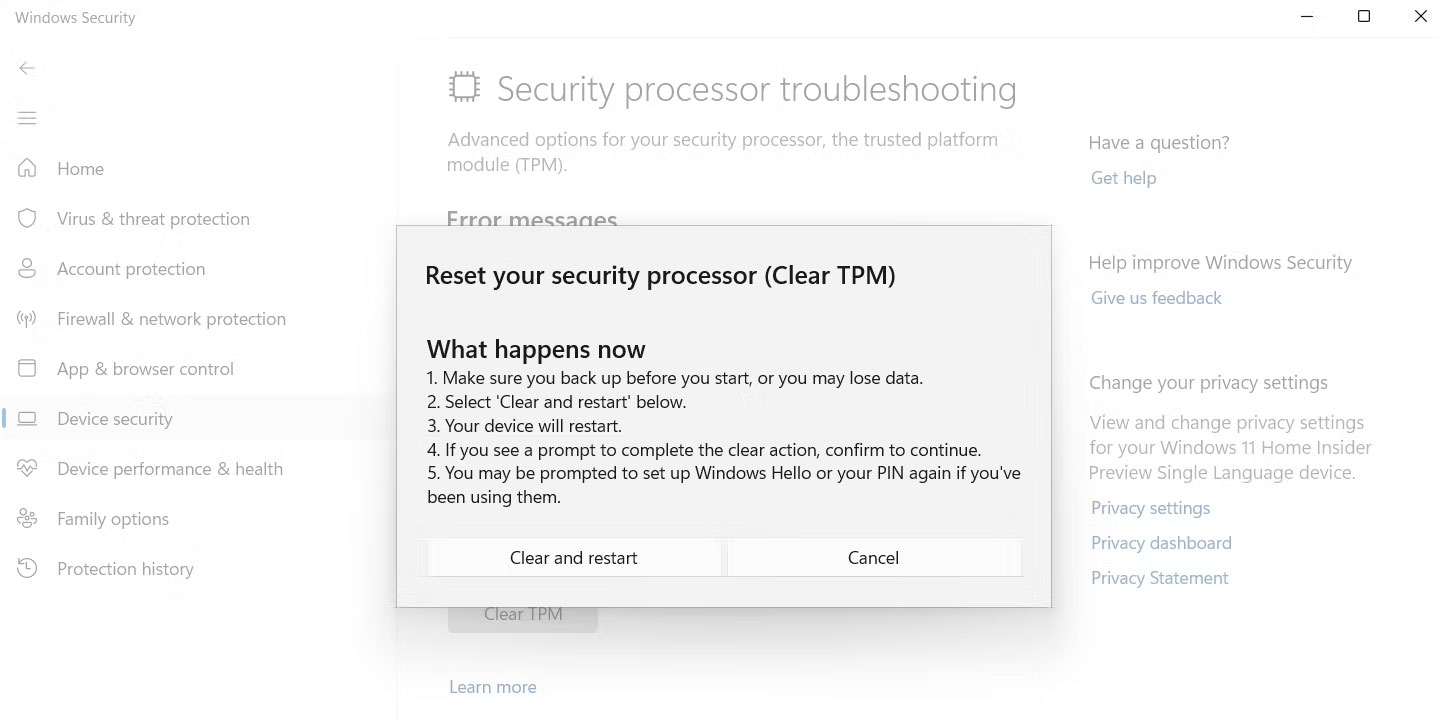
<p style="text-align: justify;">6. Nhấp vào&nbsp;<strong>Clear and restart</strong>.</p>

<figure>
<div style="text-align: justify;"><img alt="Tùy chọn Clear and restart trong Windows Security" data-i="6" data-src="https://st.quantrimang.com/photos/image/2023/08/26/xoa-tpm-tren-windows-11-7.jpg" data-was-processed="true" height="722" src="https://st.quantrimang.com/photos/image/2023/08/26/xoa-tpm-tren-windows-11-7.jpg" width="1438" /></div>

<figcaption>
<div style="text-align: justify;">Tùy chọn Clear and restart trong Windows Security</div>
</figcaption>
</figure>

<p style="text-align: justify;">Máy tính của bạn bây giờ sẽ khởi động lại. Sau đó, bạn sẽ phải&nbsp;thiết lập Windows Hello&nbsp;nếu bạn đã từng sử dụng nó trước đây.</p>

<h3 style="text-align: justify;">3. Cách xóa TPM bằng Windows PowerShell</h3>

<figure>
<div style="text-align: justify;"><img alt="Xóa lệnh TPM trong Windows PowerShell" data-i="7" data-src="https://st.quantrimang.com/photos/image/2023/08/26/xoa-tpm-tren-windows-11-8.jpg" data-was-processed="true" height="177" src="https://st.quantrimang.com/photos/image/2023/08/26/xoa-tpm-tren-windows-11-8.jpg" width="930" /></div>

<figcaption>
<div style="text-align: justify;">Xóa lệnh TPM trong Windows PowerShell</div>
</figcaption>
</figure>

<p style="text-align: justify;">Windows PowerShell&nbsp;là một công cụ dòng lệnh cho phép bạn thực hiện các thao tác nâng cao trên máy tính của mình.</p>

<p style="text-align: justify;">Để sử dụng PowerShell xóa TPM, hãy&nbsp;mở Windows PowerShell bằng quyền admin, nhập&nbsp;<strong>Clear-Tpm</strong>&nbsp;và nhấn&nbsp;<strong>Enter.</strong></p>

<h3 style="text-align: justify;">4. Cách xóa TPM thông qua BIOS</h3>

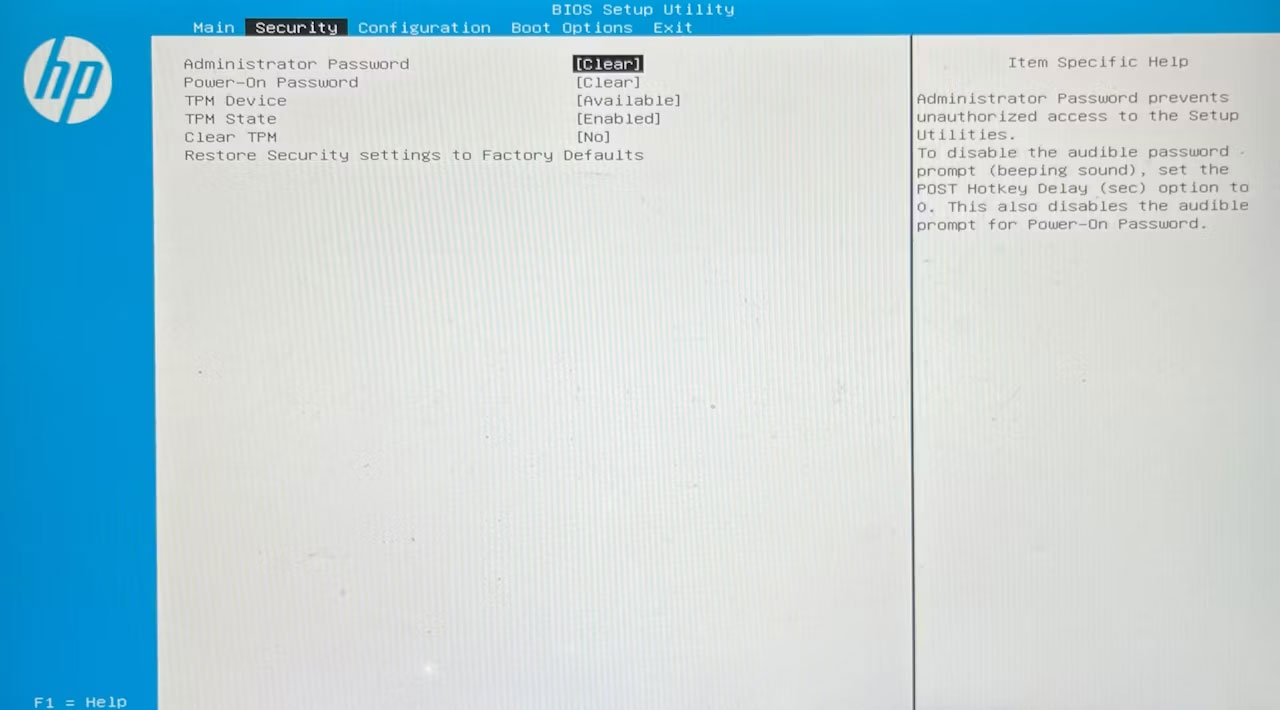
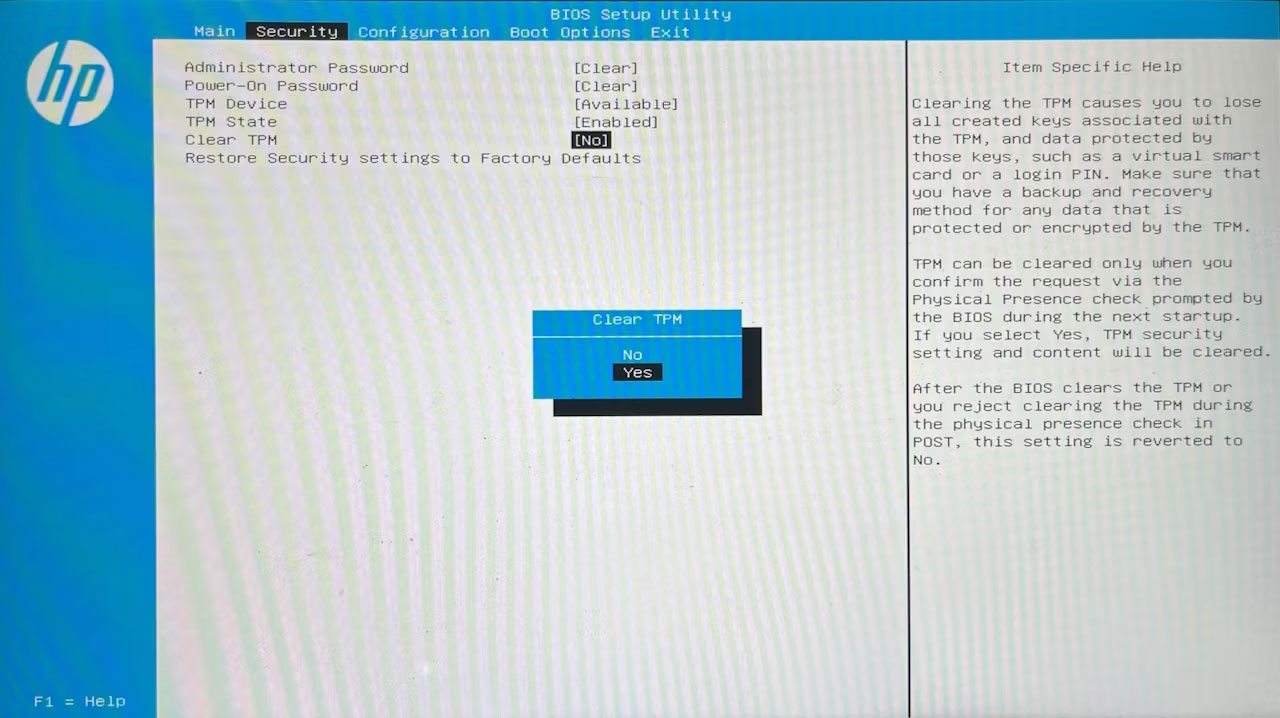
<p style="text-align: justify;">Bạn có thể cấu hình các lớp bảo mật của máy tính, bao gồm TPM từ&nbsp;BIOS. Dưới đây là các bước để reset TPM từ BIOS:</p>

<p style="text-align: justify;">1.&nbsp;Khởi động lại máy tính&nbsp;và nhấn phím BIOS (thường là phím&nbsp;<strong>F2</strong>&nbsp;hoặc&nbsp;<strong>Del</strong>) để&nbsp;truy cập menu BIOS.</p>

<p style="text-align: justify;">2. Chuyển sang tab&nbsp;<strong>Security.</strong></p>

<figure>
<div style="text-align: justify;"><img alt="Tab Security trong menu BIOS" data-i="8" data-src="https://st.quantrimang.com/photos/image/2023/08/26/xoa-tpm-tren-windows-11-9.jpg" data-was-processed="true" height="710" src="https://st.quantrimang.com/photos/image/2023/08/26/xoa-tpm-tren-windows-11-9.jpg" width="1280" /></div>

<figcaption>
<div style="text-align: justify;">Tab Security trong menu BIOS</div>
</figcaption>
</figure>

<p style="text-align: justify;">3. Nhấp vào tùy chọn&nbsp;<strong>Clear TPM</strong>&nbsp;và chọn&nbsp;<strong>Yes</strong>&nbsp;từ lời nhắc.</p>

<figure>
<div style="text-align: justify;"><img alt="Tùy chọn Yes trong menu BIOS" data-i="9" data-src="https://st.quantrimang.com/photos/image/2023/08/26/xoa-tpm-tren-windows-11-10.jpg" data-was-processed="true" height="718" src="https://st.quantrimang.com/photos/image/2023/08/26/xoa-tpm-tren-windows-11-10.jpg" width="1280" /></div>

<figcaption>
<div style="text-align: justify;">Tùy chọn Yes trong menu BIOS</div>
</figcaption>
</figure>

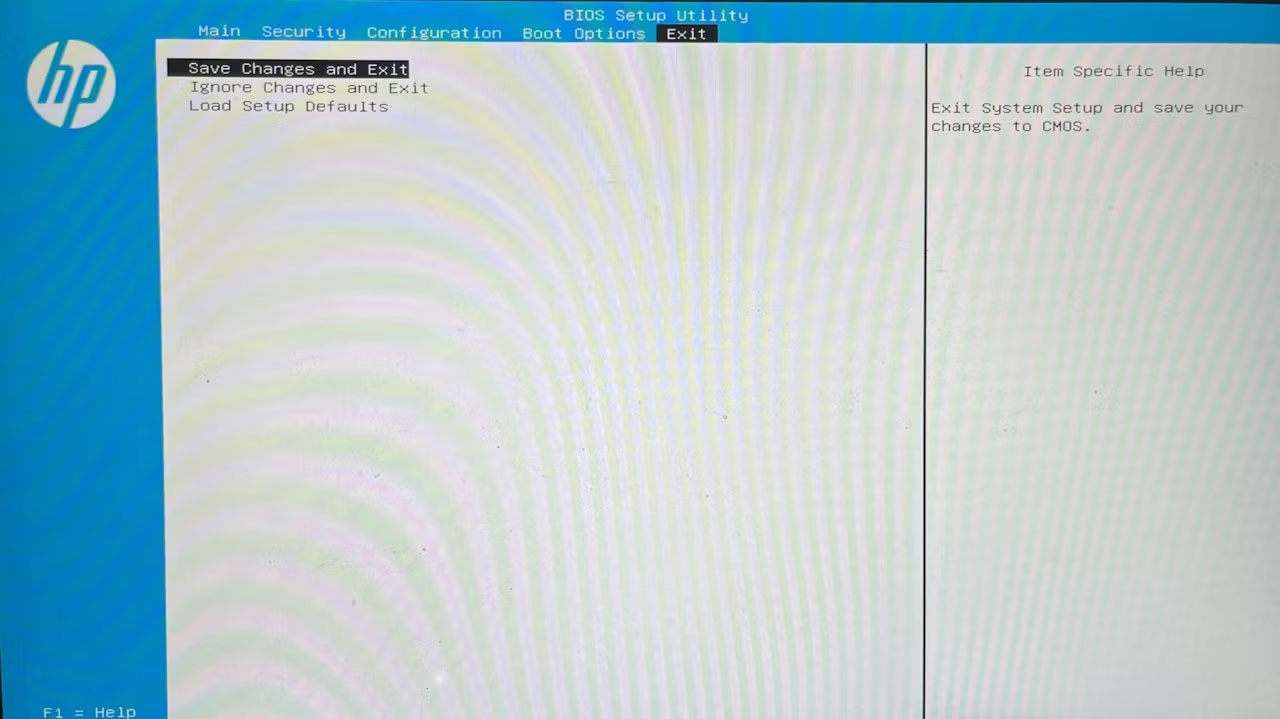
<p style="text-align: justify;">4. Chuyển sang&nbsp;<strong>Exit tab</strong>&nbsp;và chọn&nbsp;<strong>Save Changes and Exit</strong>. Sau đó, chọn&nbsp;<strong>Yes.</strong></p>

<figure>
<div style="text-align: justify;"><img alt="Lưu tùy chọn thay đổi trong BIOS" data-i="10" data-src="https://st.quantrimang.com/photos/image/2023/08/26/xoa-tpm-tren-windows-11-11.jpg" data-was-processed="true" height="719" src="https://st.quantrimang.com/photos/image/2023/08/26/xoa-tpm-tren-windows-11-11.jpg" width="1280" /></div>

<figcaption>
<div style="text-align: justify;">Lưu tùy chọn thay đổi trong BIOS</div>
</figcaption>
</figure>

<p style="text-align: justify;">Vậy là xong! Máy tính của bạn sẽ khởi động lại và bạn sẽ có tùy chọn thiết lập mã pin trên màn hình đăng nhập, cho biết rằng bạn đã xóa TPM thành công.</p>
		</div>
				<div id="author">
						<p>
				<strong>Nguồn tin:</strong>
				Quantrimang.com:
			</p>
		</div>
	</div>
	<div id="footer" class="clearfix">
		<div id="url">
			<strong>URL của bản tin này: </strong><a href="https://www.nguoicodonvn2008.info/vi/news/savefile/kien-thuc-may-tinh/4-cach-xoa-tpm-tren-windows-11-7487.html" title="4 cách xóa TPM trên Windows 11">https://www.nguoicodonvn2008.info/vi/news/savefile/kien-thuc-may-tinh/4-cach-xoa-tpm-tren-windows-11-7487.html</a>

		</div>
		<div class="clear"></div>
		<div class="copyright">
			&copy; .&#x3A; Nguoicodonvn2008.info - Cõi lòng người cô đơn &#x3A;.
		</div>
		<div id="contact">
			<a href="mailto:admin@nguoicodonvn2008.info">admin@nguoicodonvn2008.info</a>
		</div>
	</div>
</div>
        <div id="timeoutsess" class="chromeframe">
            Bạn đã không sử dụng Site, <a onclick="timeoutsesscancel();" href="https://nguoicodonvn2008.info/#">Bấm vào đây để duy trì trạng thái đăng nhập</a>. Thời gian chờ: <span id="secField"> 60 </span> giây
        </div>
        <div id="openidResult" class="nv-alert" style="display:none"></div>
        <div id="openidBt" data-result="" data-redirect=""></div>
		</script>
		<div class="car-top">
  <span><img src="https://nguoicodonvn2008.info/themes/default/images/car.png" alt=""></span>
</div>
<script src="https://nguoicodonvn2008.info/assets/js/jquery/jquery.min.js"></script>
<script>var nv_base_siteurl="/",nv_lang_data="vi",nv_lang_interface="vi",nv_name_variable="nv",nv_fc_variable="op",nv_lang_variable="language",nv_module_name="news",nv_func_name="savefile",nv_is_user=0, nv_my_ofs=-4,nv_my_abbr="EDT",nv_cookie_prefix="nv4c_e856T",nv_check_pass_mstime=1738000,nv_area_admin=0,nv_safemode=0,theme_responsive=0,nv_recaptcha_ver=2,nv_recaptcha_sitekey="",nv_recaptcha_type="image",XSSsanitize=1;</script>
<script src="https://nguoicodonvn2008.info/assets/js/language/vi.js"></script>
<script src="https://nguoicodonvn2008.info/assets/js/DOMPurify/purify3.js"></script>
<script src="https://nguoicodonvn2008.info/assets/js/global.js"></script>
<script src="https://nguoicodonvn2008.info/assets/js/site.js"></script>
<script src="https://nguoicodonvn2008.info/themes/default/js/news.js"></script>
<script src="https://nguoicodonvn2008.info/themes/default/js/main.js"></script>
<script src="https://nguoicodonvn2008.info/themes/default/js/custom.js"></script>
<script type="application/ld+json">
        {
            "@context": "https://schema.org",
            "@type": "Organization",
            "url": "https://nguoicodonvn2008.info",
            "logo": "https://nguoicodonvn2008.info/uploads/angel.gif"
        }
        </script>
<script src="https://nguoicodonvn2008.info/themes/default/js/bootstrap.min.js"></script>
<script type="text/javascript">
var $scrolltop = $('.car-top');
$scrolltop.on('click', function () {
    $('html,body').animate({
        scrollTop: 0
    }, 800);
    $(this).addClass("car-run");
    setTimeout(function(){ $scrolltop.removeClass('car-run');}, 1000);
    return false;
});
$(window).on('scroll', function ()
{ 
    if($(window).scrollTop() >= 200)
    {
        $scrolltop.addClass("show");
        $scrolltop.addClass("car-down");
    }
    else
    {
       $scrolltop.removeClass("show");
       setTimeout(function(){ $scrolltop.removeClass('car-down');}, 300);
    }
});
</script>
</body>
</html>