<!DOCTYPE html>
    <html lang="vi" xmlns="http://www.w3.org/1999/xhtml" prefix="og: http://ogp.me/ns#">
    <head>
<title>4 cách tốt nhất kiểm tra dung lượng RAM trên Windows 11</title>
<meta name="description" content="4 cách tốt nhất kiểm tra dung lượng RAM trên Windows 11 - Savefile - Tin Tức -...">
<meta name="author" content=".: Nguoicodonvn2008.info - Cõi lòng người cô đơn :.">
<meta name="copyright" content=".: Nguoicodonvn2008.info - Cõi lòng người cô đơn :. [admin@nguoicodonvn2008.info]">
<meta name="robots" content="index, archive, follow, noodp">
<meta name="googlebot" content="index,archive,follow,noodp">
<meta name="msnbot" content="all,index,follow">
<meta name="generator" content="NukeViet v4.5">
<meta http-equiv="Content-Type" content="text/html; charset=utf-8">
<meta property="og:title" content="4 cách tốt nhất kiểm tra dung lượng RAM trên Windows 11">
<meta property="og:type" content="website">
<meta property="og:description" content="Savefile - Tin Tức - https&#x3A;&#x002F;&#x002F;www.nguoicodonvn2008.info&#x002F;vi&#x002F;news&#x002F;savefile&#x002F;kien-thuc-may-tinh&#x002F;4-cach-tot-nhat-kiem-tra-dung-luong-ram-tren-windows-11-5643.html">
<meta property="og:site_name" content=".&#x3A; Nguoicodonvn2008.info - Cõi lòng người cô đơn &#x3A;.">
<meta property="og:url" content="https://www.nguoicodonvn2008.info/vi/news/savefile/kien-thuc-may-tinh/4-cach-tot-nhat-kiem-tra-dung-luong-ram-tren-windows-11-5643.html">
<link rel="shortcut icon" href="https://nguoicodonvn2008.info/favicon.ico">
<link rel="canonical" href="https://www.nguoicodonvn2008.info/vi/news/savefile/kien-thuc-may-tinh/4-cach-tot-nhat-kiem-tra-dung-luong-ram-tren-windows-11-5643.html">
<link rel="alternate" href="https://nguoicodonvn2008.info/vi/news/rss/" title="Tin Tức" type="application/rss+xml">
<link rel="alternate" href="https://nguoicodonvn2008.info/vi/news/rss/karaoke-dual/" title="Tin Tức - Karaoke Dual" type="application/rss+xml">
<link rel="alternate" href="https://nguoicodonvn2008.info/vi/news/rss/nhac-tre/" title="Tin Tức - Nhạc trẻ" type="application/rss+xml">
<link rel="alternate" href="https://nguoicodonvn2008.info/vi/news/rss/tru-tinh/" title="Tin Tức - Trữ tình" type="application/rss+xml">
<link rel="alternate" href="https://nguoicodonvn2008.info/vi/news/rss/nuoc-ngoai/" title="Tin Tức - Nước ngoài" type="application/rss+xml">
<link rel="alternate" href="https://nguoicodonvn2008.info/vi/news/rss/remix/" title="Tin Tức - Remix" type="application/rss+xml">
<link rel="alternate" href="https://nguoicodonvn2008.info/vi/news/rss/tam-su-tinh-yeu/" title="Tin Tức - Tâm sự tình yêu" type="application/rss+xml">
<link rel="alternate" href="https://nguoicodonvn2008.info/vi/news/rss/tho-suu-tam/" title="Tin Tức - Thơ sưu tầm" type="application/rss+xml">
<link rel="alternate" href="https://nguoicodonvn2008.info/vi/news/rss/cuoc-song/" title="Tin Tức - Cuộc sống" type="application/rss+xml">
<link rel="alternate" href="https://nguoicodonvn2008.info/vi/news/rss/phan-mem/" title="Tin Tức - Phần mềm" type="application/rss+xml">
<link rel="alternate" href="https://nguoicodonvn2008.info/vi/news/rss/kien-thuc-may-tinh/" title="Tin Tức - Kiến thức máy tính" type="application/rss+xml">
<link rel="alternate" href="https://nguoicodonvn2008.info/vi/news/rss/hoc-tap/" title="Tin Tức - Học tập" type="application/rss+xml">
<link rel="alternate" href="https://nguoicodonvn2008.info/vi/news/rss/tai-lieu/" title="Tin Tức - Tài liệu" type="application/rss+xml">
<link rel="alternate" href="https://nguoicodonvn2008.info/vi/news/rss/de-thi/" title="Tin Tức - Đề thi" type="application/rss+xml">
<link rel="preload" as="style" href="https://nguoicodonvn2008.info/assets/css/font-awesome.min.css" type="text/css">
<link rel="preload" as="style" href="https://nguoicodonvn2008.info/themes/default/css/bootstrap.non-responsive.css" type="text/css">
<link rel="preload" as="style" href="https://nguoicodonvn2008.info/themes/default/css/style.css" type="text/css">
<link rel="preload" as="style" href="https://nguoicodonvn2008.info/themes/default/css/style.non-responsive.css" type="text/css">
<link rel="preload" as="style" href="https://nguoicodonvn2008.info/themes/default/css/news.css" type="text/css">
<link rel="preload" as="style" href="https://nguoicodonvn2008.info/themes/default/css/custom.css" type="text/css">
<link rel="preload" as="script" href="https://nguoicodonvn2008.info/assets/js/jquery/jquery.min.js" type="text/javascript">
<link rel="preload" as="script" href="https://nguoicodonvn2008.info/assets/js/language/vi.js" type="text/javascript">
<link rel="preload" as="script" href="https://nguoicodonvn2008.info/assets/js/DOMPurify/purify3.js" type="text/javascript">
<link rel="preload" as="script" href="https://nguoicodonvn2008.info/assets/js/global.js" type="text/javascript">
<link rel="preload" as="script" href="https://nguoicodonvn2008.info/assets/js/site.js" type="text/javascript">
<link rel="preload" as="script" href="https://nguoicodonvn2008.info/themes/default/js/news.js" type="text/javascript">
<link rel="preload" as="script" href="https://nguoicodonvn2008.info/themes/default/js/main.js" type="text/javascript">
<link rel="preload" as="script" href="https://nguoicodonvn2008.info/themes/default/js/custom.js" type="text/javascript">
<link rel="preload" as="script" href="https://nguoicodonvn2008.info/themes/default/js/bootstrap.min.js" type="text/javascript">
<link rel="stylesheet" href="https://nguoicodonvn2008.info/assets/css/font-awesome.min.css">
<link rel="stylesheet" href="https://nguoicodonvn2008.info/themes/default/css/bootstrap.non-responsive.css">
<link rel="stylesheet" href="https://nguoicodonvn2008.info/themes/default/css/style.css">
<link rel="stylesheet" href="https://nguoicodonvn2008.info/themes/default/css/style.non-responsive.css">
<link rel="StyleSheet" href="https://nguoicodonvn2008.info/themes/default/css/news.css">
<link rel="stylesheet" href="https://nguoicodonvn2008.info/themes/default/css/custom.css">
<style type="text/css">
	body{background: #fff;}
</style>
    </head>
    <body>
<div id="print">
	<div id="hd_print">
		<h2 class="pull-left">.&#x3A; Nguoicodonvn2008.info - Cõi lòng người cô đơn &#x3A;.</h2>
		<p class="pull-right"><a title=".&#x3A; Nguoicodonvn2008.info - Cõi lòng người cô đơn &#x3A;." href="https://nguoicodonvn2008.info/">https://nguoicodonvn2008.info</a></p>
	</div>
	<div class="clear"></div>
	<hr />
	<div id="content">
		<h1>4 cách tốt nhất kiểm tra dung lượng RAM trên Windows 11</h1>
		<ul class="list-inline">
			<li>Thứ bảy - 21/05/2022 00:24</li>
			<li class="hidden-print txtrequired"><em class="fa fa-print">&nbsp;</em><a title="In ra" href="javascript:;" onclick="window.print()">In ra</a></li>
			<li class="hidden-print txtrequired"><em class="fa fa-power-off">&nbsp;</em><a title="Đóng cửa sổ này" href="javascript:;" onclick="window.close()">Đóng cửa sổ này</a></li>
		</ul>
		<div class="clear"></div>
		<div id="hometext">
		</div>
				<div class="imghome">
			<img alt="4 cách tốt nhất kiểm tra dung lượng RAM trên Windows 11" src="https://st.quantrimang.com/photos/image/2022/05/20/kiem-tra-kich-thuoc-ram-windows-11-6.jpg" width="460" class="img-thumbnail" />
		</div>
		<div class="clear"></div>
		<div id="bodytext" class="clearfix">
			<p style="text-align: justify;">RAM&nbsp;là từ viết tắt của Random Access Memory (Bộ nhớ truy cập ngẫu nhiên). Đây là một loại bộ nhớ được cài đặt trên bo mạch chủ của máy tính để lưu trữ thông tin. Tuy nhiên, không giống như ổ cứng, một thiết bị lưu trữ khác trên PC, bạn sẽ mất bất kỳ dữ liệu nào được lưu trữ trên RAM sau khi tắt máy tính. RAM chỉ lưu trữ tạm thời thông tin từ hệ điều hành Windows và các ứng dụng khác đang chạy trên PC của bạn.</p>

<p style="text-align: justify;">Có một số tình huống nhất định bạn cần biết dung lượng RAM trên PC của mình, chẳng hạn khi bạn cần biết dung lượng RAM của mình có đủ lớn để đáp ứng việc chạy các ứng dụng có mức tiêu thụ bộ nhớ lớn hay không. Khi hệ thống chậm lại, bạn cũng có thể cần phải tìm ra dung lượng RAM để chắc chắn về nguyên nhân. Dưới đây là các cách khác nhau để kiểm tra dung lượng RAM của bạn trên Windows 11.</p>

<h2 style="text-align: justify;">1. Kiểm tra dung lượng RAM bằng PC Settings</h2>

<p style="text-align: justify;">Để kiểm tra dung lượng RAM bằng cách sử dụng PC Settings, hãy thực hiện các bước bên dưới:</p>

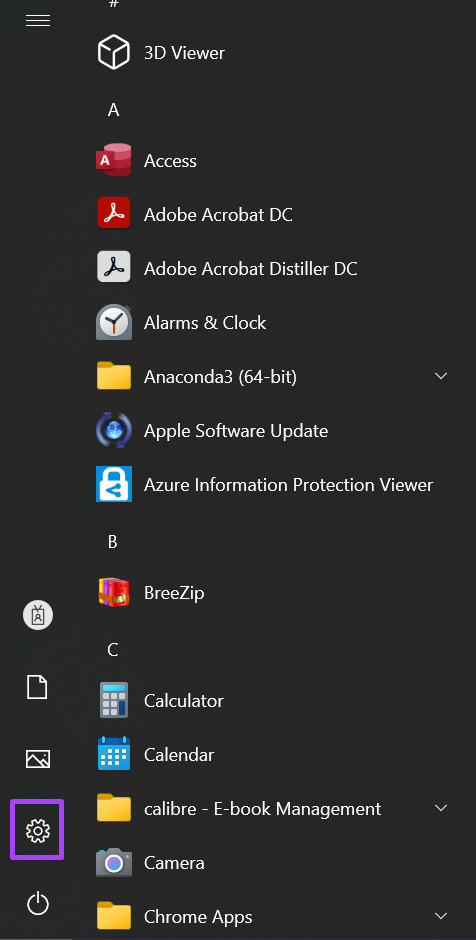
<p style="text-align: justify;"><strong>Bước 1</strong>: Trên PC, nhấp vào menu&nbsp;<strong>Start</strong>&nbsp;ở dưới cùng bên trái màn hình.</p>

<p style="text-align: justify;"><strong>Bước 2</strong>: Nhấp vào biểu tượng bánh răng để&nbsp;khởi chạy Windows Settings.</p>

<figure>
<div style="text-align: justify;"><img alt="Khởi chạy Windows Settings" data-i="0" data-src="https://st.quantrimang.com/photos/image/2022/05/20/kiem-tra-kich-thuoc-ram-windows-11-1.jpg" data-was-processed="true" height="940" src="https://st.quantrimang.com/photos/image/2022/05/20/kiem-tra-kich-thuoc-ram-windows-11-1.jpg" width="476" /></div>

<figcaption>
<div style="text-align: justify;">Khởi chạy Windows Settings</div>
</figcaption>
</figure>

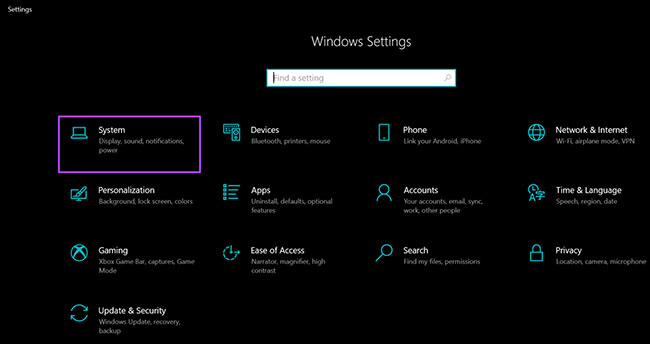
<p style="text-align: justify;"><strong>Bước 3</strong>: Nhấp vào&nbsp;<strong>System</strong>&nbsp;từ các tùy chọn hiển thị.</p>

<figure>
<div style="text-align: justify;"><img alt="Nhấp vào System" data-i="1" data-src="https://st.quantrimang.com/photos/image/2022/05/20/kiem-tra-kich-thuoc-ram-windows-11-2.jpg" data-was-processed="true" height="344" src="https://st.quantrimang.com/photos/image/2022/05/20/kiem-tra-kich-thuoc-ram-windows-11-2.jpg" width="650" /></div>

<figcaption>
<div style="text-align: justify;">Nhấp vào System</div>
</figcaption>
</figure>

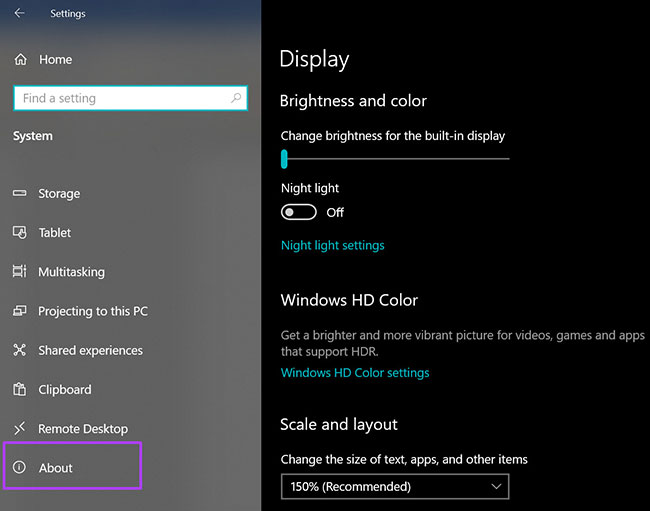
<p style="text-align: justify;"><strong>Bước 4</strong>: Trên ngăn bên trái của cửa sổ&nbsp;<strong>System</strong>, cuộn xuống dưới cùng và nhấp vào&nbsp;<strong>About</strong>&nbsp;từ các tùy chọn được liệt kê.</p>

<figure>
<div style="text-align: justify;"><img alt="Nhấp vào About" data-i="2" data-src="https://st.quantrimang.com/photos/image/2022/05/20/kiem-tra-kich-thuoc-ram-windows-11-3.jpg" data-was-processed="true" height="511" src="https://st.quantrimang.com/photos/image/2022/05/20/kiem-tra-kich-thuoc-ram-windows-11-3.jpg" width="650" /></div>

<figcaption>
<div style="text-align: justify;">Nhấp vào About</div>
</figcaption>
</figure>

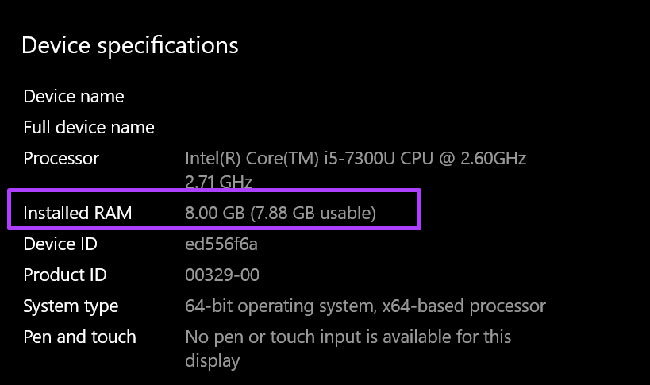
<p style="text-align: justify;"><strong>Bước 5</strong>: Trong&nbsp;<strong>Device Specifications</strong>, hãy đọc kỹ để tìm thông tin về dung lượng RAM của bạn.</p>

<figure>
<div style="text-align: justify;"><img alt="Tìm thông tin về dung lượng RAM" data-i="3" data-src="https://st.quantrimang.com/photos/image/2022/05/20/kiem-tra-kich-thuoc-ram-windows-11-4.jpg" data-was-processed="true" height="385" src="https://st.quantrimang.com/photos/image/2022/05/20/kiem-tra-kich-thuoc-ram-windows-11-4.jpg" width="650" /></div>

<figcaption>
<div style="text-align: justify;">Tìm thông tin về dung lượng RAM</div>
</figcaption>
</figure>

<h2 style="text-align: justify;">2. Kiểm tra dung lượng RAM bằng System Information</h2>

<p style="text-align: justify;">Dưới đây là cách kiểm tra dung lượng RAM bằng System Information:</p>

<p style="text-align: justify;"><strong>Bước 1</strong>:&nbsp;<a href="https://quantrimang.com/cach-mo-hop-thoai-run-trong-windows-187019" title="7 cách mở hộp thoại Run trong Windows">Khởi chạy hộp thoại Run</a>&nbsp;bằng cách nhấn đồng thời phím&nbsp;<strong>Windows + R</strong>&nbsp;trên bàn phím.</p>

<p style="text-align: justify;"><strong>Bước 2</strong>: Nhập&nbsp;<strong>msinfo32</strong>&nbsp;vào trường trống bên cạnh&nbsp;<strong>Open.</strong></p>

<p style="text-align: justify;"><strong>Bước 3</strong>: Nhấp vào&nbsp;<strong>OK</strong>&nbsp;để mở cửa sổ&nbsp;<strong>System Information.</strong></p>

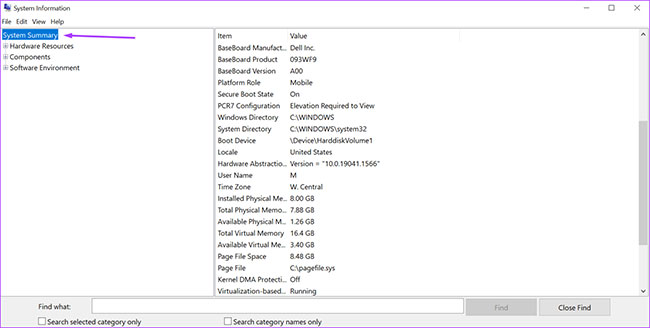
<p style="text-align: justify;"><strong>Bước 4</strong>: Nhấp vào&nbsp;<strong>System Summary</strong>&nbsp;trên ngăn bên trái của cửa sổ&nbsp;<strong>System Information.</strong></p>

<figure>
<div style="text-align: justify;"><img alt="Nhấp vào System Summary" data-i="4" data-src="https://st.quantrimang.com/photos/image/2022/05/20/kiem-tra-kich-thuoc-ram-windows-11-5.jpg" data-was-processed="true" height="328" src="https://st.quantrimang.com/photos/image/2022/05/20/kiem-tra-kich-thuoc-ram-windows-11-5.jpg" width="650" /></div>

<figcaption>
<div style="text-align: justify;">Nhấp vào System Summary</div>
</figcaption>
</figure>

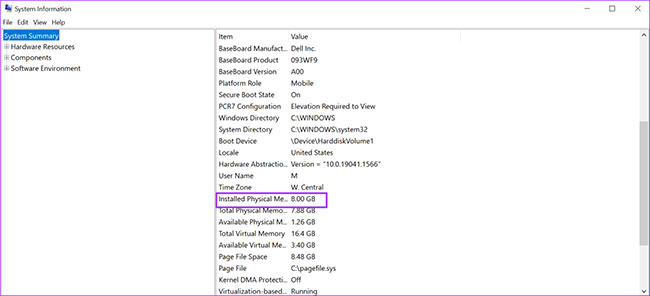
<p style="text-align: justify;"><strong>Bước 5</strong>: Chuyển đến khung bên phải của cửa sổ&nbsp;<strong>System Information</strong>&nbsp;và cuộn xuống&nbsp;<strong>Installed Physical Memory (RAM).</strong>&nbsp;Bạn sẽ thấy kích thước RAM trên PC của mình.</p>

<figure>
<div style="text-align: justify;"><img alt="Cuộn xuống Installed Physical Memory (RAM)" data-i="5" data-src="https://st.quantrimang.com/photos/image/2022/05/20/kiem-tra-kich-thuoc-ram-windows-11-6.jpg" data-was-processed="true" height="296" src="https://st.quantrimang.com/photos/image/2022/05/20/kiem-tra-kich-thuoc-ram-windows-11-6.jpg" width="650" /></div>

<figcaption>
<div style="text-align: justify;">Cuộn xuống Installed Physical Memory (RAM)</div>
</figcaption>
</figure>

<h2 style="text-align: justify;">3. Kiểm tra dung lượng RAM bằng Command Prompt</h2>

<p style="text-align: justify;">Command Prompt&nbsp;là một cách khác để tìm ra dung lượng RAM của máy tính. Hầu hết mọi người coi quá trình này có chút khó khăn vì nó yêu cầu bạn nhập một lệnh cụ thể. Bài viết đã giúp bạn thực hiện việc này dễ dàng hơn bằng cách tổng hợp các lệnh bạn cần cho quá trình bên dưới:</p>

<p style="text-align: justify;"><strong>Bước 1</strong>: Trên PC, nhấp vào menu&nbsp;<strong>Start</strong>&nbsp;ở dưới cùng bên trái màn hình.</p>

<p style="text-align: justify;"><strong>Bước 2</strong>: Trong trường tìm kiếm, nhập truy vấn cho&nbsp;<strong>Command Prompt.</strong></p>

<p style="text-align: justify;"><strong>Bước 3</strong>: Nhấp vào kết quả tương ứng để&nbsp;khởi chạy Command Prompt.</p>

<p style="text-align: justify;"><strong>Bước 4</strong>: Gõ lệnh sau vào Command Prompt.</p>

<pre id="pre0">
<code>wmic memorychip get/format:list</code></pre>

<p style="text-align: justify;"><strong>Bước 5</strong>: Nhấn&nbsp;<strong>Enter</strong>&nbsp;trên bàn phím để chạy lệnh.</p>

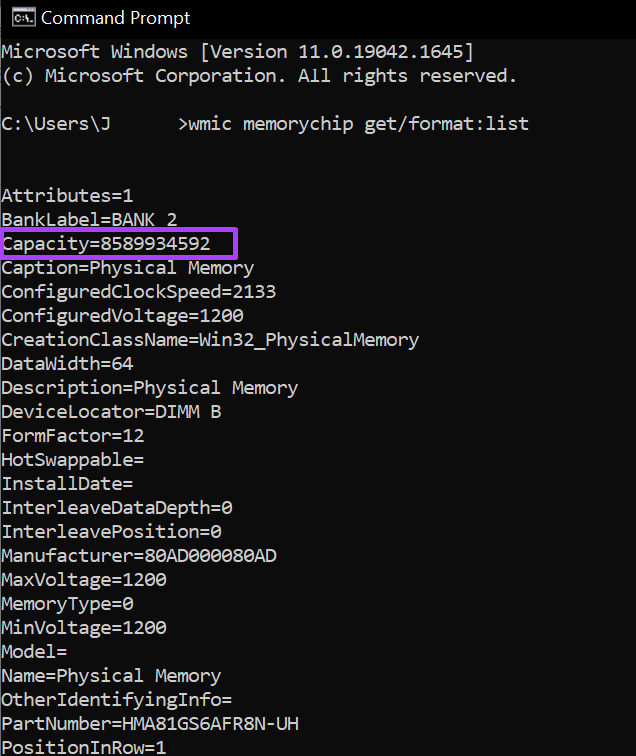
<p style="text-align: justify;"><strong>Bước 6</strong>: Từ kết quả, tìm giá trị bên cạnh<strong>&nbsp;Capacity</strong>, đại diện cho dung lượng RAM của bạn.</p>

<figure>
<div style="text-align: justify;"><img alt="Tìm Capacity" data-i="6" data-src="https://st.quantrimang.com/photos/image/2022/05/20/kiem-tra-kich-thuoc-ram-windows-11-7.png" data-was-processed="true" height="756" src="https://st.quantrimang.com/photos/image/2022/05/20/kiem-tra-kich-thuoc-ram-windows-11-7.png" width="636" /></div>

<figcaption>
<div style="text-align: justify;">Tìm Capacity</div>
</figcaption>
</figure>

<p style="text-align: justify;">Bạn sẽ luôn nhận được một giá trị số sau khi nhập các lệnh trên. Nếu không chắc về ý nghĩa của giá trị số, bạn luôn có thể tiến hành nghiên cứu.</p>

<h2 style="text-align: justify;">4. Kiểm tra dung lượng RAM bằng Task Manager</h2>

<p style="text-align: justify;"><a href="https://quantrimang.com/huong-dan-su-dung-task-manager-83602" title="Tất tần tật về cách sử dụng Task Manager">Task Manager</a>&nbsp;là một trong những tính năng quan trọng nhất của trên máy tính. Nó là một ứng dụng linh hoạt và cung cấp thông tin về các tiến trình và trạng thái bộ nhớ của máy tính, chẳng hạn như dung lượng RAM, mức sử dụng và tốc độ. Làm theo các bước bên dưới để kiểm tra dung lượng RAM của PC bằng Task Manager:</p>

<p style="text-align: justify;"><strong>Bước 1</strong>: Nhấp chuột phải vào thanh Taskbar của PC.</p>

<p style="text-align: justify;"><strong>Bước 2</strong>: Nhấp vào&nbsp;<strong>Task Manager</strong>&nbsp;từ các tùy chọn được liệt kê.</p>

<p style="text-align: justify;">Bạn cũng có thể&nbsp;<a href="https://quantrimang.com/6-cach-don-gian-mo-task-manager-tren-windows-119941" title="11 cách mở Task Manager trên Windows đơn giản nhất">khởi chạy Task Manager</a>&nbsp;bằng cách nhấn đồng thời các phím&nbsp;<strong>Ctrl + Alt + Delete</strong>&nbsp;trên bàn phím.</p>

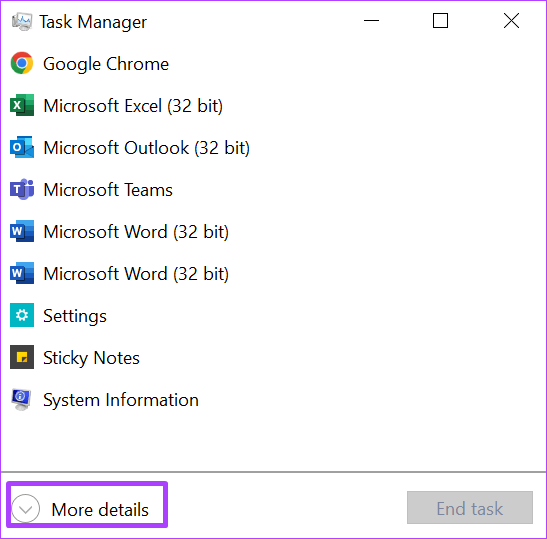
<p style="text-align: justify;"><strong>Bước 3</strong>: Nếu&nbsp;<strong>Task Manager</strong>&nbsp;của bạn khởi chạy dưới dạng cửa sổ nhỏ, hãy chuyển đến phía dưới bên trái của cửa sổ và nhấp vào&nbsp;<strong>More details</strong>&nbsp;để mở rộng.</p>

<figure>
<div style="text-align: justify;"><img alt="Nhấp vào More details" data-i="7" data-src="https://st.quantrimang.com/photos/image/2022/05/20/kiem-tra-kich-thuoc-ram-windows-11-8.png" data-was-processed="true" height="539" src="https://st.quantrimang.com/photos/image/2022/05/20/kiem-tra-kich-thuoc-ram-windows-11-8.png" width="547" /></div>

<figcaption>
<div style="text-align: justify;">Nhấp vào More details</div>
</figcaption>
</figure>

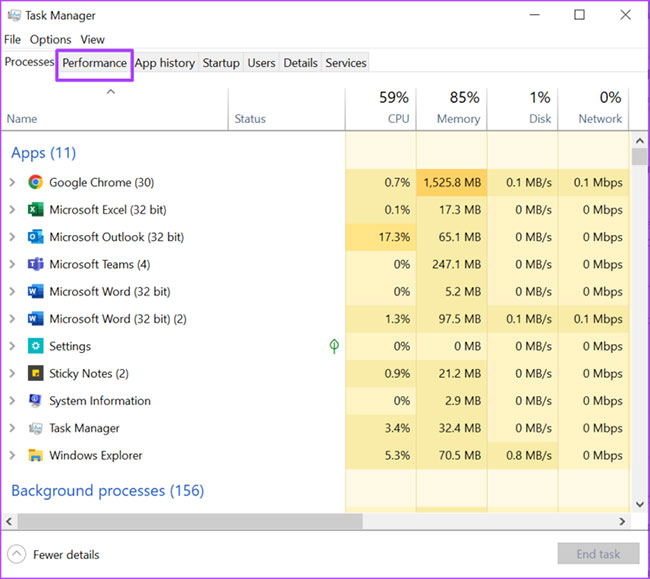
<p style="text-align: justify;"><strong>Bước 4</strong>: Từ các tab ở đầu cửa sổ, nhấp vào&nbsp;<strong>Performance.</strong></p>

<figure>
<div style="text-align: justify;"><img alt="Nhấp vào Performance" data-i="8" data-src="https://st.quantrimang.com/photos/image/2022/05/20/kiem-tra-kich-thuoc-ram-windows-11-9.jpg" data-was-processed="true" height="579" src="https://st.quantrimang.com/photos/image/2022/05/20/kiem-tra-kich-thuoc-ram-windows-11-9.jpg" width="650" /></div>

<figcaption>
<div style="text-align: justify;">Nhấp vào Performance</div>
</figcaption>
</figure>

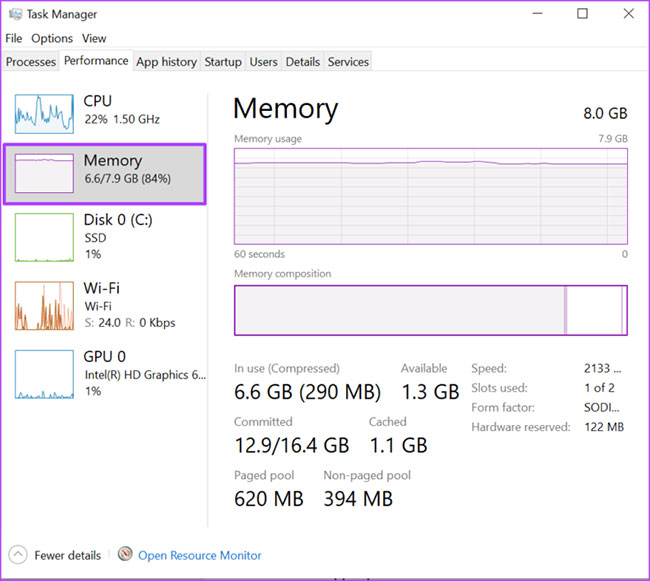
<p style="text-align: justify;"><strong>Bước 5</strong>: Đặt con trỏ trên thanh bên và nhấp vào&nbsp;<strong>Memory</strong>&nbsp;để xem tất cả thông tin về RAM của bạn.</p>

<figure>
<div style="text-align: justify;"><img alt="Nhấp vào Memory" data-i="9" data-src="https://st.quantrimang.com/photos/image/2022/05/20/kiem-tra-kich-thuoc-ram-windows-11-10.jpg" data-was-processed="true" height="581" src="https://st.quantrimang.com/photos/image/2022/05/20/kiem-tra-kich-thuoc-ram-windows-11-10.jpg" width="650" /></div>

<figcaption>
<div style="text-align: justify;">Nhấp vào Memory</div>
</figcaption>
</figure>

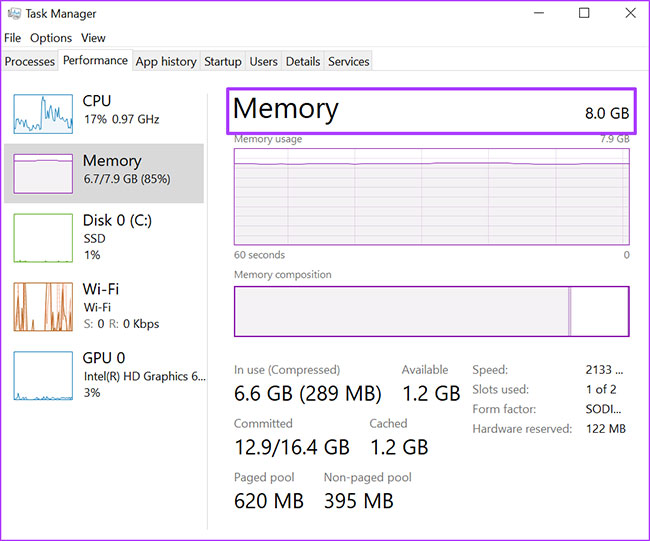
<p style="text-align: justify;"><strong>Bước 6</strong>: Ở bên phải của ngăn&nbsp;<strong>Memory</strong>, bạn sẽ thấy dung lượng RAM được nêu ở trên cùng.</p>

<figure>
<div style="text-align: justify;"><img alt="Tìm dung lượng RAM" data-i="10" data-src="https://st.quantrimang.com/photos/image/2022/05/20/kiem-tra-kich-thuoc-ram-windows-11-11.jpg" data-was-processed="true" height="541" src="https://st.quantrimang.com/photos/image/2022/05/20/kiem-tra-kich-thuoc-ram-windows-11-11.jpg" width="650" /></div>

<figcaption>
<div style="text-align: justify;">Tìm dung lượng RAM</div>
</figcaption>
</figure>

<p style="text-align: justify;">Phần trên của cửa sổ hiển thị dung lượng và loại RAM, trong khi phần dưới hiển thị mức sử dụng RAM, tốc độ, kích thước và model form factor, v.v…</p>

<p style="text-align: justify;">Trên đây là cách kiểm tra dung lượng RAM trên máy tính Windows 11. Một điều cần lưu ý là RAM của PC chỉ lưu trữ dữ liệu tạm thời. Do đó, khi PC của bạn tắt, thông tin sẽ bị mất. Tuy nhiên, đối với ổ cứng hoặc thẻ nhớ trên PC, bạn có thể khôi phục thông tin bị hỏng hoặc bị mất.</p>
		</div>
				<div id="author">
						<p>
				<strong>Nguồn tin:</strong>
				Quantrimang.com
			</p>
		</div>
	</div>
	<div id="footer" class="clearfix">
		<div id="url">
			<strong>URL của bản tin này: </strong><a href="https://www.nguoicodonvn2008.info/vi/news/savefile/kien-thuc-may-tinh/4-cach-tot-nhat-kiem-tra-dung-luong-ram-tren-windows-11-5643.html" title="4 cách tốt nhất kiểm tra dung lượng RAM trên Windows 11">https://www.nguoicodonvn2008.info/vi/news/savefile/kien-thuc-may-tinh/4-cach-tot-nhat-kiem-tra-dung-luong-ram-tren-windows-11-5643.html</a>

		</div>
		<div class="clear"></div>
		<div class="copyright">
			&copy; .&#x3A; Nguoicodonvn2008.info - Cõi lòng người cô đơn &#x3A;.
		</div>
		<div id="contact">
			<a href="mailto:admin@nguoicodonvn2008.info">admin@nguoicodonvn2008.info</a>
		</div>
	</div>
</div>
        <div id="timeoutsess" class="chromeframe">
            Bạn đã không sử dụng Site, <a onclick="timeoutsesscancel();" href="https://nguoicodonvn2008.info/#">Bấm vào đây để duy trì trạng thái đăng nhập</a>. Thời gian chờ: <span id="secField"> 60 </span> giây
        </div>
        <div id="openidResult" class="nv-alert" style="display:none"></div>
        <div id="openidBt" data-result="" data-redirect=""></div>
		</script>
		<div class="car-top">
  <span><img src="https://nguoicodonvn2008.info/themes/default/images/car.png" alt=""></span>
</div>
<div id="run_cronjobs" style="visibility:hidden;display:none;"><img alt="cron" src="/index.php?second=cronjobs&amp;p=c524x6Dg" width="1" height="1" /></div>
<script src="https://nguoicodonvn2008.info/assets/js/jquery/jquery.min.js"></script>
<script>var nv_base_siteurl="/",nv_lang_data="vi",nv_lang_interface="vi",nv_name_variable="nv",nv_fc_variable="op",nv_lang_variable="language",nv_module_name="news",nv_func_name="savefile",nv_is_user=0, nv_my_ofs=-4,nv_my_abbr="EDT",nv_cookie_prefix="nv4c_e856T",nv_check_pass_mstime=1738000,nv_area_admin=0,nv_safemode=0,theme_responsive=0,nv_recaptcha_ver=2,nv_recaptcha_sitekey="",nv_recaptcha_type="image",XSSsanitize=1;</script>
<script src="https://nguoicodonvn2008.info/assets/js/language/vi.js"></script>
<script src="https://nguoicodonvn2008.info/assets/js/DOMPurify/purify3.js"></script>
<script src="https://nguoicodonvn2008.info/assets/js/global.js"></script>
<script src="https://nguoicodonvn2008.info/assets/js/site.js"></script>
<script src="https://nguoicodonvn2008.info/themes/default/js/news.js"></script>
<script src="https://nguoicodonvn2008.info/themes/default/js/main.js"></script>
<script src="https://nguoicodonvn2008.info/themes/default/js/custom.js"></script>
<script type="application/ld+json">
        {
            "@context": "https://schema.org",
            "@type": "Organization",
            "url": "https://nguoicodonvn2008.info",
            "logo": "https://nguoicodonvn2008.info/uploads/angel.gif"
        }
        </script>
<script src="https://nguoicodonvn2008.info/themes/default/js/bootstrap.min.js"></script>
<script type="text/javascript">
var $scrolltop = $('.car-top');
$scrolltop.on('click', function () {
    $('html,body').animate({
        scrollTop: 0
    }, 800);
    $(this).addClass("car-run");
    setTimeout(function(){ $scrolltop.removeClass('car-run');}, 1000);
    return false;
});
$(window).on('scroll', function ()
{ 
    if($(window).scrollTop() >= 200)
    {
        $scrolltop.addClass("show");
        $scrolltop.addClass("car-down");
    }
    else
    {
       $scrolltop.removeClass("show");
       setTimeout(function(){ $scrolltop.removeClass('car-down');}, 300);
    }
});
</script>
</body>
</html>