<!DOCTYPE html>
    <html lang="vi" xmlns="http://www.w3.org/1999/xhtml" prefix="og: http://ogp.me/ns#">
    <head>
<title>3 cách xóa file cập nhật trên Windows 11</title>
<meta name="description" content="3 cách xóa file cập nhật trên Windows 11 - Savefile - Tin Tức -...">
<meta name="author" content=".: Nguoicodonvn2008.info - Cõi lòng người cô đơn :.">
<meta name="copyright" content=".: Nguoicodonvn2008.info - Cõi lòng người cô đơn :. [admin@nguoicodonvn2008.info]">
<meta name="robots" content="index, archive, follow, noodp">
<meta name="googlebot" content="index,archive,follow,noodp">
<meta name="msnbot" content="all,index,follow">
<meta name="generator" content="NukeViet v4.5">
<meta http-equiv="Content-Type" content="text/html; charset=utf-8">
<meta property="og:title" content="3 cách xóa file cập nhật trên Windows 11">
<meta property="og:type" content="website">
<meta property="og:description" content="Savefile - Tin Tức - https&#x3A;&#x002F;&#x002F;www.nguoicodonvn2008.info&#x002F;vi&#x002F;news&#x002F;savefile&#x002F;kien-thuc-may-tinh&#x002F;3-cach-xoa-file-cap-nhat-tren-windows-11-9707.html">
<meta property="og:site_name" content=".&#x3A; Nguoicodonvn2008.info - Cõi lòng người cô đơn &#x3A;.">
<meta property="og:url" content="https://www.nguoicodonvn2008.info/vi/news/savefile/kien-thuc-may-tinh/3-cach-xoa-file-cap-nhat-tren-windows-11-9707.html">
<link rel="shortcut icon" href="https://nguoicodonvn2008.info/favicon.ico">
<link rel="canonical" href="https://www.nguoicodonvn2008.info/vi/news/savefile/kien-thuc-may-tinh/3-cach-xoa-file-cap-nhat-tren-windows-11-9707.html">
<link rel="alternate" href="https://nguoicodonvn2008.info/vi/news/rss/" title="Tin Tức" type="application/rss+xml">
<link rel="alternate" href="https://nguoicodonvn2008.info/vi/news/rss/karaoke-dual/" title="Tin Tức - Karaoke Dual" type="application/rss+xml">
<link rel="alternate" href="https://nguoicodonvn2008.info/vi/news/rss/nhac-tre/" title="Tin Tức - Nhạc trẻ" type="application/rss+xml">
<link rel="alternate" href="https://nguoicodonvn2008.info/vi/news/rss/tru-tinh/" title="Tin Tức - Trữ tình" type="application/rss+xml">
<link rel="alternate" href="https://nguoicodonvn2008.info/vi/news/rss/nuoc-ngoai/" title="Tin Tức - Nước ngoài" type="application/rss+xml">
<link rel="alternate" href="https://nguoicodonvn2008.info/vi/news/rss/remix/" title="Tin Tức - Remix" type="application/rss+xml">
<link rel="alternate" href="https://nguoicodonvn2008.info/vi/news/rss/tam-su-tinh-yeu/" title="Tin Tức - Tâm sự tình yêu" type="application/rss+xml">
<link rel="alternate" href="https://nguoicodonvn2008.info/vi/news/rss/tho-suu-tam/" title="Tin Tức - Thơ sưu tầm" type="application/rss+xml">
<link rel="alternate" href="https://nguoicodonvn2008.info/vi/news/rss/cuoc-song/" title="Tin Tức - Cuộc sống" type="application/rss+xml">
<link rel="alternate" href="https://nguoicodonvn2008.info/vi/news/rss/phan-mem/" title="Tin Tức - Phần mềm" type="application/rss+xml">
<link rel="alternate" href="https://nguoicodonvn2008.info/vi/news/rss/kien-thuc-may-tinh/" title="Tin Tức - Kiến thức máy tính" type="application/rss+xml">
<link rel="alternate" href="https://nguoicodonvn2008.info/vi/news/rss/hoc-tap/" title="Tin Tức - Học tập" type="application/rss+xml">
<link rel="alternate" href="https://nguoicodonvn2008.info/vi/news/rss/tai-lieu/" title="Tin Tức - Tài liệu" type="application/rss+xml">
<link rel="alternate" href="https://nguoicodonvn2008.info/vi/news/rss/de-thi/" title="Tin Tức - Đề thi" type="application/rss+xml">
<link rel="preload" as="style" href="https://nguoicodonvn2008.info/assets/css/font-awesome.min.css" type="text/css">
<link rel="preload" as="style" href="https://nguoicodonvn2008.info/themes/default/css/bootstrap.non-responsive.css" type="text/css">
<link rel="preload" as="style" href="https://nguoicodonvn2008.info/themes/default/css/style.css" type="text/css">
<link rel="preload" as="style" href="https://nguoicodonvn2008.info/themes/default/css/style.non-responsive.css" type="text/css">
<link rel="preload" as="style" href="https://nguoicodonvn2008.info/themes/default/css/news.css" type="text/css">
<link rel="preload" as="style" href="https://nguoicodonvn2008.info/themes/default/css/custom.css" type="text/css">
<link rel="preload" as="script" href="https://nguoicodonvn2008.info/assets/js/jquery/jquery.min.js" type="text/javascript">
<link rel="preload" as="script" href="https://nguoicodonvn2008.info/assets/js/language/vi.js" type="text/javascript">
<link rel="preload" as="script" href="https://nguoicodonvn2008.info/assets/js/DOMPurify/purify3.js" type="text/javascript">
<link rel="preload" as="script" href="https://nguoicodonvn2008.info/assets/js/global.js" type="text/javascript">
<link rel="preload" as="script" href="https://nguoicodonvn2008.info/assets/js/site.js" type="text/javascript">
<link rel="preload" as="script" href="https://nguoicodonvn2008.info/themes/default/js/news.js" type="text/javascript">
<link rel="preload" as="script" href="https://nguoicodonvn2008.info/themes/default/js/main.js" type="text/javascript">
<link rel="preload" as="script" href="https://nguoicodonvn2008.info/themes/default/js/custom.js" type="text/javascript">
<link rel="preload" as="script" href="https://nguoicodonvn2008.info/themes/default/js/bootstrap.min.js" type="text/javascript">
<link rel="stylesheet" href="https://nguoicodonvn2008.info/assets/css/font-awesome.min.css">
<link rel="stylesheet" href="https://nguoicodonvn2008.info/themes/default/css/bootstrap.non-responsive.css">
<link rel="stylesheet" href="https://nguoicodonvn2008.info/themes/default/css/style.css">
<link rel="stylesheet" href="https://nguoicodonvn2008.info/themes/default/css/style.non-responsive.css">
<link rel="StyleSheet" href="https://nguoicodonvn2008.info/themes/default/css/news.css">
<link rel="stylesheet" href="https://nguoicodonvn2008.info/themes/default/css/custom.css">
<style type="text/css">
	body{background: #fff;}
</style>
    </head>
    <body>
<div id="print">
	<div id="hd_print">
		<h2 class="pull-left">.&#x3A; Nguoicodonvn2008.info - Cõi lòng người cô đơn &#x3A;.</h2>
		<p class="pull-right"><a title=".&#x3A; Nguoicodonvn2008.info - Cõi lòng người cô đơn &#x3A;." href="https://nguoicodonvn2008.info/">https://nguoicodonvn2008.info</a></p>
	</div>
	<div class="clear"></div>
	<hr />
	<div id="content">
		<h1>3 cách xóa file cập nhật trên Windows 11</h1>
		<ul class="list-inline">
			<li>Thứ hai - 20/01/2025 09:49</li>
			<li class="hidden-print txtrequired"><em class="fa fa-print">&nbsp;</em><a title="In ra" href="javascript:;" onclick="window.print()">In ra</a></li>
			<li class="hidden-print txtrequired"><em class="fa fa-power-off">&nbsp;</em><a title="Đóng cửa sổ này" href="javascript:;" onclick="window.close()">Đóng cửa sổ này</a></li>
		</ul>
		<div class="clear"></div>
		<div id="hometext">
		</div>
				<div class="imghome">
			<img alt="3 cách xóa file cập nhật trên Windows 11" src="https://st.quantrimang.com/photos/image/2025/01/18/Win-11-xoa-file-cap-nhat-3.jpg" width="460" class="img-thumbnail" />
		</div>
		<div class="clear"></div>
		<div id="bodytext" class="clearfix">
			<p style="text-align: justify;">Windows Update tự động chạy để kiểm tra xem máy tính của bạn có cần cài đặt bản cập nhật nào không. Nếu có, nó sẽ tải xuống các bản cập nhật vào một thư mục để chuẩn bị cho quá trình cài đặt. Tuy nhiên, các tệp cập nhật Windows trong thư mục sẽ không tự động bị xóa sau khi cài đặt. Vì vậy, bạn cần phải xóa chúng theo cách thủ công theo viết dưới đây.</p>

<h2 style="text-align: justify;">1. Xóa bản cập nhật Windows 11 qua Settings</h2>

<p style="text-align: justify;"><strong>Bước 1:</strong></p>

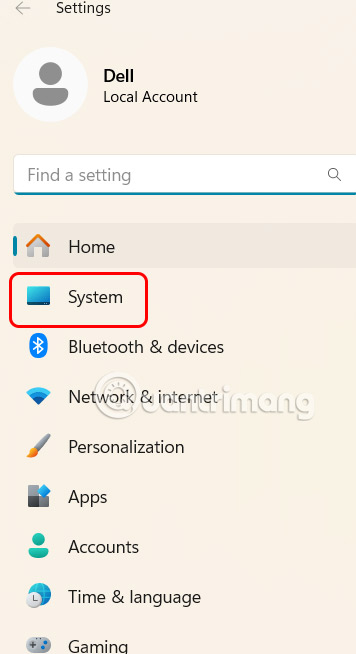
<p style="text-align: justify;">Đầu tiên bạn nhấn tổ hợp phím&nbsp;<strong>Windows + I</strong>&nbsp;sau đó&nbsp;<strong>nhấn tiếp vào System</strong>&nbsp;ở cạnh trái giao diện.</p>

<p style="text-align: justify;"><img alt="System Windows 11" data-i="0" data-src="https://st.quantrimang.com/photos/image/2025/01/18/Win-11-xoa-file-cap-nhat-1.jpg" data-was-processed="true" height="625" src="https://st.quantrimang.com/photos/image/2025/01/18/Win-11-xoa-file-cap-nhat-1.jpg" width="340" /></p>

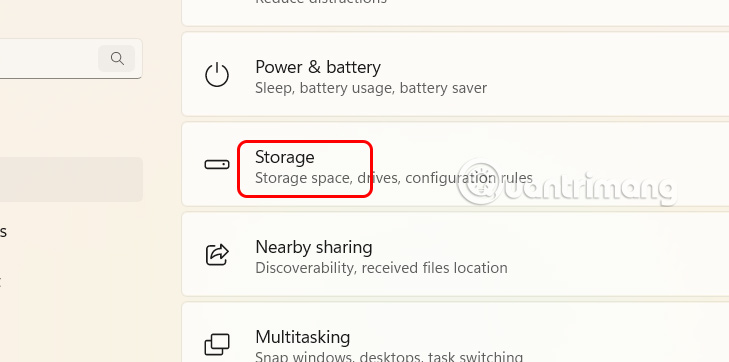
<p style="text-align: justify;">Nhìn sang giao diện bên cạnh chúng ta<strong>&nbsp;nhấn vào mục Storage</strong>.</p>

<p style="text-align: justify;"><img alt="Storage Windows 11" data-i="1" data-src="https://st.quantrimang.com/photos/image/2025/01/18/Win-11-xoa-file-cap-nhat-2.jpg" data-was-processed="true" height="298" src="https://st.quantrimang.com/photos/image/2025/01/18/Win-11-xoa-file-cap-nhat-2.jpg" width="600" /></p>

<p style="text-align: justify;"><strong>Bước 2:</strong></p>

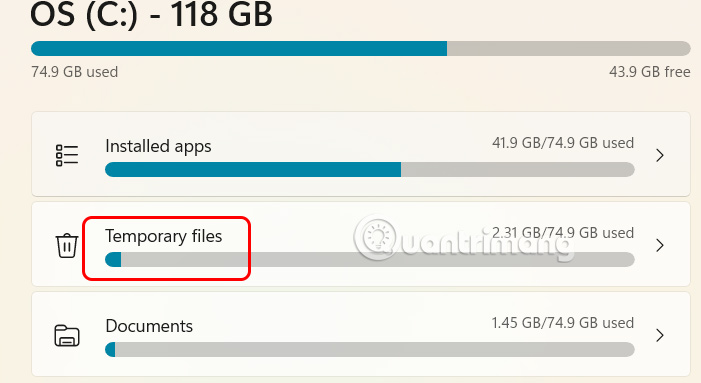
<p style="text-align: justify;">Tại đây người dùng sẽ nhìn thấy giao diện quản lý dung lượng trên máy tính theo từng mục, bạn&nbsp;<strong>nhấn chọn vào Temporary Files</strong>.</p>

<p style="text-align: justify;"><img alt="Temporary Files Windows 11" data-i="2" data-src="https://st.quantrimang.com/photos/image/2025/01/18/Win-11-xoa-file-cap-nhat-3.jpg" data-was-processed="true" height="328" src="https://st.quantrimang.com/photos/image/2025/01/18/Win-11-xoa-file-cap-nhat-3.jpg" width="600" /></p>

<p style="text-align: justify;"><strong>Bước 3:</strong></p>

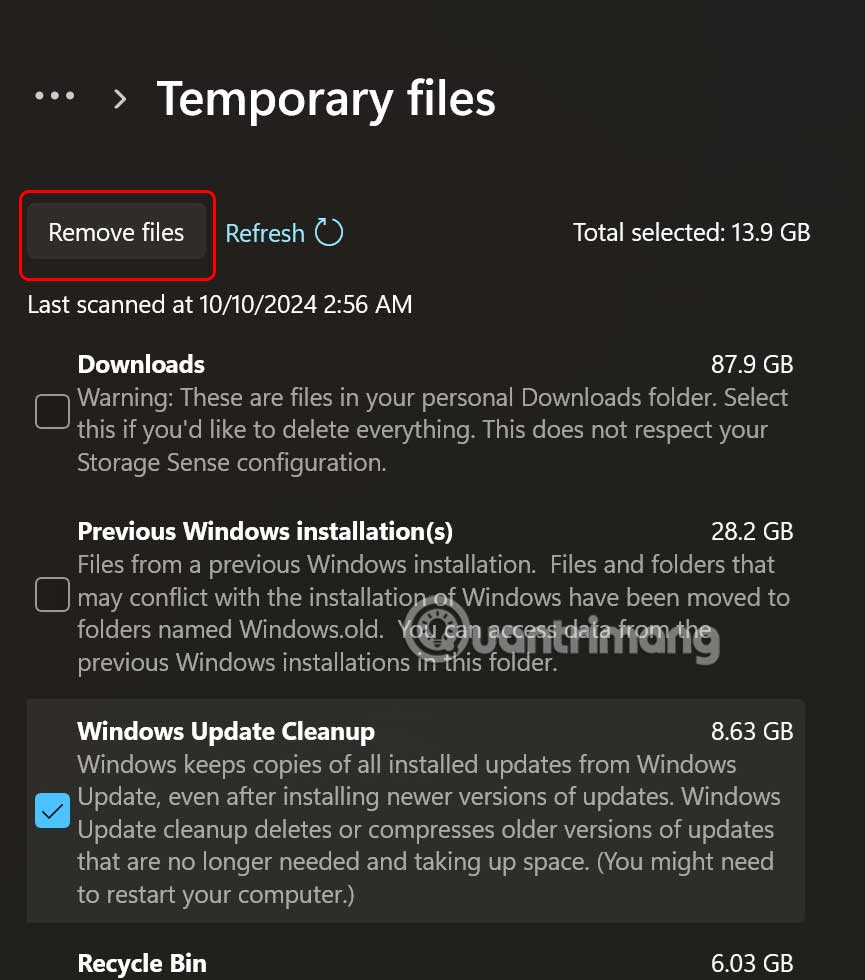
<p style="text-align: justify;">Lúc này bạn&nbsp;<strong>tích chọn vào Windows Update Cleanup&nbsp;</strong>rồi&nbsp;<strong>nhấn Remove files</strong>&nbsp;để xóa các file cập nhật trên Windows 11.</p>

<p style="text-align: justify;"><img alt="Windows Update Cleanup Windows 11" data-adbro-processed="true" data-i="3" data-src="https://st.quantrimang.com/photos/image/2025/01/18/Win-11-xoa-file-cap-nhat-4.jpg" data-was-processed="true" height="566" src="https://st.quantrimang.com/photos/image/2025/01/18/Win-11-xoa-file-cap-nhat-4.jpg" width="500" /></p>

<h2 style="text-align: justify;">Xóa tệp cập nhật Windows 11 qua Disk Cleanup</h2>

<p style="text-align: justify;"><strong>Bước 1:</strong></p>

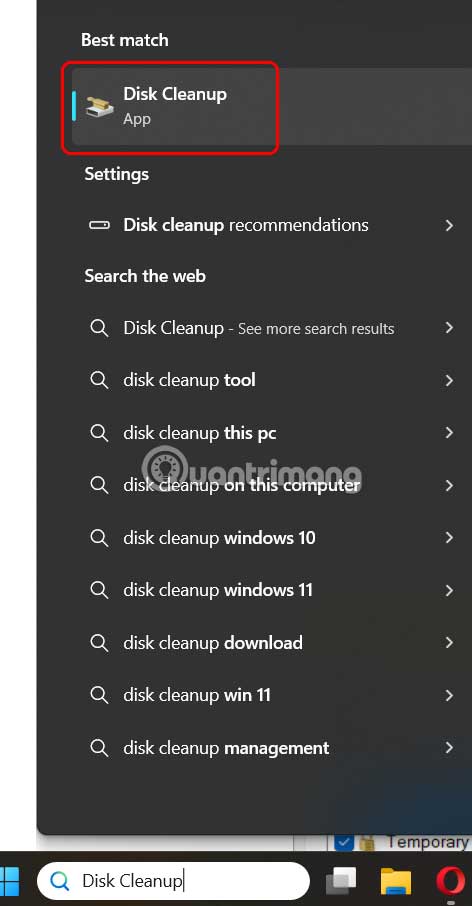
<p style="text-align: justify;">Bạn nhấn<strong>&nbsp;tổ hợp phím Win + S&nbsp;</strong>rồi&nbsp;<strong>nhập Disk Cleanup</strong>&nbsp;trong thanh tìm kiếm rồi nhấn vào kết quả tìm được.</p>

<p style="text-align: justify;"><img alt="Disk Cleanup Windows 11" data-i="4" data-src="https://st.quantrimang.com/photos/image/2025/01/18/Win-11-xoa-file-cap-nhat-5.jpg" data-was-processed="true" height="729" src="https://st.quantrimang.com/photos/image/2025/01/18/Win-11-xoa-file-cap-nhat-5.jpg" width="380" /></p>

<p style="text-align: justify;"><strong>Bước 2:</strong></p>

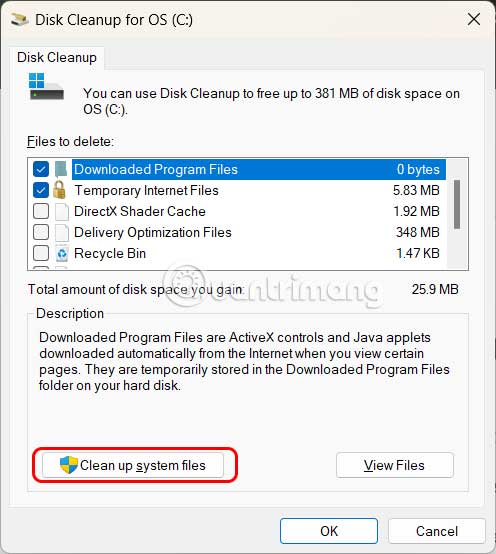
<p style="text-align: justify;"><strong>Nhấn tiếp vào ổ C</strong>&nbsp;thường là ổ cài đặt Windows rồi&nbsp;<strong>nhấn vào Clean up System file</strong>s ở phía cuối giao diện.</p>

<p style="text-align: justify;"><img alt="Clean up System files Windows 11" data-i="5" data-src="https://st.quantrimang.com/photos/image/2025/01/18/Win-11-xoa-file-cap-nhat-6.jpg" data-was-processed="true" height="503" src="https://st.quantrimang.com/photos/image/2025/01/18/Win-11-xoa-file-cap-nhat-6.jpg" width="450" /></p>

<p style="text-align: justify;"><strong>Bước 3:</strong></p>

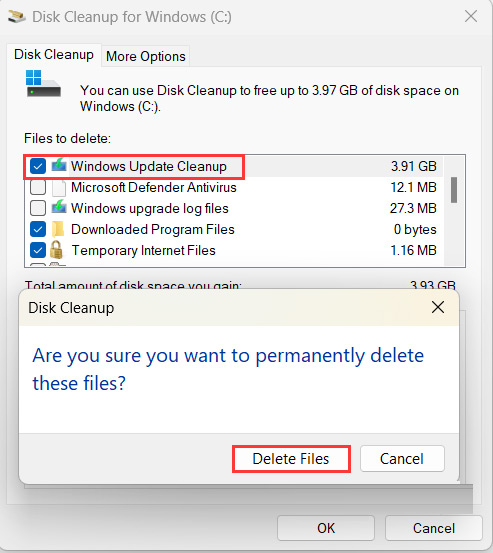
<p style="text-align: justify;">Hiển thị giao diện mới, bạn&nbsp;<strong>nhấn tiếp vào Windows Update Cleanup</strong>&nbsp;rồi&nbsp;<strong>nhấn Delete&nbsp;</strong>để thực hiện xóa.</p>

<p style="text-align: justify;"><img alt="Xóa file cập nhật trên Windows 1" data-i="6" data-src="https://st.quantrimang.com/photos/image/2025/01/18/Win-11-xoa-file-cap-nhat-7.jpg" data-was-processed="true" height="505" src="https://st.quantrimang.com/photos/image/2025/01/18/Win-11-xoa-file-cap-nhat-7.jpg" width="450" /></p>

<h2 style="text-align: justify;">Xóa bản cập nhật Windows 11 qua SoftwareDistribution</h2>

<p style="text-align: justify;">Windows Update lưu các tệp đã tải xuống trong một thư mục có tên SoftwareDistribution trong thư mục Windows. Trong một số trường hợp, để xóa các tệp cập nhật Windows, người dùng cần xóa nội dung của thư mục này.</p>

<p style="text-align: justify;"><strong>Bước 1:</strong></p>

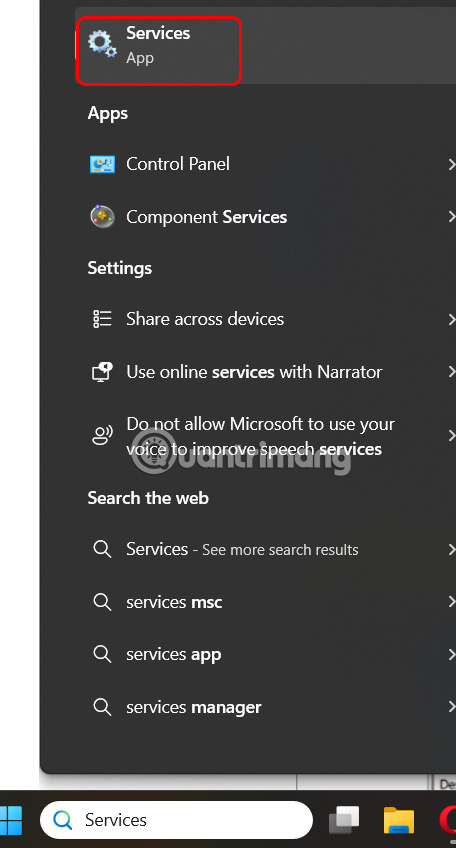
<p style="text-align: justify;">Bạn nhấn&nbsp;<strong>tổ hợp phím Win + S</strong>&nbsp;để mở cửa sổ tìm kiếm và&nbsp;<strong>nhập Services</strong>&nbsp;để mở.</p>

<p style="text-align: justify;"><img alt="Services trên Windows 11" data-i="7" data-src="https://st.quantrimang.com/photos/image/2025/01/18/Win-11-xoa-file-cap-nhat-8.jpg" data-was-processed="true" height="707" src="https://st.quantrimang.com/photos/image/2025/01/18/Win-11-xoa-file-cap-nhat-8.jpg" width="380" /></p>

<p style="text-align: justify;"><strong>Bước 2:</strong></p>

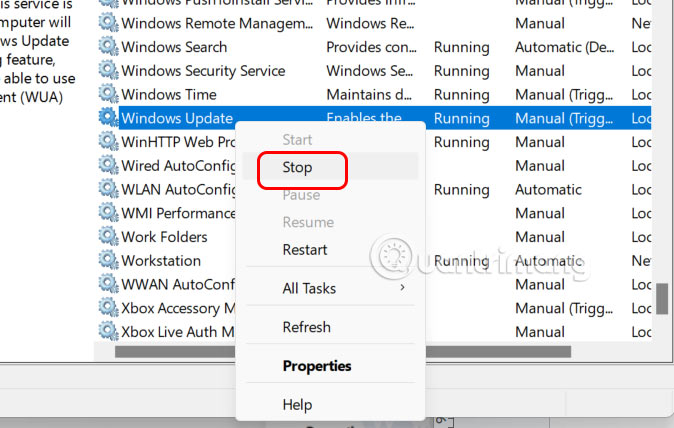
<p style="text-align: justify;">Hiển thị giao diện mới, bạn tìm tới&nbsp;<strong>dịch vụ Windows Update</strong>&nbsp;rồi nhấn&nbsp;<strong>chuột phải chọn Stop</strong>.</p>

<p style="text-align: justify;"><img alt="Dừng Windows Update Windows 11" data-i="8" data-src="https://st.quantrimang.com/photos/image/2025/01/18/Win-11-xoa-file-cap-nhat-9.jpg" data-was-processed="true" height="368" src="https://st.quantrimang.com/photos/image/2025/01/18/Win-11-xoa-file-cap-nhat-9.jpg" width="580" /></p>

<p style="text-align: justify;"><strong>Bước 3:</strong></p>

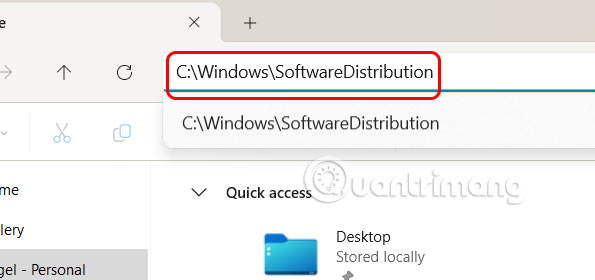
<p style="text-align: justify;">Mở File Explorer và tìm<strong>&nbsp;thư mục SoftwareDistribution</strong>&nbsp;theo đường dẫn này:&nbsp;<strong>C:\Windows\SoftwareDistribution</strong>.</p>

<p style="text-align: justify;"><img alt="Thư mục SoftwareDistribution Windows 11" data-i="9" data-src="https://st.quantrimang.com/photos/image/2025/01/18/Win-11-xoa-file-cap-nhat-10.jpg" data-was-processed="true" height="280" src="https://st.quantrimang.com/photos/image/2025/01/18/Win-11-xoa-file-cap-nhat-10.jpg" width="595" /></p>

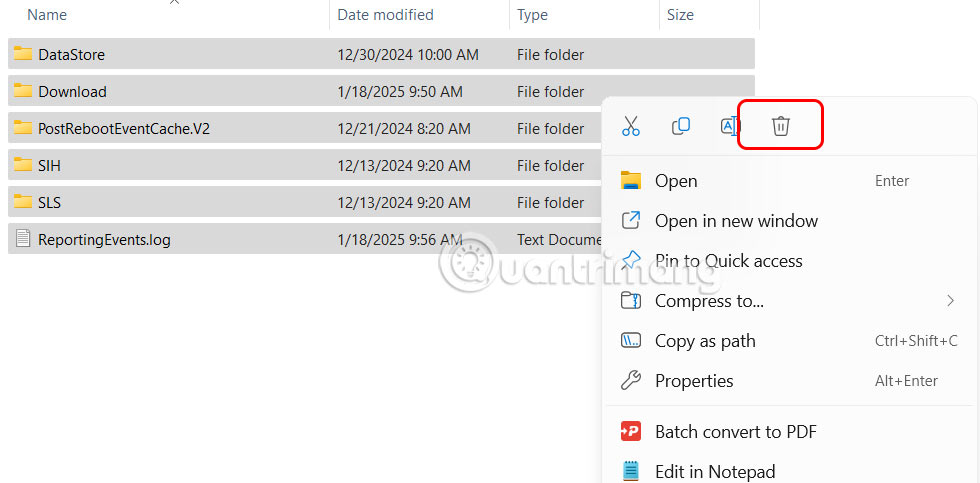
<p style="text-align: justify;">Tại đây bạn cần<strong>&nbsp;chọn tất cả thư mục&nbsp;</strong>rồi&nbsp;<strong>chuột phải chọn Delete&nbsp;</strong>để xóa. Sau đó quay lại cửa sổ Services và<strong>&nbsp;bật dịch vụ Windows Update</strong>,nhấp chuột phải vào đó và chọn tùy chọn Start.</p>

<p style="text-align: justify;"><img alt="Xóa bản cập nhật Windows 11" data-i="10" data-src="https://st.quantrimang.com/photos/image/2025/01/18/Win-11-xoa-file-cap-nhat-11.jpg" data-was-processed="true" height="296" src="https://st.quantrimang.com/photos/image/2025/01/18/Win-11-xoa-file-cap-nhat-11.jpg" width="600" /></p>

<div style="text-align: justify;">&nbsp;</div>
		</div>
				<div id="author">
						<p>
				<strong>Nguồn tin:</strong>
				Quantrimang.com:
			</p>
		</div>
	</div>
	<div id="footer" class="clearfix">
		<div id="url">
			<strong>URL của bản tin này: </strong><a href="https://www.nguoicodonvn2008.info/vi/news/savefile/kien-thuc-may-tinh/3-cach-xoa-file-cap-nhat-tren-windows-11-9707.html" title="3 cách xóa file cập nhật trên Windows 11">https://www.nguoicodonvn2008.info/vi/news/savefile/kien-thuc-may-tinh/3-cach-xoa-file-cap-nhat-tren-windows-11-9707.html</a>

		</div>
		<div class="clear"></div>
		<div class="copyright">
			&copy; .&#x3A; Nguoicodonvn2008.info - Cõi lòng người cô đơn &#x3A;.
		</div>
		<div id="contact">
			<a href="mailto:admin@nguoicodonvn2008.info">admin@nguoicodonvn2008.info</a>
		</div>
	</div>
</div>
        <div id="timeoutsess" class="chromeframe">
            Bạn đã không sử dụng Site, <a onclick="timeoutsesscancel();" href="https://nguoicodonvn2008.info/#">Bấm vào đây để duy trì trạng thái đăng nhập</a>. Thời gian chờ: <span id="secField"> 60 </span> giây
        </div>
        <div id="openidResult" class="nv-alert" style="display:none"></div>
        <div id="openidBt" data-result="" data-redirect=""></div>
		</script>
		<div class="car-top">
  <span><img src="https://nguoicodonvn2008.info/themes/default/images/car.png" alt=""></span>
</div>
<script src="https://nguoicodonvn2008.info/assets/js/jquery/jquery.min.js"></script>
<script>var nv_base_siteurl="/",nv_lang_data="vi",nv_lang_interface="vi",nv_name_variable="nv",nv_fc_variable="op",nv_lang_variable="language",nv_module_name="news",nv_func_name="savefile",nv_is_user=0, nv_my_ofs=-4,nv_my_abbr="EDT",nv_cookie_prefix="nv4c_e856T",nv_check_pass_mstime=1738000,nv_area_admin=0,nv_safemode=0,theme_responsive=0,nv_recaptcha_ver=2,nv_recaptcha_sitekey="",nv_recaptcha_type="image",XSSsanitize=1;</script>
<script src="https://nguoicodonvn2008.info/assets/js/language/vi.js"></script>
<script src="https://nguoicodonvn2008.info/assets/js/DOMPurify/purify3.js"></script>
<script src="https://nguoicodonvn2008.info/assets/js/global.js"></script>
<script src="https://nguoicodonvn2008.info/assets/js/site.js"></script>
<script src="https://nguoicodonvn2008.info/themes/default/js/news.js"></script>
<script src="https://nguoicodonvn2008.info/themes/default/js/main.js"></script>
<script src="https://nguoicodonvn2008.info/themes/default/js/custom.js"></script>
<script type="application/ld+json">
        {
            "@context": "https://schema.org",
            "@type": "Organization",
            "url": "https://nguoicodonvn2008.info",
            "logo": "https://nguoicodonvn2008.info/uploads/angel.gif"
        }
        </script>
<script src="https://nguoicodonvn2008.info/themes/default/js/bootstrap.min.js"></script>
<script type="text/javascript">
var $scrolltop = $('.car-top');
$scrolltop.on('click', function () {
    $('html,body').animate({
        scrollTop: 0
    }, 800);
    $(this).addClass("car-run");
    setTimeout(function(){ $scrolltop.removeClass('car-run');}, 1000);
    return false;
});
$(window).on('scroll', function ()
{ 
    if($(window).scrollTop() >= 200)
    {
        $scrolltop.addClass("show");
        $scrolltop.addClass("car-down");
    }
    else
    {
       $scrolltop.removeClass("show");
       setTimeout(function(){ $scrolltop.removeClass('car-down');}, 300);
    }
});
</script>
</body>
</html>