<!DOCTYPE html>
    <html lang="vi" xmlns="http://www.w3.org/1999/xhtml" prefix="og: http://ogp.me/ns#">
    <head>
<title>3 cách xóa các file và thư mục gần đây trong Windows</title>
<meta name="description" content="3 cách xóa các file và thư mục gần đây trong Windows - Savefile - Tin Tức -...">
<meta name="author" content=".: Nguoicodonvn2008.info - Cõi lòng người cô đơn :.">
<meta name="copyright" content=".: Nguoicodonvn2008.info - Cõi lòng người cô đơn :. [admin@nguoicodonvn2008.info]">
<meta name="robots" content="index, archive, follow, noodp">
<meta name="googlebot" content="index,archive,follow,noodp">
<meta name="msnbot" content="all,index,follow">
<meta name="generator" content="NukeViet v4.5">
<meta http-equiv="Content-Type" content="text/html; charset=utf-8">
<meta property="og:title" content="3 cách xóa các file và thư mục gần đây trong Windows">
<meta property="og:type" content="website">
<meta property="og:description" content="Savefile - Tin Tức - https&#x3A;&#x002F;&#x002F;www.nguoicodonvn2008.info&#x002F;vi&#x002F;news&#x002F;savefile&#x002F;kien-thuc-may-tinh&#x002F;3-cach-xoa-cac-file-va-thu-muc-gan-day-trong-windows-7870.html">
<meta property="og:site_name" content=".&#x3A; Nguoicodonvn2008.info - Cõi lòng người cô đơn &#x3A;.">
<meta property="og:url" content="https://www.nguoicodonvn2008.info/vi/news/savefile/kien-thuc-may-tinh/3-cach-xoa-cac-file-va-thu-muc-gan-day-trong-windows-7870.html">
<link rel="shortcut icon" href="https://nguoicodonvn2008.info/favicon.ico">
<link rel="canonical" href="https://www.nguoicodonvn2008.info/vi/news/savefile/kien-thuc-may-tinh/3-cach-xoa-cac-file-va-thu-muc-gan-day-trong-windows-7870.html">
<link rel="alternate" href="https://nguoicodonvn2008.info/vi/news/rss/" title="Tin Tức" type="application/rss+xml">
<link rel="alternate" href="https://nguoicodonvn2008.info/vi/news/rss/karaoke-dual/" title="Tin Tức - Karaoke Dual" type="application/rss+xml">
<link rel="alternate" href="https://nguoicodonvn2008.info/vi/news/rss/nhac-tre/" title="Tin Tức - Nhạc trẻ" type="application/rss+xml">
<link rel="alternate" href="https://nguoicodonvn2008.info/vi/news/rss/tru-tinh/" title="Tin Tức - Trữ tình" type="application/rss+xml">
<link rel="alternate" href="https://nguoicodonvn2008.info/vi/news/rss/nuoc-ngoai/" title="Tin Tức - Nước ngoài" type="application/rss+xml">
<link rel="alternate" href="https://nguoicodonvn2008.info/vi/news/rss/remix/" title="Tin Tức - Remix" type="application/rss+xml">
<link rel="alternate" href="https://nguoicodonvn2008.info/vi/news/rss/tam-su-tinh-yeu/" title="Tin Tức - Tâm sự tình yêu" type="application/rss+xml">
<link rel="alternate" href="https://nguoicodonvn2008.info/vi/news/rss/tho-suu-tam/" title="Tin Tức - Thơ sưu tầm" type="application/rss+xml">
<link rel="alternate" href="https://nguoicodonvn2008.info/vi/news/rss/cuoc-song/" title="Tin Tức - Cuộc sống" type="application/rss+xml">
<link rel="alternate" href="https://nguoicodonvn2008.info/vi/news/rss/phan-mem/" title="Tin Tức - Phần mềm" type="application/rss+xml">
<link rel="alternate" href="https://nguoicodonvn2008.info/vi/news/rss/kien-thuc-may-tinh/" title="Tin Tức - Kiến thức máy tính" type="application/rss+xml">
<link rel="alternate" href="https://nguoicodonvn2008.info/vi/news/rss/hoc-tap/" title="Tin Tức - Học tập" type="application/rss+xml">
<link rel="alternate" href="https://nguoicodonvn2008.info/vi/news/rss/tai-lieu/" title="Tin Tức - Tài liệu" type="application/rss+xml">
<link rel="alternate" href="https://nguoicodonvn2008.info/vi/news/rss/de-thi/" title="Tin Tức - Đề thi" type="application/rss+xml">
<link rel="preload" as="style" href="https://nguoicodonvn2008.info/assets/css/font-awesome.min.css" type="text/css">
<link rel="preload" as="style" href="https://nguoicodonvn2008.info/themes/default/css/bootstrap.non-responsive.css" type="text/css">
<link rel="preload" as="style" href="https://nguoicodonvn2008.info/themes/default/css/style.css" type="text/css">
<link rel="preload" as="style" href="https://nguoicodonvn2008.info/themes/default/css/style.non-responsive.css" type="text/css">
<link rel="preload" as="style" href="https://nguoicodonvn2008.info/themes/default/css/news.css" type="text/css">
<link rel="preload" as="style" href="https://nguoicodonvn2008.info/themes/default/css/custom.css" type="text/css">
<link rel="preload" as="script" href="https://nguoicodonvn2008.info/assets/js/jquery/jquery.min.js" type="text/javascript">
<link rel="preload" as="script" href="https://nguoicodonvn2008.info/assets/js/language/vi.js" type="text/javascript">
<link rel="preload" as="script" href="https://nguoicodonvn2008.info/assets/js/DOMPurify/purify3.js" type="text/javascript">
<link rel="preload" as="script" href="https://nguoicodonvn2008.info/assets/js/global.js" type="text/javascript">
<link rel="preload" as="script" href="https://nguoicodonvn2008.info/assets/js/site.js" type="text/javascript">
<link rel="preload" as="script" href="https://nguoicodonvn2008.info/themes/default/js/news.js" type="text/javascript">
<link rel="preload" as="script" href="https://nguoicodonvn2008.info/themes/default/js/main.js" type="text/javascript">
<link rel="preload" as="script" href="https://nguoicodonvn2008.info/themes/default/js/custom.js" type="text/javascript">
<link rel="preload" as="script" href="https://nguoicodonvn2008.info/themes/default/js/bootstrap.min.js" type="text/javascript">
<link rel="stylesheet" href="https://nguoicodonvn2008.info/assets/css/font-awesome.min.css">
<link rel="stylesheet" href="https://nguoicodonvn2008.info/themes/default/css/bootstrap.non-responsive.css">
<link rel="stylesheet" href="https://nguoicodonvn2008.info/themes/default/css/style.css">
<link rel="stylesheet" href="https://nguoicodonvn2008.info/themes/default/css/style.non-responsive.css">
<link rel="StyleSheet" href="https://nguoicodonvn2008.info/themes/default/css/news.css">
<link rel="stylesheet" href="https://nguoicodonvn2008.info/themes/default/css/custom.css">
<style type="text/css">
	body{background: #fff;}
</style>
    </head>
    <body>
<div id="print">
	<div id="hd_print">
		<h2 class="pull-left">.&#x3A; Nguoicodonvn2008.info - Cõi lòng người cô đơn &#x3A;.</h2>
		<p class="pull-right"><a title=".&#x3A; Nguoicodonvn2008.info - Cõi lòng người cô đơn &#x3A;." href="https://nguoicodonvn2008.info/">https://nguoicodonvn2008.info</a></p>
	</div>
	<div class="clear"></div>
	<hr />
	<div id="content">
		<h1>3 cách xóa các file và thư mục gần đây trong Windows</h1>
		<ul class="list-inline">
			<li>Thứ tư - 20/12/2023 09:25</li>
			<li class="hidden-print txtrequired"><em class="fa fa-print">&nbsp;</em><a title="In ra" href="javascript:;" onclick="window.print()">In ra</a></li>
			<li class="hidden-print txtrequired"><em class="fa fa-power-off">&nbsp;</em><a title="Đóng cửa sổ này" href="javascript:;" onclick="window.close()">Đóng cửa sổ này</a></li>
		</ul>
		<div class="clear"></div>
		<div id="hometext">
		</div>
				<div class="imghome">
			<img alt="3 cách xóa các file và thư mục gần đây trong Windows" src="https://st.quantrimang.com/photos/image/2023/12/19/xoa-file-va-thu-muc-gan-day-7.jpg" width="460" class="img-thumbnail" />
		</div>
		<div class="clear"></div>
		<div id="bodytext" class="clearfix">
			<p style="text-align: justify;">Mỗi phiên bản Windows kế tiếp đều có nhiều tính năng tiếp cận những thứ bạn đã mở gần đây, chẳng hạn như jump list cho phép bạn mở những thứ bạn đang làm việc với một số ứng dụng nhất định. Tuy nhiên, những tính năng này cũng gây ra những vấn đề đau đầu nghiêm trọng cho những người coi trọng quyền riêng tư. Nếu bạn thực sự muốn xóa tất cả lịch sử file gần đây của mình trong Windows, hướng dẫn này sẽ cung cấp một số tùy chọn!</p>

<h2 style="text-align: justify;">Xóa các file gần đây khỏi File Explorer</h2>

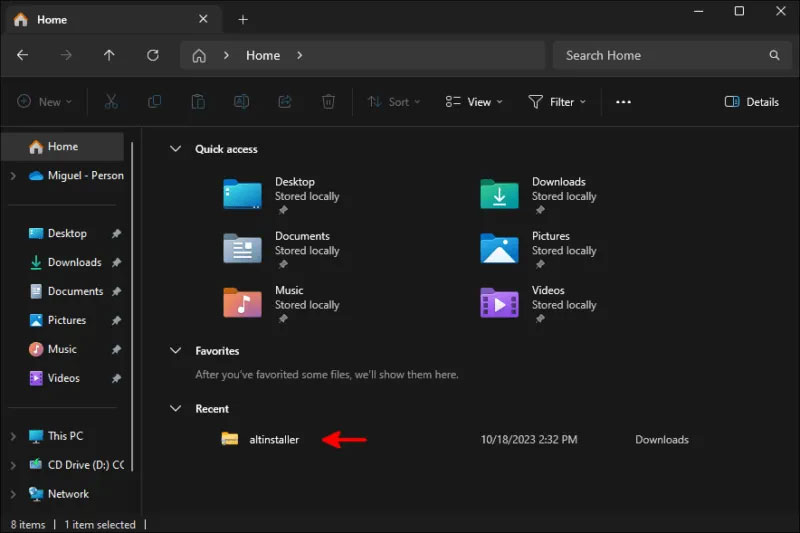
<p style="text-align: justify;">File Explorer là trung tâm cho mọi thứ bạn đã truy cập. Nếu bạn muốn xóa tất cả các file gần đây của mình khỏi Windows, đây có lẽ là nơi bạn nên bắt đầu.</p>

<p style="text-align: justify;">Lịch sử của bạn sẽ hiển thị ở bảng điều khiển bên trái và trên màn&nbsp;<strong>Home</strong>, bên dưới phần&nbsp;<strong>Quick access</strong>.</p>

<figure>
<div style="text-align: justify;"><img alt="Vị trí lịch sử đã lưu của bạn trong phần Quick access." data-i="0" data-src="https://st.quantrimang.com/photos/image/2023/12/19/xoa-file-va-thu-muc-gan-day-1.jpg" data-was-processed="true" height="533" src="https://st.quantrimang.com/photos/image/2023/12/19/xoa-file-va-thu-muc-gan-day-1.jpg" width="800" /></div>

<figcaption>
<div style="text-align: justify;">Vị trí lịch sử đã lưu của bạn trong phần Quick access.</div>
</figcaption>
</figure>

<div style="text-align: justify;"><iframe allowtransparency="true" data-google-container-id="a!2" data-google-query-id="CM2HxYqcnoMDFbEwewcd8LsBvw" data-load-complete="true" frameborder="0" height="0" hspace="0" id="aswift_1" marginheight="0" marginwidth="0" name="aswift_1" sandbox="" scrolling="no" vspace="0" width="694"></iframe></div>

<p style="text-align: justify;">Nếu bạn chỉ muốn xóa một mục, hãy nhấp chuột phải vào mục đó, sau đó nhấn vào&nbsp;<strong>Remove from Recent</strong>. Nhưng có lẽ bạn ở đây để xóa vĩnh viễn lịch sử của mình.</p>

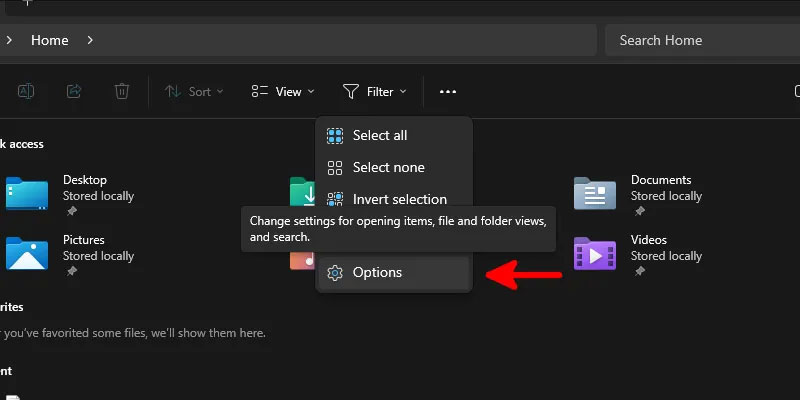
<p style="text-align: justify;">Nếu đúng như vậy, hãy nhấp vào ba dấu chấm ở gần đầu danh sách file, sau đó nhấp vào&nbsp;<strong>Options</strong>.</p>

<figure>
<div style="text-align: justify;"><img alt="Nhấp vào menu Options của Windows Explorer." data-adbro-processed="true" data-i="1" data-src="https://st.quantrimang.com/photos/image/2023/12/19/xoa-file-va-thu-muc-gan-day-2.jpg" data-was-processed="true" height="400" src="https://st.quantrimang.com/photos/image/2023/12/19/xoa-file-va-thu-muc-gan-day-2.jpg" width="800" /></div>

<figcaption>
<div style="text-align: justify;">Nhấp vào menu Options của Windows Explorer.</div>
</figcaption>
</figure>

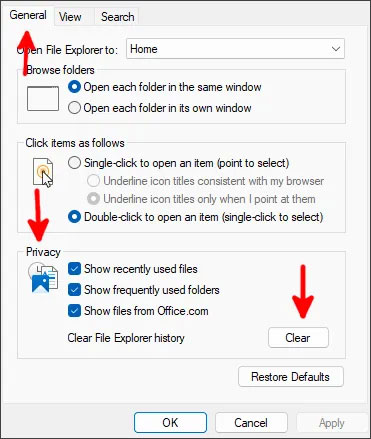
<p style="text-align: justify;">Bên trong hộp thoại tùy chọn của Windows Explorer trên tab&nbsp;<strong>General</strong>, bỏ chọn tất cả các tùy chọn ở gần cuối trong phần&nbsp;<strong>Privacy</strong>, sau đó nhấp vào nút&nbsp;<strong>Clear</strong>&nbsp;bên cạnh&nbsp;<strong>Clear File Explorer history</strong>.</p>

<figure>
<div style="text-align: justify;"><img alt="Xóa lịch sử vĩnh viễn khỏi Windows File Explorer trong Windows 10/11 qua tab General." data-i="2" data-src="https://st.quantrimang.com/photos/image/2023/12/19/xoa-file-va-thu-muc-gan-day-3.jpg" data-was-processed="true" height="439" src="https://st.quantrimang.com/photos/image/2023/12/19/xoa-file-va-thu-muc-gan-day-3.jpg" width="371" /></div>

<figcaption>
<div style="text-align: justify;">Xóa lịch sử vĩnh viễn khỏi Windows File Explorer trong Windows 10/11 qua tab General.</div>
</figcaption>
</figure>

<p style="text-align: justify;">Nhấp vào&nbsp;<strong>OK</strong>&nbsp;và xem lịch sử của bạn biến mất trong thời gian thực!</p>

<h2 style="text-align: justify;">Xóa lịch sử khỏi Registry</h2>

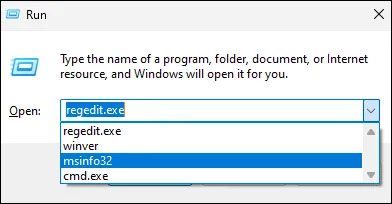
<p style="text-align: justify;">Bên cạnh danh sách&nbsp;<strong>Recent</strong>&nbsp;của File Explorer, registry của bạn cũng lưu trữ các key chứa lịch sử những gì bạn đã nhập vào thanh URL của nó, cũng như tất cả các lệnh bạn đã chạy ngoài cửa sổ&nbsp;<strong>Run</strong>&nbsp;(<strong>Win + R</strong>).</p>

<div style="text-align: justify;"><iframe allowtransparency="true" data-google-container-id="a!3" data-google-query-id="COuek5icnoMDFWzhTAIdW-QFYg" data-load-complete="true" frameborder="0" height="0" hspace="0" id="aswift_2" marginheight="0" marginwidth="0" name="aswift_2" sandbox="" scrolling="no" vspace="0" width="694"></iframe></div>

<figure>
<div style="text-align: justify;"><img alt="Hộp thoại Run trong Windows 11, hiển thị lịch sử lệnh được điền sẵn." data-i="3" data-src="https://st.quantrimang.com/photos/image/2023/12/19/xoa-file-va-thu-muc-gan-day-4.jpg" data-was-processed="true" height="204" src="https://st.quantrimang.com/photos/image/2023/12/19/xoa-file-va-thu-muc-gan-day-4.jpg" width="392" /></div>

<figcaption>
<div style="text-align: justify;">Hộp thoại Run trong Windows 11, hiển thị lịch sử lệnh được điền sẵn.</div>
</figcaption>
</figure>

<p style="text-align: justify;">Để truy cập Registry, hãy vào menu Start, nhập&nbsp;<strong>regedit</strong>, sau đó nhấn&nbsp;<strong>Enter</strong>.</p>

<p style="text-align: justify;">Điều hướng đến:</p>

<pre id="pre0">
<code>HKEY_CURRENT_USER\Software\Microsoft\Windows\CurrentVersion\Explorer</code></pre>

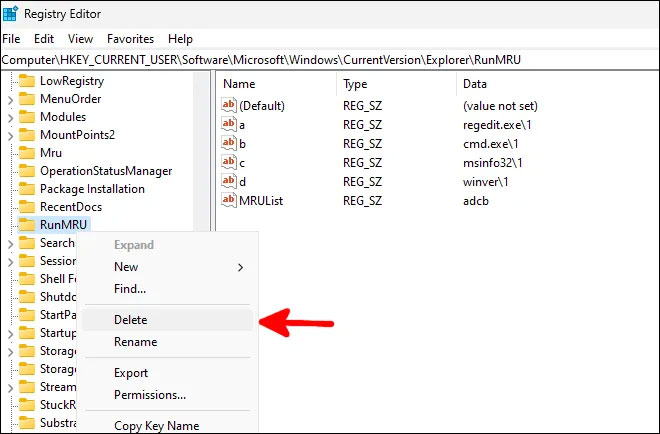
<p style="text-align: justify;">Trong phần registry&nbsp;<strong>Explorer</strong>, tìm key với biểu tượng thư mục có tên&nbsp;<strong>RunMRU</strong>. Nhấp chuột phải vào nó và xóa.</p>

<figure>
<div style="text-align: justify;"><img alt="Xóa lịch sử lệnh khỏi Registry." data-i="4" data-src="https://st.quantrimang.com/photos/image/2023/12/19/xoa-file-va-thu-muc-gan-day-5.jpg" data-was-processed="true" height="434" src="https://st.quantrimang.com/photos/image/2023/12/19/xoa-file-va-thu-muc-gan-day-5.jpg" width="660" /></div>

<figcaption>
<div style="text-align: justify;">Xóa lịch sử lệnh khỏi Registry.</div>
</figcaption>
</figure>

<p style="text-align: justify;">Điều này sẽ ngay lập tức xóa tất cả lịch sử lệnh của bạn.</p>

<p style="text-align: justify;">Để xóa lịch sử đường dẫn của bạn trong File Explorer, hãy cuộn xuống&nbsp;<strong>TypedPaths</strong>&nbsp;và xóa lịch sử đường dẫn đó giống như bạn đã xóa&nbsp;<strong>RunMRU</strong>.</p>

<p style="text-align: justify;">Nếu bạn muốn giới thiệu một số tính năng tự động hóa trong quy trình này, hãy tạo một file văn bản mới, mở nó trong Notepad và thêm nội dung sau vào đó:</p>

<p style="text-align: justify;">Để xóa lịch sử lệnh của bạn:</p>

<pre id="pre1">
<code>reg delete HKCU\SOFTWARE\Microsoft\Windows\CurrentVersion\Explorer\RunMRU /F 2&gt;nul</code></pre>

<p style="text-align: justify;">Để xóa lịch sử đường dẫn của bạn trong File Explorer:</p>

<pre id="pre2">
<code>reg delete HKCU\SOFTWARE\Microsoft\Windows\CurrentVersion\Explorer\TypedPaths /F 2&gt;nul</code></pre>

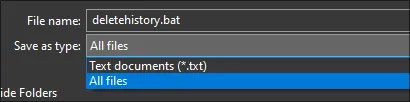
<p style="text-align: justify;">Sau khi đã thêm các dòng bạn muốn thêm vào file batch của mình, hãy lưu nó dưới dạng&nbsp;<strong>deletehistory.bat</strong>&nbsp;hoặc bất cứ tên nào bạn muốn gọi và đảm bảo chọn&nbsp;<strong>All files</strong>&nbsp;trong&nbsp;<strong>Save as type</strong>.</p>

<figure>
<div style="text-align: justify;"><img alt="Lưu các file batch từ Notepad" data-i="5" data-src="https://st.quantrimang.com/photos/image/2023/12/19/xoa-file-va-thu-muc-gan-day-6.jpg" data-was-processed="true" height="102" src="https://st.quantrimang.com/photos/image/2023/12/19/xoa-file-va-thu-muc-gan-day-6.jpg" width="410" /></div>

<figcaption>
<div style="text-align: justify;">Lưu các file batch từ Notepad</div>
</figcaption>
</figure>

<p style="text-align: justify;">Sau khi lưu, chỉ cần nhấp đúp vào file và để nó kích hoạt. Nó sẽ mở một cửa sổ lệnh và nhanh chóng biến mất sau khi xóa xong các mục lịch sử của bạn.</p>

<p style="text-align: justify;">Nếu bạn muốn file batch này chạy mỗi khi bạn khởi động hệ thống, hãy&nbsp;mở cửa sổ Run&nbsp;và chạy&nbsp;<strong>shell:startup.</strong>&nbsp;Thao tác này sẽ đưa bạn đến thư mục chứa tất cả các script và tiện ích bạn chạy khi khởi động. Kéo file batch mới tạo của bạn vào đó và tận hưởng tính năng tự động xóa lịch sử mỗi khi bạn đăng nhập vào Windows!</p>

<div style="text-align: justify;"><iframe allowtransparency="true" data-google-container-id="a!4" data-google-query-id="CMjwu5mcnoMDFYpeKgodVXwC3w" data-load-complete="true" frameborder="0" height="0" hspace="0" id="aswift_3" marginheight="0" marginwidth="0" name="aswift_3" sandbox="" scrolling="no" vspace="0" width="694"></iframe></div>

<p style="text-align: justify;">Nếu muốn xóa lịch sử của mình theo yêu cầu, bạn sẽ cần truy cập vào file batch và chạy nó theo cách thủ công. Để thuận tiện cho bạn, bạn có thể muốn tạo một bản sao cho nó ở một nơi dễ truy cập hơn thư mục khởi động.</p>

<h2 style="text-align: justify;">Vô hiệu hóa jump list từ Settings</h2>

<p style="text-align: justify;">Ngoài các lịch sử được lưu trữ trong Registry và tiện ích quản lý file, bạn còn có một số lịch sử được Microsoft lưu trữ cụ thể để cung cấp các đề xuất trong menu Start, jump list và các tính năng điều hướng nhanh khác mà File Explorer có.</p>

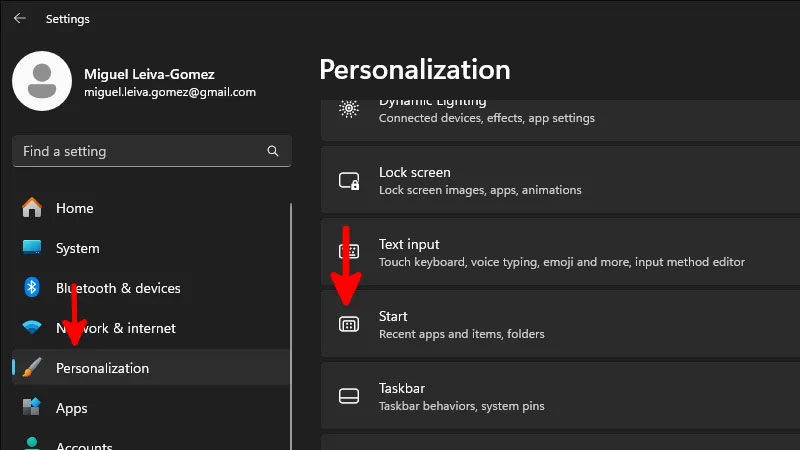
<p style="text-align: justify;">Để loại bỏ những thứ này, hãy&nbsp;<a data-type="internal" href="https://quantrimang.com/cong-nghe/6-cach-truy-cap-nhanh-settings-tren-windows-10-130106" title="Tổng hợp 12 cách truy cập nhanh ứng dụng Settings trên Windows 10">vào ứng dụng Settings</a>&nbsp;thông qua menu Start và nhấp vào&nbsp;<strong>Personalization</strong>&nbsp;ở bảng điều khiển bên trái.</p>

<p style="text-align: justify;">Trong số các tùy chọn có sẵn ở bên phải, hãy cuộn xuống và chọn&nbsp;<strong>Start</strong>.</p>

<figure>
<div style="text-align: justify;"><img alt="Nơi tìm menu con Start bên trong cài đặt Cá nhân hóa trong Windows 11." data-i="6" data-src="https://st.quantrimang.com/photos/image/2023/12/19/xoa-file-va-thu-muc-gan-day-7.jpg" data-was-processed="true" height="450" src="https://st.quantrimang.com/photos/image/2023/12/19/xoa-file-va-thu-muc-gan-day-7.jpg" width="800" /></div>

<figcaption>
<div style="text-align: justify;">Nơi tìm menu con Start bên trong cài đặt Cá nhân hóa trong Windows 11.</div>
</figcaption>
</figure>

<p style="text-align: justify;">Trong menu này, hãy tắt tùy chọn&nbsp;<strong>Show recently opened items in Start, Jump Lists, and File Explorer</strong>.</p>

<p style="text-align: justify;">Vậy là xong! Bạn có thể đóng cửa sổ Settings và tiếp tục công việc trong ngày của mình. Windows sẽ xóa mọi lịch sử bạn có trong các khu vực bạn vừa vô hiệu hóa và ngừng thu thập lịch sử đó để đưa ra đề xuất.</p>

<p style="text-align: justify;">Nếu bạn đang sử dụng Windows 10 thì quy trình vẫn tương tự, mặc dù giao diện sẽ hơi khác so với Windows 11.</p>
		</div>
				<div id="author">
						<p>
				<strong>Nguồn tin:</strong>
				Quantrimang.com
			</p>
		</div>
	</div>
	<div id="footer" class="clearfix">
		<div id="url">
			<strong>URL của bản tin này: </strong><a href="https://www.nguoicodonvn2008.info/vi/news/savefile/kien-thuc-may-tinh/3-cach-xoa-cac-file-va-thu-muc-gan-day-trong-windows-7870.html" title="3 cách xóa các file và thư mục gần đây trong Windows">https://www.nguoicodonvn2008.info/vi/news/savefile/kien-thuc-may-tinh/3-cach-xoa-cac-file-va-thu-muc-gan-day-trong-windows-7870.html</a>

		</div>
		<div class="clear"></div>
		<div class="copyright">
			&copy; .&#x3A; Nguoicodonvn2008.info - Cõi lòng người cô đơn &#x3A;.
		</div>
		<div id="contact">
			<a href="mailto:admin@nguoicodonvn2008.info">admin@nguoicodonvn2008.info</a>
		</div>
	</div>
</div>
        <div id="timeoutsess" class="chromeframe">
            Bạn đã không sử dụng Site, <a onclick="timeoutsesscancel();" href="https://nguoicodonvn2008.info/#">Bấm vào đây để duy trì trạng thái đăng nhập</a>. Thời gian chờ: <span id="secField"> 60 </span> giây
        </div>
        <div id="openidResult" class="nv-alert" style="display:none"></div>
        <div id="openidBt" data-result="" data-redirect=""></div>
		</script>
		<div class="car-top">
  <span><img src="https://nguoicodonvn2008.info/themes/default/images/car.png" alt=""></span>
</div>
<script src="https://nguoicodonvn2008.info/assets/js/jquery/jquery.min.js"></script>
<script>var nv_base_siteurl="/",nv_lang_data="vi",nv_lang_interface="vi",nv_name_variable="nv",nv_fc_variable="op",nv_lang_variable="language",nv_module_name="news",nv_func_name="savefile",nv_is_user=0, nv_my_ofs=-4,nv_my_abbr="EDT",nv_cookie_prefix="nv4c_e856T",nv_check_pass_mstime=1738000,nv_area_admin=0,nv_safemode=0,theme_responsive=0,nv_recaptcha_ver=2,nv_recaptcha_sitekey="",nv_recaptcha_type="image",XSSsanitize=1;</script>
<script src="https://nguoicodonvn2008.info/assets/js/language/vi.js"></script>
<script src="https://nguoicodonvn2008.info/assets/js/DOMPurify/purify3.js"></script>
<script src="https://nguoicodonvn2008.info/assets/js/global.js"></script>
<script src="https://nguoicodonvn2008.info/assets/js/site.js"></script>
<script src="https://nguoicodonvn2008.info/themes/default/js/news.js"></script>
<script src="https://nguoicodonvn2008.info/themes/default/js/main.js"></script>
<script src="https://nguoicodonvn2008.info/themes/default/js/custom.js"></script>
<script type="application/ld+json">
        {
            "@context": "https://schema.org",
            "@type": "Organization",
            "url": "https://nguoicodonvn2008.info",
            "logo": "https://nguoicodonvn2008.info/uploads/angel.gif"
        }
        </script>
<script src="https://nguoicodonvn2008.info/themes/default/js/bootstrap.min.js"></script>
<script type="text/javascript">
var $scrolltop = $('.car-top');
$scrolltop.on('click', function () {
    $('html,body').animate({
        scrollTop: 0
    }, 800);
    $(this).addClass("car-run");
    setTimeout(function(){ $scrolltop.removeClass('car-run');}, 1000);
    return false;
});
$(window).on('scroll', function ()
{ 
    if($(window).scrollTop() >= 200)
    {
        $scrolltop.addClass("show");
        $scrolltop.addClass("car-down");
    }
    else
    {
       $scrolltop.removeClass("show");
       setTimeout(function(){ $scrolltop.removeClass('car-down');}, 300);
    }
});
</script>
</body>
</html>