<!DOCTYPE html>
    <html lang="vi" xmlns="http://www.w3.org/1999/xhtml" prefix="og: http://ogp.me/ns#">
    <head>
<title>3 cách tắt các ứng dụng bị treo trên Windows 11</title>
<meta name="description" content="3 cách tắt các ứng dụng bị treo trên Windows 11 - Savefile - Tin Tức -...">
<meta name="author" content=".: Nguoicodonvn2008.info - Cõi lòng người cô đơn :.">
<meta name="copyright" content=".: Nguoicodonvn2008.info - Cõi lòng người cô đơn :. [admin@nguoicodonvn2008.info]">
<meta name="robots" content="index, archive, follow, noodp">
<meta name="googlebot" content="index,archive,follow,noodp">
<meta name="msnbot" content="all,index,follow">
<meta name="generator" content="NukeViet v4.5">
<meta http-equiv="Content-Type" content="text/html; charset=utf-8">
<meta property="og:title" content="3 cách tắt các ứng dụng bị treo trên Windows 11">
<meta property="og:type" content="website">
<meta property="og:description" content="Savefile - Tin Tức - https&#x3A;&#x002F;&#x002F;www.nguoicodonvn2008.info&#x002F;vi&#x002F;news&#x002F;savefile&#x002F;kien-thuc-may-tinh&#x002F;3-cach-tat-cac-ung-dung-bi-treo-tren-windows-11-5591.html">
<meta property="og:site_name" content=".&#x3A; Nguoicodonvn2008.info - Cõi lòng người cô đơn &#x3A;.">
<meta property="og:url" content="https://www.nguoicodonvn2008.info/vi/news/savefile/kien-thuc-may-tinh/3-cach-tat-cac-ung-dung-bi-treo-tren-windows-11-5591.html">
<link rel="shortcut icon" href="https://nguoicodonvn2008.info/favicon.ico">
<link rel="canonical" href="https://www.nguoicodonvn2008.info/vi/news/savefile/kien-thuc-may-tinh/3-cach-tat-cac-ung-dung-bi-treo-tren-windows-11-5591.html">
<link rel="alternate" href="https://nguoicodonvn2008.info/vi/news/rss/" title="Tin Tức" type="application/rss+xml">
<link rel="alternate" href="https://nguoicodonvn2008.info/vi/news/rss/karaoke-dual/" title="Tin Tức - Karaoke Dual" type="application/rss+xml">
<link rel="alternate" href="https://nguoicodonvn2008.info/vi/news/rss/nhac-tre/" title="Tin Tức - Nhạc trẻ" type="application/rss+xml">
<link rel="alternate" href="https://nguoicodonvn2008.info/vi/news/rss/tru-tinh/" title="Tin Tức - Trữ tình" type="application/rss+xml">
<link rel="alternate" href="https://nguoicodonvn2008.info/vi/news/rss/nuoc-ngoai/" title="Tin Tức - Nước ngoài" type="application/rss+xml">
<link rel="alternate" href="https://nguoicodonvn2008.info/vi/news/rss/remix/" title="Tin Tức - Remix" type="application/rss+xml">
<link rel="alternate" href="https://nguoicodonvn2008.info/vi/news/rss/tam-su-tinh-yeu/" title="Tin Tức - Tâm sự tình yêu" type="application/rss+xml">
<link rel="alternate" href="https://nguoicodonvn2008.info/vi/news/rss/tho-suu-tam/" title="Tin Tức - Thơ sưu tầm" type="application/rss+xml">
<link rel="alternate" href="https://nguoicodonvn2008.info/vi/news/rss/cuoc-song/" title="Tin Tức - Cuộc sống" type="application/rss+xml">
<link rel="alternate" href="https://nguoicodonvn2008.info/vi/news/rss/phan-mem/" title="Tin Tức - Phần mềm" type="application/rss+xml">
<link rel="alternate" href="https://nguoicodonvn2008.info/vi/news/rss/kien-thuc-may-tinh/" title="Tin Tức - Kiến thức máy tính" type="application/rss+xml">
<link rel="alternate" href="https://nguoicodonvn2008.info/vi/news/rss/hoc-tap/" title="Tin Tức - Học tập" type="application/rss+xml">
<link rel="alternate" href="https://nguoicodonvn2008.info/vi/news/rss/tai-lieu/" title="Tin Tức - Tài liệu" type="application/rss+xml">
<link rel="alternate" href="https://nguoicodonvn2008.info/vi/news/rss/de-thi/" title="Tin Tức - Đề thi" type="application/rss+xml">
<link rel="preload" as="style" href="https://nguoicodonvn2008.info/assets/css/font-awesome.min.css" type="text/css">
<link rel="preload" as="style" href="https://nguoicodonvn2008.info/themes/default/css/bootstrap.non-responsive.css" type="text/css">
<link rel="preload" as="style" href="https://nguoicodonvn2008.info/themes/default/css/style.css" type="text/css">
<link rel="preload" as="style" href="https://nguoicodonvn2008.info/themes/default/css/style.non-responsive.css" type="text/css">
<link rel="preload" as="style" href="https://nguoicodonvn2008.info/themes/default/css/news.css" type="text/css">
<link rel="preload" as="style" href="https://nguoicodonvn2008.info/themes/default/css/custom.css" type="text/css">
<link rel="preload" as="script" href="https://nguoicodonvn2008.info/assets/js/jquery/jquery.min.js" type="text/javascript">
<link rel="preload" as="script" href="https://nguoicodonvn2008.info/assets/js/language/vi.js" type="text/javascript">
<link rel="preload" as="script" href="https://nguoicodonvn2008.info/assets/js/DOMPurify/purify3.js" type="text/javascript">
<link rel="preload" as="script" href="https://nguoicodonvn2008.info/assets/js/global.js" type="text/javascript">
<link rel="preload" as="script" href="https://nguoicodonvn2008.info/assets/js/site.js" type="text/javascript">
<link rel="preload" as="script" href="https://nguoicodonvn2008.info/themes/default/js/news.js" type="text/javascript">
<link rel="preload" as="script" href="https://nguoicodonvn2008.info/themes/default/js/main.js" type="text/javascript">
<link rel="preload" as="script" href="https://nguoicodonvn2008.info/themes/default/js/custom.js" type="text/javascript">
<link rel="preload" as="script" href="https://nguoicodonvn2008.info/themes/default/js/bootstrap.min.js" type="text/javascript">
<link rel="stylesheet" href="https://nguoicodonvn2008.info/assets/css/font-awesome.min.css">
<link rel="stylesheet" href="https://nguoicodonvn2008.info/themes/default/css/bootstrap.non-responsive.css">
<link rel="stylesheet" href="https://nguoicodonvn2008.info/themes/default/css/style.css">
<link rel="stylesheet" href="https://nguoicodonvn2008.info/themes/default/css/style.non-responsive.css">
<link rel="StyleSheet" href="https://nguoicodonvn2008.info/themes/default/css/news.css">
<link rel="stylesheet" href="https://nguoicodonvn2008.info/themes/default/css/custom.css">
<style type="text/css">
	body{background: #fff;}
</style>
    </head>
    <body>
<div id="print">
	<div id="hd_print">
		<h2 class="pull-left">.&#x3A; Nguoicodonvn2008.info - Cõi lòng người cô đơn &#x3A;.</h2>
		<p class="pull-right"><a title=".&#x3A; Nguoicodonvn2008.info - Cõi lòng người cô đơn &#x3A;." href="https://nguoicodonvn2008.info/">https://nguoicodonvn2008.info</a></p>
	</div>
	<div class="clear"></div>
	<hr />
	<div id="content">
		<h1>3 cách tắt các ứng dụng bị treo trên Windows 11</h1>
		<ul class="list-inline">
			<li>Thứ tư - 11/05/2022 01:00</li>
			<li class="hidden-print txtrequired"><em class="fa fa-print">&nbsp;</em><a title="In ra" href="javascript:;" onclick="window.print()">In ra</a></li>
			<li class="hidden-print txtrequired"><em class="fa fa-power-off">&nbsp;</em><a title="Đóng cửa sổ này" href="javascript:;" onclick="window.close()">Đóng cửa sổ này</a></li>
		</ul>
		<div class="clear"></div>
		<div id="hometext">
		</div>
				<div class="imghome">
			<img alt="3 cách tắt các ứng dụng bị treo trên Windows 11" src="https://st.quantrimang.com/photos/image/2022/05/10/tat-ung-dung-bi-treo-tren-win-11-10.jpg" width="460" class="img-thumbnail" />
		</div>
		<div class="clear"></div>
		<div id="bodytext" class="clearfix">
			<p style="text-align: justify;">Tình trạng ứng dụng, phần mềm bị treo là điều bất kỳ ai đều có thể gặp phải khi đang sử dụng thiết bị Windows. Một khi gặp tình trạng này bạn sẽ không thể thao tác bất kỳ thứ gì liên quan tới ứng dụng như bình thường. Vậy làm sao để xử lý tình trạng này? Hãy cùng tìm cách để giải quyết vấn đề này trên Windows 11 cùng với Quantrimang nhé.</p>

<h2 style="text-align: justify;">&nbsp;</h2>

<p style="text-align: justify;">Hiện nay trên Win 11 sẽ có 3 cách giúp bạn tắt các ứng dụng bị treo. Bao gồm:</p>

<h2 id="mcetoc_1g2md1s8625" style="text-align: justify;">Sử dụng Task Manager tắt ứng dụng bị treo</h2>

<p style="text-align: justify;">Task Manager&nbsp;là công cụ vô cùng hữu ích giúp bạn nhanh chóng thoát khỏi tình trạng thiết bị đơ, không phản hồi. Bạn chỉ cần làm theo vài bước dưới đây.</p>

<ul>
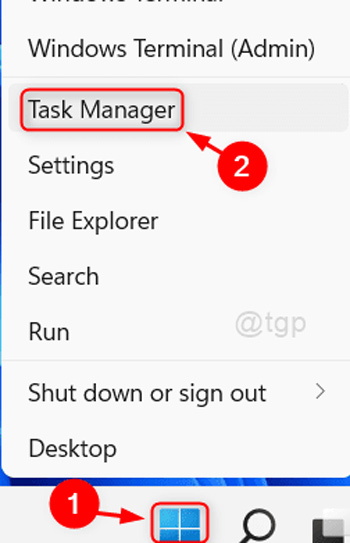
	<li style="text-align: justify;">Ấn tổ hợp phím<strong>&nbsp;Ctrl + Shift + Esc</strong>&nbsp;để mở<strong>&nbsp;Task Manager</strong>. Hoặc bạn cũng có thể bấm chuột phải vào&nbsp;<strong>biểu tượng Windows</strong>&nbsp;trên màn hình và chọn&nbsp;<strong>Task Manager.</strong></li>
</ul>

<p style="text-align: justify;"><strong><img alt="Tiến hành mở Task Manager" data-i="0" data-src="https://st.quantrimang.com/photos/image/2022/05/10/tat-ung-dung-bi-treo-tren-win-11-3.jpg" data-was-processed="true" height="543" src="https://st.quantrimang.com/photos/image/2022/05/10/tat-ung-dung-bi-treo-tren-win-11-3.jpg" width="350" /></strong></p>

<ul>
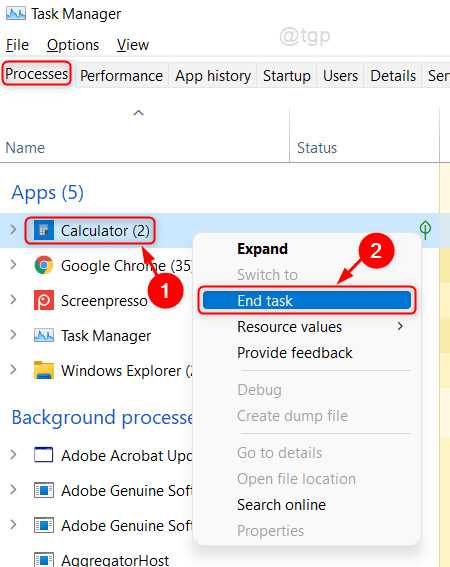
	<li style="text-align: justify;">Chọn&nbsp;<strong>tab Process</strong>&nbsp;và tìm phần mềm, ứng dụng bạn muốn đóng.</li>
	<li style="text-align: justify;">Ấn chuột phải vào chương trình bạn muốn đóng và chọ<strong>n End Task</strong>&nbsp;ở khung hộp thoại mới xuất hiện. Ngoài ra bạn cũng có thể bấm vào nút End Task ở phía cuối của hộp thoại.</li>
</ul>

<p style="text-align: justify;"><strong><img alt="Bấm End Task để buộc đóng ứng dụng bị treo" data-i="1" data-src="https://st.quantrimang.com/photos/image/2022/05/10/tat-ung-dung-bi-treo-tren-win-11-4.jpg" data-was-processed="true" height="567" src="https://st.quantrimang.com/photos/image/2022/05/10/tat-ung-dung-bi-treo-tren-win-11-4.jpg" width="450" /></strong></p>

<p style="text-align: justify;">Thao tác này sẽ giúp cho ứng dụng đang bị treo của bạn buộc phải đóng lại. Nếu như muốn sử dụng tiếp, bạn có thể mở lại ứng dụng vừa treo và sử dụng như bình thường.</p>

<h2 id="mcetoc_1g2md1s8626" style="text-align: justify;">Sử dụng command để tắt ứng dụng bị treo trên Win 11</h2>

<p style="text-align: justify;">Một cách khác giúp bạn xử lý tình trạng ứng dụng bị treo chính là thông qua&nbsp;<a href="https://quantrimang.com/huong-dan-su-dung-command-prompt-85301" title="Cách sử dụng Command Prompt, cách dùng cmd trên Windows">command</a>. Các bước thực hiện như sau:</p>

<ul>
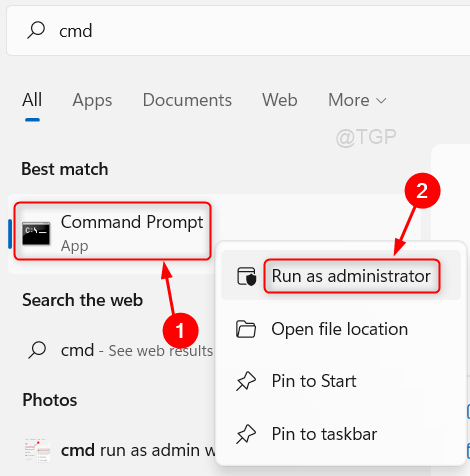
	<li style="text-align: justify;">Ấn vào&nbsp;<strong>biểu tượng Windows</strong>&nbsp;và gõ&nbsp;<strong>cmd.</strong></li>
	<li style="text-align: justify;">Ấn chuột phải vào phần mềm<strong>&nbsp;Command Prompt</strong>&nbsp;chọn&nbsp;<strong>Run as administrator,&nbsp;</strong>xuất hiện hộp thoại bạn hãy ấn vào nút&nbsp;<strong>Yes.</strong></li>
</ul>

<p style="text-align: justify;"><strong><img alt="Mở Command Prompt thông qua Windows" data-i="2" data-src="https://st.quantrimang.com/photos/image/2022/05/10/tat-ung-dung-bi-treo-tren-win-11-5.jpg" data-was-processed="true" height="476" src="https://st.quantrimang.com/photos/image/2022/05/10/tat-ung-dung-bi-treo-tren-win-11-5.jpg" width="470" /></strong></p>

<ul>
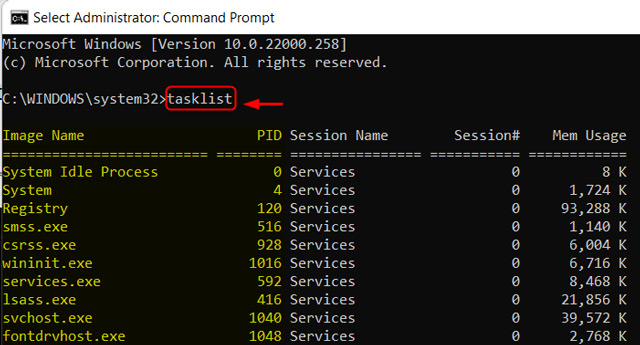
	<li style="text-align: justify;">Tiến hành nhập lệnh<strong>&nbsp;tasklist&nbsp;</strong>và ấn<strong>&nbsp;Enter.</strong></li>
</ul>

<p style="text-align: justify;"><strong><img alt="Nhập lệnh tasklist và ấn Enter." data-i="3" data-src="https://st.quantrimang.com/photos/image/2022/05/10/tat-ung-dung-bi-treo-tren-win-11-6.jpg" data-was-processed="true" height="345" src="https://st.quantrimang.com/photos/image/2022/05/10/tat-ung-dung-bi-treo-tren-win-11-6.jpg" width="640" /></strong></p>

<ul>
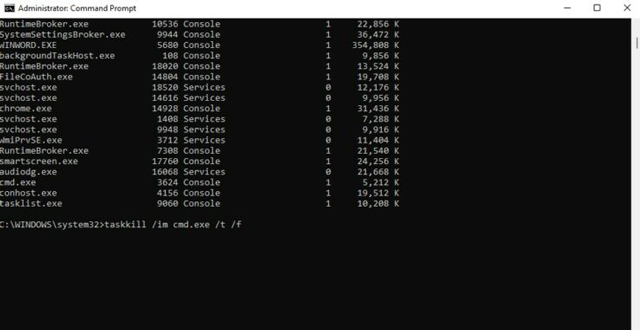
	<li style="text-align: justify;">Tìm kiếm chương trình bạn muốn đóng và nhập lệnh&nbsp;<strong>taskkill /im ProgramName.exe /t /f.&nbsp;</strong>Trong đó,<strong>&nbsp;ProgamName&nbsp;</strong>là chương trình mà bạn muốn đóng.</li>
</ul>

<p style="text-align: justify;"><strong><img alt="Tiến hành nhập lệnh để đóng ứng dụng bị treo" data-i="4" data-src="https://st.quantrimang.com/photos/image/2022/05/10/tat-ung-dung-bi-treo-tren-win-11-7.jpg" data-was-processed="true" height="330" src="https://st.quantrimang.com/photos/image/2022/05/10/tat-ung-dung-bi-treo-tren-win-11-7.jpg" width="640" /></strong></p>

<p style="text-align: justify;">Vậy là bạn đã hoàn tất quá trình đóng ứng dụng bị treo trên Windows 11 thông qua command.</p>

<h2 id="mcetoc_1g2md1s8627" style="text-align: justify;">Tắt các ứng dụng bị treo trên Win 11 bằng Desktop Shortcut</h2>

<p style="text-align: justify;">Một cách khá thú vị giúp bạn có thể xử lý các ứng dụng phần mềm bị treo chính là sử dụng&nbsp;Desktop Shortcut.</p>

<ul>
	<li style="text-align: justify;">Bạn cần quay về màn hình Desktop, có thể bấm nhanh tổ hợp phím&nbsp;<strong>Windows + D</strong>&nbsp;để về màn hình chính.</li>
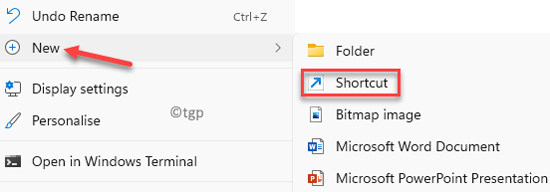
	<li style="text-align: justify;">Bấm chuột phải vào màn hình Desktop, chọn mục&nbsp;<strong>New &gt; Shortcut&nbsp;</strong>để tiến hành tạo 1 Shortcut mới.</li>
</ul>

<p style="text-align: justify;"><strong><img alt="Tiến hành tạo Shortcut mới trên Windows " data-i="5" data-src="https://st.quantrimang.com/photos/image/2022/05/10/tat-ung-dung-bi-treo-tren-win-11-8.jpg" data-was-processed="true" height="192" src="https://st.quantrimang.com/photos/image/2022/05/10/tat-ung-dung-bi-treo-tren-win-11-8.jpg" width="550" /></strong></p>

<ul>
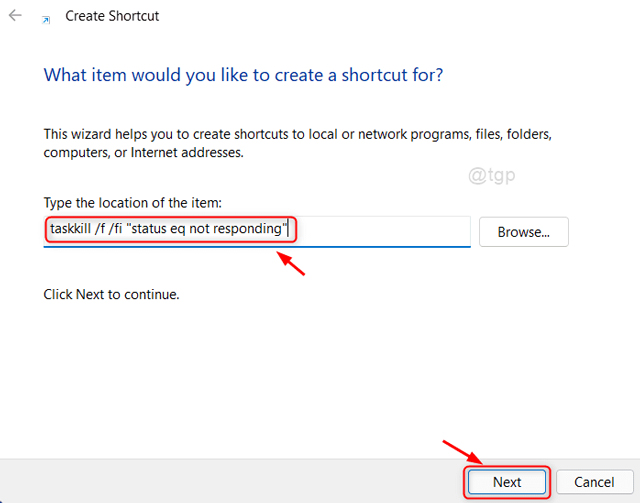
	<li style="text-align: justify;">Trong mục&nbsp;<strong>Type the location of the item&nbsp;</strong>bạn sẽ cần copy và điền đường link dưới đây vào hộp thoại sau đó bấm&nbsp;<strong>Next</strong>.</li>
</ul>

<pre id="pre0">
<code>taskkill /f /fi &quot;status eq not responding&quot;</code></pre>

<p style="text-align: justify;"><strong><img alt="Điền đường link theo mẫu vào ô chỉ dẫn" data-i="6" data-src="https://st.quantrimang.com/photos/image/2022/05/10/tat-ung-dung-bi-treo-tren-win-11-9.jpg" data-was-processed="true" height="503" src="https://st.quantrimang.com/photos/image/2022/05/10/tat-ung-dung-bi-treo-tren-win-11-9.jpg" width="640" /></strong></p>

<ul>
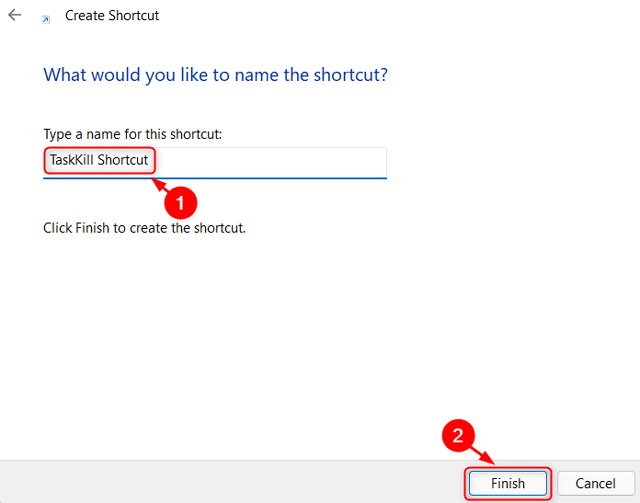
	<li style="text-align: justify;">Điền tên cho Shortcut của bạn tại phần&nbsp;<strong>Type a name for this shortcut</strong>&nbsp;rồi ấn<strong>&nbsp;Finish</strong>&nbsp;để hoàn tất quá trình tạo Shortcut.</li>
</ul>

<p style="text-align: justify;"><strong><img alt="Tạo tên cho Shortcut vừa lập" data-i="7" data-src="https://st.quantrimang.com/photos/image/2022/05/10/tat-ung-dung-bi-treo-tren-win-11-10.jpg" data-was-processed="true" height="503" src="https://st.quantrimang.com/photos/image/2022/05/10/tat-ung-dung-bi-treo-tren-win-11-10.jpg" width="640" /></strong></p>

<p style="text-align: justify;">Vậy là từ bây giờ, mỗi khi có ứng dụng, phần mềm trên Windows 11 bị treo, bạn chỉ việc click đúp chuột vào biểu tượng vừa tạo để tắt nhanh phần mềm bị treo.</p>

<p style="text-align: justify;">Toàn bộ nội dung trên là&nbsp;<strong>3 cách tắt các ứng dụng bị treo trên Windows 11</strong>&nbsp;mà Quantrimang muốn giới thiệu với bạn. Chúc bạn thành công.</p>
		</div>
				<div id="author">
						<p>
				<strong>Nguồn tin:</strong>
				Quantrimang.com
			</p>
		</div>
	</div>
	<div id="footer" class="clearfix">
		<div id="url">
			<strong>URL của bản tin này: </strong><a href="https://www.nguoicodonvn2008.info/vi/news/savefile/kien-thuc-may-tinh/3-cach-tat-cac-ung-dung-bi-treo-tren-windows-11-5591.html" title="3 cách tắt các ứng dụng bị treo trên Windows 11">https://www.nguoicodonvn2008.info/vi/news/savefile/kien-thuc-may-tinh/3-cach-tat-cac-ung-dung-bi-treo-tren-windows-11-5591.html</a>

		</div>
		<div class="clear"></div>
		<div class="copyright">
			&copy; .&#x3A; Nguoicodonvn2008.info - Cõi lòng người cô đơn &#x3A;.
		</div>
		<div id="contact">
			<a href="mailto:admin@nguoicodonvn2008.info">admin@nguoicodonvn2008.info</a>
		</div>
	</div>
</div>
        <div id="timeoutsess" class="chromeframe">
            Bạn đã không sử dụng Site, <a onclick="timeoutsesscancel();" href="https://nguoicodonvn2008.info/#">Bấm vào đây để duy trì trạng thái đăng nhập</a>. Thời gian chờ: <span id="secField"> 60 </span> giây
        </div>
        <div id="openidResult" class="nv-alert" style="display:none"></div>
        <div id="openidBt" data-result="" data-redirect=""></div>
		</script>
		<div class="car-top">
  <span><img src="https://nguoicodonvn2008.info/themes/default/images/car.png" alt=""></span>
</div>
<script src="https://nguoicodonvn2008.info/assets/js/jquery/jquery.min.js"></script>
<script>var nv_base_siteurl="/",nv_lang_data="vi",nv_lang_interface="vi",nv_name_variable="nv",nv_fc_variable="op",nv_lang_variable="language",nv_module_name="news",nv_func_name="savefile",nv_is_user=0, nv_my_ofs=-4,nv_my_abbr="EDT",nv_cookie_prefix="nv4c_e856T",nv_check_pass_mstime=1738000,nv_area_admin=0,nv_safemode=0,theme_responsive=0,nv_recaptcha_ver=2,nv_recaptcha_sitekey="",nv_recaptcha_type="image",XSSsanitize=1;</script>
<script src="https://nguoicodonvn2008.info/assets/js/language/vi.js"></script>
<script src="https://nguoicodonvn2008.info/assets/js/DOMPurify/purify3.js"></script>
<script src="https://nguoicodonvn2008.info/assets/js/global.js"></script>
<script src="https://nguoicodonvn2008.info/assets/js/site.js"></script>
<script src="https://nguoicodonvn2008.info/themes/default/js/news.js"></script>
<script src="https://nguoicodonvn2008.info/themes/default/js/main.js"></script>
<script src="https://nguoicodonvn2008.info/themes/default/js/custom.js"></script>
<script type="application/ld+json">
        {
            "@context": "https://schema.org",
            "@type": "Organization",
            "url": "https://nguoicodonvn2008.info",
            "logo": "https://nguoicodonvn2008.info/uploads/angel.gif"
        }
        </script>
<script src="https://nguoicodonvn2008.info/themes/default/js/bootstrap.min.js"></script>
<script type="text/javascript">
var $scrolltop = $('.car-top');
$scrolltop.on('click', function () {
    $('html,body').animate({
        scrollTop: 0
    }, 800);
    $(this).addClass("car-run");
    setTimeout(function(){ $scrolltop.removeClass('car-run');}, 1000);
    return false;
});
$(window).on('scroll', function ()
{ 
    if($(window).scrollTop() >= 200)
    {
        $scrolltop.addClass("show");
        $scrolltop.addClass("car-down");
    }
    else
    {
       $scrolltop.removeClass("show");
       setTimeout(function(){ $scrolltop.removeClass('car-down');}, 300);
    }
});
</script>
</body>
</html>