<!DOCTYPE html>
    <html lang="vi" xmlns="http://www.w3.org/1999/xhtml" prefix="og: http://ogp.me/ns#">
    <head>
<title>24 lệnh PowerShell cơ bản hữu ích dành cho Windows</title>
<meta name="description" content="24 lệnh PowerShell cơ bản hữu ích dành cho Windows - Savefile - Tin Tức -...">
<meta name="author" content=".: Nguoicodonvn2008.info - Cõi lòng người cô đơn :.">
<meta name="copyright" content=".: Nguoicodonvn2008.info - Cõi lòng người cô đơn :. [admin@nguoicodonvn2008.info]">
<meta name="robots" content="index, archive, follow, noodp">
<meta name="googlebot" content="index,archive,follow,noodp">
<meta name="msnbot" content="all,index,follow">
<meta name="generator" content="NukeViet v4.5">
<meta http-equiv="Content-Type" content="text/html; charset=utf-8">
<meta property="og:title" content="24 lệnh PowerShell cơ bản hữu ích dành cho Windows">
<meta property="og:type" content="website">
<meta property="og:description" content="Savefile - Tin Tức - https&#x3A;&#x002F;&#x002F;www.nguoicodonvn2008.info&#x002F;vi&#x002F;news&#x002F;savefile&#x002F;kien-thuc-may-tinh&#x002F;24-lenh-powershell-co-ban-huu-ich-danh-cho-windows-3197.html">
<meta property="og:site_name" content=".&#x3A; Nguoicodonvn2008.info - Cõi lòng người cô đơn &#x3A;.">
<meta property="og:url" content="https://www.nguoicodonvn2008.info/vi/news/savefile/kien-thuc-may-tinh/24-lenh-powershell-co-ban-huu-ich-danh-cho-windows-3197.html">
<link rel="shortcut icon" href="https://nguoicodonvn2008.info/favicon.ico">
<link rel="canonical" href="https://www.nguoicodonvn2008.info/vi/news/savefile/kien-thuc-may-tinh/24-lenh-powershell-co-ban-huu-ich-danh-cho-windows-3197.html">
<link rel="alternate" href="https://nguoicodonvn2008.info/vi/news/rss/" title="Tin Tức" type="application/rss+xml">
<link rel="alternate" href="https://nguoicodonvn2008.info/vi/news/rss/karaoke-dual/" title="Tin Tức - Karaoke Dual" type="application/rss+xml">
<link rel="alternate" href="https://nguoicodonvn2008.info/vi/news/rss/nhac-tre/" title="Tin Tức - Nhạc trẻ" type="application/rss+xml">
<link rel="alternate" href="https://nguoicodonvn2008.info/vi/news/rss/tru-tinh/" title="Tin Tức - Trữ tình" type="application/rss+xml">
<link rel="alternate" href="https://nguoicodonvn2008.info/vi/news/rss/nuoc-ngoai/" title="Tin Tức - Nước ngoài" type="application/rss+xml">
<link rel="alternate" href="https://nguoicodonvn2008.info/vi/news/rss/remix/" title="Tin Tức - Remix" type="application/rss+xml">
<link rel="alternate" href="https://nguoicodonvn2008.info/vi/news/rss/tam-su-tinh-yeu/" title="Tin Tức - Tâm sự tình yêu" type="application/rss+xml">
<link rel="alternate" href="https://nguoicodonvn2008.info/vi/news/rss/tho-suu-tam/" title="Tin Tức - Thơ sưu tầm" type="application/rss+xml">
<link rel="alternate" href="https://nguoicodonvn2008.info/vi/news/rss/cuoc-song/" title="Tin Tức - Cuộc sống" type="application/rss+xml">
<link rel="alternate" href="https://nguoicodonvn2008.info/vi/news/rss/phan-mem/" title="Tin Tức - Phần mềm" type="application/rss+xml">
<link rel="alternate" href="https://nguoicodonvn2008.info/vi/news/rss/kien-thuc-may-tinh/" title="Tin Tức - Kiến thức máy tính" type="application/rss+xml">
<link rel="alternate" href="https://nguoicodonvn2008.info/vi/news/rss/hoc-tap/" title="Tin Tức - Học tập" type="application/rss+xml">
<link rel="alternate" href="https://nguoicodonvn2008.info/vi/news/rss/tai-lieu/" title="Tin Tức - Tài liệu" type="application/rss+xml">
<link rel="alternate" href="https://nguoicodonvn2008.info/vi/news/rss/de-thi/" title="Tin Tức - Đề thi" type="application/rss+xml">
<link rel="preload" as="style" href="https://nguoicodonvn2008.info/assets/css/font-awesome.min.css" type="text/css">
<link rel="preload" as="style" href="https://nguoicodonvn2008.info/themes/default/css/bootstrap.non-responsive.css" type="text/css">
<link rel="preload" as="style" href="https://nguoicodonvn2008.info/themes/default/css/style.css" type="text/css">
<link rel="preload" as="style" href="https://nguoicodonvn2008.info/themes/default/css/style.non-responsive.css" type="text/css">
<link rel="preload" as="style" href="https://nguoicodonvn2008.info/themes/default/css/news.css" type="text/css">
<link rel="preload" as="style" href="https://nguoicodonvn2008.info/themes/default/css/custom.css" type="text/css">
<link rel="preload" as="script" href="https://nguoicodonvn2008.info/assets/js/jquery/jquery.min.js" type="text/javascript">
<link rel="preload" as="script" href="https://nguoicodonvn2008.info/assets/js/language/vi.js" type="text/javascript">
<link rel="preload" as="script" href="https://nguoicodonvn2008.info/assets/js/DOMPurify/purify3.js" type="text/javascript">
<link rel="preload" as="script" href="https://nguoicodonvn2008.info/assets/js/global.js" type="text/javascript">
<link rel="preload" as="script" href="https://nguoicodonvn2008.info/assets/js/site.js" type="text/javascript">
<link rel="preload" as="script" href="https://nguoicodonvn2008.info/themes/default/js/news.js" type="text/javascript">
<link rel="preload" as="script" href="https://nguoicodonvn2008.info/themes/default/js/main.js" type="text/javascript">
<link rel="preload" as="script" href="https://nguoicodonvn2008.info/themes/default/js/custom.js" type="text/javascript">
<link rel="preload" as="script" href="https://nguoicodonvn2008.info/themes/default/js/bootstrap.min.js" type="text/javascript">
<link rel="stylesheet" href="https://nguoicodonvn2008.info/assets/css/font-awesome.min.css">
<link rel="stylesheet" href="https://nguoicodonvn2008.info/themes/default/css/bootstrap.non-responsive.css">
<link rel="stylesheet" href="https://nguoicodonvn2008.info/themes/default/css/style.css">
<link rel="stylesheet" href="https://nguoicodonvn2008.info/themes/default/css/style.non-responsive.css">
<link rel="StyleSheet" href="https://nguoicodonvn2008.info/themes/default/css/news.css">
<link rel="stylesheet" href="https://nguoicodonvn2008.info/themes/default/css/custom.css">
<style type="text/css">
	body{background: #fff;}
</style>
    </head>
    <body>
<div id="print">
	<div id="hd_print">
		<h2 class="pull-left">.&#x3A; Nguoicodonvn2008.info - Cõi lòng người cô đơn &#x3A;.</h2>
		<p class="pull-right"><a title=".&#x3A; Nguoicodonvn2008.info - Cõi lòng người cô đơn &#x3A;." href="https://nguoicodonvn2008.info/">https://nguoicodonvn2008.info</a></p>
	</div>
	<div class="clear"></div>
	<hr />
	<div id="content">
		<h1>24 lệnh PowerShell cơ bản hữu ích dành cho Windows</h1>
		<ul class="list-inline">
			<li>Thứ sáu - 04/12/2020 23:51</li>
			<li class="hidden-print txtrequired"><em class="fa fa-print">&nbsp;</em><a title="In ra" href="javascript:;" onclick="window.print()">In ra</a></li>
			<li class="hidden-print txtrequired"><em class="fa fa-power-off">&nbsp;</em><a title="Đóng cửa sổ này" href="javascript:;" onclick="window.close()">Đóng cửa sổ này</a></li>
		</ul>
		<div class="clear"></div>
		<div id="hometext">
		</div>
				<div class="imghome">
			<img alt="24 lệnh PowerShell cơ bản hữu ích dành cho Windows" src="https://st.quantrimang.com/photos/image/2020/12/04/lenh-powershell-co-ban.jpg" width="460" class="img-thumbnail" />
		</div>
		<div class="clear"></div>
		<div id="bodytext" class="clearfix">
			<p style="text-align: justify;"><strong>Trong những năm vừa qua, Microsoft đã cố gắng để biến PowerShell thành 1 trong những công cụ quản lý toàn diện dành cho Windows.</strong>&nbsp;Hầu hết các hệ thống server của Microsoft đều khuyến cáo mọi người sử dụng&nbsp;<em>PowerShell</em>, có thể thực hiện được rất nhiều chức năng mà không cần phải can thiệp bằng&nbsp;<em>Command Prompt</em>&nbsp;như trước kia.</p>

<p style="text-align: justify;">Đối với mỗi người quản trị hệ thống Windows, họ cần phải làm quen và sử dụng&nbsp;<em>PowerShell&nbsp;</em>từ những bước cơ bản ban đầu. Sau đây, chúng tôi sẽ giới thiệu với các bạn 24 lệnh không thể thiếu khi bắt tay làm quen với PowerShell.</p>

<h2 id="mcetoc_1el75htpl0" style="text-align: justify;">1. Get-Help</h2>

<p style="text-align: justify;">Đầu tiên và trước tiên, tất cả mọi người cần tìm hiểu về bất cứ câu lệnh, cú pháp nào là Get-Help. Ví dụ nếu muốn kiểm tra về&nbsp;<em>Get-Process</em>&nbsp;thì gõ lệnh như sau:</p>

<pre id="pre0">
<code>Get-Help -Name Get-Process</code></pre>

<p style="text-align: justify;">và Windows sẽ hiển thị đầy đủ cú pháp. Bên cạnh đó,&nbsp;<em>Get-Help</em>&nbsp;còn được sử dụng đi kèm với danh từ và động từ riêng rẽ, ví dụ với lệnh động từ Get:</p>

<pre id="pre1">
<code>Get-Help -Name Get-*</code></pre>

<div style="text-align: justify;">&nbsp;</div>

<h2 id="mcetoc_1el75htpl1" style="text-align: justify;">2. Set-ExecutionPolicy</h2>

<p style="text-align: justify;">Mặc dù bạn có thể tạo và thực thi các đoạn mã PowerShell khác nhau, nhưng ở chế độ mặc định Microsoft đã tắt bỏ tính năng này để phòng tránh các loại mã độc khác nhau khi xâm nhập vào hệ thống có thể tự kích hoạt và khởi động trong môi trường PowerShell. Người sử dụng có thể áp dụng lệnh&nbsp;<em>Set-ExecutionPolicy</em>&nbsp;để thiết lập các mức bảo mật khác nhau, cụ thể có 4 lựa chọn phù hợp:</p>

<p style="text-align: justify;">-&nbsp;<strong>Restricted</strong>: đây là chính sách mặc định của hệ thống, các câu lệnh PowerShell đều bị khóa, người sử dụng chỉ có thể nhập lệnh nhưng không thực thi được.</p>

<p style="text-align: justify;">-&nbsp;<strong>All Signed</strong>: nếu bạn hoặc người quản trị thiết lập mức All Signed thì các đoạn mã sẽ được thực thi, nhưng chỉ áp dụng với những thành phần được chỉ định rõ ràng.</p>

<p style="text-align: justify;">-&nbsp;<strong>Remote Signed</strong>: chính sách bảo mật khi ở mức này, bất cứ đoạn mã PowerShell được tạo bên trong hệ thống local sẽ được phép hoạt động. Còn những mã tạo qua remote thì chỉ được phép chạy khi gán thuộc tính đầy đủ.</p>

<p style="text-align: justify;">-&nbsp;<strong>Unrestricted</strong>: không áp dụng bất cứ hình thức ngăn cấm nào trong hệ thống.<br />
<br />
Cú pháp chung của lệnh này bao gồm tên của lệnh Set-ExecutionPolicy đứng sau chính sách. Ví dụ như sau:</p>

<pre id="pre2">
<code>Set-ExecutionPolicy Unrestricted</code></pre>

<h2 id="mcetoc_1el75htpl2" style="text-align: justify;">3. Get-ExecutionPolicy</h2>

<p style="text-align: justify;">Nếu bạn phải làm việc trên hệ thống server không quen thuộc, thì cần phải biết chính sách mức chính sách bảo mật nào đang được áp dụng trên đó trước khi thực thi bất cứ câu lệnh hoặc đoạn mã nào đó. Để làm việc này, các bạn sử dụng lệnh&nbsp;<em>Get-ExecutionPolicy</em>.</p>

<div style="text-align: justify;">&nbsp;</div>

<h2 id="mcetoc_1el75htpl3" style="text-align: justify;">4. Get-Service</h2>

<p style="text-align: justify;">Câu lệnh này sẽ liệt kê tất cả các dịch vụ đã được cài đặt trên hệ thống. Nếu cần tìm hiểu kỹ hơn về 1 dịch vụ bất kỳ nào đó, hãy thêm&nbsp;<strong>-Name&nbsp;</strong>và tên của dịch vụ đó, Windows sẽ hiển thị đầy đủ chi tiết, tình trạng liên quan.</p>

<h2 id="mcetoc_1el75htpl4" style="text-align: justify;">5. ConvertTo-HTML</h2>

<p style="text-align: justify;">Khi cần xem hoặc tạo báo cáo đầy đủ về thông tin, tình trạng hiện thời của toàn bộ hệ thống, hãy sử dụng chức năng chuyển đổi định dạng&nbsp;<em>ConvertTo-HTML</em>. Trước tiên, các bạn cần chỉ định đường dẫn file chuyển đổi sau khi dùng&nbsp;<em>ConvertTo-HTML</em>, tham số&nbsp;<strong>-Property&nbsp;</strong>có nhiệm vụ khởi tạo thuộc tính trong file HTML, sau cùng là đặt tên cho file chuyển đổi. Cú pháp chung của lệnh này như sau:</p>

<pre id="pre3">
<code>Get-Service | ConvertTo-HTML -Property Name, Status &gt; C:\services.htm</code></pre>

<h2 id="mcetoc_1el75htpl5" style="text-align: justify;">6. Export-CSV</h2>

<p style="text-align: justify;">Sau khi tạo báo cáo bằng HTML dựa trên dữ liệu của PowerShell, bạn cũng có thể trích xuất dữ liệu PowerShell thành file CSV để sử dụng với Microsoft Excel. Cú pháp chung cũng tương tự như câu lệnh trên:</p>

<pre id="pre4">
<code>Get-Service | Export-CSV c:\service.csv</code></pre>

<div style="text-align: justify;">&nbsp;</div>

<h2 id="mcetoc_1el75htpl6" style="text-align: justify;">7. Select-Object</h2>

<p style="text-align: justify;">Việc sử dụng các lệnh trên để tìm hiểu về hệ thống, bạn sẽ phát hiện ra rằng có rất nhiều thuộc tính kèm trong file CSV. Tính năng này tỏ ra thực sự hữu ích khi cho phép người sử dụng chỉ định những thuộc tính cố định trong các mối liên kết. Ví dụ, để tạo file CSV có chứa tên của các dịch vụ riêng biệt trong hệ thống và tình trạng đi kèm, các bạn có thể sử dụng cú pháp chung như sau:</p>

<pre id="pre5">
<code>Get-Service | Select-Object Name, Status | Export-CSV c:\service.csv</code></pre>

<h2 id="mcetoc_1el75htpl7" style="text-align: justify;">8. Get-EventLog</h2>

<p style="text-align: justify;">Người sử dụng hoàn toàn có thể dùng&nbsp;<em>PowerShell&nbsp;</em>để phân tích các sự kiện xảy ra trong hệ thông qua file log. Có 1 vài tham số cụ thể đối với các dịch vụ khác nhau, nhưng hãy thử nghiệm bằng cách thêm -Log ở phía trước tên file log. Ví dụ, để xem file log&nbsp;<em>Application&nbsp;</em>thì các bạn sử dụng lệnh sau:</p>

<pre id="pre6">
<code>Get-EventLog -Log &quot;Application&quot;</code></pre>

<p style="text-align: justify;">Tuy nhiên, cú pháp này không thực sự phổ biến trong các hoàn cảnh làm việc, khi mà người sử dụng có thể lựa chọn giữa phương pháp lưu báo cáo thành định dạng HTML hoặc CSV.</p>

<h2 id="mcetoc_1el75htpl8" style="text-align: justify;">9. Get-Process</h2>

<p style="text-align: justify;">Đi kèm với lệnh&nbsp;<em>Get-Service</em>&nbsp;để hiển thị danh sách các dịch vụ hiện thời của hệ thống, cú pháp&nbsp;<em>Get-Process&nbsp;</em>được dùng để liệt kê toàn bộ các tiến trình đang hoạt động.</p>

<h2 id="mcetoc_1el75htpl9" style="text-align: justify;">10. Stop-Process</h2>

<p style="text-align: justify;">Đôi khi, có những dịch vụ trong hệ thống bị rơi vào trạng thái “treo”. Đối với những trường hợp như vậy, hãy dùng lệnh&nbsp;<em>Get-Process</em>&nbsp;để xác định tên hoặc ID chính xác của tiến trình đó, và tắt tiến trình này bằng lệnh&nbsp;<em>Stop-Process</em>. Ví dụ, để tắt hoạt động của chương trình&nbsp;<em>NotePad&nbsp;</em>thì gõ lệnh như sau:</p>

<pre id="pre7">
<code>Stop-Process -Name notepad
 Stop-Process -ID 2668</code></pre>

<p style="text-align: justify;">Nhưng hãy lưu ý vì ID của các tiến trình sẽ thay đổi theo hệ thống.</p>

<h2 id="mcetoc_1el770ql30" style="text-align: justify;">11. Get-Command</h2>

<figure>
<div style="text-align: justify;"><img alt="Get-Command" data-i="0" data-src="https://st.quantrimang.com/photos/image/2020/10/22/lenh-powershell-co-ban-1.jpg" data-was-processed="true" height="480" src="https://st.quantrimang.com/photos/image/2020/10/22/lenh-powershell-co-ban-1.jpg" width="650" /></div>

<figcaption>
<div style="text-align: justify;">Get-Command</div>
</figcaption>
</figure>

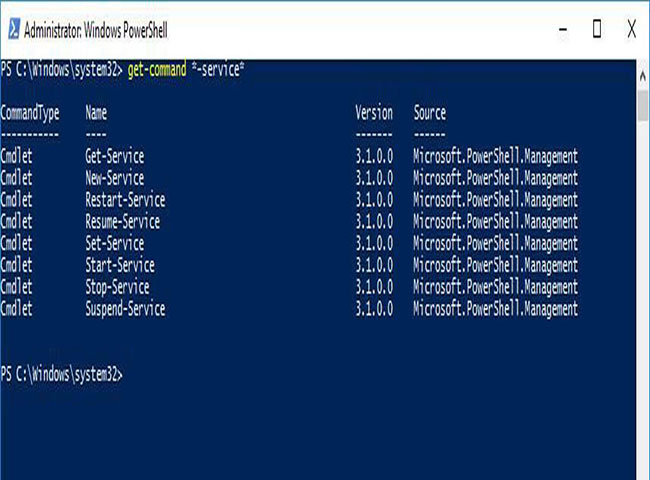
<p style="text-align: justify;">Windows PowerShell cho phép khám phá các lệnh và tính năng của nó bằng Get-Command. Nó hiển thị danh sách các lệnh của một tính năng cụ thể hoặc cho một mục đích cụ thể dựa trên tham số tìm kiếm.</p>

<p style="text-align: justify;">Bạn chỉ cần nhập Get-Command sau truy vấn tìm kiếm của mình trong PowerShell. Ví dụ:&nbsp;<code>Get-Command *-service*</code>&nbsp;hiển thị các lệnh có&nbsp;<strong>“-service”</strong>&nbsp;trong tên. Hãy nhớ sử dụng dấu hoa thị ở cả hai đầu của truy vấn, vì nó là một ký tự đại diện giúp tìm kiếm điều chưa biết.</p>

<h2 id="mcetoc_1el770ql31" style="text-align: justify;">12. Invoke-Command</h2>

<p style="text-align: justify;">Khi bạn muốn chạy một lệnh hoặc một script của PowerShell - cục bộ hoặc từ xa trên một hay nhiều máy tính - “Invoke-Command” sẽ là người bạn đồng hành hữu ích. Nó rất dễ sử dụng và giúp bạn kiểm soát hàng loạt máy tính.</p>

<p style="text-align: justify;">Bạn phải nhập Invoke-Command theo sau là lệnh hoặc script với đường dẫn đầy đủ của nó.</p>

<p style="text-align: justify;">Ví dụ, bạn có thể chạy lệnh “Get-EventLog” bằng cách sử dụng:</p>

<pre id="pre8">
<code>Invoke-Command -ScriptBlock {Get-EventLog system -Newest 50}</code></pre>

<p style="text-align: justify;">... hoặc trên máy tính từ xa&nbsp;<strong>“Server01”</strong>&nbsp;sử dụng:</p>

<pre id="pre9">
<code>Invoke-Command -ScriptBlock {Get-EventLog system -Newest 50} -ComputerName Server01</code></pre>

<h2 id="mcetoc_1el770ql32" style="text-align: justify;">13. Invoke-Expression</h2>

<figure>
<div style="text-align: justify;"><img alt="Invoke-Expression" data-i="1" data-src="https://st.quantrimang.com/photos/image/2020/10/22/lenh-powershell-co-ban-2.jpg" data-was-processed="true" height="480" src="https://st.quantrimang.com/photos/image/2020/10/22/lenh-powershell-co-ban-2.jpg" width="650" /></div>

<figcaption>
<div style="text-align: justify;">Invoke-Expression</div>
</figcaption>
</figure>

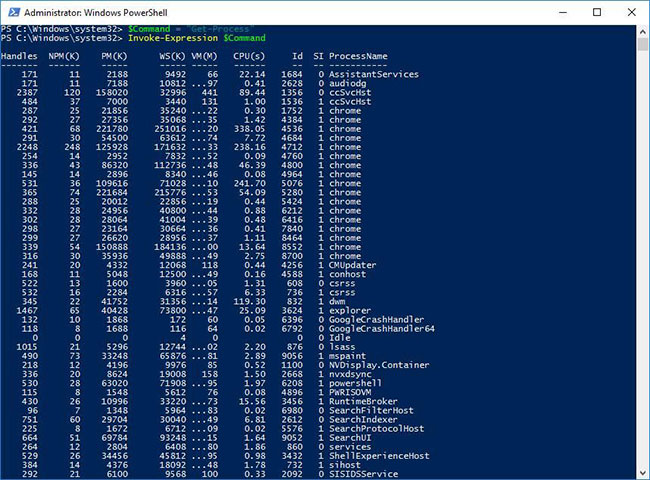
<p style="text-align: justify;">Invoke-Expression chạy một lệnh hoặc biểu thức khác. Nếu bạn đang cung cấp một biểu thức hoặc một chuỗi làm đầu vào cho nó, lệnh này trước tiên sẽ đánh giá, sau đó chạy nó, nhưng cũng chỉ hoạt động cục bộ, không giống như lệnh trước.</p>

<p style="text-align: justify;">Bạn phải nhập Invoke-Expression theo sau là một lệnh hoặc một biểu thức. Ví dụ, bạn có thể gán một biến&nbsp;<strong>“$Command”</strong>&nbsp;với một chuỗi cho biết lệnh&nbsp;<strong>“Get-Process”.</strong>&nbsp;Khi bạn chạy&nbsp;<code><strong>Invoke-Expression $Command</strong></code>, “Get-Process” sẽ được chạy dưới dạng lệnh trên máy tính cục bộ.</p>

<h2 id="mcetoc_1el770ql33" style="text-align: justify;">14. Invoke-WebRequest</h2>

<p style="text-align: justify;">Bạn có thể tải xuống, đăng nhập và thu thập thông tin trên các trang web và dịch vụ web trong khi làm việc trên Windows PowerShell bằng cách sử dụng Invoke-WebRequest.</p>

<p style="text-align: justify;">Bạn phải sử dụng Invoke-WebRequest theo sau là các tham số của nó. Ví dụ, bạn có thể lấy các liên kết trên một trang web nhất định bằng cách sử dụng lệnh dưới dạng:</p>

<pre id="pre10">
<code>(Invoke-WebRequest -Uri &quot;https://docs.microsoft.com&quot;).Links.Href</code></pre>

<h2 id="mcetoc_1el770ql34" style="text-align: justify;">15. Get-Item</h2>

<figure>
<div style="text-align: justify;"><img alt="Get-Item" data-i="2" data-src="https://st.quantrimang.com/photos/image/2020/10/22/lenh-powershell-co-ban-3.jpg" data-was-processed="true" height="480" src="https://st.quantrimang.com/photos/image/2020/10/22/lenh-powershell-co-ban-3.jpg" width="650" /></div>

<figcaption>
<div style="text-align: justify;">Get-Item</div>
</figcaption>
</figure>

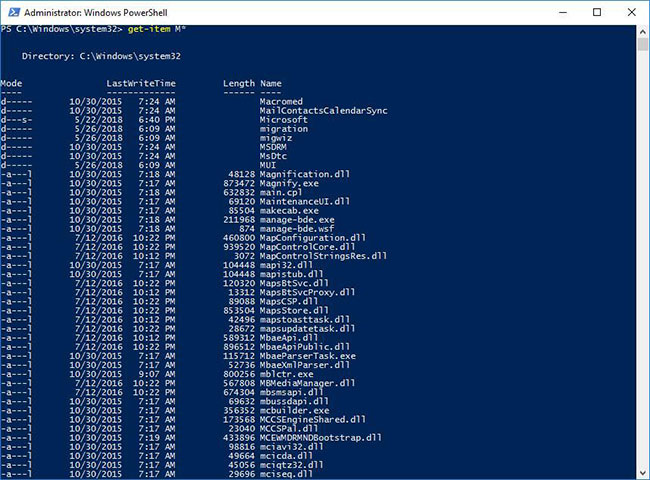
<p style="text-align: justify;">Nếu bạn đang tìm kiếm thông tin về một mục tại bất kỳ vị trí nào, chẳng hạn như một file trên ổ cứng, Get-Item là cách tốt nhất để lấy được thông tin đó trong Windows PowerShell. Bạn phải biết rằng nó không lấy nội dung của mục, chẳng hạn như file và thư mục con trong một thư mục nhất định, trừ khi được bạn chỉ định rõ ràng.</p>

<p style="text-align: justify;">Bạn phải nhập Get-Item theo sau là một đường dẫn hoặc một chuỗi cùng với các tham số của nó nếu có. Ví dụ, bạn có thể lấy tất cả các mục (file hoặc thư mục) bắt đầu bằng&nbsp;<strong>“M”</strong>&nbsp;trong thư mục hiện tại bằng cách sử dụng&nbsp;<code>Get-Item M*</code>. Cùng với nội dung của những thư mục, nó cũng có thể lấy nội dung của các registry key.</p>

<h2 id="mcetoc_1emqq15s10" style="text-align: justify;">16. Copy-Item</h2>

<p style="text-align: justify;">Nếu cần sao chép file và thư mục trên ổ đĩa lưu trữ của mình hoặc các mục nhập registry và key trong Registry, bạn có thể sử dụng&nbsp;<strong>Copy-Item.</strong>&nbsp;Nó hoạt động tương tự như lệnh cp trong&nbsp;Command Prompt, nhưng tốt hơn nhiều.</p>

<p style="text-align: justify;">Bạn cũng có thể sử dụng lệnh Copy-Item để sao chép và đổi tên các mục trong cùng một lệnh - đặt tên mới làm đích. Ví dụ, bạn có thể sao chép và đổi tên&nbsp;<strong>“Services.htm”</strong>&nbsp;thành&nbsp;<strong>“MyServices.txt”</strong>&nbsp;bằng lệnh:</p>

<pre id="pre11">
<code>Copy-Item &quot;C:\Services.htm&quot; -Destination &quot;C:\MyData\MyServices.txt&quot;</code></pre>

<h2 id="mcetoc_1emqq15s11" style="text-align: justify;">17. Remove-Item</h2>

<figure>
<div style="text-align: justify;"><img alt="Remove-Item" data-i="3" data-src="https://st.quantrimang.com/photos/image/2020/11/11/lenh-powershell-co-ban.jpg" data-was-processed="true" height="115" src="https://st.quantrimang.com/photos/image/2020/11/11/lenh-powershell-co-ban.jpg" width="600" /></div>

<figcaption>
<div style="text-align: justify;">Remove-Item</div>
</figcaption>
</figure>

<p style="text-align: justify;">Nếu bạn muốn xóa các mục như file, thư mục, hàm, registry key và các biến, Remove-Item là lệnh dành cho bạn. Điều thú vị nhất là nó cung cấp những thông số để bao gồm và loại trừ các mục.</p>

<p style="text-align: justify;">Bạn có thể sử dụng lệnh Remove-Item để xóa các mục khỏi những vị trí cụ thể bằng cách sử dụng các tham số. Ví dụ, bạn có thể xóa file&nbsp;<strong>“MyServices.txt”</strong>&nbsp;bằng lệnh:</p>

<pre id="pre12">
<code>Remove-Item &quot;C:\MyData\MyServices.txt&quot;</code></pre>

<h2 id="mcetoc_1emqq15s12" style="text-align: justify;">18. Get-Content</h2>

<p style="text-align: justify;">Khi bạn cần xem nội dung của file văn bản tại một vị trí cụ thể, bạn mở và đọc nó trong một trình soạn thảo code/văn bản như Notepad++. Trong Windows PowerShell, bạn có thể sử dụng&nbsp;<strong>Get-Content</strong>&nbsp;để truy xuất nội dung mà không cần mở file.</p>

<p style="text-align: justify;">Ví dụ, bạn có thể truy xuất 50 dòng nội dung của&nbsp;<strong>“Services.htm”</strong>&nbsp;bằng lệnh:</p>

<pre id="pre13">
<code>Get-Content &quot;C:\Services.htm&quot; -TotalCount 50</code></pre>

<h2 id="mcetoc_1emqq15s13" style="text-align: justify;">19. Set-Content</h2>

<p style="text-align: justify;">Bạn có thể lưu văn bản vào file bằng cách sử dụng&nbsp;<strong>Set-Content</strong>, tương tự như&nbsp;lệnh echo&nbsp;của Bash Shell. Kết hợp với&nbsp;<strong>Get-Content</strong>, bạn cũng có thể truy xuất nội dung của một file và sao chép nó vào file khác bằng lệnh này.</p>

<p style="text-align: justify;">Ví dụ, bạn có thể nhập&nbsp;<strong>Set-Content</strong>&nbsp;để viết hoặc thay thế nội dung của một file bằng nội dung mới. Hơn nữa, bạn có thể kết hợp nó với ví dụ của lệnh trước đó để lưu đầu ra vào một file mới có tên&nbsp;<strong>“Sample.txt”</strong>&nbsp;bằng cách sử dụng:</p>

<pre id="pre14">
<code>Get-Content &quot;C:\Services.htm&quot; -TotalCount 50 | Set-Content &quot;Sample.txt&quot;</code></pre>

<h2 id="mcetoc_1emqq15s14" style="text-align: justify;">20. Get-Variable</h2>

<p style="text-align: justify;">Nếu bạn đang muốn sử dụng các biến trong Windows PowerShell, lệnh&nbsp;<strong>Get-Variable</strong>&nbsp;sẽ giúp bạn trực quan hóa các giá trị của biến. Nó hiển thị chúng dưới dạng bảng và cho phép bao gồm, loại trừ và sử dụng các ký tự đại diện.</p>

<p style="text-align: justify;">Bạn có thể sử dụng lệnh này bằng cách gõ&nbsp;<strong>Get-Variable</strong>, sau đó là các tùy chọn và tham số của nó. Ví dụ: bạn có thể truy xuất giá trị cho một biến có tên&nbsp;<strong>“desc”</strong>&nbsp;bằng cách sử dụng code sau:</p>

<pre id="pre15">
<code>Get-Variable -Name &quot;desc&quot;</code></pre>

<h2 id="mcetoc_1eoml4dds0" style="text-align: justify;">21. Set-Variable</h2>

<p style="text-align: justify;">Bạn có thể gán hoặc thay đổi/reset lại giá trị của một biến bằng cách sử dụng lệnh&nbsp;<strong>Set-Variable.</strong>&nbsp;Bên cạnh đó, bạn cũng có thể đặt một biến đơn giản bằng định dạng&nbsp;<strong>${ $VarName = VarValue }$</strong>&nbsp;như:</p>

<pre id="pre16">
<code>$desc = &quot;A Description&quot;</code></pre>

<p style="text-align: justify;">Bạn có thể sử dụng lệnh&nbsp;<strong>Set-Variable</strong>&nbsp;theo sau là các tham số để đặt một biến. Ví dụ, bạn có thể đặt giá trị cho một biến có tên&nbsp;<strong>“desc”</strong>&nbsp;bằng cách sử dụng lệnh:</p>

<pre id="pre17">
<code>Set-Variable -Name &quot;desc&quot; -Value &quot;A Description&quot;</code></pre>

<h2 id="mcetoc_1eoml4ddt1" style="text-align: justify;">22. Start-Process</h2>

<figure>
<div style="text-align: justify;"><img alt="Lệnh Start-Process" data-i="4" data-src="https://st.quantrimang.com/photos/image/2020/12/04/lenh-powershell-co-ban.jpg" data-was-processed="true" height="220" src="https://st.quantrimang.com/photos/image/2020/12/04/lenh-powershell-co-ban.jpg" width="650" /></div>

<figcaption>
<div style="text-align: justify;">Lệnh Start-Process</div>
</figcaption>
</figure>

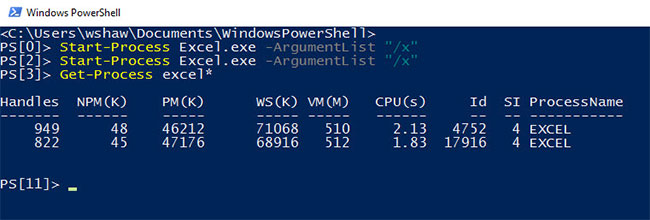
<p style="text-align: justify;">Windows PowerShell&nbsp;giúp bạn dễ dàng bắt đầu một hoặc nhiều tiến trình trên máy tính của mình. Lệnh này sẽ rất hữu ích trong các ứng dụng tạo script, vì nó là một trong những lệnh bắt buộc bạn phải có để tự động hóa một tác vụ.</p>

<p style="text-align: justify;">Bạn có thể gõ&nbsp;<strong>Start-Process</strong>&nbsp;sau đó là các tham số để sử dụng lệnh. Ví dụ, bạn có thể khởi động Notepad bằng cách gõ lệnh sau trong Windows PowerShell:</p>

<pre id="pre18">
<code>Start-Process -FilePath &quot;notepad&quot; -Verb runAs</code></pre>

<h2 id="mcetoc_1eoml4ddt2" style="text-align: justify;">23. Start-Service</h2>

<p style="text-align: justify;">Nếu bạn muốn khởi động một service trên máy tính của mình, lệnh&nbsp;<strong>Start-Service</strong>&nbsp;có thể giúp bạn thực hiện điều tương tự từ Windows PowerShell. Nó đủ mạnh để khởi động một service, ngay cả khi service đó bị vô hiệu hóa trên máy tính của bạn.</p>

<p style="text-align: justify;">Bạn cần chỉ định tên của service trong khi sử dụng lệnh&nbsp;<strong>Start-Service.</strong>&nbsp;Ví dụ:&nbsp;<strong>Start-Service -Name &quot;WSearch&quot;</strong>&nbsp;sẽ khởi động service Windows Search trên máy tính cục bộ của bạn.</p>

<h2 id="mcetoc_1eoml4ddt3" style="text-align: justify;">24. Stop-Service</h2>

<p style="text-align: justify;">Nếu bạn muốn dừng các service đang chạy trên máy tính của mình, lệnh&nbsp;<strong>Stop-Service</strong>&nbsp;sẽ trở nên vô cùng hữu ích. Bạn cần chỉ định tên của service cùng với&nbsp;<strong>Stop-Service.</strong>&nbsp;Ví dụ, nhập&nbsp;<strong>Stop-Service -Name &quot;WSearch&quot;</strong>&nbsp;để dừng service &quot;Windows Search&quot; trên máy tính của bạn.</p>
		</div>
				<div id="author">
						<p>
				<strong>Nguồn tin:</strong>
				Quantrimang.com
			</p>
		</div>
	</div>
	<div id="footer" class="clearfix">
		<div id="url">
			<strong>URL của bản tin này: </strong><a href="https://www.nguoicodonvn2008.info/vi/news/savefile/kien-thuc-may-tinh/24-lenh-powershell-co-ban-huu-ich-danh-cho-windows-3197.html" title="24 lệnh PowerShell cơ bản hữu ích dành cho Windows">https://www.nguoicodonvn2008.info/vi/news/savefile/kien-thuc-may-tinh/24-lenh-powershell-co-ban-huu-ich-danh-cho-windows-3197.html</a>

		</div>
		<div class="clear"></div>
		<div class="copyright">
			&copy; .&#x3A; Nguoicodonvn2008.info - Cõi lòng người cô đơn &#x3A;.
		</div>
		<div id="contact">
			<a href="mailto:admin@nguoicodonvn2008.info">admin@nguoicodonvn2008.info</a>
		</div>
	</div>
</div>
        <div id="timeoutsess" class="chromeframe">
            Bạn đã không sử dụng Site, <a onclick="timeoutsesscancel();" href="https://nguoicodonvn2008.info/#">Bấm vào đây để duy trì trạng thái đăng nhập</a>. Thời gian chờ: <span id="secField"> 60 </span> giây
        </div>
        <div id="openidResult" class="nv-alert" style="display:none"></div>
        <div id="openidBt" data-result="" data-redirect=""></div>
		</script>
		<div class="car-top">
  <span><img src="https://nguoicodonvn2008.info/themes/default/images/car.png" alt=""></span>
</div>
<script src="https://nguoicodonvn2008.info/assets/js/jquery/jquery.min.js"></script>
<script>var nv_base_siteurl="/",nv_lang_data="vi",nv_lang_interface="vi",nv_name_variable="nv",nv_fc_variable="op",nv_lang_variable="language",nv_module_name="news",nv_func_name="savefile",nv_is_user=0, nv_my_ofs=-4,nv_my_abbr="EDT",nv_cookie_prefix="nv4c_e856T",nv_check_pass_mstime=1738000,nv_area_admin=0,nv_safemode=0,theme_responsive=0,nv_recaptcha_ver=2,nv_recaptcha_sitekey="",nv_recaptcha_type="image",XSSsanitize=1;</script>
<script src="https://nguoicodonvn2008.info/assets/js/language/vi.js"></script>
<script src="https://nguoicodonvn2008.info/assets/js/DOMPurify/purify3.js"></script>
<script src="https://nguoicodonvn2008.info/assets/js/global.js"></script>
<script src="https://nguoicodonvn2008.info/assets/js/site.js"></script>
<script src="https://nguoicodonvn2008.info/themes/default/js/news.js"></script>
<script src="https://nguoicodonvn2008.info/themes/default/js/main.js"></script>
<script src="https://nguoicodonvn2008.info/themes/default/js/custom.js"></script>
<script type="application/ld+json">
        {
            "@context": "https://schema.org",
            "@type": "Organization",
            "url": "https://nguoicodonvn2008.info",
            "logo": "https://nguoicodonvn2008.info/uploads/angel.gif"
        }
        </script>
<script src="https://nguoicodonvn2008.info/themes/default/js/bootstrap.min.js"></script>
<script type="text/javascript">
var $scrolltop = $('.car-top');
$scrolltop.on('click', function () {
    $('html,body').animate({
        scrollTop: 0
    }, 800);
    $(this).addClass("car-run");
    setTimeout(function(){ $scrolltop.removeClass('car-run');}, 1000);
    return false;
});
$(window).on('scroll', function ()
{ 
    if($(window).scrollTop() >= 200)
    {
        $scrolltop.addClass("show");
        $scrolltop.addClass("car-down");
    }
    else
    {
       $scrolltop.removeClass("show");
       setTimeout(function(){ $scrolltop.removeClass('car-down');}, 300);
    }
});
</script>
</body>
</html>