<!DOCTYPE html>
    <html lang="vi" xmlns="http://www.w3.org/1999/xhtml" prefix="og: http://ogp.me/ns#">
    <head>
<title>18 lệnh Linux thú vị trong Terminal</title>
<meta name="description" content="18 lệnh Linux thú vị trong Terminal - Savefile - Tin Tức -...">
<meta name="author" content=".: Nguoicodonvn2008.info - Cõi lòng người cô đơn :.">
<meta name="copyright" content=".: Nguoicodonvn2008.info - Cõi lòng người cô đơn :. [admin@nguoicodonvn2008.info]">
<meta name="robots" content="index, archive, follow, noodp">
<meta name="googlebot" content="index,archive,follow,noodp">
<meta name="msnbot" content="all,index,follow">
<meta name="generator" content="NukeViet v4.5">
<meta http-equiv="Content-Type" content="text/html; charset=utf-8">
<meta property="og:title" content="18 lệnh Linux thú vị trong Terminal">
<meta property="og:type" content="website">
<meta property="og:description" content="Savefile - Tin Tức - https&#x3A;&#x002F;&#x002F;www.nguoicodonvn2008.info&#x002F;vi&#x002F;news&#x002F;savefile&#x002F;kien-thuc-may-tinh&#x002F;18-lenh-linux-thu-vi-trong-terminal-9981.html">
<meta property="og:site_name" content=".&#x3A; Nguoicodonvn2008.info - Cõi lòng người cô đơn &#x3A;.">
<meta property="og:url" content="https://www.nguoicodonvn2008.info/vi/news/savefile/kien-thuc-may-tinh/18-lenh-linux-thu-vi-trong-terminal-9981.html">
<link rel="shortcut icon" href="https://nguoicodonvn2008.info/favicon.ico">
<link rel="canonical" href="https://www.nguoicodonvn2008.info/vi/news/savefile/kien-thuc-may-tinh/18-lenh-linux-thu-vi-trong-terminal-9981.html">
<link rel="alternate" href="https://nguoicodonvn2008.info/vi/news/rss/" title="Tin Tức" type="application/rss+xml">
<link rel="alternate" href="https://nguoicodonvn2008.info/vi/news/rss/karaoke-dual/" title="Tin Tức - Karaoke Dual" type="application/rss+xml">
<link rel="alternate" href="https://nguoicodonvn2008.info/vi/news/rss/nhac-tre/" title="Tin Tức - Nhạc trẻ" type="application/rss+xml">
<link rel="alternate" href="https://nguoicodonvn2008.info/vi/news/rss/tru-tinh/" title="Tin Tức - Trữ tình" type="application/rss+xml">
<link rel="alternate" href="https://nguoicodonvn2008.info/vi/news/rss/nuoc-ngoai/" title="Tin Tức - Nước ngoài" type="application/rss+xml">
<link rel="alternate" href="https://nguoicodonvn2008.info/vi/news/rss/remix/" title="Tin Tức - Remix" type="application/rss+xml">
<link rel="alternate" href="https://nguoicodonvn2008.info/vi/news/rss/tam-su-tinh-yeu/" title="Tin Tức - Tâm sự tình yêu" type="application/rss+xml">
<link rel="alternate" href="https://nguoicodonvn2008.info/vi/news/rss/tho-suu-tam/" title="Tin Tức - Thơ sưu tầm" type="application/rss+xml">
<link rel="alternate" href="https://nguoicodonvn2008.info/vi/news/rss/cuoc-song/" title="Tin Tức - Cuộc sống" type="application/rss+xml">
<link rel="alternate" href="https://nguoicodonvn2008.info/vi/news/rss/phan-mem/" title="Tin Tức - Phần mềm" type="application/rss+xml">
<link rel="alternate" href="https://nguoicodonvn2008.info/vi/news/rss/kien-thuc-may-tinh/" title="Tin Tức - Kiến thức máy tính" type="application/rss+xml">
<link rel="alternate" href="https://nguoicodonvn2008.info/vi/news/rss/hoc-tap/" title="Tin Tức - Học tập" type="application/rss+xml">
<link rel="alternate" href="https://nguoicodonvn2008.info/vi/news/rss/tai-lieu/" title="Tin Tức - Tài liệu" type="application/rss+xml">
<link rel="alternate" href="https://nguoicodonvn2008.info/vi/news/rss/de-thi/" title="Tin Tức - Đề thi" type="application/rss+xml">
<link rel="preload" as="style" href="https://nguoicodonvn2008.info/assets/css/font-awesome.min.css" type="text/css">
<link rel="preload" as="style" href="https://nguoicodonvn2008.info/themes/default/css/bootstrap.non-responsive.css" type="text/css">
<link rel="preload" as="style" href="https://nguoicodonvn2008.info/themes/default/css/style.css" type="text/css">
<link rel="preload" as="style" href="https://nguoicodonvn2008.info/themes/default/css/style.non-responsive.css" type="text/css">
<link rel="preload" as="style" href="https://nguoicodonvn2008.info/themes/default/css/news.css" type="text/css">
<link rel="preload" as="style" href="https://nguoicodonvn2008.info/themes/default/css/custom.css" type="text/css">
<link rel="preload" as="script" href="https://nguoicodonvn2008.info/assets/js/jquery/jquery.min.js" type="text/javascript">
<link rel="preload" as="script" href="https://nguoicodonvn2008.info/assets/js/language/vi.js" type="text/javascript">
<link rel="preload" as="script" href="https://nguoicodonvn2008.info/assets/js/DOMPurify/purify3.js" type="text/javascript">
<link rel="preload" as="script" href="https://nguoicodonvn2008.info/assets/js/global.js" type="text/javascript">
<link rel="preload" as="script" href="https://nguoicodonvn2008.info/assets/js/site.js" type="text/javascript">
<link rel="preload" as="script" href="https://nguoicodonvn2008.info/themes/default/js/news.js" type="text/javascript">
<link rel="preload" as="script" href="https://nguoicodonvn2008.info/themes/default/js/main.js" type="text/javascript">
<link rel="preload" as="script" href="https://nguoicodonvn2008.info/themes/default/js/custom.js" type="text/javascript">
<link rel="preload" as="script" href="https://nguoicodonvn2008.info/themes/default/js/bootstrap.min.js" type="text/javascript">
<link rel="stylesheet" href="https://nguoicodonvn2008.info/assets/css/font-awesome.min.css">
<link rel="stylesheet" href="https://nguoicodonvn2008.info/themes/default/css/bootstrap.non-responsive.css">
<link rel="stylesheet" href="https://nguoicodonvn2008.info/themes/default/css/style.css">
<link rel="stylesheet" href="https://nguoicodonvn2008.info/themes/default/css/style.non-responsive.css">
<link rel="StyleSheet" href="https://nguoicodonvn2008.info/themes/default/css/news.css">
<link rel="stylesheet" href="https://nguoicodonvn2008.info/themes/default/css/custom.css">
<style type="text/css">
	body{background: #fff;}
</style>
    </head>
    <body>
<div id="print">
	<div id="hd_print">
		<h2 class="pull-left">.&#x3A; Nguoicodonvn2008.info - Cõi lòng người cô đơn &#x3A;.</h2>
		<p class="pull-right"><a title=".&#x3A; Nguoicodonvn2008.info - Cõi lòng người cô đơn &#x3A;." href="https://nguoicodonvn2008.info/">https://nguoicodonvn2008.info</a></p>
	</div>
	<div class="clear"></div>
	<hr />
	<div id="content">
		<h1>18 lệnh Linux thú vị trong Terminal</h1>
		<ul class="list-inline">
			<li>Thứ năm - 13/03/2025 02:28</li>
			<li class="hidden-print txtrequired"><em class="fa fa-print">&nbsp;</em><a title="In ra" href="javascript:;" onclick="window.print()">In ra</a></li>
			<li class="hidden-print txtrequired"><em class="fa fa-power-off">&nbsp;</em><a title="Đóng cửa sổ này" href="javascript:;" onclick="window.close()">Đóng cửa sổ này</a></li>
		</ul>
		<div class="clear"></div>
		<div id="hometext">
		</div>
				<div class="imghome">
			<img alt="18 lệnh Linux thú vị trong Terminal" src="https://st.quantrimang.com/photos/image/2018/12/19/17-lenh-linux-640.jpg" width="460" class="img-thumbnail" />
		</div>
		<div class="clear"></div>
		<div id="bodytext" class="clearfix">
			<p style="text-align: justify;">Terminal là một chương trình phần mềm được cài đặt sẵn trên hệ điều hành Linux cho phép người dùng có thể giao tiếp với&nbsp;&nbsp;máy tính&nbsp;thông qua việc chạy các câu lệnh. Vai trò của Terminal rất mạnh mẽ, tuy nhiên nó có thể trở nên “thú vị” thông qua một vài lệnh&nbsp;&nbsp;Bash&nbsp;mà Quantrimang sẽ giới thiệu cho bạn sau đây. Hãy cùng theo dõi và tìm hiểu vì một vài lệnh cũng khá hữu ích đấy nhé.</p>

<div style="text-align: justify;">Sửa đồ điện gia dụng</div>

<p style="text-align: justify;"><img alt="" data-i="0" data-src="https://st.quantrimang.com/photos/image/2018/12/19/17-lenh-linux-640.jpg" data-was-processed="true" height="314" src="https://st.quantrimang.com/photos/image/2018/12/19/17-lenh-linux-640.jpg" width="600" /></p>

<h2 style="text-align: justify;">1. cal</h2>

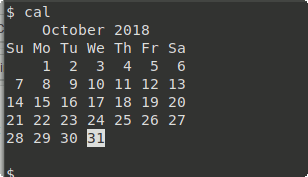
<p style="text-align: justify;">Một sự thật là không có quá nhiều người biết tới lệnh này, nhưng bất kỳ hệ thống Unix nào cũng tích hợp sẵn calendar (lịch).</p>

<p style="text-align: justify;">Để truy vấn lệnh này, ta sử dụng như sau:</p>

<pre id="pre0" style="text-align: justify;">
cal</pre>

<p style="text-align: justify;"><img alt="" data-i="1" data-src="https://st.quantrimang.com/photos/image/2018/12/19/17-lenh-linux-1.png" data-was-processed="true" height="177" src="https://st.quantrimang.com/photos/image/2018/12/19/17-lenh-linux-1.png" width="308" /></p>

<p style="text-align: justify;"><em>Cal</em>&nbsp;sẽ hiển thị lịch của tháng hiện tại. Nếu bạn muốn chọn tháng và năm cụ thể thì truyền dữ liệu này vào tham số của&nbsp;<em>cal</em>&nbsp;để có được output mình cần.</p>

<p style="text-align: justify;">Để hiển thị tháng trong năm, sử dụng lệnh&nbsp;<em>-m</em>&nbsp;cùng với tháng bạn muốn hiển thị.</p>

<pre id="pre1" style="text-align: justify;">
cal -m1</pre>

<p style="text-align: justify;">Lệnh trên trả về tháng 1 năm hiện tại.</p>

<p style="text-align: justify;">Tương tự, lịch 12 tháng hoàn chỉnh có thể được hiển thị bằng lệnh&nbsp;<em>-y</em></p>

<pre id="pre2" style="text-align: justify;">
cal -y &#91;year&#93;</pre>

<p style="text-align: justify;">Còn rất nhiều cách làm việc với&nbsp;<em>cal</em>&nbsp;khác nữa, Quantrimang sẽ giới thiệu tới bạn sau nhé!</p>

<div style="text-align: justify;">Sửa đồ điện gia dụng</div>

<h2 style="text-align: justify;">2. sl</h2>

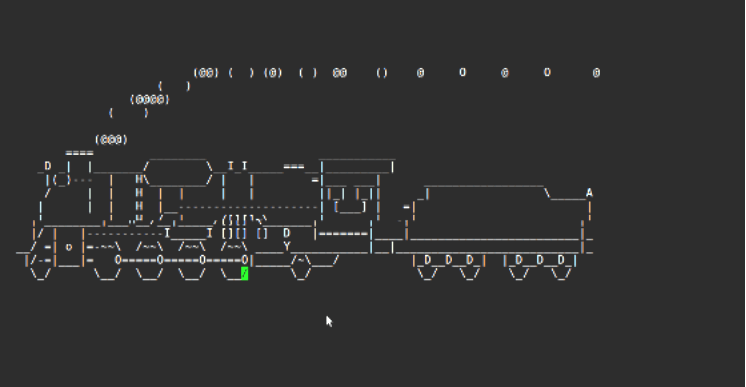
<p style="text-align: justify;"><em>Sl</em>&nbsp;là viết tắt của cụm từ Steam Locomotive và rất thường xuyên bị nhầm lẫn với&nbsp;<em>ls.</em>&nbsp;Chạy lệnh này, bạn sẽ thấy xuất hiện một đầu máy xe lửa hơi nước chạy ngang qua màn hình.</p>

<p style="text-align: justify;"><em>Sl</em>&nbsp;ra đời không đem lại hữu ích cụ thể nào cho người dùng mà chỉ mang tính giải trí và nhắc nhở khi bạn mắc “sai lầm” nhầm lệnh&nbsp;<em>ls</em>&nbsp;với&nbsp;<em>sl.</em>&nbsp;Có thể đánh giá đây chương trình rất “hay ho” để nhắc nhở sửa chữa lỗi.</p>

<p style="text-align: justify;">Để cài đặt lệnh này, gõ vào trong Terminal của bạn:</p>

<pre id="pre3" style="text-align: justify;">
sudo apt install sl</pre>

<p style="text-align: justify;">Sau đó thì “gõ nhầm”&nbsp;<em>ls</em>&nbsp;thành&nbsp;<em>sl</em>&nbsp;như này:</p>

<pre id="pre4" style="text-align: justify;">
sl</pre>

<p style="text-align: justify;"><em><img alt="" data-i="2" data-src="https://st.quantrimang.com/photos/image/2018/12/19/17-lenh-linux-2-2.png" data-was-processed="true" height="290" src="https://st.quantrimang.com/photos/image/2018/12/19/17-lenh-linux-2-2.png" width="559" /></em></p>

<h2 style="text-align: justify;">3. yes</h2>

<p style="text-align: justify;">Lệnh&nbsp;<em>yes</em>&nbsp;rất đặc biệt, chỉ có một tác dụng duy nhất là lặp lại chuỗi liên tục, sinh ra một chuỗi vô cực kéo dài, tất nhiên là cho đến khi nó có lệnh dừng lại.</p>

<p style="text-align: justify;"><em>Yes</em>&nbsp;rất đơn giản, chỉ cần gõ thế này:</p>

<pre id="pre5" style="text-align: justify;">
yes &lt;string&gt;</pre>

<p style="text-align: justify;">Ví dụ:</p>

<pre id="pre6" style="text-align: justify;">
yes I did it</pre>

<p style="text-align: justify;">Bạn sử dụng&nbsp;<em>Ctrl + C</em>&nbsp;để dừng chuỗi, nếu không nó sẽ kéo dài mãi không có điểm dừng.</p>

<p style="text-align: justify;">Mặc dù nhìn tổng thể&nbsp;<em>yes</em>&nbsp;không có tác dụng gì, nhưng nó rất tiện dụng khi bạn đang chạy một script hiển thị lời nhắc nhở và bạn muốn tự động trả lời. Ví dụ:</p>

<pre id="pre7" style="text-align: justify;">
yes y /path/to/script</pre>

<p style="text-align: justify;">Lệnh này sẽ đưa ra ký tự&nbsp;<em>y</em>&nbsp;từ lệnh&nbsp;<em>yes</em>&nbsp;để tự động trả lời&nbsp;<em>&quot;yes&quot;</em>&nbsp;cho mỗi câu hỏi y/n.</p>

<h2 style="text-align: justify;">4. rev</h2>

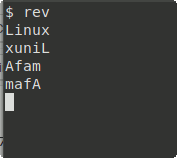
<p style="text-align: justify;">Lệnh&nbsp;<em>rev</em>&nbsp;được dùng để đảo ngược tất cả các kí tự đầu vào. Điều này nghĩa là, nếu input bạn truyền vào là&nbsp;<em>“Linux”</em>, qua lệnh&nbsp;<em>rev</em>&nbsp;nó sẽ trở thành&nbsp;<em>“xuniL”</em>. Khá lạ nhỉ!</p>

<pre id="pre8" style="text-align: justify;">
rev</pre>

<p style="text-align: justify;"><img alt="" data-i="3" data-src="https://st.quantrimang.com/photos/image/2018/12/19/17-lenh-linux-3.png" data-was-processed="true" height="158" src="https://st.quantrimang.com/photos/image/2018/12/19/17-lenh-linux-3.png" width="177" /></p>

<p style="text-align: justify;">Để thoát khỏi lệnh, hãy sử dụng phím tắt&nbsp;<em>Ctrl + C.</em></p>

<p style="text-align: justify;">Ngoài ra,&nbsp;<em>rev</em>&nbsp;còn sử dụng để đảo ngược toàn bộ file.</p>

<pre id="pre9" style="text-align: justify;">
rev &#91;đường dẫn tới file&#93;</pre>

<h2 style="text-align: justify;">5. aafire</h2>

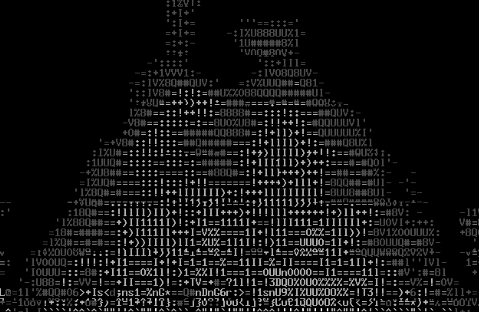
<p style="text-align: justify;"><em>Aafire</em>&nbsp;đem đến cho bạn một điều thú vị là “tạo lửa” trên giao diện màu đen của Terminal.</p>

<p style="text-align: justify;">Đầu tiên bạn install&nbsp;<em>aafire</em>&nbsp;với đoạn code sau trên Terminal của mình:</p>

<pre id="pre10" style="text-align: justify;">
sudo apt install libaa-bin</pre>

<p style="text-align: justify;">Sau đó chạy lệnh:</p>

<pre id="pre11" style="text-align: justify;">
aafire</pre>

<h2 style="text-align: justify;"><img alt="" data-adbro-processed="true" data-i="4" data-src="https://st.quantrimang.com/photos/image/2018/12/19/17-lenh-linux-13.png" data-was-processed="true" height="312" src="https://st.quantrimang.com/photos/image/2018/12/19/17-lenh-linux-13.png" width="479" /></h2>

<h2 style="text-align: justify;">6. espeak</h2>

<p style="text-align: justify;">Bạn làm việc với chiếc&nbsp;&nbsp;máy tính&nbsp;hằng ngày mà chưa từng nghe nó nói chuyện? Điều này không còn là bất khả thi nữa với lệnh&nbsp;<em>espeak.</em>&nbsp;Hãy mở loa ngoài hoặc đeo tai nghe, chạy lệnh&nbsp;<em>espeak</em>&nbsp;và nghe “người bạn này” nói chuyện nhé.</p>

<p style="text-align: justify;">Install lệnh này vào Terminal:</p>

<pre id="pre12" style="text-align: justify;">
sudo apt install espeak</pre>

<p style="text-align: justify;">Sau đó chạy espeak:</p>

<pre id="pre13" style="text-align: justify;">
espeak &quot;Viet vao day dieu ban muon may tinh noi&quot;</pre>

<p style="text-align: justify;">Tất cả những gì bạn viết trong dấu ngoặc kép sẽ là những gì máy tính “tâm sự” cùng bạn.</p>

<h2 style="text-align: justify;">7. figlet</h2>

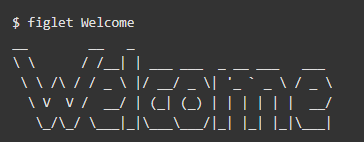
<p style="text-align: justify;"><em>Figlet</em>&nbsp;là một dòng lệnh đơn giản để tạo banner văn bản kiểu ASCII.&nbsp;<em>Figlet</em>&nbsp;đi kèm với các phông chữ mặc định được lưu trữ dưới dạng&nbsp;<em>.flf</em>&nbsp;hoặc&nbsp;<em>.tlf</em>&nbsp;trong<em>&nbsp;/usr/share/figlet/fonts/.</em>&nbsp;Sử dụng&nbsp;<em>-f</em>&nbsp;để thay đổi các font chữ.</p>

<pre id="pre14" style="text-align: justify;">
figlet &#91;-f duong dan thay doi font&#93; &#91;string&#93;</pre>

<p style="text-align: justify;">Ví dụ về&nbsp;<em>figlet:</em></p>

<pre id="pre15" style="text-align: justify;">
figlet Welcome</pre>

<p style="text-align: justify;"><img alt="" data-i="5" data-src="https://st.quantrimang.com/photos/image/2018/12/19/17-lenh-linux-4.png" data-was-processed="true" height="142" src="https://st.quantrimang.com/photos/image/2018/12/19/17-lenh-linux-4.png" width="364" /></p>

<h2 style="text-align: justify;">8. banner</h2>

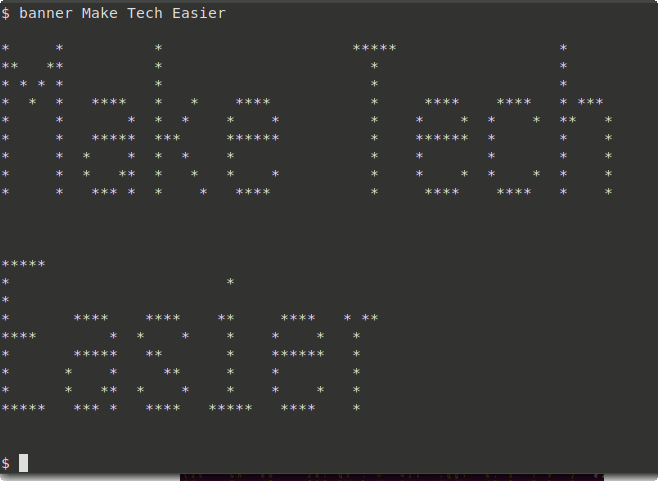
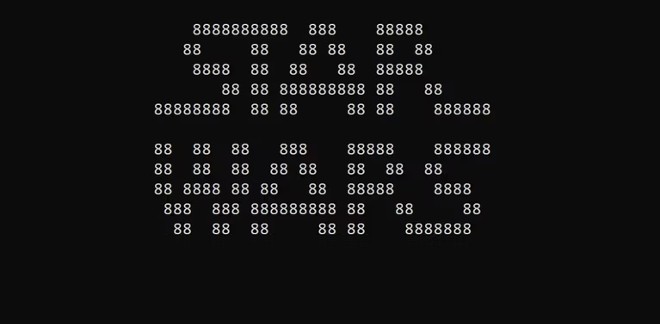
<p style="text-align: justify;"><em>Banner</em>&nbsp;tương tự như&nbsp;<em>figlet</em>&nbsp;hiển thị văn bản ở dạng biểu ngữ lớn. Install&nbsp;<em>banner</em>&nbsp;bằng lệnh sau:</p>

<pre id="pre16" style="text-align: justify;">
sudo apt install banner</pre>

<p style="text-align: justify;">Sau đó sử dụng cú pháp:</p>

<pre id="pre17" style="text-align: justify;">
banner text</pre>

<h2 style="text-align: justify;"><img alt="" data-i="6" data-src="https://st.quantrimang.com/photos/image/2018/12/19/17-lenh-linux-12.png" data-was-processed="true" height="439" src="https://st.quantrimang.com/photos/image/2018/12/19/17-lenh-linux-12.png" width="600" /></h2>

<h2 style="text-align: justify;">9. cowsay</h2>

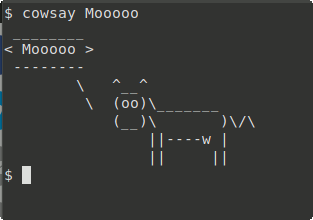
<p style="text-align: justify;">Lệnh này hiển thị một con bò bằng kí tự ASCII và sẽ nói những gì bạn muốn.</p>

<p style="text-align: justify;">Đầu tiên bạn install&nbsp;<em>cowsay</em>&nbsp;với script này:</p>

<pre id="pre18" style="text-align: justify;">
sudo apt install cowsay</pre>

<p style="text-align: justify;">Tiếp theo bạn nhập vào Terminal:</p>

<pre id="pre19" style="text-align: justify;">
cowsay text</pre>

<p style="text-align: justify;">Nhập vào “text” những gì bạn muốn hiển thị qua hình ảnh lời nói của con bò ASCII.</p>

<p style="text-align: justify;"><img alt="" data-i="7" data-src="https://st.quantrimang.com/photos/image/2018/12/19/17-lenh-linux-5.png" data-was-processed="true" height="220" src="https://st.quantrimang.com/photos/image/2018/12/19/17-lenh-linux-5.png" width="313" /></p>

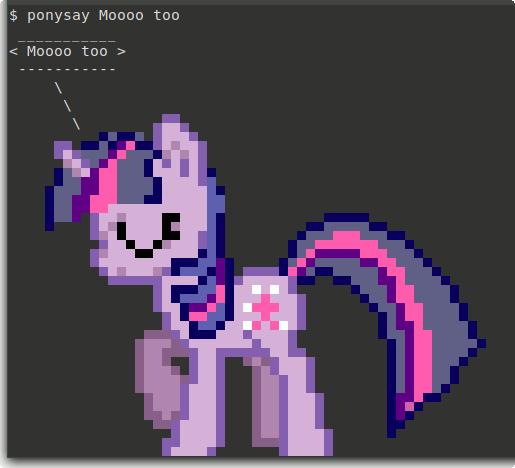
<p style="text-align: justify;">Nếu bạn muốn hiển thị một con Pony nhiều màu sắc thay vì con bò, hãy install&nbsp;<em>ponysay</em>&nbsp;và chạy lệnh tương tự như&nbsp;<em>cowsay.</em></p>

<pre id="pre20" style="text-align: justify;">
ponysay text</pre>

<h2 style="text-align: justify;"><img alt="" data-i="8" data-src="https://st.quantrimang.com/photos/image/2018/12/19/17-lenh-linux-6.png" data-was-processed="true" height="363" src="https://st.quantrimang.com/photos/image/2018/12/19/17-lenh-linux-6.png" width="400" /></h2>

<h2 style="text-align: justify;">10. cowthink</h2>

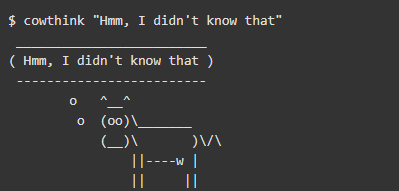
<p style="text-align: justify;">Lệnh này tương tự với cowsay, sự khác biệt duy nhất là màn hình sẽ hiển thị đoạn text bạn nhập vào dưới dạng suy nghĩ của con bò ASCII chứ không phải lời nói như lệnh trên.</p>

<pre id="pre21" style="text-align: justify;">
Cowthink text</pre>

<p style="text-align: justify;"><img alt="" data-i="9" data-src="https://st.quantrimang.com/photos/image/2018/12/19/17-lenh-linux-7.png" data-was-processed="true" height="191" src="https://st.quantrimang.com/photos/image/2018/12/19/17-lenh-linux-7.png" width="399" /></p>

<h2 style="text-align: justify;">11. fortune</h2>

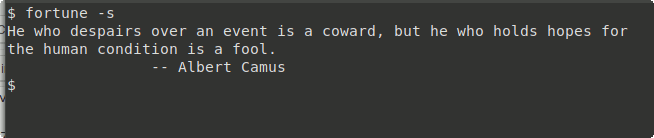
<p style="text-align: justify;"><em>Fortune</em>&nbsp;là lệnh cho hiển thị tự động những câu quote “hay ho” một cách ngẫu nhiên.</p>

<pre id="pre22" style="text-align: justify;">
sudo apt install fortunefortune</pre>

<p style="text-align: justify;">Bạn có thể sử dụng&nbsp;<em>-s</em>&nbsp;để Terminal “tặng” bạn những câu quote ngắn hơn.</p>

<pre id="pre23" style="text-align: justify;">
fortune &#91;-s&#93;</pre>

<p style="text-align: justify;"><img alt="" data-i="10" data-src="https://st.quantrimang.com/photos/image/2018/12/19/17-lenh-linux-8.png" data-was-processed="true" height="137" src="https://st.quantrimang.com/photos/image/2018/12/19/17-lenh-linux-8.png" width="650" /></p>

<h2 style="text-align: justify;">12. oneko</h2>

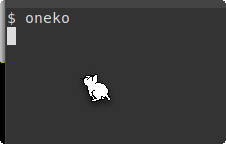
<p style="text-align: justify;"><em>oneko</em>&nbsp;khá “đáng yêu”. Lệnh này thêm vào một con mèo chạy trên màn hình của bạn, nó sẽ chạy đuổi theo con trỏ chuột khi di chuyển.</p>

<p style="text-align: justify;">Install&nbsp;<em>oneko</em>&nbsp;bằng cách chạy script này:</p>

<pre id="pre24" style="text-align: justify;">
sudo apt install onekooneko</pre>

<p style="text-align: justify;"><img alt="" data-i="11" data-src="https://st.quantrimang.com/photos/image/2018/12/19/17-lenh-linux-9.png" data-was-processed="true" height="144" src="https://st.quantrimang.com/photos/image/2018/12/19/17-lenh-linux-9.png" width="226" /></p>

<h2 style="text-align: justify;">13. cmatrix</h2>

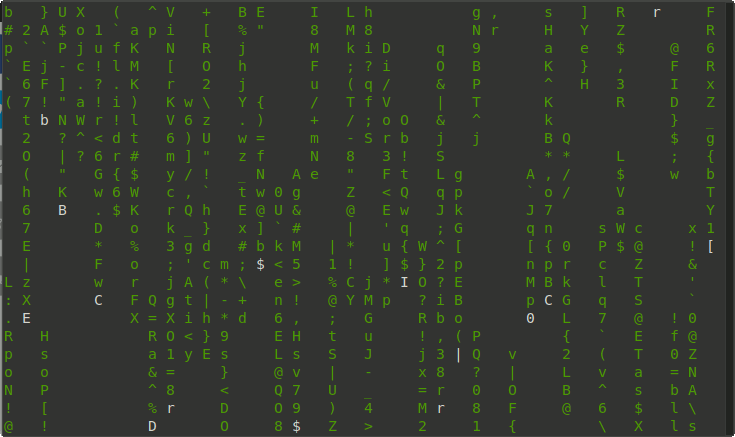
<p style="text-align: justify;">Nếu bạn đã xem phim Matrix - Ma trận của Hollywood thì bạn sẽ dễ dàng liên tưởng đến lệnh này. Cài đặt&nbsp;<em>cmatrix</em>&nbsp;bằng script:</p>

<pre id="pre25" style="text-align: justify;">
sudo apt install cmatrix</pre>

<p style="text-align: justify;">Chạy lệnh bằng cách gõ&nbsp;<em>cmatrix</em>&nbsp;trong Terminal của bạn.</p>

<p style="text-align: justify;"><img alt="" data-i="12" data-src="https://st.quantrimang.com/photos/image/2018/12/19/17-lenh-linux-10.png" data-was-processed="true" height="356" src="https://st.quantrimang.com/photos/image/2018/12/19/17-lenh-linux-10.png" width="600" /></p>

<h2 style="text-align: justify;">14. factor</h2>

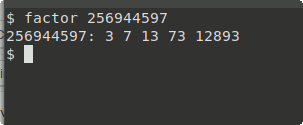
<p style="text-align: justify;">Lệnh này liên quan đến toán học. Factor sẽ chia một số đã cho thành các thừa số nguyên tố.</p>

<pre id="pre26" style="text-align: justify;">
factor &#91;so muon chia thanh cac so nguyen to&#93;</pre>

<p style="text-align: justify;"><img alt="" data-i="13" data-src="https://st.quantrimang.com/photos/image/2018/12/19/17-lenh-linux-11.png" data-was-processed="true" height="125" src="https://st.quantrimang.com/photos/image/2018/12/19/17-lenh-linux-11.png" width="303" /></p>

<h2 style="text-align: justify;">15. xeyes</h2>

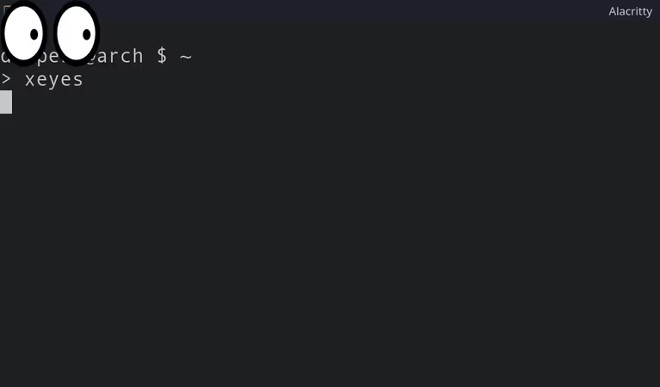
<p style="text-align: justify;">Nếu bạn là một kiểu người muốn có một cặp mắt theo dõi, đốc thúc bạn mọi lúc cho tới khi bạn xuong việc, xeyes là công cụ Linux phù hợp nhất với bạn. xeyes hiển thị một cặp mắt trên màn hình của bạn đúng theo nghĩa đen và còn ấn tượng hơn nhiều khi cặp mắt đó sẽ di chuyển theo vị trí con trỏ chuột của bạn.</p>

<p style="text-align: justify;"><img alt="xeyes" data-i="14" data-src="https://st.quantrimang.com/photos/image/2022/11/02/lenh-linux-thu-vi.jpg" data-was-processed="true" height="387" src="https://st.quantrimang.com/photos/image/2022/11/02/lenh-linux-thu-vi.jpg" width="660" /></p>

<p style="text-align: justify;">Cách chạy công cụ này khá đơn giản, bạn chỉ cần nhập xeyes vào Terminal rồi nhấn Enter. Theo mặc định, vị trí của cặp mắt sẽ là ở góc trên bên trái màn hình nhưng bạn có thể dễ dàng thay đổi nó bằng cách sử dụng flag -geometry.</p>

<p style="text-align: justify;">Trên các distro Ubuntu và Debian, bạn có thể cài xeyes với APT:</p>

<pre id="pre27">
<code>sudo apt install x11-apps</code></pre>

<p style="text-align: justify;">Trên distro Arch, bạn cài xeyes bằng lệnh sau:</p>

<pre id="pre28">
<code>sudo pacman -S xorg-xeyes
</code></pre>

<p style="text-align: justify;">Trên Fedora, CentOS và RHEL:</p>

<pre id="pre29">
<code>sudo dnf install xeyes</code></pre>

<h2 style="text-align: justify;">16. asciiquarium</h2>

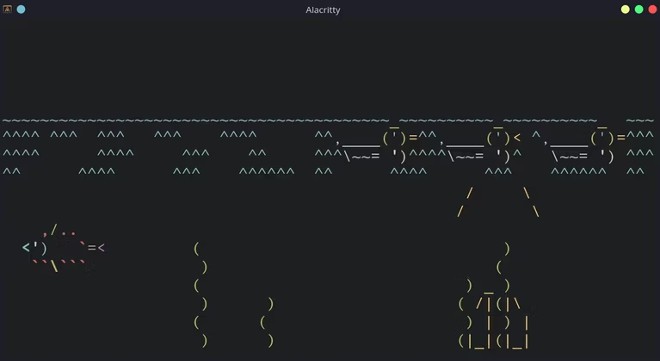
<p style="text-align: justify;">Bạn mong ước có một bể thủy cung trong nhà ư? Nếu chưa đủ điều kiện mua sắm thì có thể thử thủy cung trong Terminal của Linux trước đã nhé. Như cái tên của mình, asciiquarium tạo ra một thủy cung ảo trong Terminal của bạn bằng các ký tự ASCII.</p>

<p style="text-align: justify;"><img alt="asciiquarium" data-i="15" data-src="https://st.quantrimang.com/photos/image/2022/11/02/lenh-linux-thu-vi-1.jpg" data-was-processed="true" height="361" src="https://st.quantrimang.com/photos/image/2022/11/02/lenh-linux-thu-vi-1.jpg" width="660" /></p>

<p style="text-align: justify;">Các loại cây thủy sinh, cá... sẽ được tô màu để trông thật hơn. Đôi khi bạn còn thấy một chú vịt bơi trên mặt nước.</p>

<p style="text-align: justify;">Cách cài asciiquarium trên Ubuntu và Debian:</p>

<pre id="pre30">
<code>sudo add-apt-repository ppa:ytvwld/asciiquarium
sudo apt install asciiquarium</code></pre>

<p style="text-align: justify;">Cách cài asciiquarium trên distro Arch:</p>

<pre id="pre31">
<code>sudo pacman -S asciiquarium</code></pre>

<p style="text-align: justify;">Cách cài asciiquarium trên distro RHEL</p>

<pre id="pre32">
<code>sudo dnf install asciiquarium</code></pre>

<h2 style="text-align: justify;">17. rig</h2>

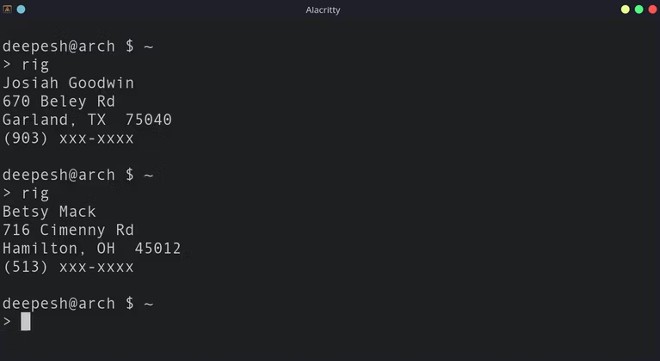
<p style="text-align: justify;">Bạn cần một danh tính giả cho một mục đích nào đó? Đừng lo, rig sẽ giúp bạn xử lý vấn đề này một cách nhanh chóng. rig sẽ trả về kết quả dưới dạng rất dễ đọc cho cả người và&nbsp;<a data-google-interstitial="false" data-google-vignette="false" href="https://quantrimang.com/cong-nghe/18-lenh-linux-thu-vi-trong-terminal-160595#">&nbsp;máy tính</a>. Bạn có thể triển khai chức năng của rig trong các script để kiểm tra các chức năng yêu cầu có hàng loạt thông tin người dùng.</p>

<p style="text-align: justify;"><img alt="rig" data-i="16" data-src="https://st.quantrimang.com/photos/image/2022/11/02/lenh-linux-thu-vi-2.jpg" data-was-processed="true" height="361" src="https://st.quantrimang.com/photos/image/2022/11/02/lenh-linux-thu-vi-2.jpg" width="660" /></p>

<p style="text-align: justify;">Cách cài rig trên Ubuntu và Debian:</p>

<pre id="pre33">
<code>sudo apt install rig</code></pre>

<p style="text-align: justify;">Cách cài rig trên distro Arch:</p>

<pre id="pre34">
<code>yay -S rig</code></pre>

<p style="text-align: justify;">Cách cài rig trên distro RHEL như Fedora và CentOS:</p>

<pre id="pre35">
<code>sudo dnf install rig</code></pre>

<h2 style="text-align: justify;">18. Telnet</h2>

<p style="text-align: justify;">Telnet là một giao thức mạng cho phép bạn thiết lập kênh giao tiếp bằng văn bản giữa hai máy tính. Thế nhưng ngoài việc truy cập máy tính từ xa, bạn còn có thể làm vô số điều thú vị với Telnet trên Terminal Linux.</p>

<p style="text-align: justify;"><img alt="Telnet" data-i="17" data-src="https://st.quantrimang.com/photos/image/2022/11/02/lenh-linux-thu-vi-3.jpg" data-was-processed="true" height="324" src="https://st.quantrimang.com/photos/image/2022/11/02/lenh-linux-thu-vi-3.jpg" width="660" /></p>

<p style="text-align: justify;">Bạn muốn chơi cờ vua bên trong Terminal? Nhập lệnh sau:</p>

<pre id="pre36">
<code>telnet freechess.org</code></pre>

<p style="text-align: justify;">Nếu bạn là fan cứng của Star Wars và muốn trải nghiệm nó trên Linux, bạn nhập lệnh:</p>

<pre id="pre37">
<code>telnet towel.blinkenlights.nl 23</code></pre>

<p style="text-align: justify;">Nếu lệnh trên không hoạt động, bạn có thể dùng lệnh sau để thay thế:</p>

<pre id="pre38">
<code>telnet telehack.com
starwars</code></pre>

<p style="text-align: justify;">Bạn thậm chí còn có thể xem toàn bộ bản đồ thế giới trên Linux bằng Telnet nhờ lệnh:</p>

<pre id="pre39">
<code>telnet mapscii.me</code></pre>

<p style="text-align: justify;">Vừa rồi là 1 số câu lệnh khá thú vị trong Linux. Chúng tôi biết là làm việc với Terminal cùng các dòng lệnh, các tác vụ khá phức tạp nên sẽ thật tuyệt nếu thi thoảng nghỉ ngơi và thư giãn với những điều thú vị nhẹ nhàng như thế này phải không?</p>

<div style="text-align: justify;">&nbsp;</div>
		</div>
				<div id="author">
						<p>
				<strong>Nguồn tin:</strong>
				Quantrimang.com:
			</p>
		</div>
	</div>
	<div id="footer" class="clearfix">
		<div id="url">
			<strong>URL của bản tin này: </strong><a href="https://www.nguoicodonvn2008.info/vi/news/savefile/kien-thuc-may-tinh/18-lenh-linux-thu-vi-trong-terminal-9981.html" title="18 lệnh Linux thú vị trong Terminal">https://www.nguoicodonvn2008.info/vi/news/savefile/kien-thuc-may-tinh/18-lenh-linux-thu-vi-trong-terminal-9981.html</a>

		</div>
		<div class="clear"></div>
		<div class="copyright">
			&copy; .&#x3A; Nguoicodonvn2008.info - Cõi lòng người cô đơn &#x3A;.
		</div>
		<div id="contact">
			<a href="mailto:admin@nguoicodonvn2008.info">admin@nguoicodonvn2008.info</a>
		</div>
	</div>
</div>
        <div id="timeoutsess" class="chromeframe">
            Bạn đã không sử dụng Site, <a onclick="timeoutsesscancel();" href="https://nguoicodonvn2008.info/#">Bấm vào đây để duy trì trạng thái đăng nhập</a>. Thời gian chờ: <span id="secField"> 60 </span> giây
        </div>
        <div id="openidResult" class="nv-alert" style="display:none"></div>
        <div id="openidBt" data-result="" data-redirect=""></div>
		</script>
		<div class="car-top">
  <span><img src="https://nguoicodonvn2008.info/themes/default/images/car.png" alt=""></span>
</div>
<script src="https://nguoicodonvn2008.info/assets/js/jquery/jquery.min.js"></script>
<script>var nv_base_siteurl="/",nv_lang_data="vi",nv_lang_interface="vi",nv_name_variable="nv",nv_fc_variable="op",nv_lang_variable="language",nv_module_name="news",nv_func_name="savefile",nv_is_user=0, nv_my_ofs=-4,nv_my_abbr="EDT",nv_cookie_prefix="nv4c_e856T",nv_check_pass_mstime=1738000,nv_area_admin=0,nv_safemode=0,theme_responsive=0,nv_recaptcha_ver=2,nv_recaptcha_sitekey="",nv_recaptcha_type="image",XSSsanitize=1;</script>
<script src="https://nguoicodonvn2008.info/assets/js/language/vi.js"></script>
<script src="https://nguoicodonvn2008.info/assets/js/DOMPurify/purify3.js"></script>
<script src="https://nguoicodonvn2008.info/assets/js/global.js"></script>
<script src="https://nguoicodonvn2008.info/assets/js/site.js"></script>
<script src="https://nguoicodonvn2008.info/themes/default/js/news.js"></script>
<script src="https://nguoicodonvn2008.info/themes/default/js/main.js"></script>
<script src="https://nguoicodonvn2008.info/themes/default/js/custom.js"></script>
<script type="application/ld+json">
        {
            "@context": "https://schema.org",
            "@type": "Organization",
            "url": "https://nguoicodonvn2008.info",
            "logo": "https://nguoicodonvn2008.info/uploads/angel.gif"
        }
        </script>
<script src="https://nguoicodonvn2008.info/themes/default/js/bootstrap.min.js"></script>
<script type="text/javascript">
var $scrolltop = $('.car-top');
$scrolltop.on('click', function () {
    $('html,body').animate({
        scrollTop: 0
    }, 800);
    $(this).addClass("car-run");
    setTimeout(function(){ $scrolltop.removeClass('car-run');}, 1000);
    return false;
});
$(window).on('scroll', function ()
{ 
    if($(window).scrollTop() >= 200)
    {
        $scrolltop.addClass("show");
        $scrolltop.addClass("car-down");
    }
    else
    {
       $scrolltop.removeClass("show");
       setTimeout(function(){ $scrolltop.removeClass('car-down');}, 300);
    }
});
</script>
</body>
</html>