<!DOCTYPE html>
    <html lang="vi" xmlns="http://www.w3.org/1999/xhtml" prefix="og: http://ogp.me/ns#">
    <head>
<title>14 script AutoHotkey có thể sử dụng hàng ngày</title>
<meta name="description" content="14 script AutoHotkey có thể sử dụng hàng ngày - Savefile - Tin Tức -...">
<meta name="author" content=".: Nguoicodonvn2008.info - Cõi lòng người cô đơn :.">
<meta name="copyright" content=".: Nguoicodonvn2008.info - Cõi lòng người cô đơn :. [admin@nguoicodonvn2008.info]">
<meta name="robots" content="index, archive, follow, noodp">
<meta name="googlebot" content="index,archive,follow,noodp">
<meta name="msnbot" content="all,index,follow">
<meta name="generator" content="NukeViet v4.5">
<meta http-equiv="Content-Type" content="text/html; charset=utf-8">
<meta property="og:title" content="14 script AutoHotkey có thể sử dụng hàng ngày">
<meta property="og:type" content="website">
<meta property="og:description" content="Savefile - Tin Tức - https&#x3A;&#x002F;&#x002F;www.nguoicodonvn2008.info&#x002F;vi&#x002F;news&#x002F;savefile&#x002F;kien-thuc-may-tinh&#x002F;14-script-autohotkey-co-the-su-dung-hang-ngay-10743.html">
<meta property="og:site_name" content=".&#x3A; Nguoicodonvn2008.info - Cõi lòng người cô đơn &#x3A;.">
<meta property="og:url" content="https://www.nguoicodonvn2008.info/vi/news/savefile/kien-thuc-may-tinh/14-script-autohotkey-co-the-su-dung-hang-ngay-10743.html">
<link rel="shortcut icon" href="https://nguoicodonvn2008.info/favicon.ico">
<link rel="canonical" href="https://www.nguoicodonvn2008.info/vi/news/savefile/kien-thuc-may-tinh/14-script-autohotkey-co-the-su-dung-hang-ngay-10743.html">
<link rel="alternate" href="https://nguoicodonvn2008.info/vi/news/rss/" title="Tin Tức" type="application/rss+xml">
<link rel="alternate" href="https://nguoicodonvn2008.info/vi/news/rss/karaoke-dual/" title="Tin Tức - Karaoke Dual" type="application/rss+xml">
<link rel="alternate" href="https://nguoicodonvn2008.info/vi/news/rss/nhac-tre/" title="Tin Tức - Nhạc trẻ" type="application/rss+xml">
<link rel="alternate" href="https://nguoicodonvn2008.info/vi/news/rss/tru-tinh/" title="Tin Tức - Trữ tình" type="application/rss+xml">
<link rel="alternate" href="https://nguoicodonvn2008.info/vi/news/rss/nuoc-ngoai/" title="Tin Tức - Nước ngoài" type="application/rss+xml">
<link rel="alternate" href="https://nguoicodonvn2008.info/vi/news/rss/remix/" title="Tin Tức - Remix" type="application/rss+xml">
<link rel="alternate" href="https://nguoicodonvn2008.info/vi/news/rss/tam-su-tinh-yeu/" title="Tin Tức - Tâm sự tình yêu" type="application/rss+xml">
<link rel="alternate" href="https://nguoicodonvn2008.info/vi/news/rss/tho-suu-tam/" title="Tin Tức - Thơ sưu tầm" type="application/rss+xml">
<link rel="alternate" href="https://nguoicodonvn2008.info/vi/news/rss/cuoc-song/" title="Tin Tức - Cuộc sống" type="application/rss+xml">
<link rel="alternate" href="https://nguoicodonvn2008.info/vi/news/rss/phan-mem/" title="Tin Tức - Phần mềm" type="application/rss+xml">
<link rel="alternate" href="https://nguoicodonvn2008.info/vi/news/rss/kien-thuc-may-tinh/" title="Tin Tức - Kiến thức máy tính" type="application/rss+xml">
<link rel="alternate" href="https://nguoicodonvn2008.info/vi/news/rss/hoc-tap/" title="Tin Tức - Học tập" type="application/rss+xml">
<link rel="alternate" href="https://nguoicodonvn2008.info/vi/news/rss/tai-lieu/" title="Tin Tức - Tài liệu" type="application/rss+xml">
<link rel="alternate" href="https://nguoicodonvn2008.info/vi/news/rss/de-thi/" title="Tin Tức - Đề thi" type="application/rss+xml">
<link rel="preload" as="style" href="https://nguoicodonvn2008.info/assets/css/font-awesome.min.css" type="text/css">
<link rel="preload" as="style" href="https://nguoicodonvn2008.info/themes/default/css/bootstrap.non-responsive.css" type="text/css">
<link rel="preload" as="style" href="https://nguoicodonvn2008.info/themes/default/css/style.css" type="text/css">
<link rel="preload" as="style" href="https://nguoicodonvn2008.info/themes/default/css/style.non-responsive.css" type="text/css">
<link rel="preload" as="style" href="https://nguoicodonvn2008.info/themes/default/css/news.css" type="text/css">
<link rel="preload" as="style" href="https://nguoicodonvn2008.info/themes/default/css/custom.css" type="text/css">
<link rel="preload" as="script" href="https://nguoicodonvn2008.info/assets/js/jquery/jquery.min.js" type="text/javascript">
<link rel="preload" as="script" href="https://nguoicodonvn2008.info/assets/js/language/vi.js" type="text/javascript">
<link rel="preload" as="script" href="https://nguoicodonvn2008.info/assets/js/DOMPurify/purify3.js" type="text/javascript">
<link rel="preload" as="script" href="https://nguoicodonvn2008.info/assets/js/global.js" type="text/javascript">
<link rel="preload" as="script" href="https://nguoicodonvn2008.info/assets/js/site.js" type="text/javascript">
<link rel="preload" as="script" href="https://nguoicodonvn2008.info/themes/default/js/news.js" type="text/javascript">
<link rel="preload" as="script" href="https://nguoicodonvn2008.info/themes/default/js/main.js" type="text/javascript">
<link rel="preload" as="script" href="https://nguoicodonvn2008.info/themes/default/js/custom.js" type="text/javascript">
<link rel="preload" as="script" href="https://nguoicodonvn2008.info/themes/default/js/bootstrap.min.js" type="text/javascript">
<link rel="stylesheet" href="https://nguoicodonvn2008.info/assets/css/font-awesome.min.css">
<link rel="stylesheet" href="https://nguoicodonvn2008.info/themes/default/css/bootstrap.non-responsive.css">
<link rel="stylesheet" href="https://nguoicodonvn2008.info/themes/default/css/style.css">
<link rel="stylesheet" href="https://nguoicodonvn2008.info/themes/default/css/style.non-responsive.css">
<link rel="StyleSheet" href="https://nguoicodonvn2008.info/themes/default/css/news.css">
<link rel="stylesheet" href="https://nguoicodonvn2008.info/themes/default/css/custom.css">
<style type="text/css">
	body{background: #fff;}
</style>
    </head>
    <body>
<div id="print">
	<div id="hd_print">
		<h2 class="pull-left">.&#x3A; Nguoicodonvn2008.info - Cõi lòng người cô đơn &#x3A;.</h2>
		<p class="pull-right"><a title=".&#x3A; Nguoicodonvn2008.info - Cõi lòng người cô đơn &#x3A;." href="https://nguoicodonvn2008.info/">https://nguoicodonvn2008.info</a></p>
	</div>
	<div class="clear"></div>
	<hr />
	<div id="content">
		<h1>14 script AutoHotkey có thể sử dụng hàng ngày</h1>
		<ul class="list-inline">
			<li>Thứ ba - 08/07/2025 23:45</li>
			<li class="hidden-print txtrequired"><em class="fa fa-print">&nbsp;</em><a title="In ra" href="javascript:;" onclick="window.print()">In ra</a></li>
			<li class="hidden-print txtrequired"><em class="fa fa-power-off">&nbsp;</em><a title="Đóng cửa sổ này" href="javascript:;" onclick="window.close()">Đóng cửa sổ này</a></li>
		</ul>
		<div class="clear"></div>
		<div id="hometext">
		</div>
				<div class="imghome">
			<img alt="14 script AutoHotkey có thể sử dụng hàng ngày" src="https://st.quantrimang.com/photos/image/2025/07/08/script-autohotkey-su-dung-hang-ngay-3.jpg" width="460" class="img-thumbnail" />
		</div>
		<div class="clear"></div>
		<div id="bodytext" class="clearfix">
			<p style="text-align: justify;">Mỗi giây bạn dành để thực hiện các tác vụ tầm thường, thừa thãi trên màn hình sẽ cộng lại thành hàng giờ lãng phí trong cuộc sống cho những thứ lặp lại không thể tránh khỏi. Các script AutoHotkey này sẽ lấy lại thời gian đó và biến đổi cách bạn tương tác với PC của mình.</p>

<div style="text-align: justify;">&nbsp;</div>

<h2 id="mcetoc_1ivkhjhc85m" style="text-align: justify;">1. Tìm kiếm nhanh bất kỳ văn bản nào đã chọn trên Google</h2>

<p style="text-align: justify;">Nếu bạn mới sử dụng AutoHotkey, đây là ngôn ngữ script mạnh mẽ để tự động hóa các tác vụ lặp lại trong Windows. Chỉ với một vài dòng code, bạn có thể sắp xếp hợp lý các hành động hàng ngày - như tìm kiếm trên web chỉ bằng một lần nhấn phím.</p>

<p style="text-align: justify;">Script đầu tiên này cho phép bạn highlight bất kỳ văn bản nào, nhấn&nbsp;<strong>Ctrl + Shift + S</strong>&nbsp;và một tab mới sẽ tự động mở ra với kết quả tìm kiếm trên&nbsp;Google&nbsp;cho lựa chọn của bạn. Không cần phải mở trình duyệt, nhập vào thanh tìm kiếm và nhấn&nbsp;<strong>Enter</strong>, script này thực hiện tất cả chỉ trong một lần di chuyển.</p>

<pre id="pre0">
<code>#Requires AutoHotkey v2.0

^+s:: {
Clipboard := &quot;&quot;
Send(&quot;^c&quot;)
ClipWait()
Run &quot;https://www.google.com&quot;
WinWaitActive &quot;Google - Google Chrome&quot; ; Adjust window title as needed
Sleep 500
Send(&quot;^v&quot;)
Sleep 100
Send(&quot;{Enter}&quot;)
}</code></pre>

<p style="text-align: justify;">Hoàn hảo cho việc nghiên cứu nhanh, xác minh thuật ngữ hoặc tìm kiếm tài liệu tham khảo mà không mất động lực. Giống như có một trợ lý nghiên cứu sống trong clipboard của bạn.</p>

<h2 id="mcetoc_1ivkhjhc85n" style="text-align: justify;">2. Hủy bất kỳ ứng dụng nào bị đóng băng mà không cần Task Manager</h2>

<p style="text-align: justify;">Khi một ứng dụng bị khóa hoặc từ chối tắt,&nbsp;<strong>Ctrl + Alt + K</strong>&nbsp;sẽ tắt ứng dụng đó mà không cần thực hiện thêm bất kỳ bước nào. Nó đóng cửa sổ đang hoạt động mà không cần hỏi bất kỳ câu hỏi nào. Điều đó có nghĩa là bạn có thể quay lại những gì quan trọng chỉ trong vài giây.</p>

<pre id="pre1">
<code>#Requires AutoHotkey v2.0

^!k:: {
pid := WinGetPID(&quot;A&quot;)
if (pid) {
procName := &quot;&quot;
for proc in ComObjGet(&quot;winmgmts:&quot;).ExecQuery(&quot;SELECT Name, ProcessId FROM Win32_Process WHERE ProcessId = &quot; pid) {
procName := proc.Name
}
if (procName != &quot;explorer.exe&quot;) {
Run(&#039;taskkill /PID &#039; . pid . &#039; /F&#039;, &quot;&quot;, &quot;Hide&quot;)
} else {
MsgBox(&quot;Cannot kill explorer.exe! Killing this will crash your taskbar.&quot;)
}
}
}</code></pre>

<p style="text-align: justify;">Script này sẽ cứu bạn khỏi màn hình bị đóng băng, trình phát video lặp lại và thậm chí cả Photoshop khi nó gặp sự cố. Hãy nhớ rằng cũng có&nbsp;một số thủ thuật ẩn của Windows để đóng ứng dụng ngay lập tức, rất đáng để khám phá.</p>

<h2 id="mcetoc_1ivkhjhc85o" style="text-align: justify;">3. Tắt tiếng hệ thống ngay lập tức</h2>

<p style="text-align: justify;">Mỗi bàn phím dường như có một tổ hợp phím khác nhau để tắt tiếng. Tải script này xuống mỗi thiết bị sẽ tạo ra một giải pháp chung cho một vấn đề gây khó chịu chung.</p>

<pre id="pre2">
<code>#Requires AutoHotkey v2.0

^!m:: ; Ctrl+Alt+M to toggle mute
{
Send(&quot;{Volume_Mute}&quot;)
}</code></pre>

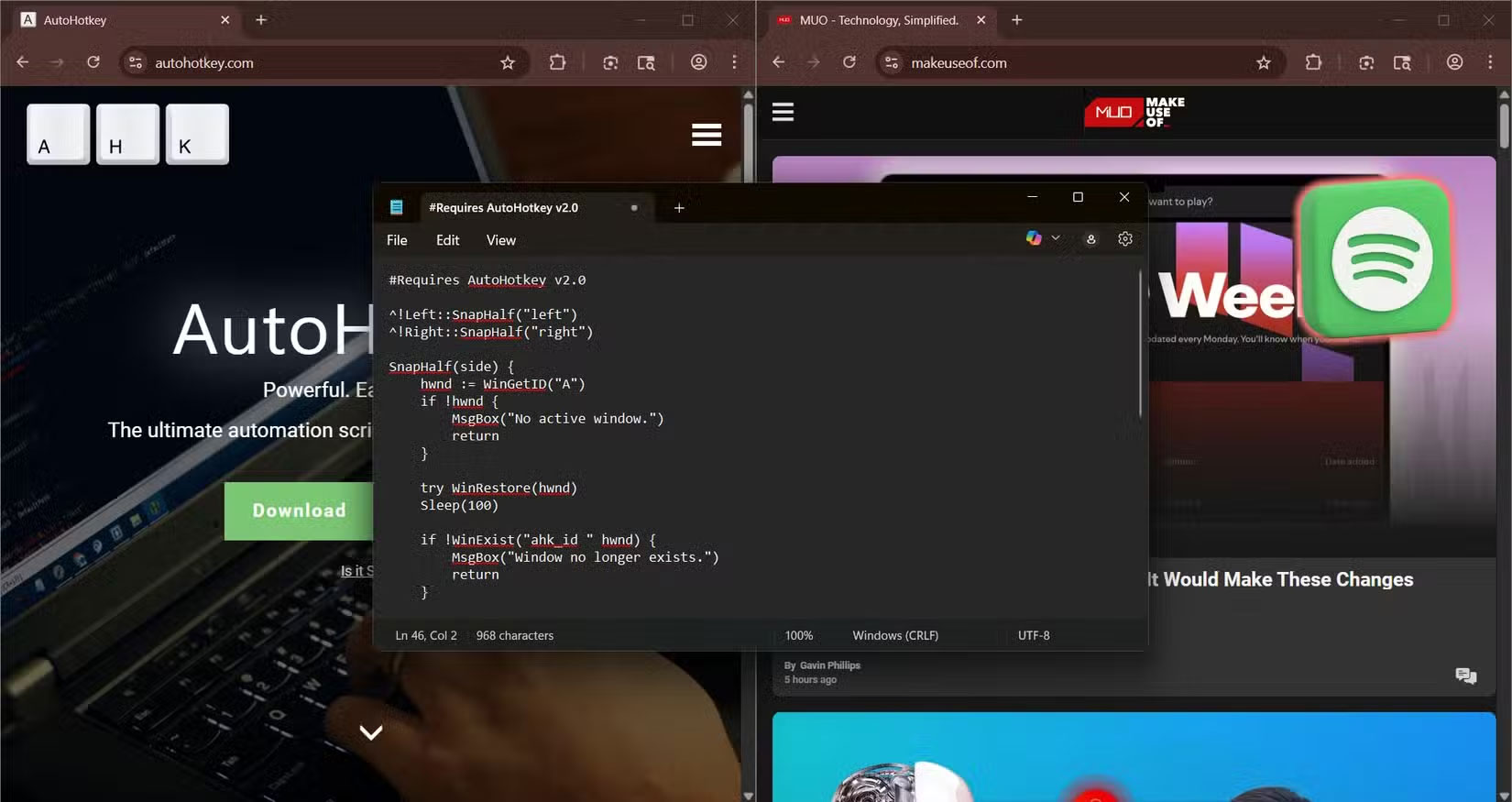
<p style="text-align: justify;">Cho dù ai đó gọi điện bất ngờ hay bạn mở một trang web ồn ào giữa một căn phòng yên tĩnh, shortcut này sẽ giúp bạn kiểm soát ngay lập tức.&nbsp;<strong>Ctrl + Alt + M</strong>&nbsp;sẽ bật hoặc tắt tiếng hệ thống. Không cần loay hoay với các phím media trên bàn phím, không gây mất tập trung, chỉ cần im lặng khi bạn cần nhất.</p>

<figure>
<div style="text-align: justify;"><img alt="Script AHK và âm thanh máy tính đang bị tắt tiếng" data-i="0" data-src="https://st.quantrimang.com/photos/image/2025/07/08/script-autohotkey-su-dung-hang-ngay-1.jpg" data-was-processed="true" height="512" src="https://st.quantrimang.com/photos/image/2025/07/08/script-autohotkey-su-dung-hang-ngay-1.jpg" width="822" /></div>

<figcaption>
<div style="text-align: justify;">Script AHK và âm thanh máy tính đang bị tắt tiếng<br />
Linh kiện máy tính</div>
</figcaption>
</figure>

<h2 id="mcetoc_1ivkhjhc85p" style="text-align: justify;">4. Ánh xạ lại phím Caps Lock thành Ctrl (mà không làm mất phím Caps Lock)</h2>

<p style="text-align: justify;">Nếu bạn liên tục sử dụng các phím tắt Ctrl như sao chép, dán, hoàn tác, chọn tất cả, ngón út sẽ cảm ơn bạn vì script này. Script này khiến phím Caps Lock hoạt động giống như phím Ctrl, tiện dụng hơn nhiều, đặc biệt là nếu bạn ở bên trái bàn phím cả ngày.</p>

<pre id="pre3">
<code>#Requires AutoHotkey v2.0

SetCapsLockState(&quot;AlwaysOff&quot;)

CapsLock:: {
Send(&quot;{Ctrl down}&quot;)
KeyWait(&quot;CapsLock&quot;)
Send(&quot;{Ctrl up}&quot;)
}

+CapsLock:: SetCapsLockState(&quot;Toggle&quot;)</code></pre>

<p style="text-align: justify;">Đừng lo, bạn không mất phím Caps Lock. Script này gán lại chức năng bật/tắt phím Caps Lock thành&nbsp;<strong>Ctrl + Caps</strong>, nếu bạn cần dùng vì bất kỳ lý do gì. Khi sử dụng hàng ngày, điều này giúp việc nhấn phím Ctrl nhanh và thoải mái hơn bao giờ hết.</p>

<p style="text-align: justify;">Script này cũng có thể áp dụng cho bất kỳ nút nào được đặt ở vị trí bất tiện trên bàn phím. Chỉ cần hoán đổi các phím trong chính script và thay thế chúng bằng bất kỳ phím nào khác khó chạm tới.</p>

<h2 id="mcetoc_1ivkhjhc85q" style="text-align: justify;">5. Khởi chạy ứng dụng được sử dụng nhiều nhất bằng một tổ hợp phím</h2>

<p style="text-align: justify;">Nếu bạn đã bỏ qua Notepad, thì đã đến lúc xem xét lại. Cho dù bạn đang ghi lại ý tưởng, viết code tạm thời hay xóa văn bản trước khi mất, Notepad là lựa chọn phù hợp cho tốc độ và sự đơn giản.</p>

<pre id="pre4">
<code>#Requires AutoHotkey v2.0

^!n:: Run(&quot;notepad.exe&quot;)</code></pre>

<p style="text-align: justify;">Với tổ hợp phím này,&nbsp;<strong>Ctrl + Alt + N</strong>&nbsp;sẽ khởi chạy Notepad ngay lập tức. Bạn có thể hoán đổi bất kỳ ứng dụng nào: Calculator, Word,&nbsp;Outlook, bất kỳ ứng dụng nào bạn chọn. Nó cho phép bạn tiết kiệm thời gian bằng cách cắt hoàn toàn menu Start và thanh tìm kiếm.</p>

<h2 id="mcetoc_1ivkhjhc85r" style="text-align: justify;">6. Mở thư mục yêu thích</h2>

<p style="text-align: justify;">Chỉ cần một lần nhấn phím là bạn có thể mở thư mục Documents của mình hoặc bất kỳ thư mục nào bạn tin tưởng. Cho dù đó là kho lưu trữ dự án, bản tải xuống hay kho lưu trữ của khách hàng, bạn không cần phải nhấp chuột xung quanh như thể đang ở năm 2009.</p>

<pre id="pre5">
<code>#Requires AutoHotkey v2.0

userProfile := EnvGet(&quot;USERPROFILE&quot;)

^!d:: Run(userProfile &quot;\Documents&quot;)
^!p:: Run(userProfile &quot;\Pictures&quot;)
^!v:: Run(userProfile &quot;\Videos&quot;)</code></pre>

<p style="text-align: justify;">Ví dụ, bạn có thể ánh xạ&nbsp;<strong>Ctrl + Alt + D</strong>&nbsp;đến Documents,&nbsp;<strong>Ctrl + Alt + P</strong>&nbsp;tới Pictures và&nbsp;<strong>Ctrl + Alt + V</strong>&nbsp;vào thư mục Videos. Bộ nhớ cơ bắp rất cơ bản, vì vậy bạn hầu như không phải nghĩ về những gì mình đang làm.</p>

<h2 id="mcetoc_1ivkhjhc85s" style="text-align: justify;">7. Chuyển đổi các file ẩn trong File Explorer</h2>

<p style="text-align: justify;">Có rất nhiều cách để ẩn các file hoặc thư mục trong Windows, nhưng làm sao để chúng dễ dàng hiển thị trở lại. Script này chuyển đổi khả năng hiển thị các file ẩn mà không cần phải vào cài đặt File Explorer hoặc nhấp vào 4 menu sâu. Nó thậm chí còn tự động&nbsp;<a data-type="internal" href="https://quantrimang.com/cong-nghe/huong-dan-khoi-dong-lai-explorer-tren-windows-8-90651" title="Cách khởi động lại Windows Explorer bị treo">khởi động lại Explorer</a>&nbsp;để áp dụng thay đổi.</p>

<pre id="pre6">
<code>#Requires AutoHotkey v2.0

^!h:: {
toggleHiddenFiles()
}

toggleHiddenFiles() {
psCmd := &quot;
(
$key = &#039;HKCU:\Software\Microsoft\Windows\CurrentVersion\Explorer\Advanced&#039;
$val = Get-ItemProperty -Path $key -Name Hidden
if ($val.Hidden -eq 1) {
Set-ItemProperty -Path $key -Name Hidden -Value 2
} else {
Set-ItemProperty -Path $key -Name Hidden -Value 1
}
(New-Object -ComObject Shell.Application).Windows() | ForEach-Object { $_.Refresh() }
)&quot;

RunWait(&quot;powershell -Command &quot; . Chr(34) . psCmd . Chr(34), &quot;&quot;, &quot;Hide&quot;)
}</code></pre>

<p style="text-align: justify;"><strong>Ctrl + Alt + H</strong>. Vậy là xong! Bạn có thể thấy .git, .env và mọi file lén lút khác ngay lập tức. Thiết yếu đối với các nhà phát triển, quản trị viên hệ thống và bất kỳ ai làm việc ẩn danh.</p>

<h2 id="mcetoc_1ivkhjhc85t" style="text-align: justify;">8. Dán ngay địa chỉ email</h2>

<p style="text-align: justify;">Điều này rất đơn giản - và vô cùng hữu ích - đến mức gần như giống như gian lận. Bất cứ khi nào bạn điền vào biểu mẫu, đăng nhập vào thiết bị mới hoặc đăng ký dịch vụ không xác định, việc nhập &quot;@@&quot; sẽ ngay lập tức dán địa chỉ email của bạn.</p>

<pre id="pre7">
<code>#Requires AutoHotkey v2.0

::@@::your.email@example.com</code></pre>

<p style="text-align: justify;">Bạn cũng có thể thiết lập các biến thể của riêng mình, chẳng hạn như &quot;@@w&quot; cho công việc hoặc &quot;@@p&quot; cho cá nhân. Đây là một shortcut nhỏ, nhưng nó tăng lên nhanh chóng. Một việc ít hơn mà bạn sẽ phải nhập 50 lần một tuần.</p>

<h2 id="mcetoc_1ivkhjhc85u" style="text-align: justify;">9. Dán template email hoặc đoạn văn bản nhanh</h2>

<p style="text-align: justify;">Bạn có thể sử dụng điều này để ký email, mẫu báo cáo lỗi, thậm chí là phản hồi hướng dẫn được viết sẵn. Bạn có thể chèn ngắt dòng bằng {Enter} và định dạng theo ý muốn.</p>

<pre id="pre8">
<code>#Requires AutoHotkey v2.0

::sig::Best regards,{Enter}Your Name{Enter}your.email@example.com</code></pre>

<p style="text-align: justify;">Khi bắt đầu tự động hóa các tương tác nhỏ này, bạn sẽ nhận ra mình thường xuyên lặp lại như thế nào. Hãy loại bỏ điều đó khỏi ngày của mình và bạn sẽ cảm thấy sự khác biệt.</p>

<h2 id="mcetoc_1ivkhjhc85v" style="text-align: justify;">10. Dấu ngày và giờ bất cứ nơi nào bạn nhập</h2>

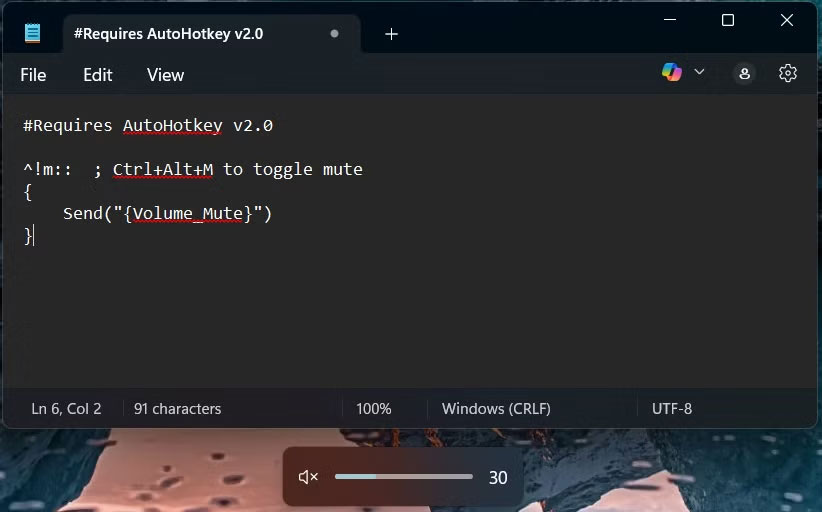
<p style="text-align: justify;">Bạn đã bao giờ nhập ghi chú cuộc họp, mục nhật ký hoặc nhật ký thay đổi và phải dừng lại để kiểm tra thời gian chưa? Script này khiến điều đó trở nên lỗi thời. Nhập &quot;ts&quot; và dấu ngày/giờ đầy đủ sẽ xuất hiện, được định dạng theo đúng cách bạn thích.</p>

<pre id="pre9">
<code>#Requires AutoHotkey v2.0

::ts::
{
; Get the current time components
hour12 := A_Hour
ampm := &quot;am&quot;

if (hour12 = 0) {
hour12 := 12
ampm := &quot;am&quot;
} else if (hour12 &gt;= 12) {
if (hour12 &gt; 12)
hour12 -= 12
ampm := &quot;pm&quot;
}

FormatTime := Format(&quot;{:02}/{:02}/{} {:d}:{:02}{}&quot;, A_MM, A_DD, A_YYYY, hour12, A_Min, ampm)
Send(FormatTime)
Return
}</code></pre>

<p style="text-align: justify;">Một lợi ích chính của script đơn giản này là dấu thời gian tăng cường bảo mật dữ liệu trong các hệ thống kỹ thuật số. Bạn có tùy chọn chỉnh sửa định dạng ngày thành DD/MM/YYY hoặc thay đổi đồng hồ thành giờ 24 giờ, nếu điều đó hữu ích cho công việc của bạn. Nhanh, im lặng và hoàn hảo cho những ai phải ghi chép khi đang làm việc.</p>

<figure>
<div style="text-align: justify;"><img alt="Ghi chú cuộc họp, có dấu thời gian ở cuối mỗi ghi chú" data-i="1" data-src="https://st.quantrimang.com/photos/image/2025/07/08/script-autohotkey-su-dung-hang-ngay-2.jpg" data-was-processed="true" height="466" src="https://st.quantrimang.com/photos/image/2025/07/08/script-autohotkey-su-dung-hang-ngay-2.jpg" width="825" /></div>

<figcaption>
<div style="text-align: justify;">Ghi chú cuộc họp, có dấu thời gian ở cuối mỗi ghi chú</div>
</figcaption>
</figure>

<h2 id="mcetoc_1ivkhjhc860" style="text-align: justify;">11. Tự động sửa lỗi đánh máy thường gặp nhất</h2>

<p style="text-align: justify;">Trình duyệt và Word đã có tính năng tự động sửa lỗi, nhưng chúng không bao gồm mọi ứng dụng. Gần như chắc chắn rằng chúng không hoạt động trong các công cụ ít người biết đến hoặc bảng điều khiển nội bộ. Script này hoạt động trên toàn hệ thống. Bạn có thể truy cập script tự động sửa lỗi&nbsp;<a data-error="true" href="https://quantrimang.com/url?u=aHR0cHM6Ly93d3cuYXV0b2hvdGtleS5jb20vZG93bmxvYWQvQXV0b0NvcnJlY3QuYWhr" rel="nofollow noopener" target="_blank">tại đây</a>.</p>

<p style="text-align: justify;">Đây là top của tất cả các script và có khả năng nó sẽ tiếp tục phát triển khi bạn nhận ra mình thường xuyên gõ sai từ trên bàn phím như thế nào. Bạn có thể dễ dàng mở script này để mở rộng danh sách lỗi đánh máy của riêng mình. Nếu bạn đánh máy nhanh nhưng đôi khi cẩu thả, script này giống như có ai đó đang giúp bạn theo dõi phần chính tả.</p>

<h2 id="mcetoc_1ivkhjhc861" style="text-align: justify;">12. Công cụ thay đổi kích thước cửa sổ thông minh để tăng năng suất khi chia đôi màn hình</h2>

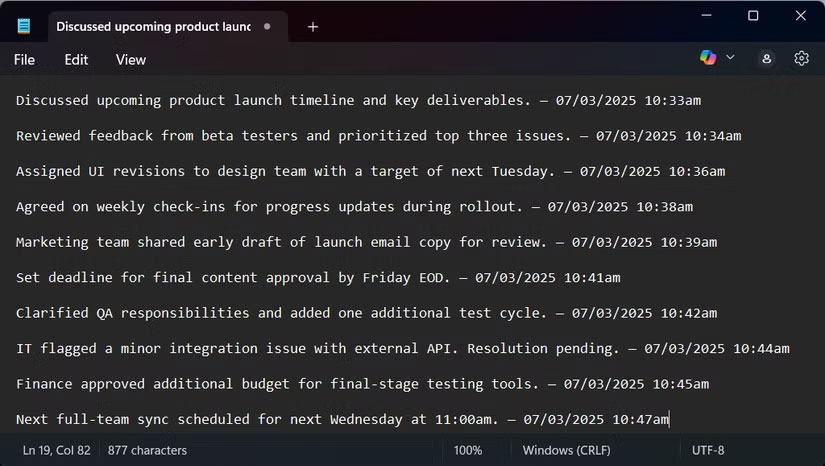
<p style="text-align: justify;">Công cụ này giống như tính năng chụp màn hình gốc của Windows, nhưng có độ chính xác tức thì.&nbsp;<strong>Ctrl + Alt + Mũi tên trái</strong>&nbsp;sẽ thay đổi kích thước cửa sổ hiện tại của bạn sang nửa bên trái của màn hình, trong khi&nbsp;<strong>Ctrl + Alt + Mũi tên phải&nbsp;</strong>sẽ chuyển cửa sổ sang nửa bên phải. Không cần kéo lê và không cần vật lộn để có được sự căn chỉnh hoàn hảo.</p>

<pre id="pre10">
<code>#Requires AutoHotkey v2.0

^!Left::SnapHalf(&quot;left&quot;)
^!Right::SnapHalf(&quot;right&quot;)

SnapHalf(side) {
hwnd := WinGetID(&quot;A&quot;)
if !hwnd {
MsgBox(&quot;No active window.&quot;)
return
}

try WinRestore(hwnd)
Sleep(100)

if !WinExist(&quot;ahk_id &quot; hwnd) {
MsgBox(&quot;Window no longer exists.&quot;)
return
}

MonitorGetWorkArea(1, &amp;left, &amp;top, &amp;right, &amp;bottom)
width := right - left
height := bottom - top

if (side = &quot;left&quot;) {
x := left
} else if (side = &quot;right&quot;) {
x := left + width // 2
} else {
MsgBox(&quot;Invalid side.&quot;)
return
}

; Use MoveWindow API instead of WinMove for better compatibility
success := DllCall(&quot;MoveWindow&quot;
, &quot;Ptr&quot;, hwnd
, &quot;Int&quot;, x
, &quot;Int&quot;, top
, &quot;Int&quot;, width // 2
, &quot;Int&quot;, height
, &quot;Int&quot;, true)

if !success {
MsgBox(&quot;MoveWindow API failed. Window may not support repositioning.&quot;)
}
}</code></pre>

<p style="text-align: justify;">Đây là giải pháp cứu cánh cho công việc trên màn hình kép, chỉnh sửa cạnh nhau hoặc điền thông tin được tham chiếu vào bảng tính. Sử dụng một lần và bạn sẽ không bao giờ phải thay đổi kích thước cửa sổ theo cách thủ công nữa.</p>

<figure>
<div style="text-align: justify;"><img alt="Script AHK đã chụp thành công hai cửa sổ sang bên phải và bên trái của màn hình" data-i="2" data-src="https://st.quantrimang.com/photos/image/2025/07/08/script-autohotkey-su-dung-hang-ngay-3.jpg" data-was-processed="true" height="875" src="https://st.quantrimang.com/photos/image/2025/07/08/script-autohotkey-su-dung-hang-ngay-3.jpg" width="1650" /></div>

<figcaption>
<div style="text-align: justify;">Script AHK đã chụp thành công hai cửa sổ sang bên phải và bên trái của màn hình</div>
</figcaption>
</figure>

<h2 id="mcetoc_1ivkhjhc862" style="text-align: justify;">13. Di chuyển cửa sổ đang hoạt động sang màn hình tiếp theo</h2>

<p style="text-align: justify;">Nếu bạn làm việc với màn hình kép (hoặc nhiều màn hình hơn), quản lý cửa sổ luôn là một trận chiến nhỏ. Script này không cầu kỳ - nó chỉ đơn giản là di chuyển cửa sổ hiện tại sang màn hình tiếp theo ngay lập tức.</p>

<pre id="pre11">
<code>#Requires AutoHotkey v2.0

^+w::MoveWindowToNextMonitor()

MoveWindowToNextMonitor() {
hwnd := WinGetID(&quot;A&quot;)
if !hwnd {
MsgBox(&quot;No active window found.&quot;)
return
}

; Get current window position
WinGetPos(&amp;wx, &amp;wy, &amp;ww, &amp;wh, hwnd)

monitorCount := MonitorGetCount()
if (monitorCount ; Only one monitor: just maximize the window on current monitor
WinMaximize(hwnd)
return
}

; Find which monitor the window is mostly on (center point)
centerX := wx + ww // 2
centerY := wy + wh // 2
curMonitor := GetMonitorFromPoint(centerX, centerY)
nextMonitor := curMonitor + 1
if (nextMonitor &gt; monitorCount)
nextMonitor := 1

; Get work area of the next monitor
MonitorGetWorkArea(nextMonitor, &amp;left, &amp;top, &amp;right, &amp;bottom)
width := right - left
height := bottom - top

; Move and resize the window fullscreen on the next monitor
success := DllCall(&quot;MoveWindow&quot;
, &quot;Ptr&quot;, hwnd
, &quot;Int&quot;, left
, &quot;Int&quot;, top
, &quot;Int&quot;, width
, &quot;Int&quot;, height
, &quot;Int&quot;, true)

if !success {
MsgBox(&quot;Failed to move window to monitor &quot; . nextMonitor)
}
}

GetMonitorFromPoint(x, y) {
MONITOR_DEFAULTTONEAREST := 2
hMon := DllCall(&quot;MonitorFromPoint&quot;, &quot;Int&quot;, x, &quot;Int&quot;, y, &quot;UInt&quot;, MONITOR_DEFAULTTONEAREST, &quot;Ptr&quot;)
return MonitorIndexFromHandle(hMon)
}

MonitorIndexFromHandle(hMonitor) {
count := MonitorGetCount()
Loop count {
MonitorGet(A_Index, &amp;l, &amp;t, &amp;r, &amp;b)
midX := l + (r - l) // 2
midY := t + (b - t) // 2
h := DllCall(&quot;MonitorFromPoint&quot;, &quot;Int&quot;, midX, &quot;Int&quot;, midY, &quot;UInt&quot;, 2, &quot;Ptr&quot;)
if (h = hMonitor)
return A_Index
}
return 1
}</code></pre>

<p style="text-align: justify;">Script phức tạp này khiến việc kéo cửa sổ trở nên lỗi thời. Để tận dụng tối đa, hãy xem bài viết về&nbsp;cách thiết lập màn hình kép&nbsp;này.</p>

<h2 id="mcetoc_1ivkhjhc863" style="text-align: justify;">14. Chuyển đổi văn bản đã chọn thành chữ hoa đầu câu</h2>

<p style="text-align: justify;">Script này giải quyết một sự khó chịu phổ biến đáng ngạc nhiên - khi bạn sao chép văn bản bằng chữ in hoa hoặc cấu trúc không nhất quán và muốn viết ra ở định dạng có thể sử dụng được. Chỉ cần nhấn&nbsp;<strong>Ctrl + Alt + C</strong>, và bất kỳ nội dung nào bạn đã highlight sẽ ngay lập tức được chuyển thành chữ hoa đầu câu: Chữ cái đầu tiên viết hoa, mọi nội dung khác viết thường.</p>

<pre id="pre12">
<code>#Requires AutoHotkey v2.0

^!c:: ; Ctrl + Alt + C
{
ClipSaved := ClipboardAll() ; Backup clipboard
A_Clipboard := &quot;&quot; ; Clear clipboard for fresh copy

Send(&quot;^c&quot;) ; Copy selected text
if !ClipWait(1)
{
MsgBox(&quot;No text was copied. Please select some text first.&quot;)
return
}

lowerText := StrLower(A_Clipboard)
; Capitalize the first letter, preserve rest
if StrLen(lowerText) &gt; 0
formattedText := StrUpper(SubStr(lowerText, 1, 1)) . SubStr(lowerText, 2)
else
formattedText := lowerText

A_Clipboard := formattedText
Sleep(50)
Send(&quot;^v&quot;) ; Paste the modified text

Sleep(50)
A_Clipboard := ClipSaved ; Restore original clipboard
}</code></pre>

<p style="text-align: justify;">Script này rất tuyệt để sửa các câu được viết lộn xộn mà không cần phải viết lại thủ công. Nó sao chép, xử lý và dán phần bạn chọn một cách liền mạch, đồng thời vẫn giữ nguyên nội dung clipboard gốc.</p>

<p style="text-align: justify;">Bàn phím của bạn không chỉ là một công cụ, mà còn là trung tâm chỉ huy. 14 script này cung cấp cho bạn khả năng kiểm soát, tốc độ và sự linh hoạt mà bạn không nhận ra là mình đang thiếu. Cho dù bạn áp dụng một vài hay tất cả chúng, thì mỗi script đều tạo nên quy trình làm việc nhanh chóng, mượt mà và hiệu quả hơn.</p>

<p style="text-align: justify;">Hãy thử chúng, sửa đổi những gì không phù hợp, biến chúng thành của riêng bạn, sau đó quên rằng chúng từng là &quot;script&quot; ngay từ đầu. Chẳng bao lâu nữa, mỗi script trong số chúng sẽ lặng lẽ trở thành tiện ích tự nhiên thứ hai.</p>
		</div>
				<div id="author">
						<p>
				<strong>Nguồn tin:</strong>
				Quantrimang.com:
			</p>
		</div>
	</div>
	<div id="footer" class="clearfix">
		<div id="url">
			<strong>URL của bản tin này: </strong><a href="https://www.nguoicodonvn2008.info/vi/news/savefile/kien-thuc-may-tinh/14-script-autohotkey-co-the-su-dung-hang-ngay-10743.html" title="14 script AutoHotkey có thể sử dụng hàng ngày">https://www.nguoicodonvn2008.info/vi/news/savefile/kien-thuc-may-tinh/14-script-autohotkey-co-the-su-dung-hang-ngay-10743.html</a>

		</div>
		<div class="clear"></div>
		<div class="copyright">
			&copy; .&#x3A; Nguoicodonvn2008.info - Cõi lòng người cô đơn &#x3A;.
		</div>
		<div id="contact">
			<a href="mailto:admin@nguoicodonvn2008.info">admin@nguoicodonvn2008.info</a>
		</div>
	</div>
</div>
        <div id="timeoutsess" class="chromeframe">
            Bạn đã không sử dụng Site, <a onclick="timeoutsesscancel();" href="https://nguoicodonvn2008.info/#">Bấm vào đây để duy trì trạng thái đăng nhập</a>. Thời gian chờ: <span id="secField"> 60 </span> giây
        </div>
        <div id="openidResult" class="nv-alert" style="display:none"></div>
        <div id="openidBt" data-result="" data-redirect=""></div>
		</script>
		<div class="car-top">
  <span><img src="https://nguoicodonvn2008.info/themes/default/images/car.png" alt=""></span>
</div>
<script src="https://nguoicodonvn2008.info/assets/js/jquery/jquery.min.js"></script>
<script>var nv_base_siteurl="/",nv_lang_data="vi",nv_lang_interface="vi",nv_name_variable="nv",nv_fc_variable="op",nv_lang_variable="language",nv_module_name="news",nv_func_name="savefile",nv_is_user=0, nv_my_ofs=-4,nv_my_abbr="EDT",nv_cookie_prefix="nv4c_e856T",nv_check_pass_mstime=1738000,nv_area_admin=0,nv_safemode=0,theme_responsive=0,nv_recaptcha_ver=2,nv_recaptcha_sitekey="",nv_recaptcha_type="image",XSSsanitize=1;</script>
<script src="https://nguoicodonvn2008.info/assets/js/language/vi.js"></script>
<script src="https://nguoicodonvn2008.info/assets/js/DOMPurify/purify3.js"></script>
<script src="https://nguoicodonvn2008.info/assets/js/global.js"></script>
<script src="https://nguoicodonvn2008.info/assets/js/site.js"></script>
<script src="https://nguoicodonvn2008.info/themes/default/js/news.js"></script>
<script src="https://nguoicodonvn2008.info/themes/default/js/main.js"></script>
<script src="https://nguoicodonvn2008.info/themes/default/js/custom.js"></script>
<script type="application/ld+json">
        {
            "@context": "https://schema.org",
            "@type": "Organization",
            "url": "https://nguoicodonvn2008.info",
            "logo": "https://nguoicodonvn2008.info/uploads/angel.gif"
        }
        </script>
<script src="https://nguoicodonvn2008.info/themes/default/js/bootstrap.min.js"></script>
<script type="text/javascript">
var $scrolltop = $('.car-top');
$scrolltop.on('click', function () {
    $('html,body').animate({
        scrollTop: 0
    }, 800);
    $(this).addClass("car-run");
    setTimeout(function(){ $scrolltop.removeClass('car-run');}, 1000);
    return false;
});
$(window).on('scroll', function ()
{ 
    if($(window).scrollTop() >= 200)
    {
        $scrolltop.addClass("show");
        $scrolltop.addClass("car-down");
    }
    else
    {
       $scrolltop.removeClass("show");
       setTimeout(function(){ $scrolltop.removeClass('car-down');}, 300);
    }
});
</script>
</body>
</html>