<!DOCTYPE html>
    <html lang="vi" xmlns="http://www.w3.org/1999/xhtml" prefix="og: http://ogp.me/ns#">
    <head>
<title>10 script AutoHotKey giúp cuộc sống dễ dàng hơn</title>
<meta name="description" content="10 script AutoHotKey giúp cuộc sống dễ dàng hơn - Savefile - Tin Tức -...">
<meta name="author" content=".: Nguoicodonvn2008.info - Cõi lòng người cô đơn :.">
<meta name="copyright" content=".: Nguoicodonvn2008.info - Cõi lòng người cô đơn :. [admin@nguoicodonvn2008.info]">
<meta name="robots" content="index, archive, follow, noodp">
<meta name="googlebot" content="index,archive,follow,noodp">
<meta name="msnbot" content="all,index,follow">
<meta name="generator" content="NukeViet v4.5">
<meta http-equiv="Content-Type" content="text/html; charset=utf-8">
<meta property="og:title" content="10 script AutoHotKey giúp cuộc sống dễ dàng hơn">
<meta property="og:type" content="website">
<meta property="og:description" content="Savefile - Tin Tức - https&#x3A;&#x002F;&#x002F;www.nguoicodonvn2008.info&#x002F;vi&#x002F;news&#x002F;savefile&#x002F;kien-thuc-may-tinh&#x002F;10-script-autohotkey-giup-cuoc-song-de-dang-hon-10500.html">
<meta property="og:site_name" content=".&#x3A; Nguoicodonvn2008.info - Cõi lòng người cô đơn &#x3A;.">
<meta property="og:url" content="https://www.nguoicodonvn2008.info/vi/news/savefile/kien-thuc-may-tinh/10-script-autohotkey-giup-cuoc-song-de-dang-hon-10500.html">
<link rel="shortcut icon" href="https://nguoicodonvn2008.info/favicon.ico">
<link rel="canonical" href="https://www.nguoicodonvn2008.info/vi/news/savefile/kien-thuc-may-tinh/10-script-autohotkey-giup-cuoc-song-de-dang-hon-10500.html">
<link rel="alternate" href="https://nguoicodonvn2008.info/vi/news/rss/" title="Tin Tức" type="application/rss+xml">
<link rel="alternate" href="https://nguoicodonvn2008.info/vi/news/rss/karaoke-dual/" title="Tin Tức - Karaoke Dual" type="application/rss+xml">
<link rel="alternate" href="https://nguoicodonvn2008.info/vi/news/rss/nhac-tre/" title="Tin Tức - Nhạc trẻ" type="application/rss+xml">
<link rel="alternate" href="https://nguoicodonvn2008.info/vi/news/rss/tru-tinh/" title="Tin Tức - Trữ tình" type="application/rss+xml">
<link rel="alternate" href="https://nguoicodonvn2008.info/vi/news/rss/nuoc-ngoai/" title="Tin Tức - Nước ngoài" type="application/rss+xml">
<link rel="alternate" href="https://nguoicodonvn2008.info/vi/news/rss/remix/" title="Tin Tức - Remix" type="application/rss+xml">
<link rel="alternate" href="https://nguoicodonvn2008.info/vi/news/rss/tam-su-tinh-yeu/" title="Tin Tức - Tâm sự tình yêu" type="application/rss+xml">
<link rel="alternate" href="https://nguoicodonvn2008.info/vi/news/rss/tho-suu-tam/" title="Tin Tức - Thơ sưu tầm" type="application/rss+xml">
<link rel="alternate" href="https://nguoicodonvn2008.info/vi/news/rss/cuoc-song/" title="Tin Tức - Cuộc sống" type="application/rss+xml">
<link rel="alternate" href="https://nguoicodonvn2008.info/vi/news/rss/phan-mem/" title="Tin Tức - Phần mềm" type="application/rss+xml">
<link rel="alternate" href="https://nguoicodonvn2008.info/vi/news/rss/kien-thuc-may-tinh/" title="Tin Tức - Kiến thức máy tính" type="application/rss+xml">
<link rel="alternate" href="https://nguoicodonvn2008.info/vi/news/rss/hoc-tap/" title="Tin Tức - Học tập" type="application/rss+xml">
<link rel="alternate" href="https://nguoicodonvn2008.info/vi/news/rss/tai-lieu/" title="Tin Tức - Tài liệu" type="application/rss+xml">
<link rel="alternate" href="https://nguoicodonvn2008.info/vi/news/rss/de-thi/" title="Tin Tức - Đề thi" type="application/rss+xml">
<link rel="preload" as="style" href="https://nguoicodonvn2008.info/assets/css/font-awesome.min.css" type="text/css">
<link rel="preload" as="style" href="https://nguoicodonvn2008.info/themes/default/css/bootstrap.non-responsive.css" type="text/css">
<link rel="preload" as="style" href="https://nguoicodonvn2008.info/themes/default/css/style.css" type="text/css">
<link rel="preload" as="style" href="https://nguoicodonvn2008.info/themes/default/css/style.non-responsive.css" type="text/css">
<link rel="preload" as="style" href="https://nguoicodonvn2008.info/themes/default/css/news.css" type="text/css">
<link rel="preload" as="style" href="https://nguoicodonvn2008.info/themes/default/css/custom.css" type="text/css">
<link rel="preload" as="script" href="https://nguoicodonvn2008.info/assets/js/jquery/jquery.min.js" type="text/javascript">
<link rel="preload" as="script" href="https://nguoicodonvn2008.info/assets/js/language/vi.js" type="text/javascript">
<link rel="preload" as="script" href="https://nguoicodonvn2008.info/assets/js/DOMPurify/purify3.js" type="text/javascript">
<link rel="preload" as="script" href="https://nguoicodonvn2008.info/assets/js/global.js" type="text/javascript">
<link rel="preload" as="script" href="https://nguoicodonvn2008.info/assets/js/site.js" type="text/javascript">
<link rel="preload" as="script" href="https://nguoicodonvn2008.info/themes/default/js/news.js" type="text/javascript">
<link rel="preload" as="script" href="https://nguoicodonvn2008.info/themes/default/js/main.js" type="text/javascript">
<link rel="preload" as="script" href="https://nguoicodonvn2008.info/themes/default/js/custom.js" type="text/javascript">
<link rel="preload" as="script" href="https://nguoicodonvn2008.info/themes/default/js/bootstrap.min.js" type="text/javascript">
<link rel="stylesheet" href="https://nguoicodonvn2008.info/assets/css/font-awesome.min.css">
<link rel="stylesheet" href="https://nguoicodonvn2008.info/themes/default/css/bootstrap.non-responsive.css">
<link rel="stylesheet" href="https://nguoicodonvn2008.info/themes/default/css/style.css">
<link rel="stylesheet" href="https://nguoicodonvn2008.info/themes/default/css/style.non-responsive.css">
<link rel="StyleSheet" href="https://nguoicodonvn2008.info/themes/default/css/news.css">
<link rel="stylesheet" href="https://nguoicodonvn2008.info/themes/default/css/custom.css">
<style type="text/css">
	body{background: #fff;}
</style>
    </head>
    <body>
<div id="print">
	<div id="hd_print">
		<h2 class="pull-left">.&#x3A; Nguoicodonvn2008.info - Cõi lòng người cô đơn &#x3A;.</h2>
		<p class="pull-right"><a title=".&#x3A; Nguoicodonvn2008.info - Cõi lòng người cô đơn &#x3A;." href="https://nguoicodonvn2008.info/">https://nguoicodonvn2008.info</a></p>
	</div>
	<div class="clear"></div>
	<hr />
	<div id="content">
		<h1>10 script AutoHotKey giúp cuộc sống dễ dàng hơn</h1>
		<ul class="list-inline">
			<li>Thứ tư - 04/06/2025 01:33</li>
			<li class="hidden-print txtrequired"><em class="fa fa-print">&nbsp;</em><a title="In ra" href="javascript:;" onclick="window.print()">In ra</a></li>
			<li class="hidden-print txtrequired"><em class="fa fa-power-off">&nbsp;</em><a title="Đóng cửa sổ này" href="javascript:;" onclick="window.close()">Đóng cửa sổ này</a></li>
		</ul>
		<div class="clear"></div>
		<div id="hometext">
		</div>
				<div class="imghome">
			<img alt="10 script AutoHotKey giúp cuộc sống dễ dàng hơn" src="https://st.quantrimang.com/photos/image/2025/06/03/autohotkey-script-yeu-thich-3.jpg" width="460" class="img-thumbnail" />
		</div>
		<div class="clear"></div>
		<div id="bodytext" class="clearfix">
			<p style="text-align: justify;">Mọi người đã tạo các script&nbsp;PowerShell&nbsp;trên PC Windows của mình trong nhiều năm, nhưng nhiều script phải chạy thủ công. Với AutoHotkey (phiên bản 2), bạn có thể tạo lại các script này và liên kết chúng với những phím tắt, khiến chúng giống như các tính năng tích hợp sẵn của Windows mà Microsoft đã quên đề cập.</p>

<h2 style="text-align: justify;">10. App Launcher nhanh cá nhân</h2>

<figure>
<div style="text-align: justify;"><img alt="Menu ứng dụng nhanh cá nhân" data-i="0" data-src="https://st.quantrimang.com/photos/image/2025/06/03/autohotkey-script-yeu-thich-1.jpg" data-was-processed="true" height="878" src="https://st.quantrimang.com/photos/image/2025/06/03/autohotkey-script-yeu-thich-1.jpg" width="1650" /></div>

<figcaption>
<div style="text-align: justify;">Menu ứng dụng nhanh cá nhân</div>
</figcaption>
</figure>

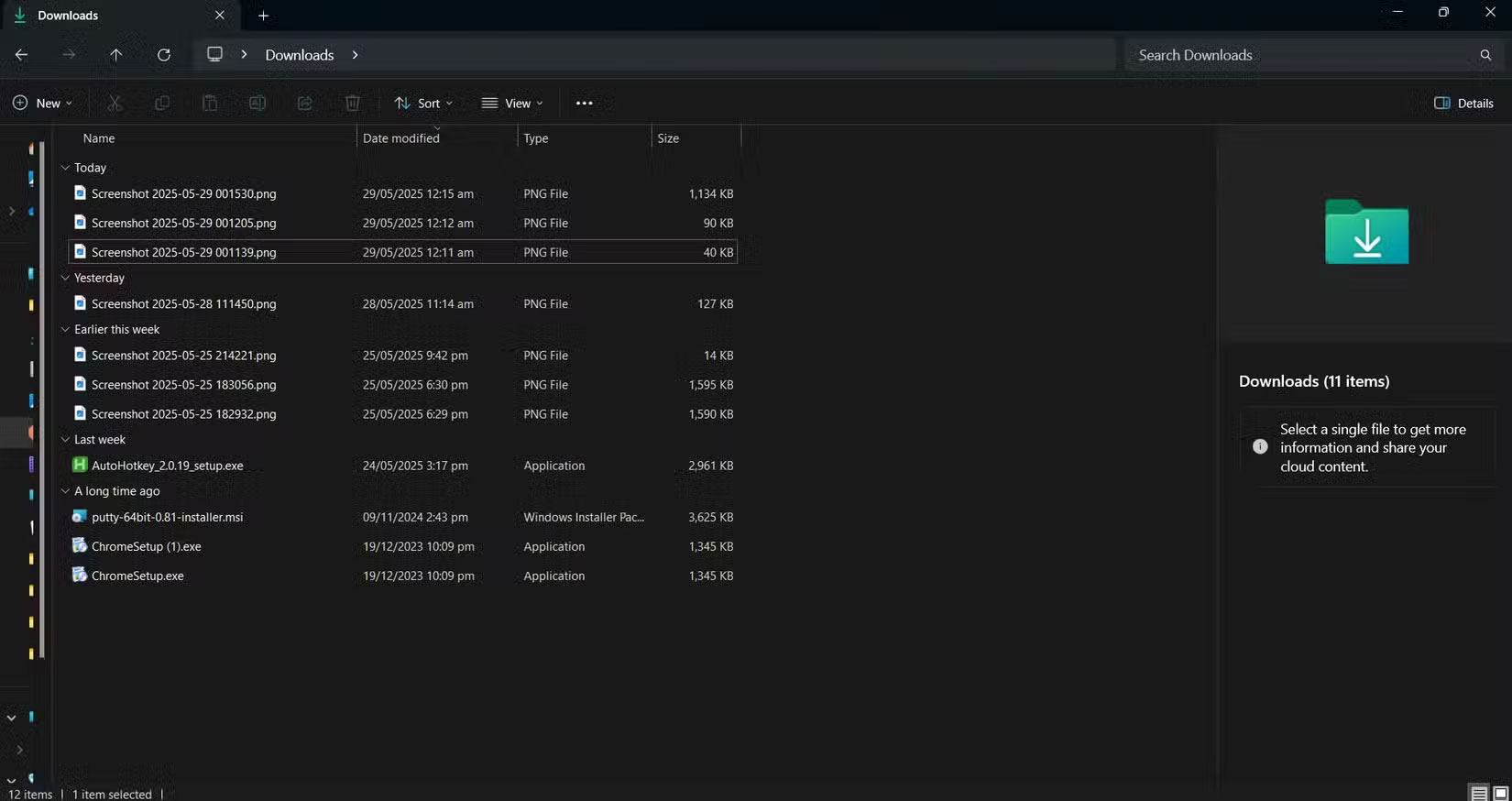
<p style="text-align: justify;">Các ứng dụng như Notepad, Calculator và Paint thường bị ẩn khỏi desktop vì chúng không quá quan trọng. Nhưng thỉnh thoảng, bạn thấy mình phải săn lùng những ứng dụng này vì tiện ích nhanh chóng của chúng. Vì vậy, thay vì xem qua menu Start hoặc biểu tượng trên desktop, hãy tạo một menu tùy chỉnh xuất hiện ngay lập tức khi bạn nhấn phím&nbsp;<strong>Windows + M</strong>&nbsp;bằng cách sử dụng script bên dưới.</p>

<pre id="pre0">
<code>#Requires AutoHotkey v2.0

#m::{
MyMenu := Menu()
MyMenu.Add(&quot;Calculator&quot;, (*) =&gt; Run(&quot;calc.exe&quot;))
MyMenu.Add(&quot;Sticky Notes&quot;, (*) =&gt; Run(&quot;explorer.exe shell:AppsFolder\Microsoft.MicrosoftStickyNotes_8wekyb3d8bbwe!App&quot;))
MyMenu.Add(&quot;Notepad&quot;, (*) =&gt; Run(&quot;notepad.exe&quot;))
MyMenu.Add(&quot;Paint&quot;, (*) =&gt; Run(&quot;mspaint.exe&quot;))
MyMenu.Show()
}</code></pre>

<h2 style="text-align: justify;">9. Cuộn ngang được thực hiện nhất quán</h2>

<p style="text-align: justify;">Giữ Shift + Con lăn chuột để cuộn ngang không hoạt động với tất cả các ứng dụng bạn sử dụng. Thật đáng buồn, mọi người sử dụng thao tác này thường xuyên, đặc biệt là những ai thích xem các code snippet hoặc thiết kế trong CAD. Vì vậy, hãy tạo script riêng của mình để cuộn ngang hoạt động với bất kỳ ứng dụng nào bạn sử dụng.</p>

<p style="text-align: justify;">Tạo một script với các mục sau để tạo phiên bản của riêng bạn:</p>

<pre id="pre1">
<code>#Requires AutoHotkey v2.0

#HotIf GetKeyState(&quot;Shift&quot;, &quot;P&quot;)
WheelUp::Send(&quot;{WheelLeft}&quot;)
WheelDown::Send(&quot;{WheelRight}&quot;)
#HotIf</code></pre>

<p style="text-align: justify;">Bằng cách giữ&nbsp;<strong>Shift</strong>&nbsp;và con lăn chuột, bạn có thể cuộn sang trái và phải thay vì lên hoặc xuống. Tính năng này hoạt động trong bất kỳ chương trình nào hỗ trợ cuộn ngang, từ bảng tính Excel, trình chỉnh sửa ảnh đến trình duyệt web có nội dung rộng.</p>

<h2 style="text-align: justify;">8. Truy cập tức thời vào bất kỳ thư mục nào</h2>

<p style="text-align: justify;">Nhiều người thường sắp xếp các file của mình vào những thư mục. Tuy nhiên, đôi khi, tạo quá nhiều thư mục con khiến việc truy cập thư mục dự án phải mất nhiều lần nhấp chuột để mở. Bạn có thể dễ dàng tạo một script liên kết với&nbsp;<strong>Ctrl + ALT + D</strong>&nbsp;để mở ngay một thư mục dự án đã chỉ định.</p>

<p style="text-align: justify;">Đây là script:</p>

<pre id="pre2">
<code>#Requires AutoHotkey v2.0

^!d::Run(&#039;explorer.exe &quot;C:\Users\jricm\Downloads&quot;&#039;)</code></pre>

<h2 style="text-align: justify;">7. Mở rộng văn bản nhanh cho các cụm từ hàng ngày</h2>

<p style="text-align: justify;">Bạn có thích ý tưởng sử dụng mã alt của Windows để chèn các ký tự đặc biệt một cách dễ dàng và nhanh chóng không? Hãy áp dụng cách tiếp cận tương tự với một script AHK cho phép bạn sử dụng các shortcut cho những cụm từ phổ biến mà mình thường sử dụng. Hãy tạo script này để tự mình thử:</p>

<pre id="pre3">
<code>#Requires AutoHotkey v2.0
#SingleInstance Force

::gm::Good morning
::ty::Thank you
::brb::Be right back</code></pre>

<p style="text-align: justify;">Với ví dụ này, bất cứ khi nào bạn nhập &quot;gm&quot; theo sau là dấu cách (hoặc Enter), nó sẽ ngay lập tức mở rộng thành &quot;Good morning&quot;. Tương tự với &quot;ty&quot;, mở rộng thành &quot;Thank you&quot; và &quot;brb&quot; thành &quot;Be right back&quot;. Điều này hoạt động trong bất kỳ ứng dụng nào mà bạn có thể nhập và nó đặc biệt hữu ích khi bạn trả lời tin nhắn trong suốt cả ngày.</p>

<h2 style="text-align: justify;">6. Điều khiển âm lượng tùy chỉnh bằng bàn phím</h2>

<figure>
<div style="text-align: justify;"><img alt="Điều chỉnh âm lượng bằng bàn phím" data-i="1" data-src="https://st.quantrimang.com/photos/image/2025/06/03/autohotkey-script-yeu-thich-2.jpg" data-was-processed="true" height="874" src="https://st.quantrimang.com/photos/image/2025/06/03/autohotkey-script-yeu-thich-2.jpg" width="1650" /></div>

<figcaption>
<div style="text-align: justify;">Điều chỉnh âm lượng bằng bàn phím</div>
</figcaption>
</figure>

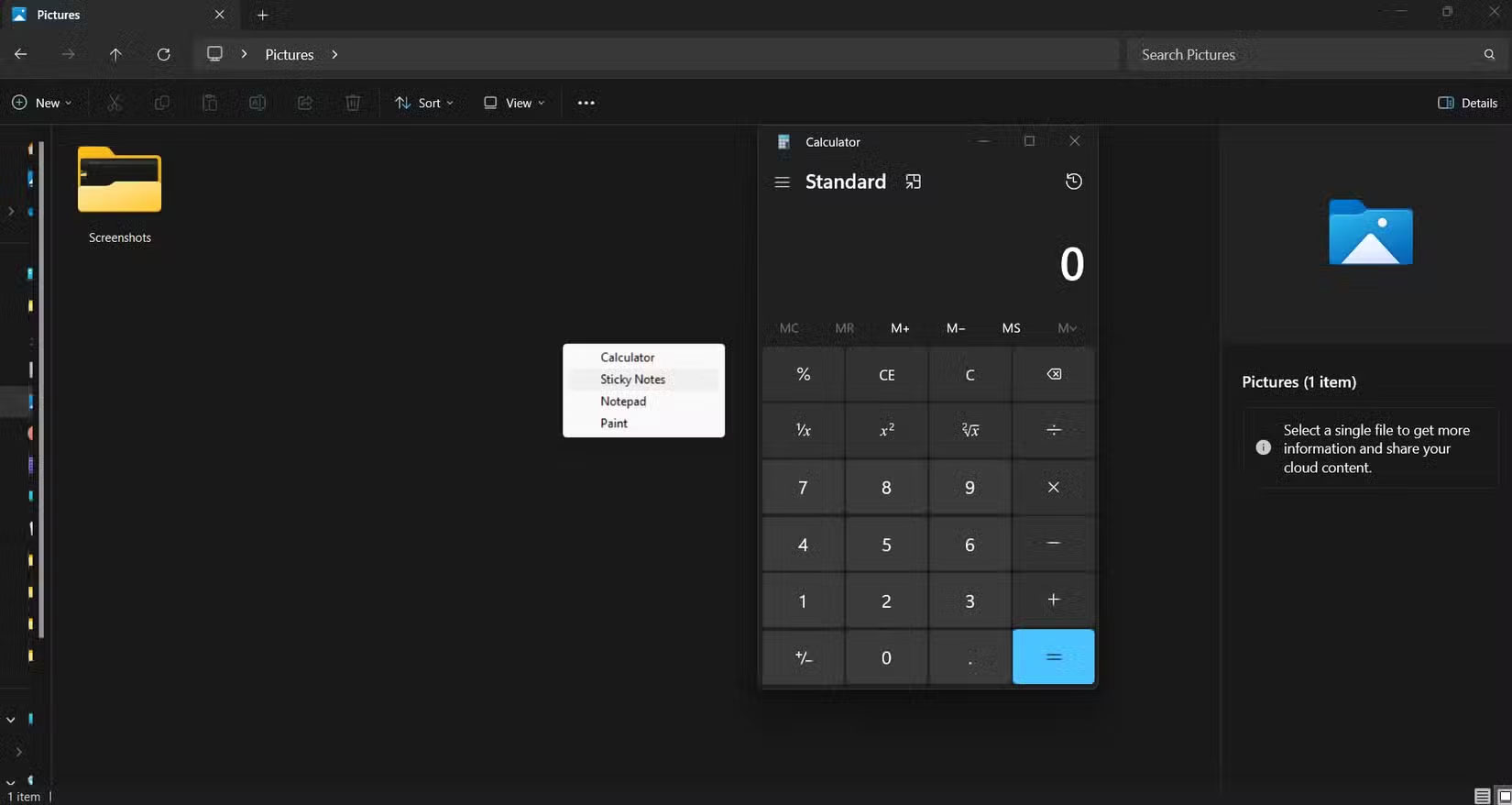
<p style="text-align: justify;">Nhiều người luôn cảm thấy khó khăn khi điều khiển âm lượng của Windows. Bạn có thể nhấp vào biểu tượng loa nhỏ trên khay hệ thống hoặc tìm kiếm các nút âm lượng trên bàn phím, rất khó tìm, đặc biệt là khi bạn làm việc lúc tắt đèn. Hãy thay bằng thứ gì đó nhanh và trực quan hơn!</p>

<p style="text-align: justify;">Vì ngón tay bạn luôn dán chặt vào các hàng phím chính, nên việc liên kết chức năng điều khiển âm lượng với&nbsp;<strong>CTRL + Dấu phẩy</strong>&nbsp;hoặc&nbsp;<strong>CTRL + Dấu chấm</strong>&nbsp;để điều khiển âm lượng và&nbsp;<strong>CTRL + M&nbsp;</strong>để tắt tiếng và bật tiếng là hợp lý. Đây là script bạn có thể sử dụng:</p>

<pre id="pre4">
<code>#Requires AutoHotkey v2.0
#SingleInstance Force

^,::Send(&quot;{Volume_Down}&quot;) ; Ctrl + ^.::Send(&quot;{Volume_Up}&quot;) ; Ctrl + &gt; (period)
^m::Send(&quot;{Volume_Mute}&quot;) ; Ctrl + M</code></pre>

<h2 style="text-align: justify;">5. Căn giữa con trỏ chuột ngay lập tức</h2>

<p style="text-align: justify;">Điều này nghe có vẻ đơn giản, nhưng nó thực sự hữu ích, đặc biệt là nếu bạn làm việc với nhiều màn hình hoặc thiết lập siêu rộng duy nhất. Hotkey này sẽ căn giữa con trỏ chuột khi bạn nhấn&nbsp;<strong>Ctrl + Alt + C</strong>. Đây là script bạn cần tạo:</p>

<pre id="pre5">
<code>#Requires AutoHotkey v2.0
^!c:: {
WinGetPos(&amp;x, &amp;y, &amp;w, &amp;h, &quot;A&quot;)
MouseMove(x + w/2, y + h/2)
}</code></pre>

<p style="text-align: justify;">Script tìm điểm chính xác ở giữa cửa sổ đang hoạt động của bạn và di chuyển chuột đến đó ngay lập tức. Nó hoạt động với bất kỳ chương trình và bất kỳ kích thước cửa sổ nào, ngay cả khi một phần cửa sổ đó nằm ngoài màn hình. Bạn có thể thường sử dụng script này nhất khi chuyển đổi giữa các ứng dụng khác nhau và muốn nhanh chóng tập trung vào cửa sổ mới mà không phải nghĩ đến vị trí con chuột của mình đã dừng lại.</p>

<h2 style="text-align: justify;">4. Tự động sắp xếp thư mục tải xuống</h2>

<figure>
<div style="text-align: justify;"><img alt="Thư mục tải xuống lộn xộn" data-i="2" data-src="https://st.quantrimang.com/photos/image/2025/06/03/autohotkey-script-yeu-thich-3.jpg" data-was-processed="true" height="874" src="https://st.quantrimang.com/photos/image/2025/06/03/autohotkey-script-yeu-thich-3.jpg" width="1650" /></div>
</figure>

<figure>
<div style="text-align: justify;"><img alt="Thư mục tải xuống được sắp xếp" data-i="3" data-src="https://st.quantrimang.com/photos/image/2025/06/03/autohotkey-script-yeu-thich-4.jpg" data-was-processed="true" height="875" src="https://st.quantrimang.com/photos/image/2025/06/03/autohotkey-script-yeu-thich-4.jpg" width="1650" /></div>
</figure>

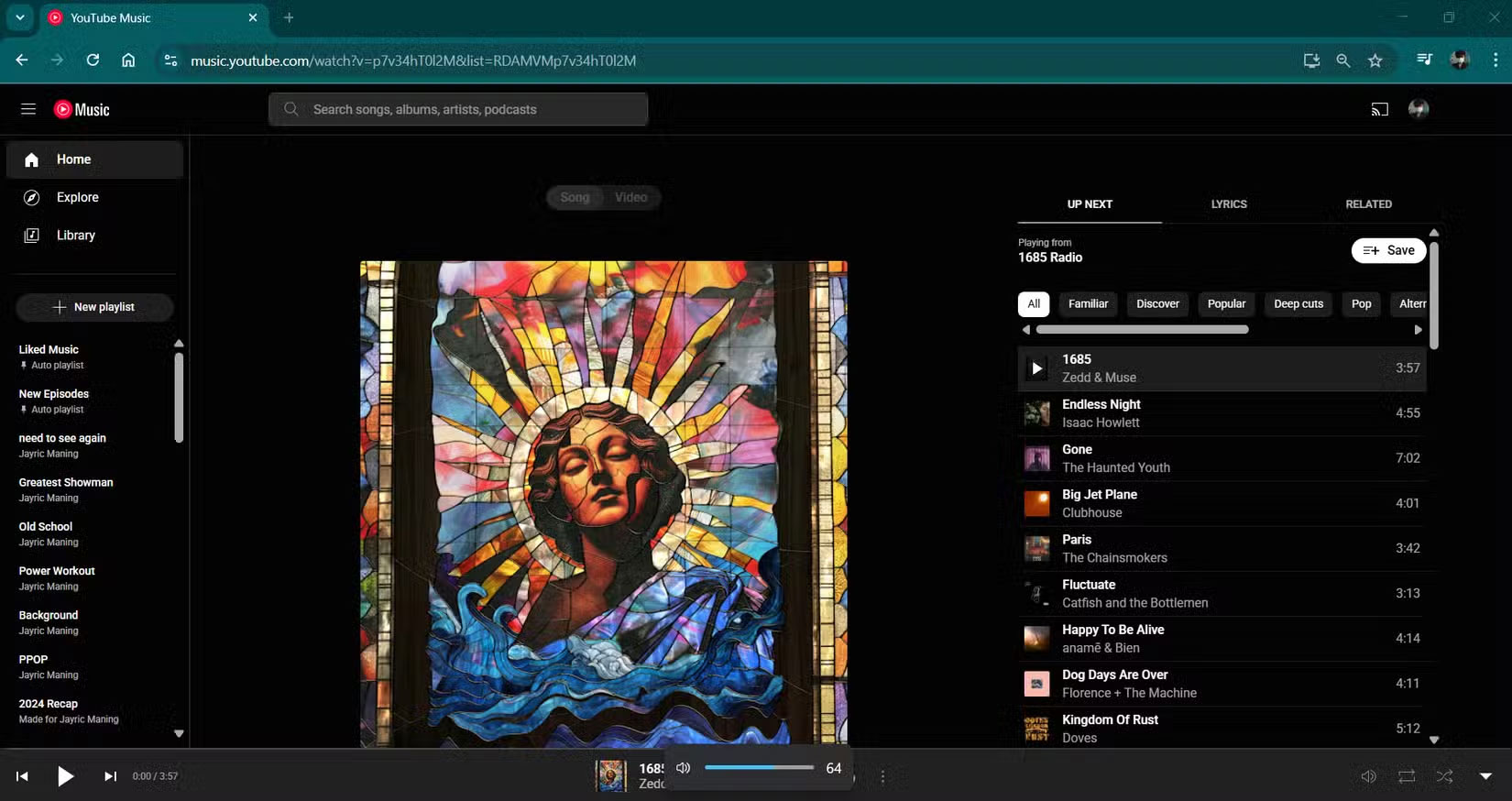
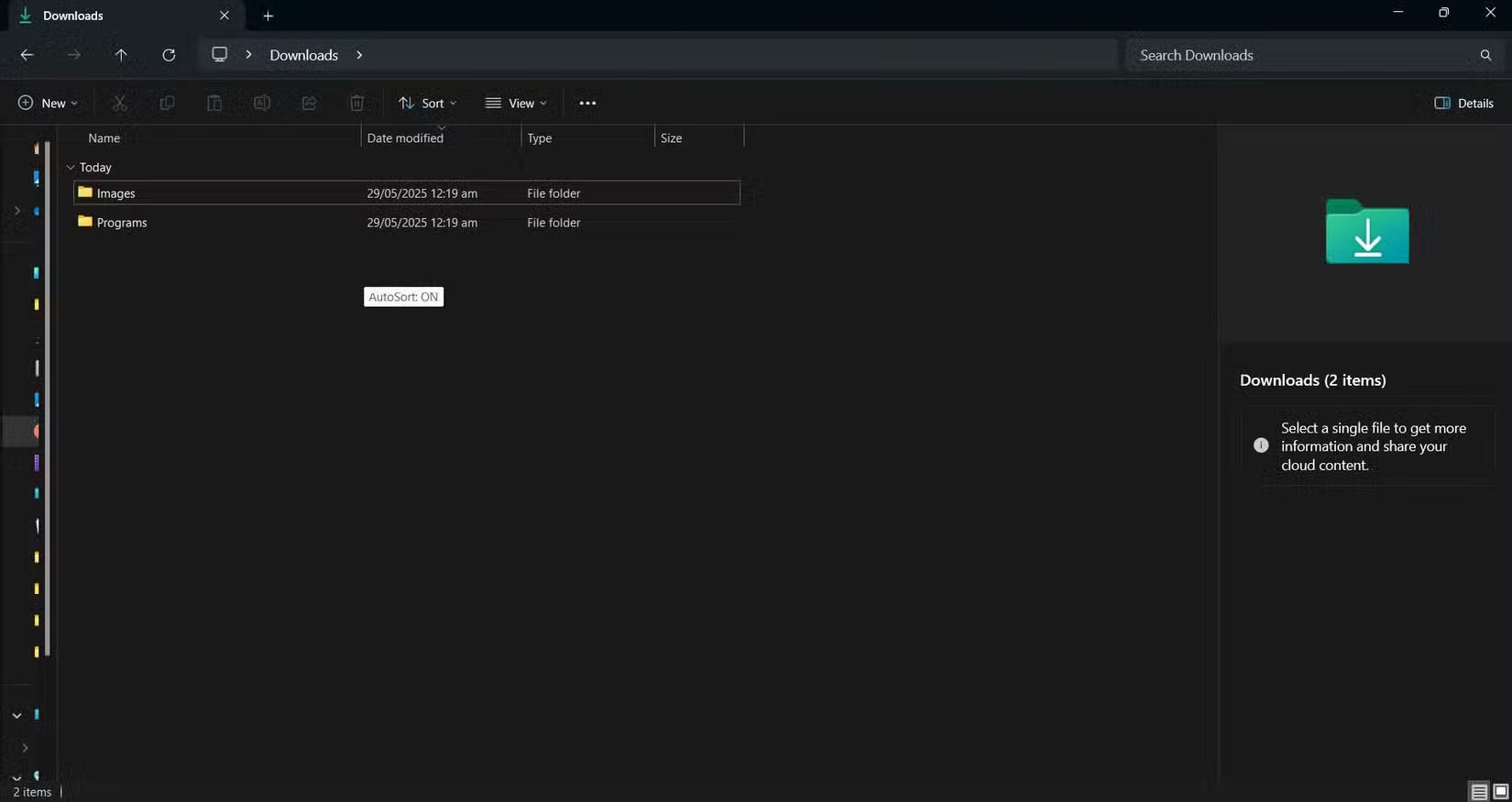
<p style="text-align: justify;">Thư mục Downloads thường rất hỗn loạn. Ảnh chụp màn hình lẫn lộn với&nbsp;<a data-type="internal" href="https://quantrimang.com/cong-nghe/tim-hieu-ve-dinh-dang-pdf-118417" title="File PDF là gì? Đọc file PDF như thế nào?">PDF</a>, file nhạc bên cạnh trình cài đặt ngẫu nhiên. Bạn có thể sắp xếp thủ công, nhưng ai có thời gian để sắp xếp file khi đang làm việc chứ?</p>

<p style="text-align: justify;">Script hotkey này chạy ở chế độ nền và tự động sắp xếp các file tải xuống mới vào những thư mục được sắp xếp dựa trên loại file. Nhấn F12 để bật nó và cứ 5 giây nó sẽ quét thư mục Downloads của bạn, rồi di chuyển các file đến những thư mục con thích hợp. Các file PDF và tài liệu Word sẽ vào thư mục &quot;Docs&quot;, hình ảnh sẽ vào &quot;Images&quot;, file nhạc vào &quot;Music&quot;, v.v... Đây là cách thiết lập:</p>

<pre id="pre6">
<code>#Requires AutoHotkey v2.0
downloads:=&quot;C:\Users\jricm\Downloads&quot;, interval:=5000
ext:=Map(&quot;pdf&quot;,&quot;Docs&quot;,&quot;docx&quot;,&quot;Docs&quot;,&quot;xlsx&quot;,&quot;Docs&quot;,&quot;txt&quot;,&quot;Text&quot;,&quot;jpg&quot;,&quot;Images&quot;,&quot;png&quot;,&quot;Images&quot;,&quot;mp3&quot;,&quot;Music&quot;,&quot;mp4&quot;,&quot;Videos&quot;,&quot;exe&quot;,&quot;Programs&quot;,&quot;zip&quot;,&quot;Archives&quot;)
F12:: {
static on:=false
on:=!on, SetTimer(MoveFiles, on?interval:0)
ToolTip(&quot;AutoSort: &quot; (on?&quot;ON&quot;:&quot;OFF&quot;)), SetTimer(() =&gt; ToolTip(), -1500)
}
MoveFiles() {
Loop Files downloads &quot;\*.*&quot;, &quot;F&quot;
if ext.Has(e:=A_LoopFileExt) {
d:=downloads &quot;\&quot; ext&#91;e&#93;
if !DirExist(d)
DirCreate(d)
try FileMove(A_LoopFilePath, d &quot;\&quot; A_LoopFileName, 1)
}
}</code></pre>

<h2 style="text-align: justify;">3. Khởi chạy nhiều ứng dụng cho quy trình công việc cụ thể</h2>

<p style="text-align: justify;">Nhiều người thích sử dụng Virtual Desktops của Windows để sắp xếp những tác vụ khác nhau. Thật đáng tiếc khi nó không cho phép bạn tự động mở một số ứng dụng nhất định hoặc thay đổi ứng dụng trên mỗi desktop ảo. Để khắc phục, hãy sử dụng AutoHotkey để mở nhiều ứng dụng chỉ bằng một lần nhấn phím. Đây là script bạn có thể sử dụng:</p>

<pre id="pre7">
<code>#Requires AutoHotkey v2.0

+1:: {
Run(&#039;&quot;C:\Users\jricm\AppData\Local\Programs\Microsoft VS Code\Code.exe&quot;&#039;)
Run(&#039;&quot;C:\Program Files\JetBrains\DataGrip 2023.3.4\bin\datagrip64.exe&quot;&#039;)
Run(&#039;&quot;C:\Program Files\Docker\Docker\Docker Desktop.exe&quot;&#039;)
}</code></pre>

<h2 style="text-align: justify;">2. Luôn hiển thị các cửa sổ quan trọng</h2>

<p style="text-align: justify;">Có rất nhiều lần bạn muốn một cửa sổ luôn hiển thị, chẳng hạn như khi đang làm theo hướng dẫn, kiểm tra ghi chú hoặc trò chuyện với mọi người. Windows không cung cấp cho bạn cách dễ dàng để thực hiện việc này. Vì vậy, hãy tạo một script cho mục đích cụ thể này.</p>

<pre id="pre8">
<code>#Requires AutoHotkey v2.0

ScrollLock:: {
try {
activeHwnd := WinGetID(&quot;A&quot;)
isTopMost := WinGetExStyle(activeHwnd) &amp; 0x8 ; 0x8 = WS_EX_TOPMOST

WinSetAlwaysOnTop(!isTopMost, activeHwnd)
SetScrollLockState(isTopMost ? &quot;Off&quot; : &quot;On&quot;)

ToolTip(&quot;Always On Top: &quot; (isTopMost ? &quot;OFF&quot; : &quot;ON&quot;))
SetTimer(() =&gt; ToolTip(), -1000)
}
}</code></pre>

<p style="text-align: justify;">Với script trên, bạn chỉ cần nhấn phím Scroll Lock khi cửa sổ đang hoạt động và nó sẽ luôn ở trên cùng của mọi thứ khác. Script cung cấp cho bạn một chú giải công cụ nhanh và bật hoặc tắt đèn Scroll Lock trên bàn phím, vì vậy bạn luôn biết những gì được ghim. Hãy sử dụng thủ thuật này mọi lúc khi bạn cần một cửa sổ tham chiếu tiện dụng mà không cần phải liên tục di chuyển mọi thứ xung quanh hoặc chuyển đổi qua lại. Scroll Lock là lựa chọn tốt vì hầu hết mọi người không sử dụng nó cho mục đích nào khác, nhưng bạn có thể thay đổi nó thành một phím khác nếu muốn.</p>

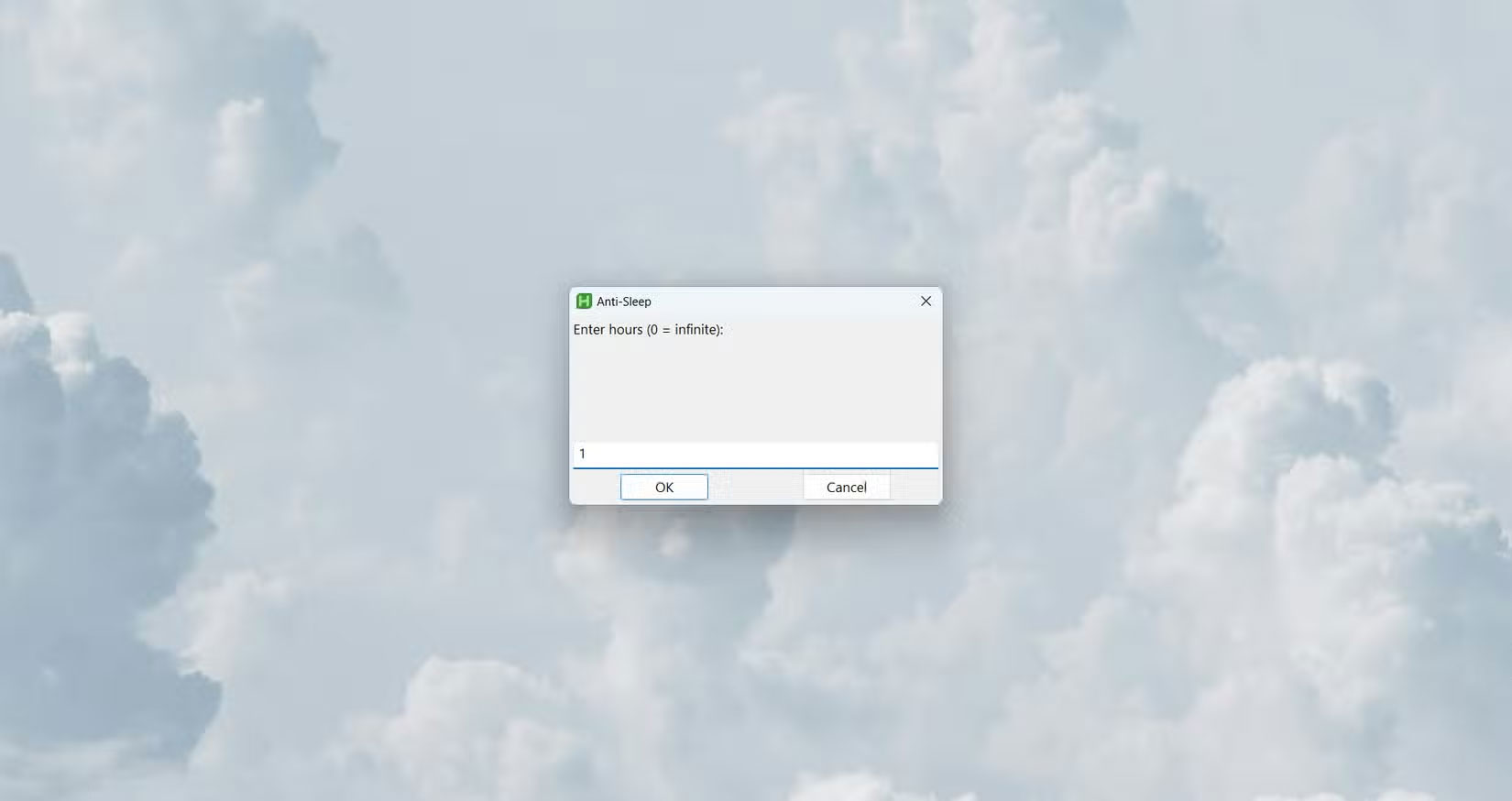
<h2 style="text-align: justify;">1. Ngăn máy tính không rơi vào chế độ Sleep</h2>

<figure>
<div style="text-align: justify;"><img alt="Script đặt bộ hẹn giờ giờ cho AHK" data-i="4" data-src="https://st.quantrimang.com/photos/image/2025/06/03/autohotkey-script-yeu-thich-5.jpg" data-was-processed="true" height="874" src="https://st.quantrimang.com/photos/image/2025/06/03/autohotkey-script-yeu-thich-5.jpg" width="1650" /></div>

<figcaption>
<div style="text-align: justify;">Script đặt bộ hẹn giờ giờ cho AHK</div>
</figcaption>
</figure>

<p style="text-align: justify;">Đôi khi bạn tải xuống và chuyển các file lớn hơn trên máy tính của mình. Toàn bộ quá trình có thể mất vài phút đến vài giờ. Vấn đề là quá trình tải xuống thường bị gián đoạn do máy tính rơi vào chế độ Sleep sau vài phút. Điều này luôn khiến mọi người bực bội vì việc thử lại hoặc tiếp tục tải xuống thường không thành công. Để giải quyết vấn đề, hãy tạo một script liên kết với các phím&nbsp;<strong>Ctrl + Alt + Shift + S&nbsp;</strong>để ngăn máy tính không rơi vào chế độ Sleep.</p>

<pre id="pre9">
<code>#Requires AutoHotkey v2.0
#SingleInstance Force

global on := false, endTime := 0

^!+s::{
global on, endTime
if !on {
hrs := InputBox(&quot;Enter hours (0 = infinite):&quot;, &quot;Anti-Sleep&quot;).Value
if !IsNumber(hrs) || hrs return MsgBox(&quot;Invalid input.&quot;)
endTime := hrs ? A_TickCount + hrs*3600000 : 0
SetTimer(AntiSleep, 300000), SetTimer(CheckEnd, 1000), on := true
ToolTip(&quot;Anti-Sleep: ON&quot; (hrs ? &quot;`n&quot; hrs &quot;h&quot; : &quot;&quot;), 500, 500), SetTimer(() =&gt; ToolTip(), -1500)
} else { ; Required braces for multi-line else block
SetTimer(AntiSleep, 0), SetTimer(CheckEnd, 0), on := false
ToolTip(&quot;Anti-Sleep: OFF&quot;, 500, 500), SetTimer(() =&gt; ToolTip(), -1000)
}
}

AntiSleep() =&gt; (MouseMove(1,0,0,&quot;R&quot;), MouseMove(-1,0,0,&quot;R&quot;))
CheckEnd() =&gt; endTime &amp;&amp; A_TickCount &gt;= endTime &amp;&amp; Send(&quot;^!+s&quot;)
^!+x::Send(&quot;^!+s&quot;)</code></pre>

<p style="text-align: justify;">Script hoạt động bằng cách di chuyển chuột một chút sau mỗi 5 phút. Theo cách này, PC sẽ không ở chế độ chờ và ngủ. Bạn có thể mở rộng script để bao gồm cả bộ đếm thời gian hủy kích hoạt script sau một khoảng thời gian nhất định. Script cũng hiển thị một chú giải công cụ nhỏ khi bạn kích hoạt hoặc hủy kích hoạt script, do đó, bạn luôn biết được script có đang chạy hay không.</p>

<div style="text-align: justify;">&nbsp;</div>
		</div>
				<div id="author">
						<p>
				<strong>Nguồn tin:</strong>
				Quantrimang.com:
			</p>
		</div>
	</div>
	<div id="footer" class="clearfix">
		<div id="url">
			<strong>URL của bản tin này: </strong><a href="https://www.nguoicodonvn2008.info/vi/news/savefile/kien-thuc-may-tinh/10-script-autohotkey-giup-cuoc-song-de-dang-hon-10500.html" title="10 script AutoHotKey giúp cuộc sống dễ dàng hơn">https://www.nguoicodonvn2008.info/vi/news/savefile/kien-thuc-may-tinh/10-script-autohotkey-giup-cuoc-song-de-dang-hon-10500.html</a>

		</div>
		<div class="clear"></div>
		<div class="copyright">
			&copy; .&#x3A; Nguoicodonvn2008.info - Cõi lòng người cô đơn &#x3A;.
		</div>
		<div id="contact">
			<a href="mailto:admin@nguoicodonvn2008.info">admin@nguoicodonvn2008.info</a>
		</div>
	</div>
</div>
        <div id="timeoutsess" class="chromeframe">
            Bạn đã không sử dụng Site, <a onclick="timeoutsesscancel();" href="https://nguoicodonvn2008.info/#">Bấm vào đây để duy trì trạng thái đăng nhập</a>. Thời gian chờ: <span id="secField"> 60 </span> giây
        </div>
        <div id="openidResult" class="nv-alert" style="display:none"></div>
        <div id="openidBt" data-result="" data-redirect=""></div>
		</script>
		<div class="car-top">
  <span><img src="https://nguoicodonvn2008.info/themes/default/images/car.png" alt=""></span>
</div>
<div id="run_cronjobs" style="visibility:hidden;display:none;"><img alt="cron" src="/index.php?second=cronjobs&amp;p=i2C7wcES" width="1" height="1" /></div>
<script src="https://nguoicodonvn2008.info/assets/js/jquery/jquery.min.js"></script>
<script>var nv_base_siteurl="/",nv_lang_data="vi",nv_lang_interface="vi",nv_name_variable="nv",nv_fc_variable="op",nv_lang_variable="language",nv_module_name="news",nv_func_name="savefile",nv_is_user=0, nv_my_ofs=-4,nv_my_abbr="EDT",nv_cookie_prefix="nv4c_e856T",nv_check_pass_mstime=1738000,nv_area_admin=0,nv_safemode=0,theme_responsive=0,nv_recaptcha_ver=2,nv_recaptcha_sitekey="",nv_recaptcha_type="image",XSSsanitize=1;</script>
<script src="https://nguoicodonvn2008.info/assets/js/language/vi.js"></script>
<script src="https://nguoicodonvn2008.info/assets/js/DOMPurify/purify3.js"></script>
<script src="https://nguoicodonvn2008.info/assets/js/global.js"></script>
<script src="https://nguoicodonvn2008.info/assets/js/site.js"></script>
<script src="https://nguoicodonvn2008.info/themes/default/js/news.js"></script>
<script src="https://nguoicodonvn2008.info/themes/default/js/main.js"></script>
<script src="https://nguoicodonvn2008.info/themes/default/js/custom.js"></script>
<script type="application/ld+json">
        {
            "@context": "https://schema.org",
            "@type": "Organization",
            "url": "https://nguoicodonvn2008.info",
            "logo": "https://nguoicodonvn2008.info/uploads/angel.gif"
        }
        </script>
<script src="https://nguoicodonvn2008.info/themes/default/js/bootstrap.min.js"></script>
<script type="text/javascript">
var $scrolltop = $('.car-top');
$scrolltop.on('click', function () {
    $('html,body').animate({
        scrollTop: 0
    }, 800);
    $(this).addClass("car-run");
    setTimeout(function(){ $scrolltop.removeClass('car-run');}, 1000);
    return false;
});
$(window).on('scroll', function ()
{ 
    if($(window).scrollTop() >= 200)
    {
        $scrolltop.addClass("show");
        $scrolltop.addClass("car-down");
    }
    else
    {
       $scrolltop.removeClass("show");
       setTimeout(function(){ $scrolltop.removeClass('car-down');}, 300);
    }
});
</script>
</body>
</html>