<!DOCTYPE html>
    <html lang="vi" xmlns="http://www.w3.org/1999/xhtml" prefix="og: http://ogp.me/ns#">
    <head>
<title>10 cách mở tiện ích Bluetooth File Transfer trên Windows 11</title>
<meta name="description" content="10 cách mở tiện ích Bluetooth File Transfer trên Windows 11 - Savefile - Tin Tức -...">
<meta name="author" content=".: Nguoicodonvn2008.info - Cõi lòng người cô đơn :.">
<meta name="copyright" content=".: Nguoicodonvn2008.info - Cõi lòng người cô đơn :. [admin@nguoicodonvn2008.info]">
<meta name="robots" content="index, archive, follow, noodp">
<meta name="googlebot" content="index,archive,follow,noodp">
<meta name="msnbot" content="all,index,follow">
<meta name="generator" content="NukeViet v4.5">
<meta http-equiv="Content-Type" content="text/html; charset=utf-8">
<meta property="og:title" content="10 cách mở tiện ích Bluetooth File Transfer trên Windows 11">
<meta property="og:type" content="website">
<meta property="og:description" content="Savefile - Tin Tức - https&#x3A;&#x002F;&#x002F;www.nguoicodonvn2008.info&#x002F;vi&#x002F;news&#x002F;savefile&#x002F;kien-thuc-may-tinh&#x002F;10-cach-mo-tien-ich-bluetooth-file-transfer-tren-windows-11-6847.html">
<meta property="og:site_name" content=".&#x3A; Nguoicodonvn2008.info - Cõi lòng người cô đơn &#x3A;.">
<meta property="og:url" content="https://www.nguoicodonvn2008.info/vi/news/savefile/kien-thuc-may-tinh/10-cach-mo-tien-ich-bluetooth-file-transfer-tren-windows-11-6847.html">
<link rel="shortcut icon" href="https://nguoicodonvn2008.info/favicon.ico">
<link rel="canonical" href="https://www.nguoicodonvn2008.info/vi/news/savefile/kien-thuc-may-tinh/10-cach-mo-tien-ich-bluetooth-file-transfer-tren-windows-11-6847.html">
<link rel="alternate" href="https://nguoicodonvn2008.info/vi/news/rss/" title="Tin Tức" type="application/rss+xml">
<link rel="alternate" href="https://nguoicodonvn2008.info/vi/news/rss/karaoke-dual/" title="Tin Tức - Karaoke Dual" type="application/rss+xml">
<link rel="alternate" href="https://nguoicodonvn2008.info/vi/news/rss/nhac-tre/" title="Tin Tức - Nhạc trẻ" type="application/rss+xml">
<link rel="alternate" href="https://nguoicodonvn2008.info/vi/news/rss/tru-tinh/" title="Tin Tức - Trữ tình" type="application/rss+xml">
<link rel="alternate" href="https://nguoicodonvn2008.info/vi/news/rss/nuoc-ngoai/" title="Tin Tức - Nước ngoài" type="application/rss+xml">
<link rel="alternate" href="https://nguoicodonvn2008.info/vi/news/rss/remix/" title="Tin Tức - Remix" type="application/rss+xml">
<link rel="alternate" href="https://nguoicodonvn2008.info/vi/news/rss/tam-su-tinh-yeu/" title="Tin Tức - Tâm sự tình yêu" type="application/rss+xml">
<link rel="alternate" href="https://nguoicodonvn2008.info/vi/news/rss/tho-suu-tam/" title="Tin Tức - Thơ sưu tầm" type="application/rss+xml">
<link rel="alternate" href="https://nguoicodonvn2008.info/vi/news/rss/cuoc-song/" title="Tin Tức - Cuộc sống" type="application/rss+xml">
<link rel="alternate" href="https://nguoicodonvn2008.info/vi/news/rss/phan-mem/" title="Tin Tức - Phần mềm" type="application/rss+xml">
<link rel="alternate" href="https://nguoicodonvn2008.info/vi/news/rss/kien-thuc-may-tinh/" title="Tin Tức - Kiến thức máy tính" type="application/rss+xml">
<link rel="alternate" href="https://nguoicodonvn2008.info/vi/news/rss/hoc-tap/" title="Tin Tức - Học tập" type="application/rss+xml">
<link rel="alternate" href="https://nguoicodonvn2008.info/vi/news/rss/tai-lieu/" title="Tin Tức - Tài liệu" type="application/rss+xml">
<link rel="alternate" href="https://nguoicodonvn2008.info/vi/news/rss/de-thi/" title="Tin Tức - Đề thi" type="application/rss+xml">
<link rel="preload" as="style" href="https://nguoicodonvn2008.info/assets/css/font-awesome.min.css" type="text/css">
<link rel="preload" as="style" href="https://nguoicodonvn2008.info/themes/default/css/bootstrap.non-responsive.css" type="text/css">
<link rel="preload" as="style" href="https://nguoicodonvn2008.info/themes/default/css/style.css" type="text/css">
<link rel="preload" as="style" href="https://nguoicodonvn2008.info/themes/default/css/style.non-responsive.css" type="text/css">
<link rel="preload" as="style" href="https://nguoicodonvn2008.info/themes/default/css/news.css" type="text/css">
<link rel="preload" as="style" href="https://nguoicodonvn2008.info/themes/default/css/custom.css" type="text/css">
<link rel="preload" as="script" href="https://nguoicodonvn2008.info/assets/js/jquery/jquery.min.js" type="text/javascript">
<link rel="preload" as="script" href="https://nguoicodonvn2008.info/assets/js/language/vi.js" type="text/javascript">
<link rel="preload" as="script" href="https://nguoicodonvn2008.info/assets/js/DOMPurify/purify3.js" type="text/javascript">
<link rel="preload" as="script" href="https://nguoicodonvn2008.info/assets/js/global.js" type="text/javascript">
<link rel="preload" as="script" href="https://nguoicodonvn2008.info/assets/js/site.js" type="text/javascript">
<link rel="preload" as="script" href="https://nguoicodonvn2008.info/themes/default/js/news.js" type="text/javascript">
<link rel="preload" as="script" href="https://nguoicodonvn2008.info/themes/default/js/main.js" type="text/javascript">
<link rel="preload" as="script" href="https://nguoicodonvn2008.info/themes/default/js/custom.js" type="text/javascript">
<link rel="preload" as="script" href="https://nguoicodonvn2008.info/themes/default/js/bootstrap.min.js" type="text/javascript">
<link rel="stylesheet" href="https://nguoicodonvn2008.info/assets/css/font-awesome.min.css">
<link rel="stylesheet" href="https://nguoicodonvn2008.info/themes/default/css/bootstrap.non-responsive.css">
<link rel="stylesheet" href="https://nguoicodonvn2008.info/themes/default/css/style.css">
<link rel="stylesheet" href="https://nguoicodonvn2008.info/themes/default/css/style.non-responsive.css">
<link rel="StyleSheet" href="https://nguoicodonvn2008.info/themes/default/css/news.css">
<link rel="stylesheet" href="https://nguoicodonvn2008.info/themes/default/css/custom.css">
<style type="text/css">
	body{background: #fff;}
</style>
    </head>
    <body>
<div id="print">
	<div id="hd_print">
		<h2 class="pull-left">.&#x3A; Nguoicodonvn2008.info - Cõi lòng người cô đơn &#x3A;.</h2>
		<p class="pull-right"><a title=".&#x3A; Nguoicodonvn2008.info - Cõi lòng người cô đơn &#x3A;." href="https://nguoicodonvn2008.info/">https://nguoicodonvn2008.info</a></p>
	</div>
	<div class="clear"></div>
	<hr />
	<div id="content">
		<h1>10 cách mở tiện ích Bluetooth File Transfer trên Windows 11</h1>
		<ul class="list-inline">
			<li>Thứ hai - 06/03/2023 00:03</li>
			<li class="hidden-print txtrequired"><em class="fa fa-print">&nbsp;</em><a title="In ra" href="javascript:;" onclick="window.print()">In ra</a></li>
			<li class="hidden-print txtrequired"><em class="fa fa-power-off">&nbsp;</em><a title="Đóng cửa sổ này" href="javascript:;" onclick="window.close()">Đóng cửa sổ này</a></li>
		</ul>
		<div class="clear"></div>
		<div id="hometext">
		</div>
				<div class="imghome">
			<img alt="10 cách mở tiện ích Bluetooth File Transfer trên Windows 11" src="https://st.quantrimang.com/photos/image/2023/03/04/mo-bluetooth-file-transfer-9.jpg" width="460" class="img-thumbnail" />
		</div>
		<div class="clear"></div>
		<div id="bodytext" class="clearfix">
			<p style="text-align: justify;">Bluetooth&nbsp;là một phương tiện kết nối vô cùng phổ biến để ghép nối hai thiết bị. Bạn có thể sử dụng Bluetooth để kết nối không dây các phụ kiện âm thanh và những thiết bị ngoại vi khác với máy tính của mình. Ngoài ra, bạn cũng có thể gửi và nhận file bằng tiện ích Bluetooth File Transfer trong Windows 11.</p>

<p style="text-align: justify;">Bạn có thể thắc mắc tại sao lại sử dụng một phương tiện chậm như vậy để truyền file. Trên thực tế, Bluetooth hoạt động rất tốt để gửi và nhận các file có kích thước nhỏ, đặc biệt đối với những người dùng không thể sử dụng WiFi trực tiếp hoặc kết nối có dây. Bài viết sau đây sẽ liệt kê một số phương pháp để bạn có thể khởi chạy tiện ích Bluetooth File Transfer trên Windows 11. Cùng tìm hiểu chi tiết ngay sau đây nhé!</p>

<h2 style="text-align: justify;">1. Sử dụng menu Start</h2>

<p style="text-align: justify;">Phương pháp đơn giản nhất là sử dụng menu Start để truy cập và khởi chạy tiện ích Bluetooth File Transfer. Làm theo các bước sau:</p>

<ul>
	<li style="text-align: justify;">Nhấn phím&nbsp;<strong>Win</strong>&nbsp;để khởi chạy menu Start.</li>
	<li style="text-align: justify;">Nhập&nbsp;<strong>Bluetooth</strong>&nbsp;và nhấp vào tùy chọn&nbsp;<strong>Bluetooth and other devices settings</strong>.</li>
	<li style="text-align: justify;">Ứng dụng Settings sẽ khởi chạy. Cuộn xuống và nhấp vào tùy chọn&nbsp;<strong>Send or receive files via Bluetooth</strong>.</li>
	<li style="text-align: justify;">Khi tiện ích Bluetooth File Transfer bật lên, hãy nhấp vào tùy chọn&nbsp;<strong>Send files</strong>&nbsp;hoặc&nbsp;<strong>Receive files</strong>&nbsp;để bắt đầu quá trình chia sẻ file.</li>
</ul>

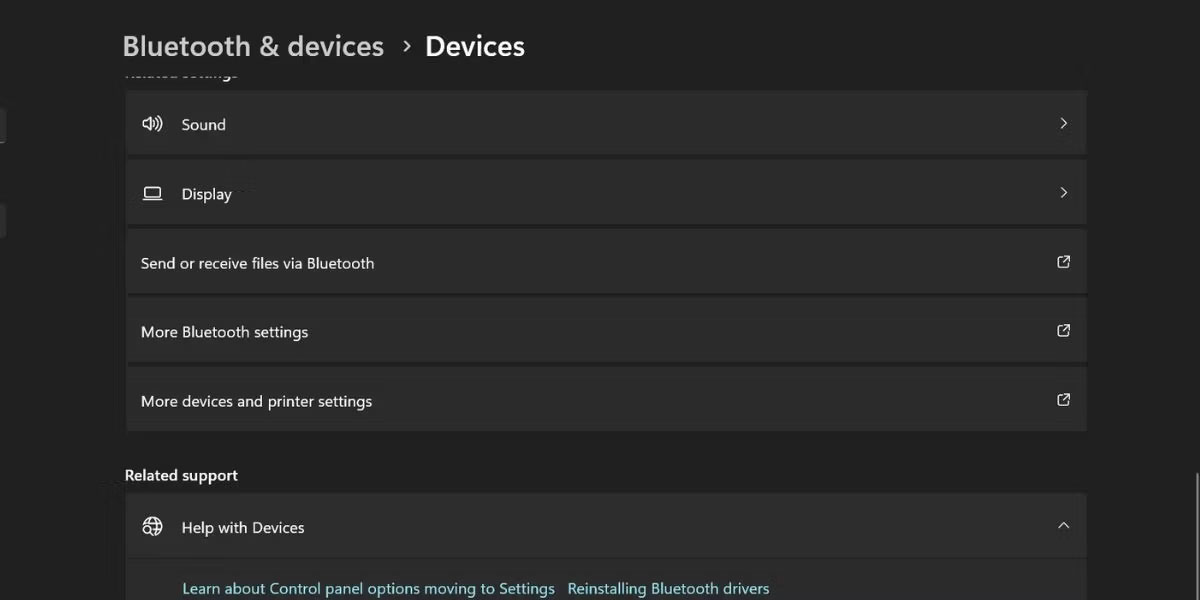
<h2 style="text-align: justify;">2. Sử dụng ứng dụng Settings</h2>

<p style="text-align: justify;">Windows 11&nbsp;đã chuyển nhiều tính năng của Control Panel sang ứng dụng Settings. Bạn có thể thêm và quản lý tất cả các thiết bị bao gồm cả thiết bị Bluetooth thông qua ứng dụng Settings. Đây là cách thực hiện:</p>

<p style="text-align: justify;">1. Nhấn&nbsp;<strong>Win + I</strong>&nbsp;để&nbsp;khởi chạy ứng dụng Settings.</p>

<p style="text-align: justify;">2. Điều hướng đến menu bên trái và nhấp vào tùy chọn&nbsp;<strong>Bluetooth and devices</strong>.</p>

<p style="text-align: justify;">3. Cuộn xuống và nhấp vào tùy chọn&nbsp;<strong>Device</strong>. Sau đó, nhấp vào tùy chọn&nbsp;<strong>Send or receive files via Bluetooth</strong>.</p>

<figure>
<div style="text-align: justify;"><img alt="Mở Bluetooth File Transfer bằng Settings" data-i="0" data-src="https://st.quantrimang.com/photos/image/2023/03/04/mo-bluetooth-file-transfer-1.jpg" data-was-processed="true" height="600" src="https://st.quantrimang.com/photos/image/2023/03/04/mo-bluetooth-file-transfer-1.jpg" width="1200" /></div>

<figcaption>
<div style="text-align: justify;">Mở Bluetooth File Transfer bằng Settings</div>
</figcaption>
</figure>

<p style="text-align: justify;">4. Bây giờ, hãy bắt đầu phiên truyền file với bất kỳ thiết bị được ghép nối nào.</p>

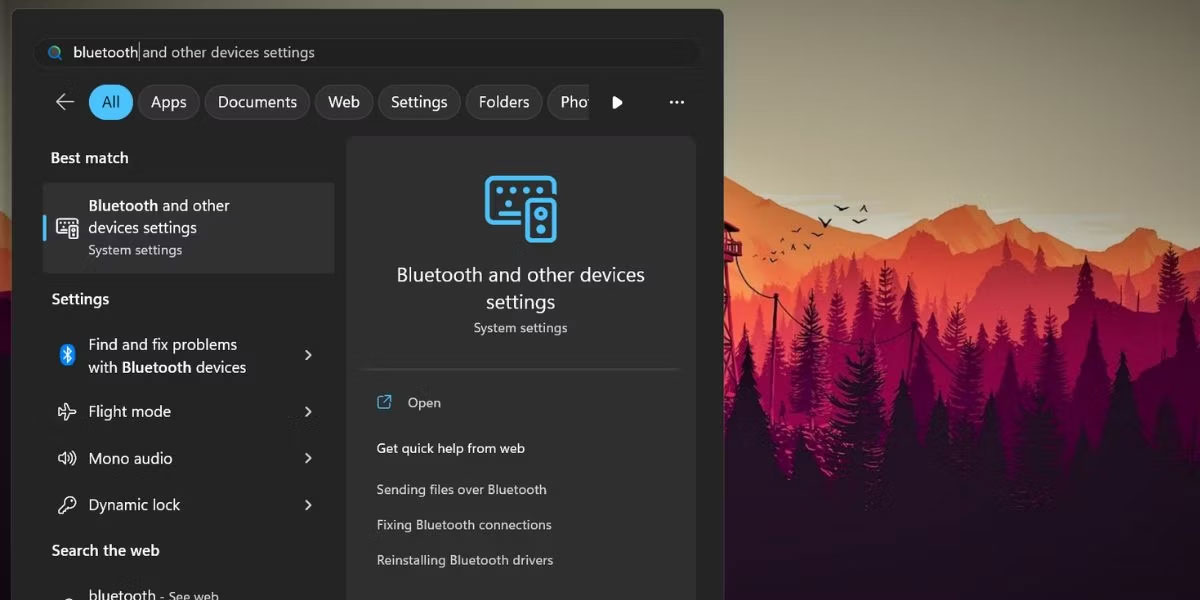
<h2 style="text-align: justify;">3. Sử dụng Windows Search</h2>

<p style="text-align: justify;">Windows 11 có một ứng dụng tìm kiếm hoàn toàn mới thậm chí còn tìm nạp kết quả từ web. Dưới đây là cách khởi chạy tiện ích Bluetooth File Transfer bằng cách sử dụng chức năng tìm kiếm của Windows:</p>

<p style="text-align: justify;">1. Nhấn&nbsp;<strong>Win + S</strong>&nbsp;để khởi chạy tìm kiếm Windows.</p>

<p style="text-align: justify;">2. Nhập&nbsp;<strong>Bluetooth and other devices settings</strong>, rồi nhấp vào kết quả tìm kiếm có liên quan.</p>

<figure>
<div style="text-align: justify;"><img alt="Mở Bluetooth File Transfer bằng Windows Search" data-i="1" data-src="https://st.quantrimang.com/photos/image/2023/03/04/mo-bluetooth-file-transfer-2.jpg" data-was-processed="true" height="600" src="https://st.quantrimang.com/photos/image/2023/03/04/mo-bluetooth-file-transfer-2.jpg" width="1200" /></div>

<figcaption>
<div style="text-align: justify;">Mở Bluetooth File Transfer bằng Windows Search</div>
</figcaption>
</figure>

<p style="text-align: justify;">3. Trang&nbsp;<strong>Bluetooth and devices</strong>&nbsp;sẽ khởi chạy. Tìm tùy chọn&nbsp;<strong>Send or receive files via Bluetooth</strong>&nbsp;và nhấp vào tùy chọn đó.</p>

<p style="text-align: justify;">4. Tiện ích Bluetooth File Transfer sẽ khởi chạy trên hệ thống của bạn.</p>

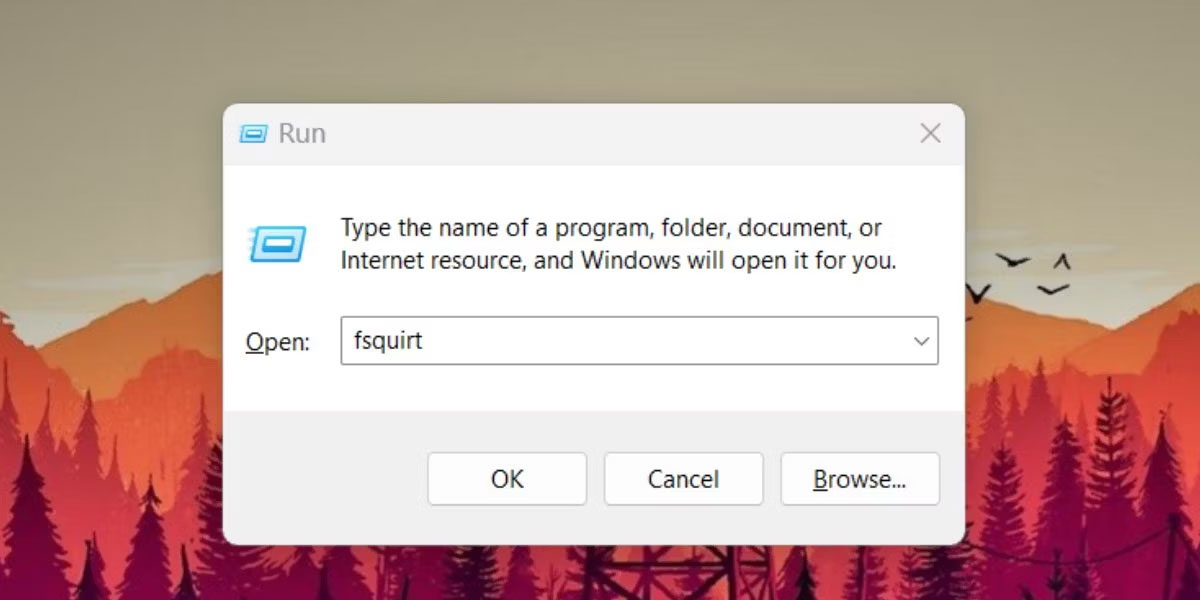
<h2 style="text-align: justify;">4. Sử dụng hộp lệnh Run</h2>

<p style="text-align: justify;">Nếu không muốn sử dụng ứng dụng Settings, bạn có thể khởi chạy công cụ Bluetooth File Transfer bằng hộp thoại Run. Đây là cách thực hiện:</p>

<p style="text-align: justify;">1. Nhấn&nbsp;<strong>Win + R</strong>&nbsp;để&nbsp;<a href="https://quantrimang.com/cong-nghe/cach-mo-hop-thoai-run-trong-windows-187019" title="7 cách mở hộp thoại Run trong Windows">khởi chạy hộp lệnh Run</a>.</p>

<figure>
<div style="text-align: justify;"><img alt="Mở Bluetooth File Transfer bằng Run" data-i="2" data-src="https://st.quantrimang.com/photos/image/2023/03/04/mo-bluetooth-file-transfer-3.jpg" data-was-processed="true" height="600" src="https://st.quantrimang.com/photos/image/2023/03/04/mo-bluetooth-file-transfer-3.jpg" width="1200" /></div>

<figcaption>
<div style="text-align: justify;">Mở Bluetooth File Transfer bằng Run</div>
</figcaption>
</figure>

<p style="text-align: justify;">2. Nhập&nbsp;<strong>fsquirt</strong>&nbsp;và nhấn phím&nbsp;<strong>Enter</strong>&nbsp;để mở công cụ Bluetooth File Transfer.</p>

<h2 style="text-align: justify;">5. Sử dụng Action Center</h2>

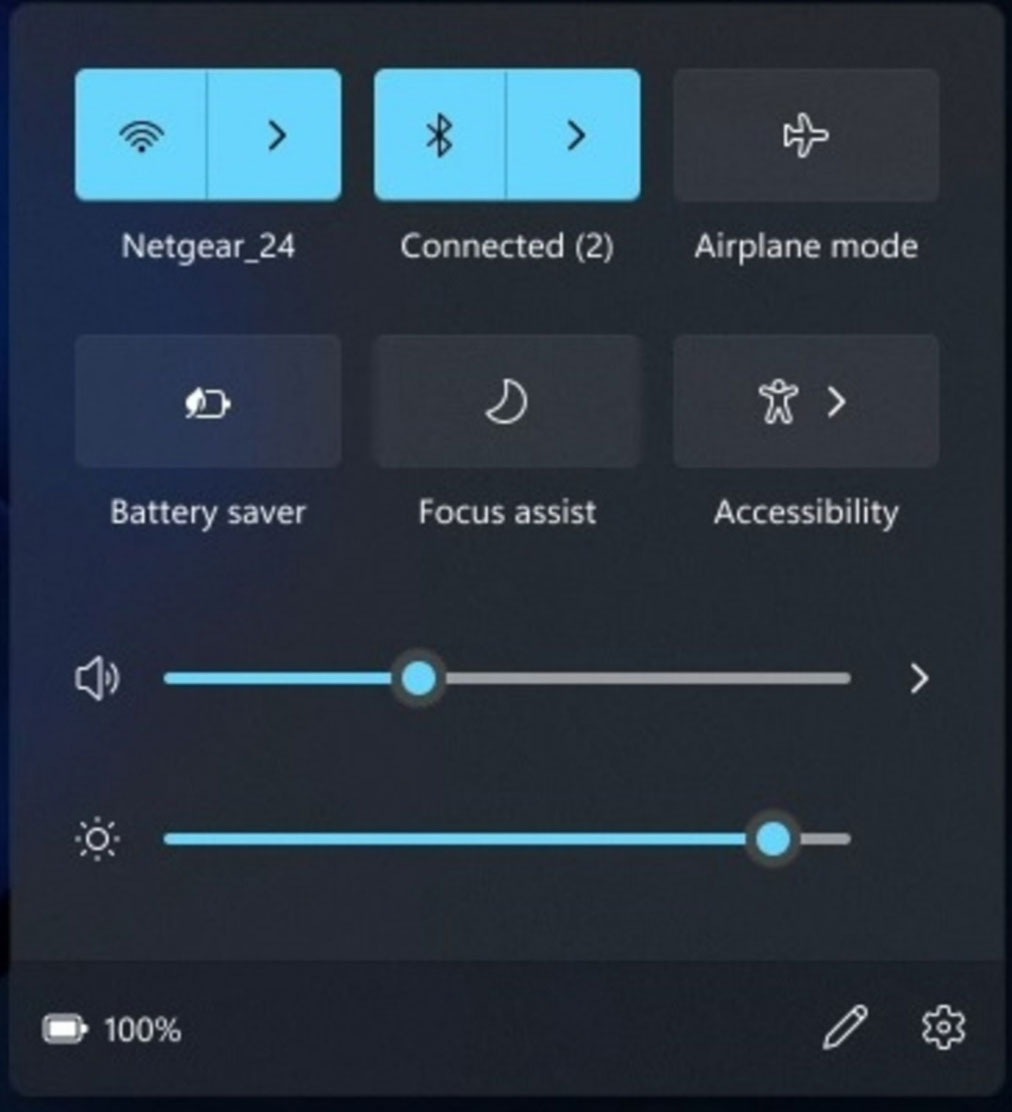
<p style="text-align: justify;">Windows 10 và 11 có Action Center đóng vai trò là khu vực truy cập nhanh các tính năng hữu ích của Windows. Thực hiện theo các bước sau:</p>

<p style="text-align: justify;">1. Nhấn&nbsp;<strong>Win + A&nbsp;</strong>để khởi chạy Action Center.</p>

<p style="text-align: justify;">2. Nhấp vào biểu tượng mũi tên bên cạnh ô&nbsp;<strong>Bluetooth.</strong></p>

<p style="text-align: justify;">3. Bây giờ, hãy nhấp vào tùy chọn&nbsp;<strong>More Bluetooth settings</strong>. Trang&nbsp;<strong>Bluetooth and devices</strong>&nbsp;sẽ khởi chạy.</p>

<figure>
<div style="text-align: justify;"><img alt="Mở Bluetooth File Transfer bằng Action Center" data-i="3" data-src="https://st.quantrimang.com/photos/image/2023/03/04/mo-bluetooth-file-transfer-4.jpg" data-was-processed="true" height="1112" src="https://st.quantrimang.com/photos/image/2023/03/04/mo-bluetooth-file-transfer-4.jpg" width="1012" /></div>

<figcaption>
<div style="text-align: justify;">Mở Bluetooth File Transfer bằng Action Center</div>
</figcaption>
</figure>

<p style="text-align: justify;">4. Điều hướng đến phần&nbsp;<strong>Devices</strong>&nbsp;và nhấp vào tùy chọn&nbsp;<strong>Send or receive files via Bluetooth</strong>.</p>

<p style="text-align: justify;">5. Bắt đầu phiên truyền file với một thiết bị được ghép nối.</p>

<h2 style="text-align: justify;">6. Sử dụng CMD</h2>

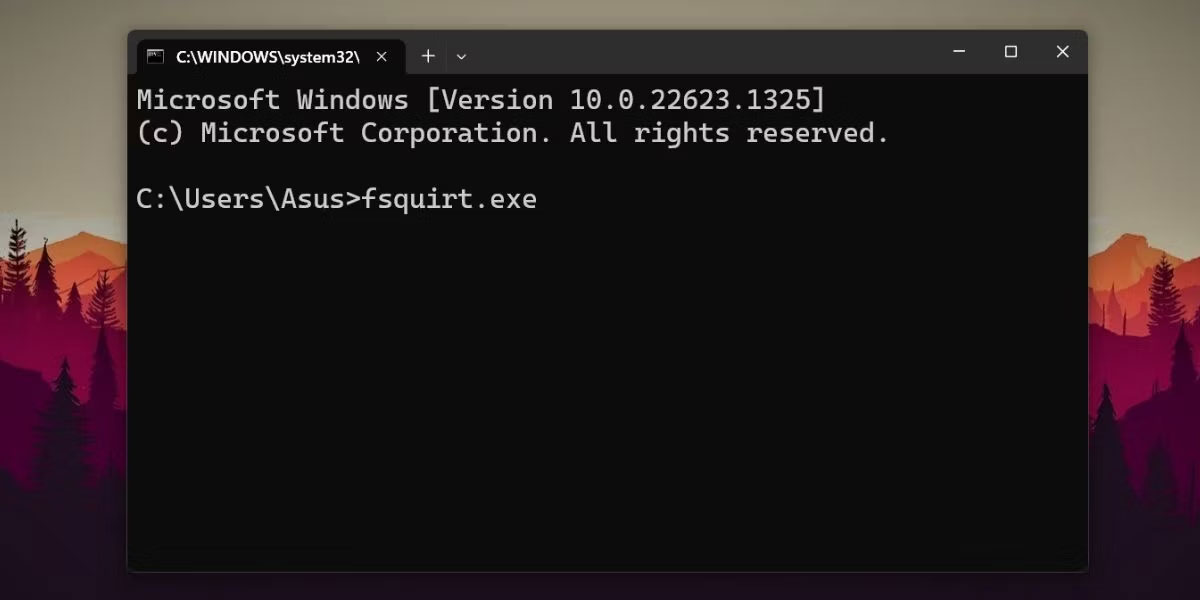
<p style="text-align: justify;">Bạn có thể gọi tiện ích Bluetooth File Transfer từ ứng dụng Command Prompt. Phương pháp này hữu ích nếu bạn không thể truy cập Action Center hoặc ứng dụng Settings trên hệ thống của mình. Đây là cách thực hiện:</p>

<p style="text-align: justify;">1. Nhấn&nbsp;<strong>Win + R</strong>&nbsp;để khởi chạy hộp lệnh Run. Nhập&nbsp;<strong>cmd</strong>&nbsp;và nhấn phím&nbsp;<strong>Enter.</strong></p>

<p style="text-align: justify;">2. Trong cửa sổ Command Prompt, gõ&nbsp;<strong>fsquirt.exe</strong>&nbsp;và nhấn phím&nbsp;<strong>Enter.</strong></p>

<figure>
<div style="text-align: justify;"><img alt="Mở Bluetooth File Transfer bằng CMD" data-i="4" data-src="https://st.quantrimang.com/photos/image/2023/03/04/mo-bluetooth-file-transfer-5.jpg" data-was-processed="true" height="600" src="https://st.quantrimang.com/photos/image/2023/03/04/mo-bluetooth-file-transfer-5.jpg" width="1200" /></div>

<figcaption>
<div style="text-align: justify;">Mở Bluetooth File Transfer bằng CMD</div>
</figcaption>
</figure>

<p style="text-align: justify;">3. Công cụ Bluetooth File Transfer sẽ tự động khởi chạy trên hệ thống của bạn.</p>

<p style="text-align: justify;">4. Đóng cửa sổ Command Prompt và bắt đầu phiên truyền file.</p>

<h2 style="text-align: justify;">7. Sử dụng ứng dụng File Explorer</h2>

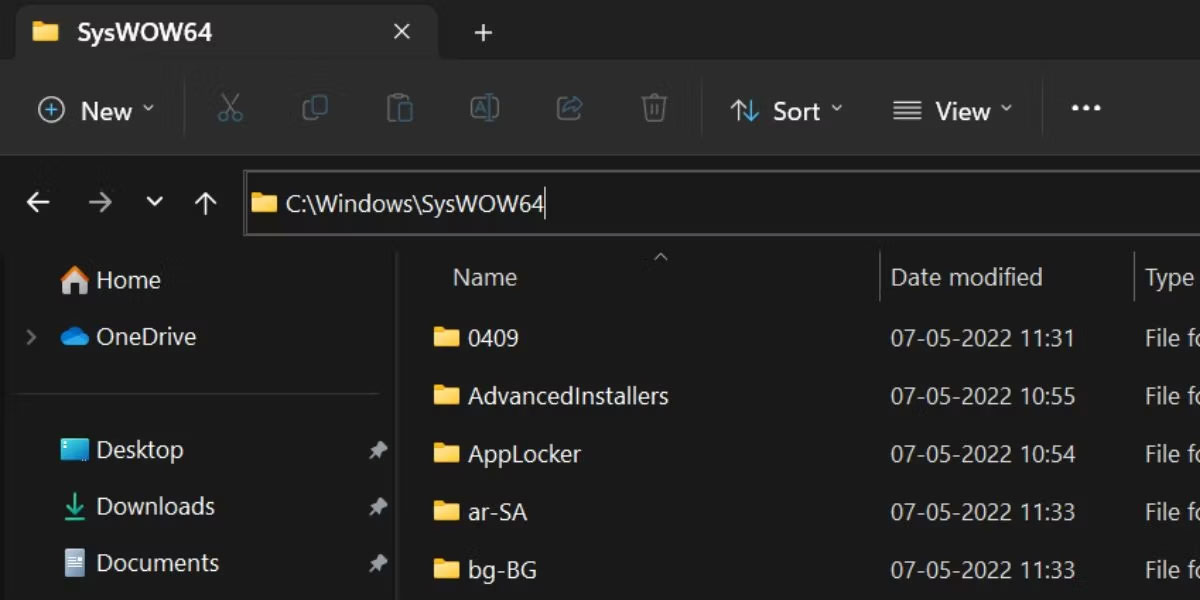
<p style="text-align: justify;">Giống như tất cả các công cụ Windows, Bluetooth File Transfer cũng có trong thư mục&nbsp;<strong>SysWOW64.</strong>&nbsp;Bạn có thể truy cập trực tiếp từ ổ C: bằng ứng dụng File Explorer. Đảm bảo có quyền admin để truy cập thư mục SysWOW64. Làm theo các bước sau:</p>

<p style="text-align: justify;">1. Nhấn&nbsp;<strong>Win + E</strong>&nbsp;để&nbsp;<a href="https://quantrimang.com/cong-nghe/cach-mo-file-explorer-tren-windows-11-184094" title="Tổng hợp các cách mở File Explorer trên Windows 11">khởi chạy File Explorer</a>. Di chuyển đến cửa sổ điều hướng và nhấp vào ổ C:.</p>

<p style="text-align: justify;">2. Bây giờ, hãy chuyển đến thanh địa chỉ và nhập đường dẫn sau:&nbsp;<strong>C:\Windows\SysWOW64.</strong></p>

<figure>
<div style="text-align: justify;"><img alt="Mở Bluetooth File Transfer bằng File Explorer" data-i="5" data-src="https://st.quantrimang.com/photos/image/2023/03/04/mo-bluetooth-file-transfer-6.jpg" data-was-processed="true" height="600" src="https://st.quantrimang.com/photos/image/2023/03/04/mo-bluetooth-file-transfer-6.jpg" width="1200" /></div>

<figcaption>
<div style="text-align: justify;">Mở Bluetooth File Transfer bằng File Explorer</div>
</figcaption>
</figure>

<p style="text-align: justify;">3. Nhấn phím&nbsp;<strong>Enter</strong>&nbsp;để truy cập thư mục&nbsp;<strong>SysWOW64.</strong></p>

<p style="text-align: justify;">4. Bây giờ, hãy xác định vị trí file fsquirt.exe và nhấp vào file đó để khởi chạy tiện ích Bluetooth File Transfer.</p>

<p style="text-align: justify;">5. Đóng File Explorer.</p>

<h2 style="text-align: justify;">8. Sử dụng PowerShell</h2>

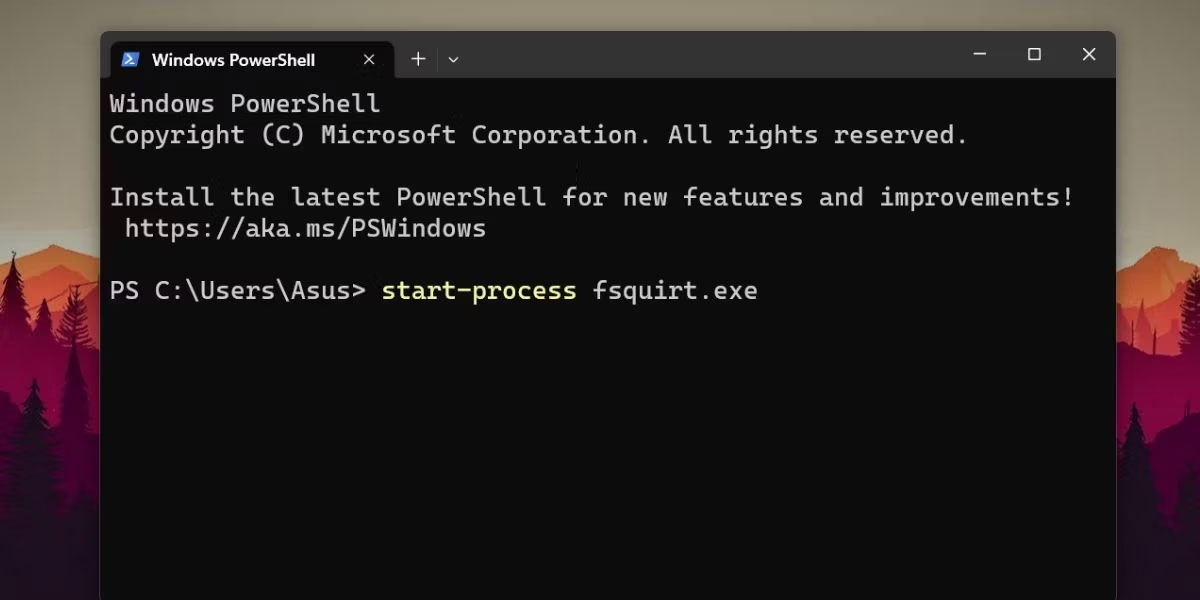
<p style="text-align: justify;">Giống như CMD, bạn có thể sử dụng&nbsp;PowerShell&nbsp;để khởi động tiện ích Bluetooth File Transfer. Bạn có thể sử dụng lệnh&nbsp;<strong>start-process</strong>&nbsp;để khởi chạy công cụ. Đây là cách thực hiện:</p>

<p style="text-align: justify;">1. Nhấn&nbsp;<strong>Win + S</strong>&nbsp;để khởi chạy Windows Search.</p>

<p style="text-align: justify;">2. Nhập&nbsp;<strong>PowerShell</strong>&nbsp;và nhấp vào tùy chọn&nbsp;<strong>Run as administrator</strong>&nbsp;ở bên phải.</p>

<p style="text-align: justify;">3. UAC sẽ bật lên. Nhấp vào nút&nbsp;<strong>Yes</strong>.</p>

<p style="text-align: justify;">4. Trong cửa sổ PowerShell, gõ lệnh&nbsp;<strong>start-process fsquirt.exe</strong>&nbsp;rồi nhấn phím&nbsp;<strong>Enter.</strong></p>

<figure>
<div style="text-align: justify;"><img alt="Mở Bluetooth File Transfer bằng PowerShell" data-i="6" data-src="https://st.quantrimang.com/photos/image/2023/03/04/mo-bluetooth-file-transfer-7.jpg" data-was-processed="true" height="600" src="https://st.quantrimang.com/photos/image/2023/03/04/mo-bluetooth-file-transfer-7.jpg" width="1200" /></div>

<figcaption>
<div style="text-align: justify;">Mở Bluetooth File Transfer bằng PowerShell</div>
</figcaption>
</figure>

<p style="text-align: justify;">5. Sau khi cửa sổ tiện ích Bluetooth File Transfer khởi chạy, hãy nhập&nbsp;<strong>exit&nbsp;</strong>trong PowerShell để đóng nó.</p>

<h2 style="text-align: justify;">9. Sử dụng batch script</h2>

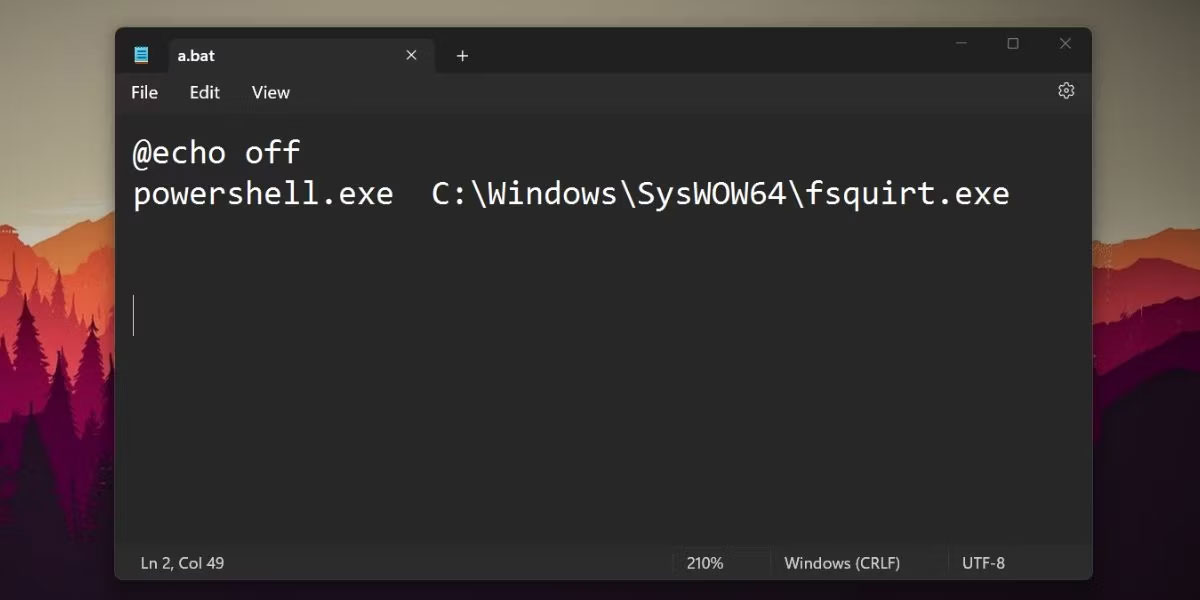
<p style="text-align: justify;">Batch script có thể giúp bạn tiết kiệm rất nhiều thời gian tìm kiếm hoặc duyệt tìm ứng dụng chia sẻ Bluetooth. Lặp lại các bước sau để tạo batch file:</p>

<p style="text-align: justify;">1. Nhấn&nbsp;<strong>Win + D</strong>&nbsp;để đi đến desktop. Nhấp chuột phải vào desktop và chọn&nbsp;<strong>New &gt; Text Document</strong>.</p>

<p style="text-align: justify;">2. Nhấp đúp vào file vừa tạo để mở file trong Notepad.</p>

<p style="text-align: justify;">3. Bây giờ, nhập đoạn code sau vào file Notepad:</p>

<pre id="pre0">
<code>@echo off powershell.exe C:\Windows\SysWOW64\fsquirt.exe</code></pre>

<p style="text-align: justify;">4. Sau đó, nhấn&nbsp;<strong>Ctrl + Shift + S</strong>&nbsp;để mở cửa sổ&nbsp;<strong>Save as</strong>. Gõ&nbsp;<strong>bfs.bat</strong>&nbsp;và giữ nguyên loại là&nbsp;<strong>All Files.</strong></p>

<figure>
<div style="text-align: justify;"><img alt="Mở Bluetooth File Transfer bằng file batch" data-i="7" data-src="https://st.quantrimang.com/photos/image/2023/03/04/mo-bluetooth-file-transfer-8.jpg" data-was-processed="true" height="600" src="https://st.quantrimang.com/photos/image/2023/03/04/mo-bluetooth-file-transfer-8.jpg" width="1200" /></div>

<figcaption>
<div style="text-align: justify;">Mở Bluetooth File Transfer bằng file batch</div>
</figcaption>
</figure>

<p style="text-align: justify;">5. Nhấp vào nút&nbsp;<strong>Save</strong>&nbsp;và đóng notepad.</p>

<p style="text-align: justify;">6. Bây giờ, hãy chuyển đến desktop và nhấp chuột phải vào file .bat đã lưu. Chọn tùy chọn&nbsp;<strong>Run as administrator</strong>&nbsp;từ menu ngữ cảnh.</p>

<p style="text-align: justify;">7. Chấp nhận lời nhắc UAC và nhấp vào nút&nbsp;<strong>Yes.</strong>&nbsp;File batch sẽ khởi chạy PowerShell, chạy lệnh để khởi chạy công cụ Bluetooth File Transfer và cửa sổ PowerShell sẽ tự động đóng.</p>

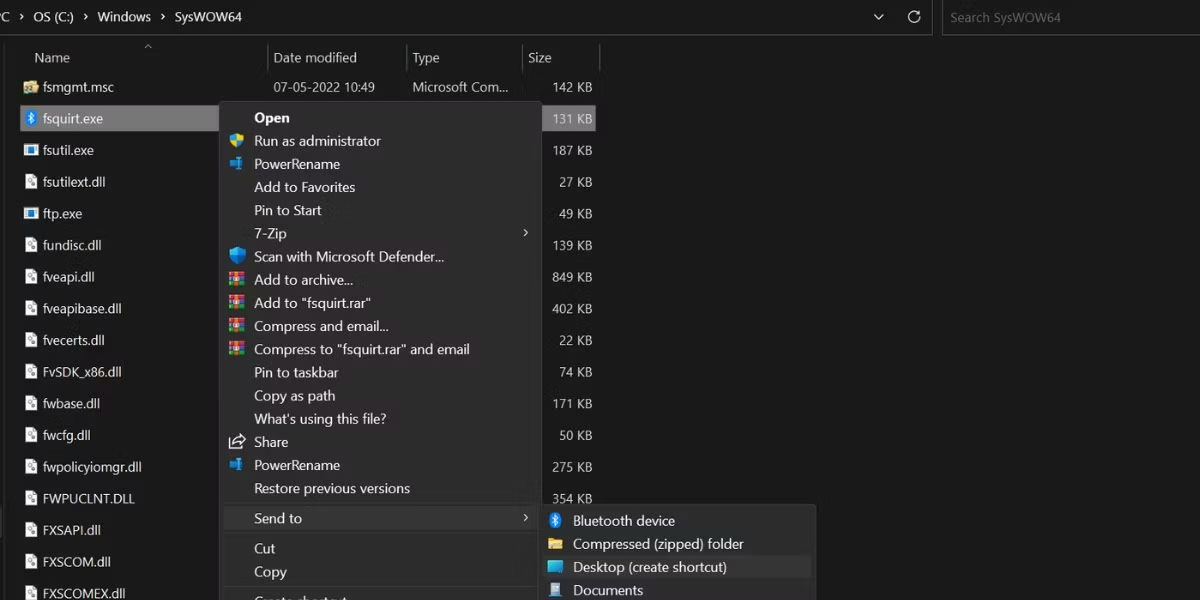
<h2 style="text-align: justify;">10. Sử dụng desktop shortcut</h2>

<p style="text-align: justify;">Desktop shortcut là một cách khá dễ dàng để khởi chạy tiện ích. Giống như phương pháp File Explorer, bạn cần định vị file trong ổ C rồi tạo desktop shortcut. Đây là cách thực hiện:</p>

<p style="text-align: justify;">1. Nhấn&nbsp;<strong>Win + E</strong>&nbsp;để khởi chạy File Explorer.</p>

<p style="text-align: justify;">2. Điều hướng đến ổ C: và nhấp vào thanh địa chỉ. Nhập&nbsp;<strong>C:\Windows\SysWOW64</strong>&nbsp;và nhấn phím&nbsp;<strong>Enter.</strong></p>

<p style="text-align: justify;">3. Bây giờ, hãy tìm file fsquirt.exe và nhấp chuột phải vào file đó.</p>

<p style="text-align: justify;">4. Chọn tùy chọn&nbsp;<strong>Show more options</strong>&nbsp;và nhấp vào tùy chọn&nbsp;<strong>Send to</strong>. Sau đó, nhấp vào tùy chọn&nbsp;<strong>Desktop (create shortcut)</strong>.</p>

<figure>
<div style="text-align: justify;"><img alt="Mở Bluetooth File Transfer bằng desktop shortcut" data-i="8" data-src="https://st.quantrimang.com/photos/image/2023/03/04/mo-bluetooth-file-transfer-9.jpg" data-was-processed="true" height="600" src="https://st.quantrimang.com/photos/image/2023/03/04/mo-bluetooth-file-transfer-9.jpg" width="1200" /></div>

<figcaption>
<div style="text-align: justify;">Mở Bluetooth File Transfer bằng desktop shortcut</div>
</figcaption>
</figure>

<p style="text-align: justify;">5. Nhấn&nbsp;<strong>Win + D</strong>&nbsp;để chuyển sang desktop. Nhấp đúp vào shortcut fsquirt.exe để khởi chạy công cụ Bluetooth File Transfer.</p>

<p style="text-align: justify;">Bạn cũng có thể ghim công cụ vào menu Start hoặc Taskbar bằng desktop shortcut.</p>
		</div>
				<div id="author">
						<p>
				<strong>Nguồn tin:</strong>
				Quantrimang.com
			</p>
		</div>
	</div>
	<div id="footer" class="clearfix">
		<div id="url">
			<strong>URL của bản tin này: </strong><a href="https://www.nguoicodonvn2008.info/vi/news/savefile/kien-thuc-may-tinh/10-cach-mo-tien-ich-bluetooth-file-transfer-tren-windows-11-6847.html" title="10 cách mở tiện ích Bluetooth File Transfer trên Windows 11">https://www.nguoicodonvn2008.info/vi/news/savefile/kien-thuc-may-tinh/10-cach-mo-tien-ich-bluetooth-file-transfer-tren-windows-11-6847.html</a>

		</div>
		<div class="clear"></div>
		<div class="copyright">
			&copy; .&#x3A; Nguoicodonvn2008.info - Cõi lòng người cô đơn &#x3A;.
		</div>
		<div id="contact">
			<a href="mailto:admin@nguoicodonvn2008.info">admin@nguoicodonvn2008.info</a>
		</div>
	</div>
</div>
        <div id="timeoutsess" class="chromeframe">
            Bạn đã không sử dụng Site, <a onclick="timeoutsesscancel();" href="https://nguoicodonvn2008.info/#">Bấm vào đây để duy trì trạng thái đăng nhập</a>. Thời gian chờ: <span id="secField"> 60 </span> giây
        </div>
        <div id="openidResult" class="nv-alert" style="display:none"></div>
        <div id="openidBt" data-result="" data-redirect=""></div>
		</script>
		<div class="car-top">
  <span><img src="https://nguoicodonvn2008.info/themes/default/images/car.png" alt=""></span>
</div>
<script src="https://nguoicodonvn2008.info/assets/js/jquery/jquery.min.js"></script>
<script>var nv_base_siteurl="/",nv_lang_data="vi",nv_lang_interface="vi",nv_name_variable="nv",nv_fc_variable="op",nv_lang_variable="language",nv_module_name="news",nv_func_name="savefile",nv_is_user=0, nv_my_ofs=-4,nv_my_abbr="EDT",nv_cookie_prefix="nv4c_e856T",nv_check_pass_mstime=1738000,nv_area_admin=0,nv_safemode=0,theme_responsive=0,nv_recaptcha_ver=2,nv_recaptcha_sitekey="",nv_recaptcha_type="image",XSSsanitize=1;</script>
<script src="https://nguoicodonvn2008.info/assets/js/language/vi.js"></script>
<script src="https://nguoicodonvn2008.info/assets/js/DOMPurify/purify3.js"></script>
<script src="https://nguoicodonvn2008.info/assets/js/global.js"></script>
<script src="https://nguoicodonvn2008.info/assets/js/site.js"></script>
<script src="https://nguoicodonvn2008.info/themes/default/js/news.js"></script>
<script src="https://nguoicodonvn2008.info/themes/default/js/main.js"></script>
<script src="https://nguoicodonvn2008.info/themes/default/js/custom.js"></script>
<script type="application/ld+json">
        {
            "@context": "https://schema.org",
            "@type": "Organization",
            "url": "https://nguoicodonvn2008.info",
            "logo": "https://nguoicodonvn2008.info/uploads/angel.gif"
        }
        </script>
<script src="https://nguoicodonvn2008.info/themes/default/js/bootstrap.min.js"></script>
<script type="text/javascript">
var $scrolltop = $('.car-top');
$scrolltop.on('click', function () {
    $('html,body').animate({
        scrollTop: 0
    }, 800);
    $(this).addClass("car-run");
    setTimeout(function(){ $scrolltop.removeClass('car-run');}, 1000);
    return false;
});
$(window).on('scroll', function ()
{ 
    if($(window).scrollTop() >= 200)
    {
        $scrolltop.addClass("show");
        $scrolltop.addClass("car-down");
    }
    else
    {
       $scrolltop.removeClass("show");
       setTimeout(function(){ $scrolltop.removeClass('car-down');}, 300);
    }
});
</script>
</body>
</html>