<!DOCTYPE html>
    <html lang="vi" xmlns="http://www.w3.org/1999/xhtml" prefix="og: http://ogp.me/ns#">
    <head>
<title>10 cách mở applet Control Panel Windows Firewall trong Windows 11</title>
<meta name="description" content="10 cách mở applet Control Panel Windows Firewall trong Windows 11 - Savefile - Tin Tức -...">
<meta name="author" content=".: Nguoicodonvn2008.info - Cõi lòng người cô đơn :.">
<meta name="copyright" content=".: Nguoicodonvn2008.info - Cõi lòng người cô đơn :. [admin@nguoicodonvn2008.info]">
<meta name="robots" content="index, archive, follow, noodp">
<meta name="googlebot" content="index,archive,follow,noodp">
<meta name="msnbot" content="all,index,follow">
<meta name="generator" content="NukeViet v4.5">
<meta http-equiv="Content-Type" content="text/html; charset=utf-8">
<meta property="og:title" content="10 cách mở applet Control Panel Windows Firewall trong Windows 11">
<meta property="og:type" content="website">
<meta property="og:description" content="Savefile - Tin Tức - https&#x3A;&#x002F;&#x002F;www.nguoicodonvn2008.info&#x002F;vi&#x002F;news&#x002F;savefile&#x002F;kien-thuc-may-tinh&#x002F;10-cach-mo-applet-control-panel-windows-firewall-trong-windows-11-7711.html">
<meta property="og:site_name" content=".&#x3A; Nguoicodonvn2008.info - Cõi lòng người cô đơn &#x3A;.">
<meta property="og:url" content="https://www.nguoicodonvn2008.info/vi/news/savefile/kien-thuc-may-tinh/10-cach-mo-applet-control-panel-windows-firewall-trong-windows-11-7711.html">
<link rel="shortcut icon" href="https://nguoicodonvn2008.info/favicon.ico">
<link rel="canonical" href="https://www.nguoicodonvn2008.info/vi/news/savefile/kien-thuc-may-tinh/10-cach-mo-applet-control-panel-windows-firewall-trong-windows-11-7711.html">
<link rel="alternate" href="https://nguoicodonvn2008.info/vi/news/rss/" title="Tin Tức" type="application/rss+xml">
<link rel="alternate" href="https://nguoicodonvn2008.info/vi/news/rss/karaoke-dual/" title="Tin Tức - Karaoke Dual" type="application/rss+xml">
<link rel="alternate" href="https://nguoicodonvn2008.info/vi/news/rss/nhac-tre/" title="Tin Tức - Nhạc trẻ" type="application/rss+xml">
<link rel="alternate" href="https://nguoicodonvn2008.info/vi/news/rss/tru-tinh/" title="Tin Tức - Trữ tình" type="application/rss+xml">
<link rel="alternate" href="https://nguoicodonvn2008.info/vi/news/rss/nuoc-ngoai/" title="Tin Tức - Nước ngoài" type="application/rss+xml">
<link rel="alternate" href="https://nguoicodonvn2008.info/vi/news/rss/remix/" title="Tin Tức - Remix" type="application/rss+xml">
<link rel="alternate" href="https://nguoicodonvn2008.info/vi/news/rss/tam-su-tinh-yeu/" title="Tin Tức - Tâm sự tình yêu" type="application/rss+xml">
<link rel="alternate" href="https://nguoicodonvn2008.info/vi/news/rss/tho-suu-tam/" title="Tin Tức - Thơ sưu tầm" type="application/rss+xml">
<link rel="alternate" href="https://nguoicodonvn2008.info/vi/news/rss/cuoc-song/" title="Tin Tức - Cuộc sống" type="application/rss+xml">
<link rel="alternate" href="https://nguoicodonvn2008.info/vi/news/rss/phan-mem/" title="Tin Tức - Phần mềm" type="application/rss+xml">
<link rel="alternate" href="https://nguoicodonvn2008.info/vi/news/rss/kien-thuc-may-tinh/" title="Tin Tức - Kiến thức máy tính" type="application/rss+xml">
<link rel="alternate" href="https://nguoicodonvn2008.info/vi/news/rss/hoc-tap/" title="Tin Tức - Học tập" type="application/rss+xml">
<link rel="alternate" href="https://nguoicodonvn2008.info/vi/news/rss/tai-lieu/" title="Tin Tức - Tài liệu" type="application/rss+xml">
<link rel="alternate" href="https://nguoicodonvn2008.info/vi/news/rss/de-thi/" title="Tin Tức - Đề thi" type="application/rss+xml">
<link rel="preload" as="style" href="https://nguoicodonvn2008.info/assets/css/font-awesome.min.css" type="text/css">
<link rel="preload" as="style" href="https://nguoicodonvn2008.info/themes/default/css/bootstrap.non-responsive.css" type="text/css">
<link rel="preload" as="style" href="https://nguoicodonvn2008.info/themes/default/css/style.css" type="text/css">
<link rel="preload" as="style" href="https://nguoicodonvn2008.info/themes/default/css/style.non-responsive.css" type="text/css">
<link rel="preload" as="style" href="https://nguoicodonvn2008.info/themes/default/css/news.css" type="text/css">
<link rel="preload" as="style" href="https://nguoicodonvn2008.info/themes/default/css/custom.css" type="text/css">
<link rel="preload" as="script" href="https://nguoicodonvn2008.info/assets/js/jquery/jquery.min.js" type="text/javascript">
<link rel="preload" as="script" href="https://nguoicodonvn2008.info/assets/js/language/vi.js" type="text/javascript">
<link rel="preload" as="script" href="https://nguoicodonvn2008.info/assets/js/DOMPurify/purify3.js" type="text/javascript">
<link rel="preload" as="script" href="https://nguoicodonvn2008.info/assets/js/global.js" type="text/javascript">
<link rel="preload" as="script" href="https://nguoicodonvn2008.info/assets/js/site.js" type="text/javascript">
<link rel="preload" as="script" href="https://nguoicodonvn2008.info/themes/default/js/news.js" type="text/javascript">
<link rel="preload" as="script" href="https://nguoicodonvn2008.info/themes/default/js/main.js" type="text/javascript">
<link rel="preload" as="script" href="https://nguoicodonvn2008.info/themes/default/js/custom.js" type="text/javascript">
<link rel="preload" as="script" href="https://nguoicodonvn2008.info/themes/default/js/bootstrap.min.js" type="text/javascript">
<link rel="stylesheet" href="https://nguoicodonvn2008.info/assets/css/font-awesome.min.css">
<link rel="stylesheet" href="https://nguoicodonvn2008.info/themes/default/css/bootstrap.non-responsive.css">
<link rel="stylesheet" href="https://nguoicodonvn2008.info/themes/default/css/style.css">
<link rel="stylesheet" href="https://nguoicodonvn2008.info/themes/default/css/style.non-responsive.css">
<link rel="StyleSheet" href="https://nguoicodonvn2008.info/themes/default/css/news.css">
<link rel="stylesheet" href="https://nguoicodonvn2008.info/themes/default/css/custom.css">
<style type="text/css">
	body{background: #fff;}
</style>
    </head>
    <body>
<div id="print">
	<div id="hd_print">
		<h2 class="pull-left">.&#x3A; Nguoicodonvn2008.info - Cõi lòng người cô đơn &#x3A;.</h2>
		<p class="pull-right"><a title=".&#x3A; Nguoicodonvn2008.info - Cõi lòng người cô đơn &#x3A;." href="https://nguoicodonvn2008.info/">https://nguoicodonvn2008.info</a></p>
	</div>
	<div class="clear"></div>
	<hr />
	<div id="content">
		<h1>10 cách mở applet Control Panel Windows Firewall trong Windows 11</h1>
		<ul class="list-inline">
			<li>Thứ tư - 01/11/2023 10:03</li>
			<li class="hidden-print txtrequired"><em class="fa fa-print">&nbsp;</em><a title="In ra" href="javascript:;" onclick="window.print()">In ra</a></li>
			<li class="hidden-print txtrequired"><em class="fa fa-power-off">&nbsp;</em><a title="Đóng cửa sổ này" href="javascript:;" onclick="window.close()">Đóng cửa sổ này</a></li>
		</ul>
		<div class="clear"></div>
		<div id="hometext">
		</div>
				<div class="imghome">
			<img alt="10 cách mở applet Control Panel Windows Firewall trong Windows 11" src="https://st.quantrimang.com/photos/image/2023/11/01/mo-applet-control-panel-windows-firewall-21.jpg" width="460" class="img-thumbnail" />
		</div>
		<div class="clear"></div>
		<div id="bodytext" class="clearfix">
			<p style="text-align: justify;">Tường lửa của máy tính là một công cụ mạng giám sát lưu lượng truy cập Internet đến và đi trên PC. Windows Defender Firewall (WDF) là tường lửa tích hợp của&nbsp;Windows 11, chặn phần mềm không được phép truy cập Internet.</p>

<p style="text-align: justify;">Đôi khi người dùng cần cấu hình phần mềm nào được phép thông qua Windows Defender Firewall với các tùy chọn ứng dụng được phép. Một số người dùng thậm chí có thể cần phải tạm thời tắt WDF vì mục đích khắc phục sự cố. Để thay đổi cài đặt của tường lửa đó, bạn cần mở applet Control Panel của nó. Dưới đây là một số cách bạn có thể mở applet Control Panel Firewall trong Windows 11.</p>

<h2 style="text-align: justify;">1. Cách mở Windows Defender Firewall bằng Control Panel</h2>

<p style="text-align: justify;">Bạn có thể mở ứng dụng Windows Defender Firewall theo cách thủ công từ trong Control Panel. Đó không phải là phương pháp trực tiếp nhất nhưng vẫn là một cách để mở applet firewall. Đây là cách mở applet firewall từ trong Control Panel trong Windows 11.</p>

<p style="text-align: justify;">1. Mở menu Start và nhấp vào&nbsp;<strong>All apps</strong>.</p>

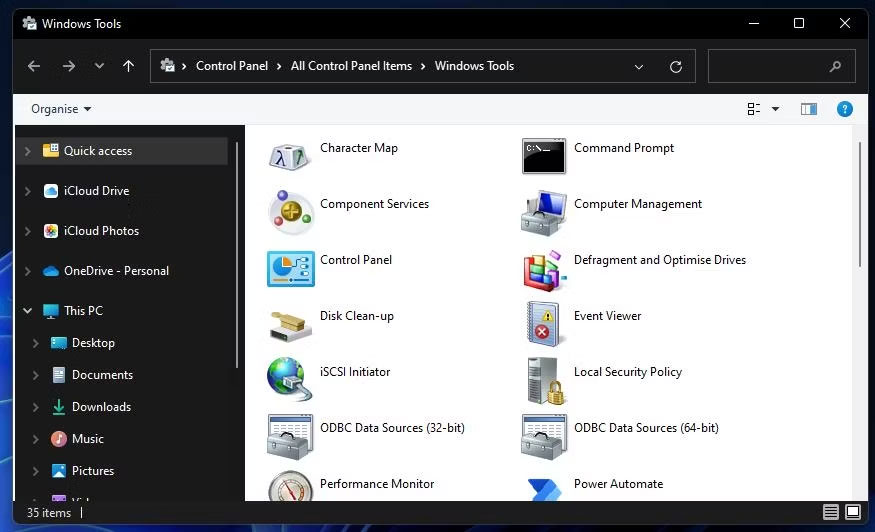
<p style="text-align: justify;">2. Cuộn menu Start xuống thư mục Windows Tools. Nhấp vào Windows Tools để mở nó.</p>

<p style="text-align: justify;">3. Nhấp đúp vào Control Panel trong thư mục để mở cửa sổ của nó.</p>

<figure>
<div style="text-align: justify;"><img alt="Thư mục Windows Tools" data-i="0" data-src="https://st.quantrimang.com/photos/image/2023/11/01/mo-applet-control-panel-windows-firewall-1.jpg" data-was-processed="true" height="532" src="https://st.quantrimang.com/photos/image/2023/11/01/mo-applet-control-panel-windows-firewall-1.jpg" width="875" /></div>

<figcaption>
<div style="text-align: justify;">Thư mục Windows Tools</div>
</figcaption>
</figure>

<div style="text-align: justify;">&nbsp;</div>

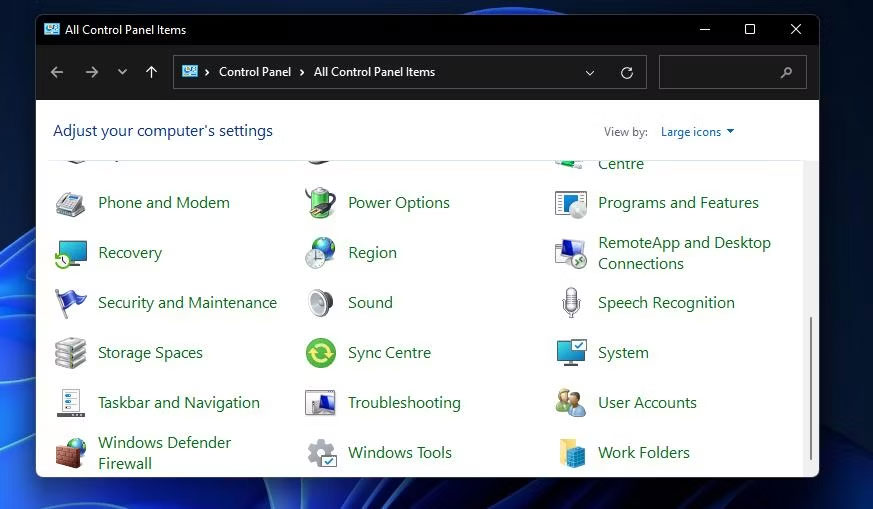
<p style="text-align: justify;">4. Nếu Control Panel mở ở chế độ xem danh mục, hãy nhấp vào menu&nbsp;<strong>View by</strong>&nbsp;và chọn&nbsp;<strong>Large icons</strong>.</p>

<figure>
<div style="text-align: justify;"><img alt="Tất cả các mục Control Panel" data-adbro-processed="true" data-i="1" data-src="https://st.quantrimang.com/photos/image/2023/11/01/mo-applet-control-panel-windows-firewall-2.jpg" data-was-processed="true" height="509" src="https://st.quantrimang.com/photos/image/2023/11/01/mo-applet-control-panel-windows-firewall-2.jpg" width="873" /><br />
&nbsp;&nbsp;&nbsp;</div>

<figcaption>
<div style="text-align: justify;">Tất cả các mục Control Panel</div>
</figcaption>
</figure>

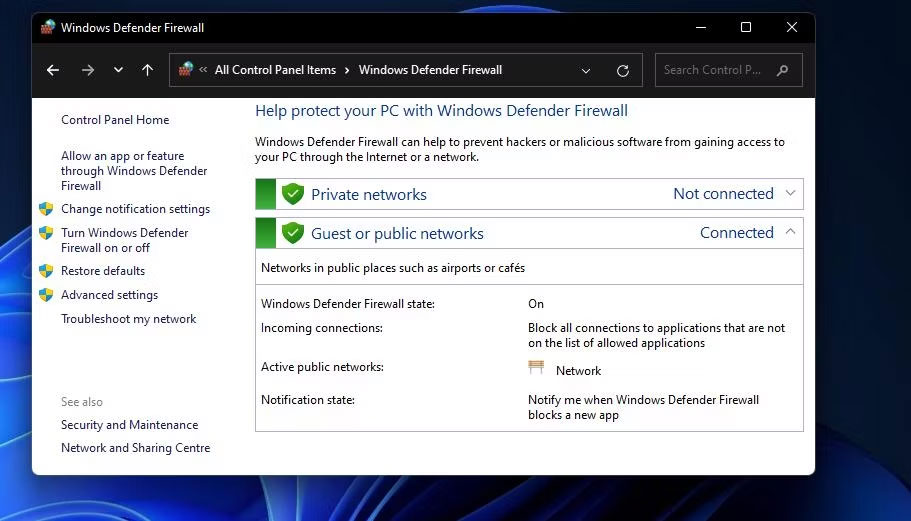
<p style="text-align: justify;">5. Sau đó nhấp vào&nbsp;<strong>Windows Defender Firewall&nbsp;</strong>để mở applet Control Panel đó.</p>

<figure>
<div style="text-align: justify;"><img alt="Applet Control Panel Windows Defender Firewall" data-i="2" data-src="https://st.quantrimang.com/photos/image/2023/11/01/mo-applet-control-panel-windows-firewall-3.jpg" data-was-processed="true" height="521" src="https://st.quantrimang.com/photos/image/2023/11/01/mo-applet-control-panel-windows-firewall-3.jpg" width="911" /></div>

<figcaption>
<div style="text-align: justify;">Applet Control Panel Windows Defender Firewall</div>
</figcaption>
</figure>

<h2 style="text-align: justify;">2. Cách mở Windows Defender Firewall bằng Run</h2>

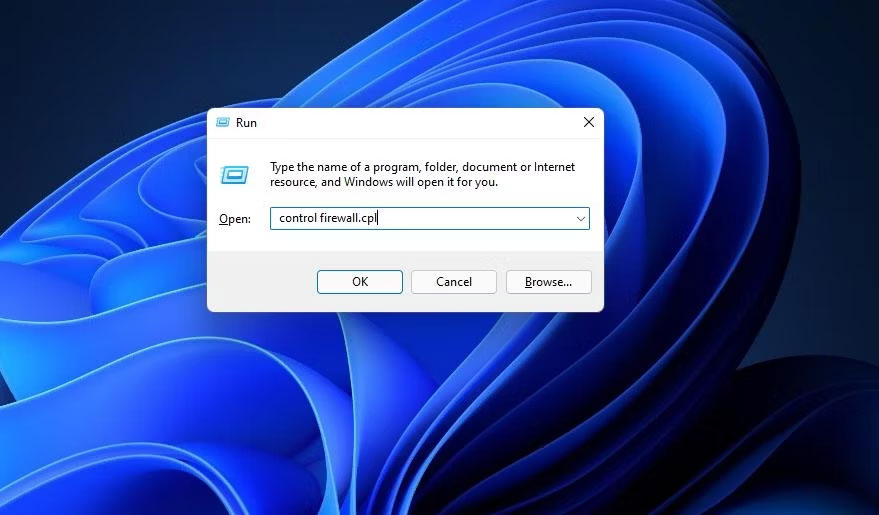
<p style="text-align: justify;">Hộp thoại Run cung cấp phương pháp 3 bước nhanh hơn để mở Windows Defender Firewall. Bạn có thể mở applet Control Panel của tường lửa bằng cách nhập nhanh lệnh applet vào hộp&nbsp;<strong>Open</strong>. Đây là ba bước để mở Windows Defender Firewall bằng Run.</p>

<div style="text-align: justify;">&nbsp;</div>

<p style="text-align: justify;">1. Nhấn các phím&nbsp;<strong>Windows + R</strong>&nbsp;trên bàn phím cùng lúc để&nbsp;khởi chạy Run.</p>

<p style="text-align: justify;">2. Nhập lệnh Run&nbsp;<strong>control firewall.cpl</strong>&nbsp;trong hộp văn bản&nbsp;<strong>Open</strong>.</p>

<figure>
<div style="text-align: justify;"><img alt="Hộp thoại Run" data-i="3" data-src="https://st.quantrimang.com/photos/image/2023/11/01/mo-applet-control-panel-windows-firewall-4.jpg" data-was-processed="true" height="515" src="https://st.quantrimang.com/photos/image/2023/11/01/mo-applet-control-panel-windows-firewall-4.jpg" width="879" /></div>

<figcaption>
<div style="text-align: justify;">Hộp thoại Run</div>
</figcaption>
</figure>

<p style="text-align: justify;">3. Nhấp vào tùy chọn&nbsp;<strong>OK</strong>&nbsp;để hiển thị Windows Defender Firewall.</p>

<h2 style="text-align: justify;">3. Cách mở Windows Defender Firewall bằng công cụ tìm kiếm</h2>

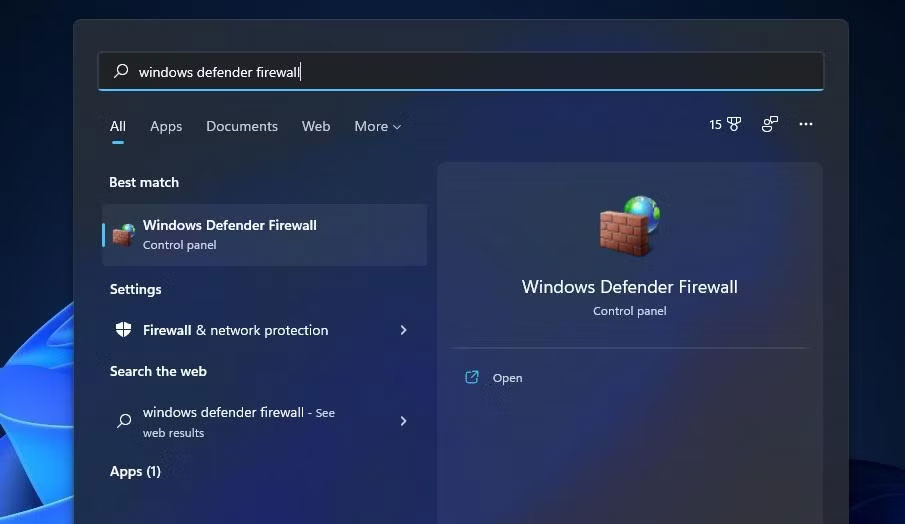
<p style="text-align: justify;">Công cụ tìm kiếm của Windows 11 luôn hữu ích trong việc mở các tiện ích hệ thống tích hợp và phần mềm của bên thứ ba. Chỉ cần nhập tên của thứ bạn cần mở vào hộp tìm kiếm. Sau đó, bạn có thể chọn mở những gì mình đang tìm kiếm từ đó. Bạn có thể mở applet Control Panel Windows Defender Firewall bằng hộp tìm kiếm như sau.</p>

<p style="text-align: justify;">1. Nhấn nút kính lúp của công cụ tìm kiếm để mở tiện ích.</p>

<p style="text-align: justify;">2. Gõ từ khóa&nbsp;<strong>Windows Defender Firewall</strong>&nbsp;vào hộp tìm kiếm.</p>

<figure>
<div style="text-align: justify;"><img alt="Tìm kiếm Windows Defender Firewall" data-i="4" data-src="https://st.quantrimang.com/photos/image/2023/11/01/mo-applet-control-panel-windows-firewall-5.jpg" data-was-processed="true" height="524" src="https://st.quantrimang.com/photos/image/2023/11/01/mo-applet-control-panel-windows-firewall-5.jpg" width="905" /></div>

<figcaption>
<div style="text-align: justify;">Tìm kiếm Windows Defender Firewall</div>
</figcaption>
</figure>

<p style="text-align: justify;">3. Nhấp vào Windows Defender Firewall để mở nó.</p>

<h2 style="text-align: justify;">4. Cách mở Windows Defender Firewall bằng Windows Terminal</h2>

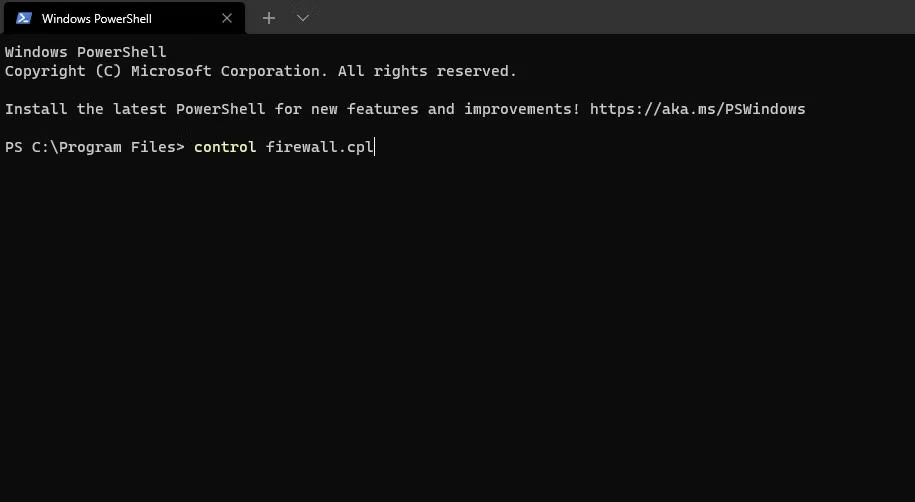
<p style="text-align: justify;">Lệnh Run&nbsp;<strong>control firewall.cpl</strong>&nbsp;được chỉ định trong phương pháp hai cũng hoạt động khi được nhập vào Command Prompt và PowerShell. Do đó, bạn có thể mở ứng dụng tường lửa bằng Windows Terminal, ứng dụng này kết hợp cả hai trình thông dịch dòng lệnh đó. Đây là cách bạn có thể mở Windows Defender Firewall bằng Windows Terminal.</p>

<div style="text-align: justify;">&nbsp;</div>

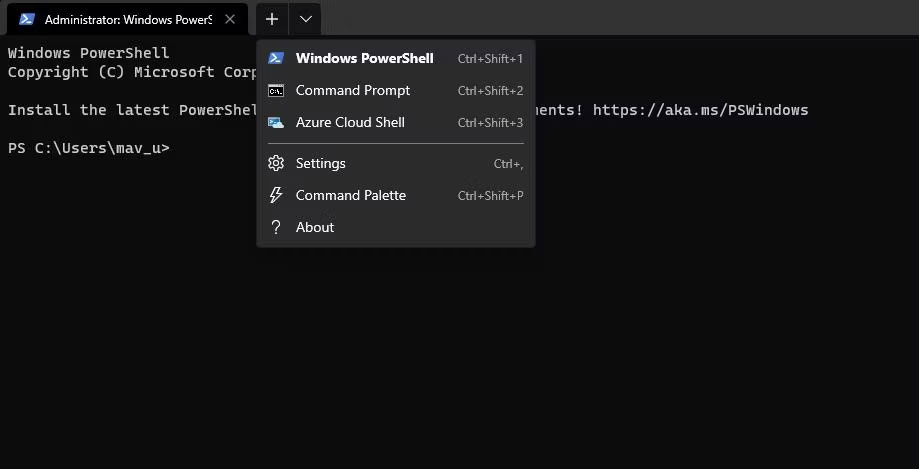
<p style="text-align: justify;">1. Nhấp chuột phải vào nút Start để chọn&nbsp;<strong>Windows Terminal (Admin)</strong>.</p>

<p style="text-align: justify;">2. Tiếp theo, nhấp vào nút&nbsp;<strong>Open a new tab</strong>&nbsp;ở đầu Windows Terminal để hiển thị menu bên dưới.</p>

<figure>
<div style="text-align: justify;"><img alt="Menu Open a new tab" data-i="5" data-src="https://st.quantrimang.com/photos/image/2023/11/01/mo-applet-control-panel-windows-firewall-6.jpg" data-was-processed="true" height="469" src="https://st.quantrimang.com/photos/image/2023/11/01/mo-applet-control-panel-windows-firewall-6.jpg" width="919" /></div>

<figcaption>
<div style="text-align: justify;">Menu Open a new tab</div>
</figcaption>
</figure>

<p style="text-align: justify;">3. Chọn Command Prompt hoặc Windows PowerShell ở đó.</p>

<p style="text-align: justify;">4. Sau đó nhập&nbsp;<strong>control firewall.cpl</strong>&nbsp;trong tab&nbsp;<strong>Command Prompt</strong>&nbsp;hoặc&nbsp;<strong>Windows PowerShell</strong>&nbsp;và nhấn phím&nbsp;<strong>Enter</strong>.</p>

<figure>
<div style="text-align: justify;"><img alt="Lệnh control firewall.cpl" data-i="6" data-src="https://st.quantrimang.com/photos/image/2023/11/01/mo-applet-control-panel-windows-firewall-7.jpg" data-was-processed="true" height="502" src="https://st.quantrimang.com/photos/image/2023/11/01/mo-applet-control-panel-windows-firewall-7.jpg" width="915" /></div>

<figcaption>
<div style="text-align: justify;">Lệnh control firewall.cpl</div>
</figcaption>
</figure>

<h2 style="text-align: justify;">5. Cách mở Windows Defender Firewall bằng Task Manager</h2>

<p style="text-align: justify;"><a data-type="internal" href="https://quantrimang.com/cong-nghe/huong-dan-su-dung-task-manager-83602" title="Tất tần tật về cách sử dụng Task Manager">Task Manager</a>&nbsp;kết hợp công cụ Create new task giống như Run. Công cụ đó cho phép bạn chạy các quy trình mới. Bạn có thể truy cập applet Windows Defender Firewall bằng cách tạo một tác vụ mới như sau:</p>

<p style="text-align: justify;">1. Nhấp vào bất kỳ vùng trống nào trên thanh tác vụ của Windows 11 bằng nút chuột phải và chọn&nbsp;<strong>Task Manager.</strong></p>

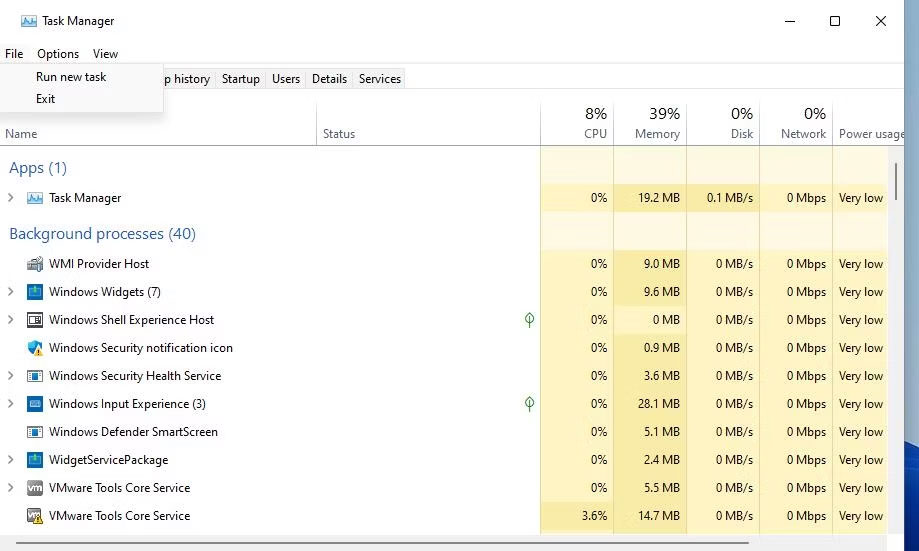
<p style="text-align: justify;">2. Tiếp theo, nhấp vào&nbsp;<strong>File</strong>&nbsp;trên thanh menu của Task Manager.</p>

<figure>
<div style="text-align: justify;"><img alt="Tùy chọn Run new task" data-i="7" data-src="https://st.quantrimang.com/photos/image/2023/11/01/mo-applet-control-panel-windows-firewall-8.jpg" data-was-processed="true" height="551" src="https://st.quantrimang.com/photos/image/2023/11/01/mo-applet-control-panel-windows-firewall-8.jpg" width="919" /></div>

<figcaption>
<div style="text-align: justify;">Tùy chọn Run new task</div>
</figcaption>
</figure>

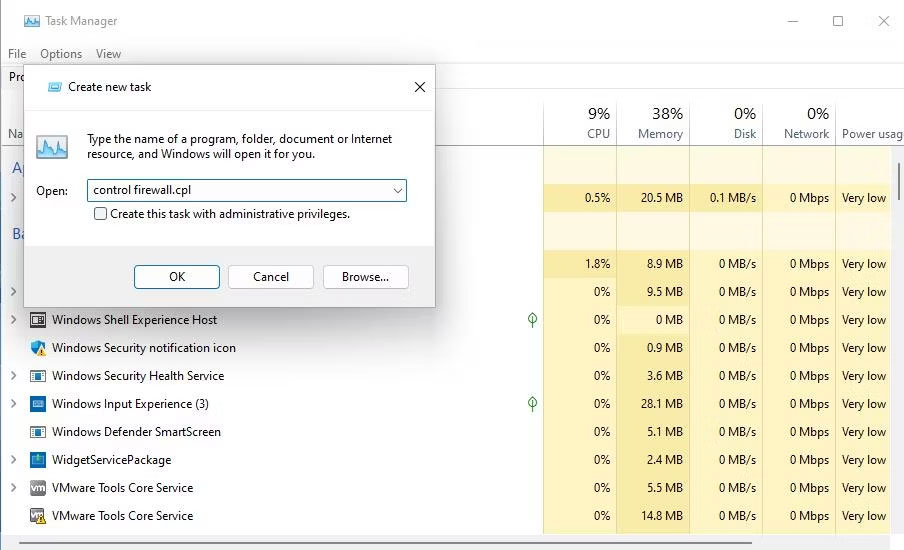
<p style="text-align: justify;">3. Chọn&nbsp;<strong>Run new task</strong>&nbsp;để hiển thị hộp thoại lệnh&nbsp;<strong>Create new task</strong>.</p>

<p style="text-align: justify;">4. Nhập&nbsp;<strong>control firewall.cpl</strong>&nbsp;bên trong hộp&nbsp;<strong>Open</strong>&nbsp;của cửa sổ&nbsp;<strong>Create new task</strong>.</p>

<figure>
<div style="text-align: justify;"><img alt="Công cụ Create new task" data-i="8" data-src="https://st.quantrimang.com/photos/image/2023/11/01/mo-applet-control-panel-windows-firewall-9.jpg" data-was-processed="true" height="550" src="https://st.quantrimang.com/photos/image/2023/11/01/mo-applet-control-panel-windows-firewall-9.jpg" width="904" /></div>

<figcaption>
<div style="text-align: justify;">Công cụ Create new task</div>
</figcaption>
</figure>

<div style="text-align: justify;"><iframe allowtransparency="true" data-google-container-id="a!5" data-google-query-id="CKuGj_37ooIDFUHATAIdC84CKA" data-load-complete="true" frameborder="0" height="174" hspace="0" id="aswift_4" marginheight="0" marginwidth="0" name="aswift_4" sandbox="" scrolling="no" vspace="0" width="694"></iframe></div>

<p style="text-align: justify;">5. Nhấn&nbsp;<strong>OK</strong>&nbsp;để hiển thị applet Windows Defender Firewall.</p>

<h2 style="text-align: justify;">6. Cách mở Windows Defender Firewall bằng Settings</h2>

<p style="text-align: justify;">Mặc dù Windows Defender Firewall là một applet của Control Panel nhưng có một cách để bạn có thể truy cập nó từ Settings. Đây là cách bạn có thể mở Windows Defender Firewall thông qua Settings:</p>

<p style="text-align: justify;">1. Nhấp vào&nbsp;<strong>Start</strong>&nbsp;và shortcut ứng dụng&nbsp;<strong>Settings</strong>&nbsp;trên menu mở ra.</p>

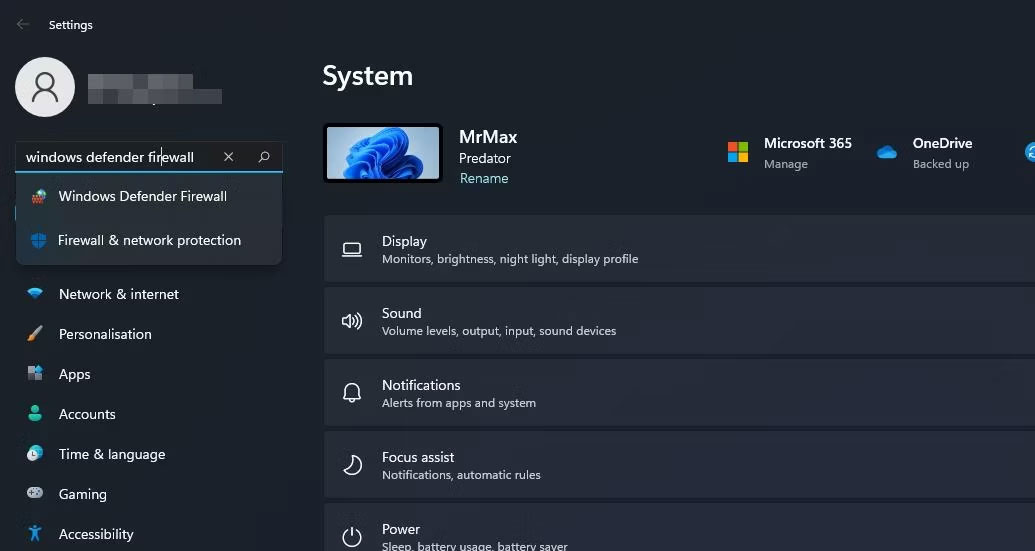
<p style="text-align: justify;">2. Nhập từ khóa&nbsp;<strong>Windows Defender Firewall</strong>&nbsp;bên trong hộp tìm kiếm Settings.</p>

<figure>
<div style="text-align: justify;"><img alt="Tìm kiếm Windows Defender Firewall trong Settings" data-i="9" data-src="https://st.quantrimang.com/photos/image/2023/11/01/mo-applet-control-panel-windows-firewall-10.jpg" data-was-processed="true" height="551" src="https://st.quantrimang.com/photos/image/2023/11/01/mo-applet-control-panel-windows-firewall-10.jpg" width="1035" /></div>

<figcaption>
<div style="text-align: justify;">Tìm kiếm Windows Defender Firewall trong Settings</div>
</figcaption>
</figure>

<p style="text-align: justify;">3. Chọn kết quả tìm kiếm&nbsp;<strong>Windows Defender Firewall</strong>.</p>

<h2 style="text-align: justify;">7. Cách mở Windows Defender Firewall bằng Windows Security</h2>

<p style="text-align: justify;">Ứng dụng Windows Security bao gồm các cài đặt tường lửa thay thế. Ứng dụng đó cũng bao gồm các tùy chọn điều hướng để truy cập các phần của applet Control Panel Windows Defender Firewall. Bạn có thể sử dụng các tùy chọn điều hướng đó để truy cập applet WDF từ Windows Security như sau:</p>

<p style="text-align: justify;">1. Nhấp đúp vào biểu tượng chiếc khiên trong khu vực khay hệ thống của Windows 11 để mở ứng dụng bảo mật. Bạn cũng có thể cần phải nhấp vào mũi tên nhỏ&nbsp;<strong>Show hidden icons</strong>&nbsp;để xem biểu tượng khay hệ thống của Windows Security.</p>

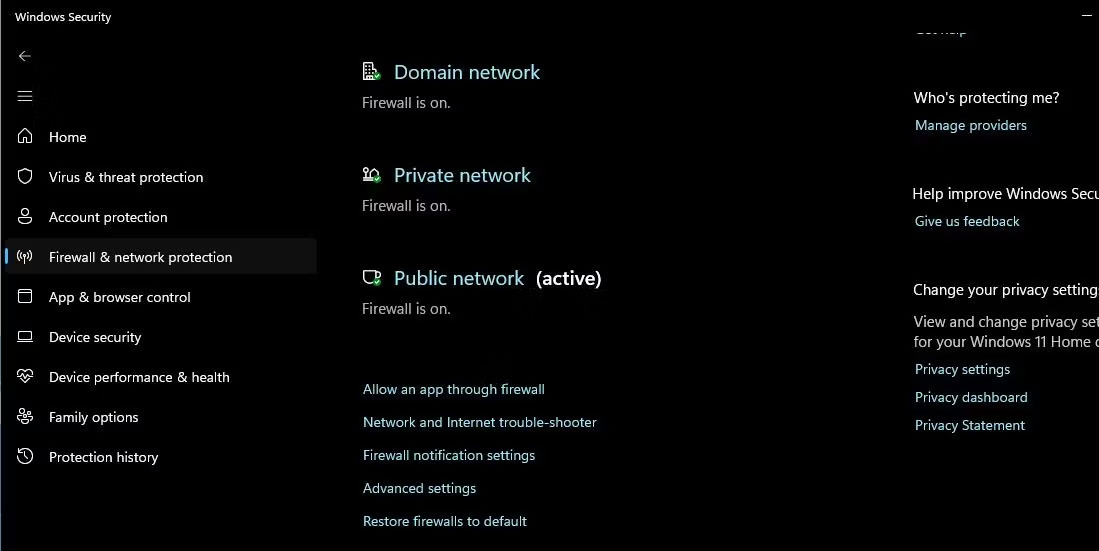
<p style="text-align: justify;">2. Chọn tab&nbsp;<strong>Firewall &amp; network protection</strong>&nbsp;trong Windows Security.</p>

<p style="text-align: justify;">3. Nhấp vào tùy chọn điều hướng&nbsp;<strong>Allow an app through firewall</strong>.</p>

<figure>
<div style="text-align: justify;"><img alt="Tùy chọn Allow an app through firewall" data-i="10" data-src="https://st.quantrimang.com/photos/image/2023/11/01/mo-applet-control-panel-windows-firewall-11.jpg" data-was-processed="true" height="551" src="https://st.quantrimang.com/photos/image/2023/11/01/mo-applet-control-panel-windows-firewall-11.jpg" width="1099" /></div>

<figcaption>
<div style="text-align: justify;">Tùy chọn Allow an app through firewall</div>
</figcaption>
</figure>

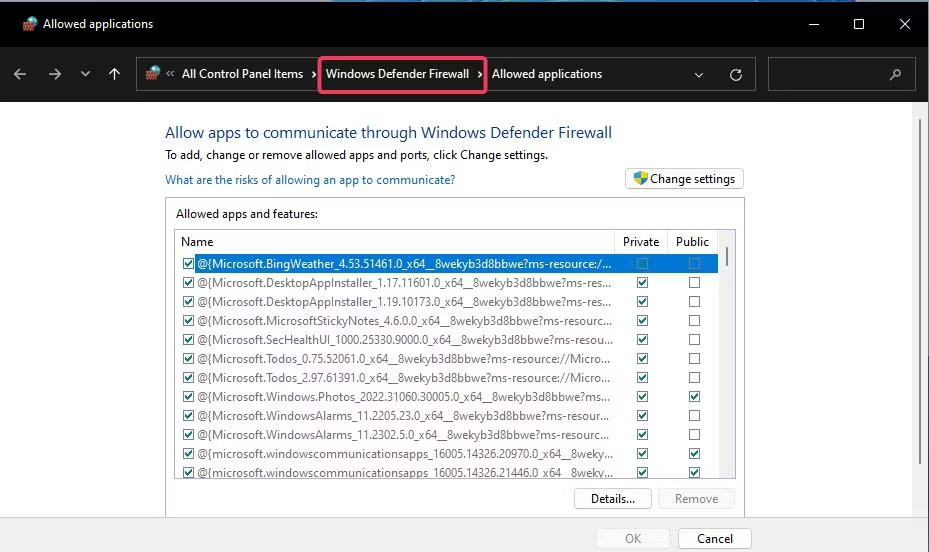
<p style="text-align: justify;">4. Phần danh sách ứng dụng được phép của ứng dụng Windows Defender Firewall sẽ mở ra. Bạn có thể truy cập màn hình chính của applet bằng cách nhấp vào&nbsp;<strong>Windows Defender Firewall</strong>&nbsp;trong thanh điều hướng của Control Panel.</p>

<figure>
<div style="text-align: justify;"><img alt="Danh sách ứng dụng được phép của ứng dụng Windows Defender Firewall" data-i="11" data-src="https://st.quantrimang.com/photos/image/2023/11/01/mo-applet-control-panel-windows-firewall-12.jpg" data-was-processed="true" height="552" src="https://st.quantrimang.com/photos/image/2023/11/01/mo-applet-control-panel-windows-firewall-12.jpg" width="929" /></div>

<figcaption>
<div style="text-align: justify;">Danh sách ứng dụng được phép của ứng dụng Windows Defender Firewall</div>
</figcaption>
</figure>

<p style="text-align: justify;">Ngoài ra, bạn có thể nhấp vào&nbsp;<strong>Restore firewalls to default</strong>&nbsp;trên cùng tab&nbsp;<strong>Firewall &amp; network protection</strong>. Làm như vậy sẽ mở tùy chọn&nbsp;<strong>Restore defaults</strong>&nbsp;trong Windows Defender Firewall Control Panel. Windows Security có các liên kết điều hướng đó đến ứng dụng WDF vì nó không bao gồm những tùy chọn để cài đặt lại tường lửa hoặc cho phép các ứng dụng vượt qua nó.</p>

<div style="text-align: justify;">&nbsp;</div>

<h2 style="text-align: justify;">8. Cách mở Windows Defender Firewall bằng desktop shortcut</h2>

<p style="text-align: justify;">Bạn có thể làm cho Windows Defender Firewall truy cập trực tiếp từ desktop bằng cách tạo shortcut cho nó ở đó. Sau đó, bạn sẽ có thể mở tường lửa nhanh hơn một chút bằng shortcut đó bất cứ khi nào bạn cần sửa đổi cài đặt của nó. Đây là các bước để thêm shortcut Windows Defender Firewall vào desktop.</p>

<p style="text-align: justify;">1. Nhấp vào vị trí nào đó trên desktop bằng nút chuột phải để chọn&nbsp;<strong>New</strong>&nbsp;&gt;&nbsp;<strong>Shortcut</strong>.</p>

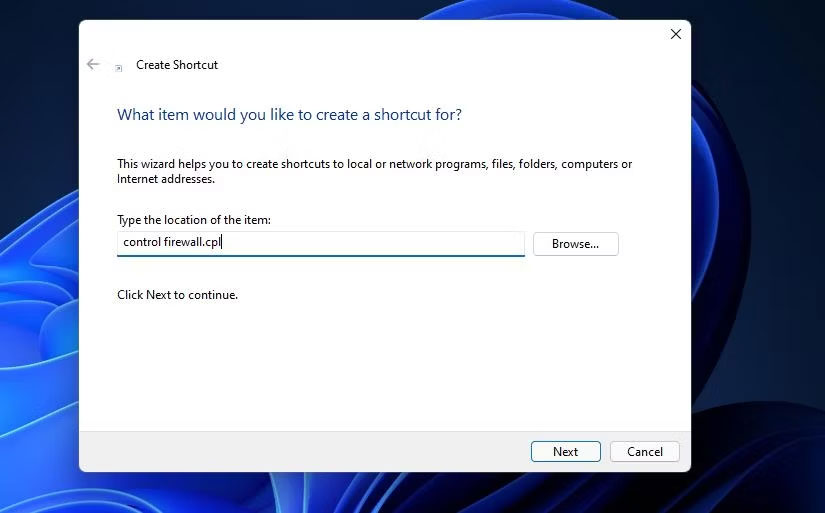
<p style="text-align: justify;">2. Nhập&nbsp;<strong>control firewall.cpl</strong>&nbsp;vào hộp vị trí mục như trong ảnh chụp màn hình ngay bên dưới.</p>

<figure>
<div style="text-align: justify;"><img alt="Cửa sổ Create shortcut" data-i="12" data-src="https://st.quantrimang.com/photos/image/2023/11/01/mo-applet-control-panel-windows-firewall-13.jpg" data-was-processed="true" height="513" src="https://st.quantrimang.com/photos/image/2023/11/01/mo-applet-control-panel-windows-firewall-13.jpg" width="825" /></div>

<figcaption>
<div style="text-align: justify;">Cửa sổ Create shortcut</div>
</figcaption>
</figure>

<p style="text-align: justify;">3. Nhấn nút&nbsp;<strong>Next</strong>&nbsp;để chuyển sang bước đặt tên.</p>

<p style="text-align: justify;">4. Xóa nội dung trong hộp văn bản, sau đó nhập&nbsp;<strong>Windows Defender Firewall&nbsp;</strong>vào đó.</p>

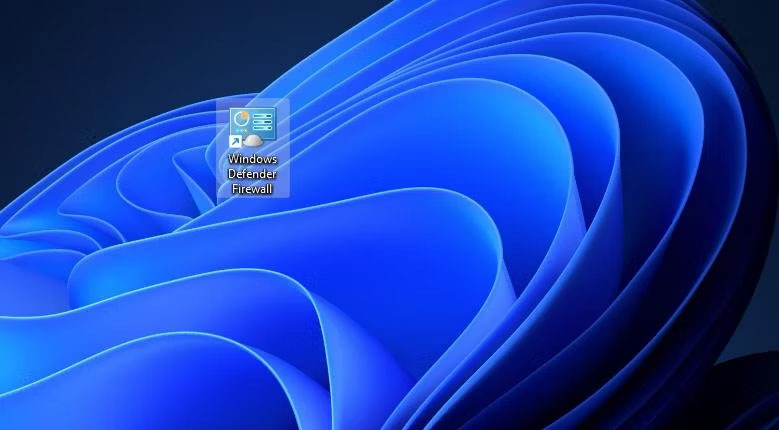
<p style="text-align: justify;">5. Nhấp vào&nbsp;<strong>Finish</strong>&nbsp;để thêm biểu tượng Windows Defender Firewall vào desktop.</p>

<figure>
<div style="text-align: justify;"><img alt="Shortcut Windows Defender Firewall" data-i="13" data-src="https://st.quantrimang.com/photos/image/2023/11/01/mo-applet-control-panel-windows-firewall-14.jpg" data-was-processed="true" height="430" src="https://st.quantrimang.com/photos/image/2023/11/01/mo-applet-control-panel-windows-firewall-14.jpg" width="779" /></div>

<figcaption>
<div style="text-align: justify;">Shortcut Windows Defender Firewall</div>
</figcaption>
</figure>

<p style="text-align: justify;">6. Hãy tiếp tục và nhấp đúp vào shortcut Windows Defender Firewall để hiển thị applet Control Panel của nó.</p>

<h2 style="text-align: justify;">9. Cách mở Windows Defender Firewall bằng phím tắt</h2>

<p style="text-align: justify;">Nếu thích khả năng truy cập bằng hotkey, bạn cũng có thể thiết lập phím tắt cho Windows Defender Firewall. Thiết lập desktop shortcut cho tường lửa như đã nêu trong phương pháp trước là giai đoạn đầu tiên cho việc này. Khi thực hiện xong việc đó, bạn có thể áp dụng hotkey cho desktop shortcut WDF như thế này.</p>

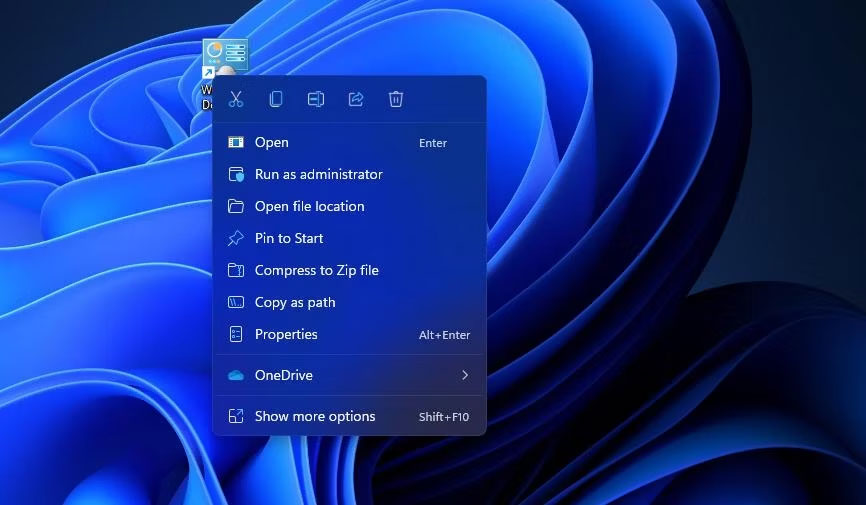
<p style="text-align: justify;">1. Nhấp chuột phải vào shortcut Windows Defender Firewall mà bạn đã thêm vào desktop và chọn&nbsp;<strong>Properties</strong>.</p>

<figure>
<div style="text-align: justify;"><img alt="Tùy chọn Properties" data-i="14" data-src="https://st.quantrimang.com/photos/image/2023/11/01/mo-applet-control-panel-windows-firewall-15.jpg" data-was-processed="true" height="505" src="https://st.quantrimang.com/photos/image/2023/11/01/mo-applet-control-panel-windows-firewall-15.jpg" width="866" /></div>

<figcaption>
<div style="text-align: justify;">Tùy chọn Properties</div>
</figcaption>
</figure>

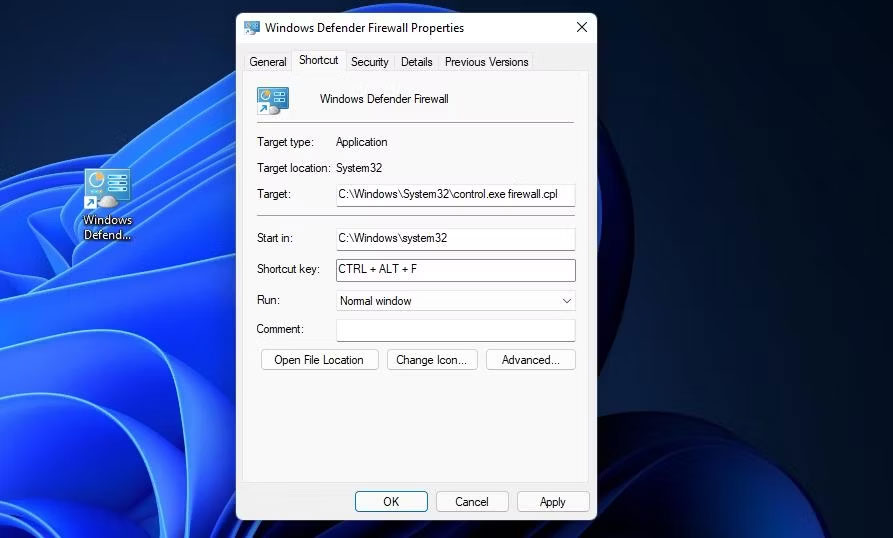
<p style="text-align: justify;">2. Nhấp vào bên trong hộp&nbsp;<strong>Shortcut key&nbsp;</strong>trên cửa sổ thuộc tính.</p>

<p style="text-align: justify;">3. Nhấn<strong>&nbsp;F&nbsp;</strong>(viết tắt của firewall) để thiết lập hotkey&nbsp;<strong>Ctrl + Alt + F</strong>.</p>

<figure>
<div style="text-align: justify;"><img alt="Hộp Shortcut key" data-i="15" data-src="https://st.quantrimang.com/photos/image/2023/11/01/mo-applet-control-panel-windows-firewall-16.jpg" data-was-processed="true" height="538" src="https://st.quantrimang.com/photos/image/2023/11/01/mo-applet-control-panel-windows-firewall-16.jpg" width="893" /></div>

<figcaption>
<div style="text-align: justify;">Hộp Shortcut key</div>
</figcaption>
</figure>

<p style="text-align: justify;">4. Chọn&nbsp;<strong>Apply</strong>&nbsp;để lưu shortcut mới.</p>

<p style="text-align: justify;">5. Nhấn&nbsp;<strong>OK</strong>&nbsp;trên cửa sổ thuộc tính.</p>

<p style="text-align: justify;">Bây giờ, nhấn&nbsp;<strong>Ctrl + Alt + F&nbsp;</strong>cùng lúc để mở Windows Defender Firewall. Bạn luôn có thể thay đổi hotkey đó bằng cách nhấn một phím khác trong hộp&nbsp;<strong>Shortcut key</strong>. Lưu ý rằng việc xóa desktop shortcut Windows Defender Firewall cũng sẽ xóa hotkey được áp dụng cho nó.</p>

<h2 style="text-align: justify;">10. Cách mở Windows Defender Firewall bằng shortcut menu ngữ cảnh</h2>

<p style="text-align: justify;">Menu ngữ cảnh của desktop là một nơi khác mà bạn có thể mở Windows Defender Firewall từ đó. Tuy nhiên, trước tiên bạn cần thêm shortcut tường lửa vào menu chuột phải của desktop. Bạn có thể thêm tùy chọn Windows Firewall vào menu ngữ cảnh bằng Winaero Tweaker như thế này.</p>

<p style="text-align: justify;">1.&nbsp;Mở trang chủ Winaero Tweaker&nbsp;trong trình duyệt Windows.<br />
<span style="color:rgb(192, 57, 43);"><strong>https://winaero.com/winaero-tweaker/</strong></span></p>

<p style="text-align: justify;">2. Nhấn vào&nbsp;<strong>Download Winaero Tweaker</strong>&nbsp;trên trang chủ.</p>

<p style="text-align: justify;">3. Nhấn&nbsp;<strong>Win + E</strong>, sau đó mở thư mục chứa file ZIP Winaero Tweaker đã tải xuống.</p>

<p style="text-align: justify;">4. Nhấp đúp vào file winaerotweaker.zip để mở nó.</p>

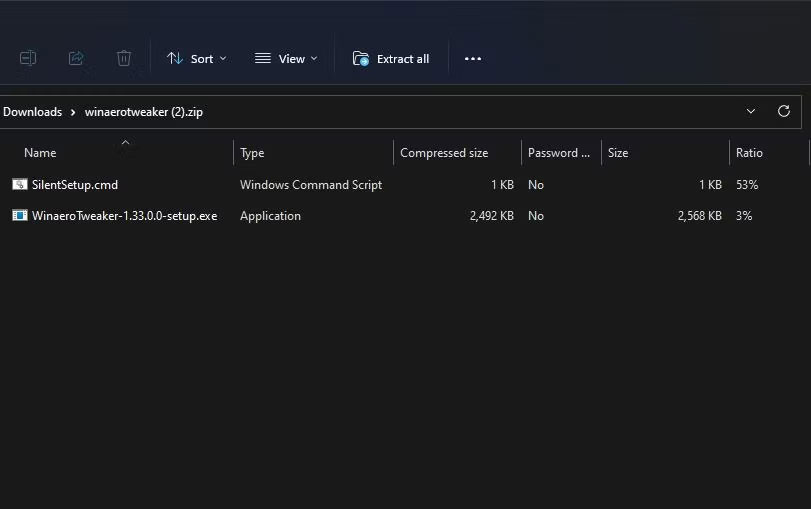
<p style="text-align: justify;">5. Nhấp vào&nbsp;<strong>Extract all</strong>&nbsp;ở đầu File Explorer.</p>

<figure>
<div style="text-align: justify;"><img alt="Nút Extract all" data-i="16" data-src="https://st.quantrimang.com/photos/image/2023/11/01/mo-applet-control-panel-windows-firewall-17.jpg" data-was-processed="true" height="509" src="https://st.quantrimang.com/photos/image/2023/11/01/mo-applet-control-panel-windows-firewall-17.jpg" width="811" /></div>

<figcaption>
<div style="text-align: justify;">Nút Extract all</div>
</figcaption>
</figure>

<div style="text-align: justify;">&nbsp;</div>

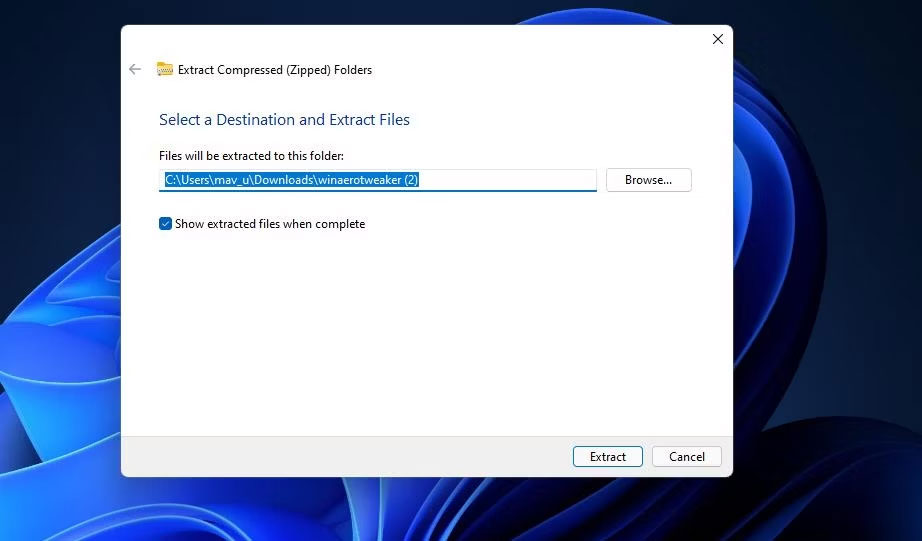
<p style="text-align: justify;">6. Tùy chọn&nbsp;<strong>Show extracted files</strong>&nbsp;có thể sẽ được chọn theo mặc định. Tuy nhiên, nếu không, hãy chọn tùy chọn đó.</p>

<figure>
<div style="text-align: justify;"><img alt="Cửa sổ Extract Compressed (Zipped) Folders" data-i="17" data-src="https://st.quantrimang.com/photos/image/2023/11/01/mo-applet-control-panel-windows-firewall-18.jpg" data-was-processed="true" height="541" src="https://st.quantrimang.com/photos/image/2023/11/01/mo-applet-control-panel-windows-firewall-18.jpg" width="922" /></div>

<figcaption>
<div style="text-align: justify;">Cửa sổ Extract Compressed (Zipped) Folders</div>
</figcaption>
</figure>

<p style="text-align: justify;">7. Nhấn nút&nbsp;<strong>Extract</strong>&nbsp;để mở thư mục Winaero Tweaker đã được giải nén.</p>

<p style="text-align: justify;">8. Nhấp đúp vào file&nbsp;<strong>WinaeroTweaker-1.33.0.0-setup.exe</strong>&nbsp;ở đó để hiển thị trình cài đặt cho phần mềm.</p>

<p style="text-align: justify;">9. Chọn các tùy chọn&nbsp;<strong>Normal mode</strong>&nbsp;và&nbsp;<strong>&nbsp;I accept the agreement</strong>&nbsp;trong trình hướng dẫn thiết lập và nhấp vào&nbsp;<strong>Next</strong>&nbsp;để tiếp tục.</p>

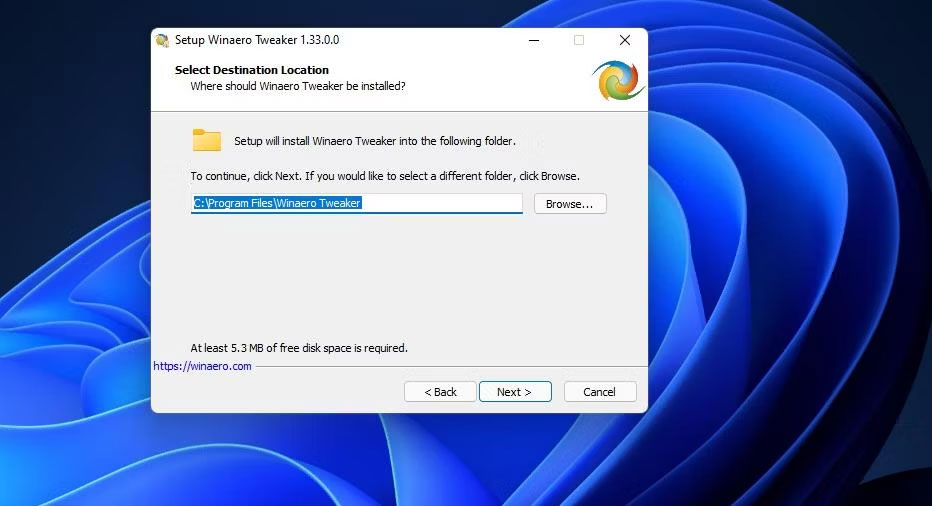
<p style="text-align: justify;">10. Nhấp vào&nbsp;<strong>Browse</strong>, chọn thư mục cài đặt và nhấn nút&nbsp;<strong>OK.</strong></p>

<figure>
<div style="text-align: justify;"><img alt="Cửa sổ Setup Winaero Tweaker" data-i="18" data-src="https://st.quantrimang.com/photos/image/2023/11/01/mo-applet-control-panel-windows-firewall-19.jpg" data-was-processed="true" height="506" src="https://st.quantrimang.com/photos/image/2023/11/01/mo-applet-control-panel-windows-firewall-19.jpg" width="932" /></div>

<figcaption>
<div style="text-align: justify;">Cửa sổ Setup Winaero Tweaker</div>
</figcaption>
</figure>

<p style="text-align: justify;">11. Sau đó nhấn nút&nbsp;<strong>Next</strong>&nbsp;vài lần nữa để đến tùy chọn&nbsp;<strong>Install</strong>. Bấm vào nút&nbsp;<strong>Install</strong>&nbsp;để hoàn tất.</p>

<p style="text-align: justify;">12. Mở cửa sổ Winaero Tweaker.</p>

<p style="text-align: justify;">13. Nhấp đúp vào danh mục&nbsp;<strong>Context Menu</strong>&nbsp;để mở rộng nó.</p>

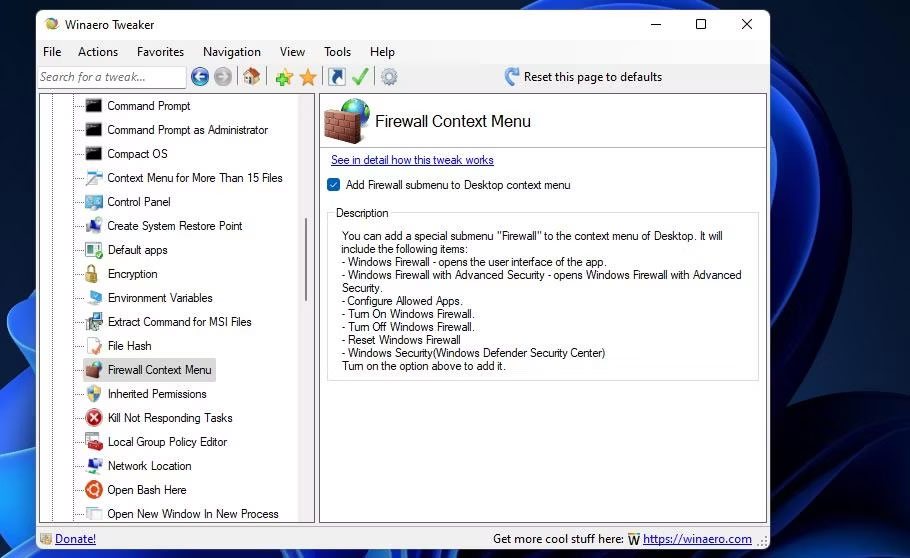
<p style="text-align: justify;">14. Sau đó chọn tùy chọn&nbsp;<strong>Firewall Context Menu</strong>&nbsp;của Winaero Tweaker được hiển thị ngay bên dưới.</p>

<figure>
<div style="text-align: justify;"><img alt="Tùy chọn Firewall Context Menu" data-i="19" data-src="https://st.quantrimang.com/photos/image/2023/11/01/mo-applet-control-panel-windows-firewall-20.jpg" data-was-processed="true" height="558" src="https://st.quantrimang.com/photos/image/2023/11/01/mo-applet-control-panel-windows-firewall-20.jpg" width="910" /></div>

<figcaption>
<div style="text-align: justify;">Tùy chọn Firewall Context Menu</div>
</figcaption>
</figure>

<p style="text-align: justify;">15. Chọn hộp kiểm&nbsp;<strong>Add Firewall submenu to Desktop context menu</strong>.</p>

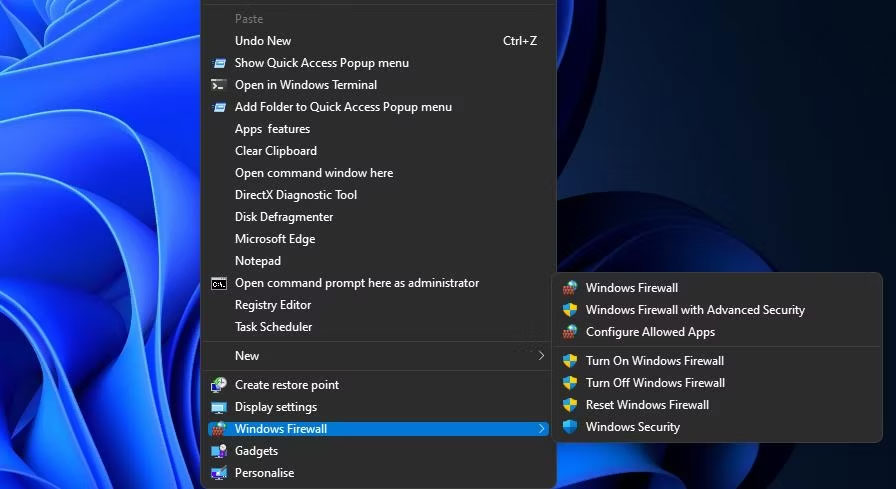
<p style="text-align: justify;">Bây giờ, hãy đóng Winaero Tweaker. Nhấp chuột phải vào desktop và chọn&nbsp;<strong>Show more options</strong>&nbsp;để xem menu ngữ cảnh cổ điển. Di chuyển con trỏ qua menu con&nbsp;<strong>Windows Firewall</strong>&nbsp;ở đó. Sau đó nhấp vào&nbsp;<strong>Windows Firewall</strong>&nbsp;để hiển thị applet Control Panel đó.</p>

<figure>
<div style="text-align: justify;"><img alt="Tùy chọn Windows Firewall " data-i="20" data-src="https://st.quantrimang.com/photos/image/2023/11/01/mo-applet-control-panel-windows-firewall-21.jpg" data-was-processed="true" height="489" src="https://st.quantrimang.com/photos/image/2023/11/01/mo-applet-control-panel-windows-firewall-21.jpg" width="896" /></div>

<figcaption>
<div style="text-align: justify;">Tùy chọn Windows Firewall</div>
</figcaption>
</figure>

<p style="text-align: justify;">Bạn sẽ nhận thấy menu con&nbsp;<strong>Windows Firewall</strong>&nbsp;bao gồm nhiều shortcut. Ở đó, bạn có thể chọn mở Windows Defender Firewall với Advanced Security. Menu con đó cũng bao gồm các tùy chọn để bật/tắt tường lửa và reset nó.</p>

<div style="text-align: justify;">&nbsp;</div>
		</div>
				<div id="author">
						<p>
				<strong>Nguồn tin:</strong>
				Quantrimang.com
			</p>
		</div>
	</div>
	<div id="footer" class="clearfix">
		<div id="url">
			<strong>URL của bản tin này: </strong><a href="https://www.nguoicodonvn2008.info/vi/news/savefile/kien-thuc-may-tinh/10-cach-mo-applet-control-panel-windows-firewall-trong-windows-11-7711.html" title="10 cách mở applet Control Panel Windows Firewall trong Windows 11">https://www.nguoicodonvn2008.info/vi/news/savefile/kien-thuc-may-tinh/10-cach-mo-applet-control-panel-windows-firewall-trong-windows-11-7711.html</a>

		</div>
		<div class="clear"></div>
		<div class="copyright">
			&copy; .&#x3A; Nguoicodonvn2008.info - Cõi lòng người cô đơn &#x3A;.
		</div>
		<div id="contact">
			<a href="mailto:admin@nguoicodonvn2008.info">admin@nguoicodonvn2008.info</a>
		</div>
	</div>
</div>
        <div id="timeoutsess" class="chromeframe">
            Bạn đã không sử dụng Site, <a onclick="timeoutsesscancel();" href="https://nguoicodonvn2008.info/#">Bấm vào đây để duy trì trạng thái đăng nhập</a>. Thời gian chờ: <span id="secField"> 60 </span> giây
        </div>
        <div id="openidResult" class="nv-alert" style="display:none"></div>
        <div id="openidBt" data-result="" data-redirect=""></div>
		</script>
		<div class="car-top">
  <span><img src="https://nguoicodonvn2008.info/themes/default/images/car.png" alt=""></span>
</div>
<script src="https://nguoicodonvn2008.info/assets/js/jquery/jquery.min.js"></script>
<script>var nv_base_siteurl="/",nv_lang_data="vi",nv_lang_interface="vi",nv_name_variable="nv",nv_fc_variable="op",nv_lang_variable="language",nv_module_name="news",nv_func_name="savefile",nv_is_user=0, nv_my_ofs=-4,nv_my_abbr="EDT",nv_cookie_prefix="nv4c_e856T",nv_check_pass_mstime=1738000,nv_area_admin=0,nv_safemode=0,theme_responsive=0,nv_recaptcha_ver=2,nv_recaptcha_sitekey="",nv_recaptcha_type="image",XSSsanitize=1;</script>
<script src="https://nguoicodonvn2008.info/assets/js/language/vi.js"></script>
<script src="https://nguoicodonvn2008.info/assets/js/DOMPurify/purify3.js"></script>
<script src="https://nguoicodonvn2008.info/assets/js/global.js"></script>
<script src="https://nguoicodonvn2008.info/assets/js/site.js"></script>
<script src="https://nguoicodonvn2008.info/themes/default/js/news.js"></script>
<script src="https://nguoicodonvn2008.info/themes/default/js/main.js"></script>
<script src="https://nguoicodonvn2008.info/themes/default/js/custom.js"></script>
<script type="application/ld+json">
        {
            "@context": "https://schema.org",
            "@type": "Organization",
            "url": "https://nguoicodonvn2008.info",
            "logo": "https://nguoicodonvn2008.info/uploads/angel.gif"
        }
        </script>
<script src="https://nguoicodonvn2008.info/themes/default/js/bootstrap.min.js"></script>
<script type="text/javascript">
var $scrolltop = $('.car-top');
$scrolltop.on('click', function () {
    $('html,body').animate({
        scrollTop: 0
    }, 800);
    $(this).addClass("car-run");
    setTimeout(function(){ $scrolltop.removeClass('car-run');}, 1000);
    return false;
});
$(window).on('scroll', function ()
{ 
    if($(window).scrollTop() >= 200)
    {
        $scrolltop.addClass("show");
        $scrolltop.addClass("car-down");
    }
    else
    {
       $scrolltop.removeClass("show");
       setTimeout(function(){ $scrolltop.removeClass('car-down');}, 300);
    }
});
</script>
</body>
</html>